Buttons in a chat widget
A chat widget can also ask something: Approve or Reject, or a form to fill in. Every button starts a workflow, with the widget's data and the choice. That way a manager approves a purchase request without leaving the chat. A choice can be made only once, and the agent itself can never press a button.
Open your development environment
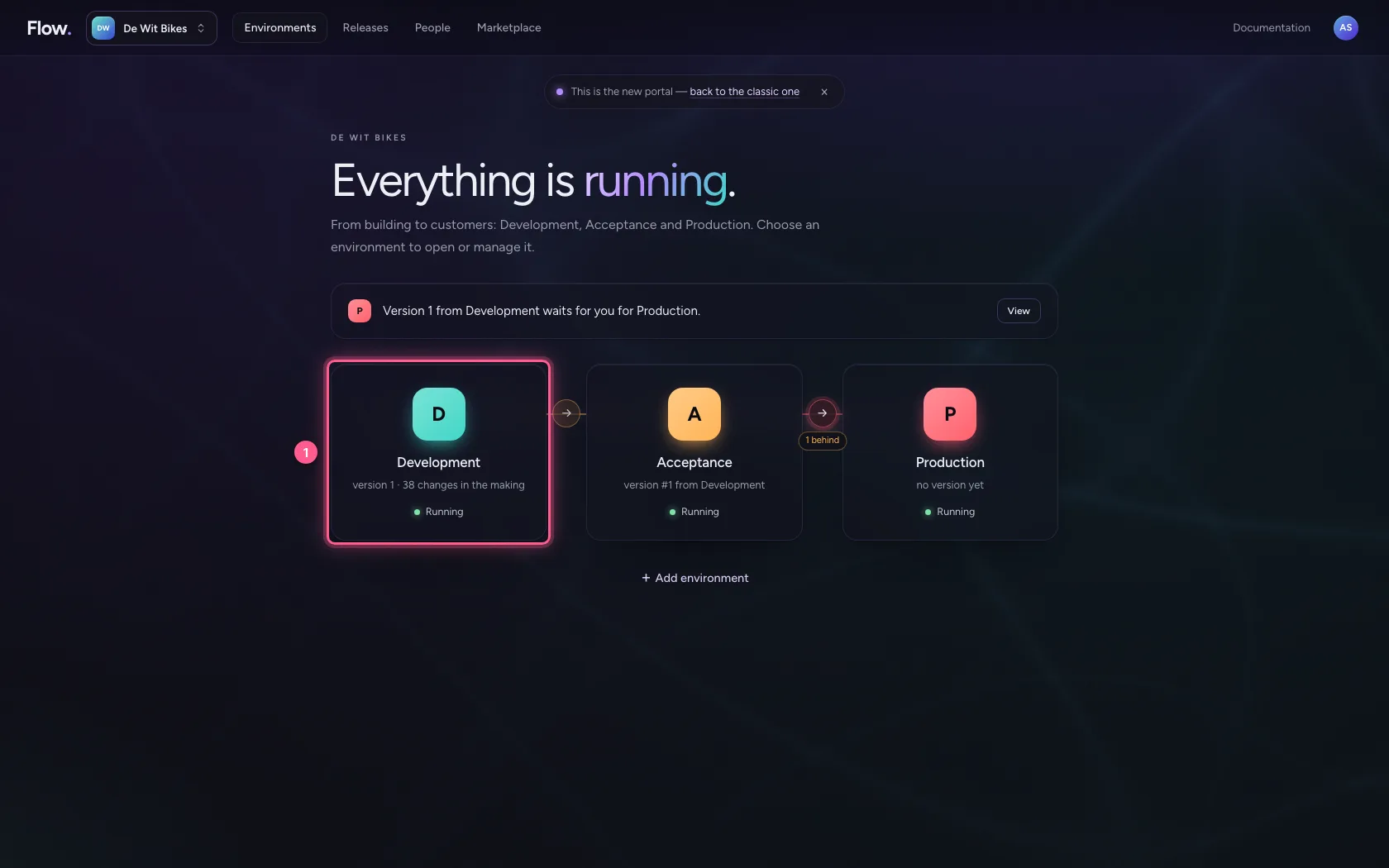
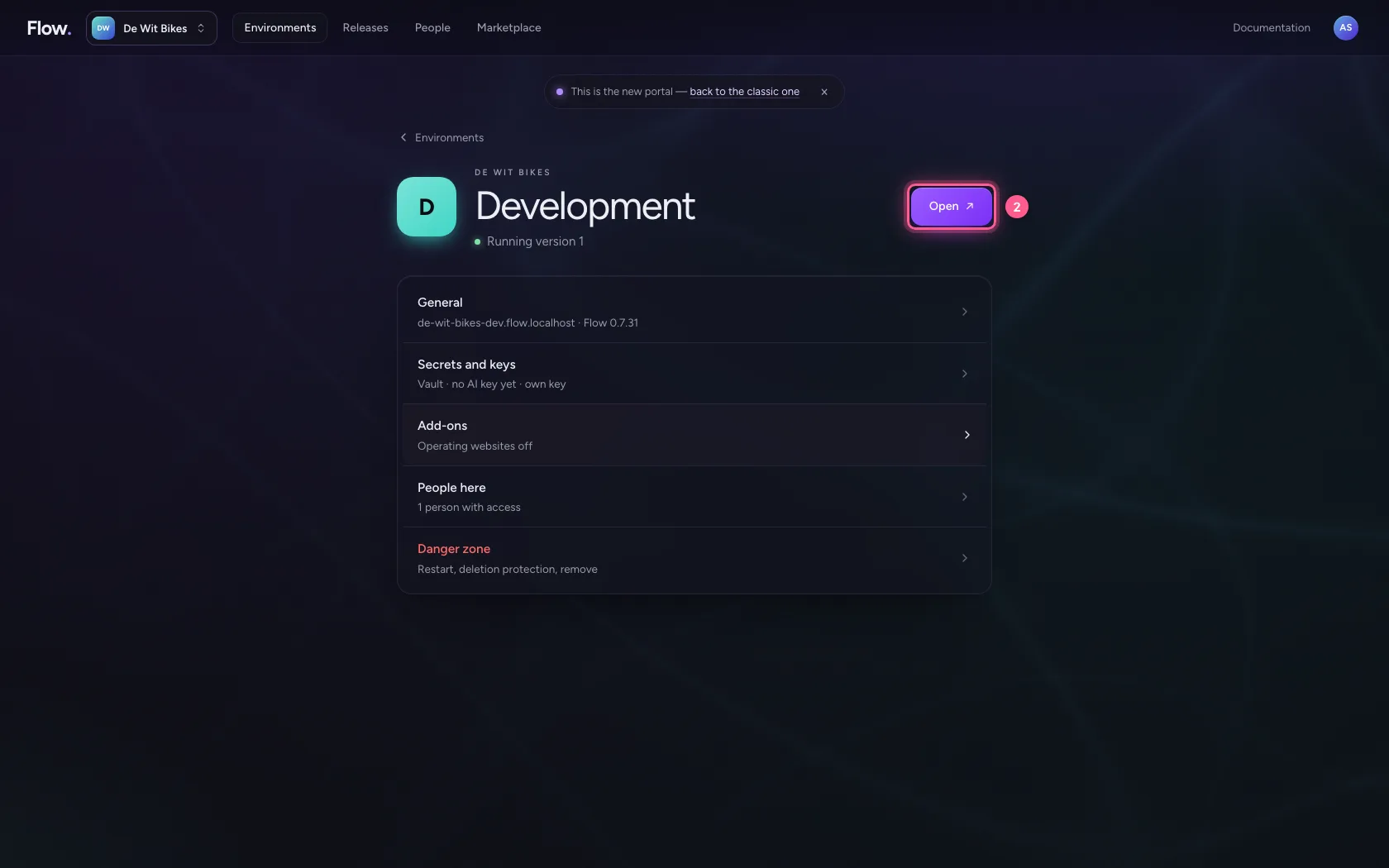
In the portal, under Environments, click Development, and there Open. Flow opens in a new tab and you are signed in straight away.
- Click Development
- Click Open ↗
Pick the Approval request example
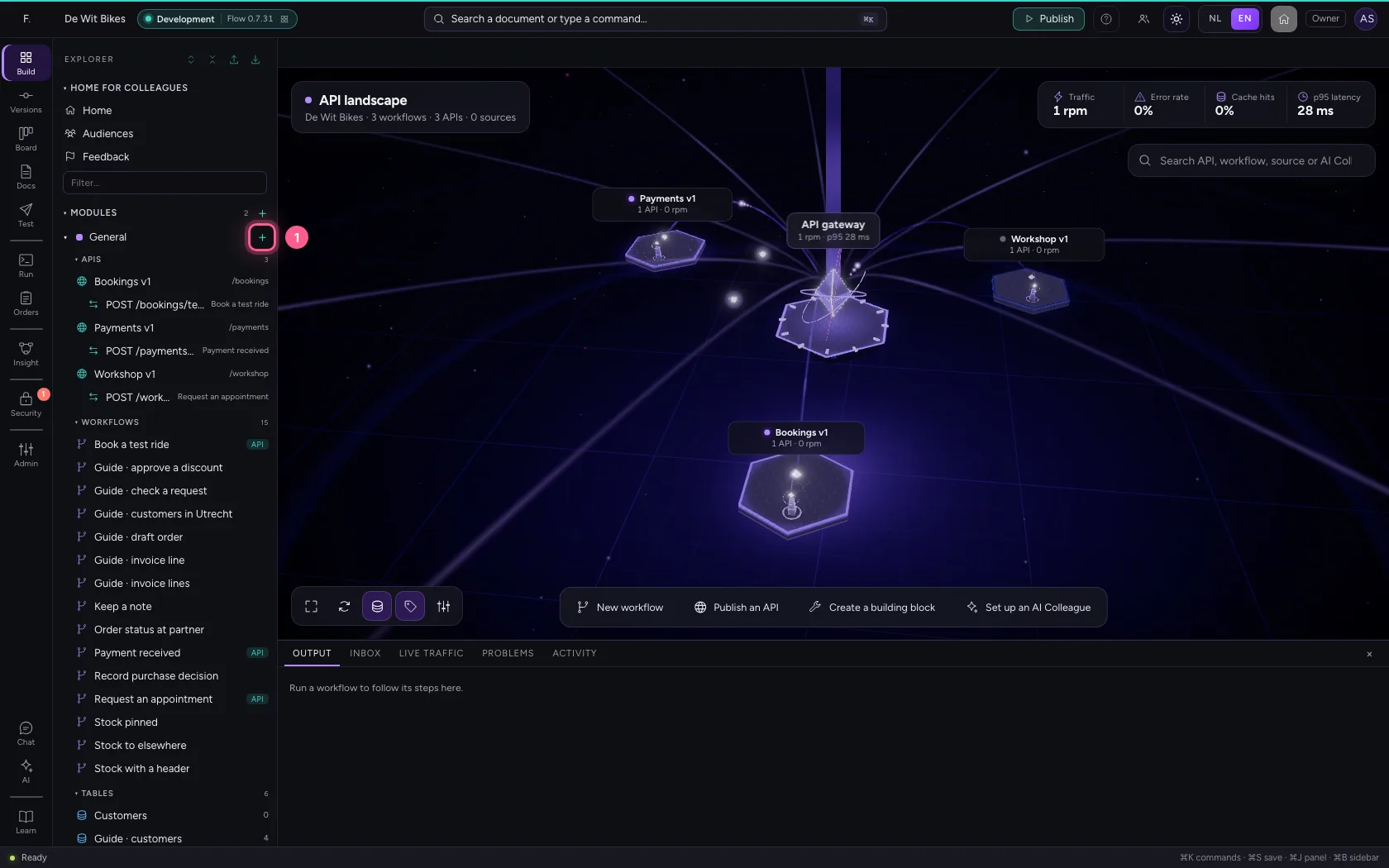
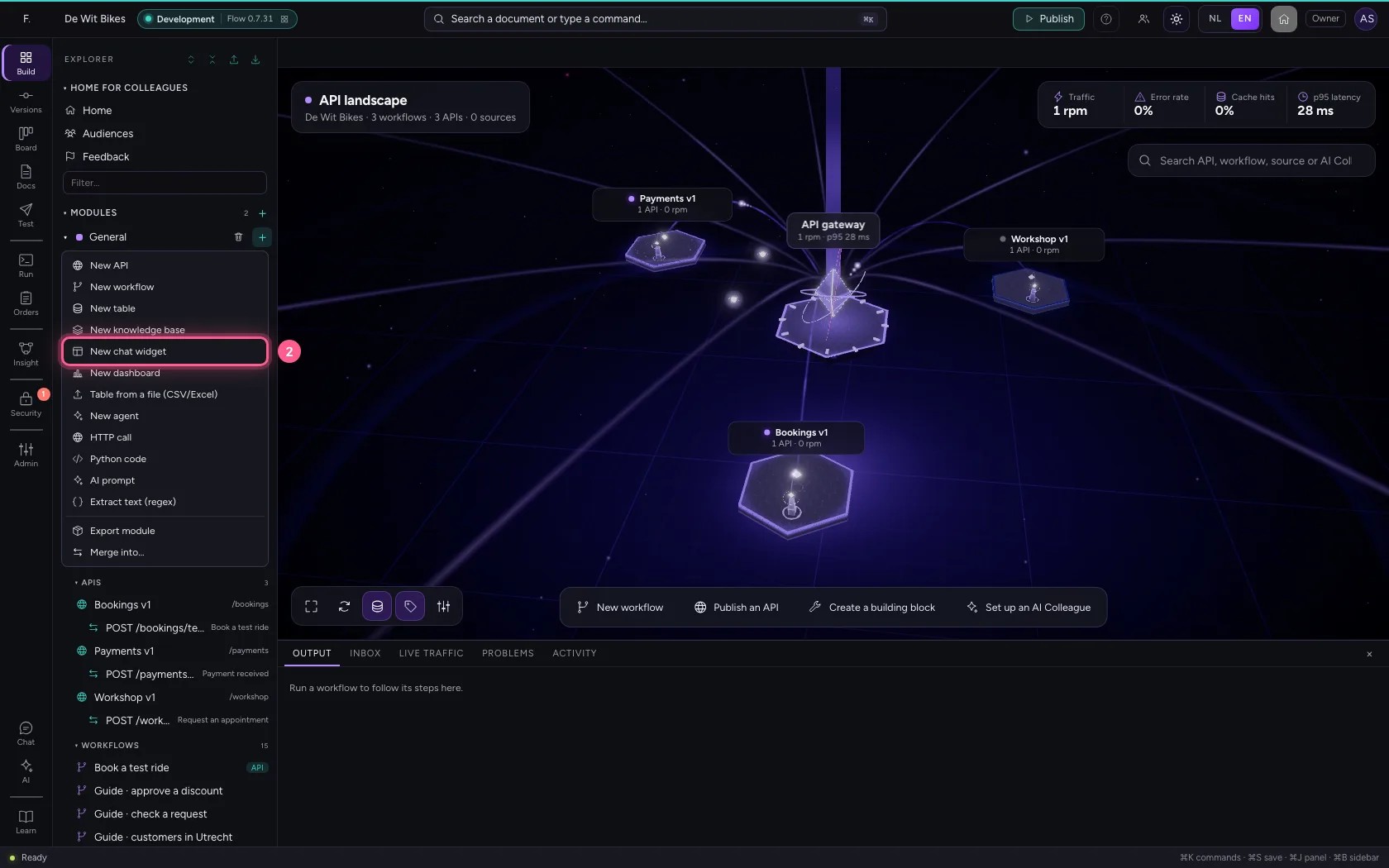
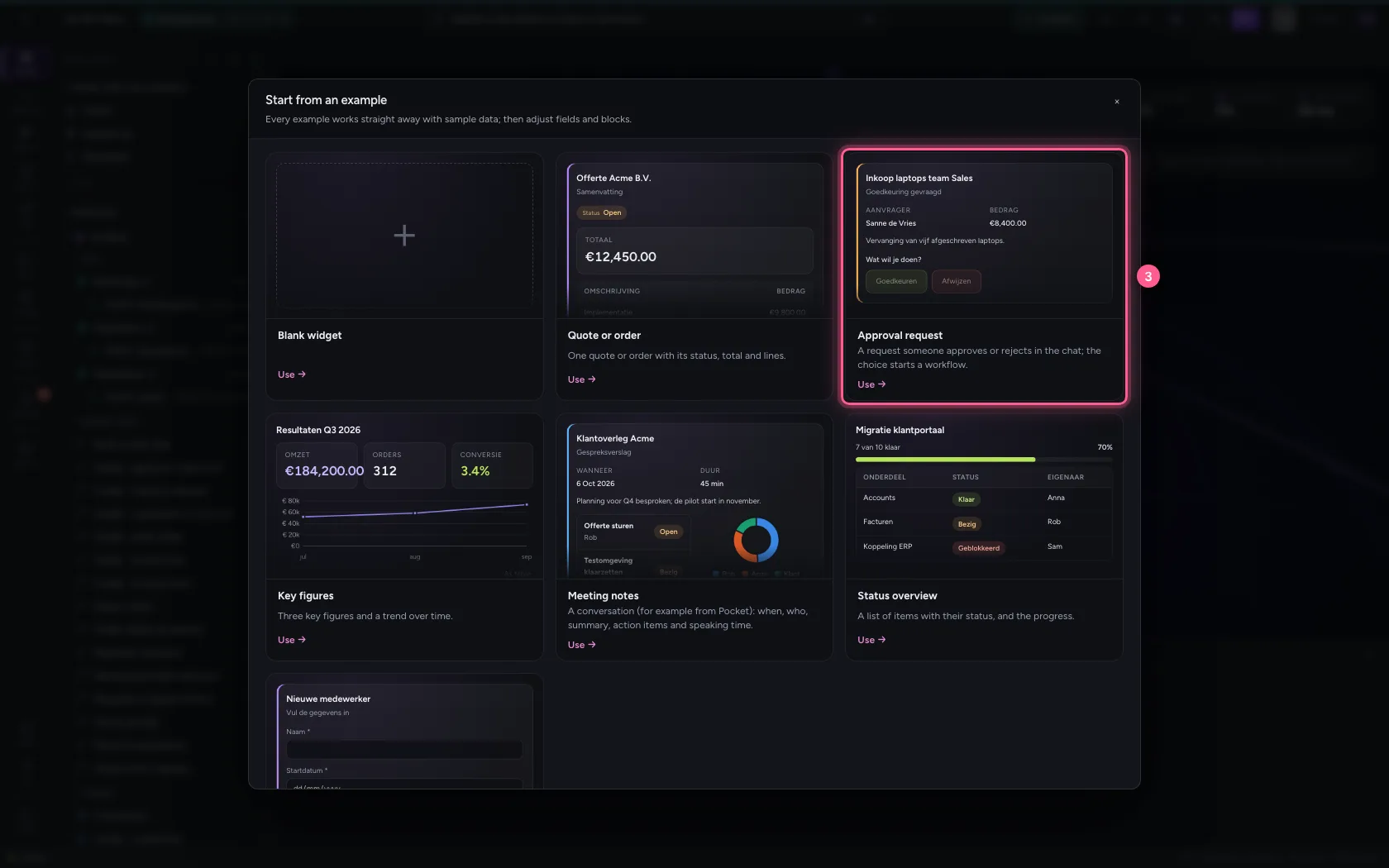
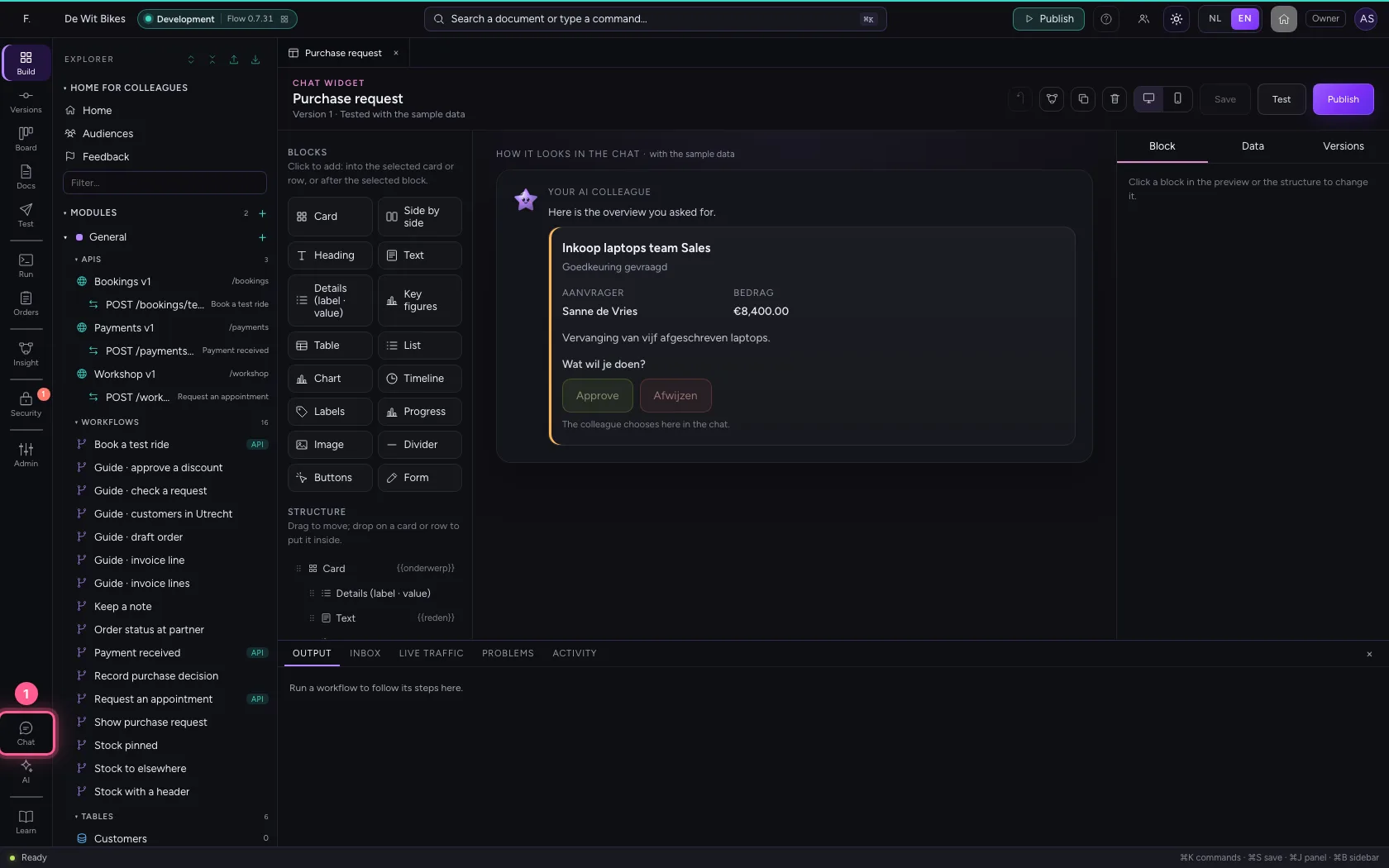
Click + next to General and choose New chat widget. Choose the Approval request: a card with the request, and below it the Buttons block with Approve and Reject. Give the widget a name.
- Click Add to General
- Click New chat widget
- Click Approval request
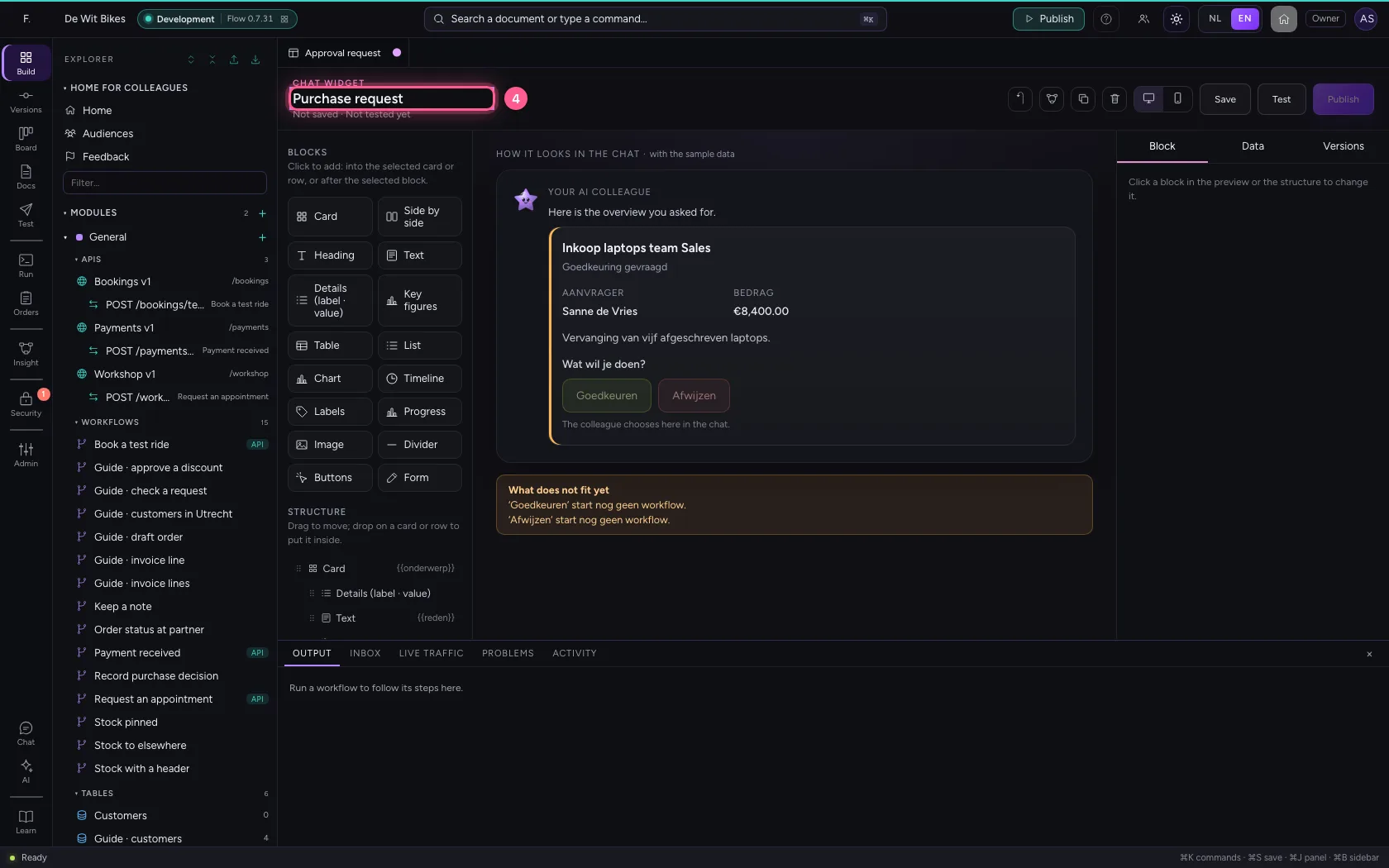
- In Widget name, type
Purchase request
Link a workflow to each button
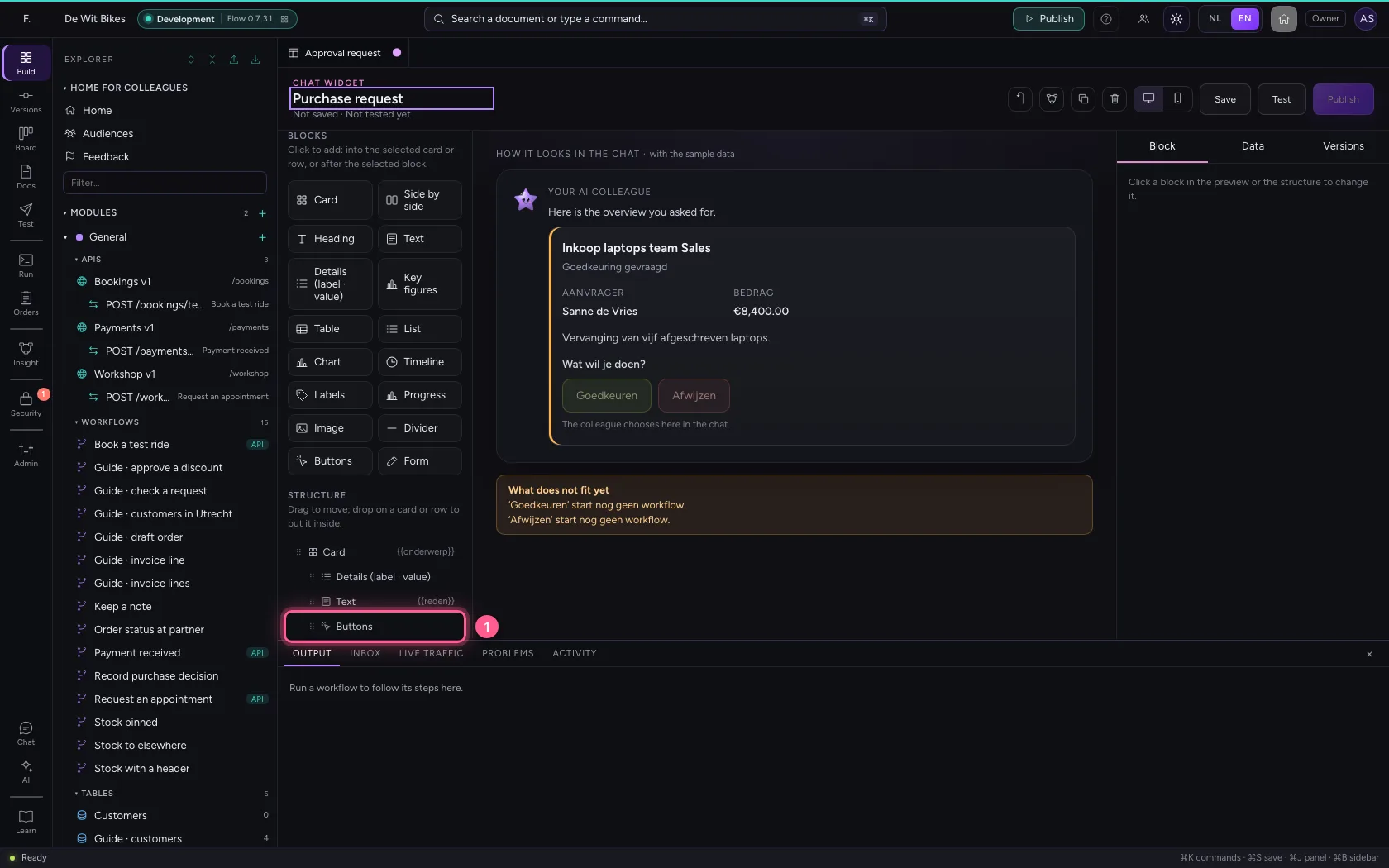
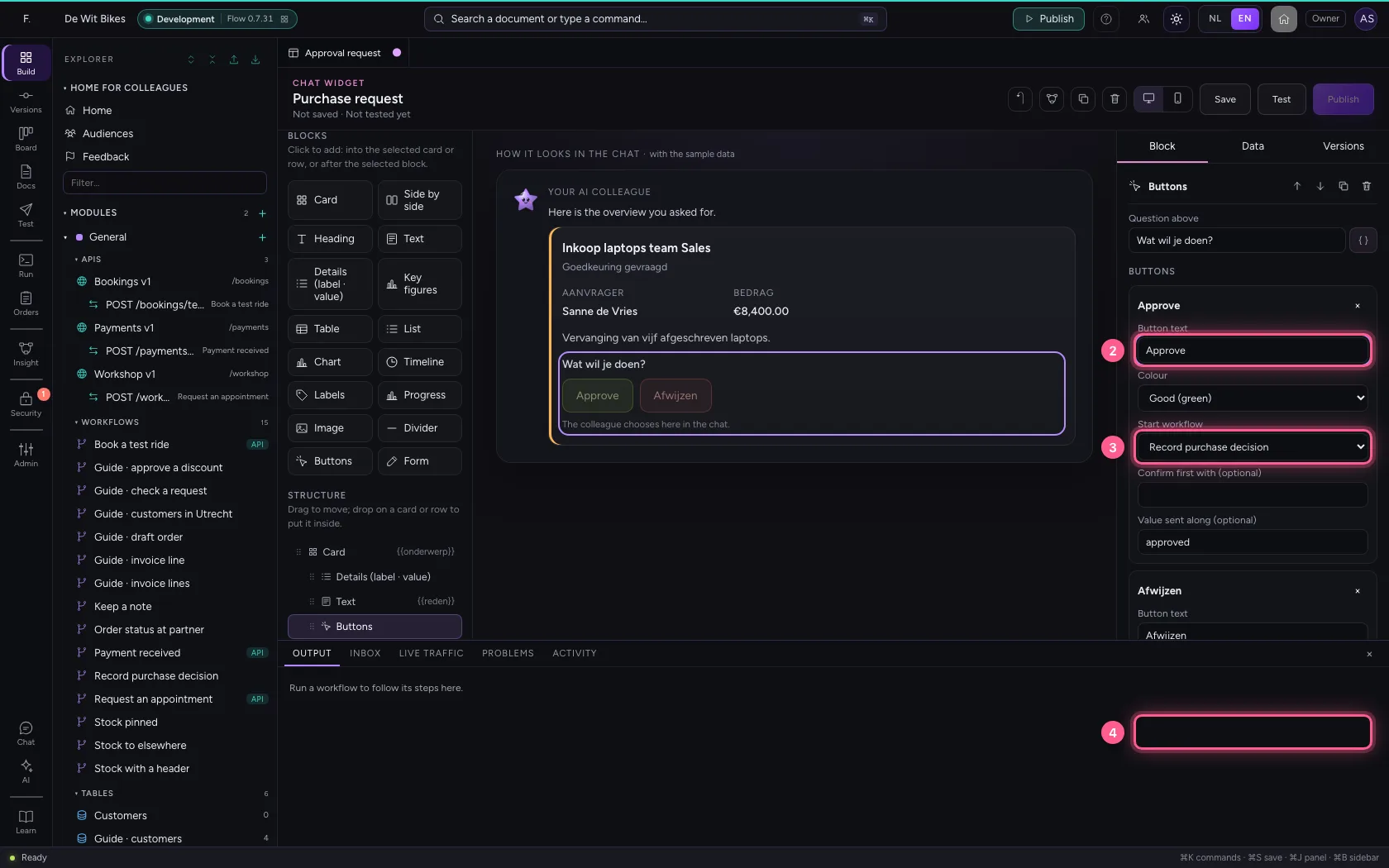
In the structure on the left, click the Buttons block. On the right you see per button the text, the colour and which workflow it starts. That workflow gets the widget's data, the choice as {{keuze}} and {{waarde}}, and who chose as {{door.naam}}. For Reject the chat asks for confirmation first.
- Click Buttons
- In Button text, type
Approve - In Start workflow, choose Record purchase decision
- In Start workflow, choose Record purchase decision
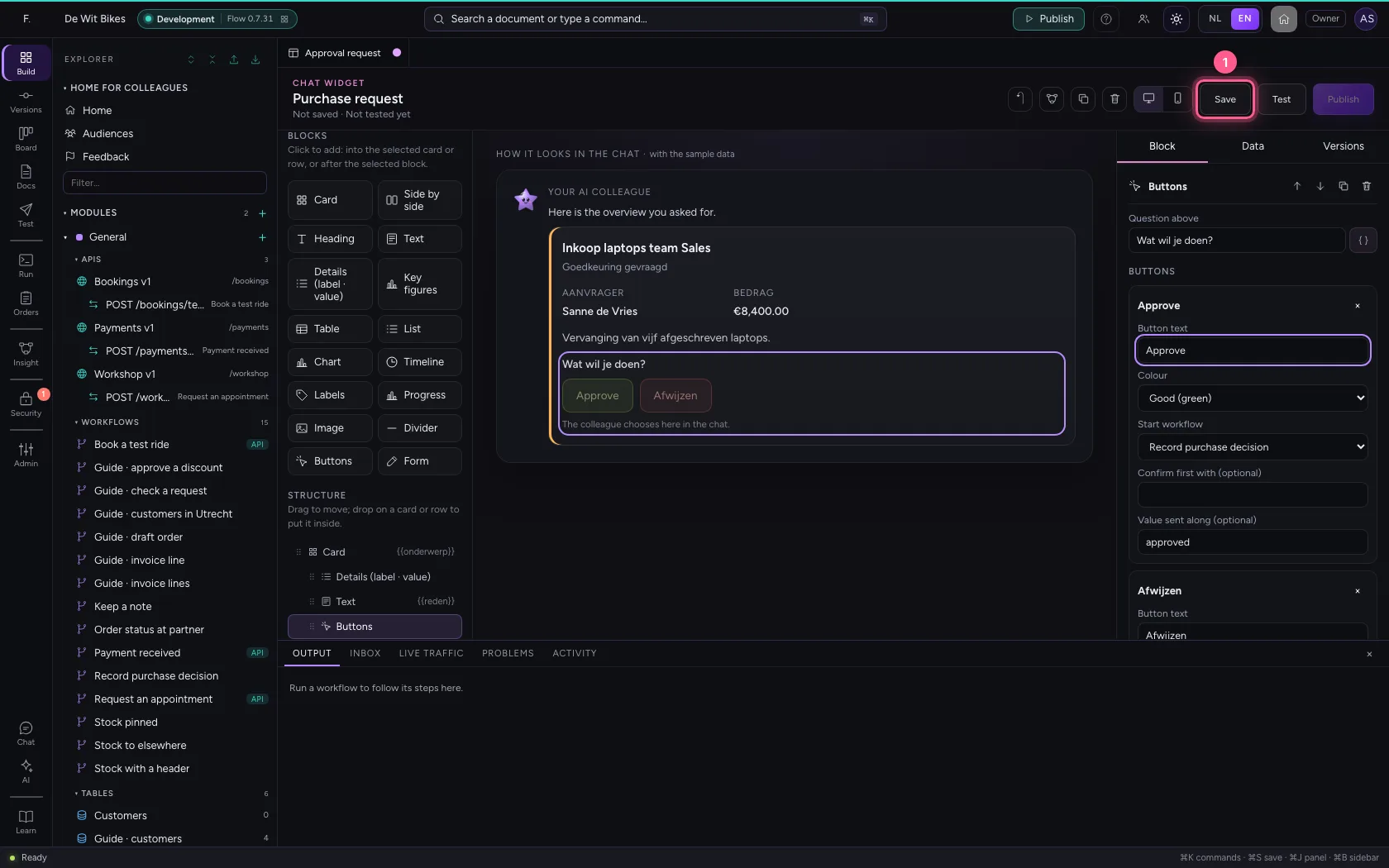
Save, test and publish
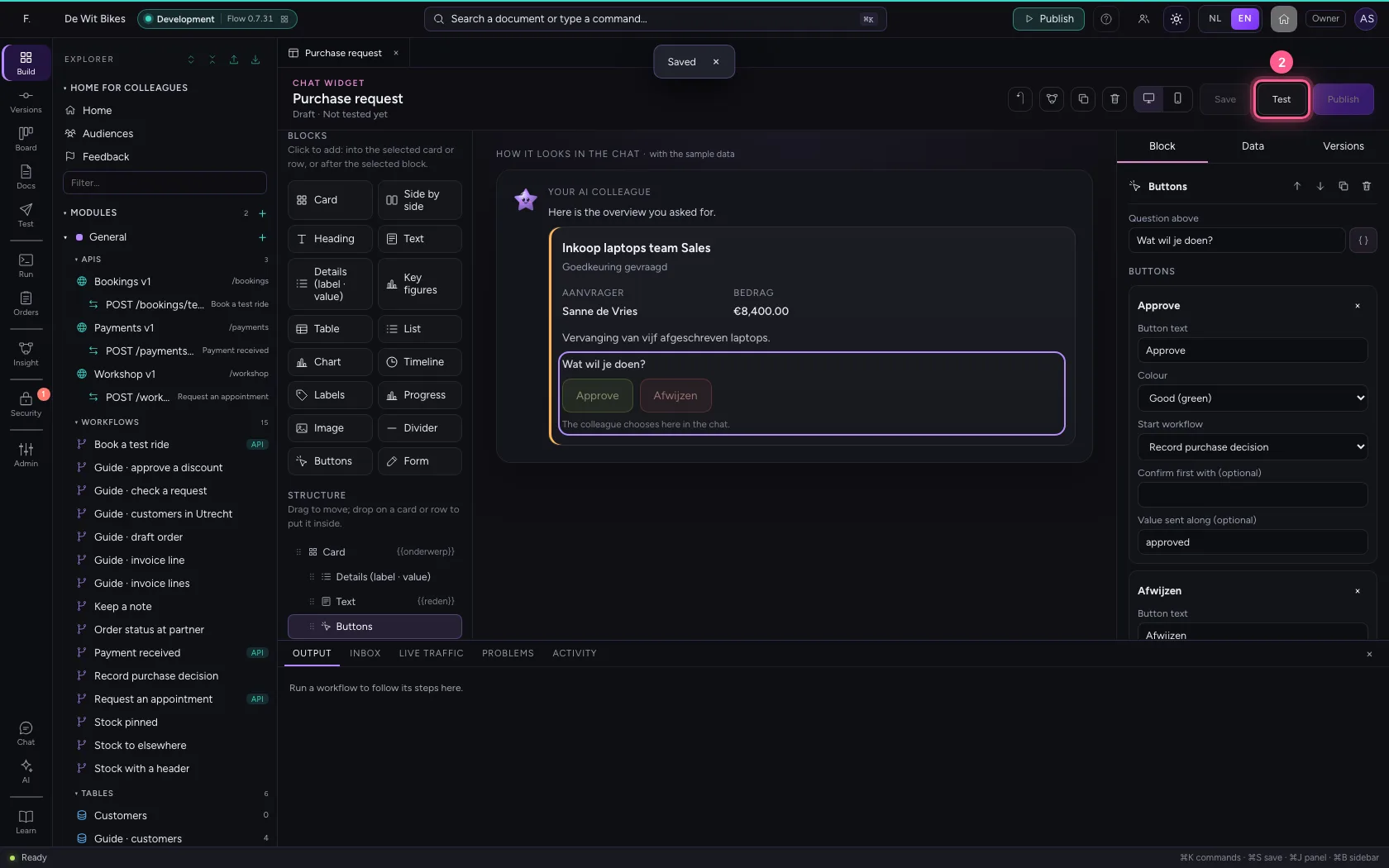
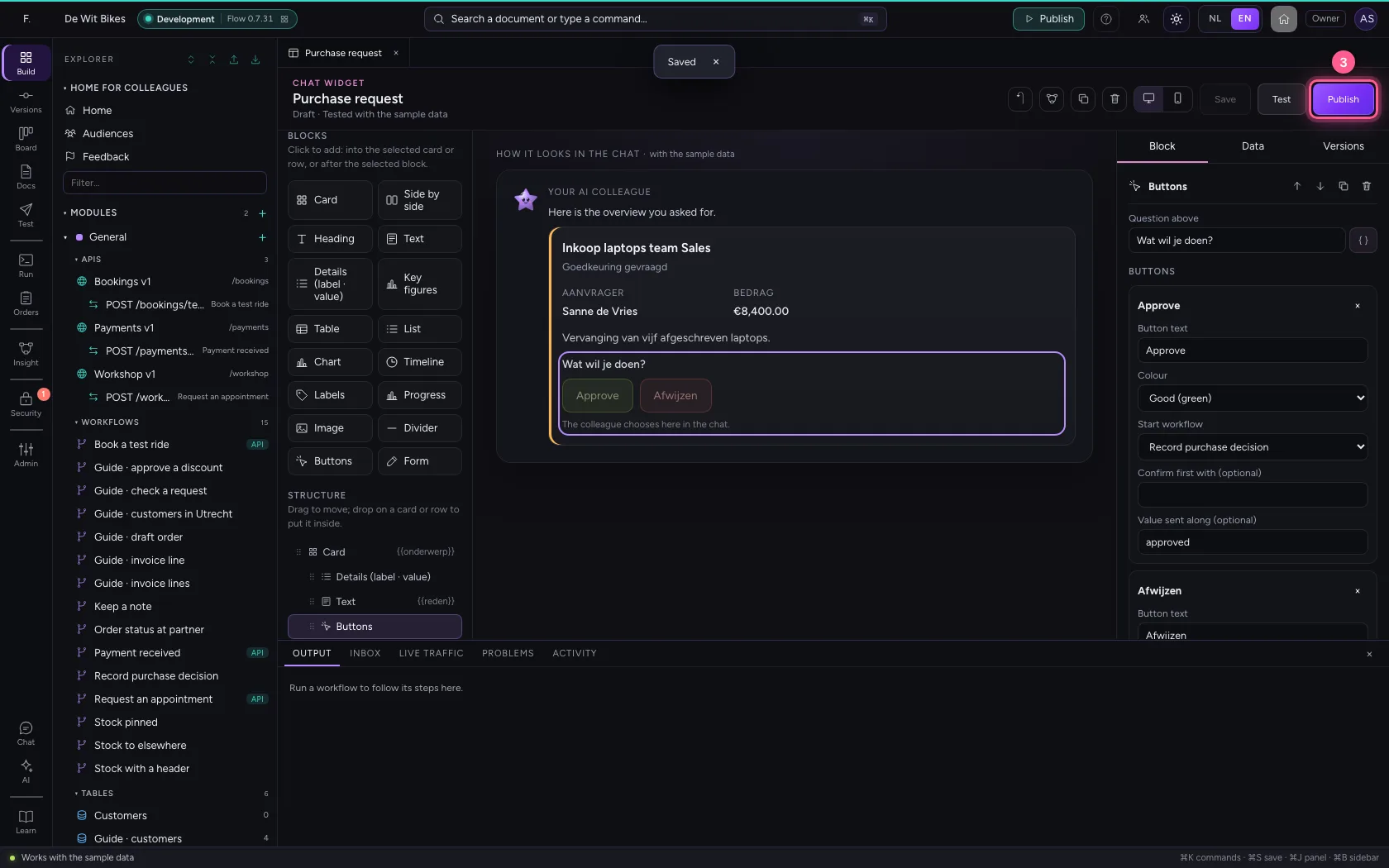
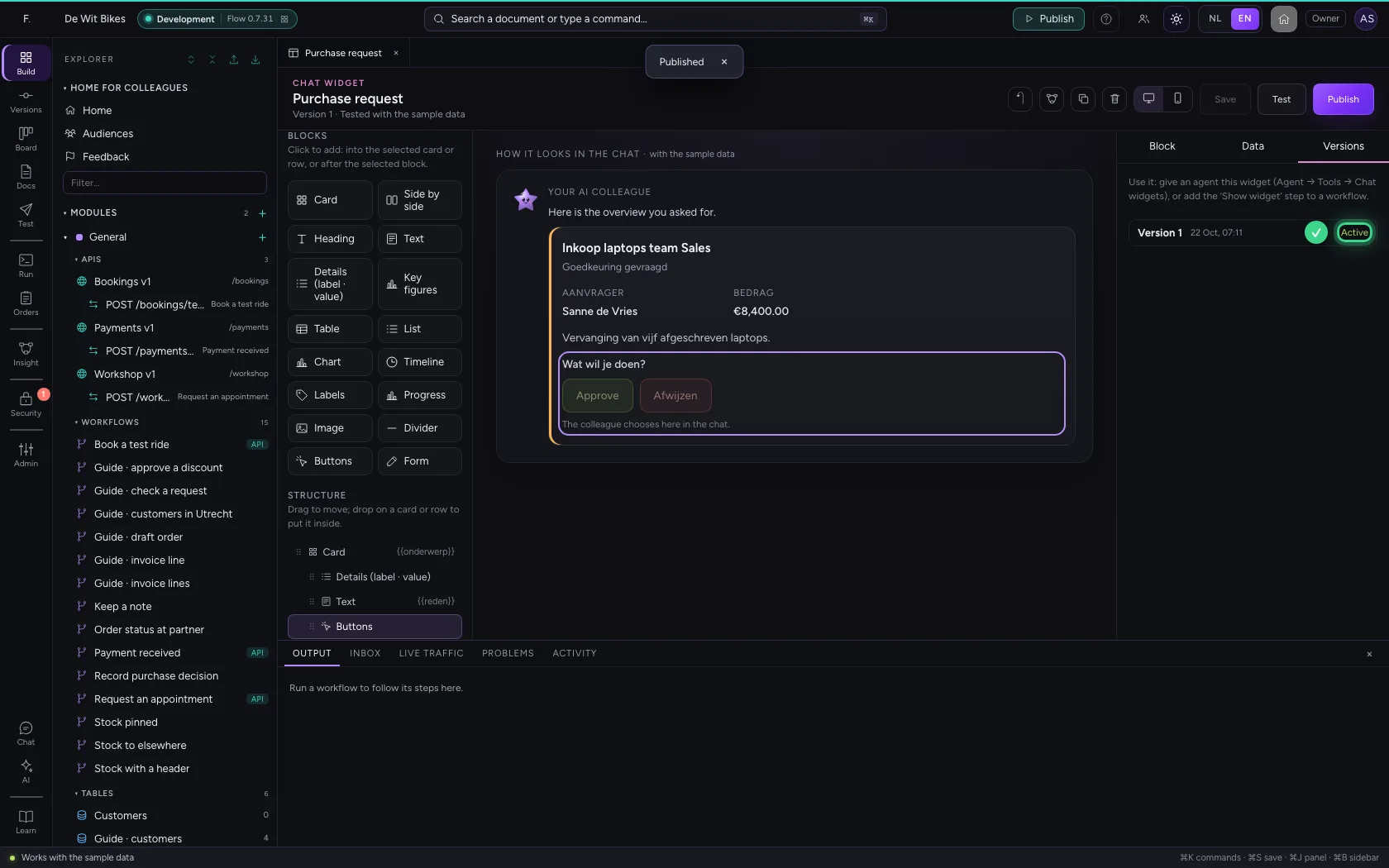
Test checks whether the sample data fits the widget; then you can publish. Agents and workflows use the published version.
- Click Save
- Click Test
- Click Publish
Ask for the request in the chat
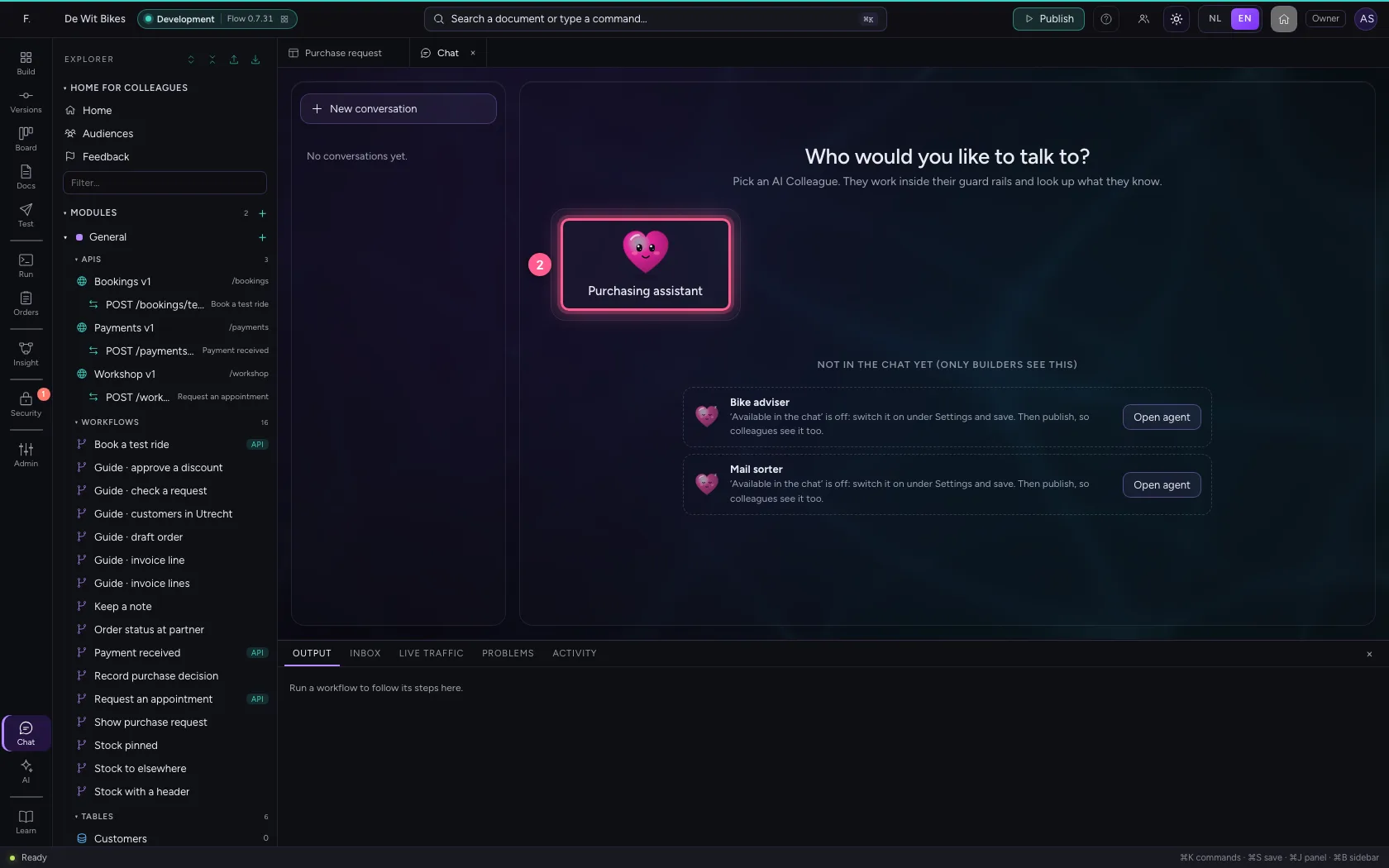
Open the chat and choose the AI Colleague that may show the widget. Ask for the open request: the agent starts its workflow, and the request appears as a widget, with the buttons below it.
- Click Chat
- Click Purchasing assistant
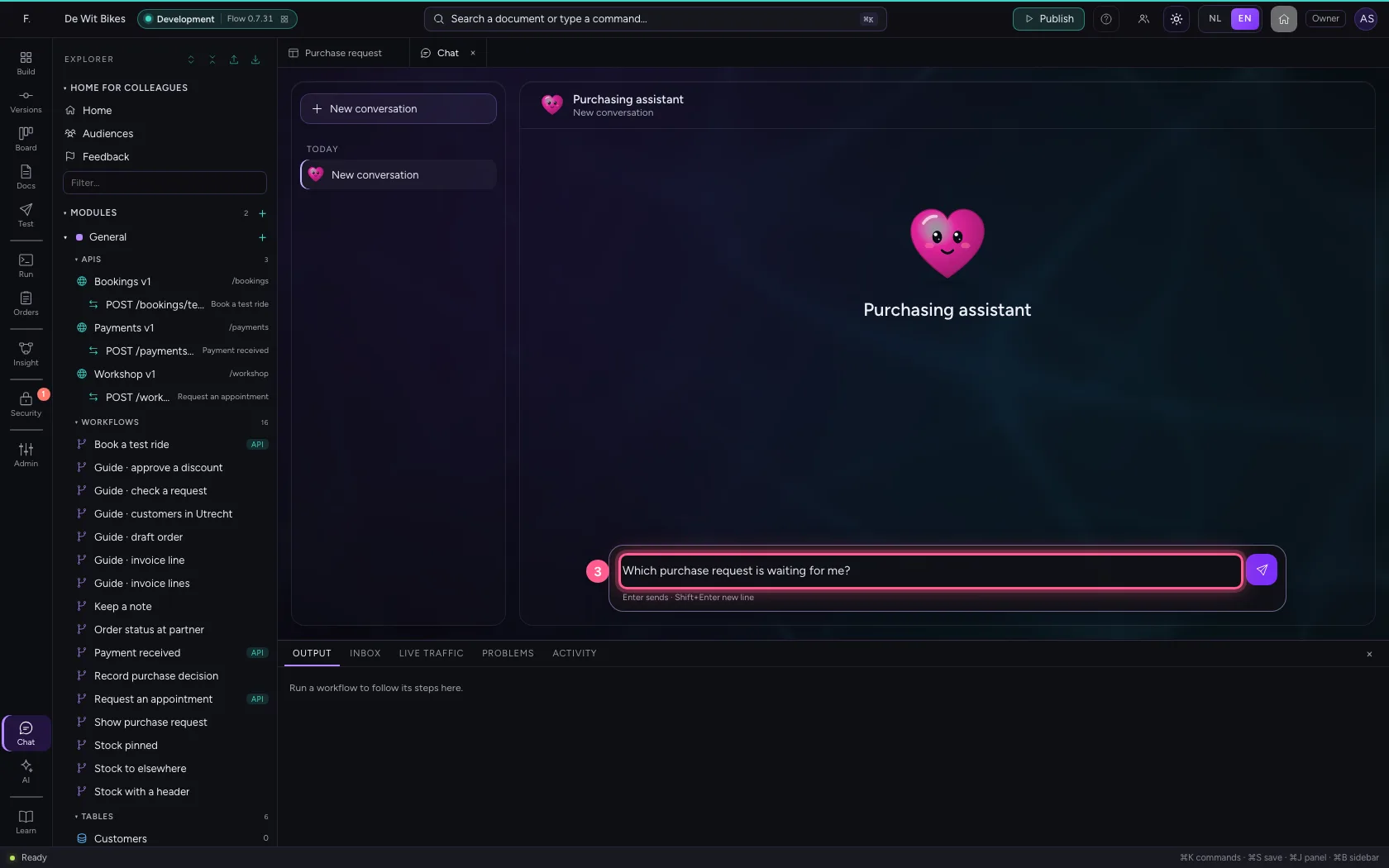
- In Ask Purchasing assistant something…, type
Which purchase request is waiting for me?
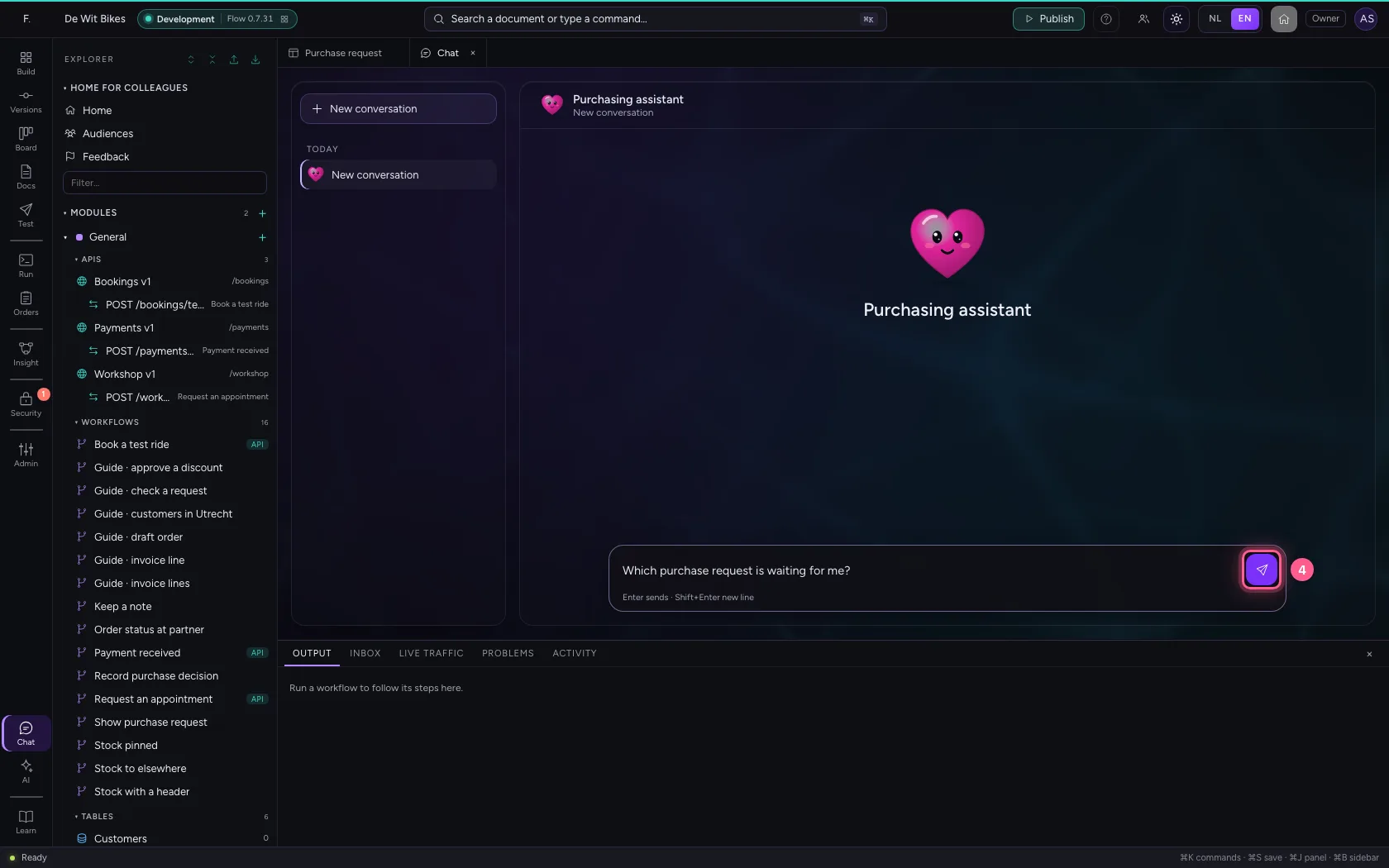
- Click Send
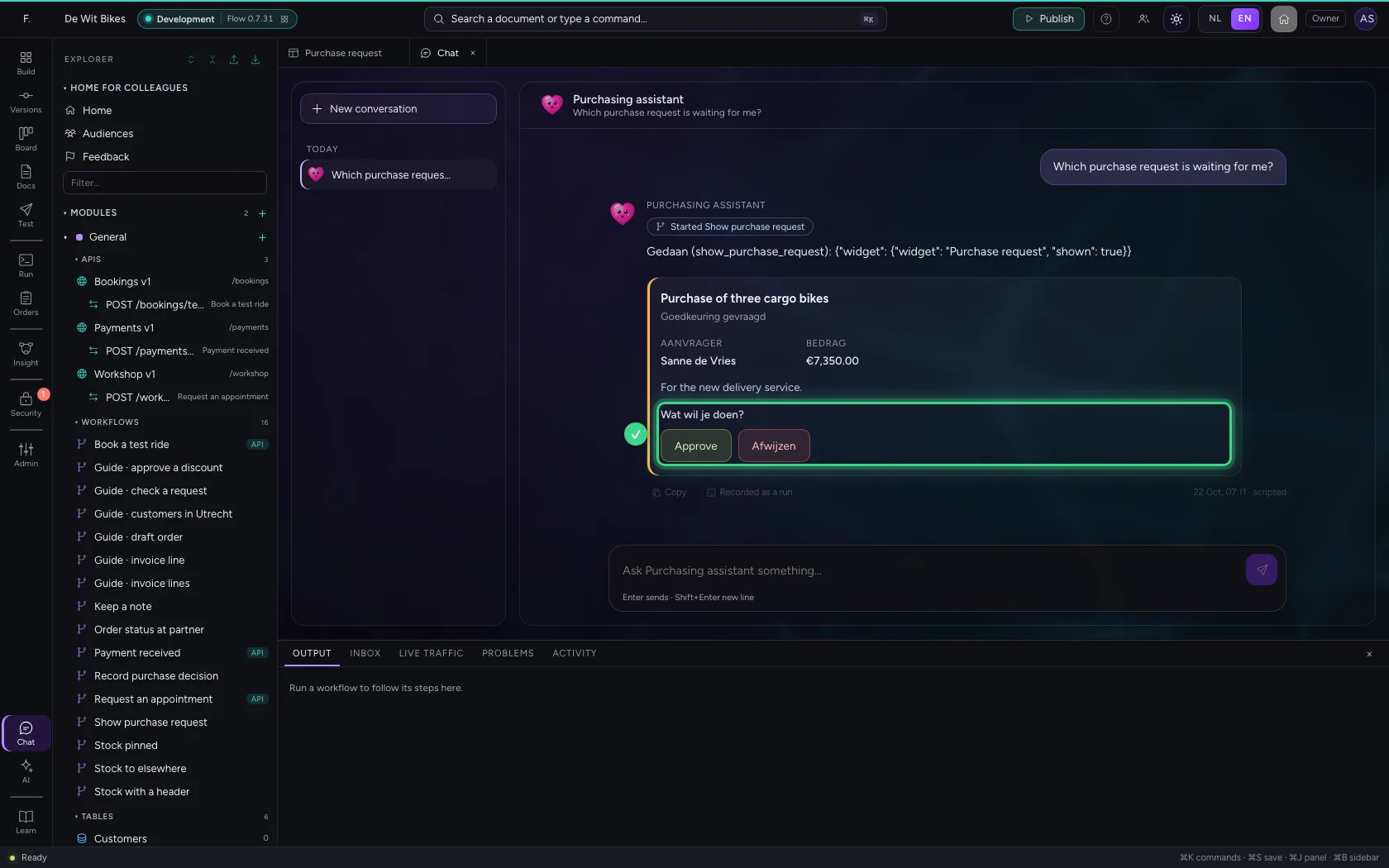
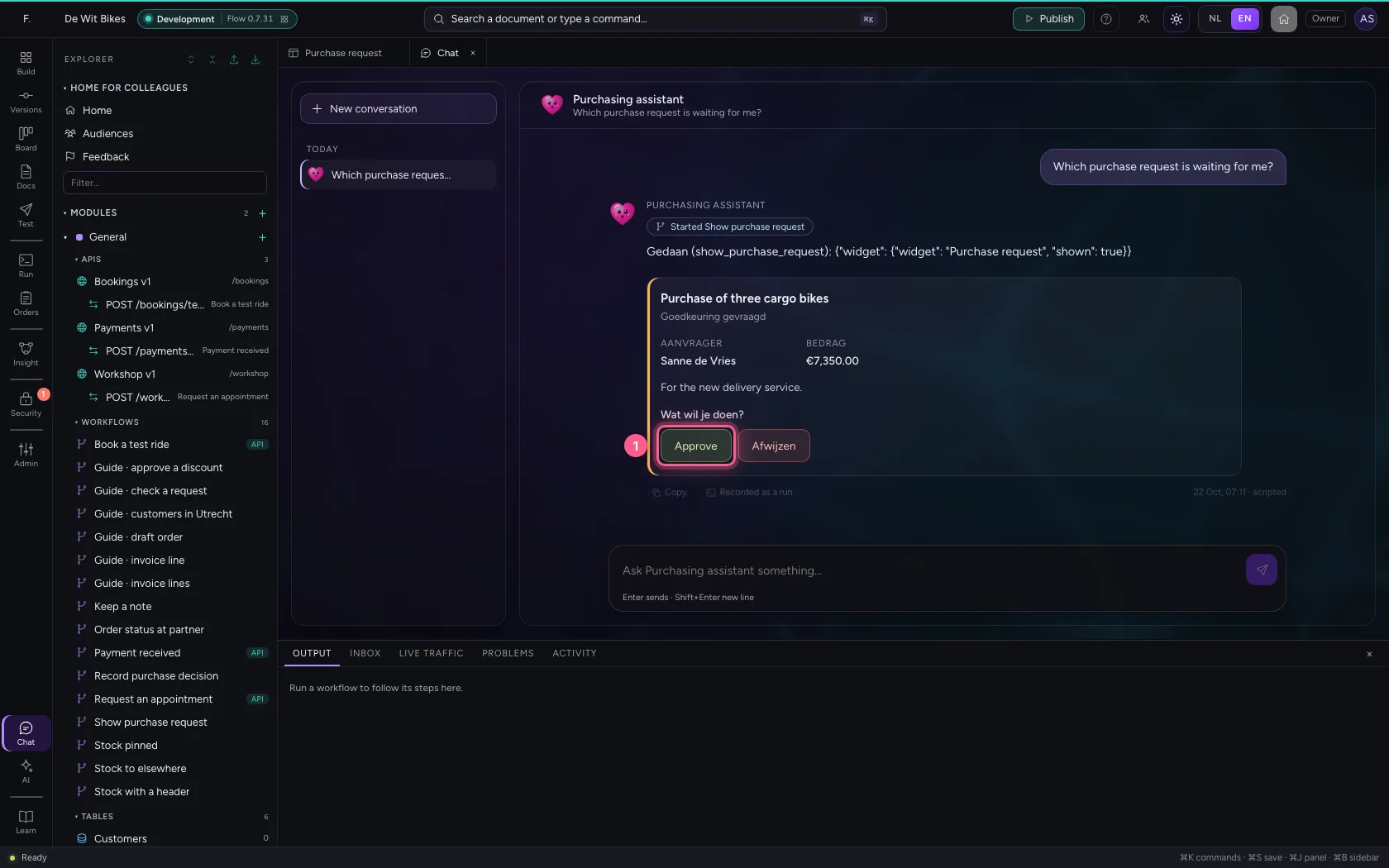
Choose Approve
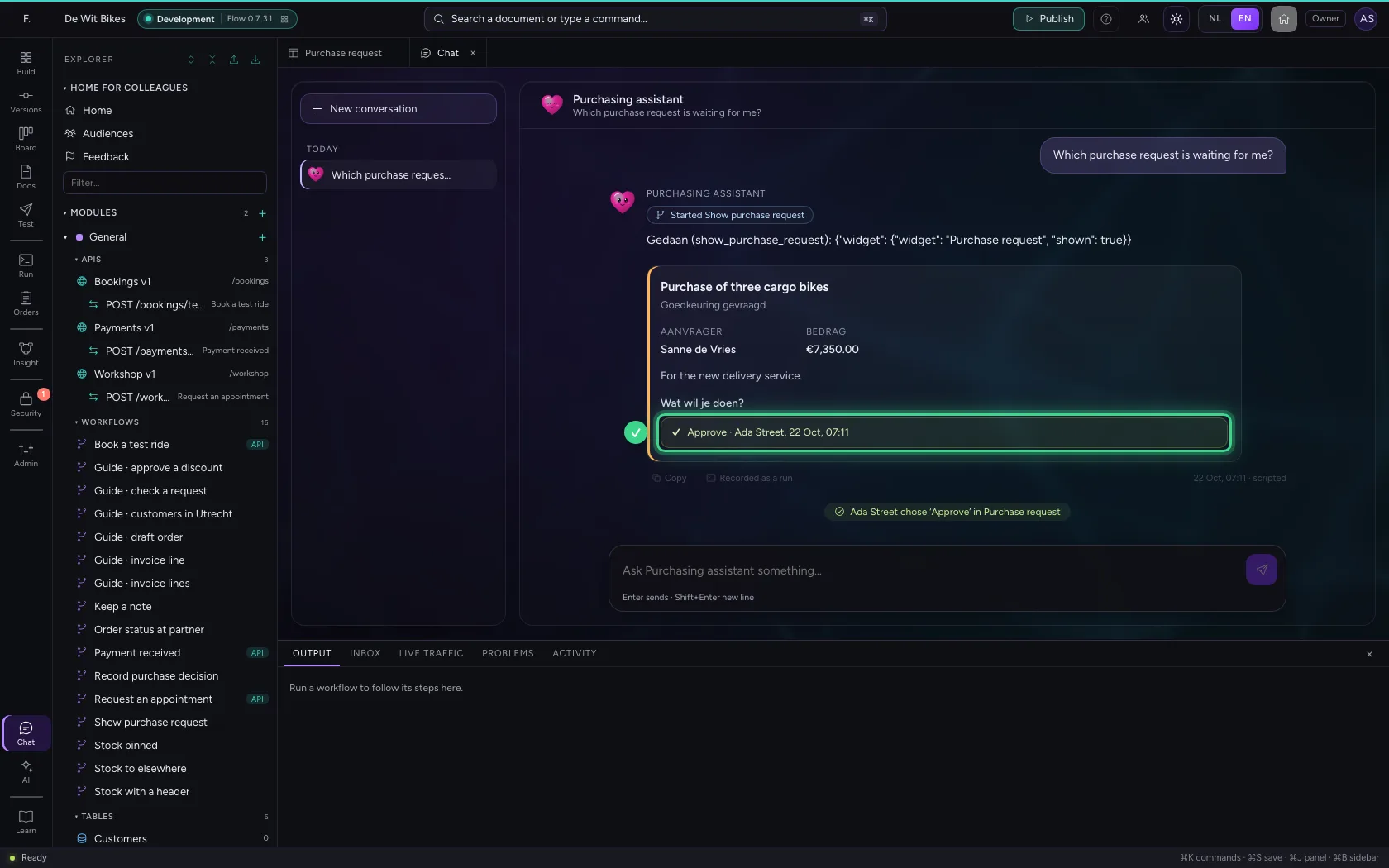
Click Approve. The workflow behind the button starts, with the request and your choice. The widget then shows what was chosen, by whom and when; choosing again is not possible. The agent now knows what you chose too.
- Click Approve
This guide was carried out step by step on 22 Oct 2026 by an automated test on Flow (version 3e563176).