Agent tool: workflow
An agent can start a workflow itself when it needs to look something up or do something. You choose which workflows it may use, say when, whether the workflow only reads or changes something, and how often per run. A workflow that changes something is only offered once the agent may change data.
Open your development environment
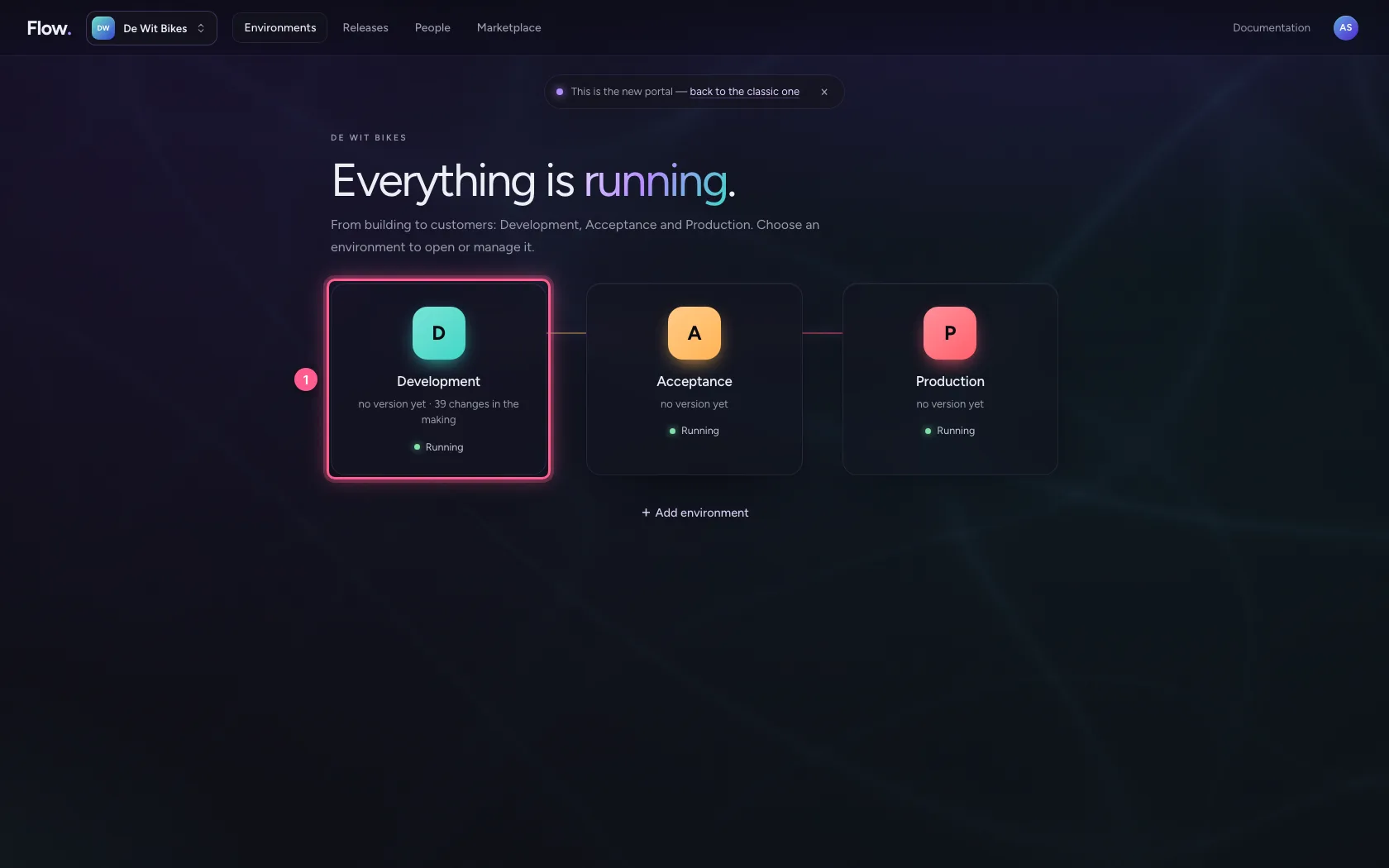
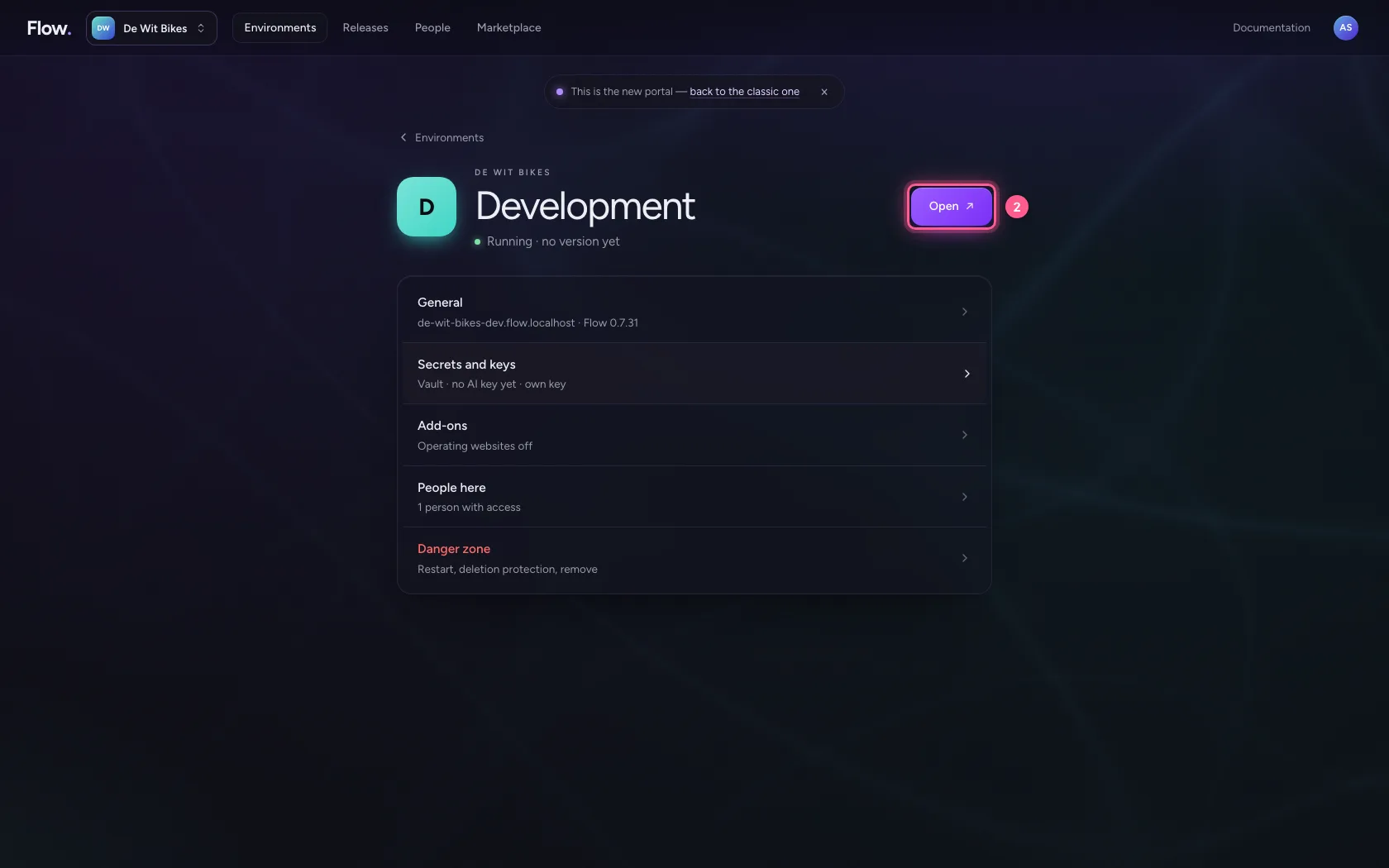
In the portal, under Environments, click Development, and there Open. Flow opens in a new tab and you are signed in straight away.
- Click Development
- Click Open ↗
Tick the workflow
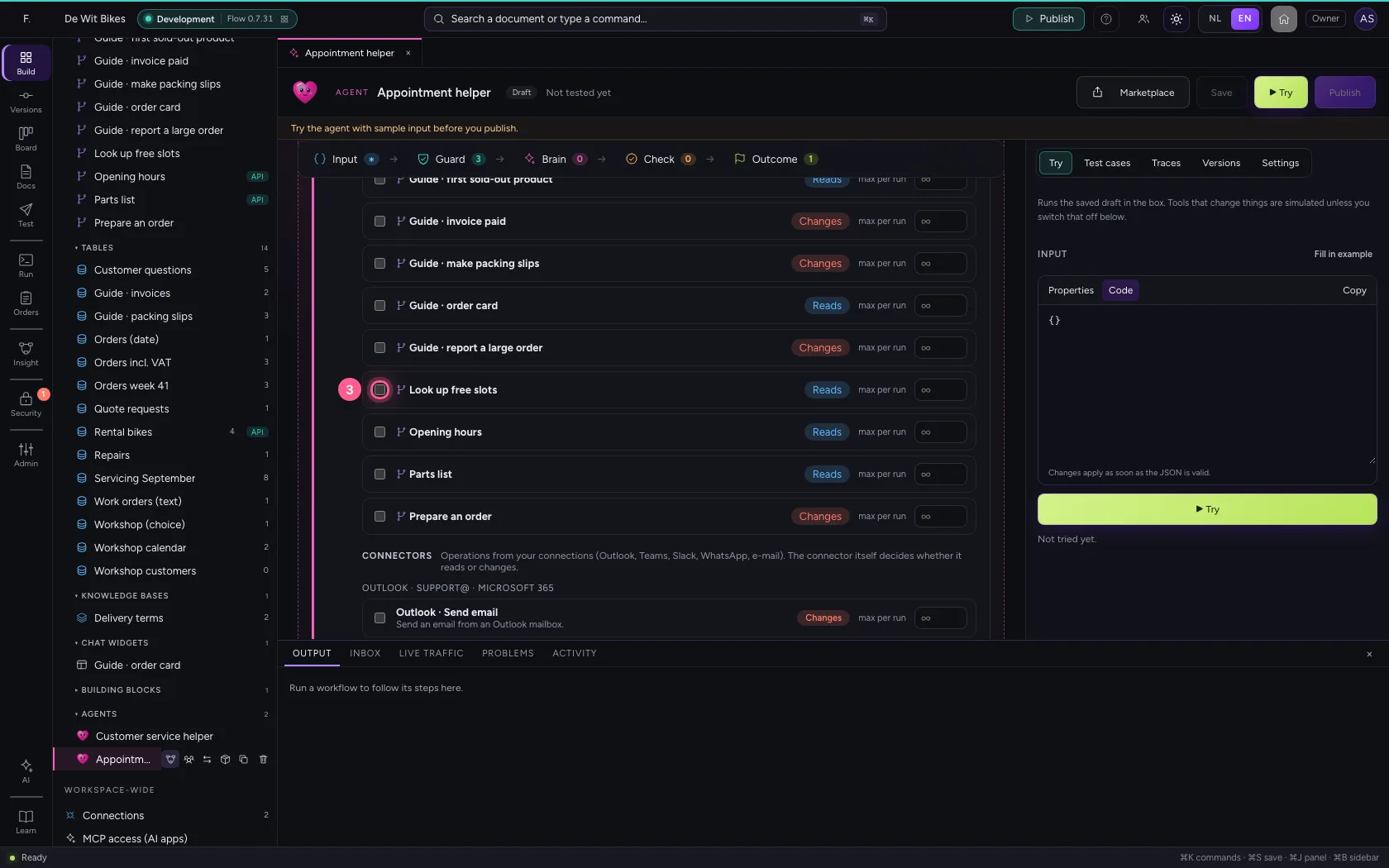
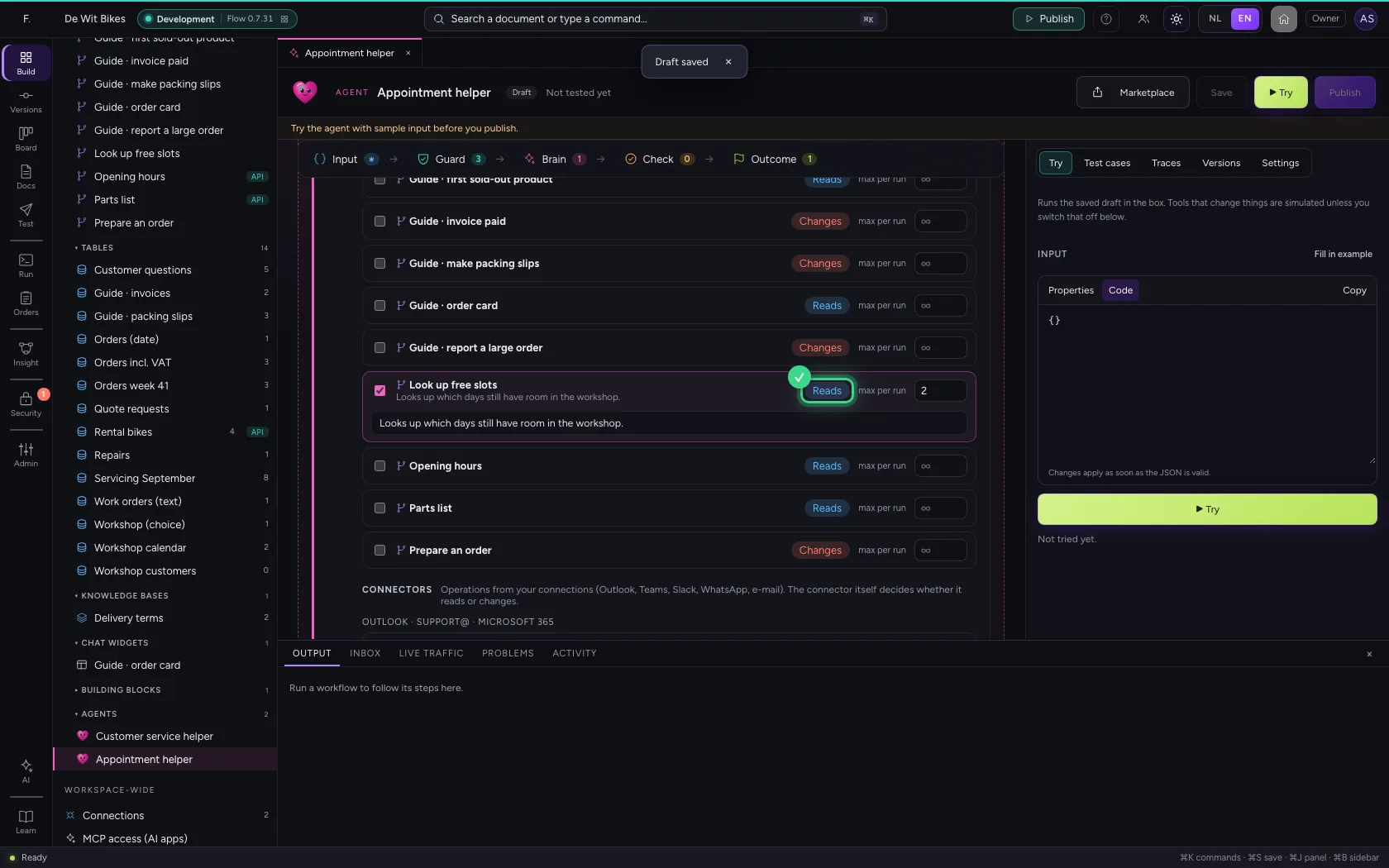
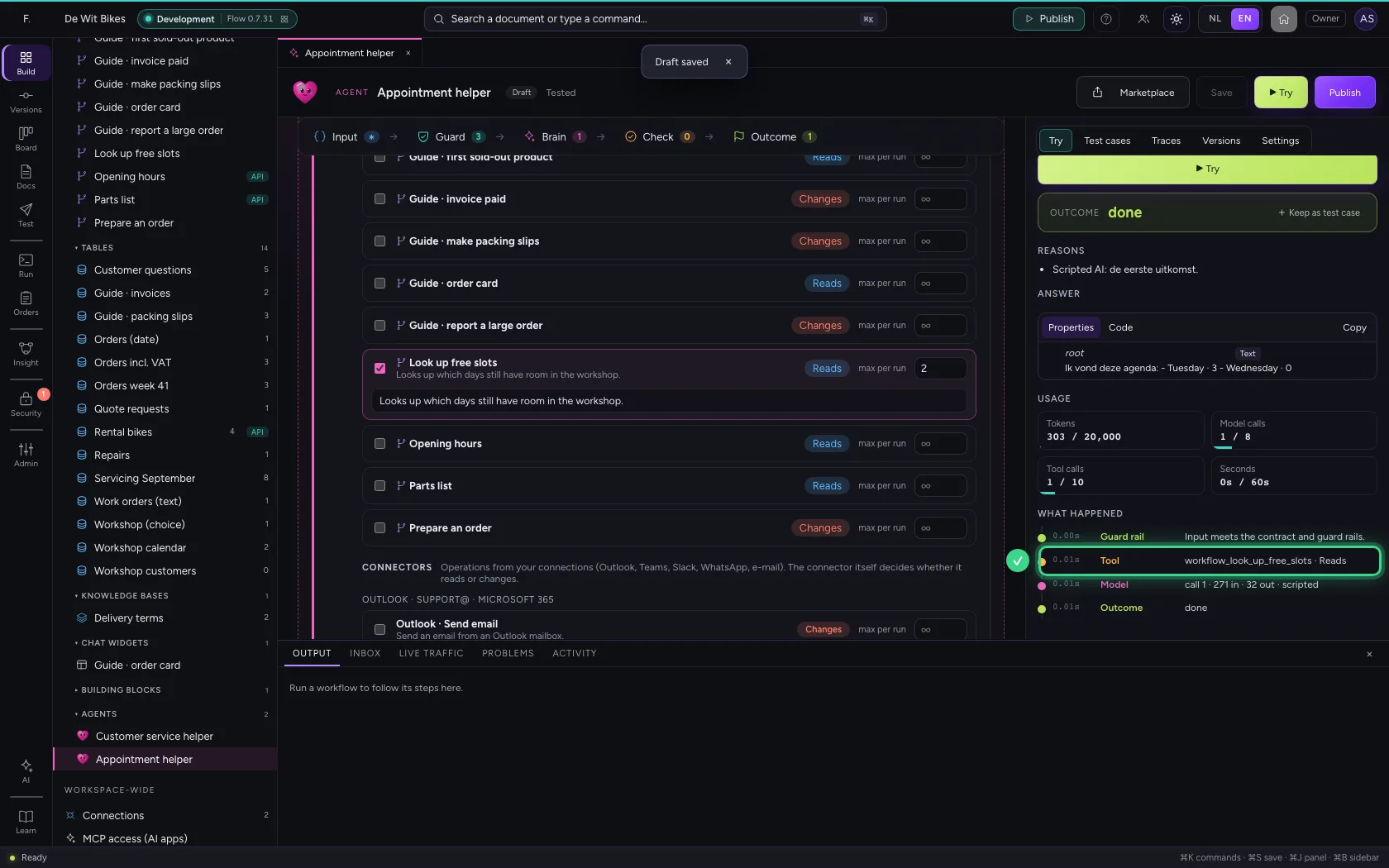
Open the agent. Under Brain → Workflows are this module's workflows. Tick which one the agent may start itself and write when it uses it: the agent reads that, like the name.
- Click Agents
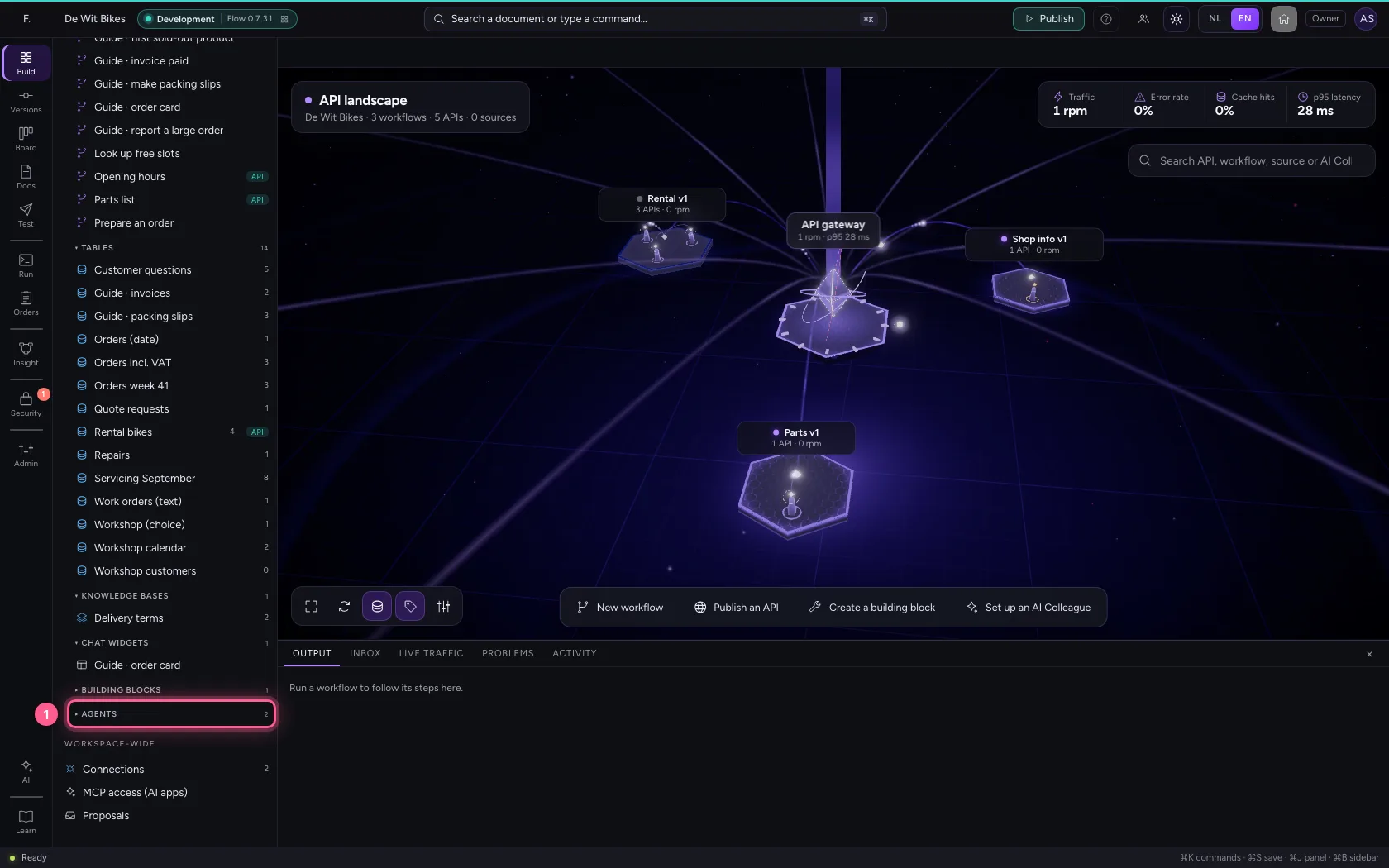
- Click the agent ‘Appointment helper’
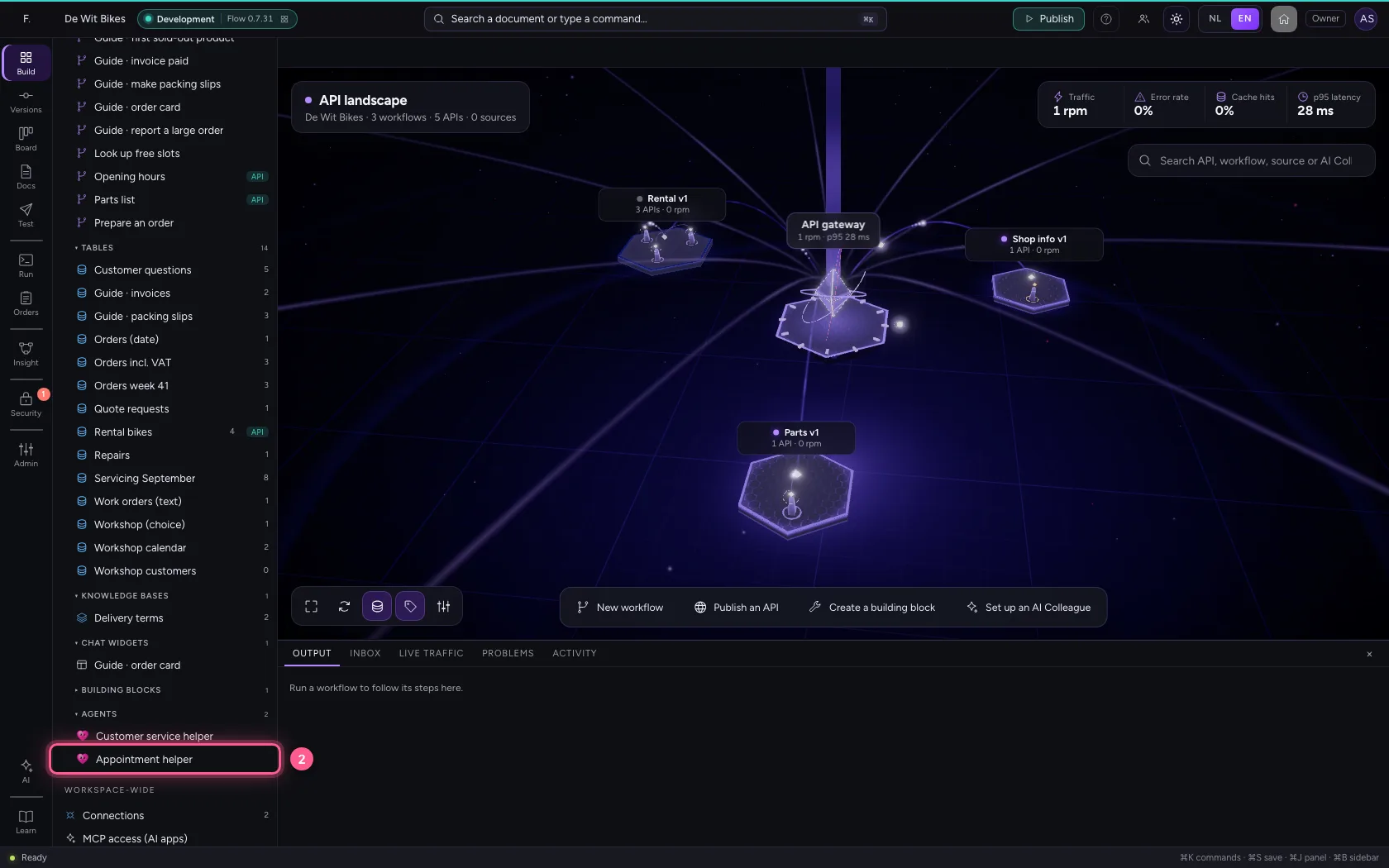
- Click Look up free slots
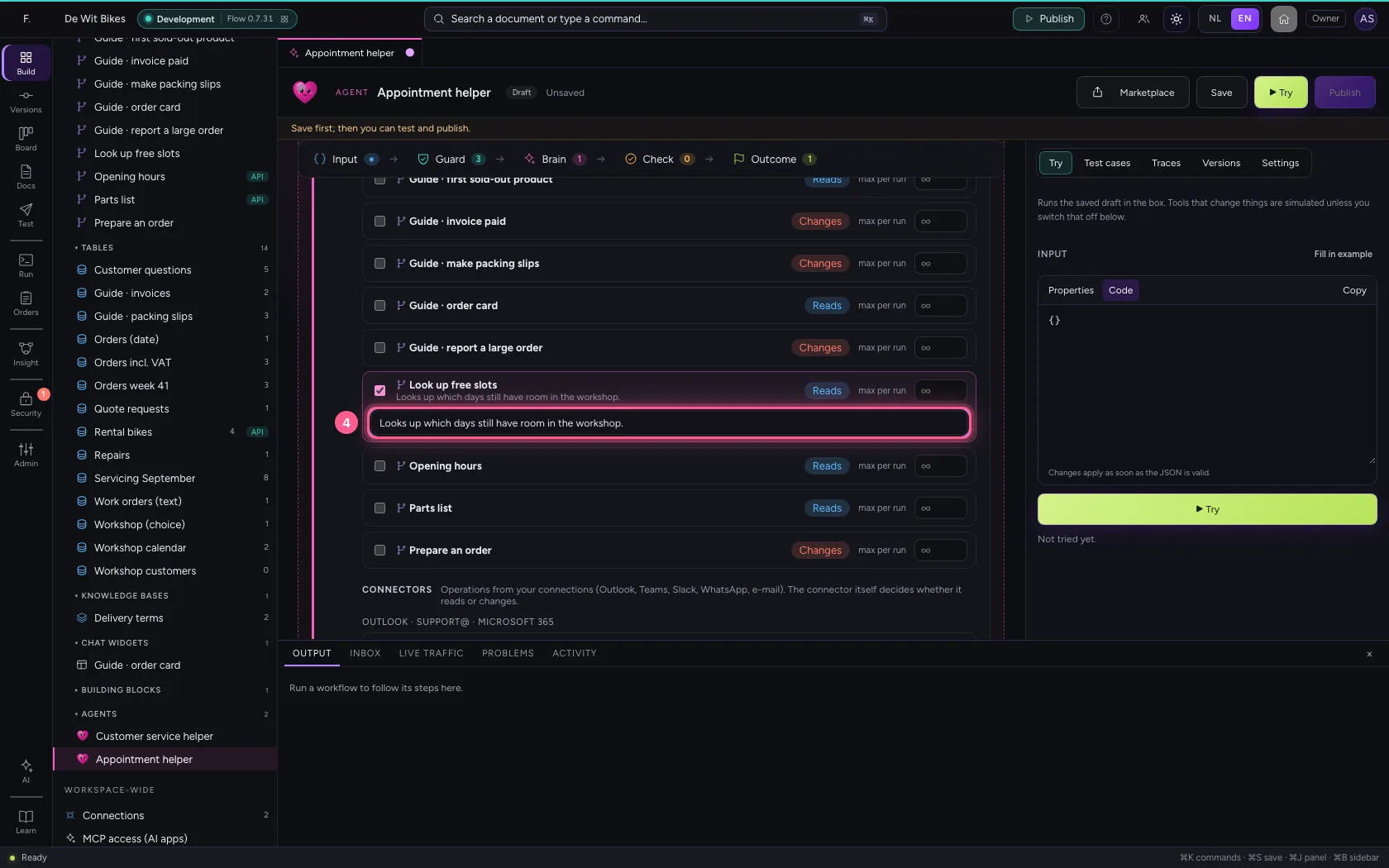
- In When to use it?, type
Looks up which days still have room in the workshop.
Say what it does and how often
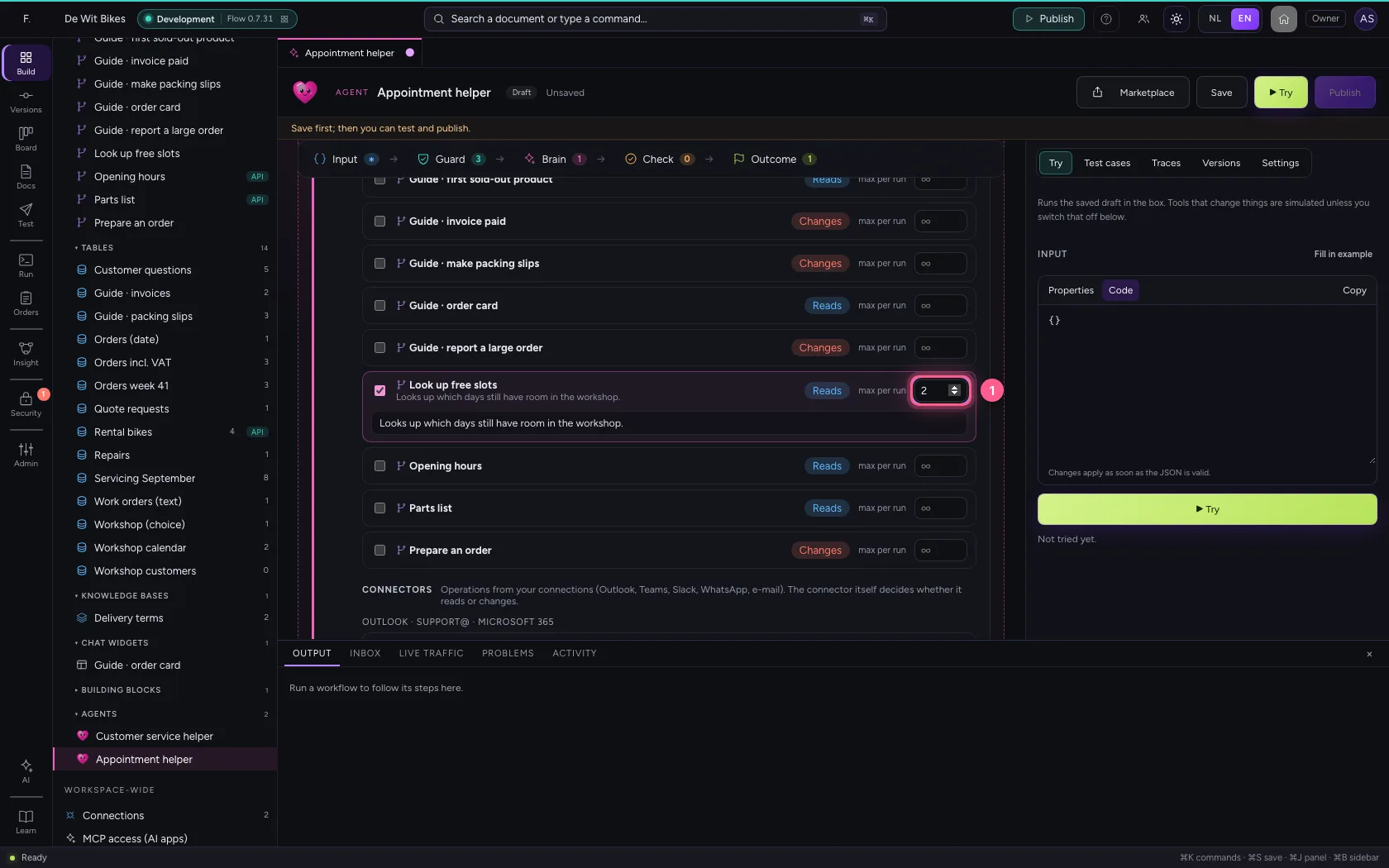
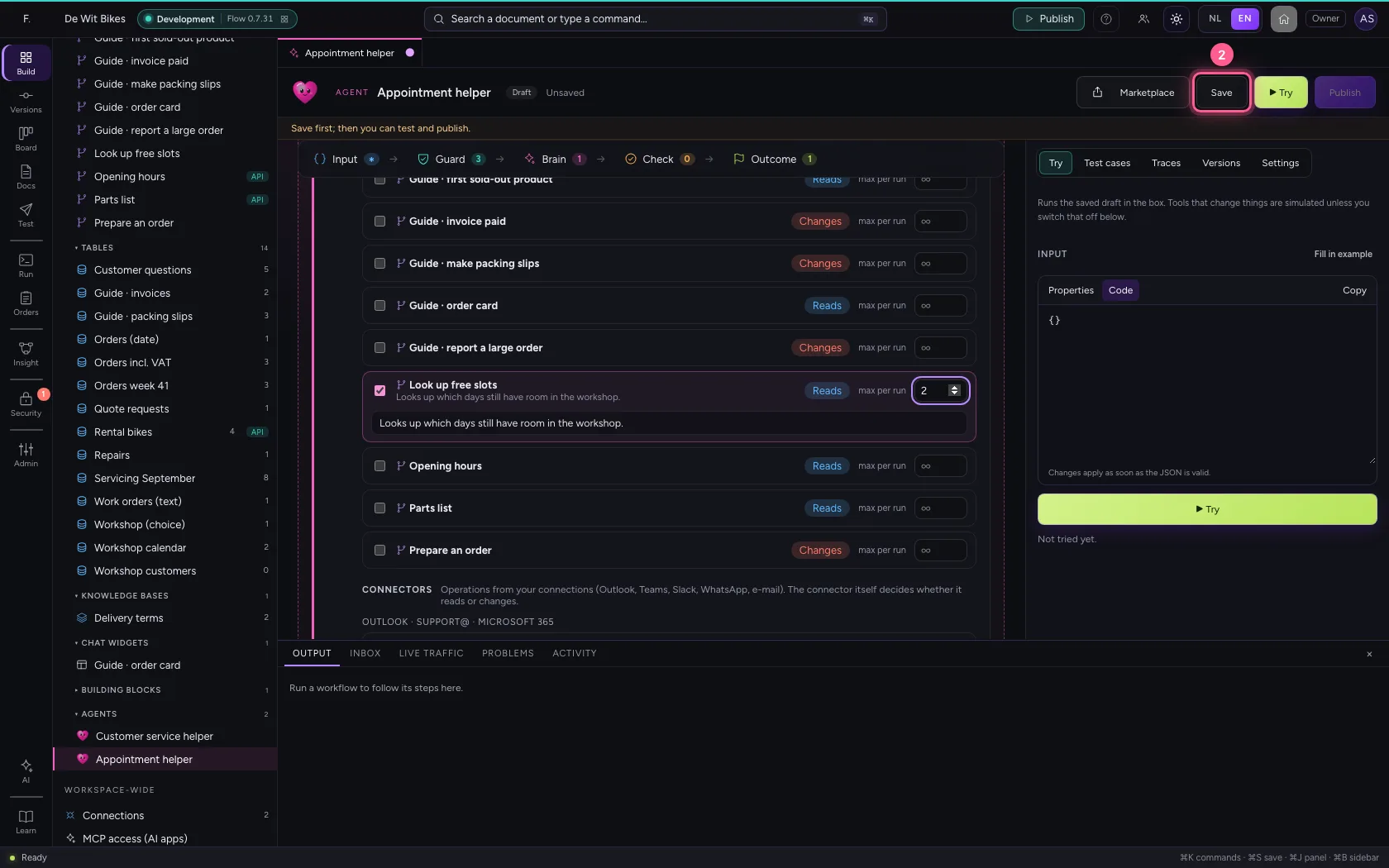
This workflow only looks things up: set it to Reads with the button. Under max per run, set how often the agent may start it in one answer. Save.
- In max per run, type
2
- Click Save
Try the agent
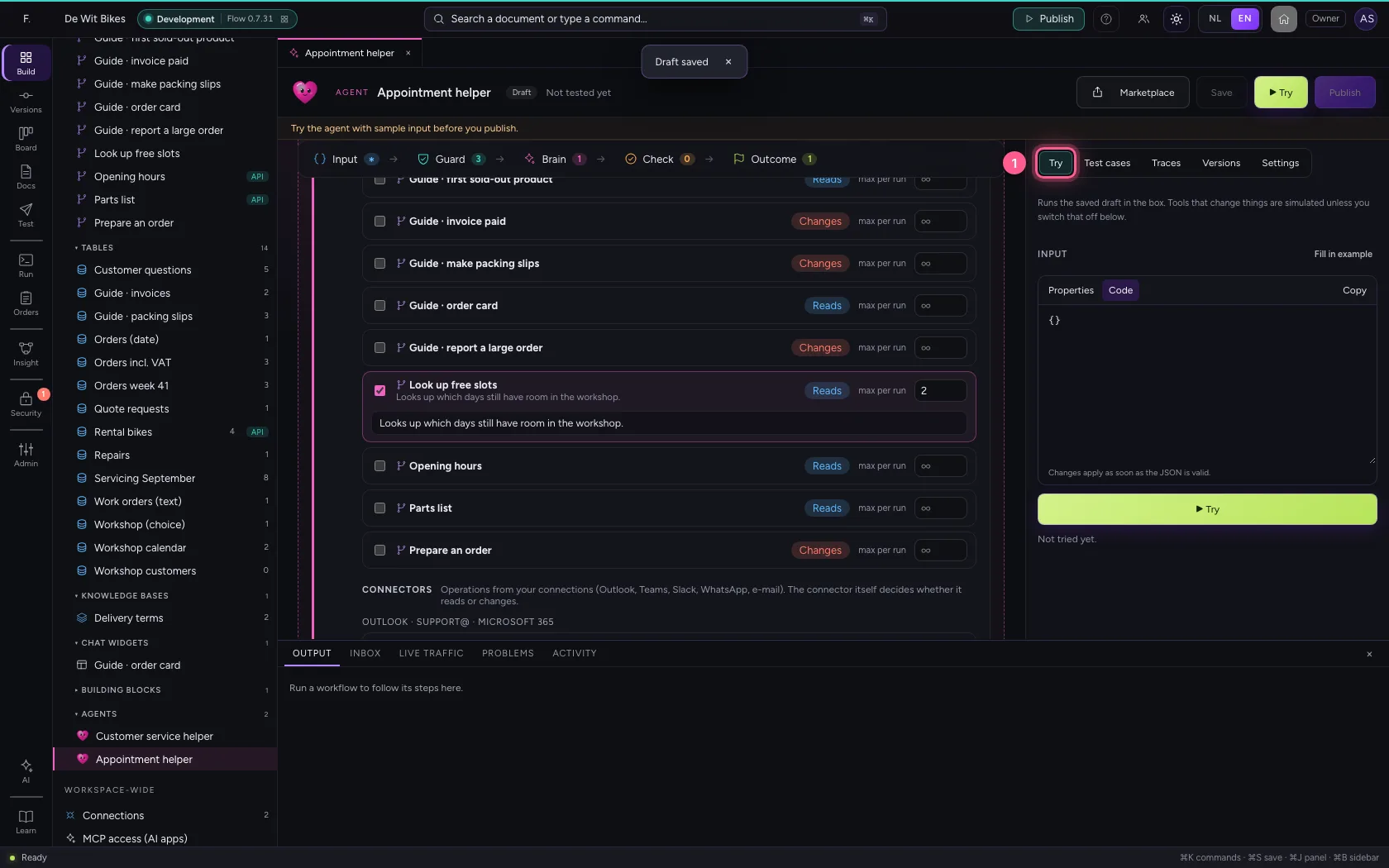
Under Try, ask a question. In the timeline you see that the agent started the workflow as a tool, and what it got back; the Tool calls meter counts against the budget.
- Click Try
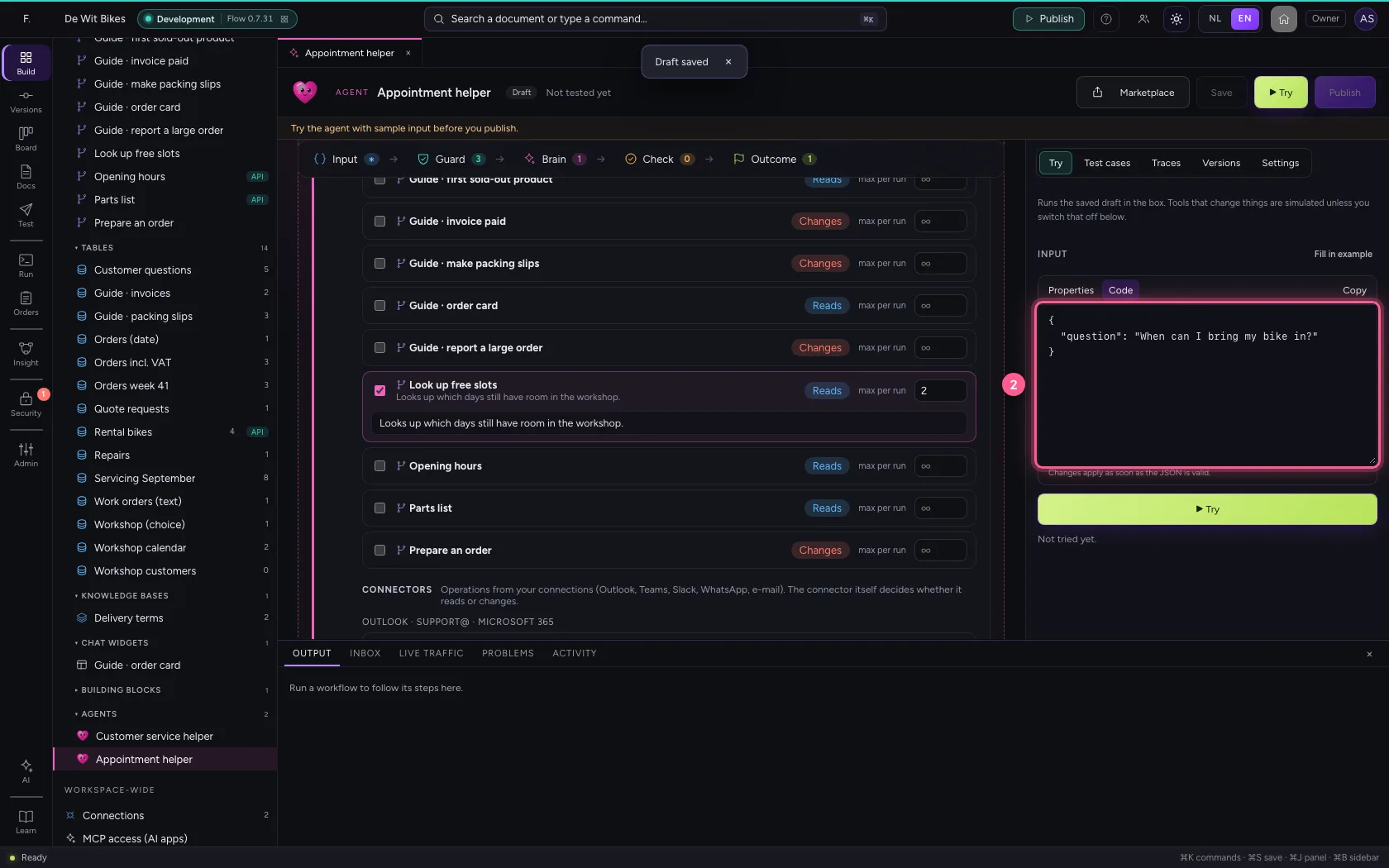
- In Input, type
{"question": "When can I bring my bike in?"}
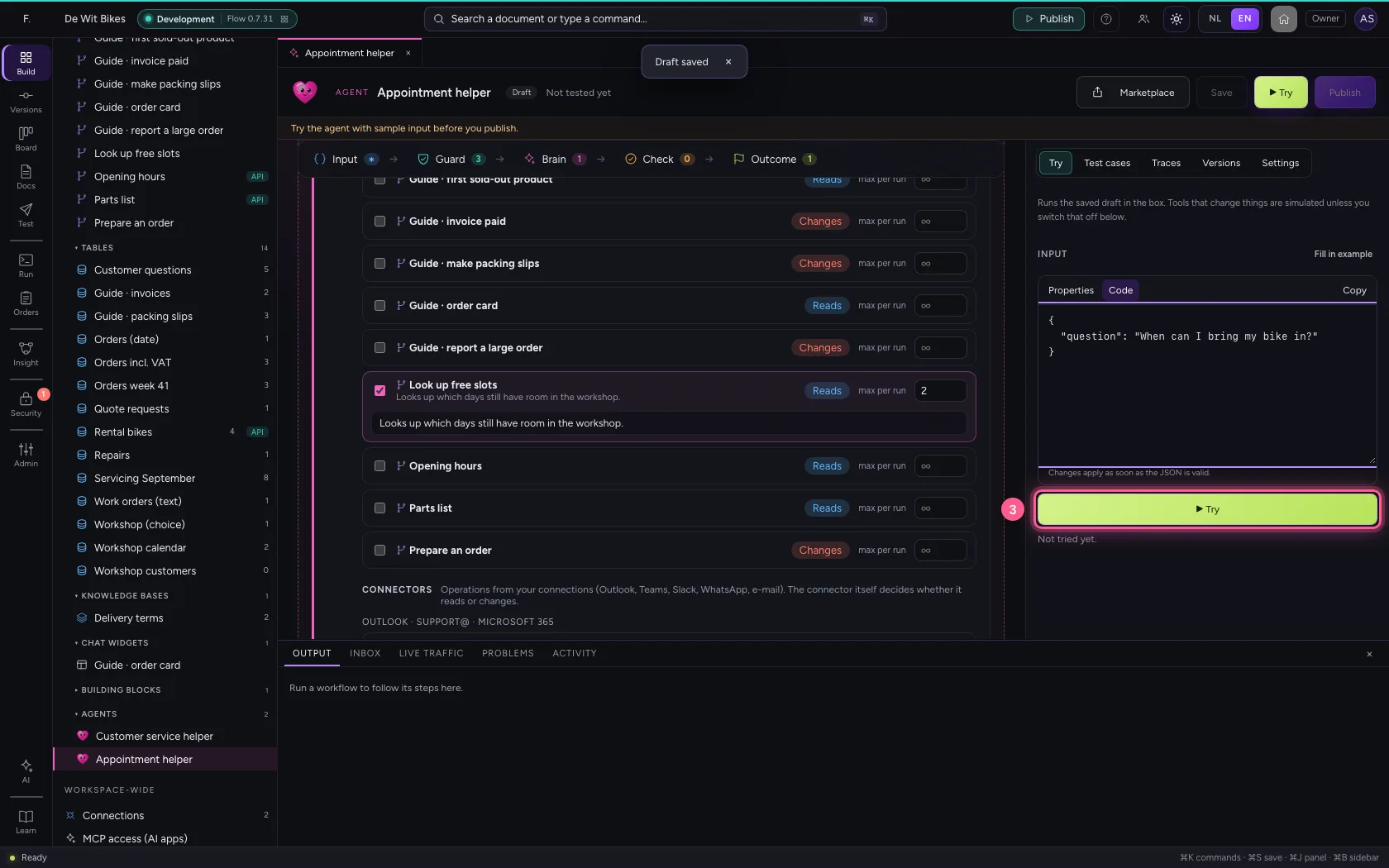
- Click ▶ Try
This guide was carried out step by step on 22 Oct 2026 by an automated test on Flow (version 3e563176).