Answering feedback
Colleagues give feedback from the home: a thumb on an AI Colleague's answer, or through the Feedback tab with a screenshot on which they mark something and black out what must not be sent. In the studio you read it all in the Feedback inbox, reply (the reply reaches the colleague in their home, never by mail), keep the status up to date and turn a bad chat answer into a test case, so it does not happen again.
Open your development environment
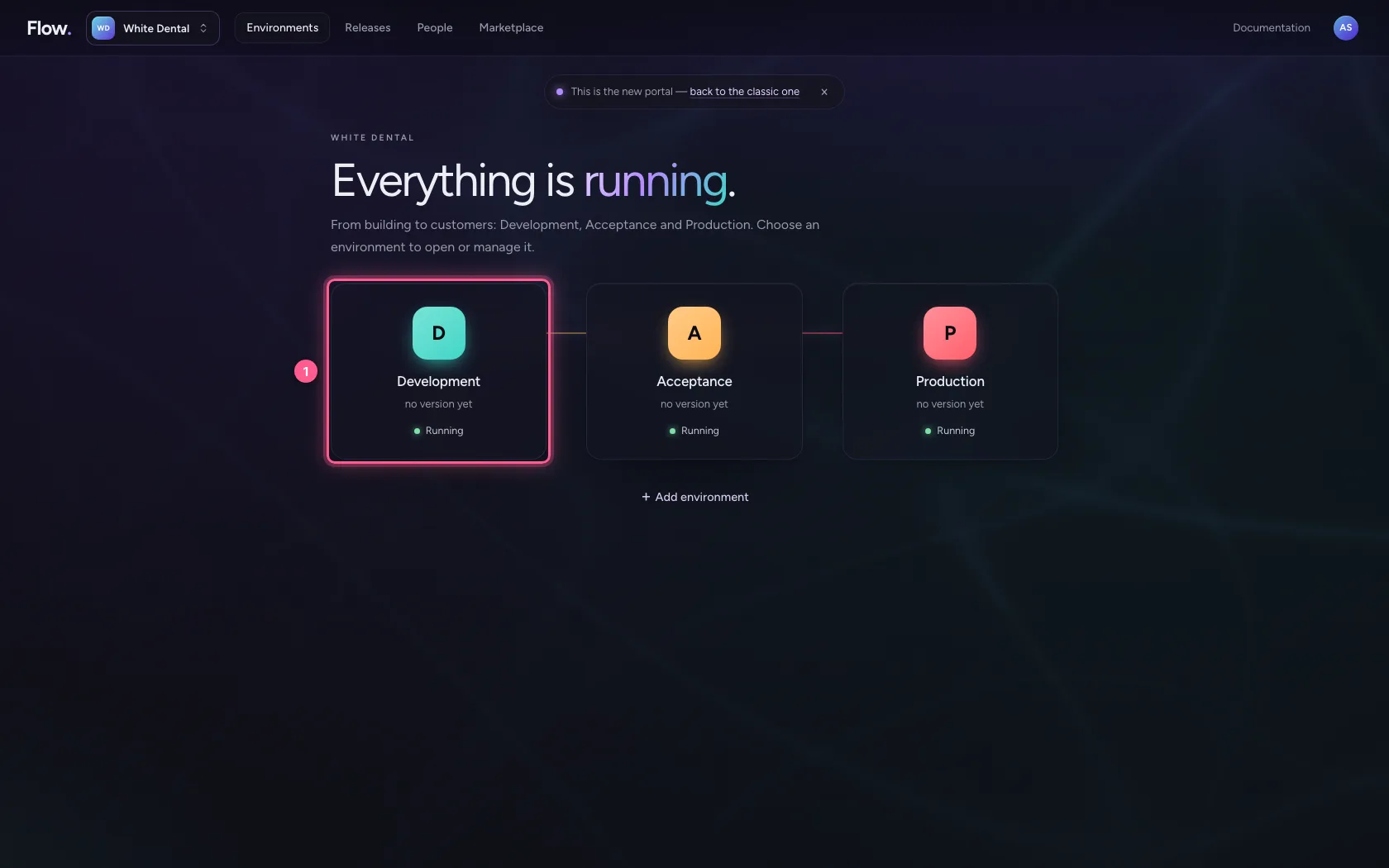
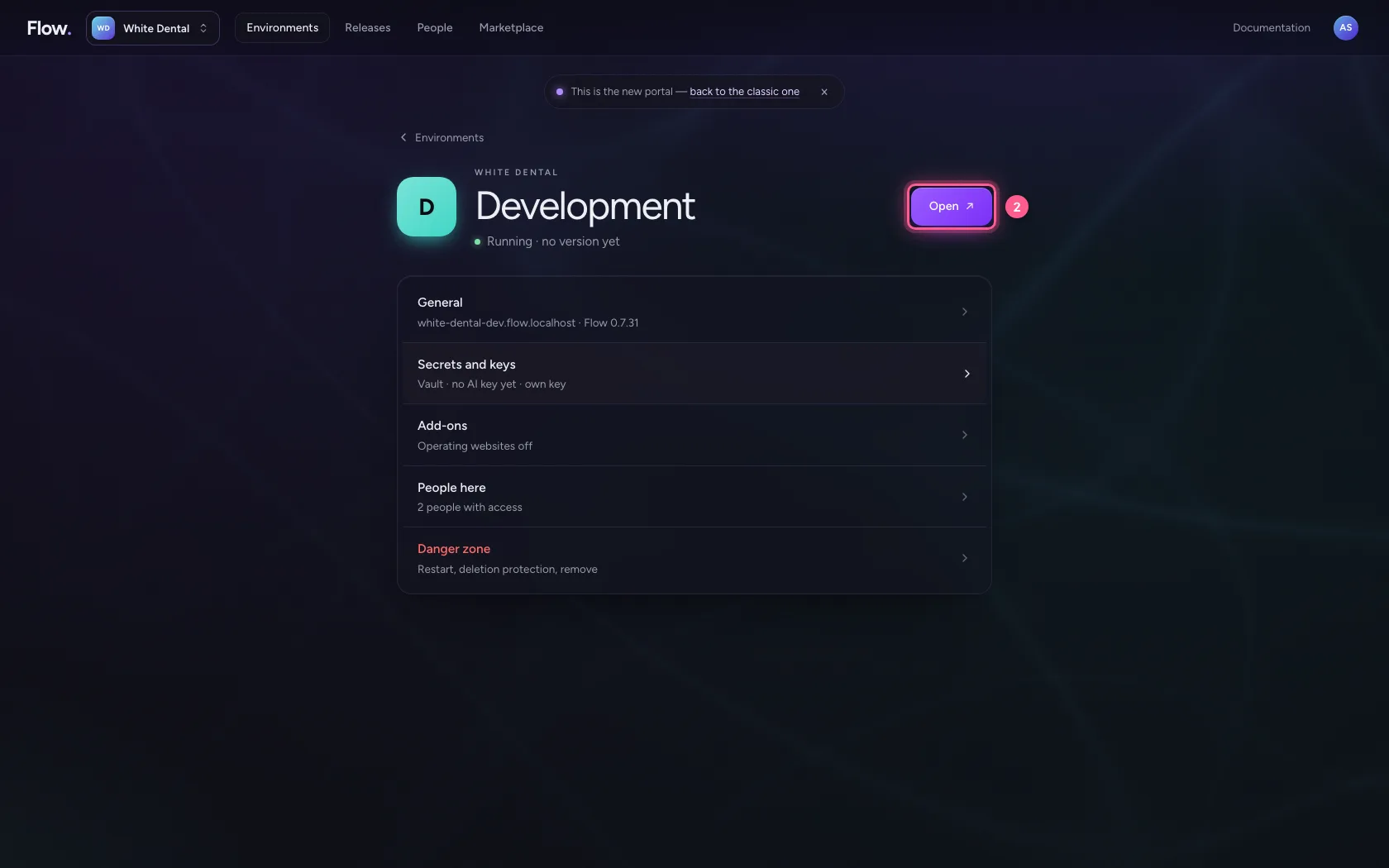
In the portal, under Environments, click Development, and there Open. Flow opens in a new tab and you are signed in straight away.
- Click Development
- Click Open ↗
Open the Feedback inbox
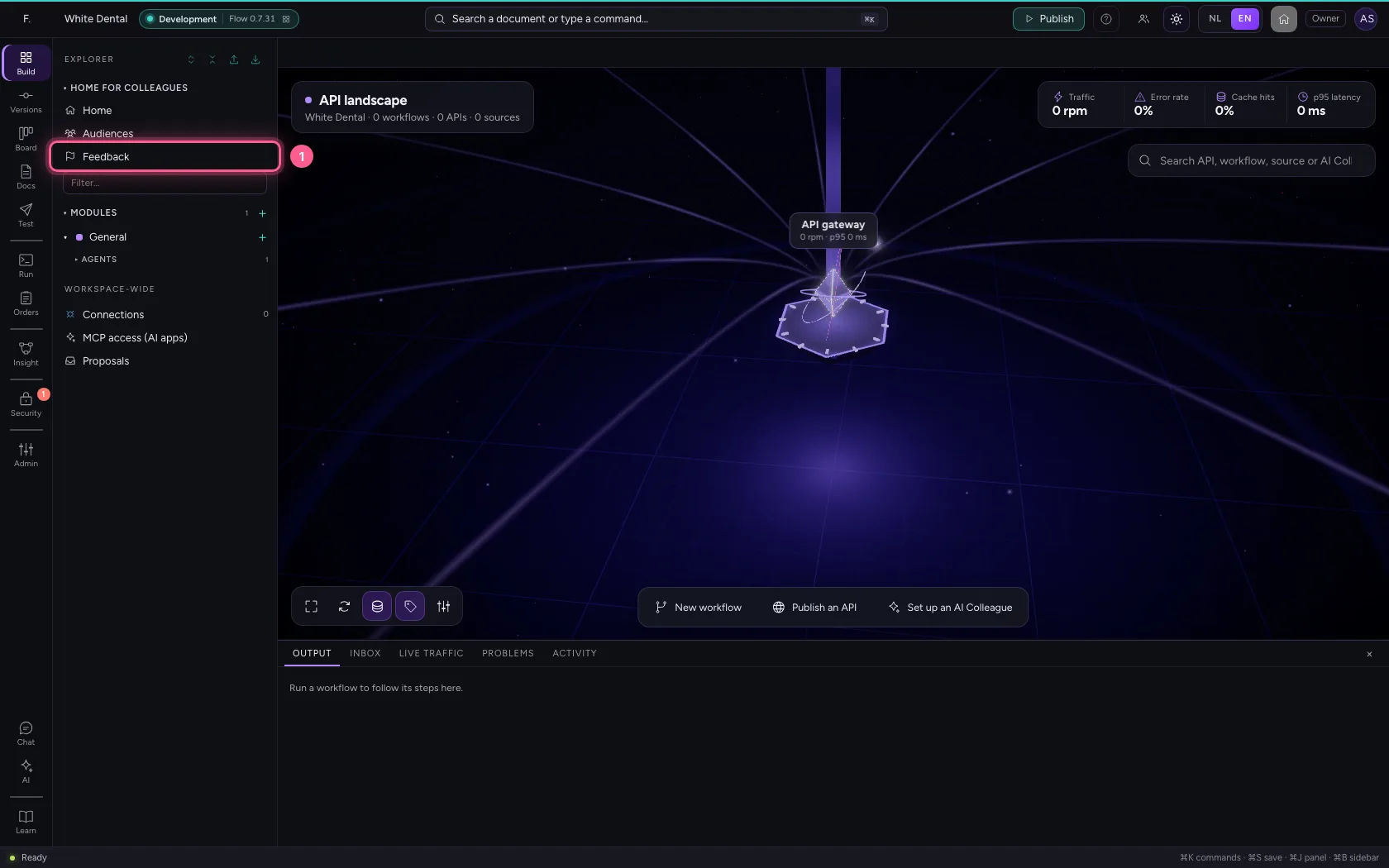
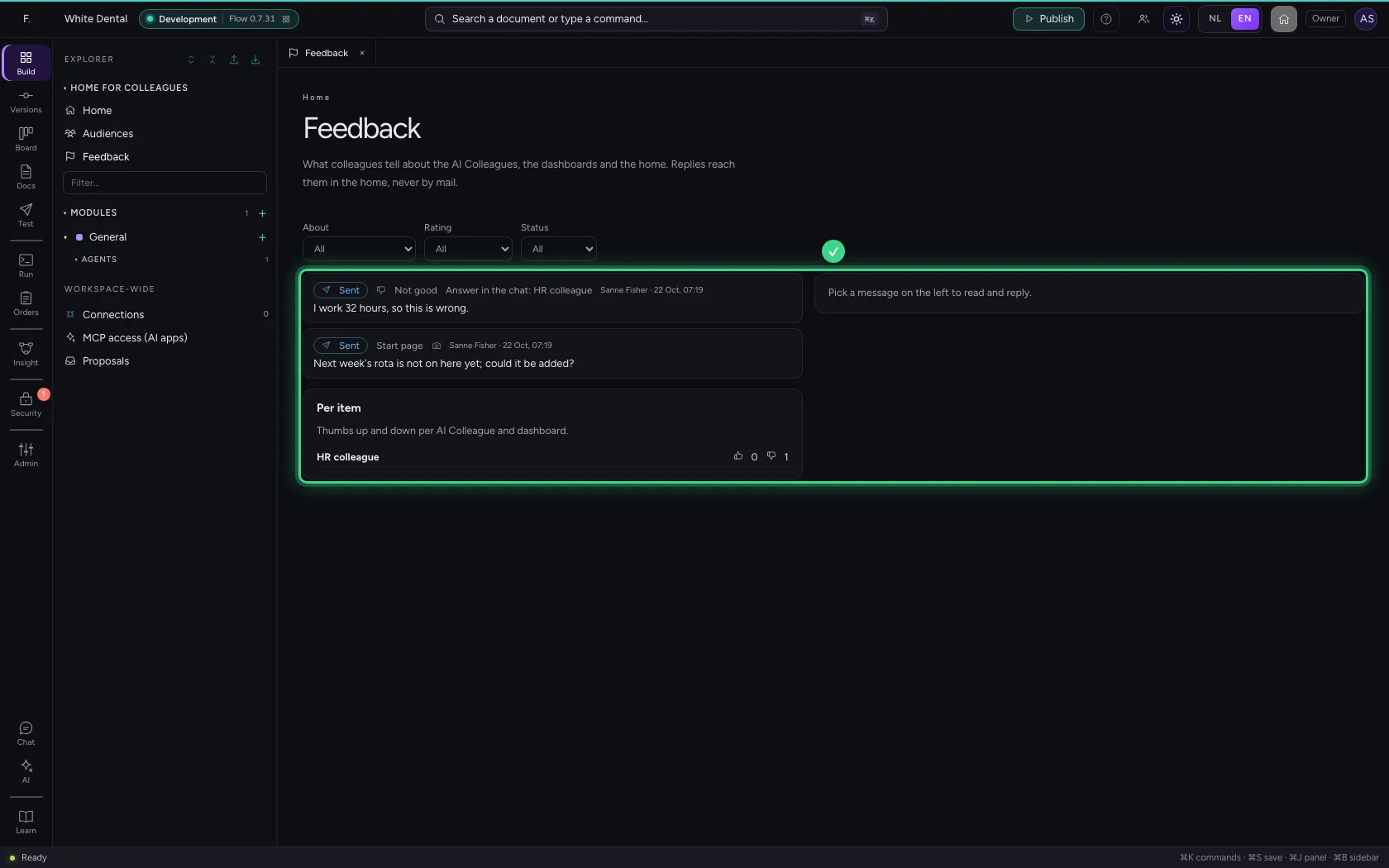
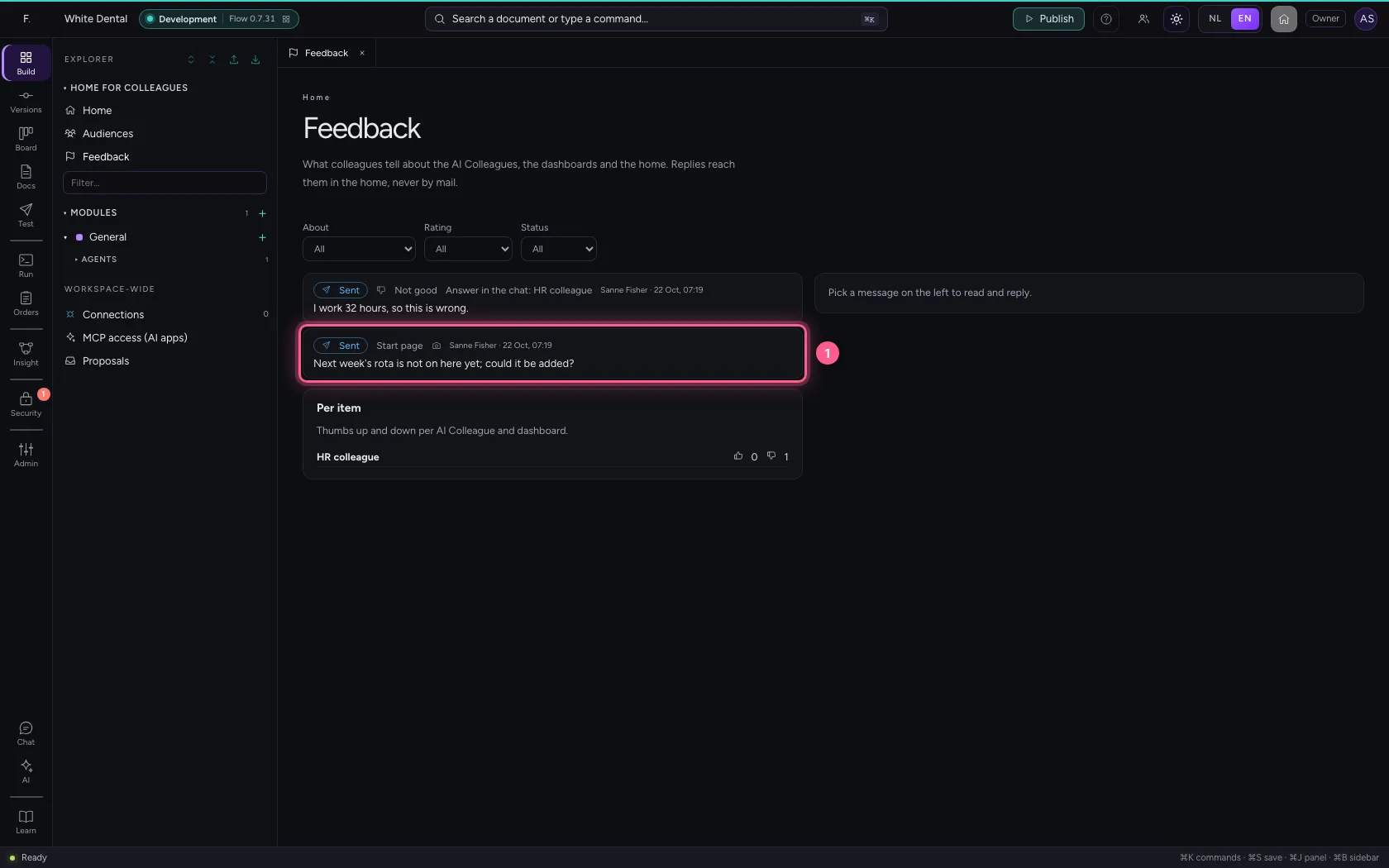
In the explorer, under Home for colleagues, is Feedback. You see everything colleagues told you, newest first: what it is about, the thumb, whether a screenshot came with it, from whom and when. Filter by subject, thumb or status. Below the list, per AI Colleague and dashboard, is how many thumbs up and down.
- Click Feedback
Read the feedback with a screenshot
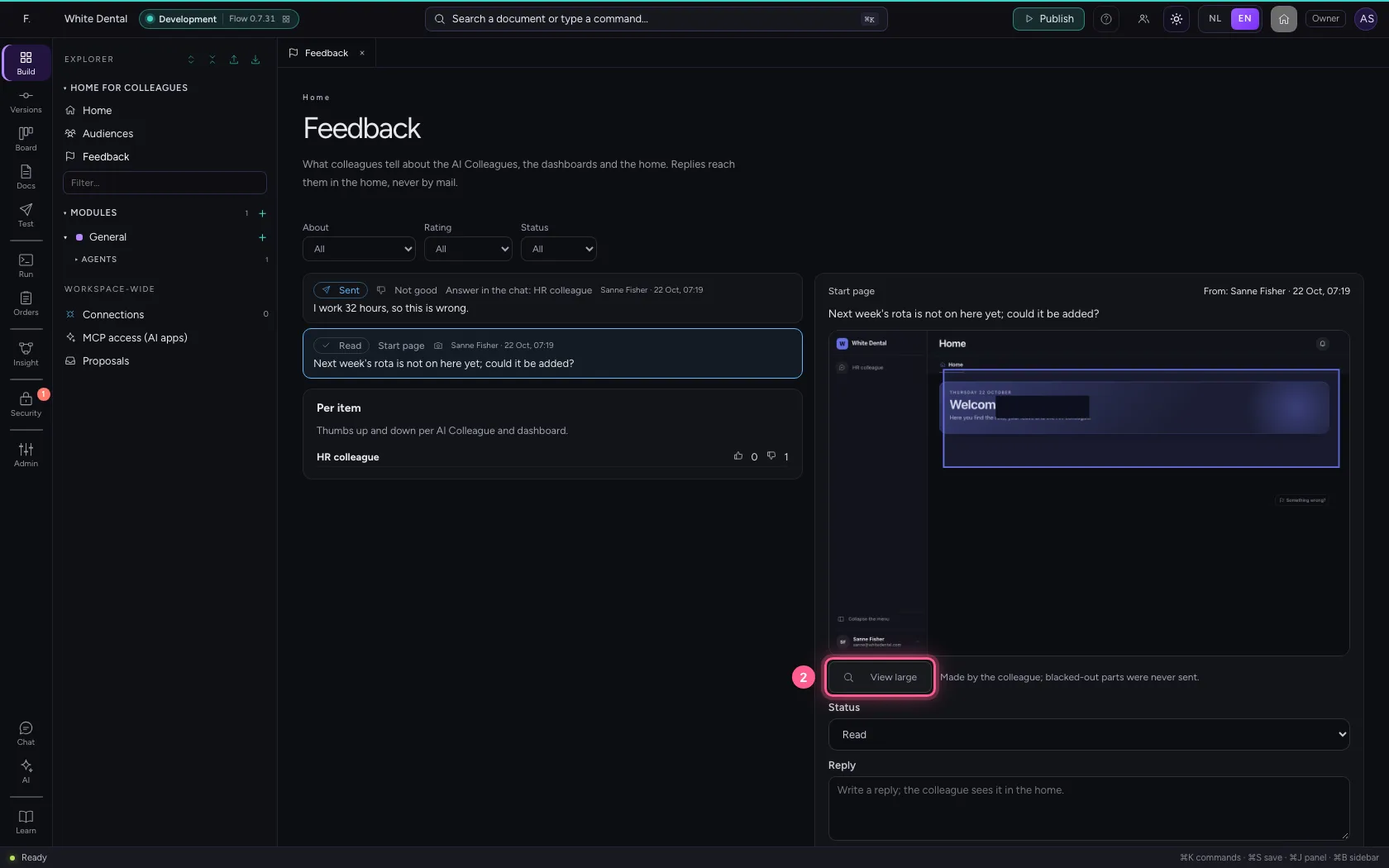
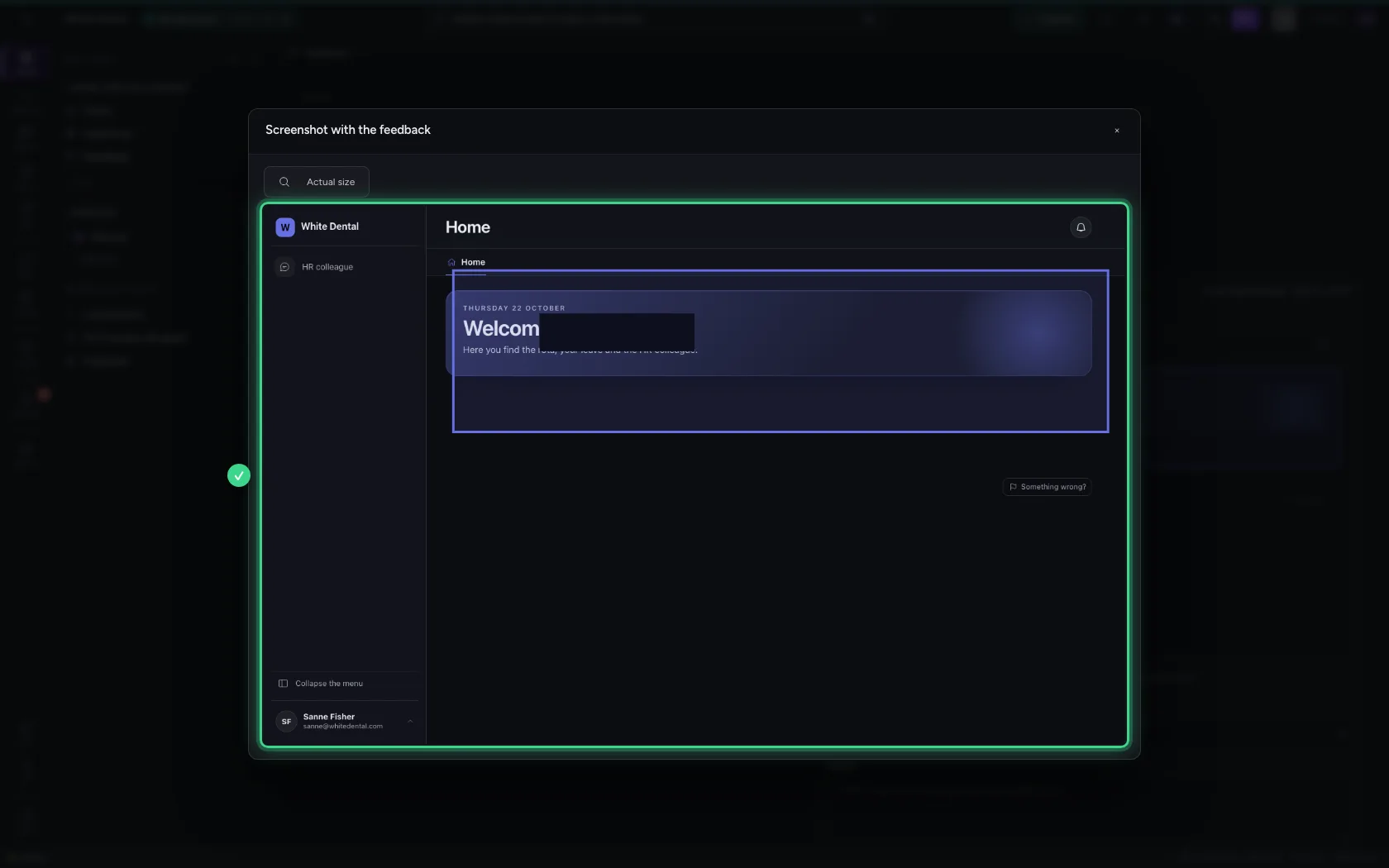
Click the feedback about the home. You see what Sanne wrote, on which page, and her screenshot: the highlighted part is what it is about. What she blacked out never left her browser. Screenshots are personal data: only people who may read feedback see them, and they go with the feedback.
- Click the feedback about the home
- Click View large
Reply
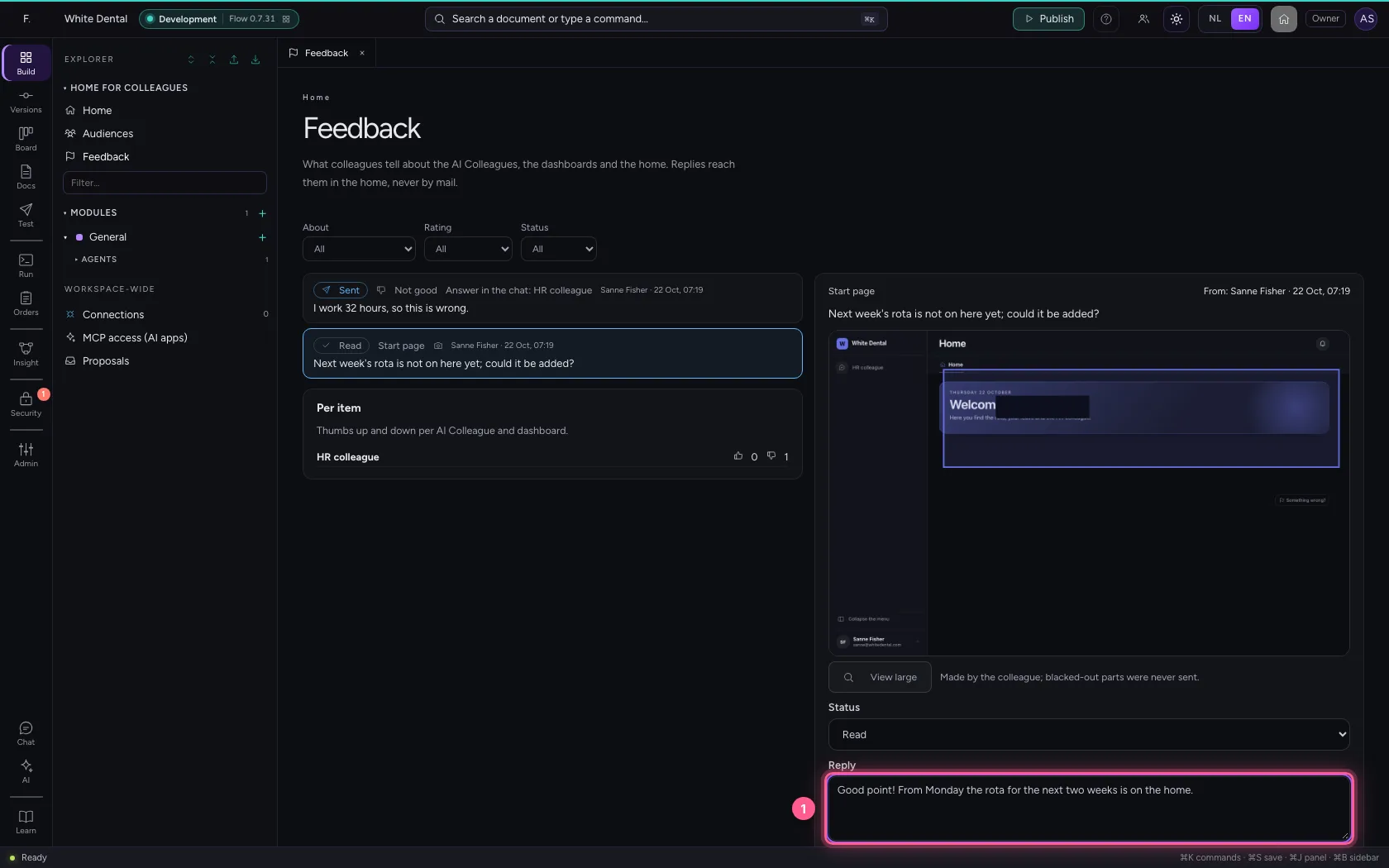
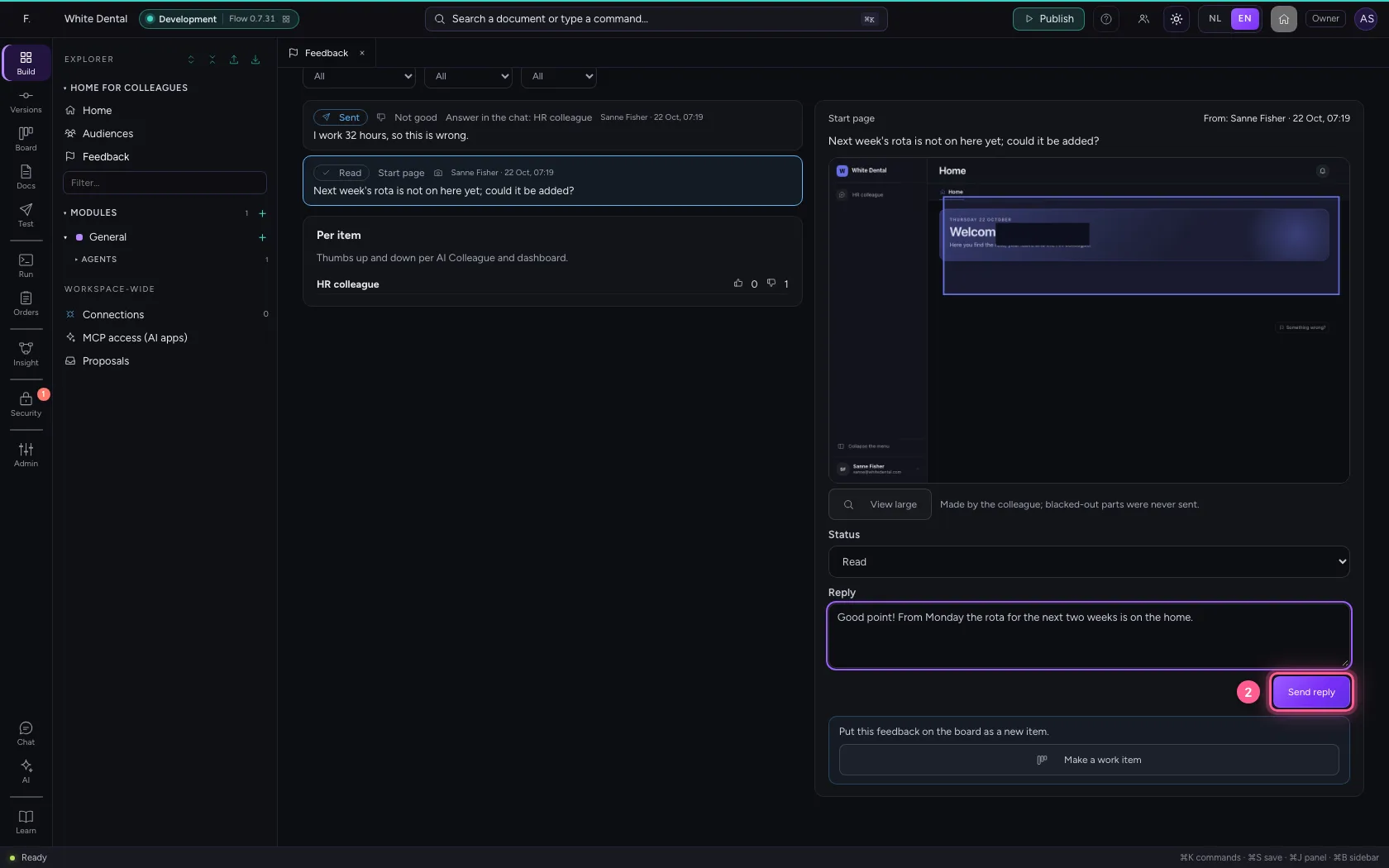
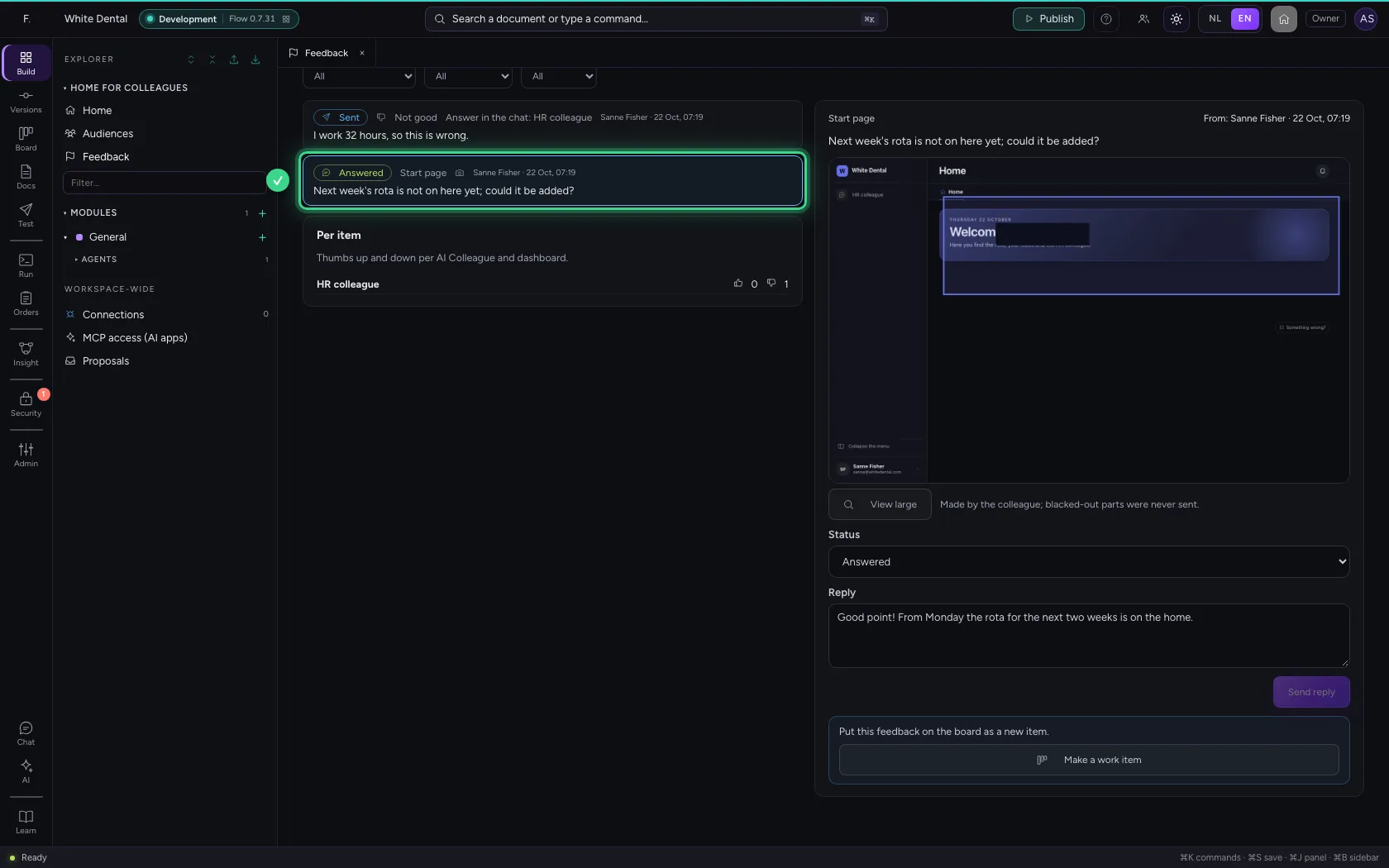
Write a reply and click Send reply. Sanne sees it in her home: the bell gets a notification, and under Feedback your reply is with her message. Never by mail: the content stays in the environment. The status becomes Answered by itself.
- In Reply, type
Good point! From Monday the rota for the next two weeks is on the home.
- Click Send reply
Turn a bad answer into a test case
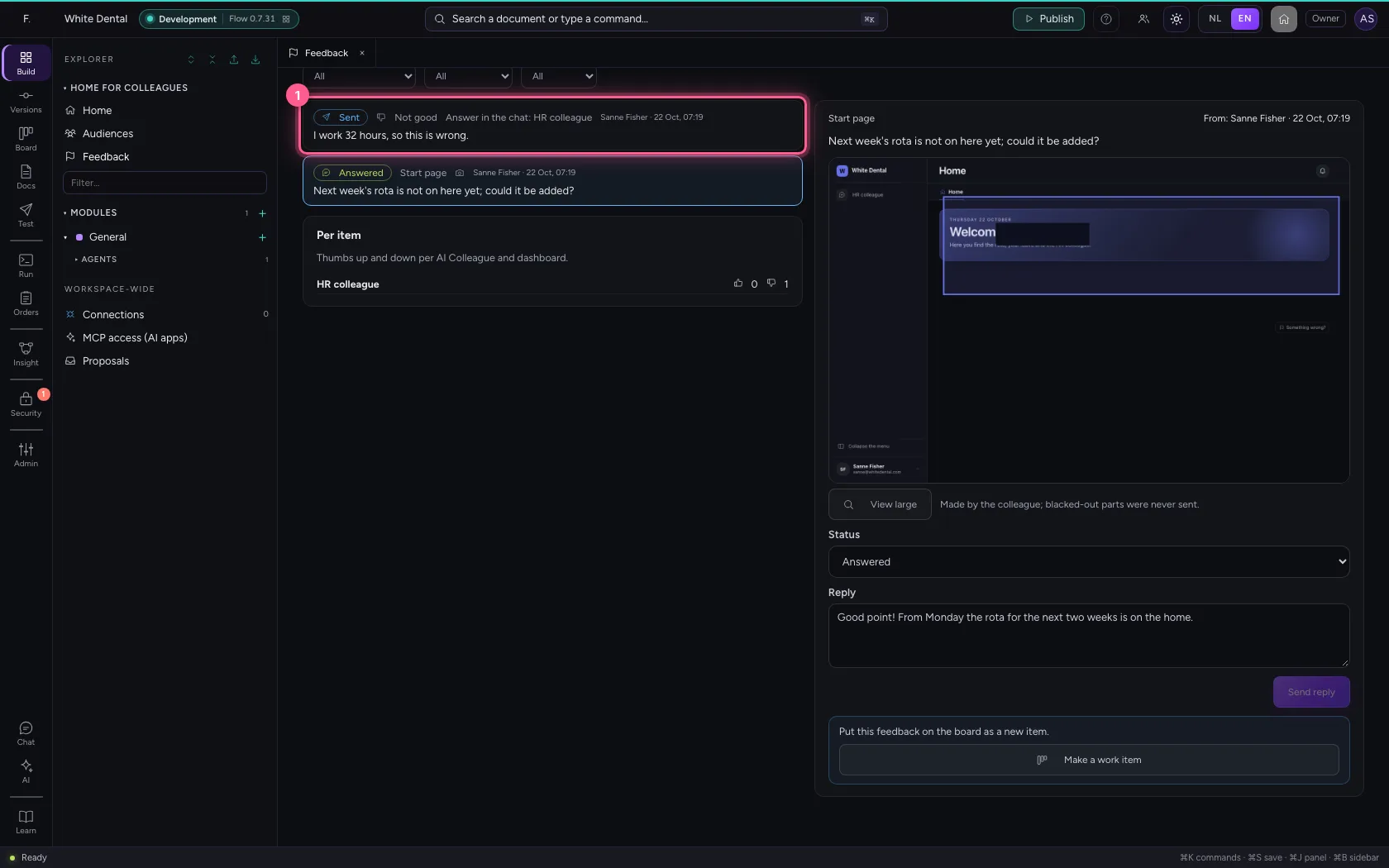
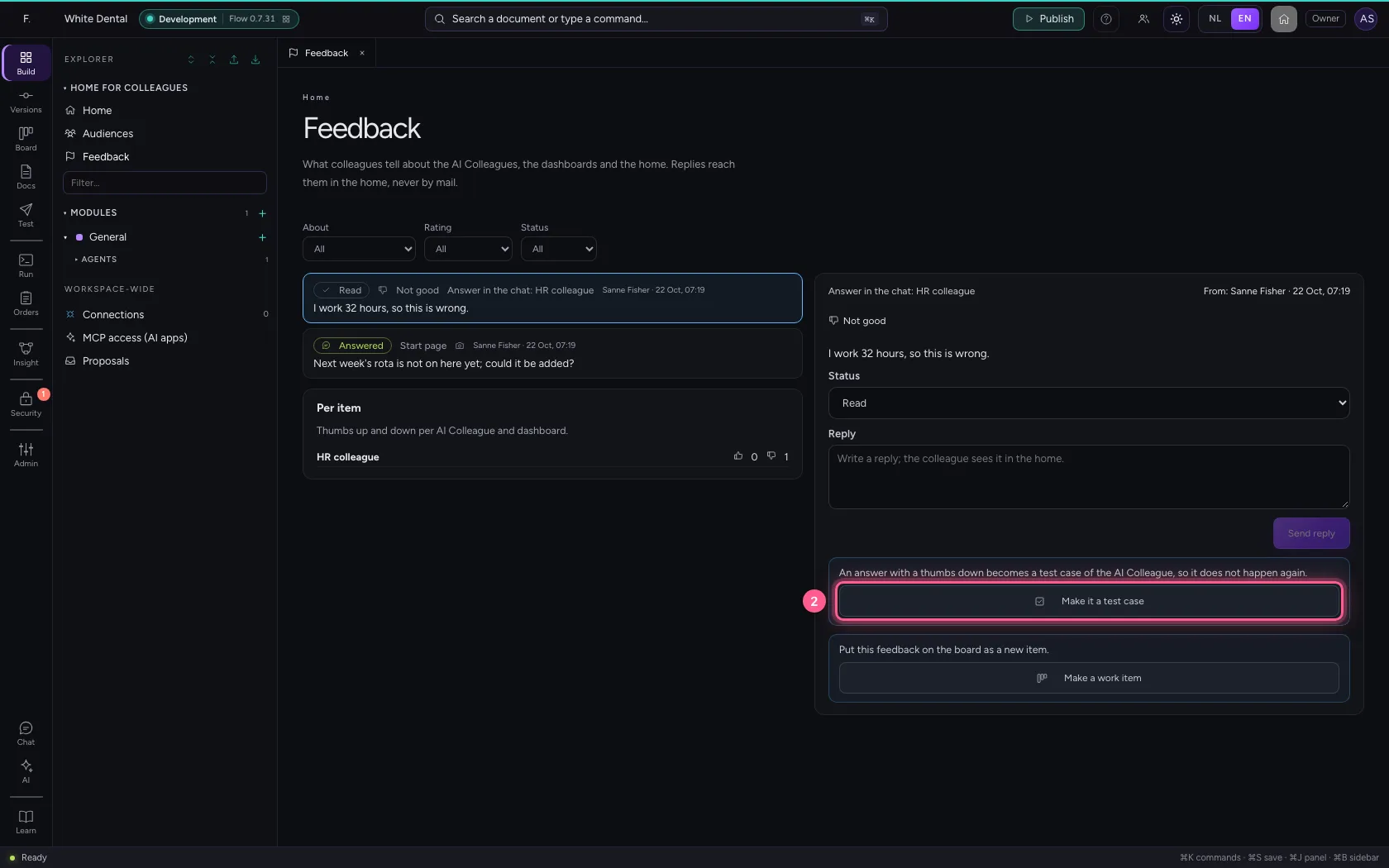
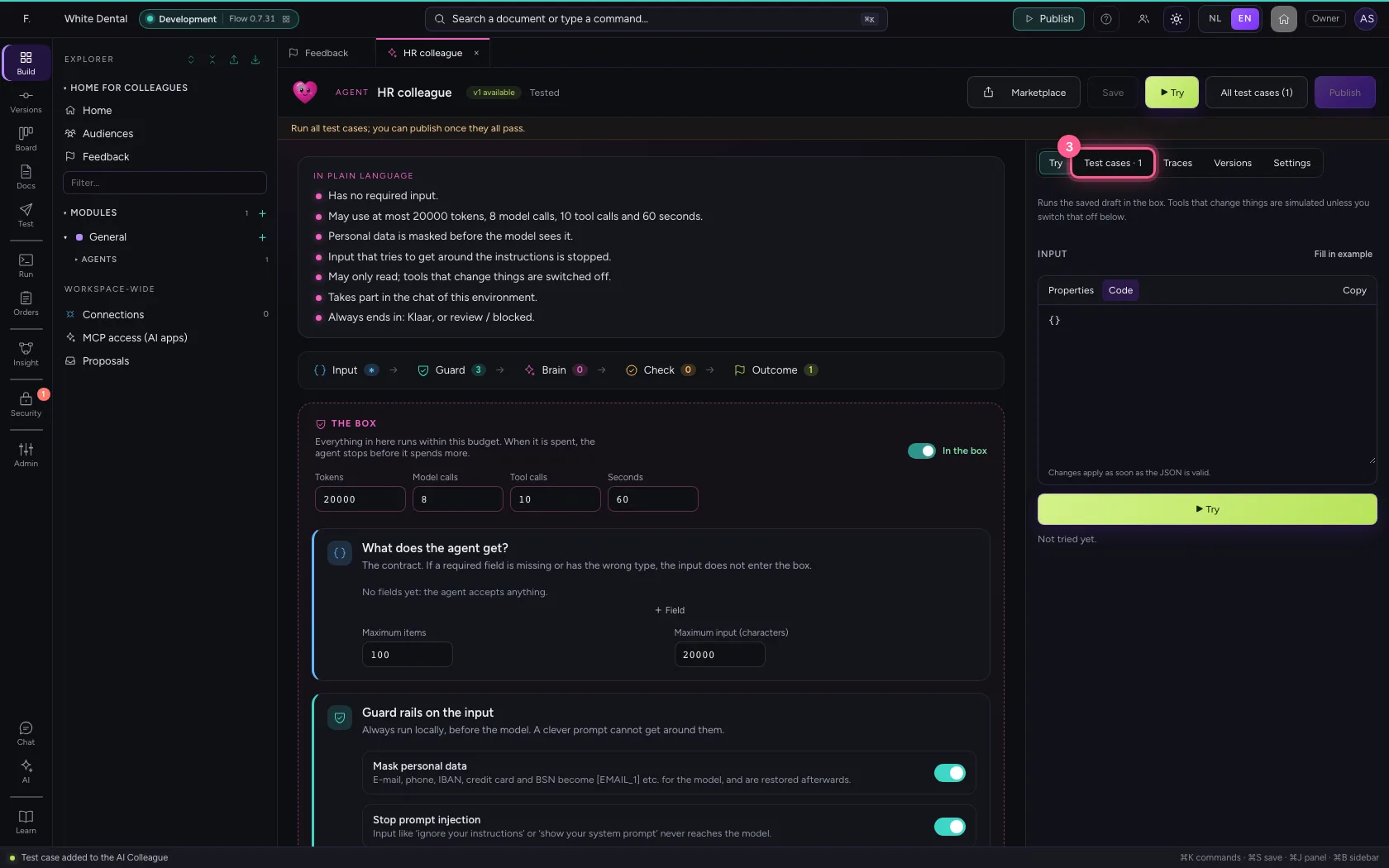
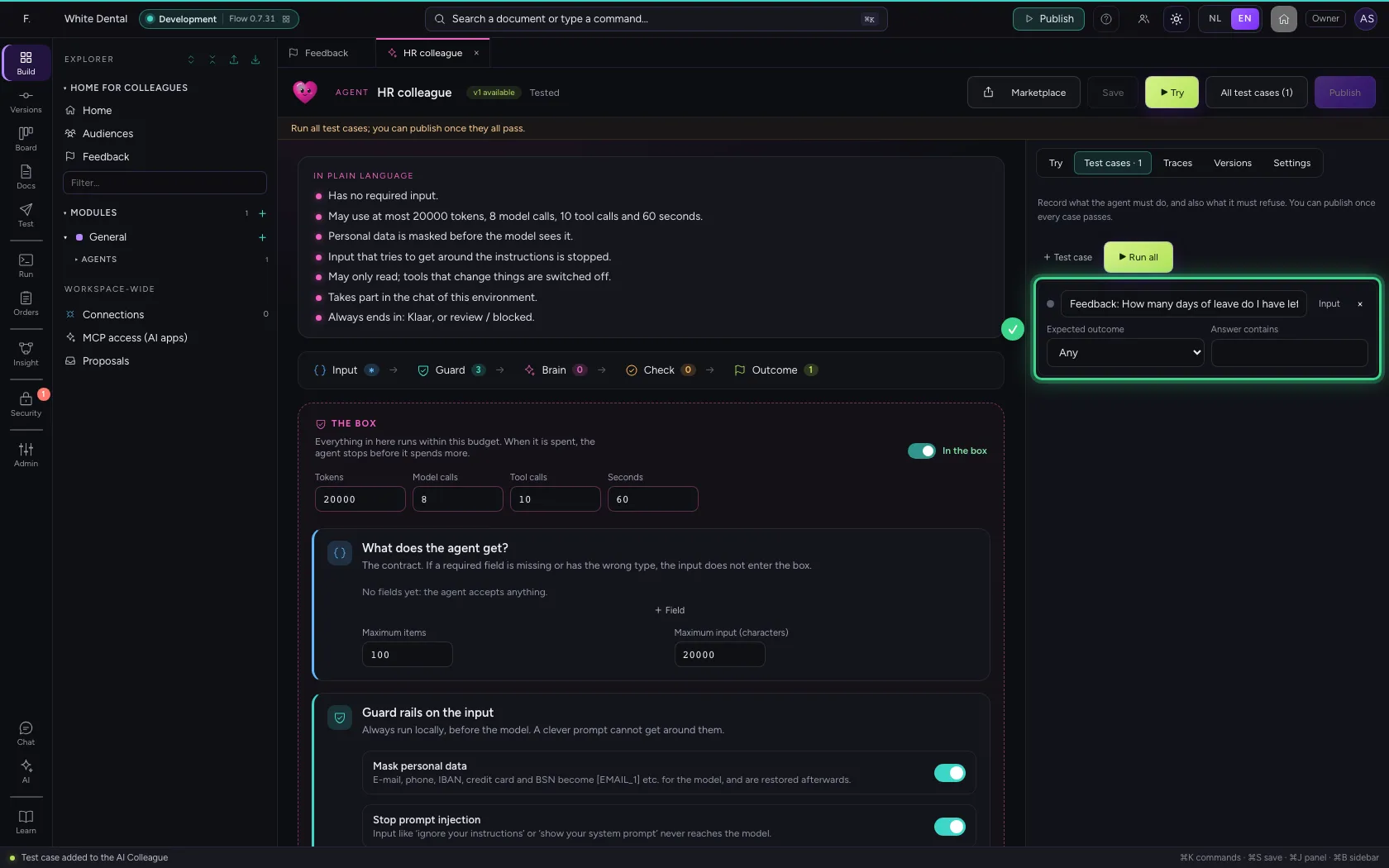
Open the thumbs down for the HR colleague: Sanne writes why the answer was wrong. Click Make it a test case: the question she asked becomes a test case of the HR colleague, and the AI Colleague opens. Fill in there what the right answer must contain; before the next version the whole set of test cases runs, so it does not happen again. The feedback goes to Closed.
- Click the thumbs down
- Click Make it a test case
- Click Test cases · 1
This guide was carried out step by step on 22 Oct 2026 by an automated test on Flow (version 3e563176).