Building the home for your colleagues
- Step 1 · Open the home in the studio
- Step 2 · Make a variant for Employees
- Step 3 · A welcome with the reader's name
- Step 4 · An announcement with a start and end date
- Step 5 · A dashboard on the home
- Step 6 · A question box for the AI Colleague
- Step 7 · Links to what colleagues often need
- Step 8 · Save and view the home as Employees
- Step 9 · Publish, after the check
- Step 10 · This is what an employee sees
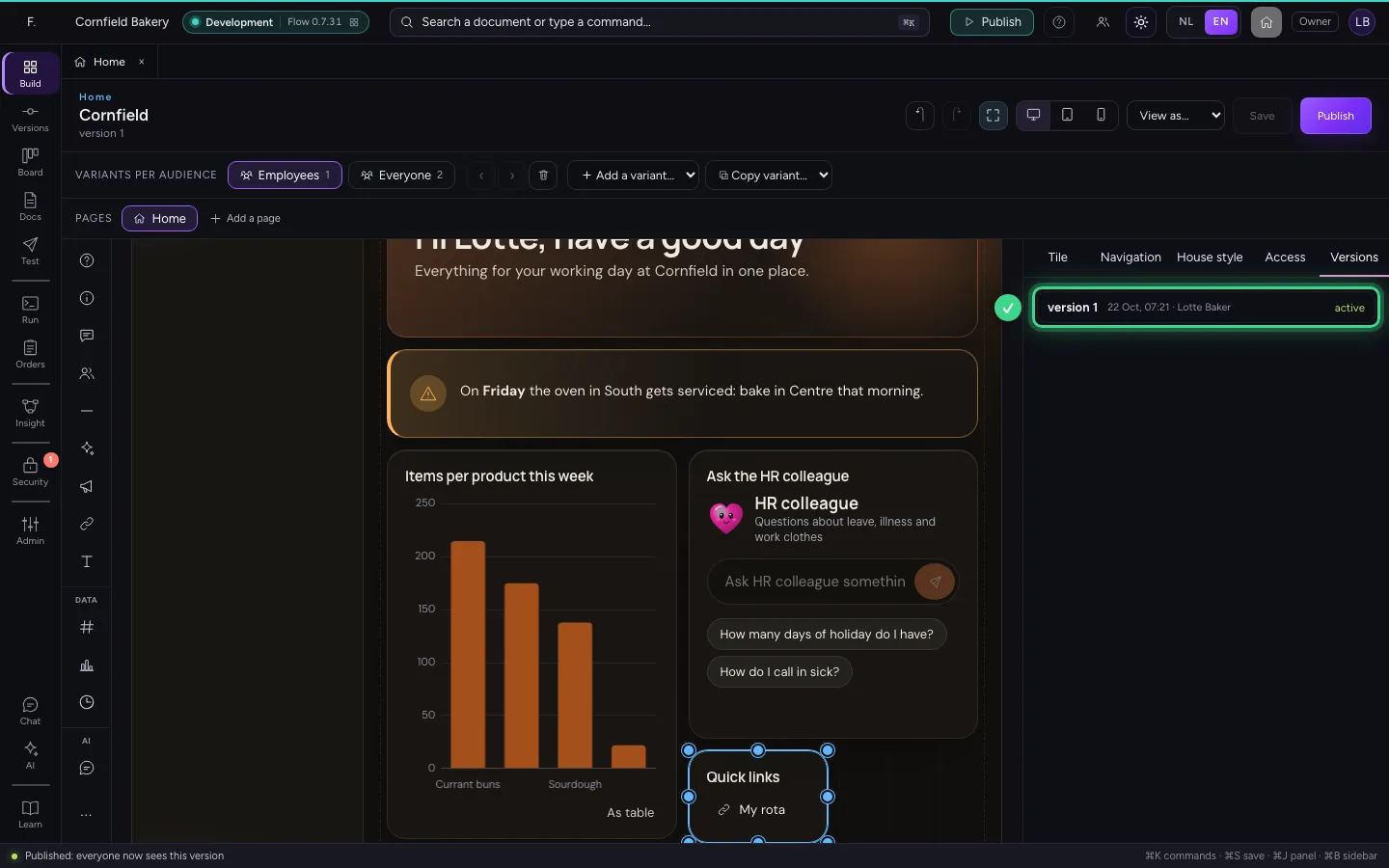
The home is what everyone in your company sees at your Flow's address: a welcome, announcements, the figures that matter and a question box for the AI Colleagues. You build it in the studio like a dashboard, with a variant per audience. Before you publish, you view it as that audience and Flow checks you do not open up anything that should stay closed.
Open the home in the studio
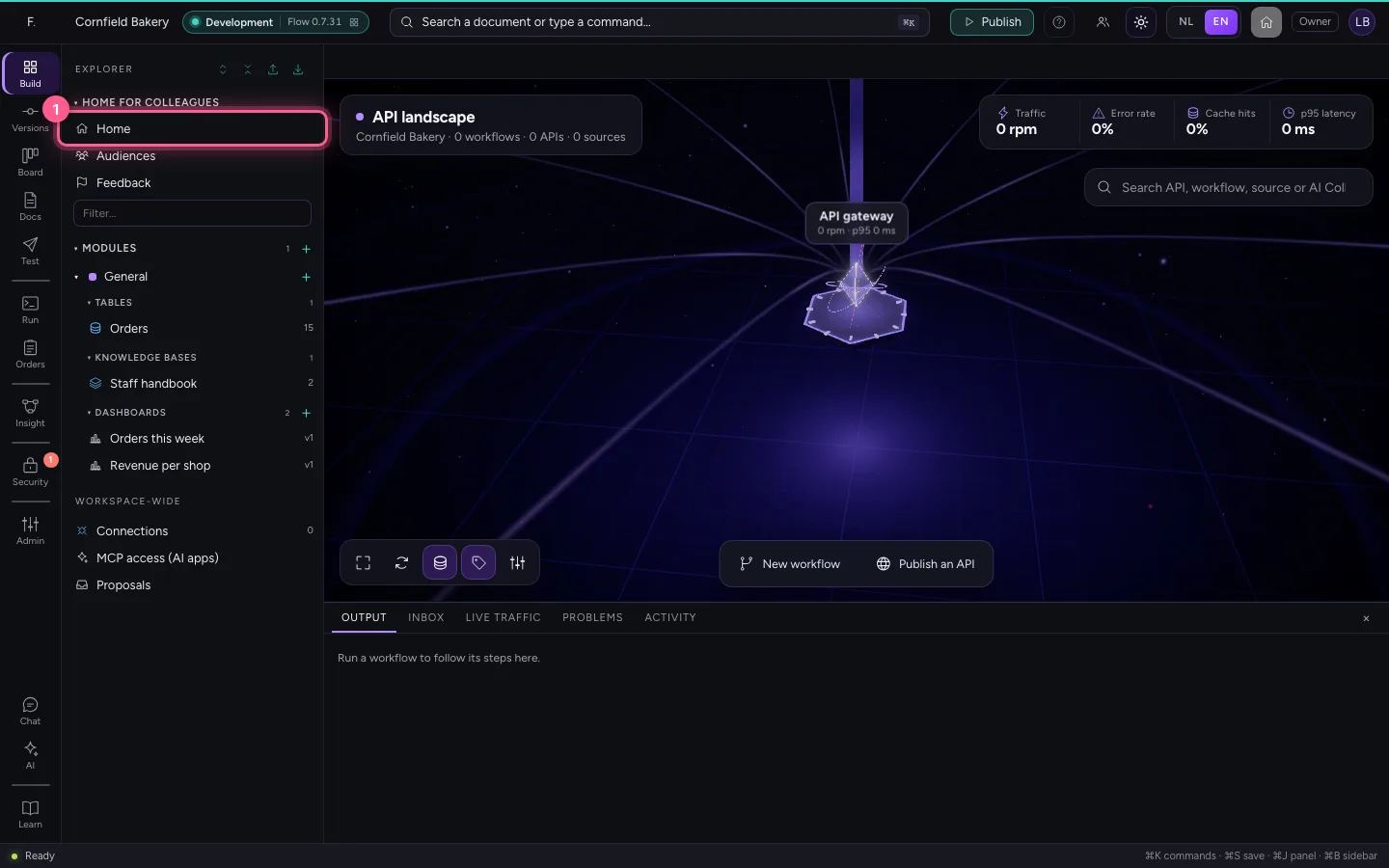
At the top of the explorer is Home for colleagues: the home, the audiences and the feedback apply to the whole workspace, not to one module. Click Home. The editor works like a dashboard's: the tiles on the left, in the middle the page as colleagues see it, the properties on the right.
- Click Home
Make a variant for Employees
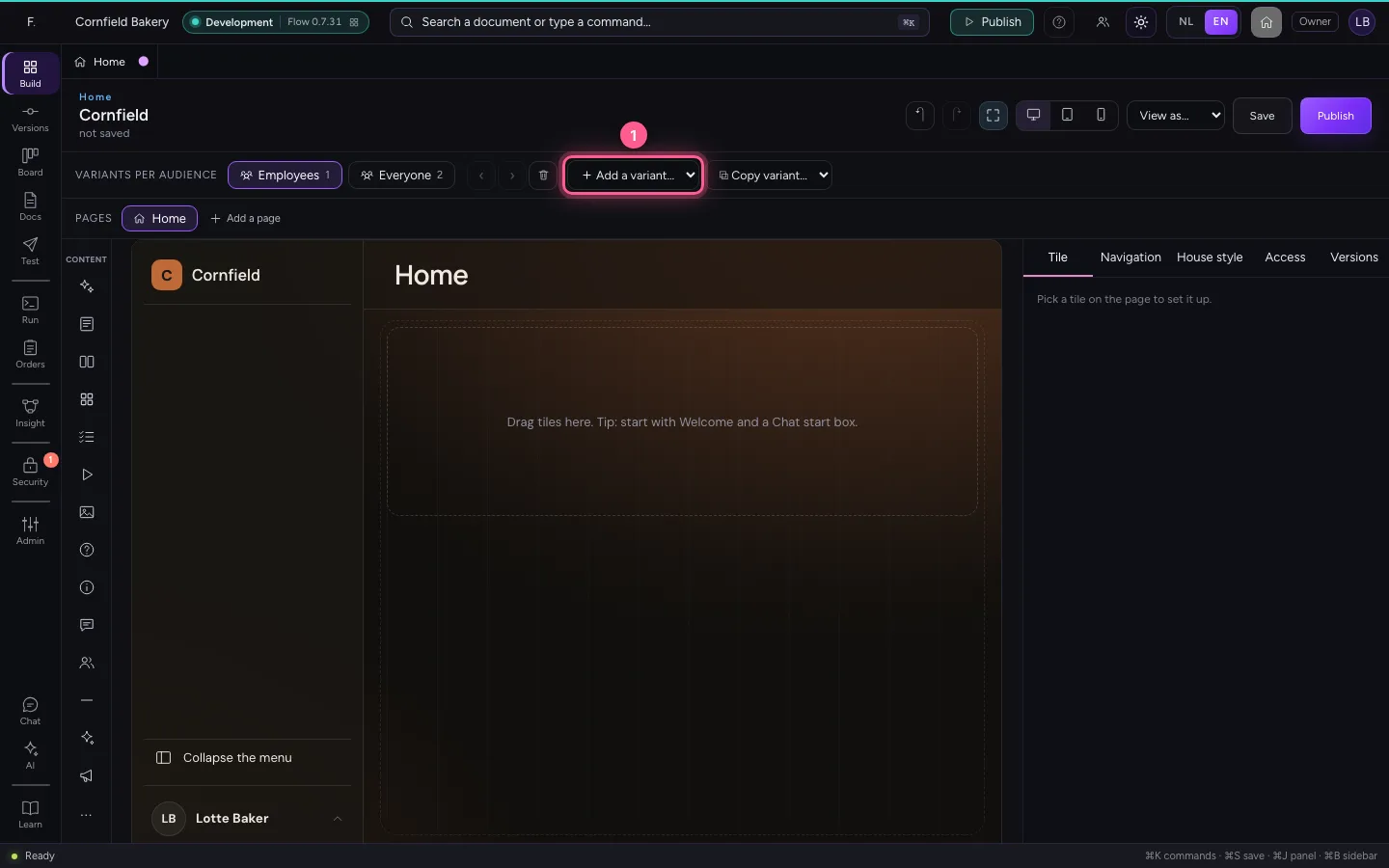
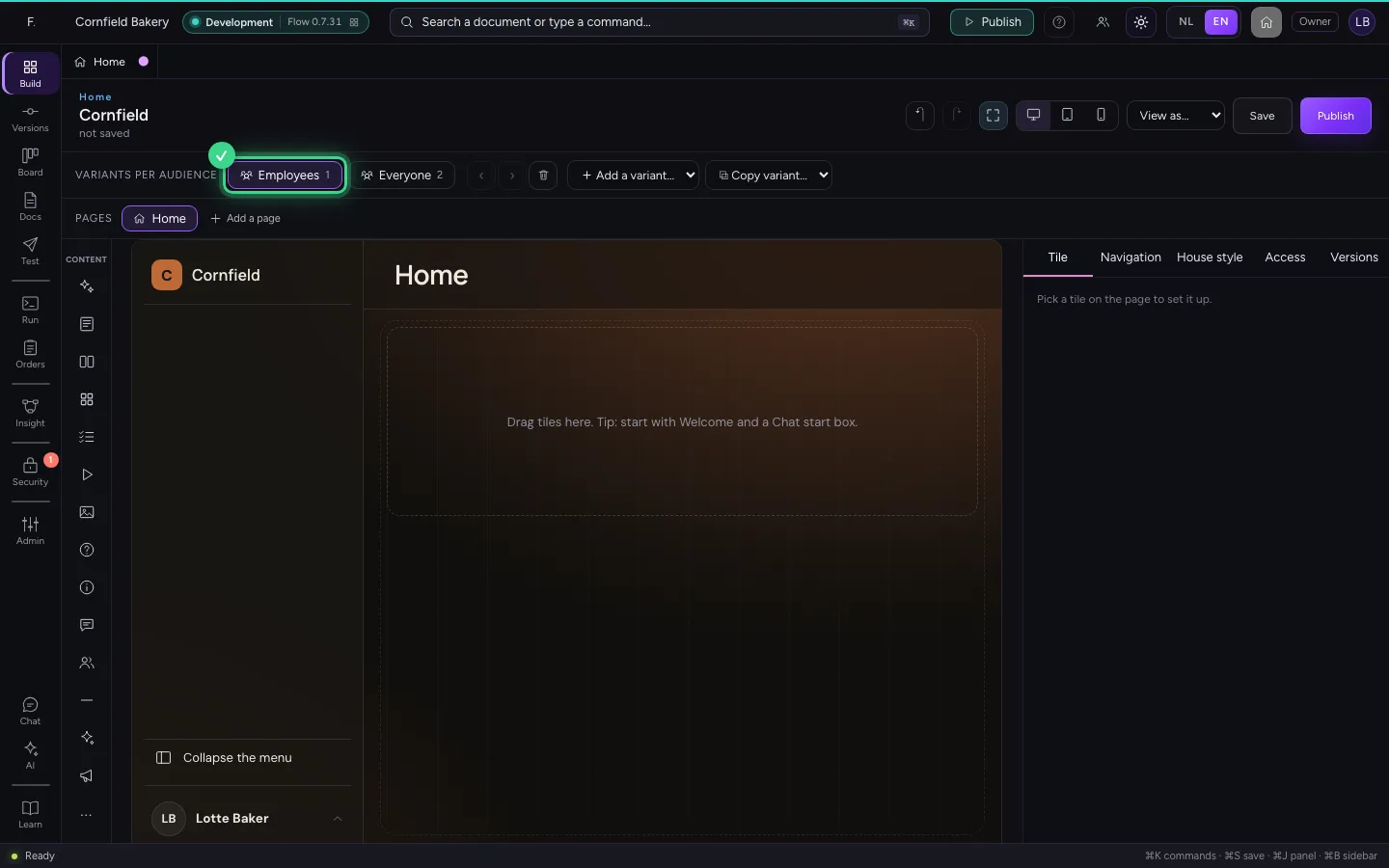
Every audience can get a home of its own. A person sees the first variant that fits them; the last one is for everyone. Under Add a variant choose the audience Employees: everyone with the role Employee, such as whoever arrives through your company's sign-in system.
- In Add a variant, choose Employees
A welcome with the reader's name
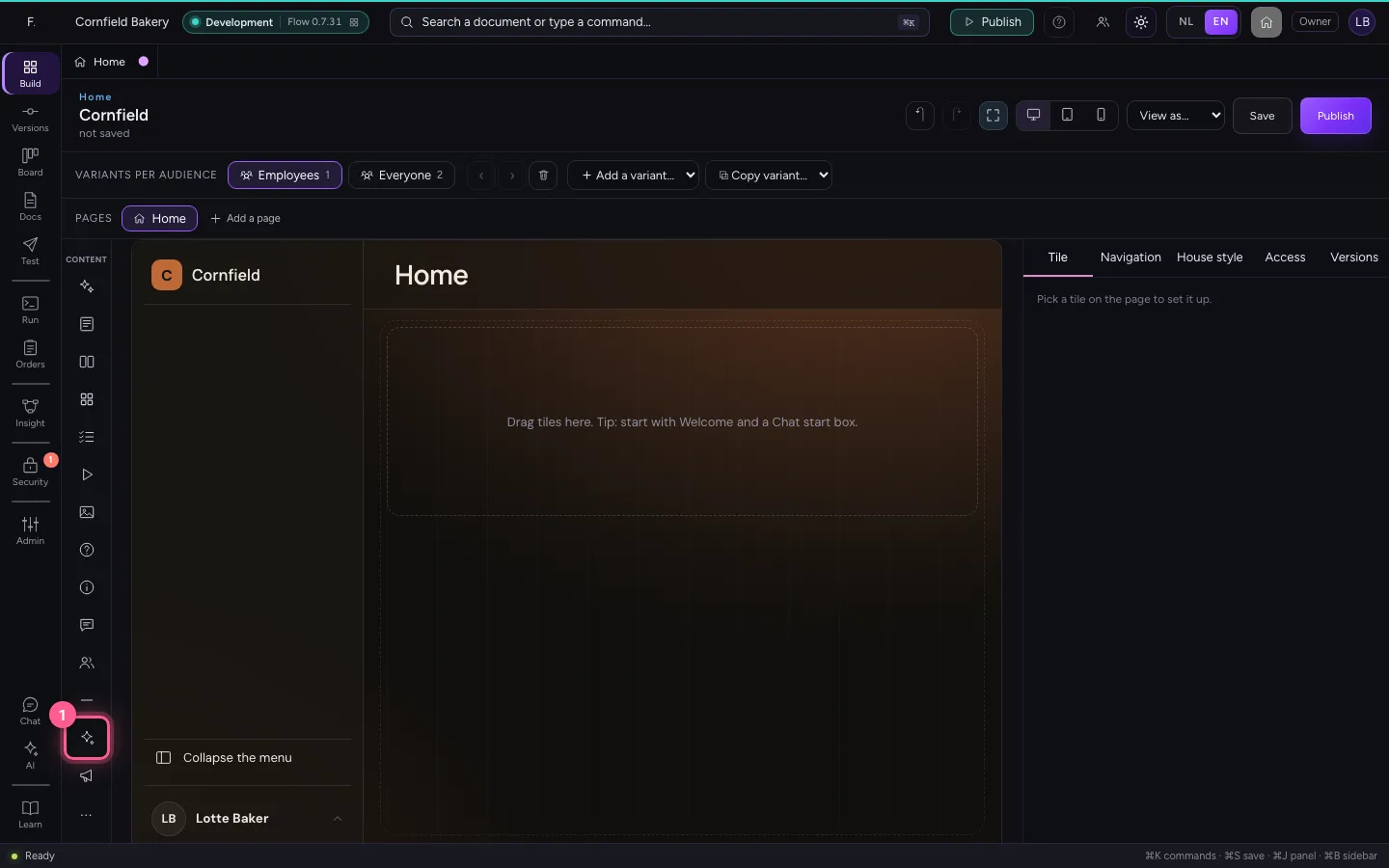
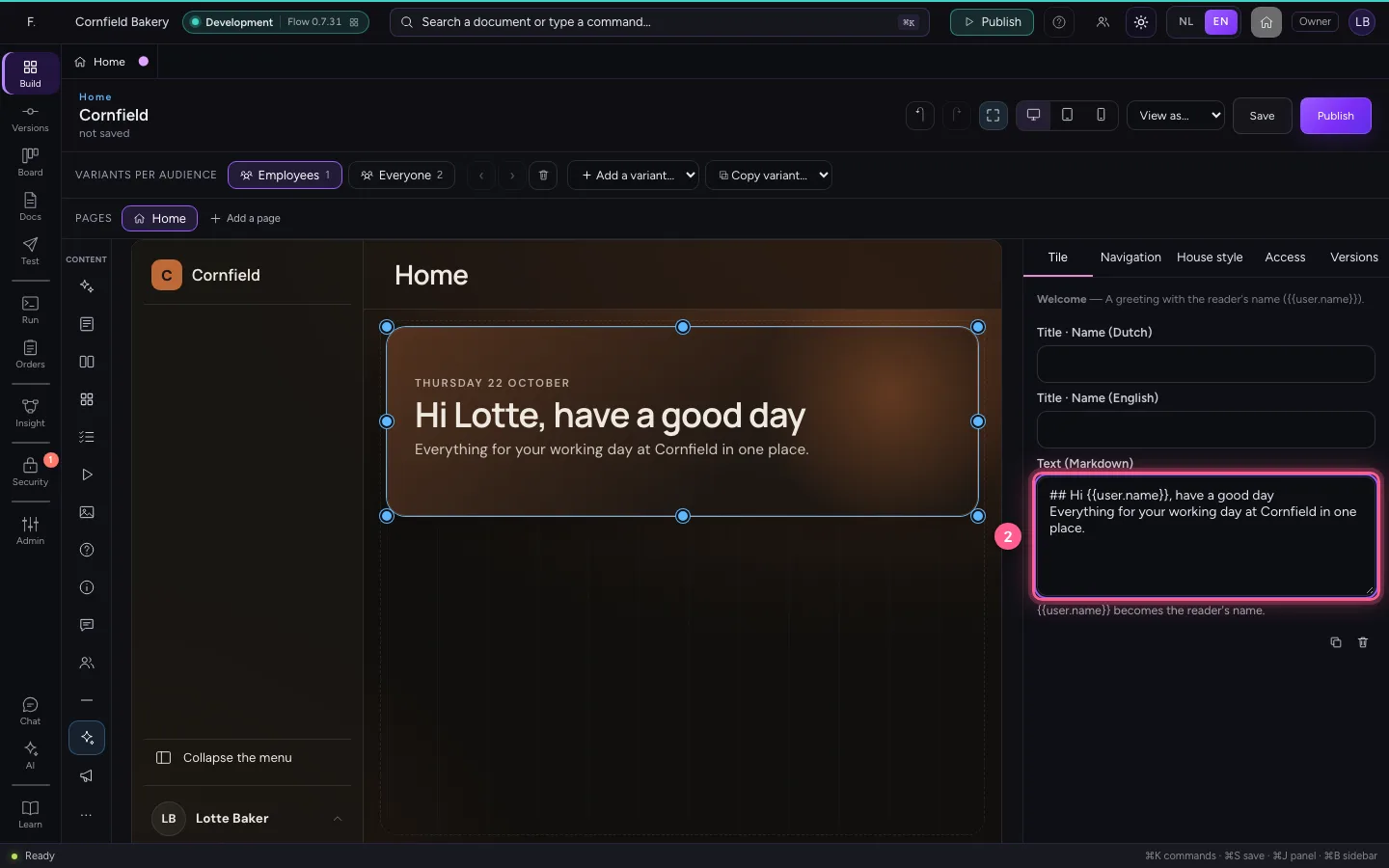
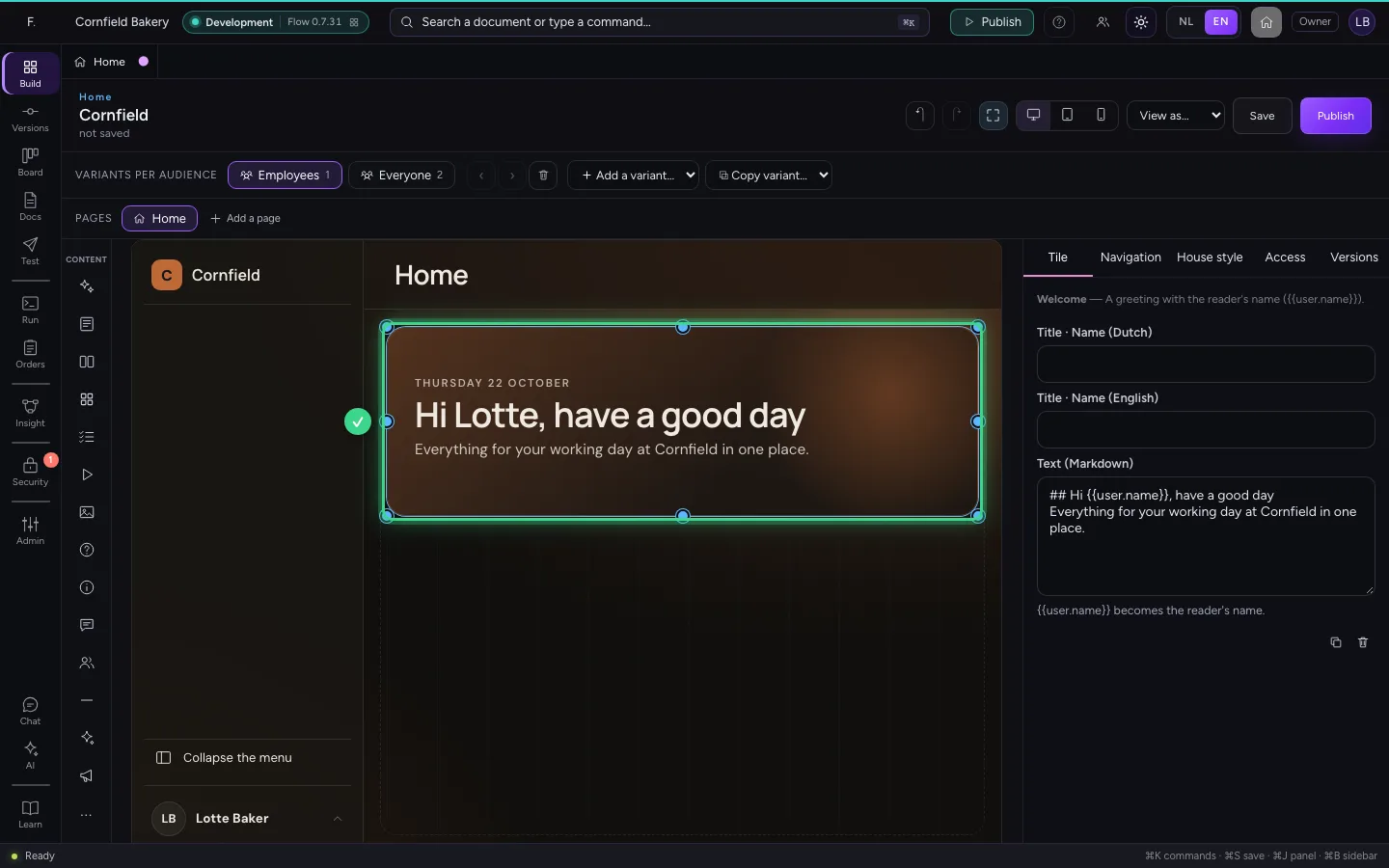
Click Welcome on the left. On the right you write the text in Markdown; {{user.name}} becomes the name of whoever opens the home.
- Click Welcome
- In Text (Markdown), type `## Hi {{user.name}}, have a good day
An announcement with a start and end date
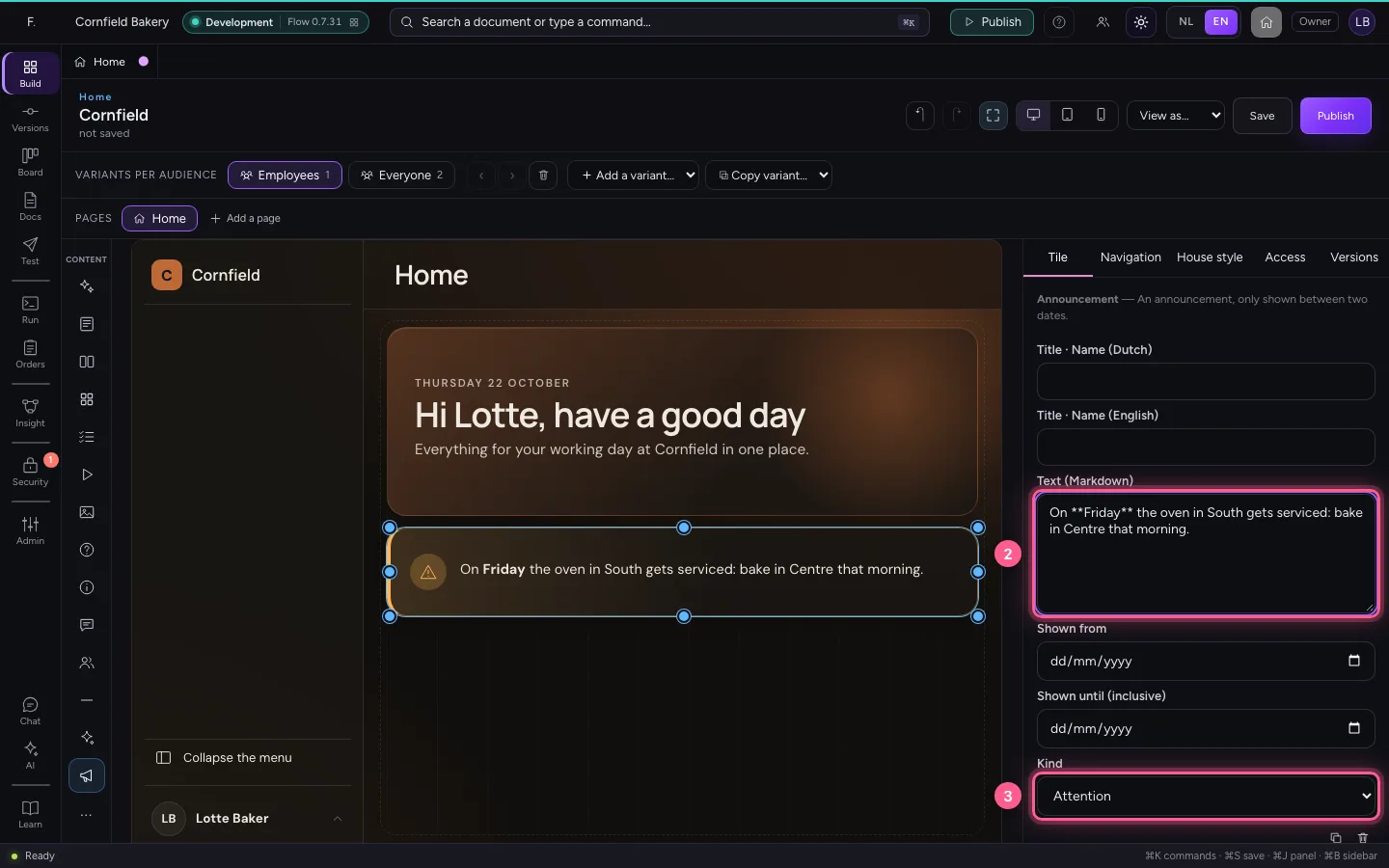
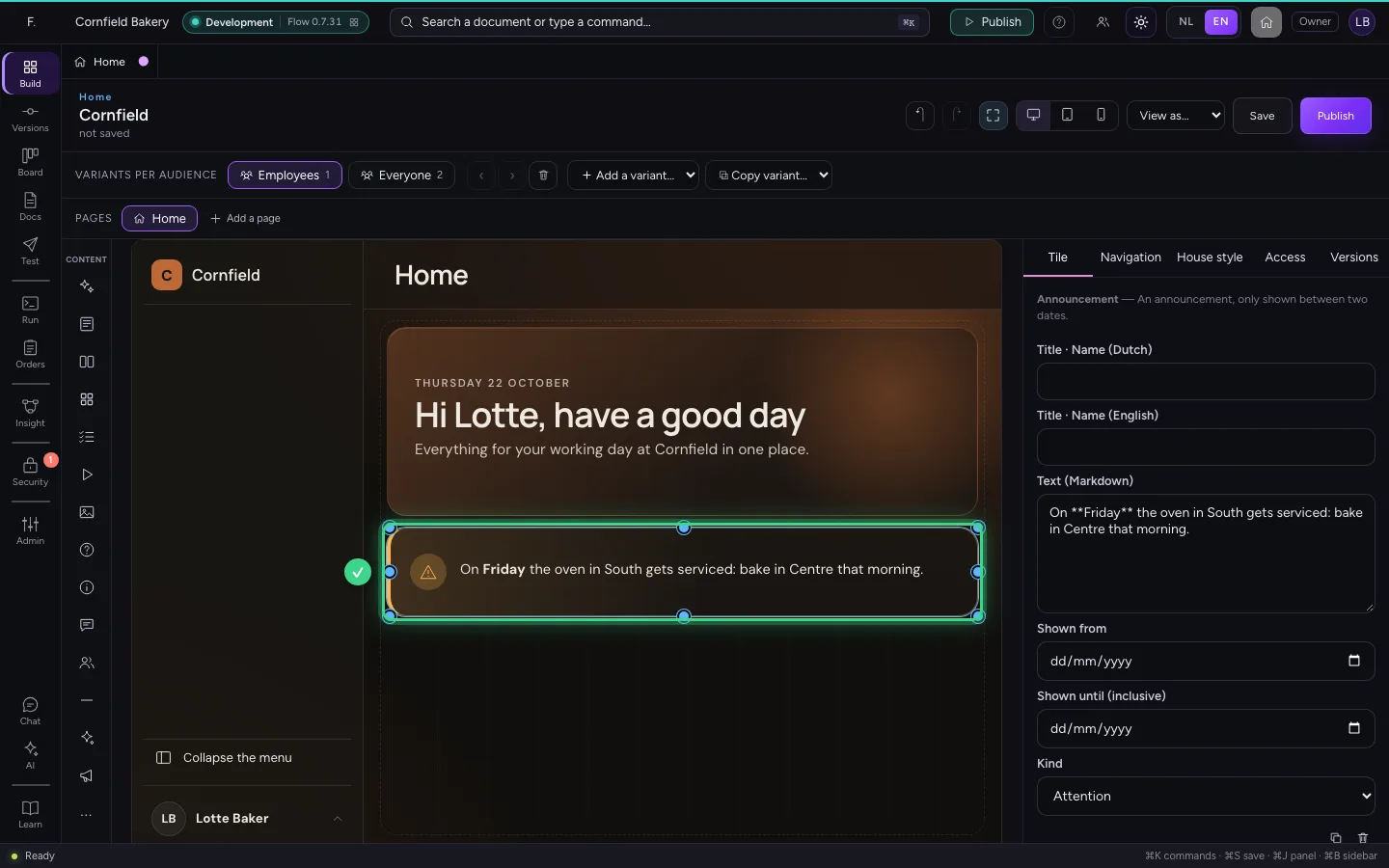
An announcement is only shown between two dates: after that it disappears by itself. Choose the kind Attention for something that stands out.
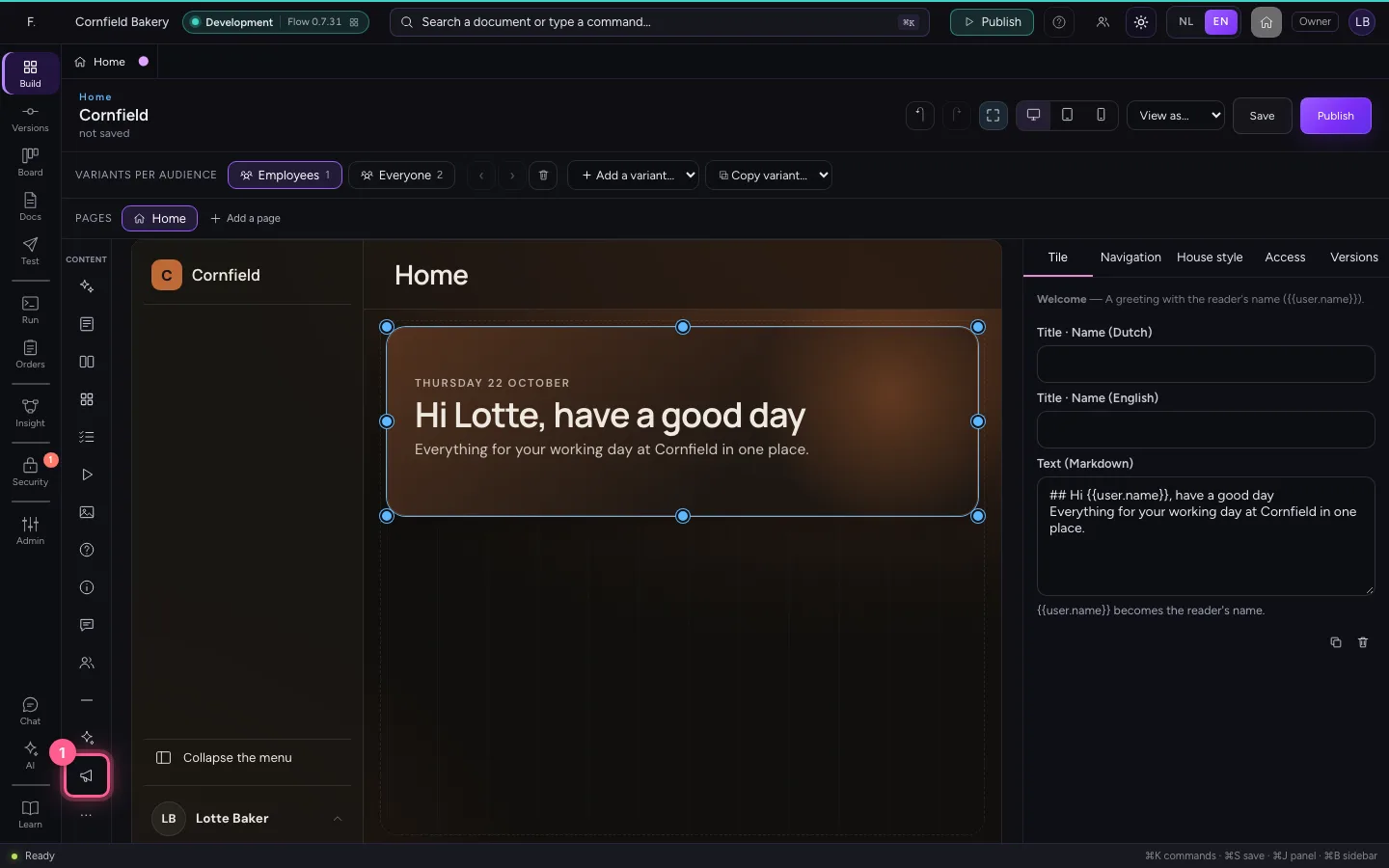
- Click Announcement
- In Text (Markdown), type
On **Friday** the oven in South gets serviced: bake in Centre that morning. - In Kind, choose Attention
A dashboard on the home
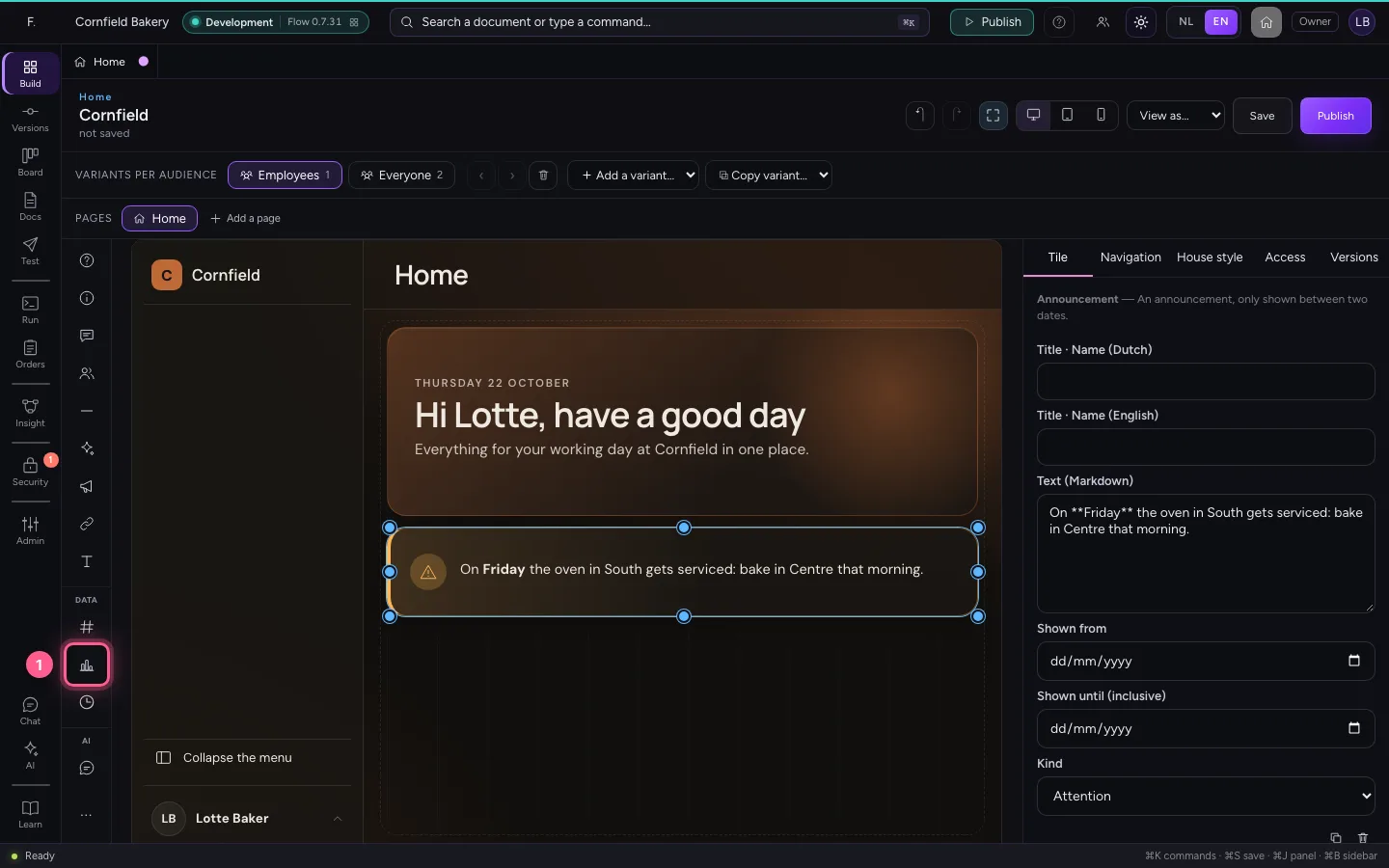
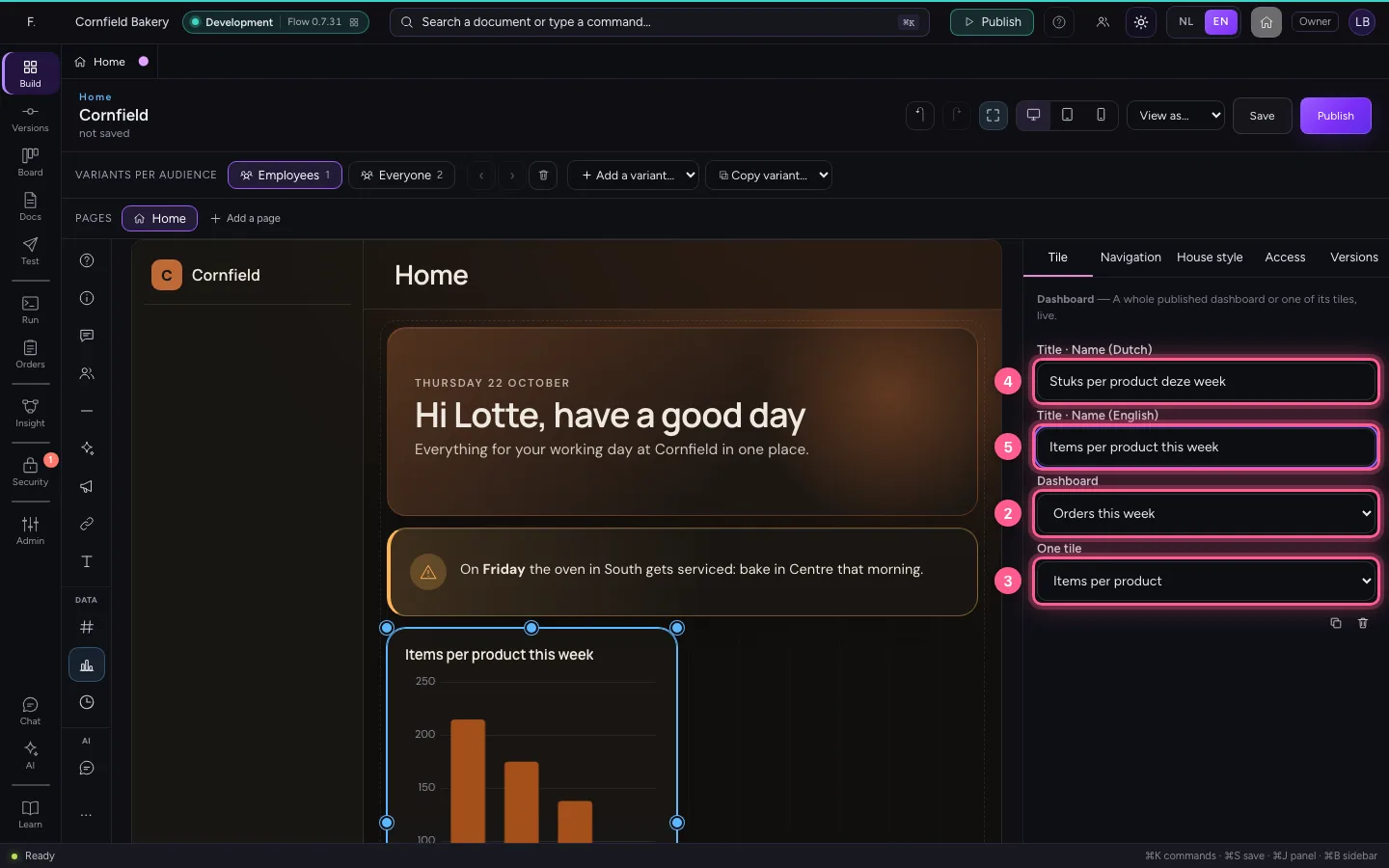
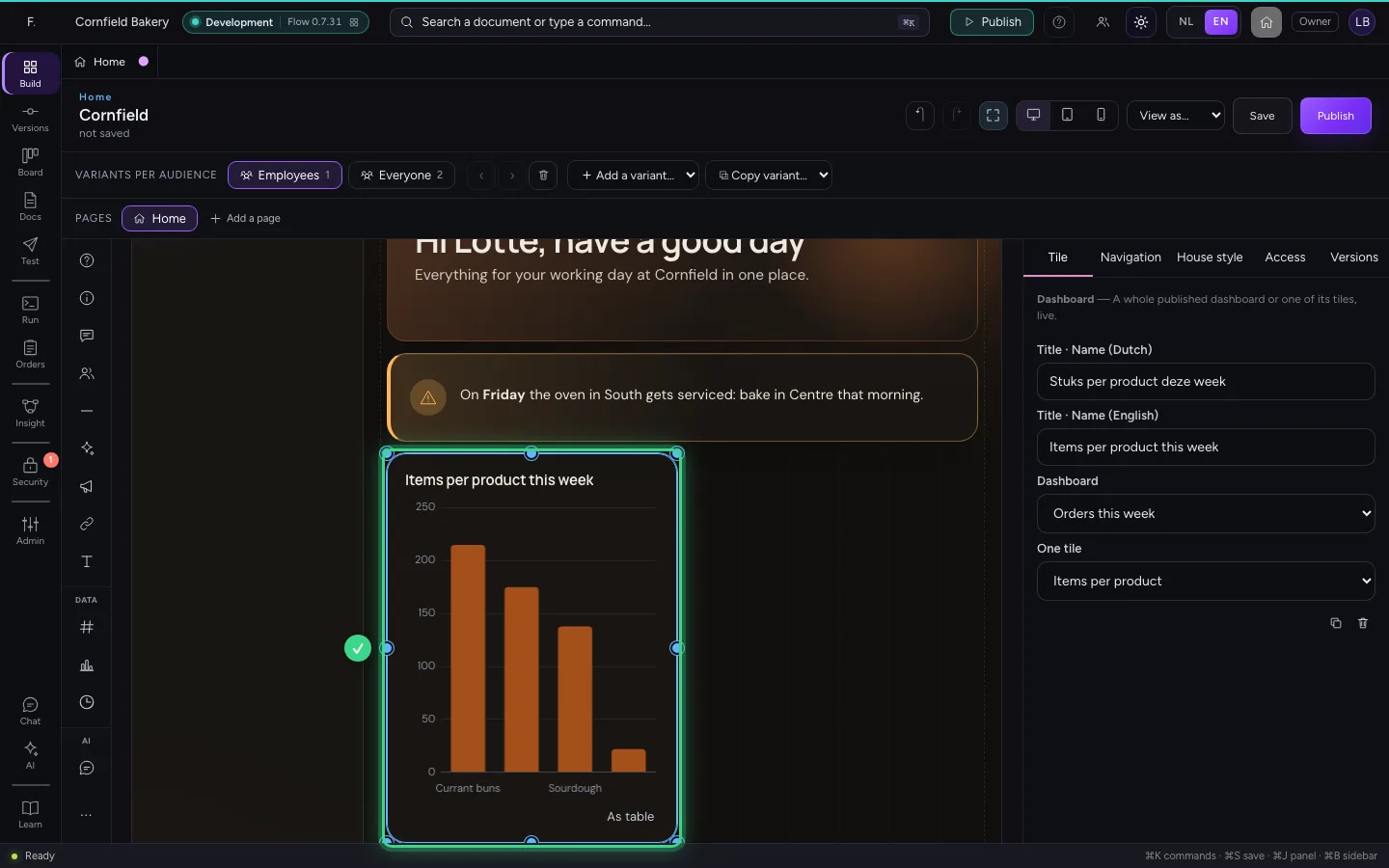
With the Dashboard tile you put a published dashboard on the home, or one of its tiles: here the chart with the items per product. Colleagues see it live, with their own rights: what they may not read, they do not see here either.
- Click Dashboard
- In Dashboard, choose Orders this week
- In One tile, choose Items per product
- In Title · Name (Dutch), type
Stuks per product deze week - In Title · Name (English), type
Items per product this week
A question box for the AI Colleague
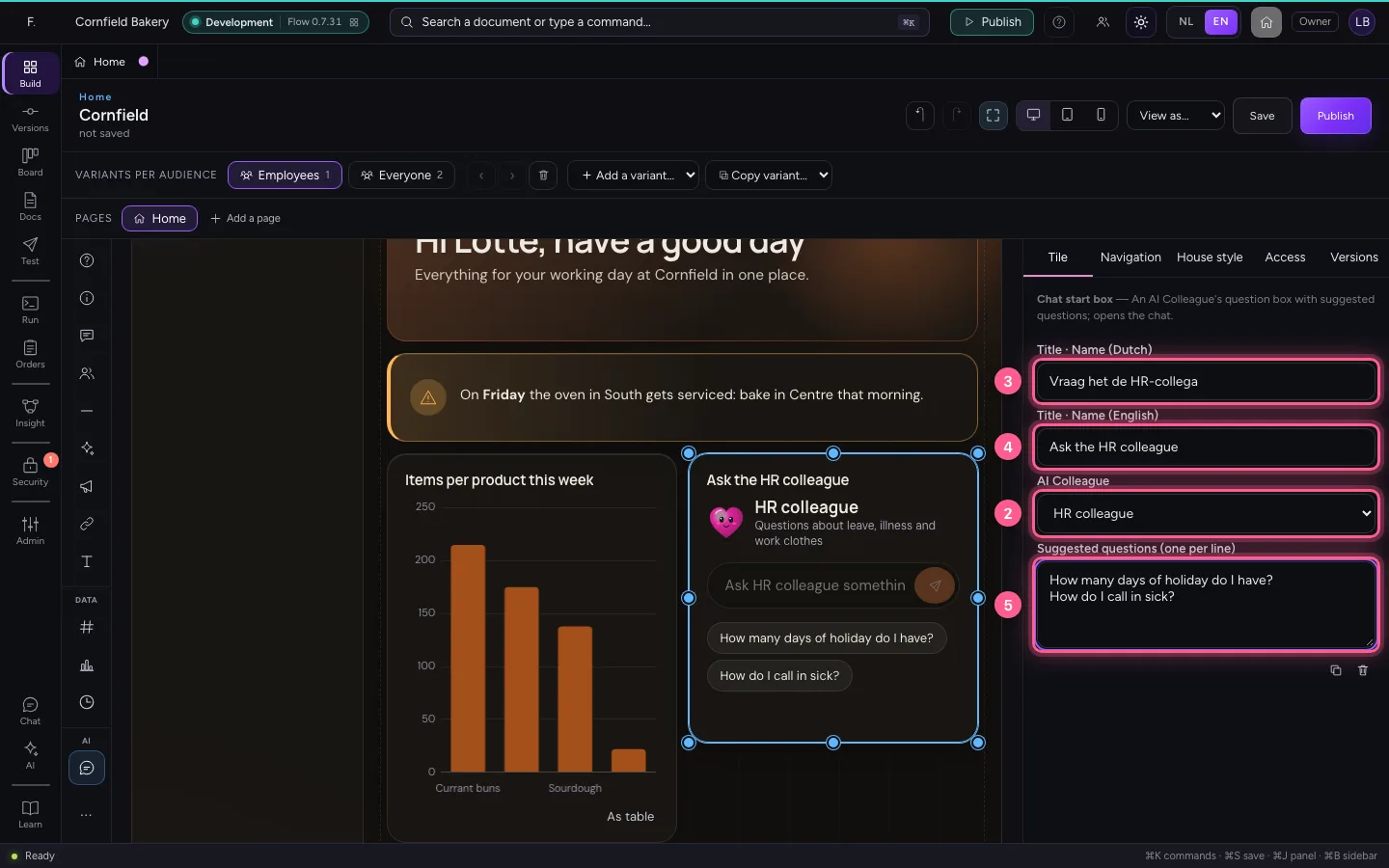
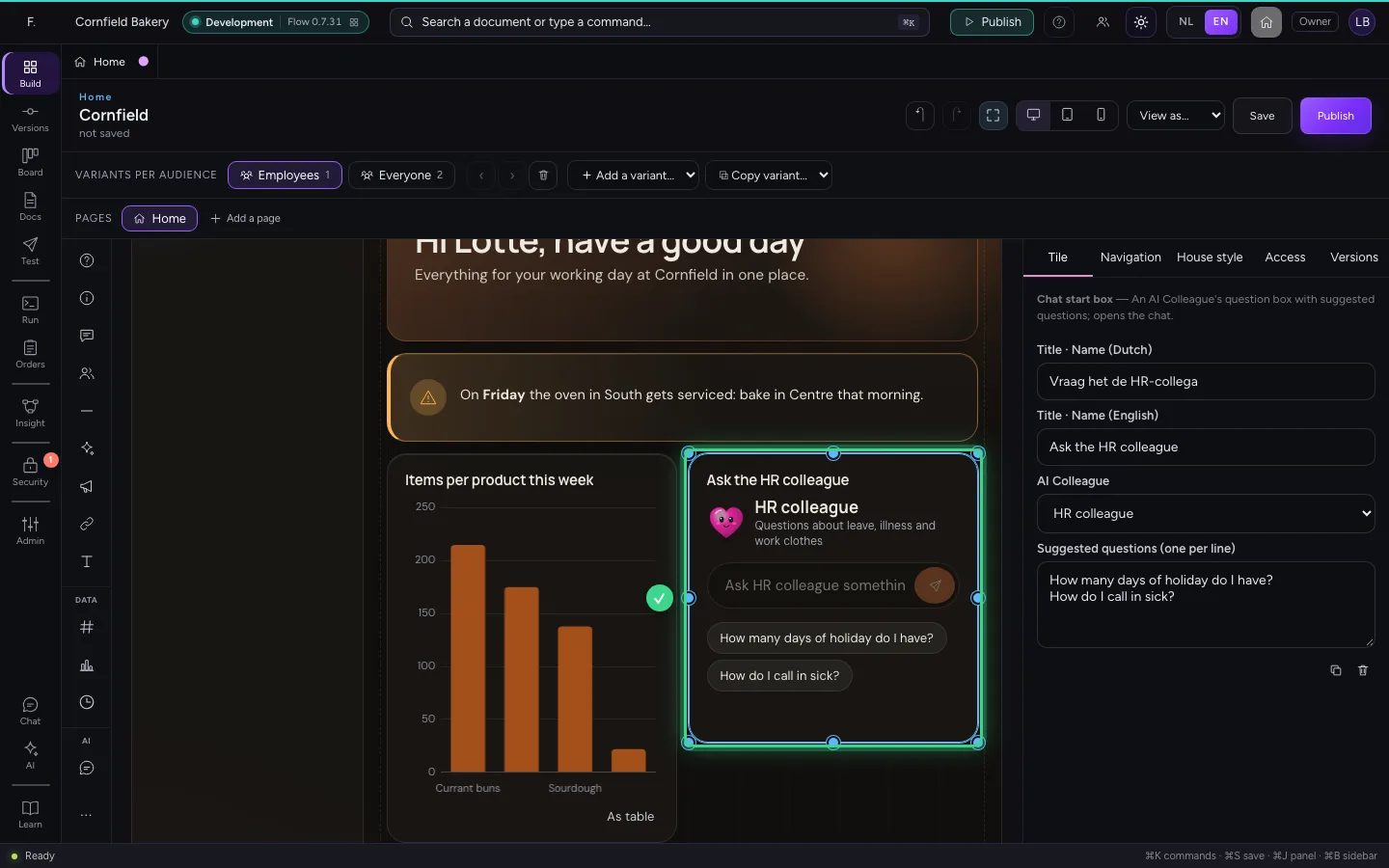
The Chat start box lets colleagues ask an AI Colleague a question straight away, with suggested questions to click. The answer arrives in the chat.
- Click Chat start box
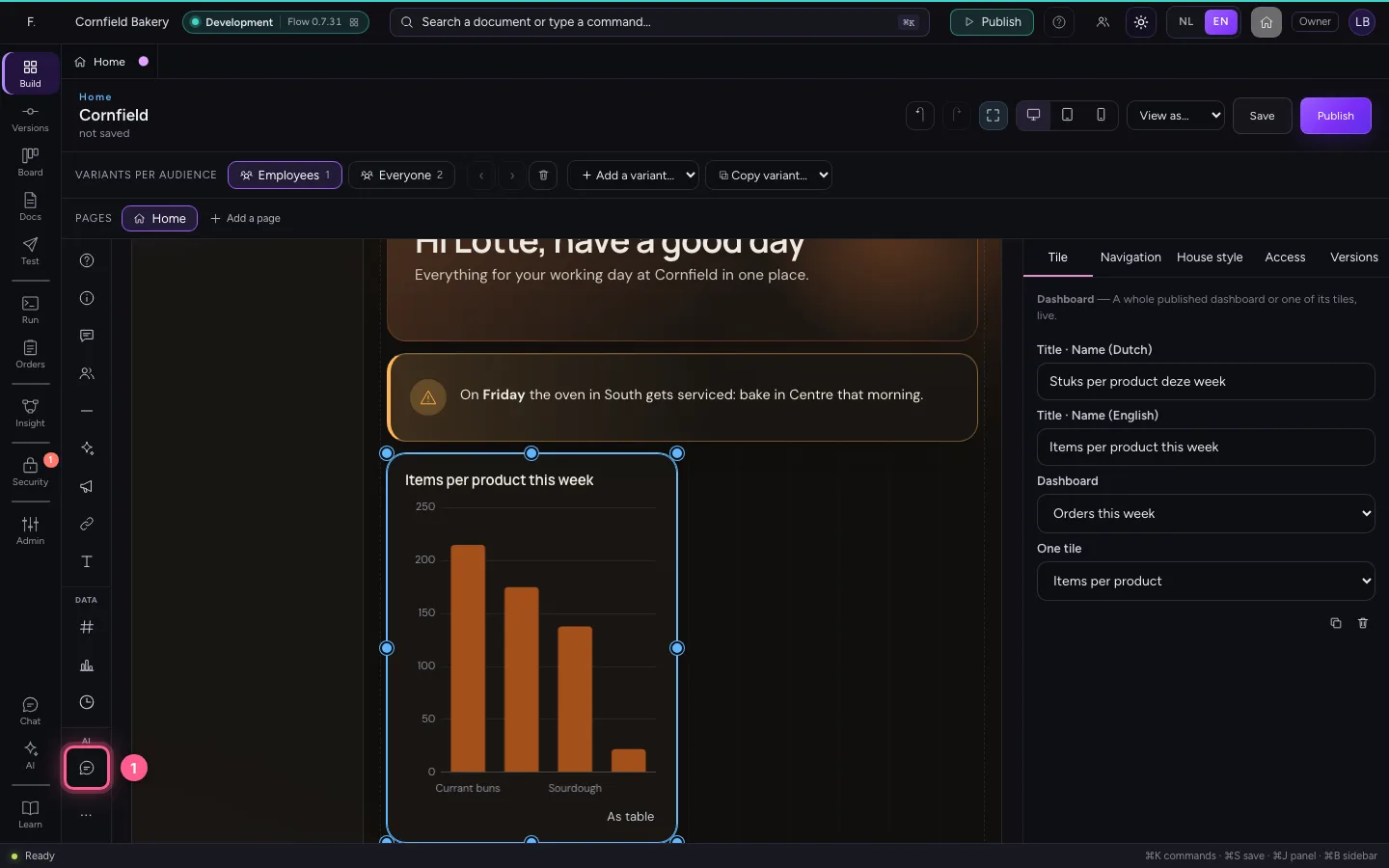
- In AI Colleague, choose HR colleague
- In Title · Name (Dutch), type
Vraag het de HR-collega - In Title · Name (English), type
Ask the HR colleague - In Suggested questions (one per line), type `How many days of holiday do I have?
Links to what colleagues often need
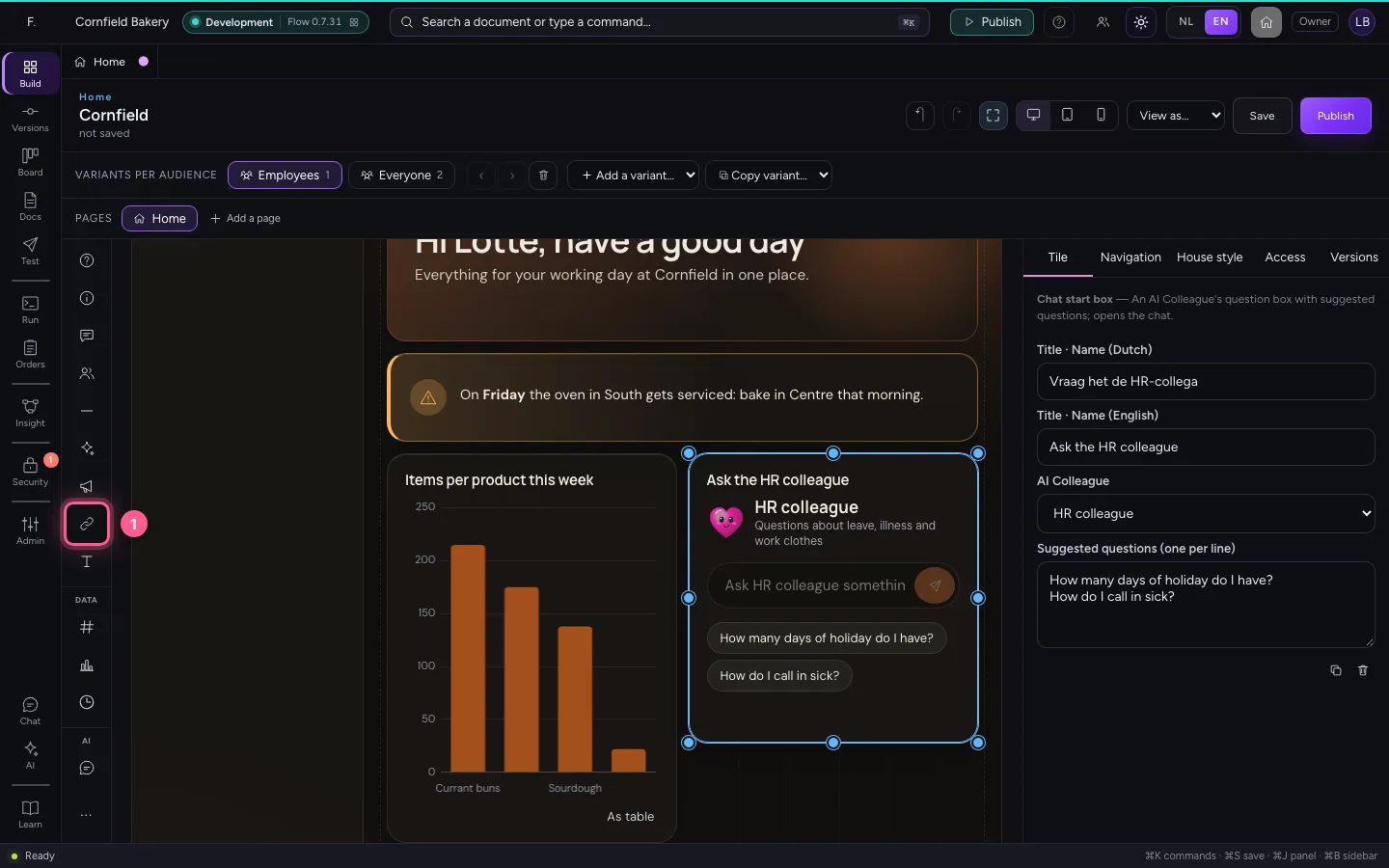
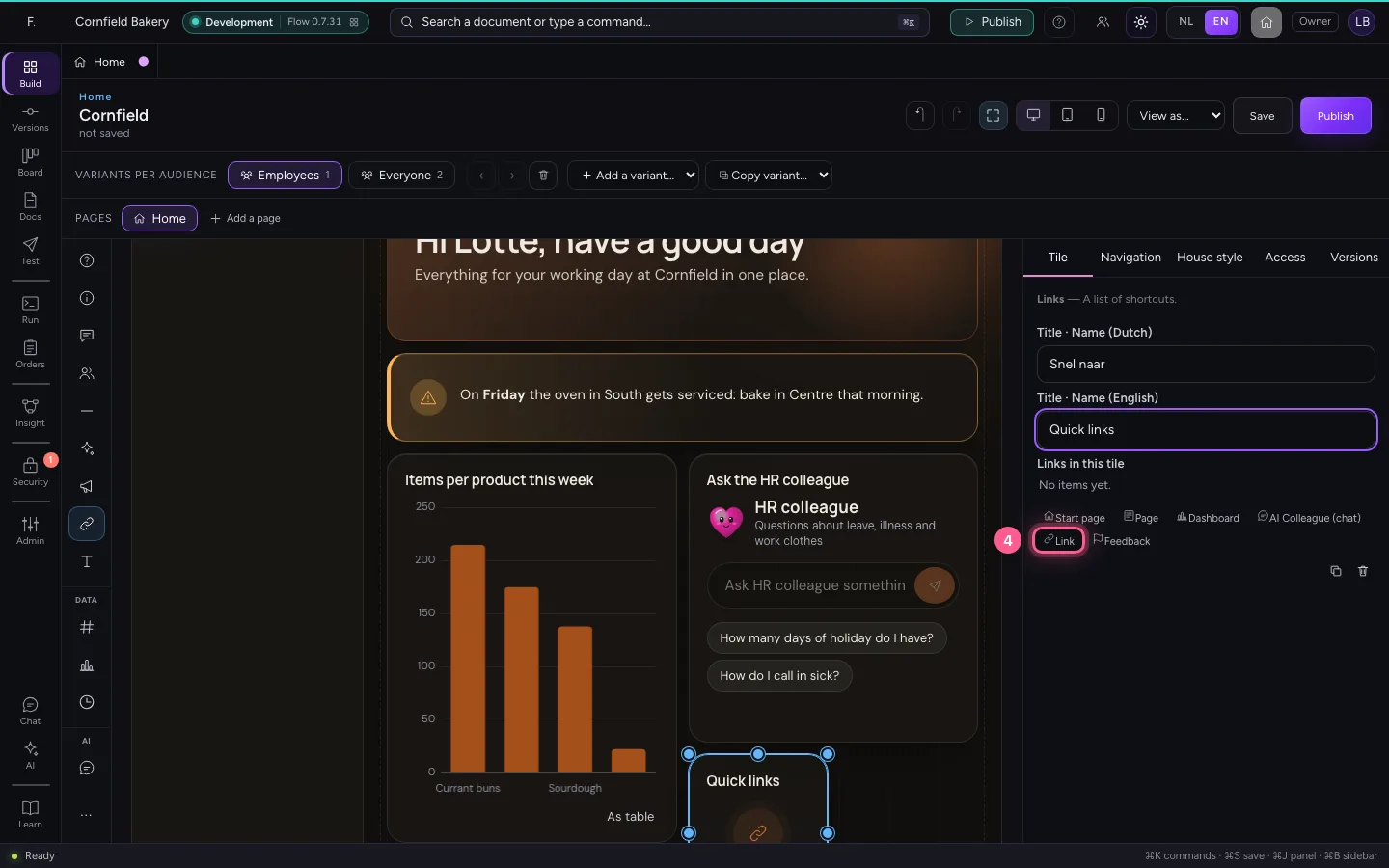
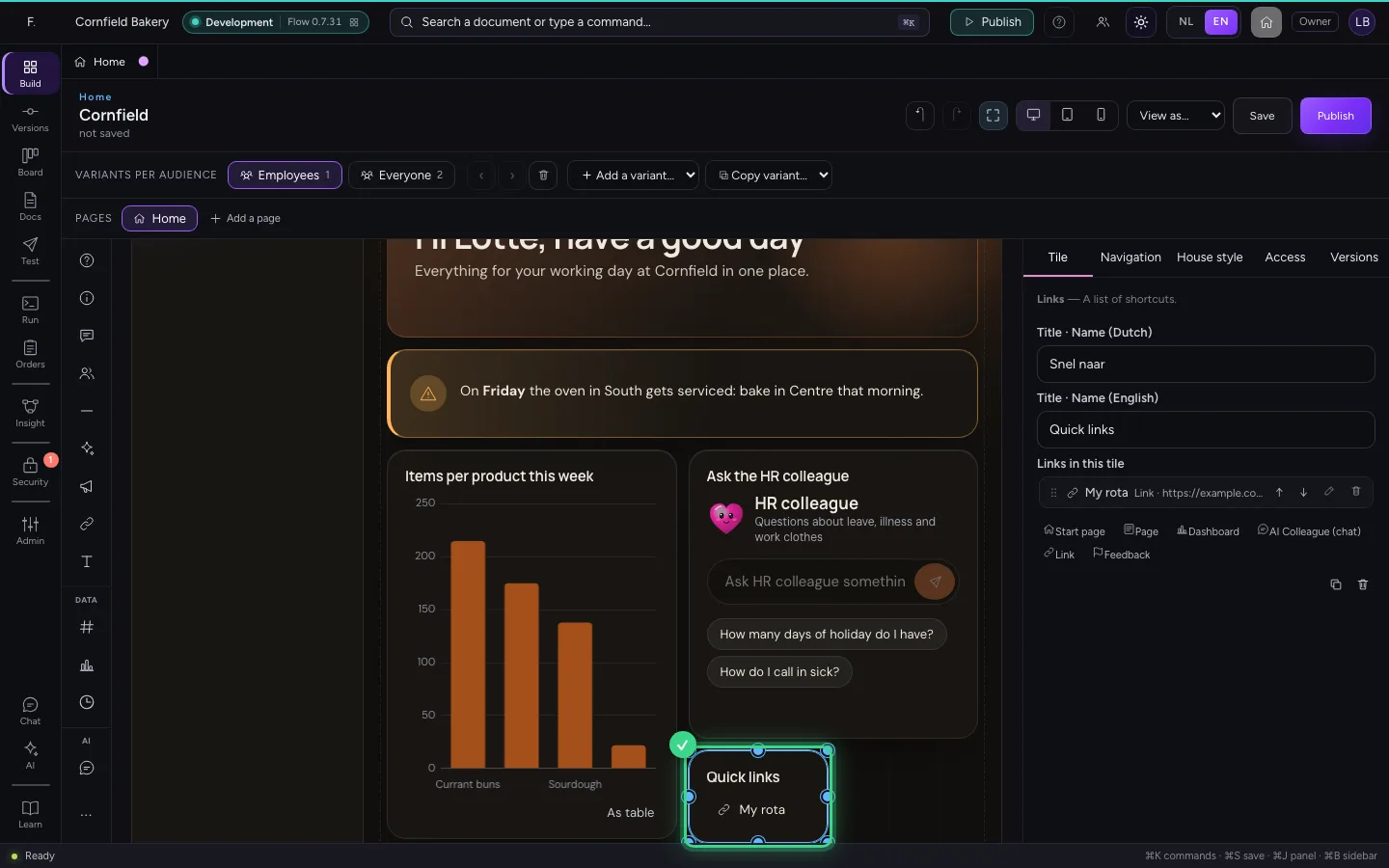
A Links tile is a list of shortcuts: an address outside Flow (it opens in a new tab), a dashboard, an AI Colleague or Feedback.
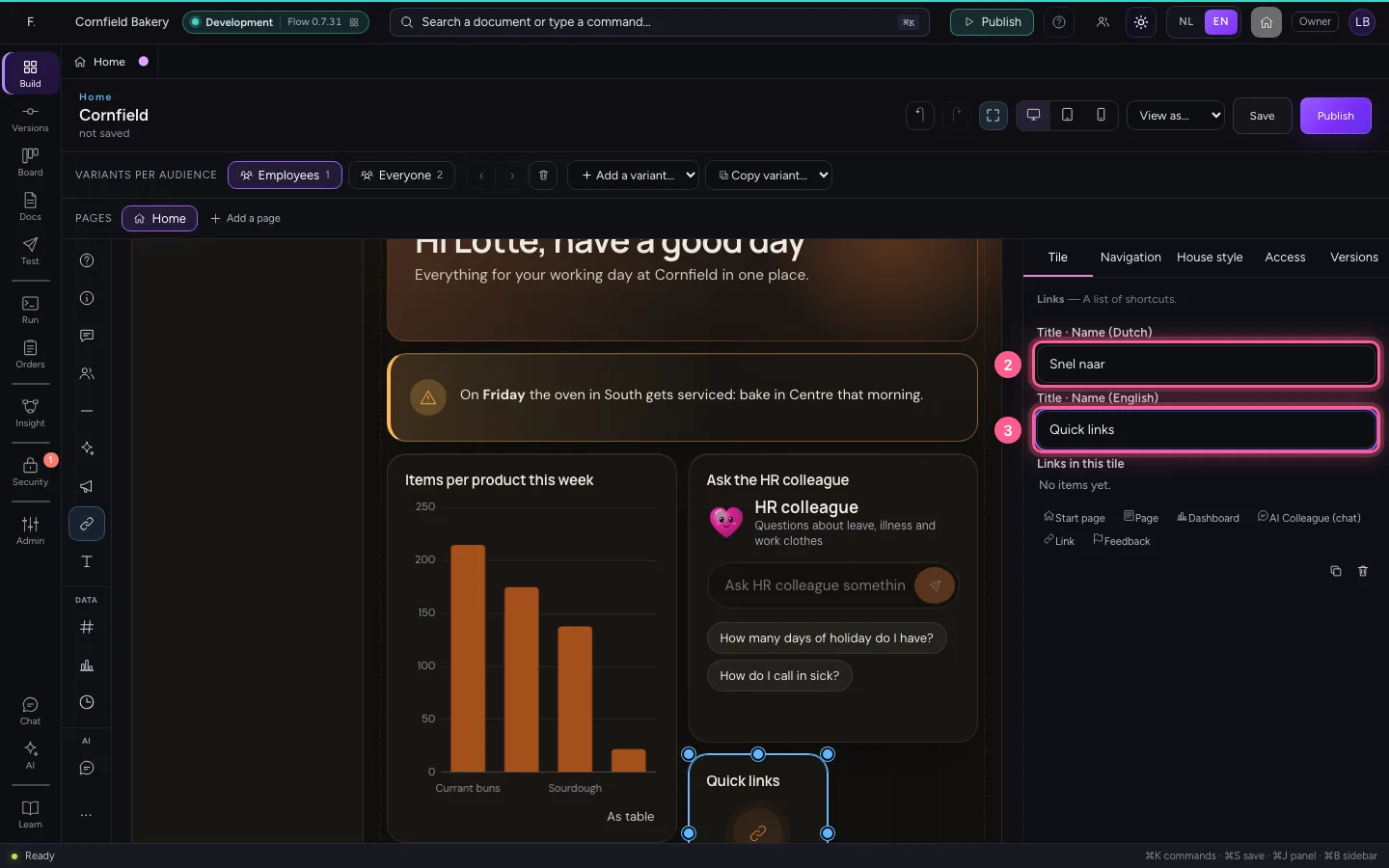
- Click Links
- In Title · Name (Dutch), type
Snel naar - In Title · Name (English), type
Quick links
- Click Link
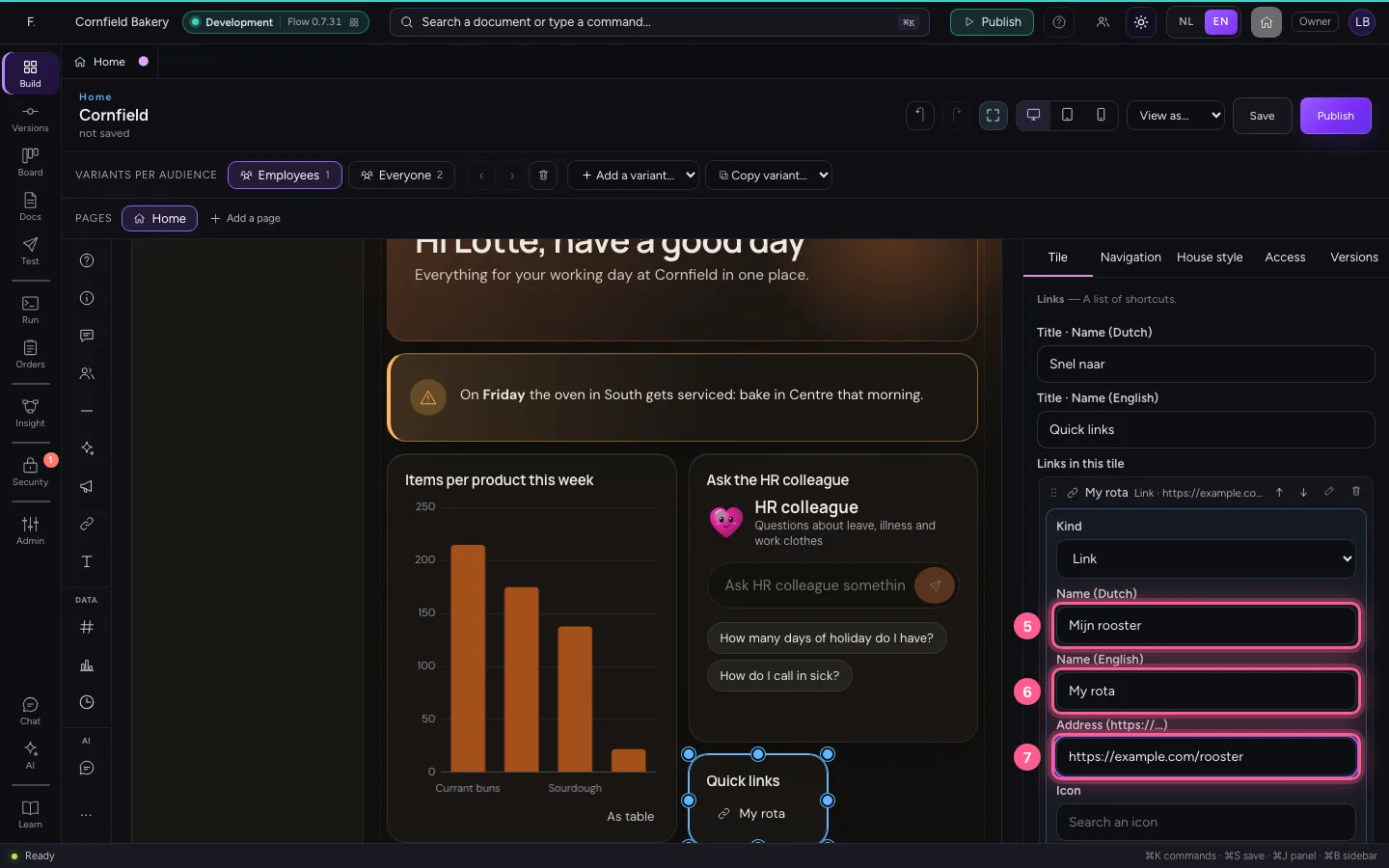
- In Name (Dutch), type
Mijn rooster - In Name (English), type
My rota - In Address (https://…), type
https://example.com/rooster
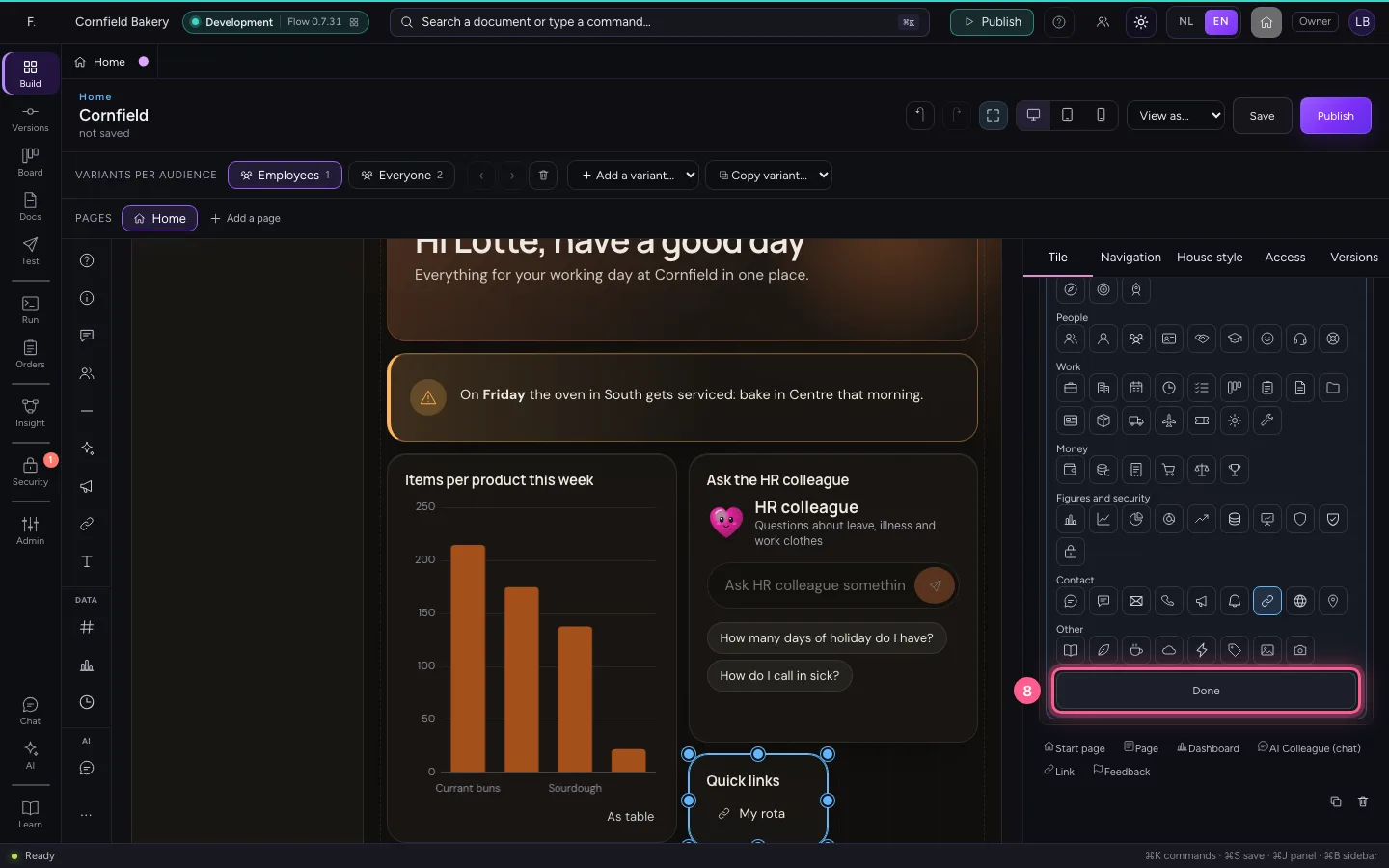
- Click Done
Save and view the home as Employees
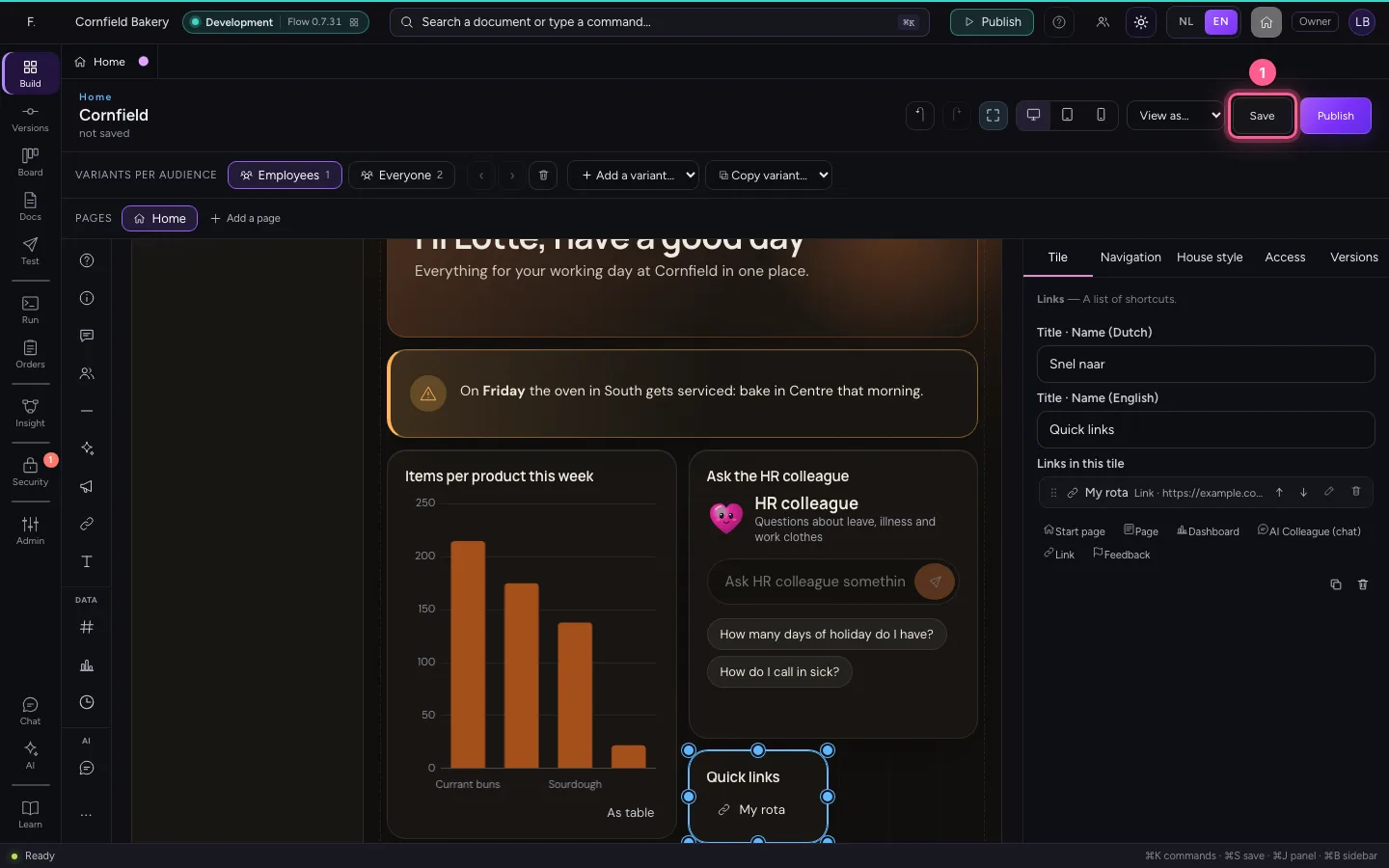
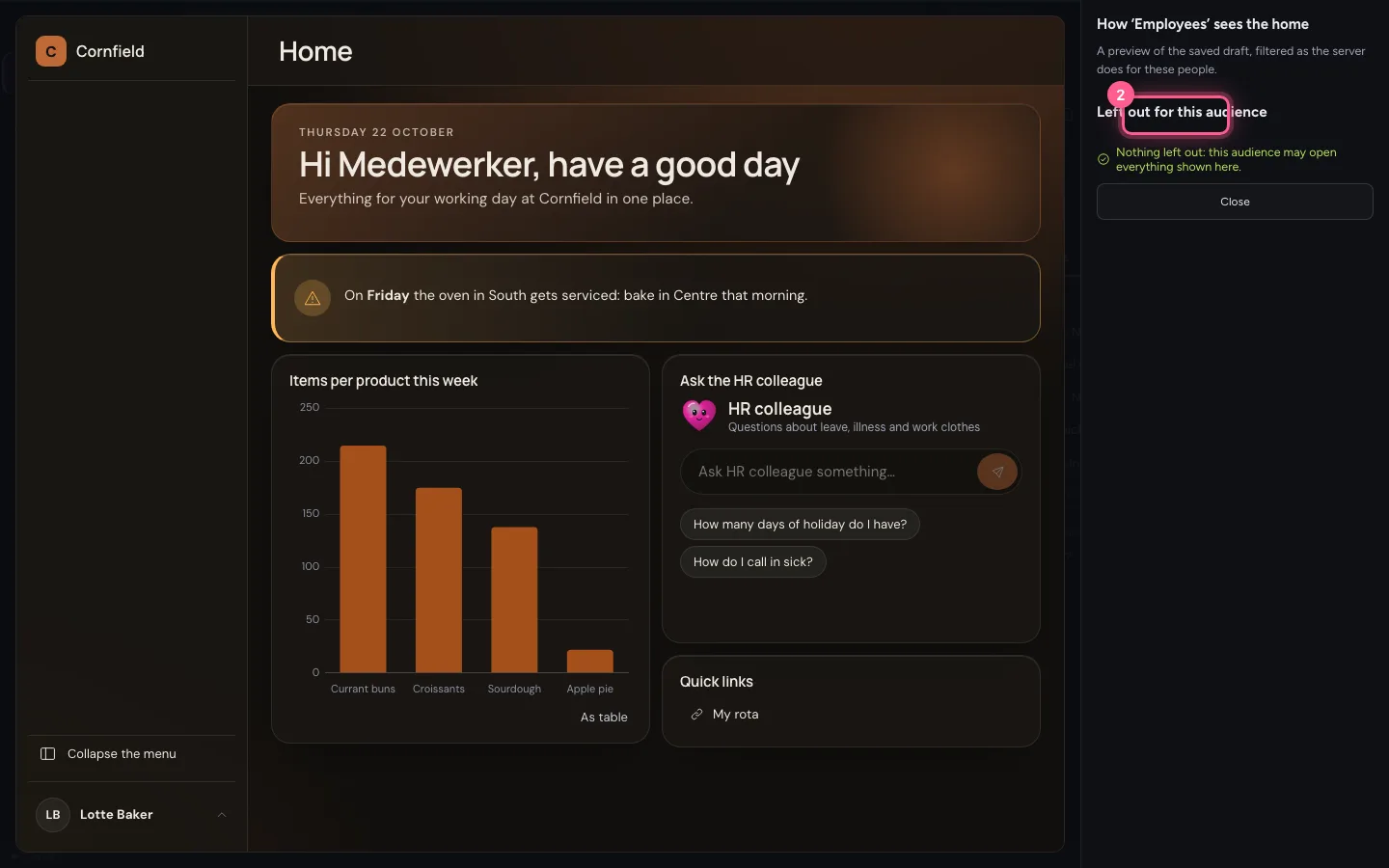
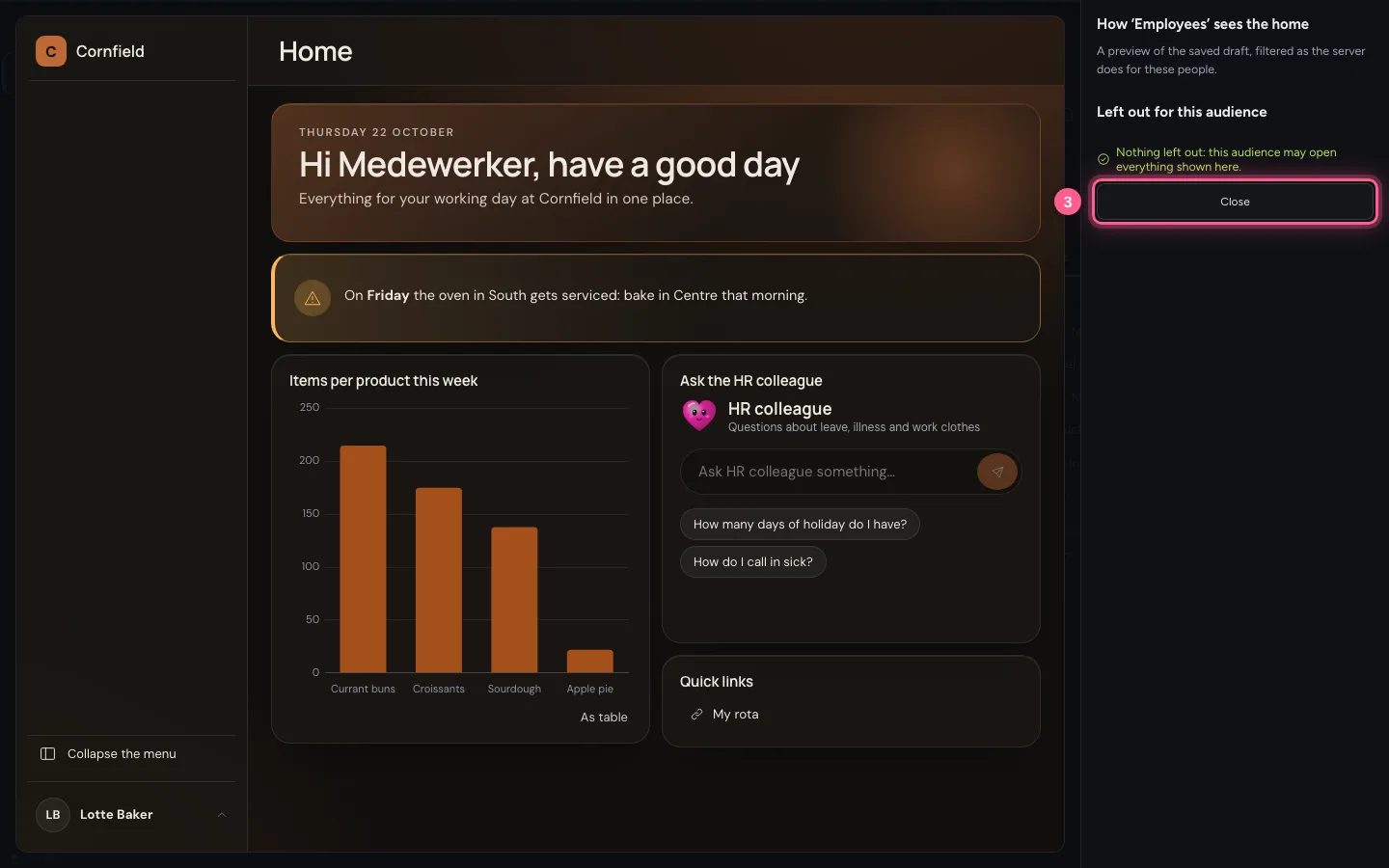
Choose View as… at the top and the audience. You see the home exactly as the server filters it for those people, with on the right what is left out for them and why. So before publishing you see whether everyone can open what you show.
- Click Save
- In View the home as an audience, choose Employees
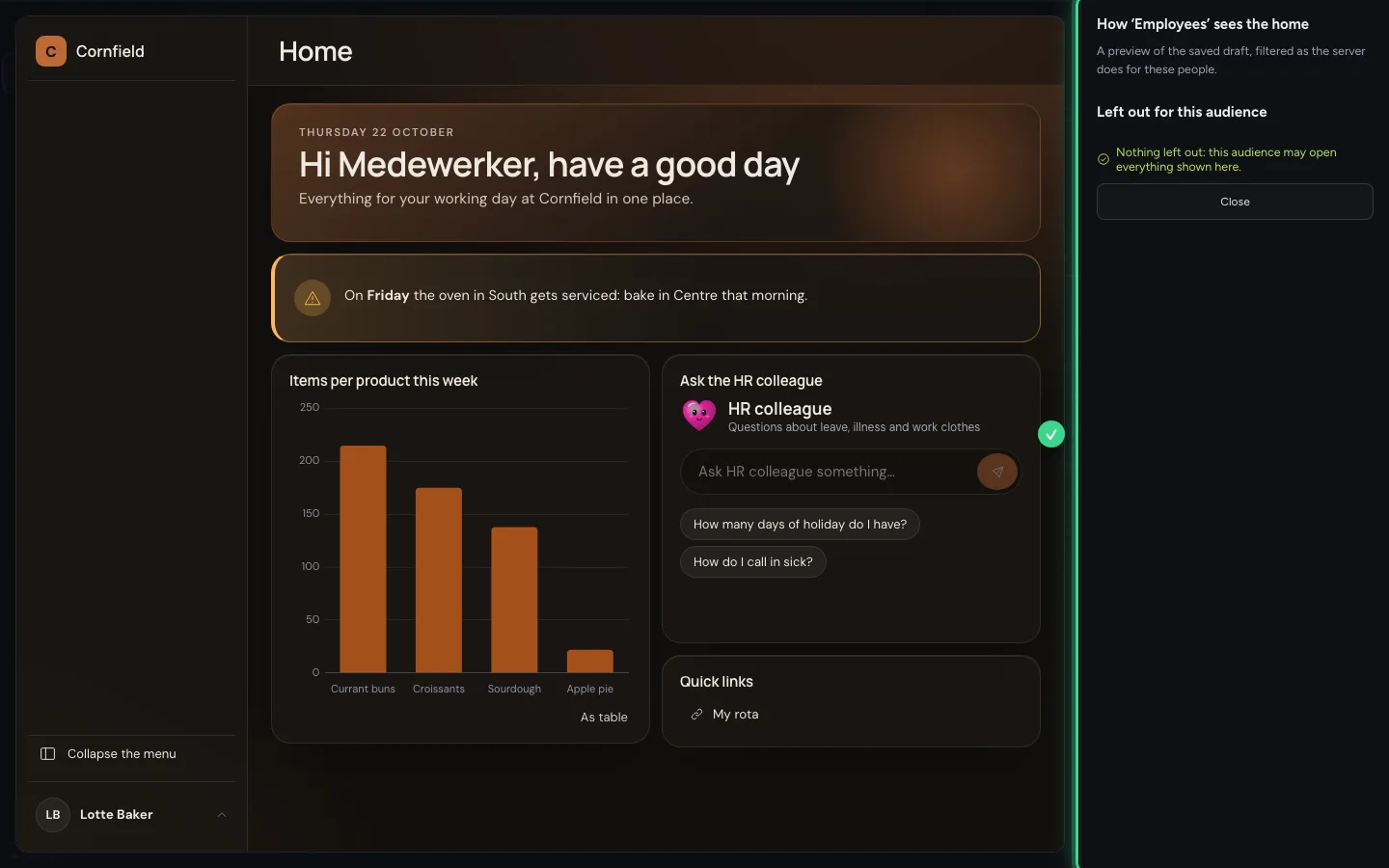
- Click Close
Publish, after the check
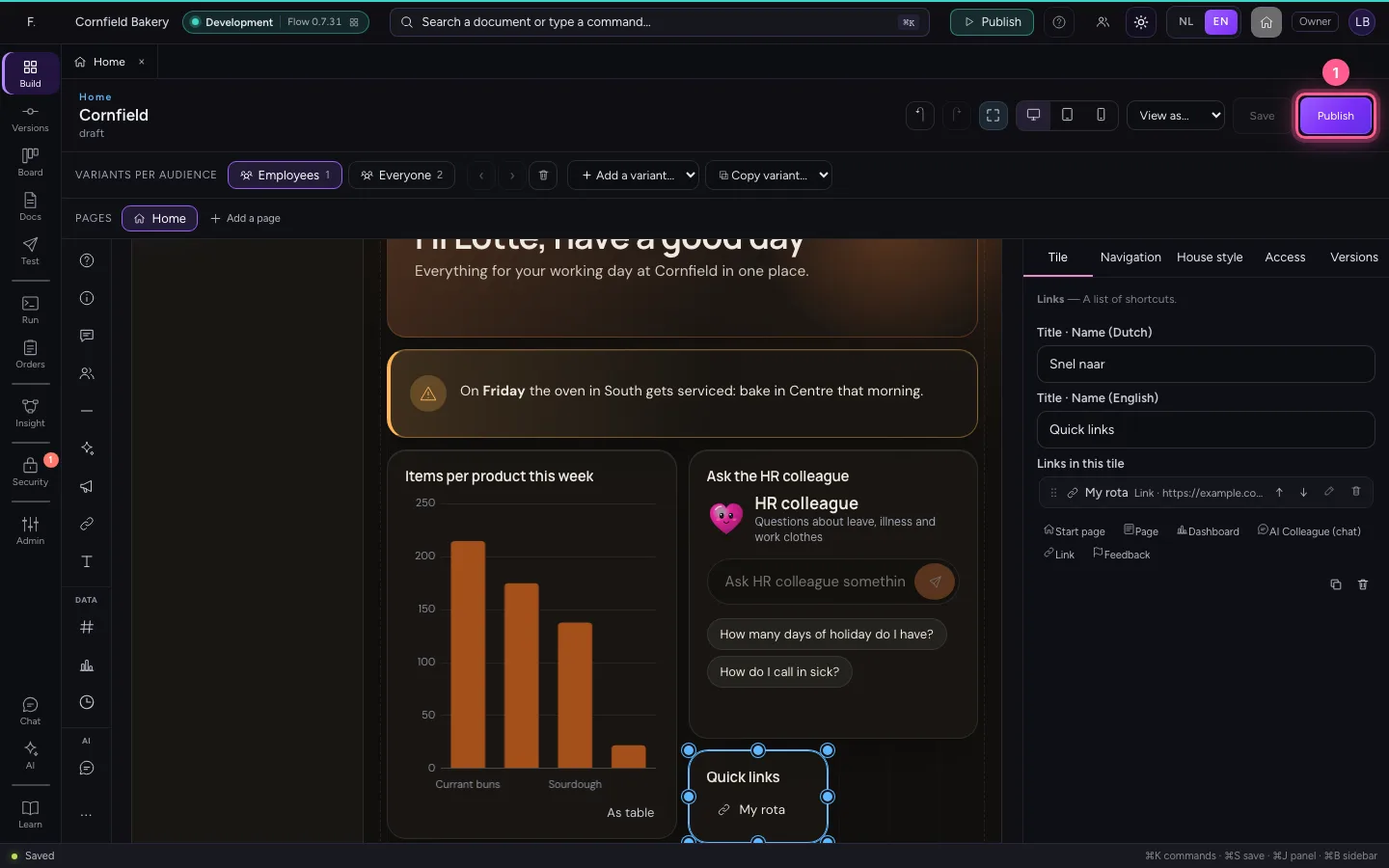
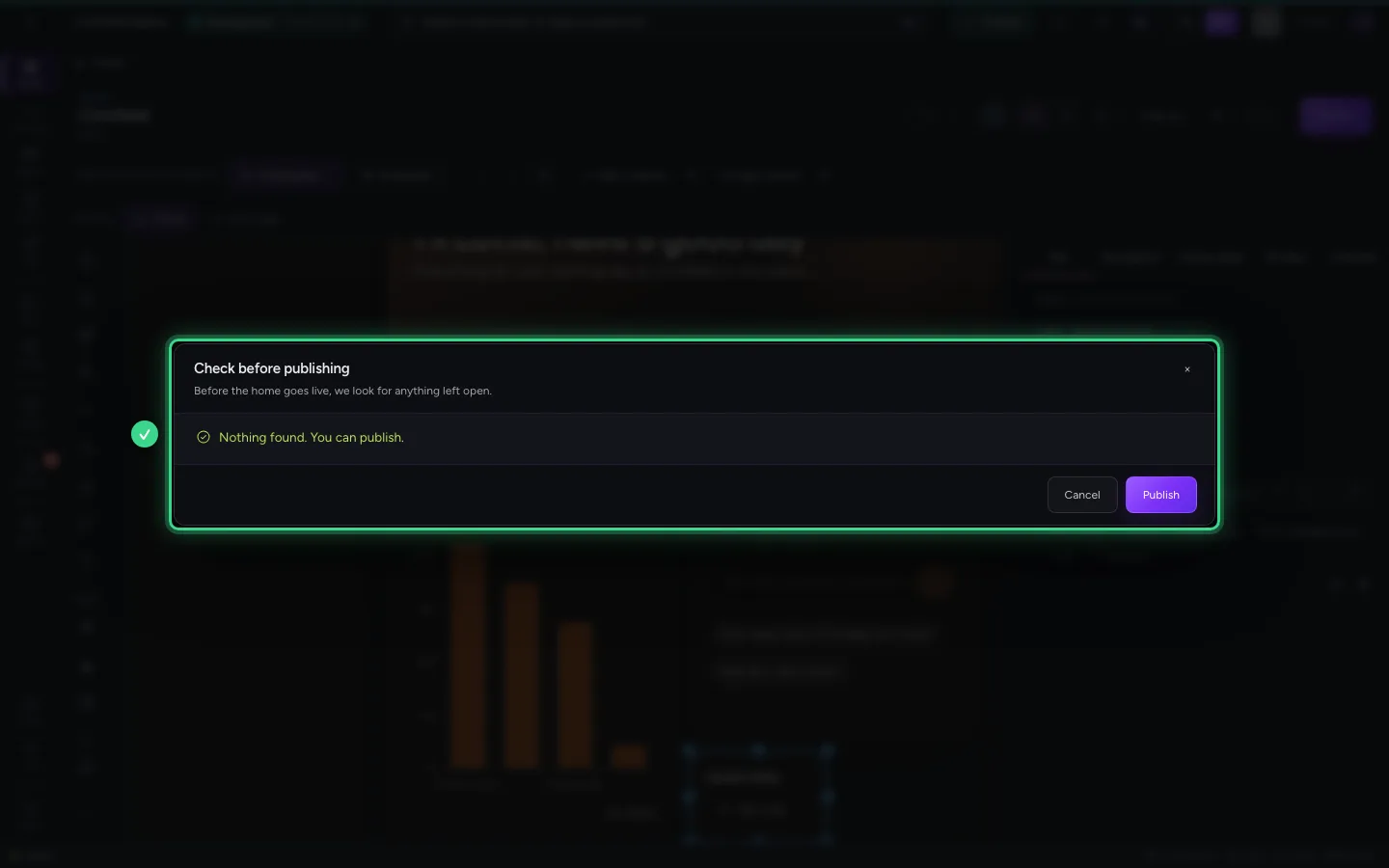
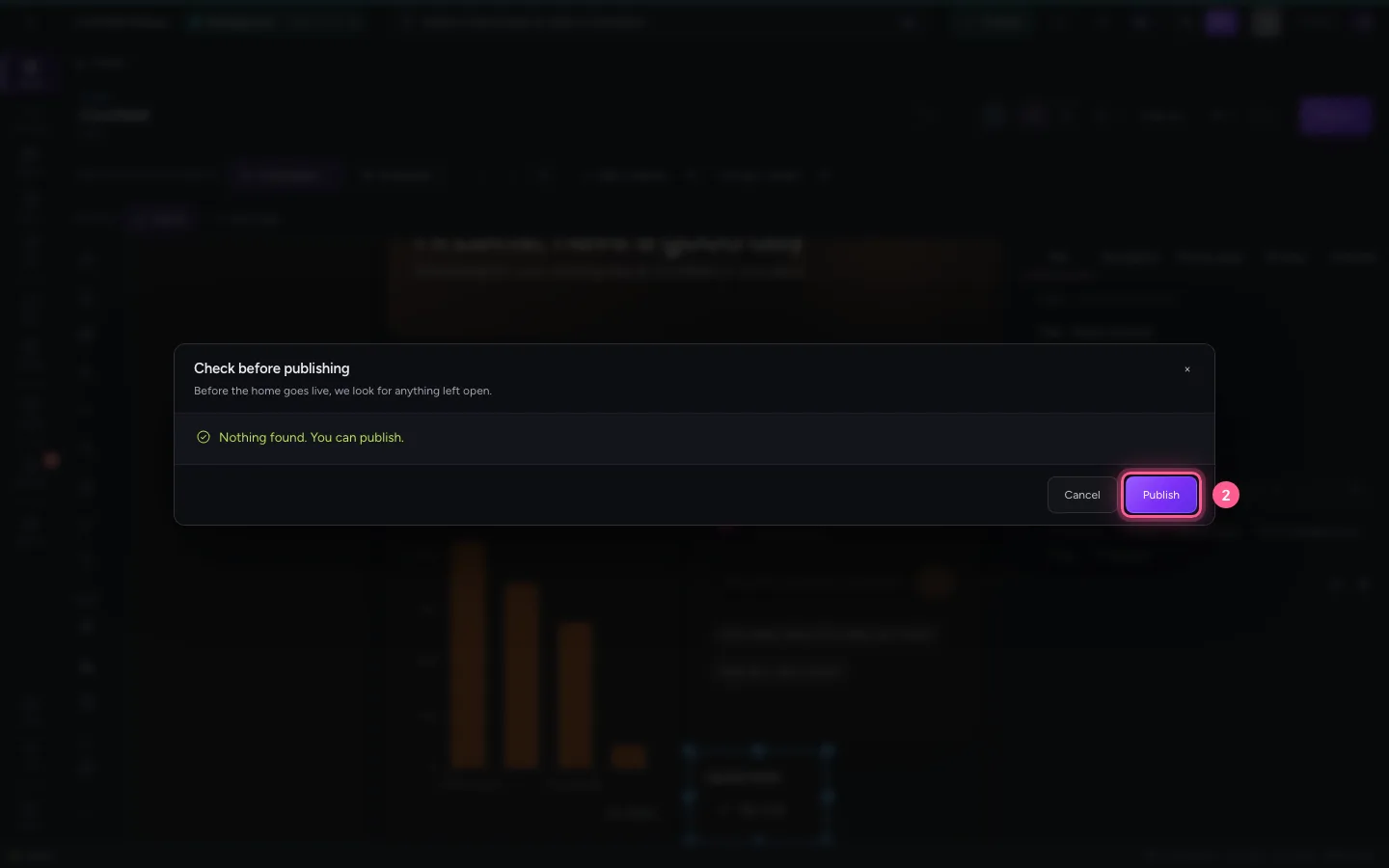
Publishing first shows the security check: is anything open that should be closed, such as confidential data for everyone? A serious problem stops the publishing, unless you accept the risk with a reason (which is recorded). When all is well you publish; your colleagues see the new version at once.
- Click Publish
- Click Publish
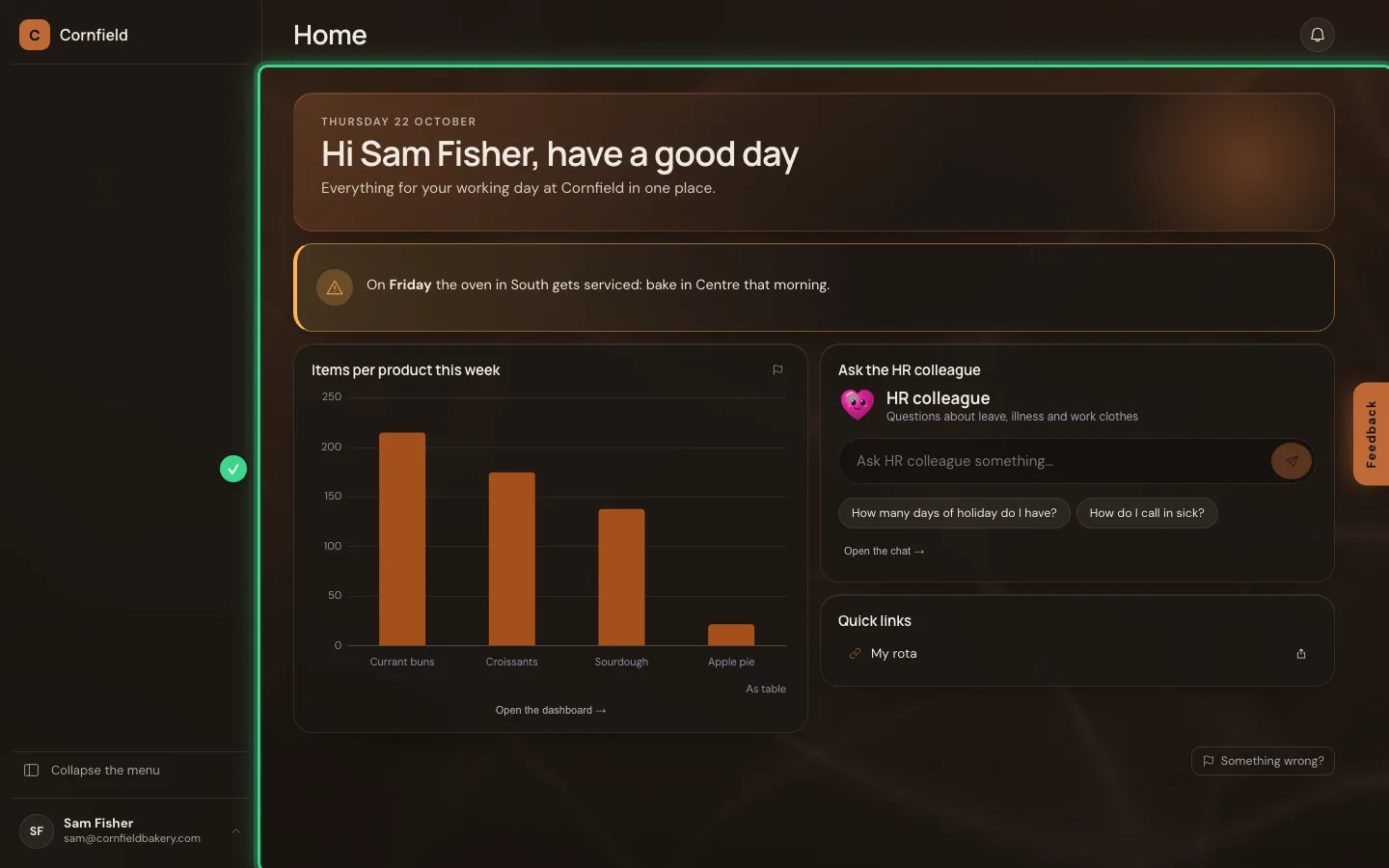
This is what an employee sees
A colleague with the role Employee signs in at your company's address and sees the variant for Employees. The welcome calls them by name; the announcement disappears by itself after its end date.
This guide was carried out step by step on 22 Oct 2026 by an automated test on Flow (version 3e563176).