Navigation per role: the side menu and the tabs
- Step 1 · Open the managers' variant
- Step 2 · Make a group in the side menu
- Step 3 · Put the revenue dashboard in the group
- Step 4 · And a tab at the top
- Step 5 · Click through the preview's menu
- Step 6 · Save and publish
- Step 7 · This is what a manager sees
- Step 8 · Open the revenue
- Step 9 · Fold the menu to icons
- Step 10 · An employee sees no Management
Everyone gets the menu that fits their work. Per audience you put together the side menu — with icons, groups and submenus — and the tabs above the page. Here the bakery's managers get a group Management with the revenue per shop, which employees do not see. Hiding is a convenience, not security: whatever a person may not open, the server always refuses.
Open the managers' variant
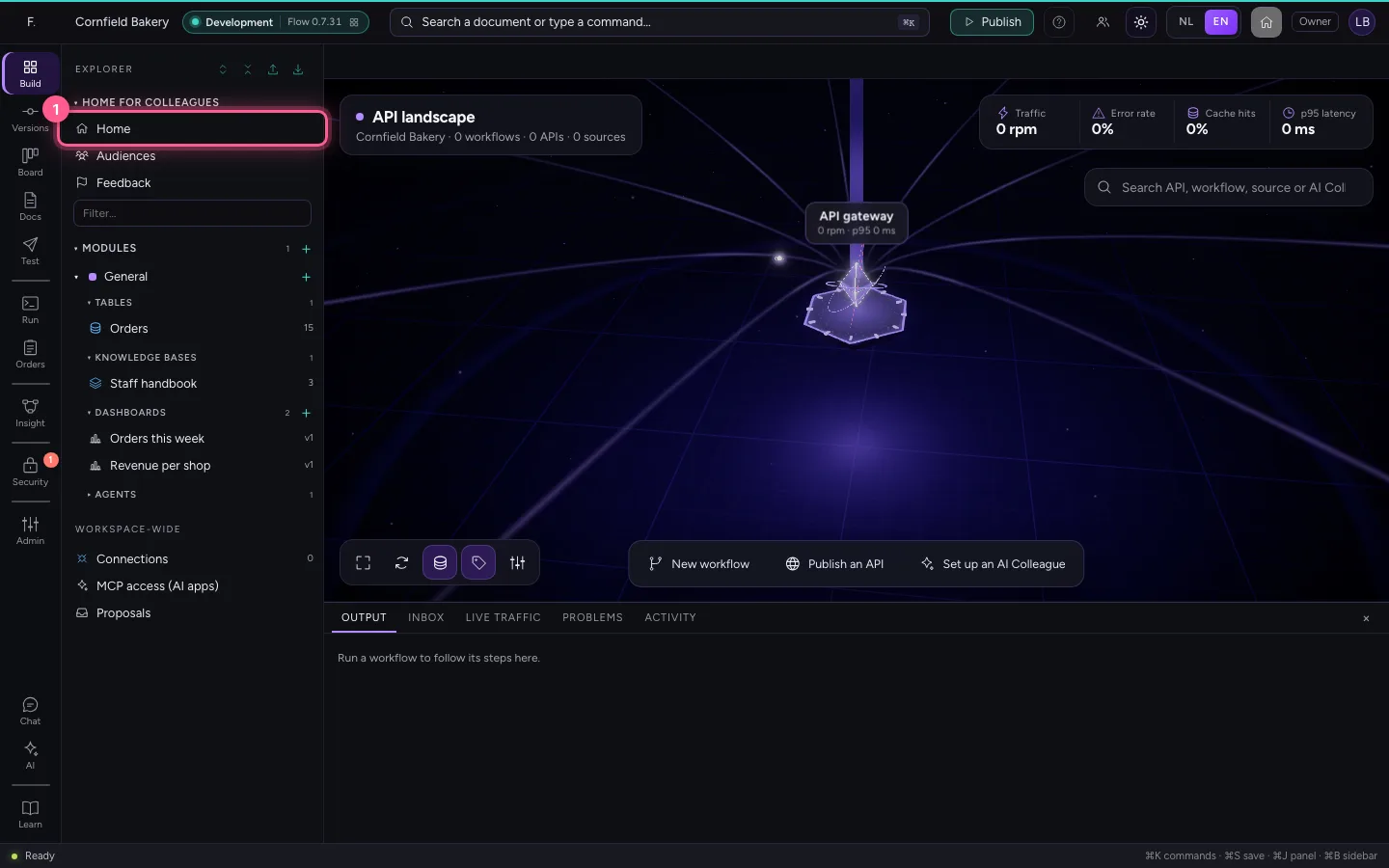
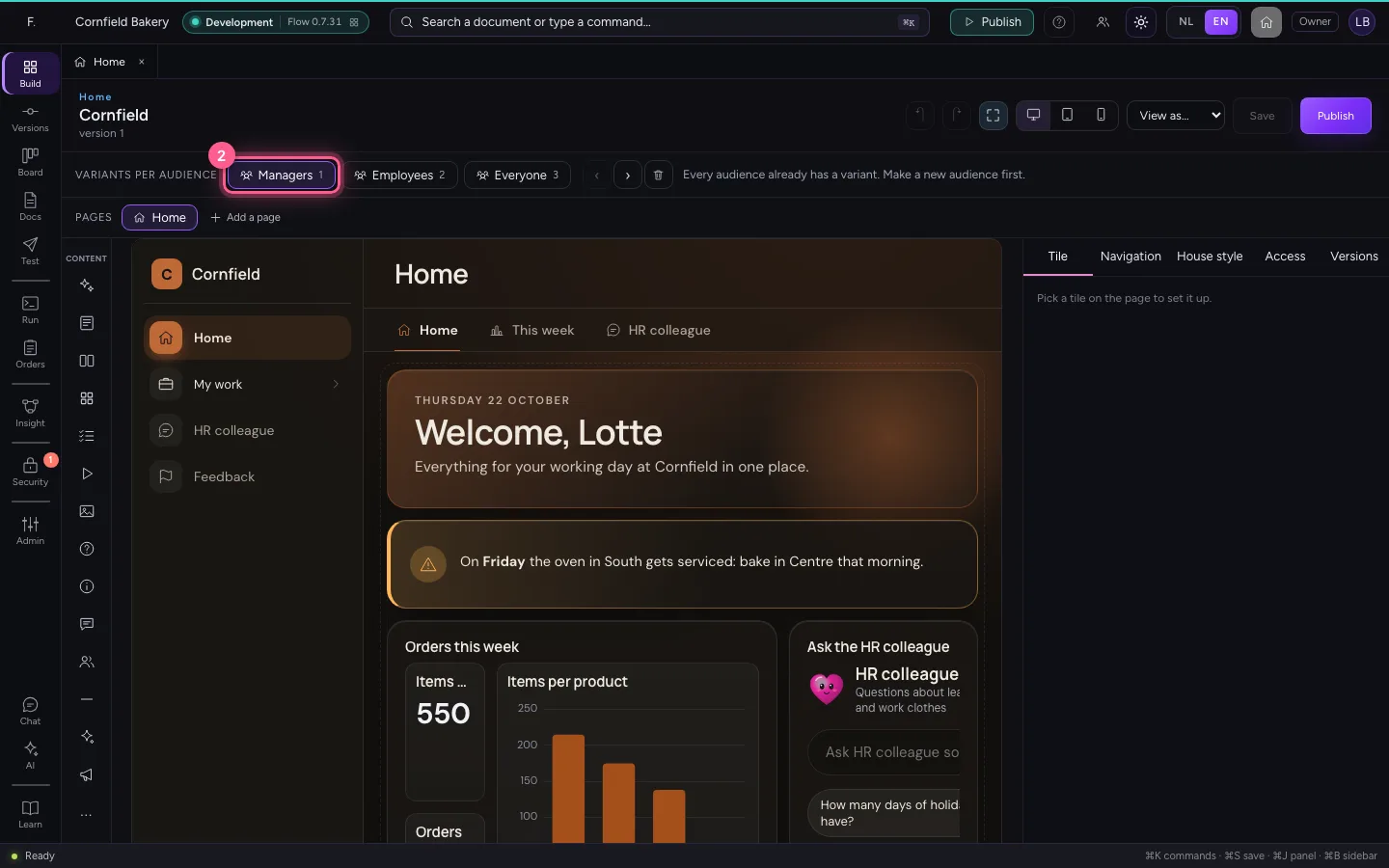
Open Home in the explorer and choose the variant Managers at the top. That audience is everyone your company's sign-in system puts in the group managers: whoever leaves that group sees an employee's menu again at their next sign-in.
- Click Home
- Click Managers
Make a group in the side menu
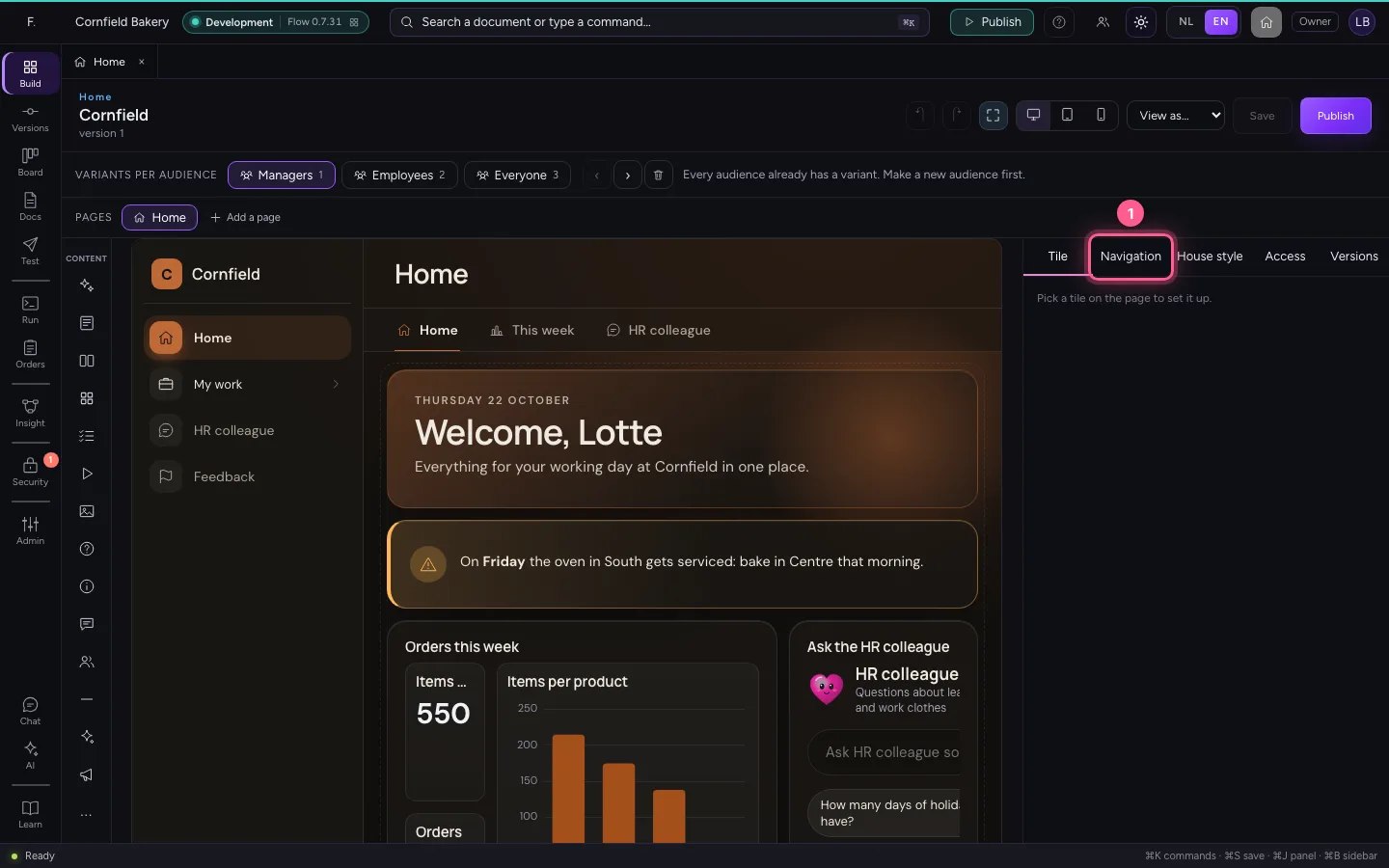
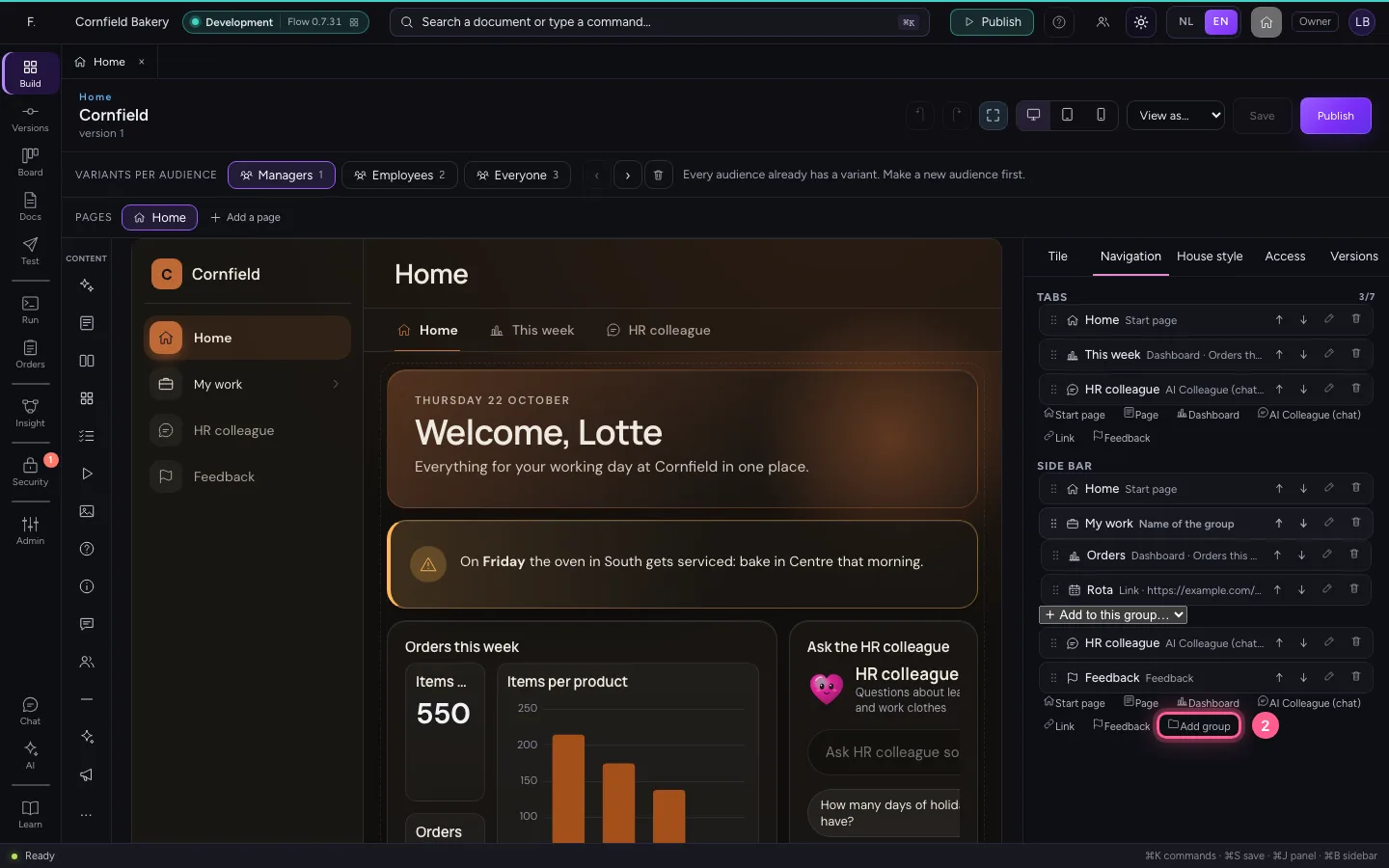
Choose Navigation on the right. At the top are the tabs (seven at most), below them the side menu. Add group makes a group: a heading that folds open. Give it a name in Dutch and English and pick an icon; you can search by name.
- Click Navigation
- Click Add group
- In Name (Dutch), type
Management - In Name (English), type
Management - In Search an icon, type
chart
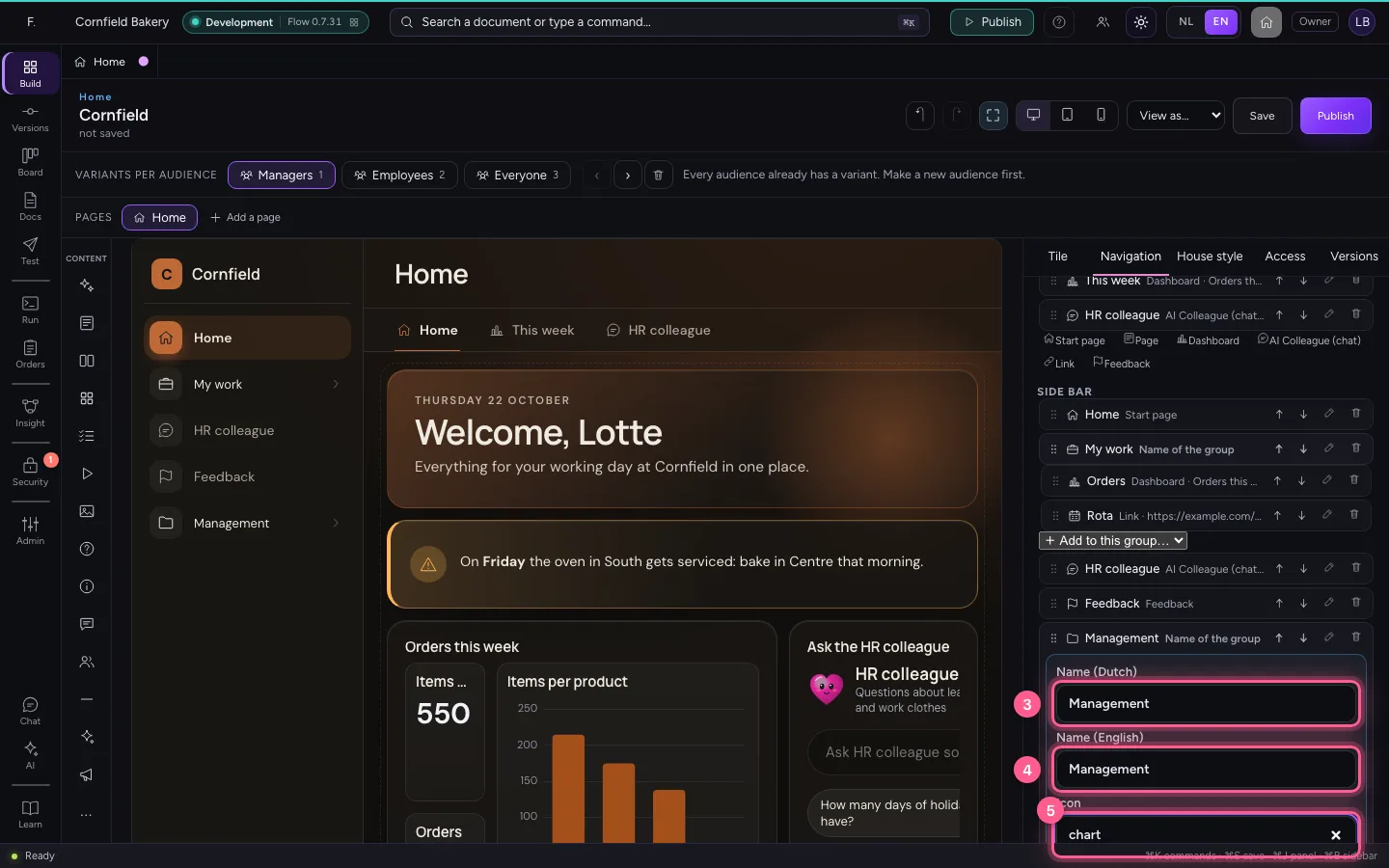
- Click the icon chart-pie
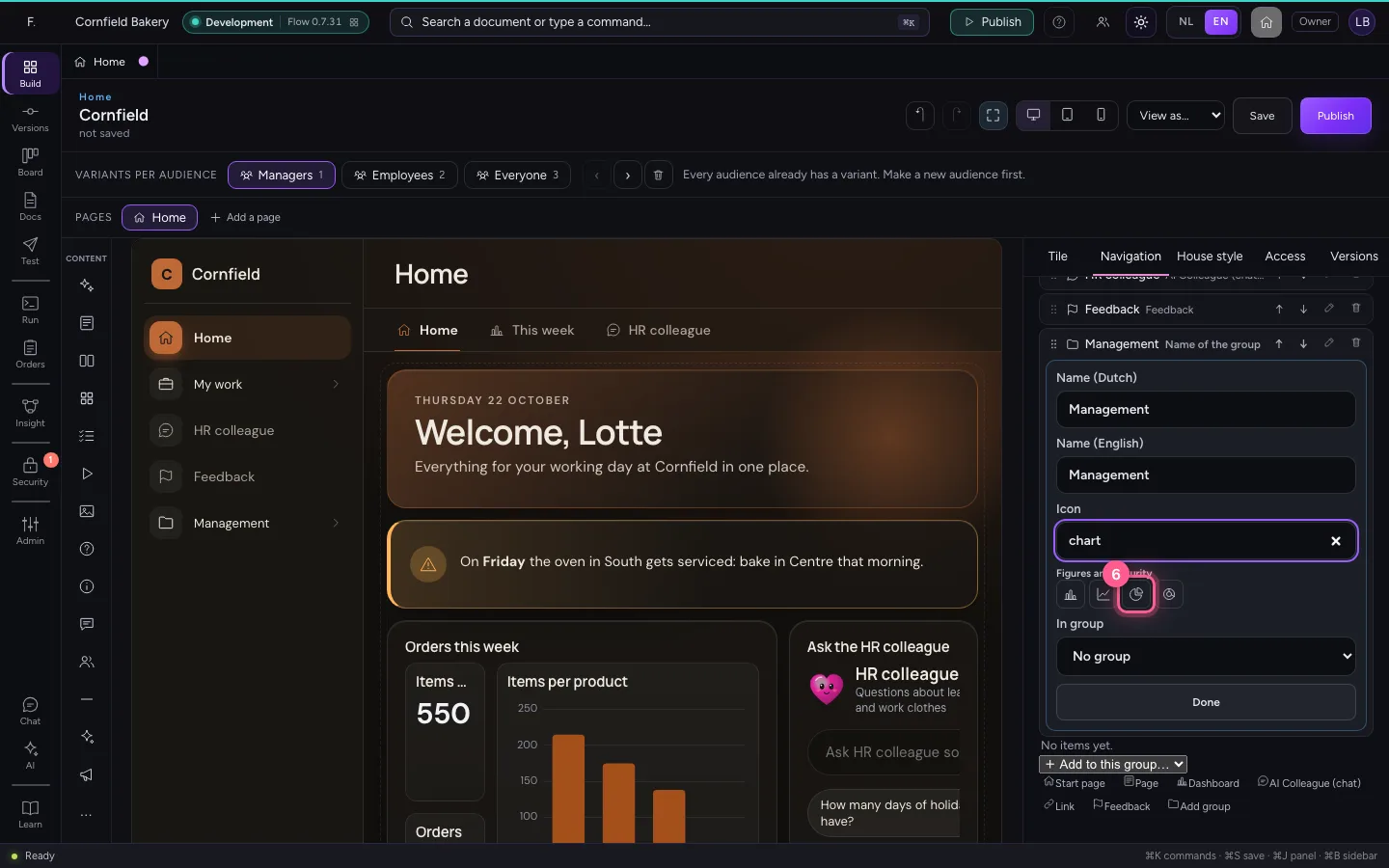
- Click Done
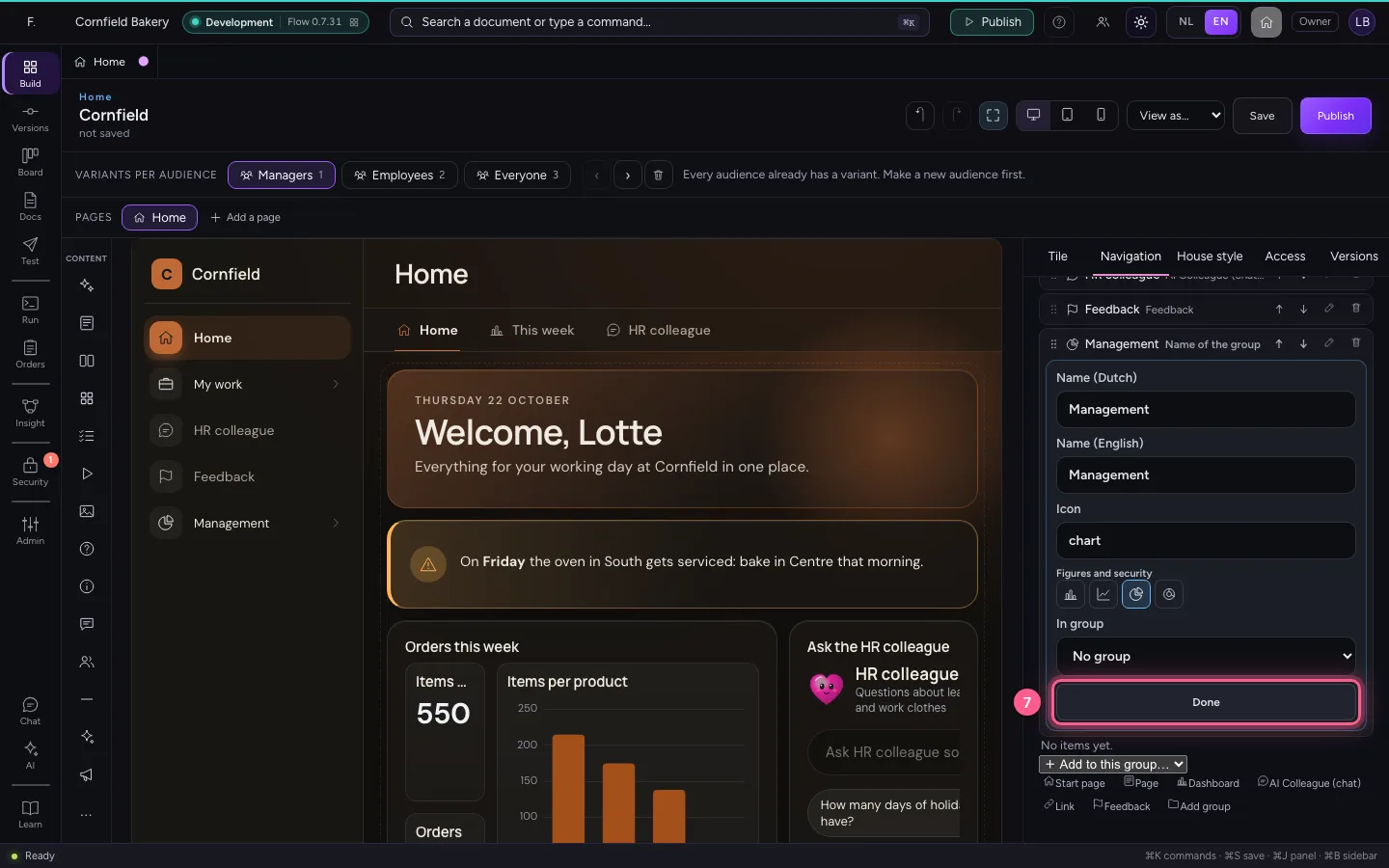
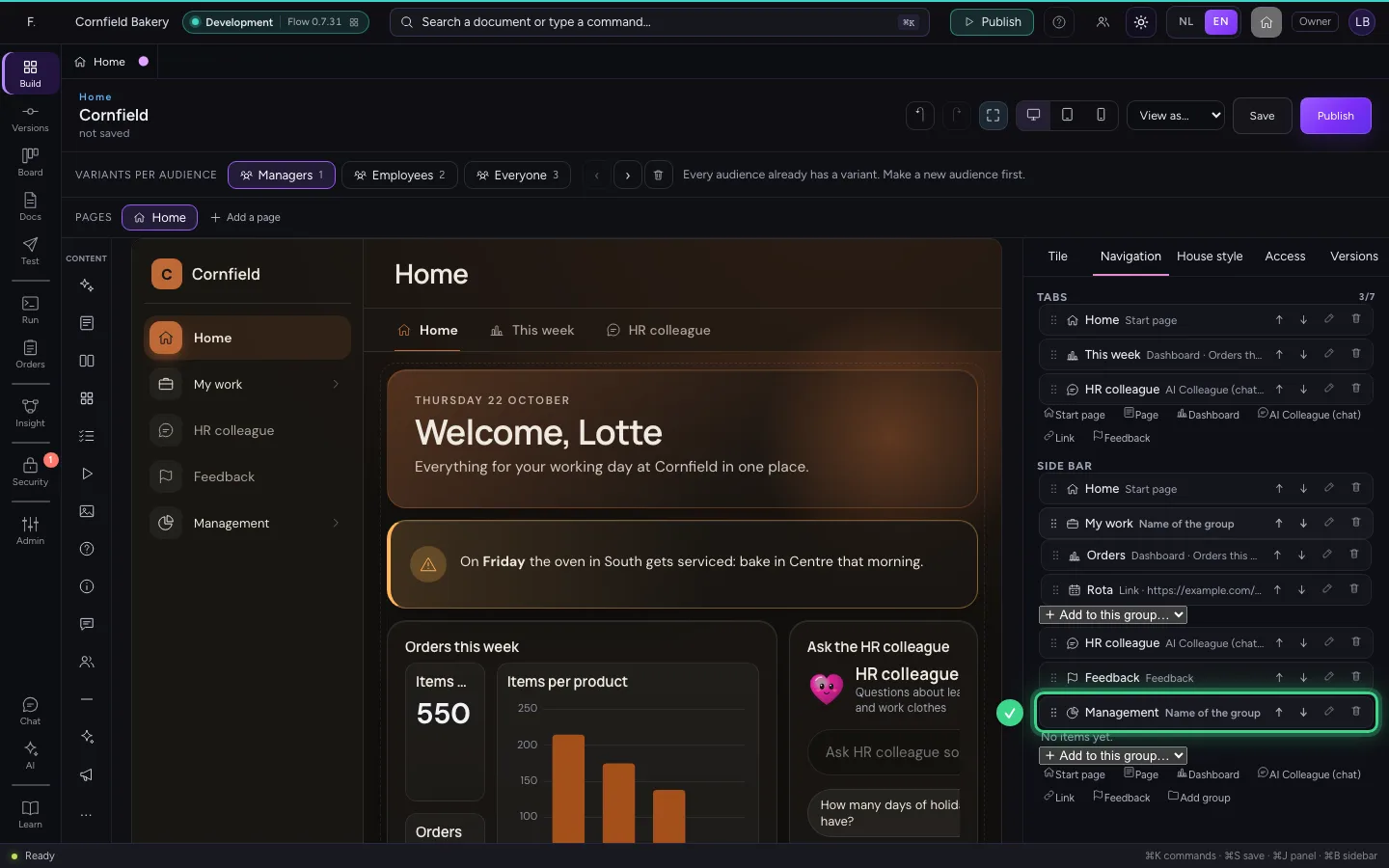
Put the revenue dashboard in the group
With Add to this group you put something inside the group: a dashboard, an AI Colleague, a link or Feedback — or a sub-group, for a second level. Choose Dashboard and under Target the dashboard Revenue per shop.
- In Add to this group, choose Dashboard
- In Target, choose Revenue per shop
- In Name (Dutch), type
Omzet per filiaal - In Name (English), type
Revenue per shop - In Search an icon, type
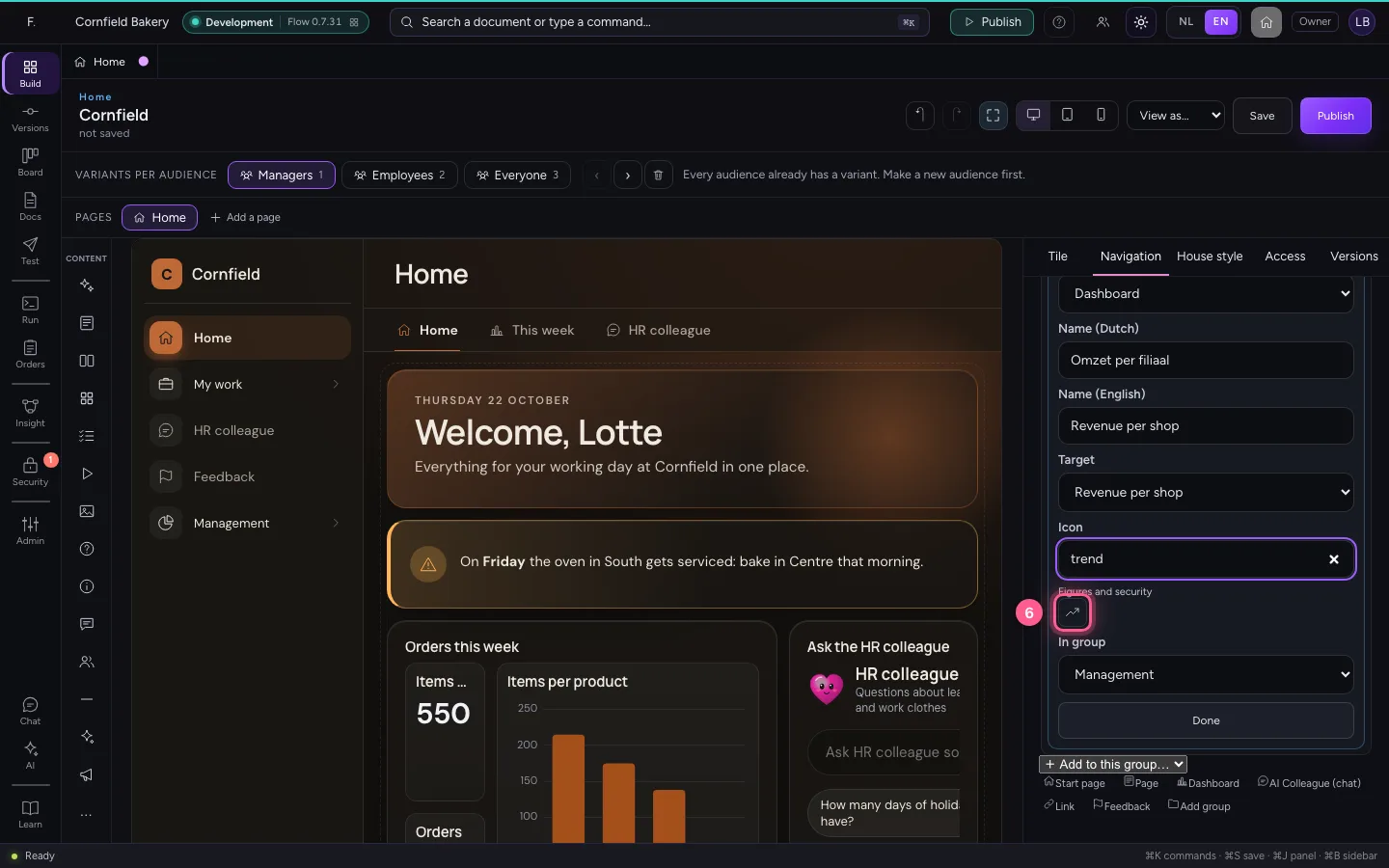
trend
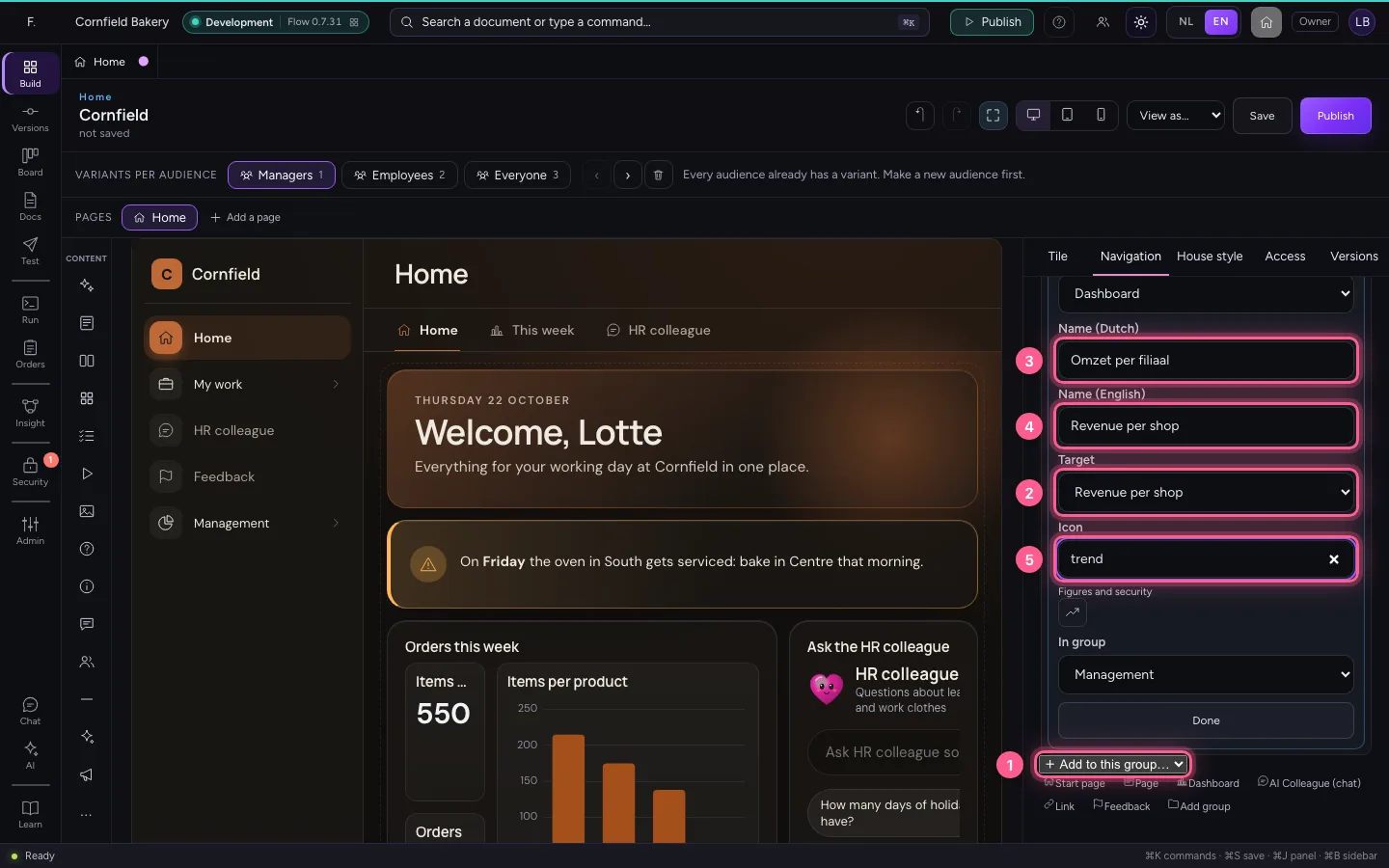
- Click the icon trend-up
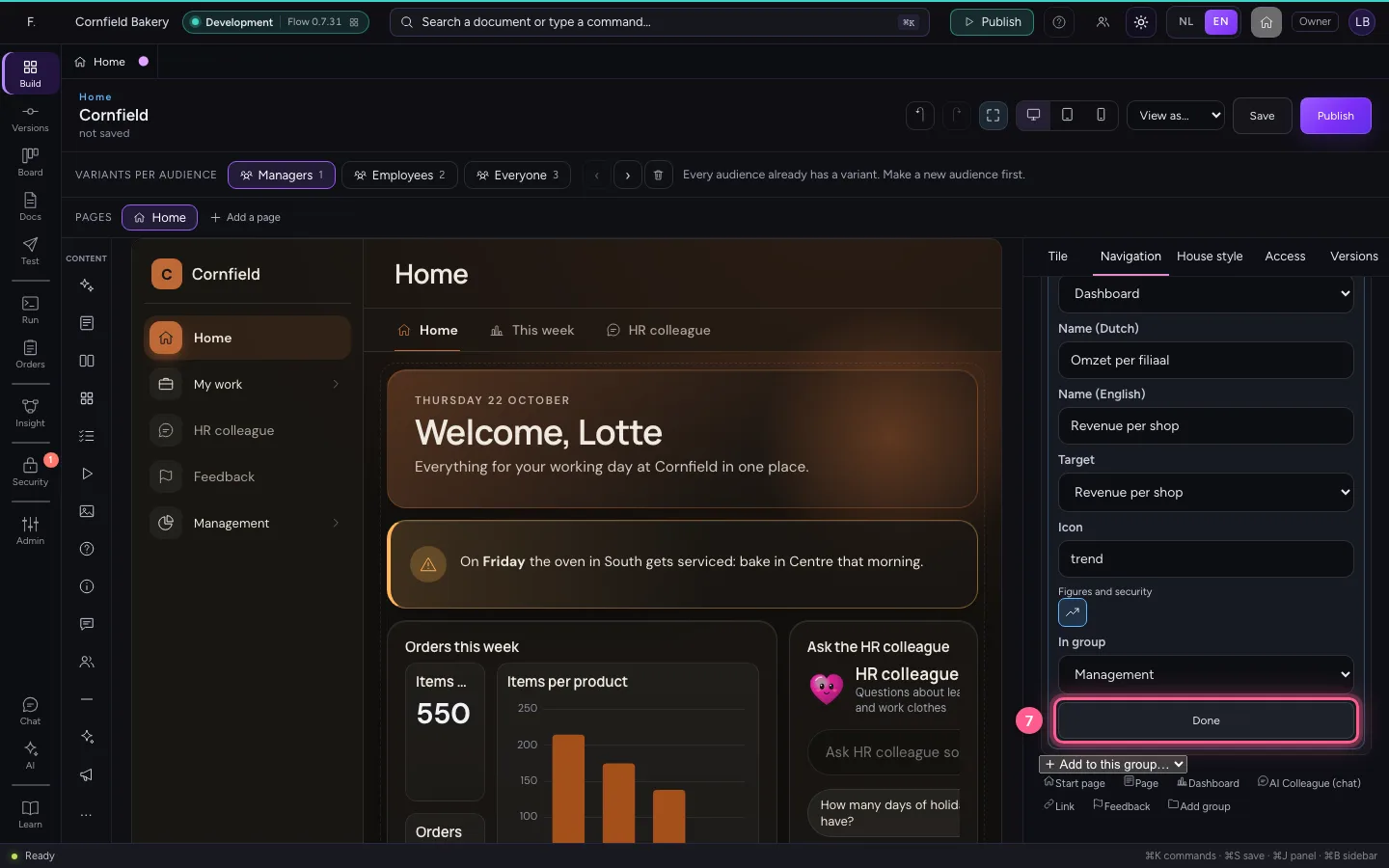
- Click Done
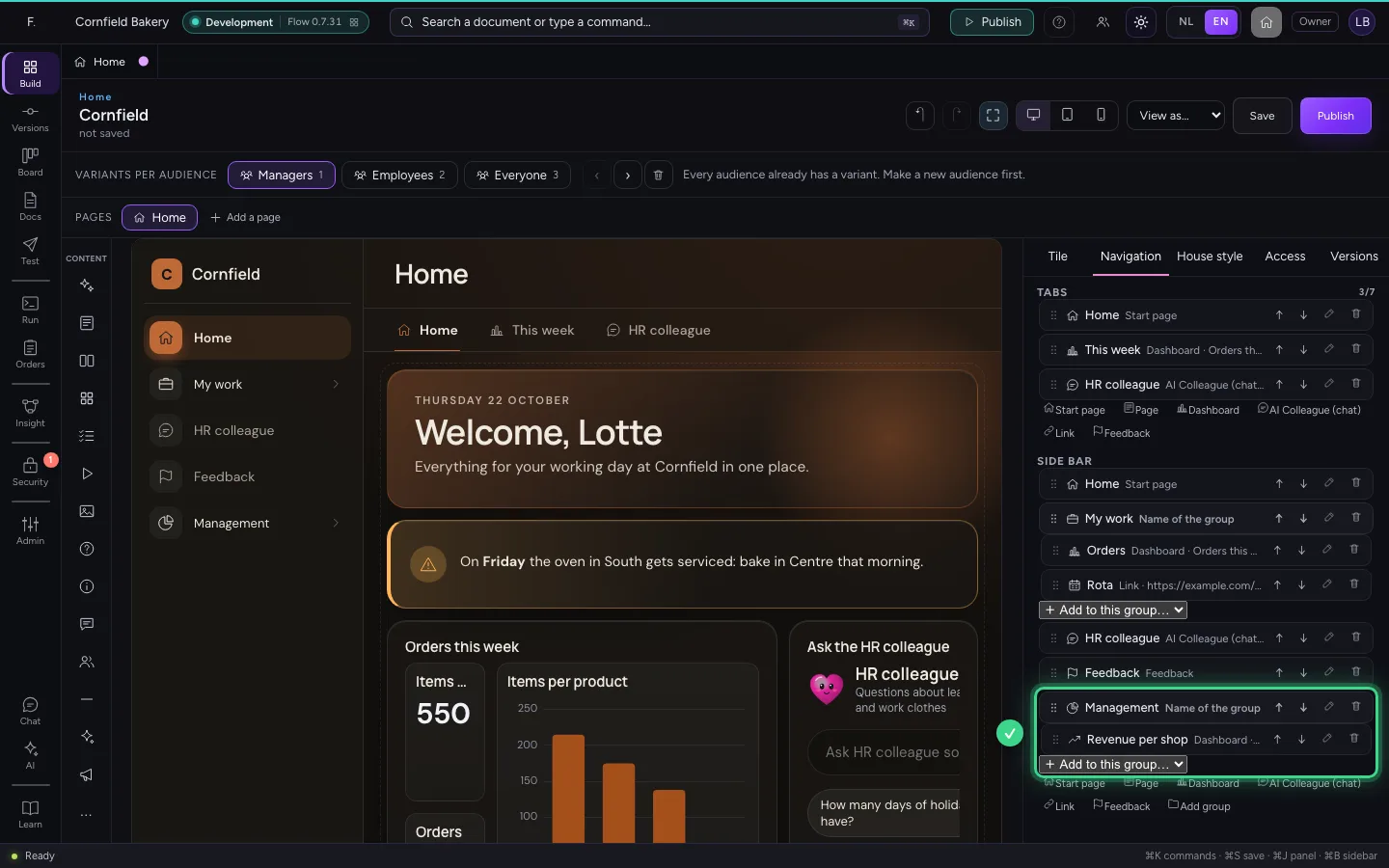
And a tab at the top
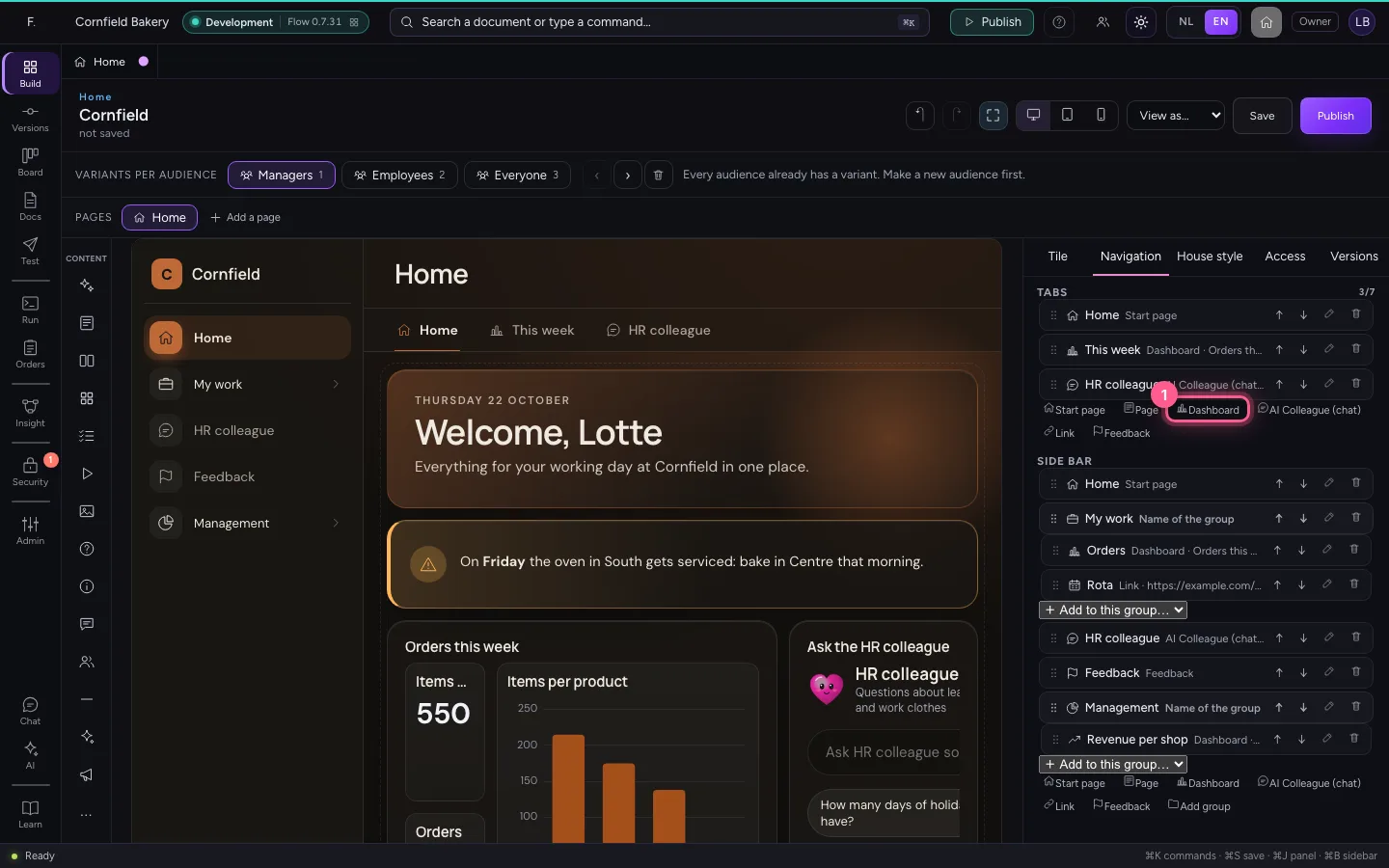
Tabs sit under the page title and are for what someone opens every day. Add a Dashboard under Tabs with the revenue.
- Click Dashboard
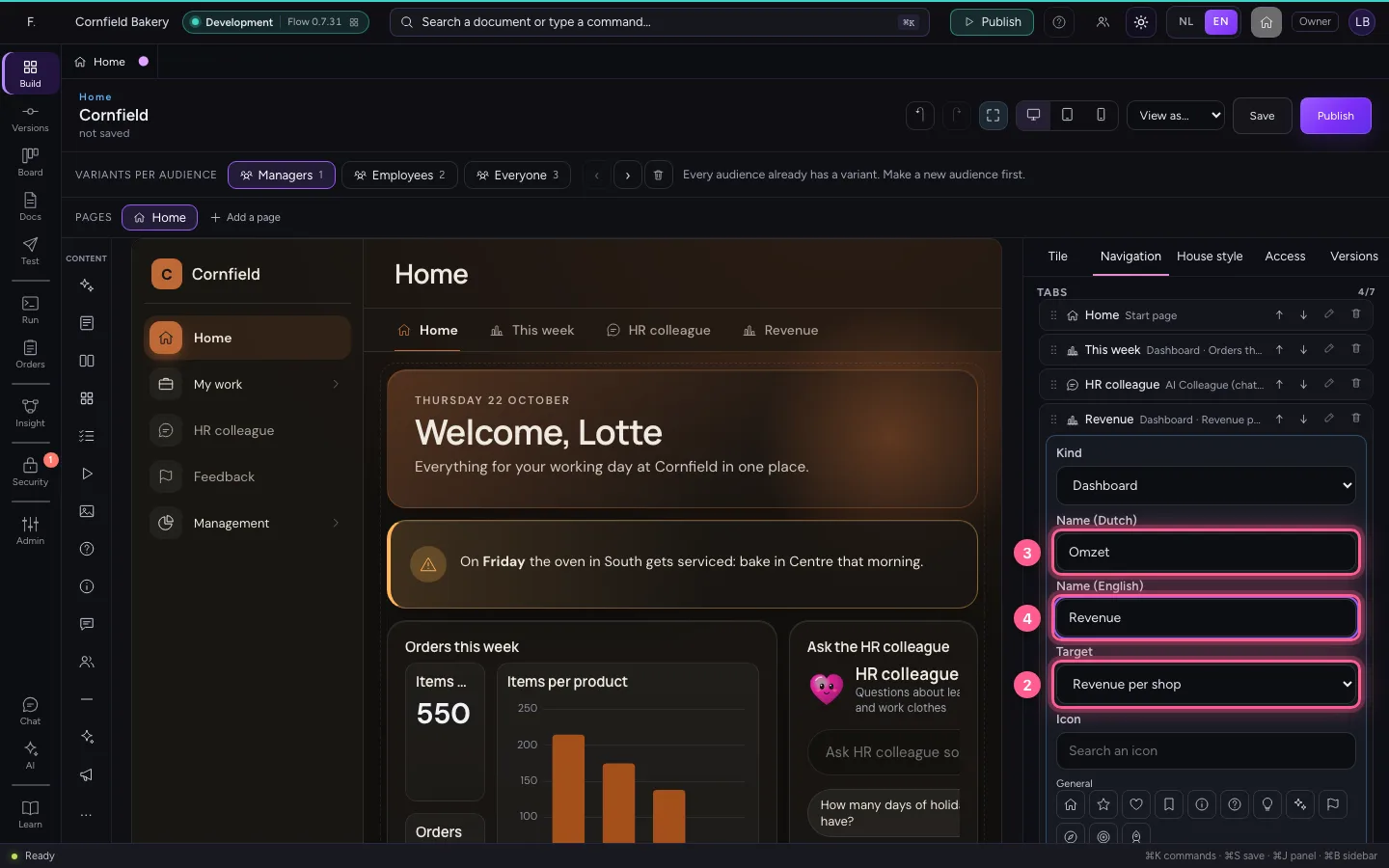
- In Target, choose Revenue per shop
- In Name (Dutch), type
Omzet - In Name (English), type
Revenue
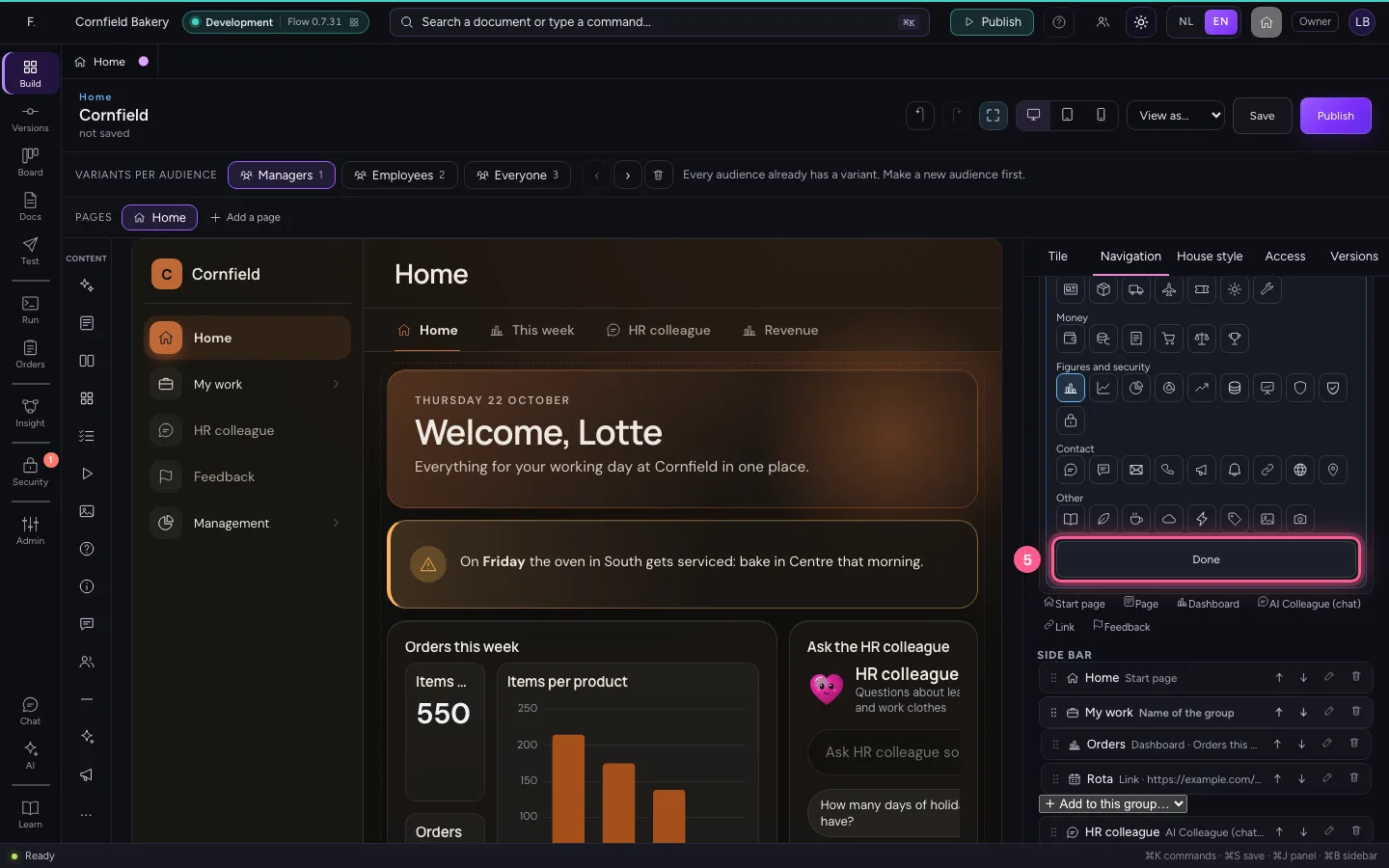
- Click Done
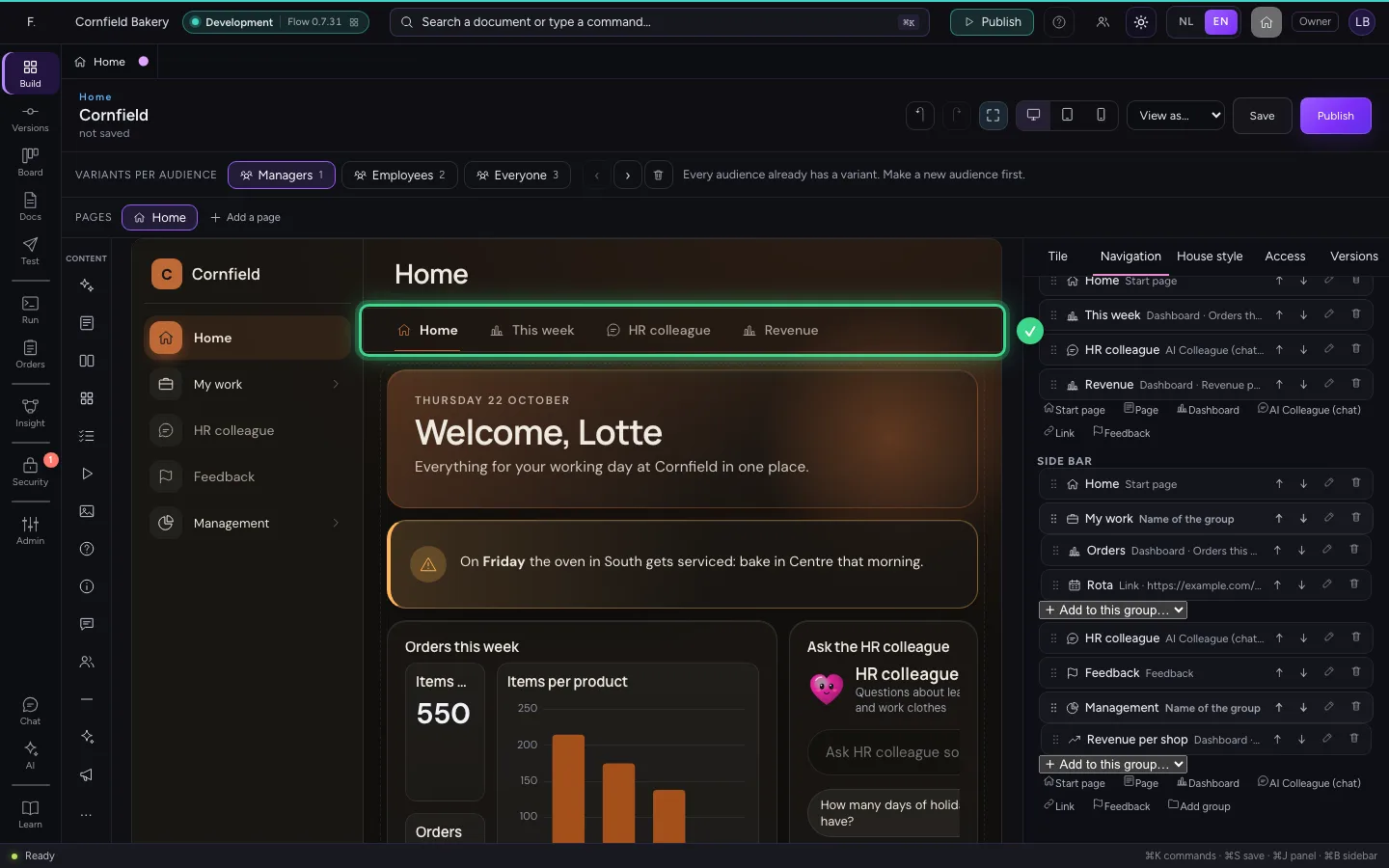
Click through the preview's menu
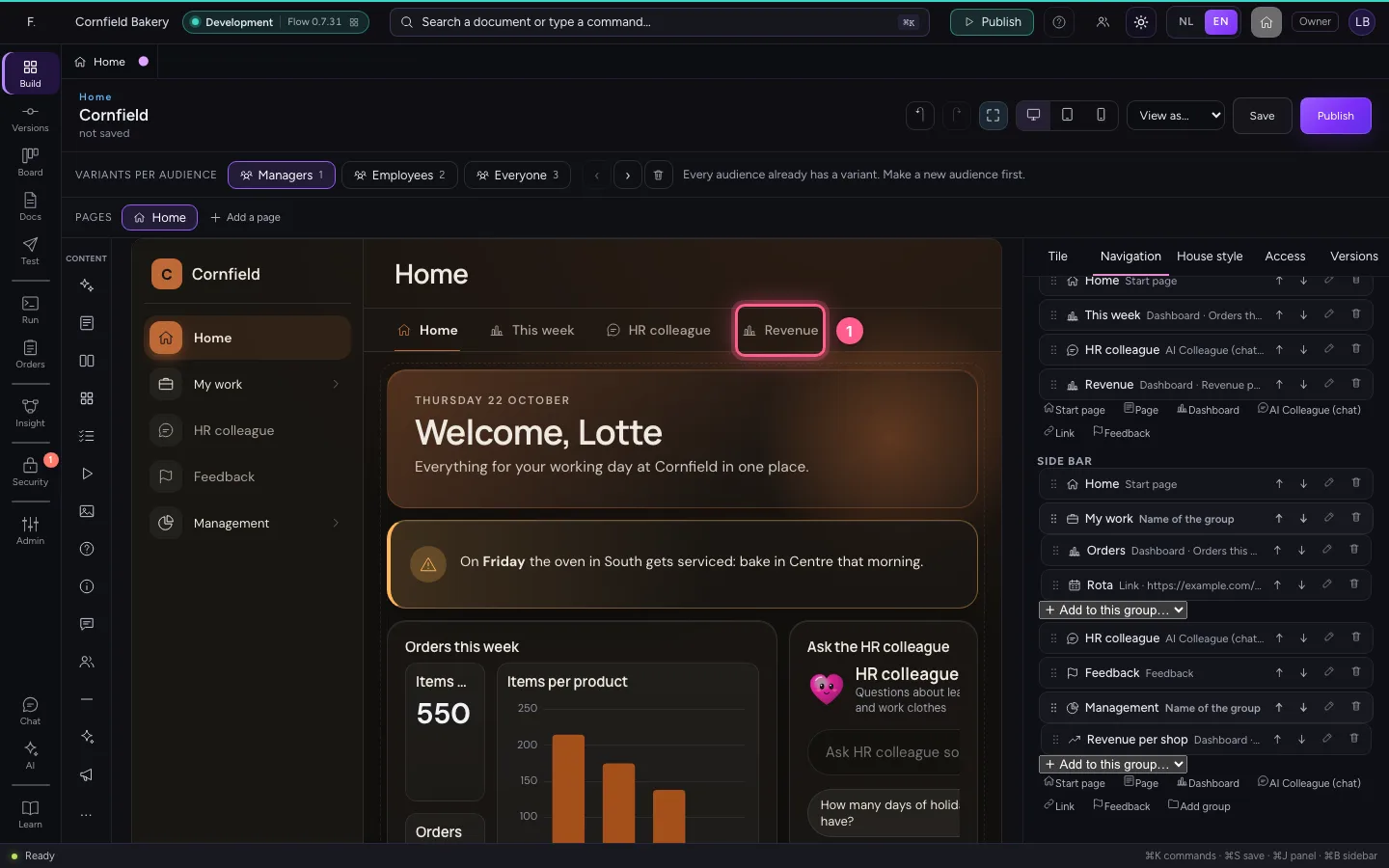
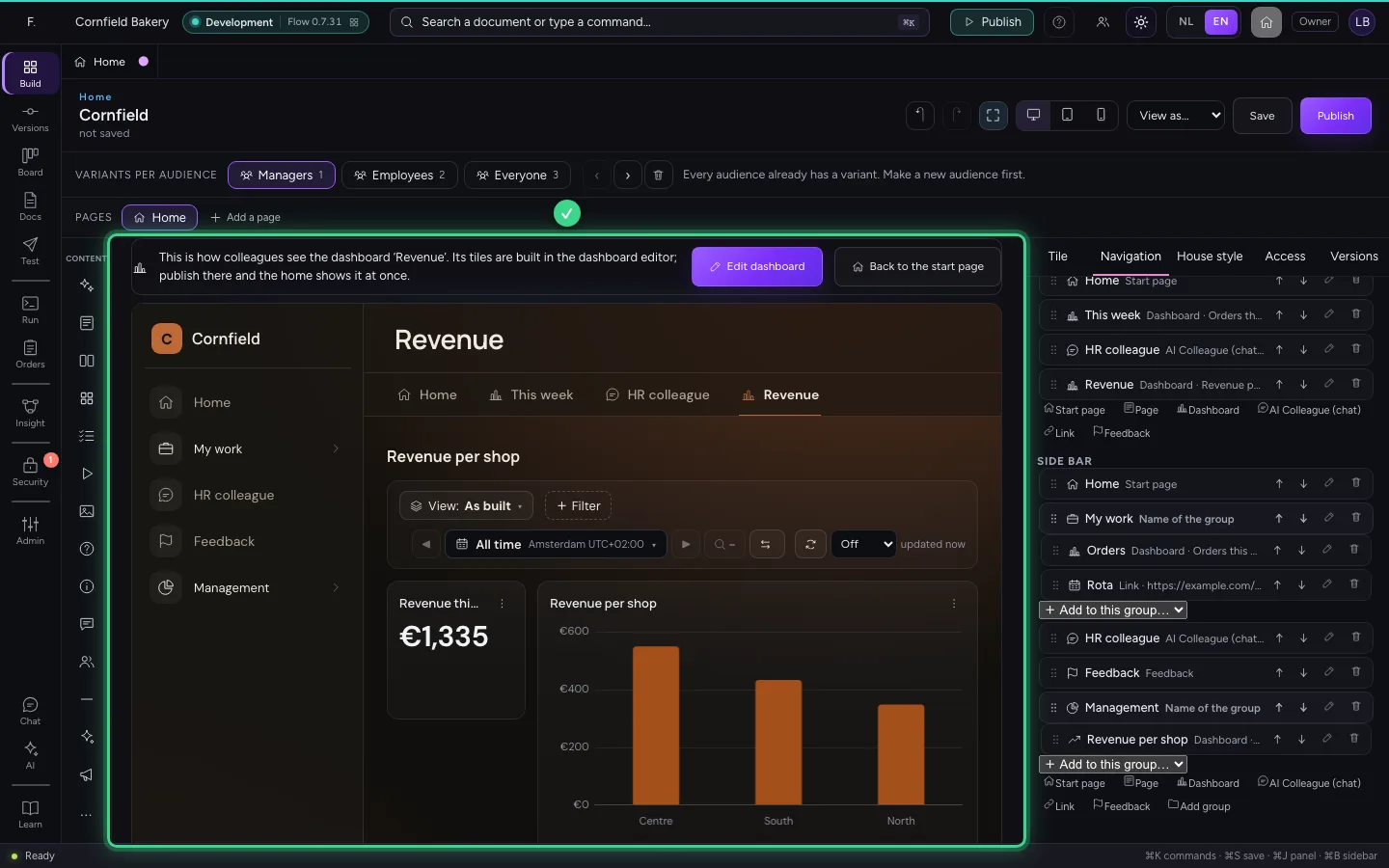
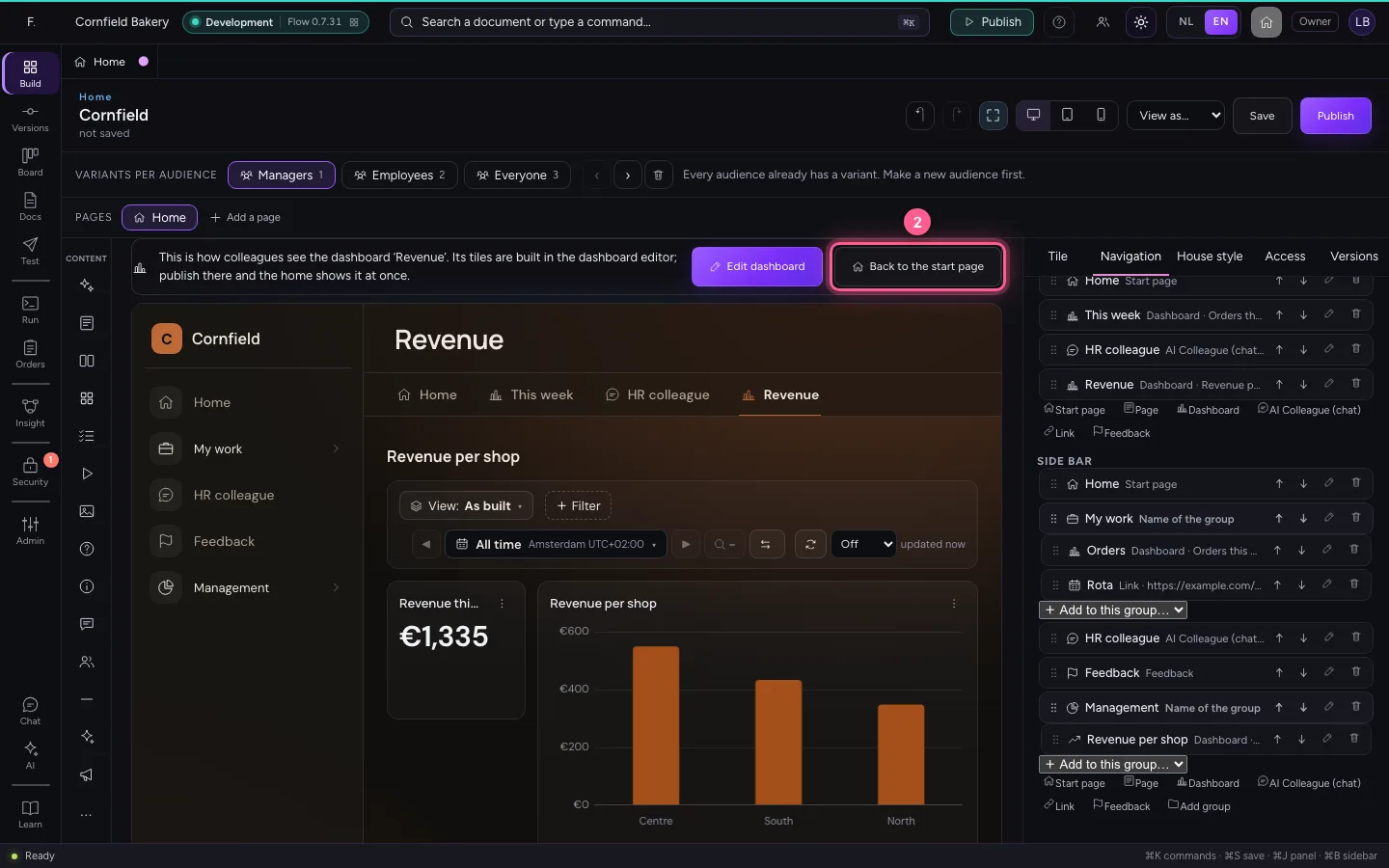
The menu in the preview works as it does for your colleagues. Click the tab Revenue: you see the dashboard as managers see it. Its tiles are built in the dashboard editor; Edit dashboard opens it. A page simply opens on the canvas, and Back to the start page takes you back.
- Click Revenue
- Click Back to the start page
Save and publish
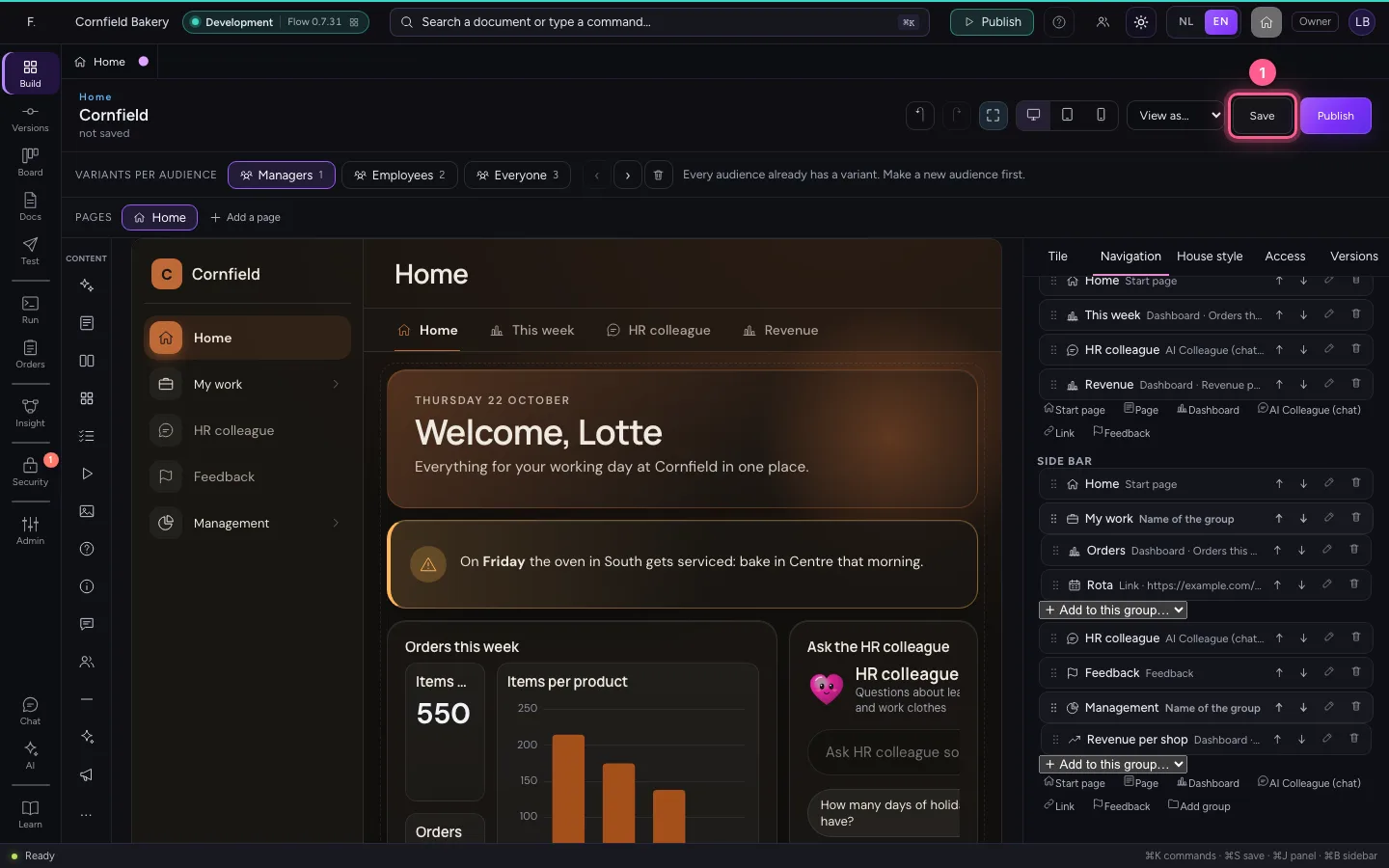
When saving, the server checks the audience can open everything in its menu: a dashboard managers may not read is refused, with the reason. Then publish, after the security check.
- Click Save
- Click Publish
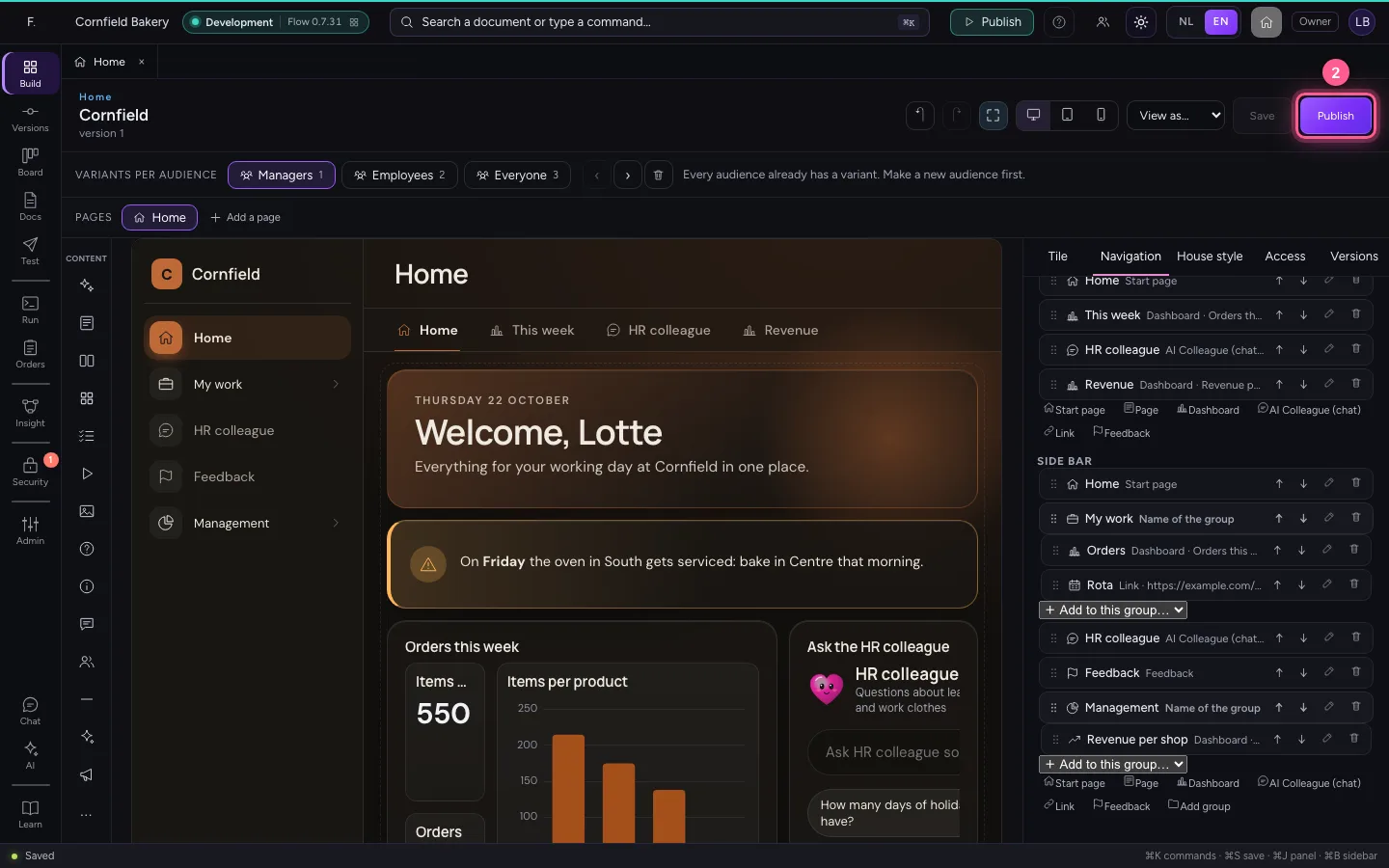
- Click Publish
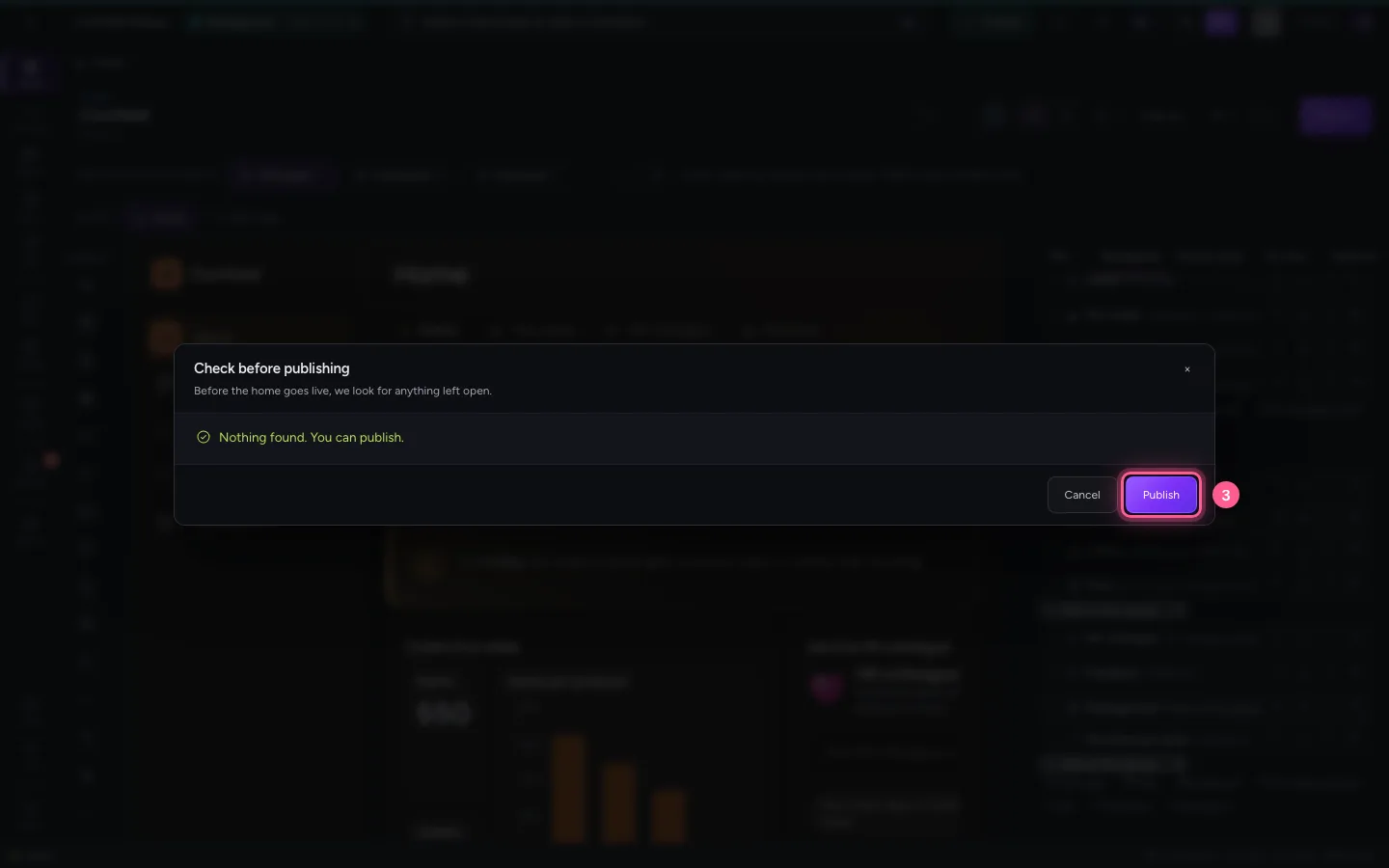
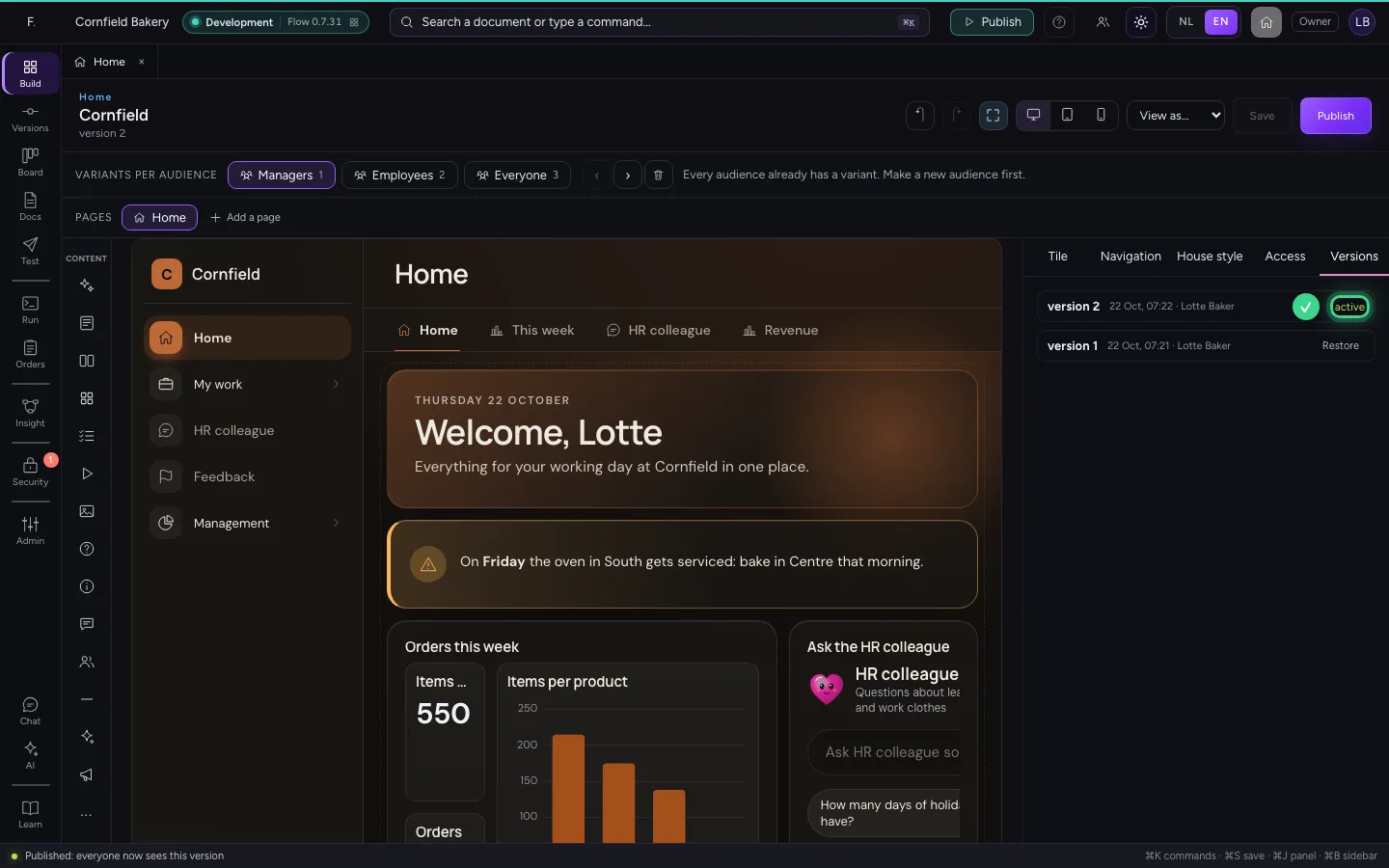
This is what a manager sees
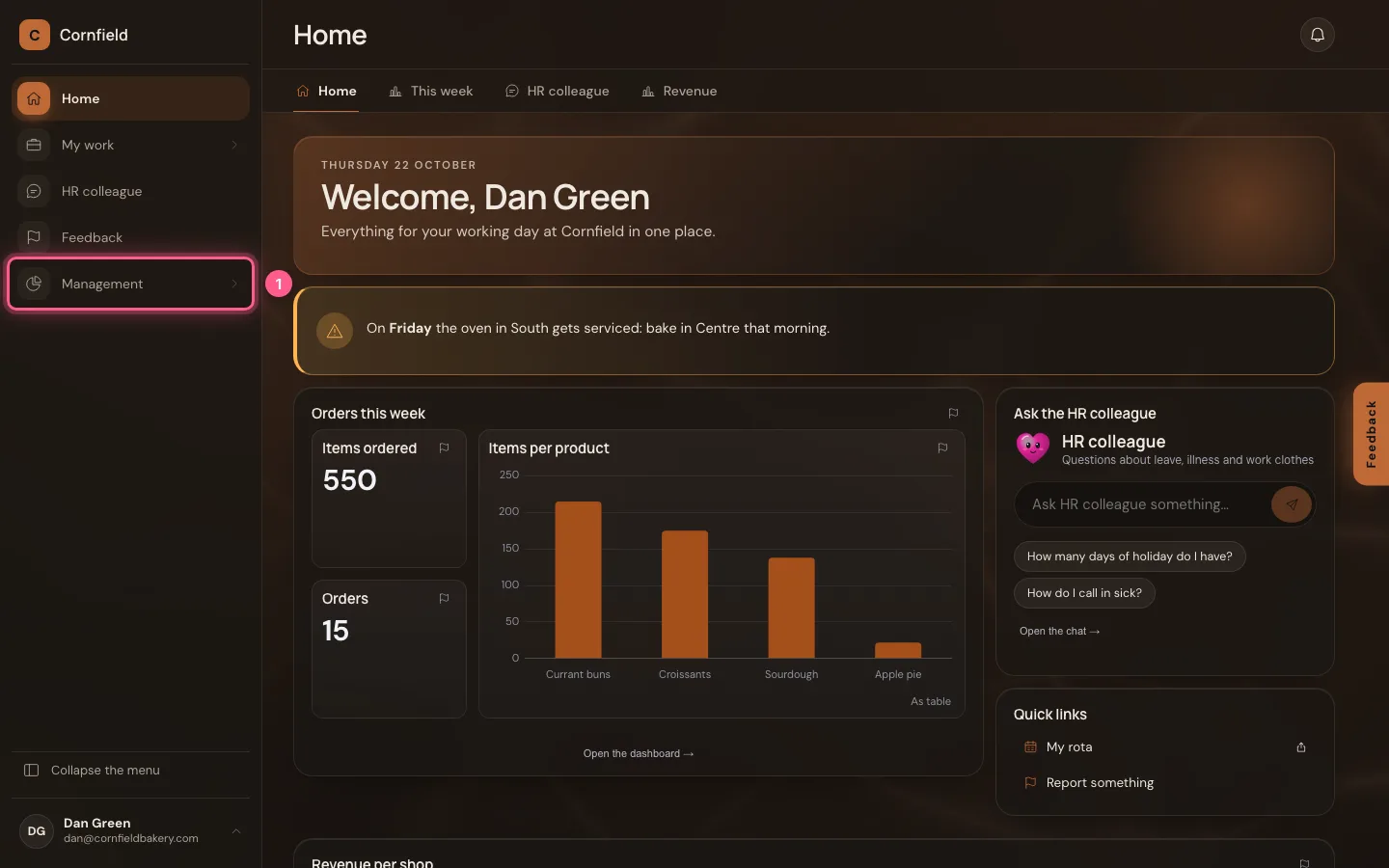
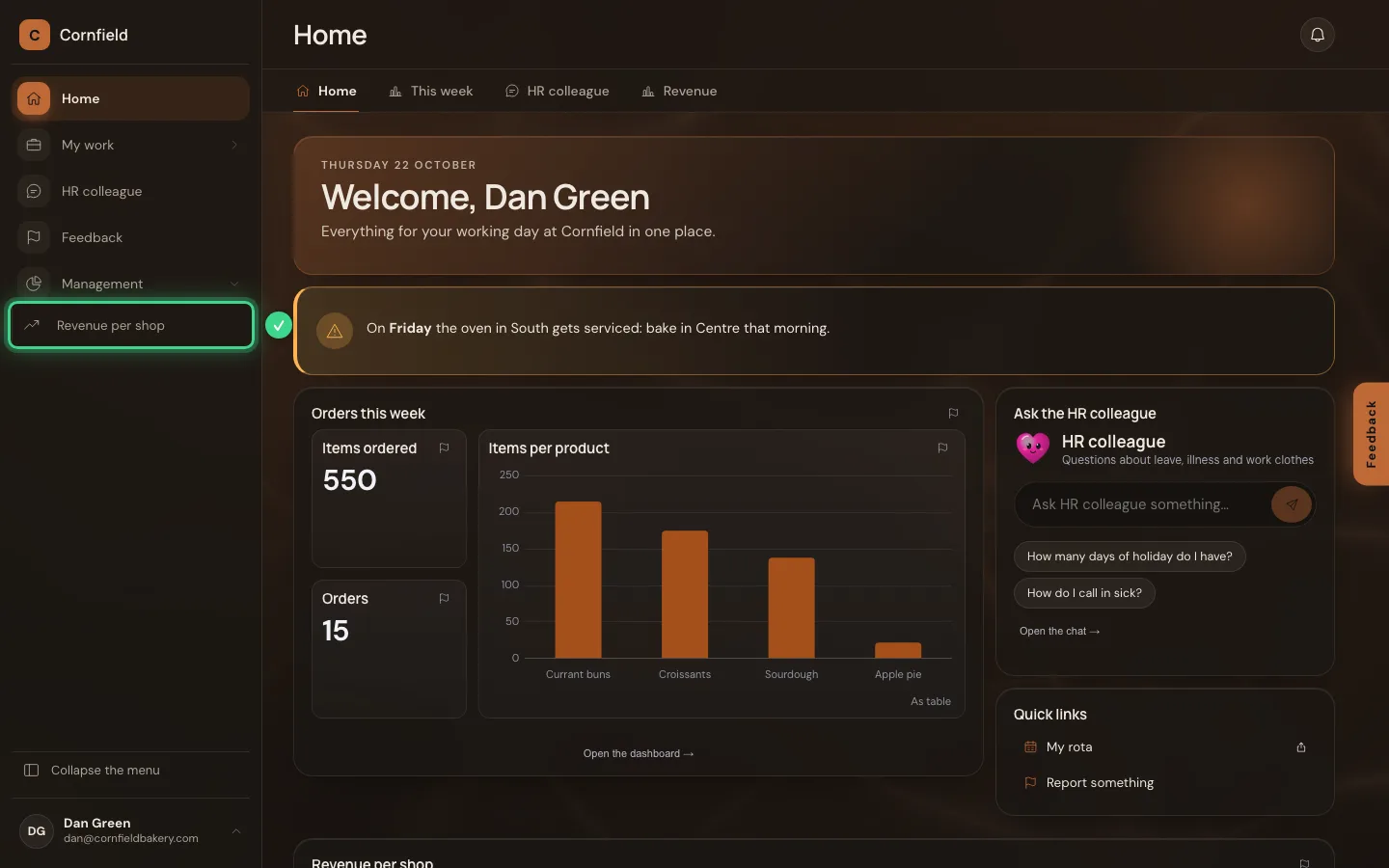
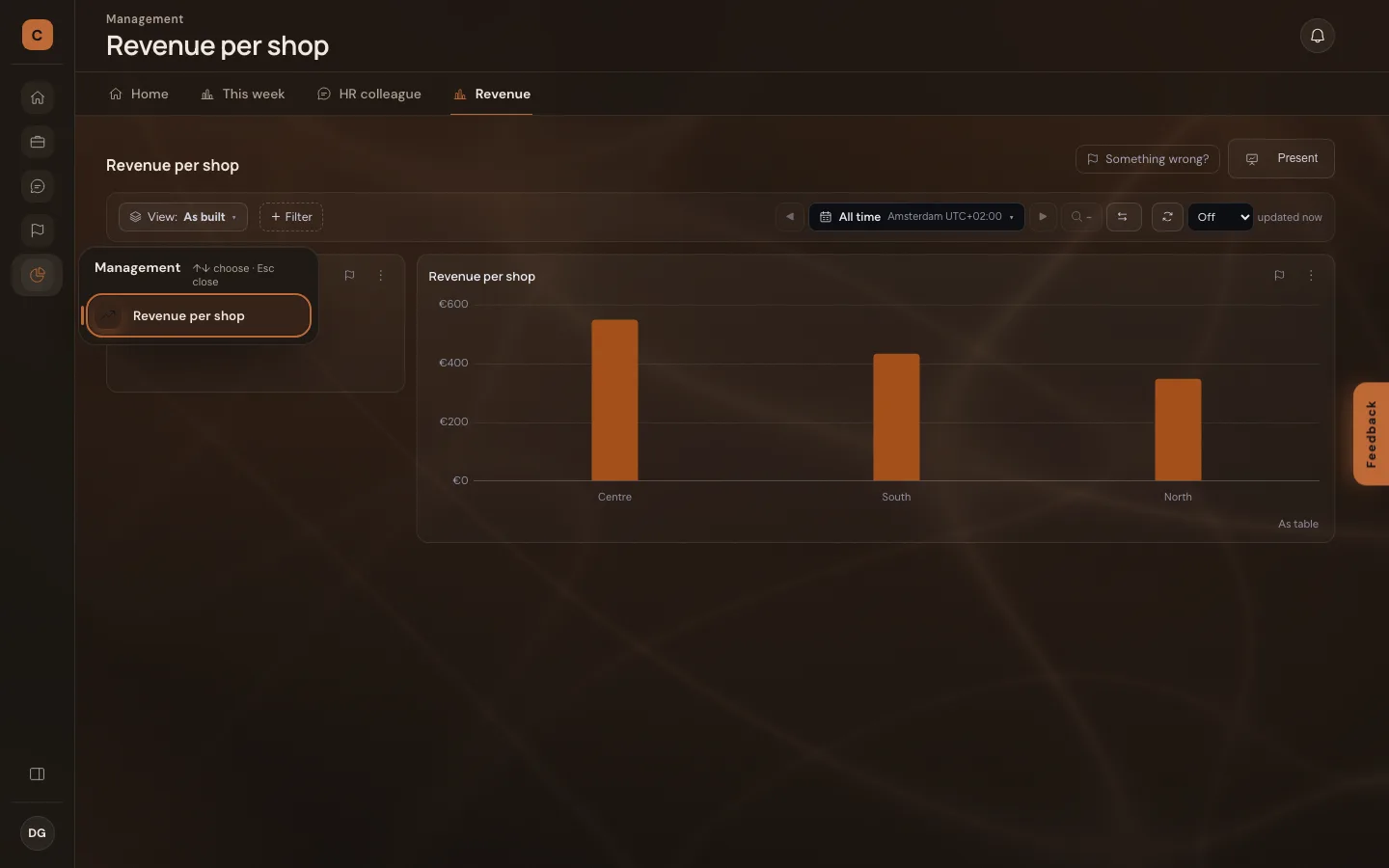
A manager signs in through the company's sign-in system, which passes on the group managers. They see the variant Managers: the group Management in the side menu, the tab Revenue at the top. Click the group: it folds open and shows what is in it.
- Click Management
Open the revenue
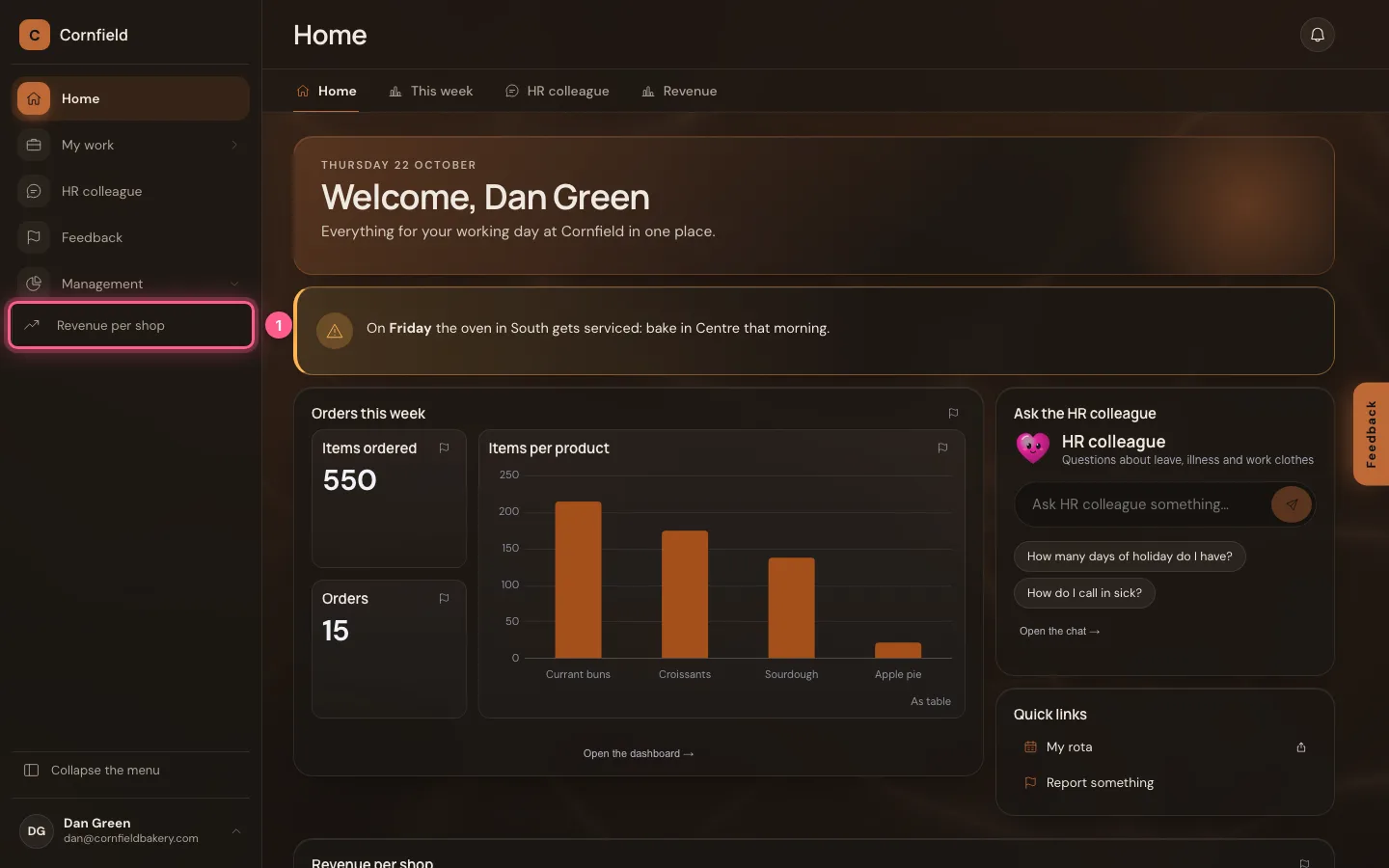
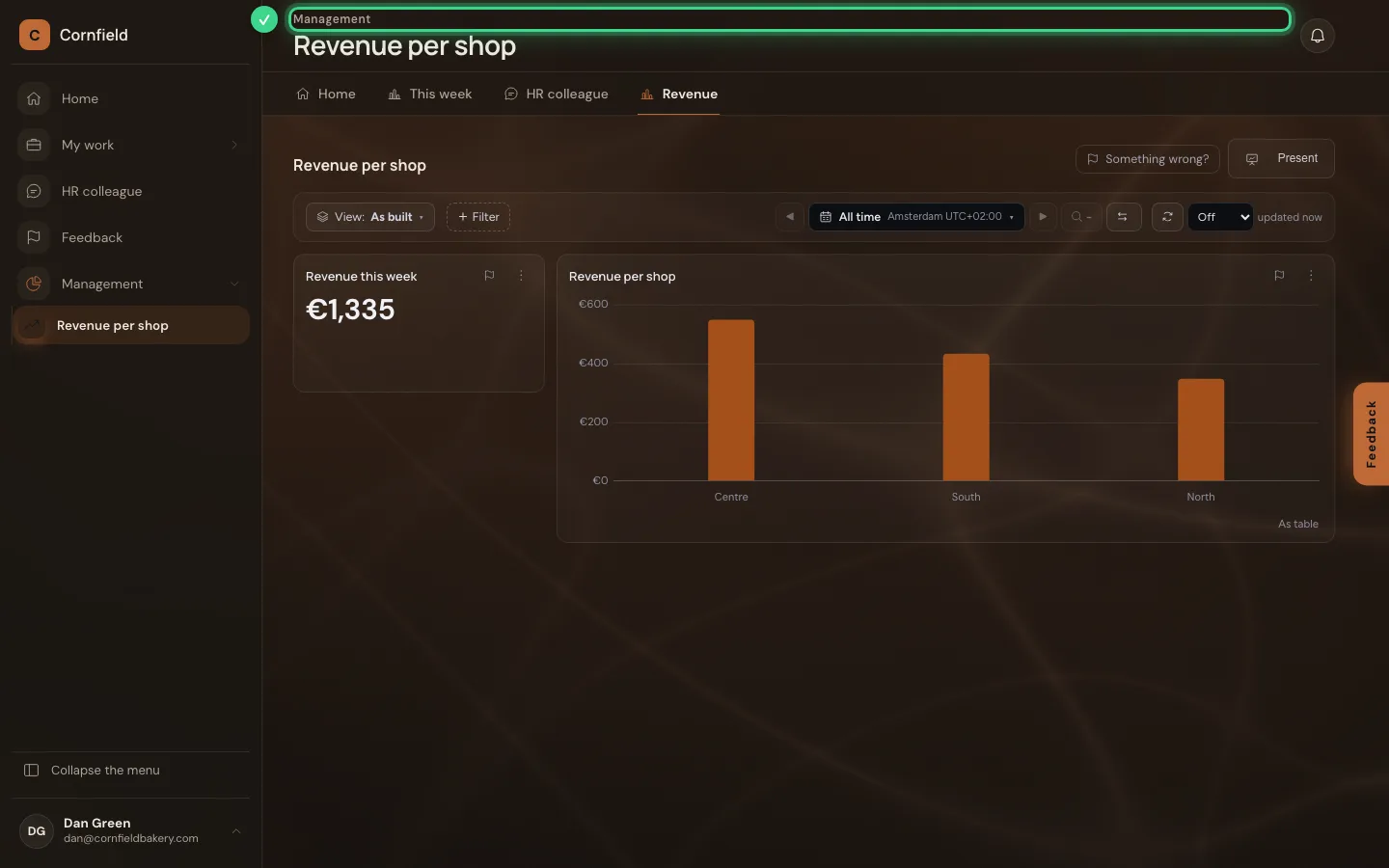
A click opens the dashboard in the home, for viewing only. At the top you see the way to it: Management.
- Click Revenue per shop
Fold the menu to icons
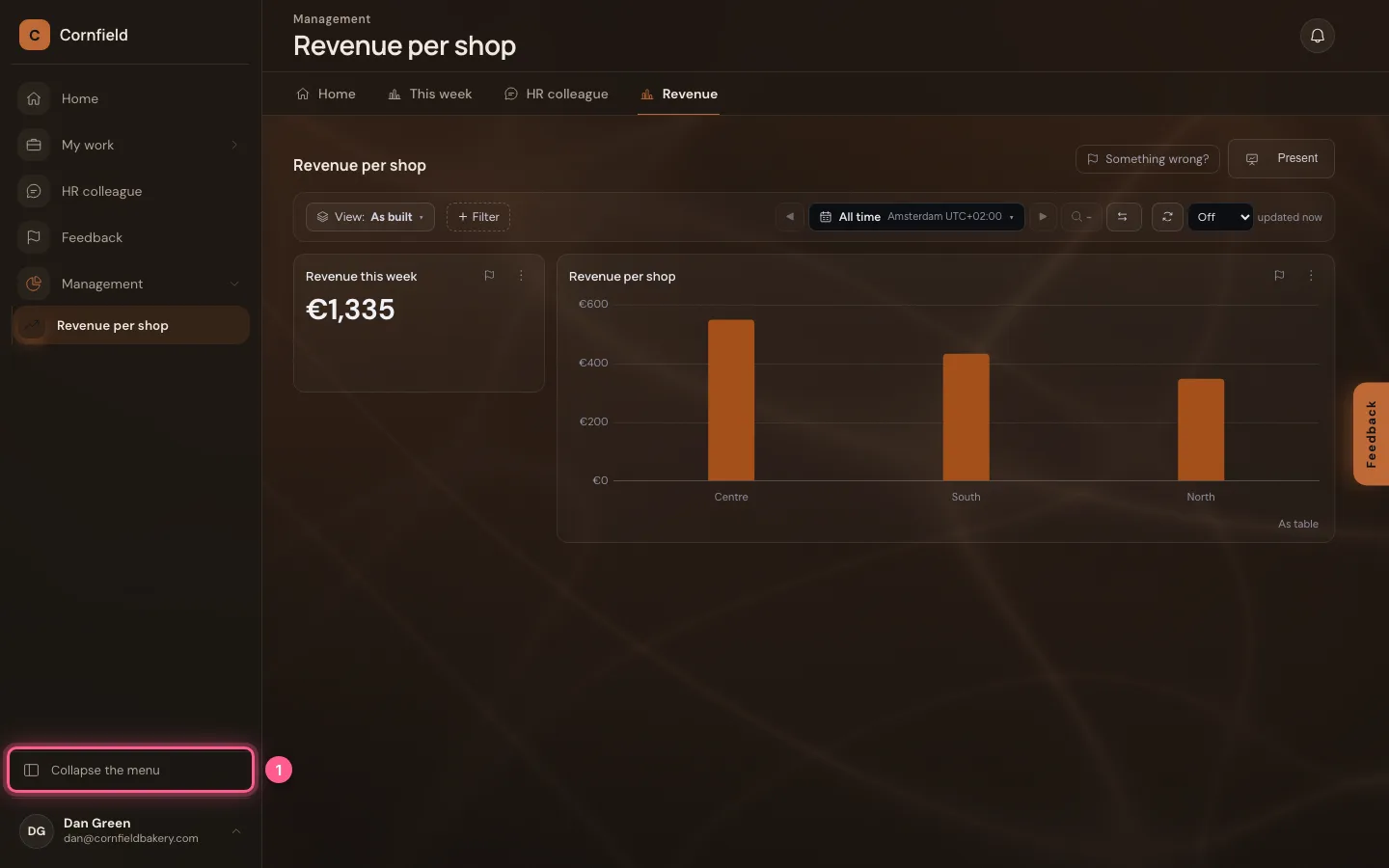
Collapse the menu leaves just a row of icons: more room for the dashboard. Flow remembers that per person. Point at a group (or choose it with the keyboard) and its submenu slides out beside it.
- Click Collapse the menu
An employee sees no Management
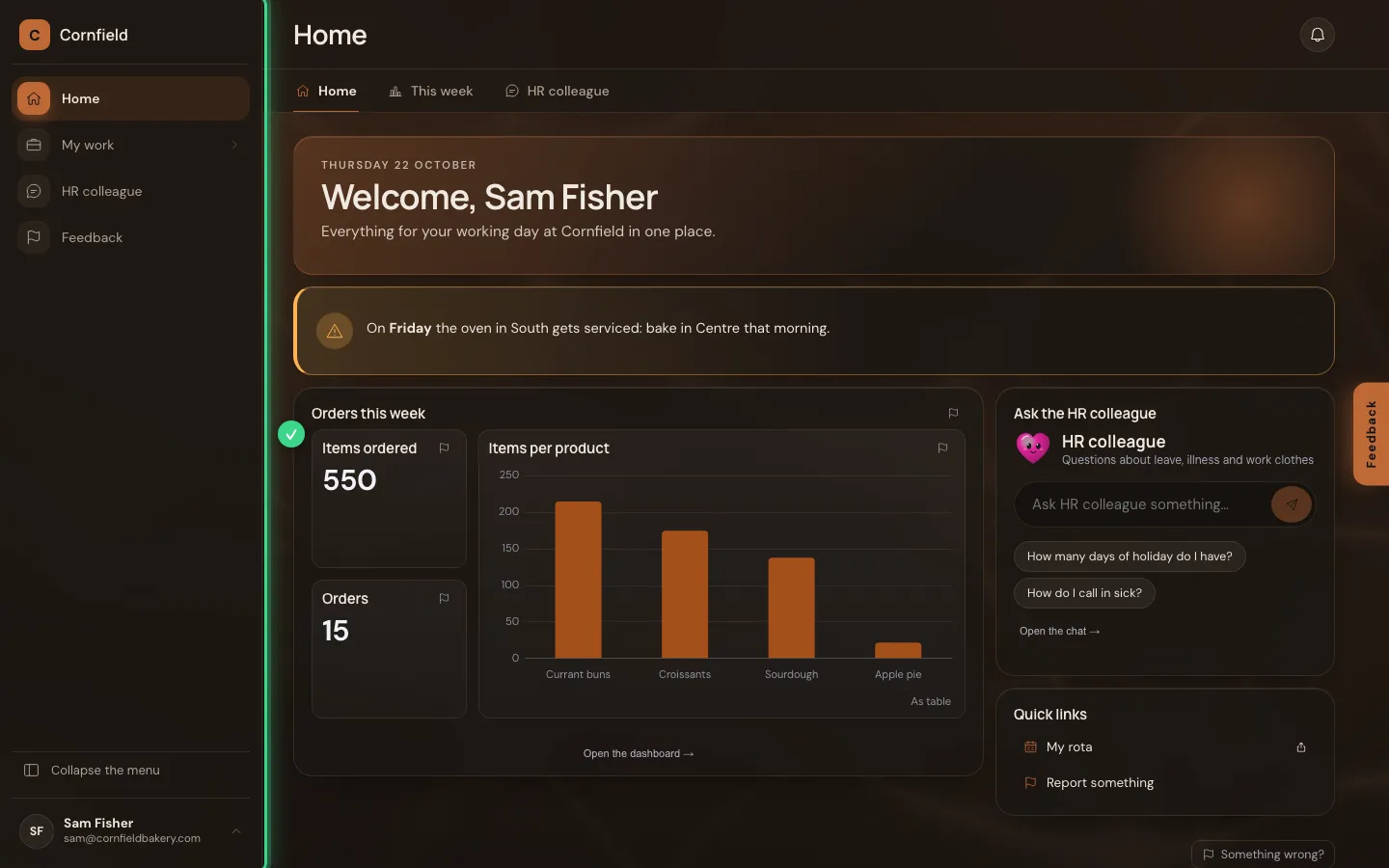
An employee is not in the managers group and gets the variant for Employees: no group Management, no tab Revenue. Whoever types the dashboard's address anyway only sees it when their role may read the data — the server decides that, not the menu.
This guide was carried out step by step on 22 Oct 2026 by an automated test on Flow (version 3e563176).