Microsoft 365: connect and send an e-mail
A connection with Microsoft 365 gives workflows and AI Colleagues building blocks for Outlook mail and calendar, Teams and OneDrive/SharePoint. You connect an app registration from Microsoft Entra ID, test the connection and send an e-mail with the building block Outlook · Send email. You need: the tenant ID, client ID and client secret of an app registration with the application permission Mail.Send.
Open your development environment
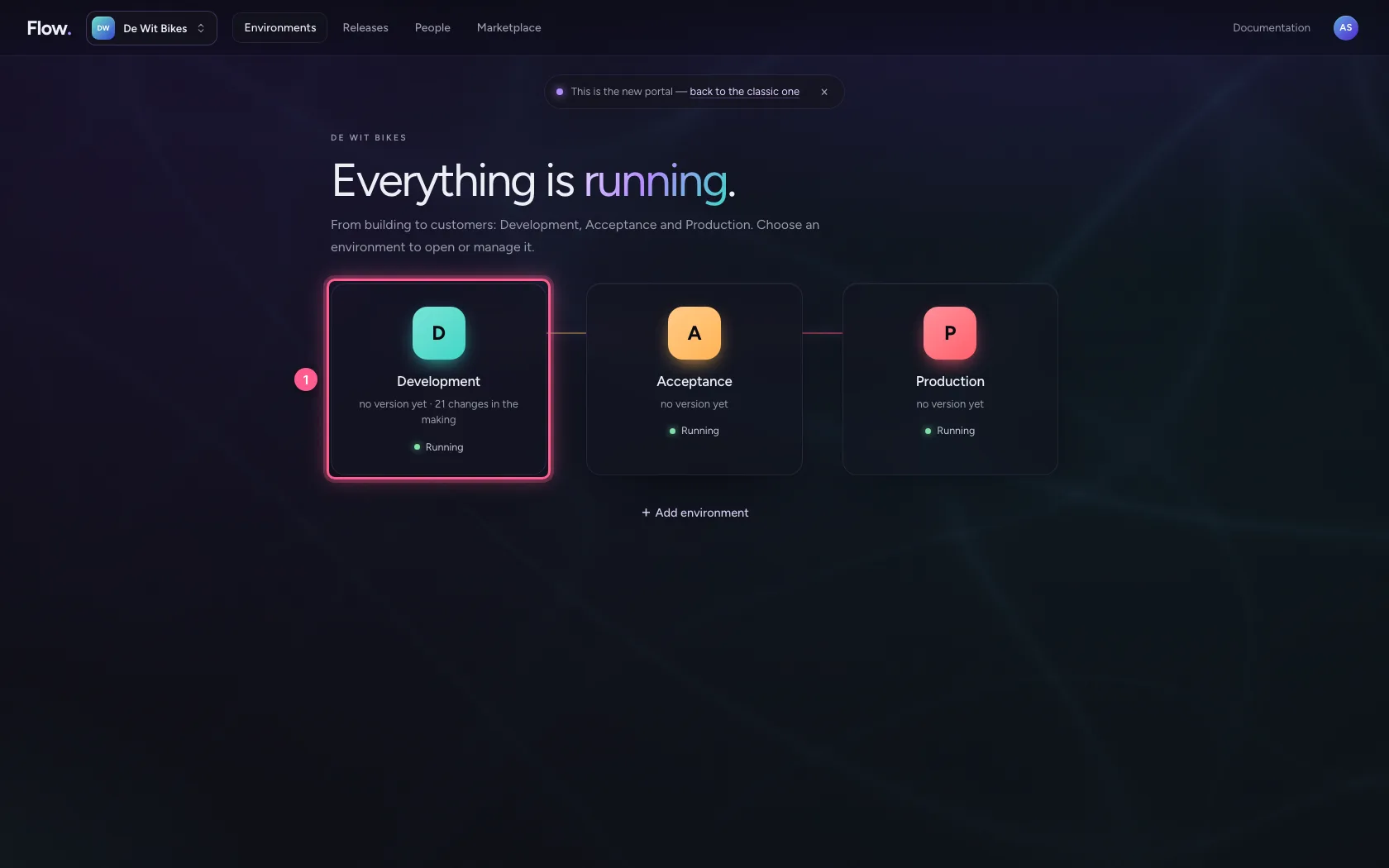
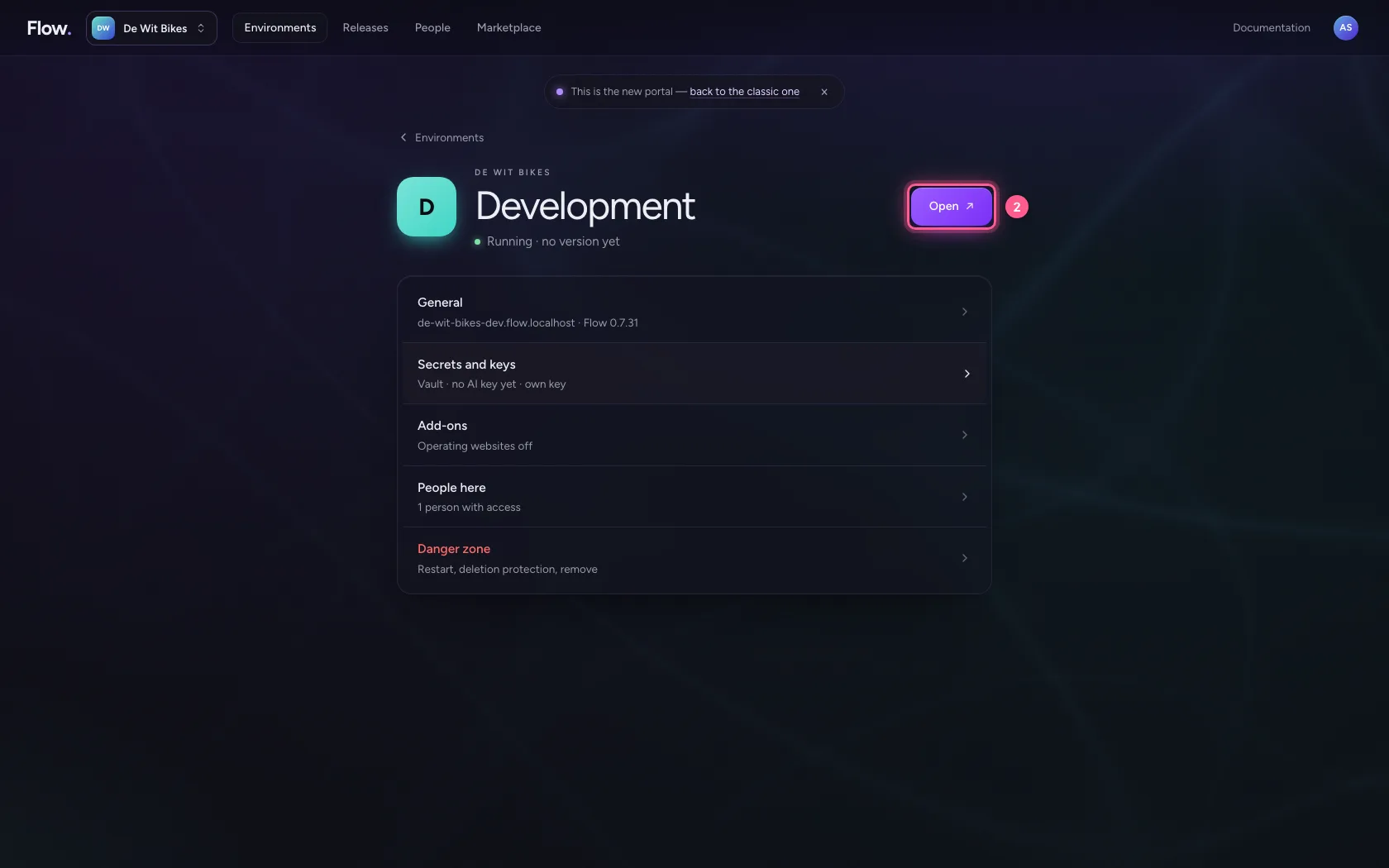
In the portal, under Environments, click Development, and there Open. Flow opens in a new tab and you are signed in straight away.
- Click Development
- Click Open ↗
Choose Microsoft 365
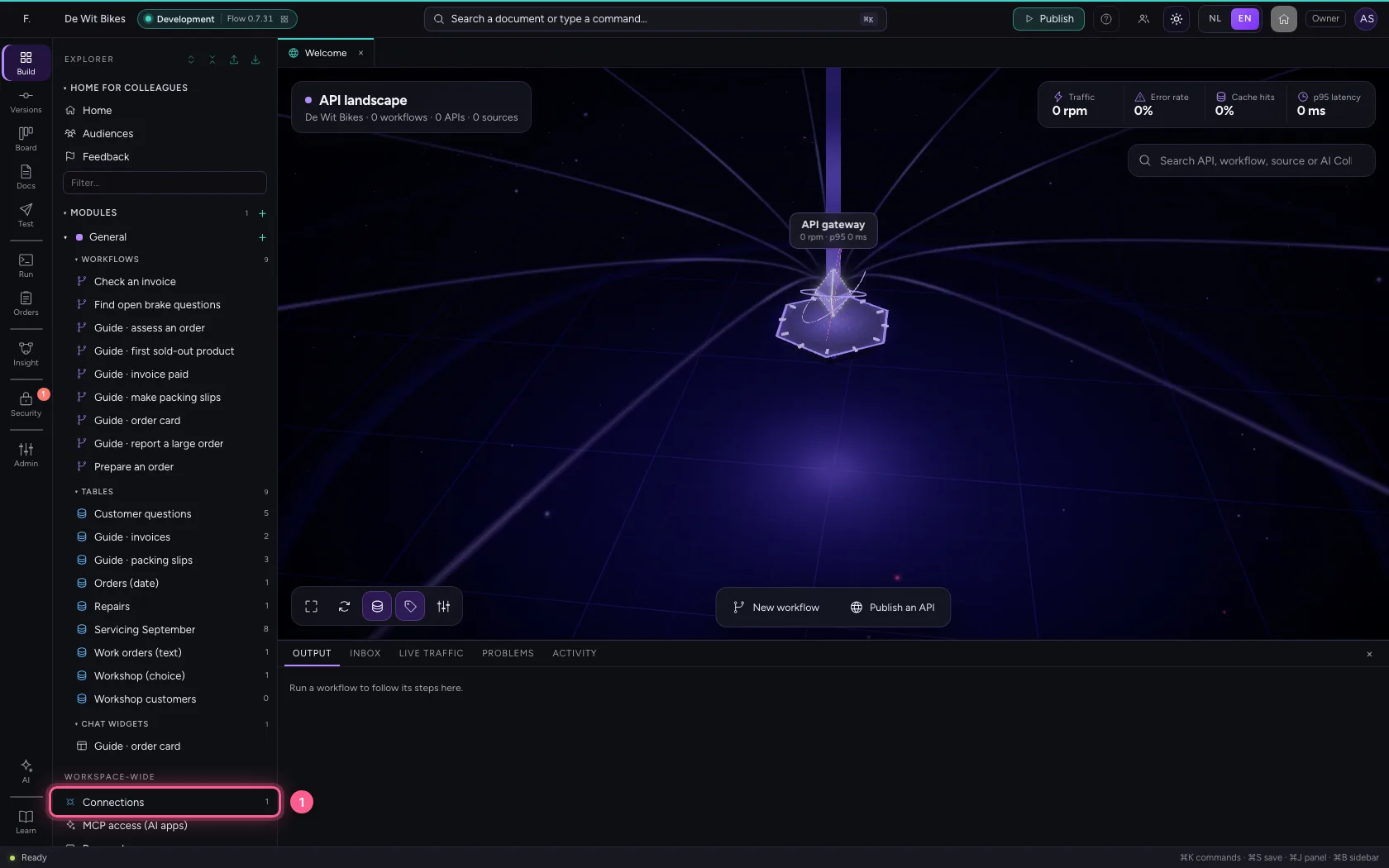
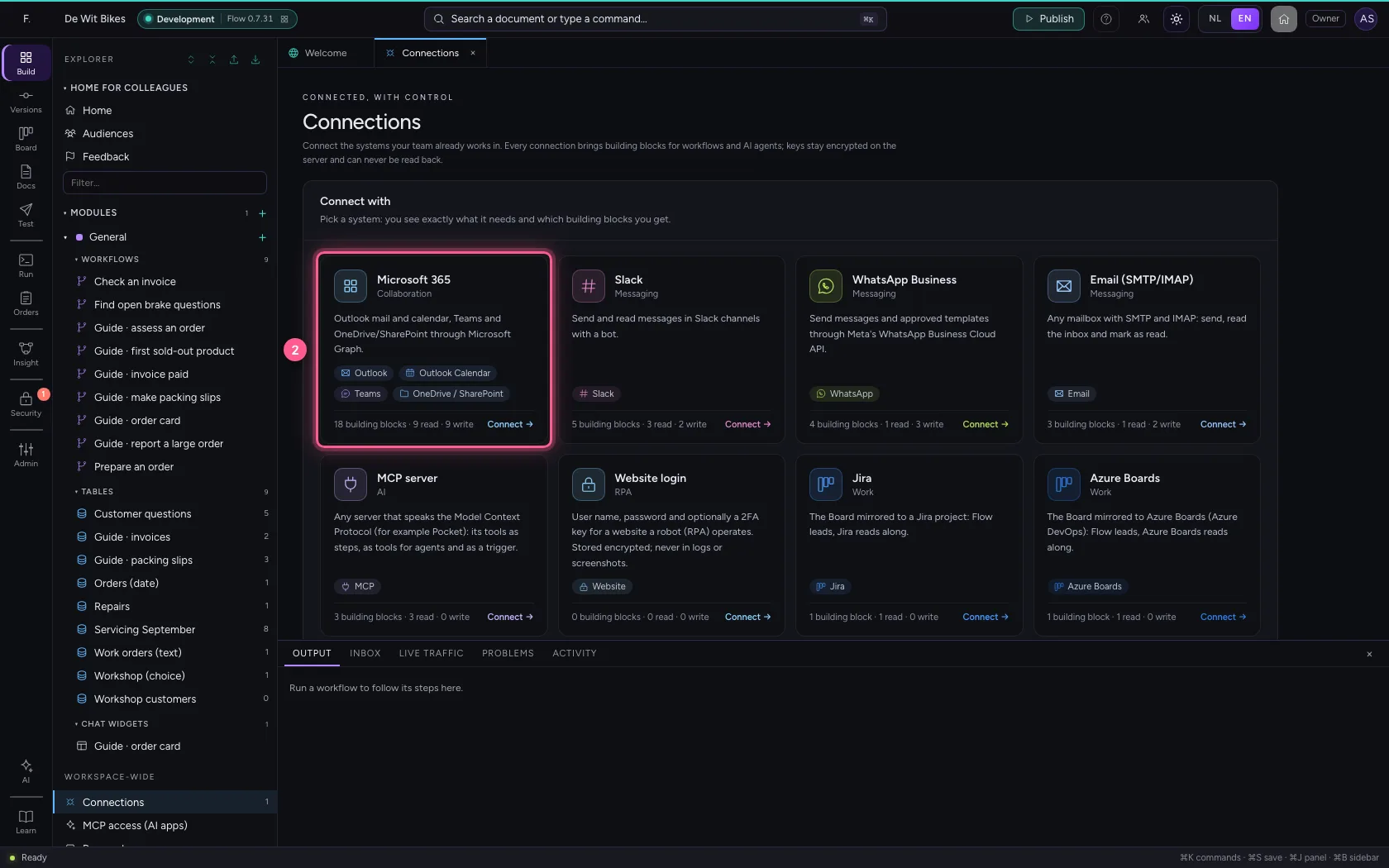
Under Connections you choose Microsoft 365. On the right is what to arrange in Microsoft Entra ID, and per building block which permission it needs: grant only what you use. Sending needs Mail.Send.
- Click Connections
- Click Microsoft 365
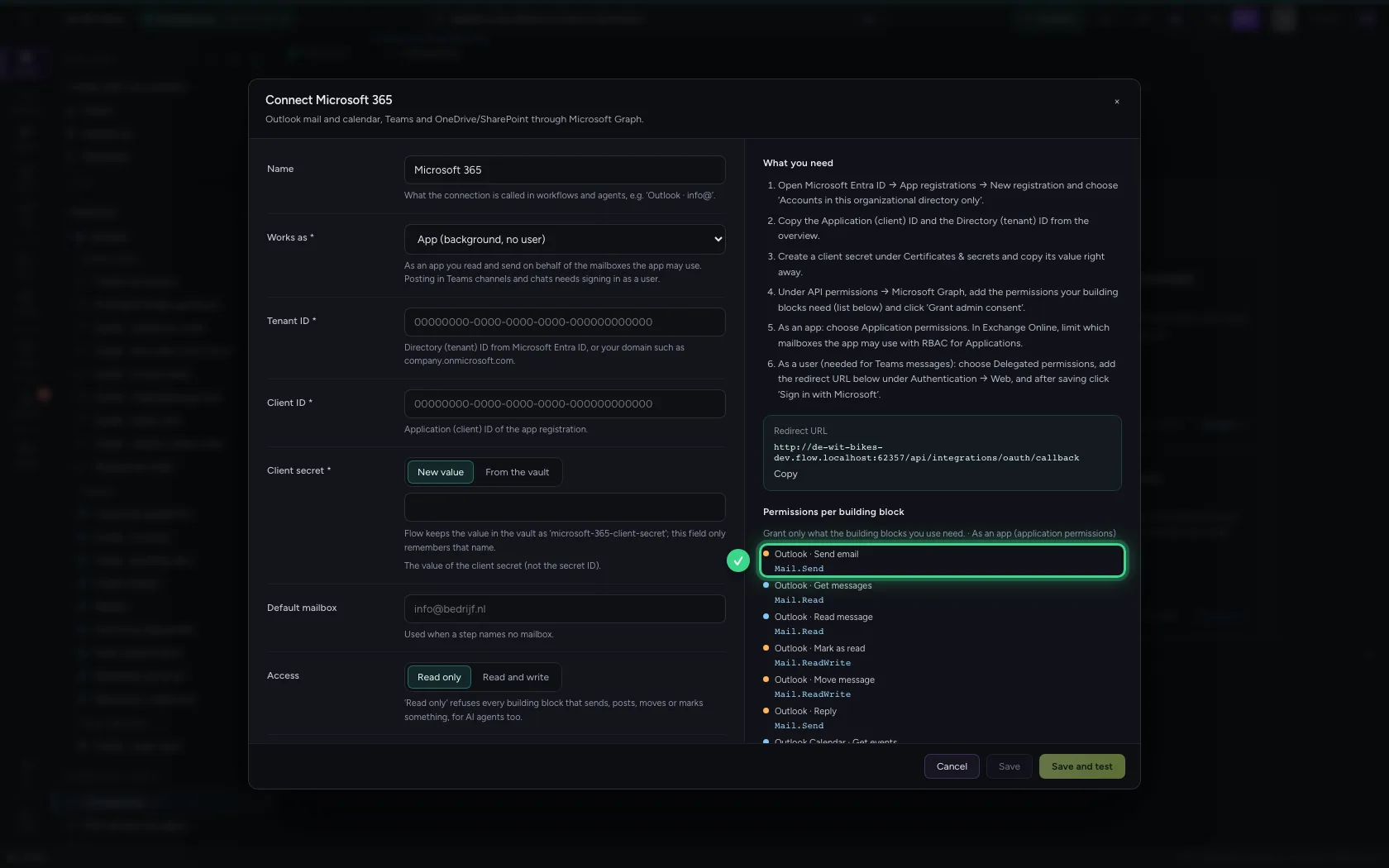
Fill in the app registration and test
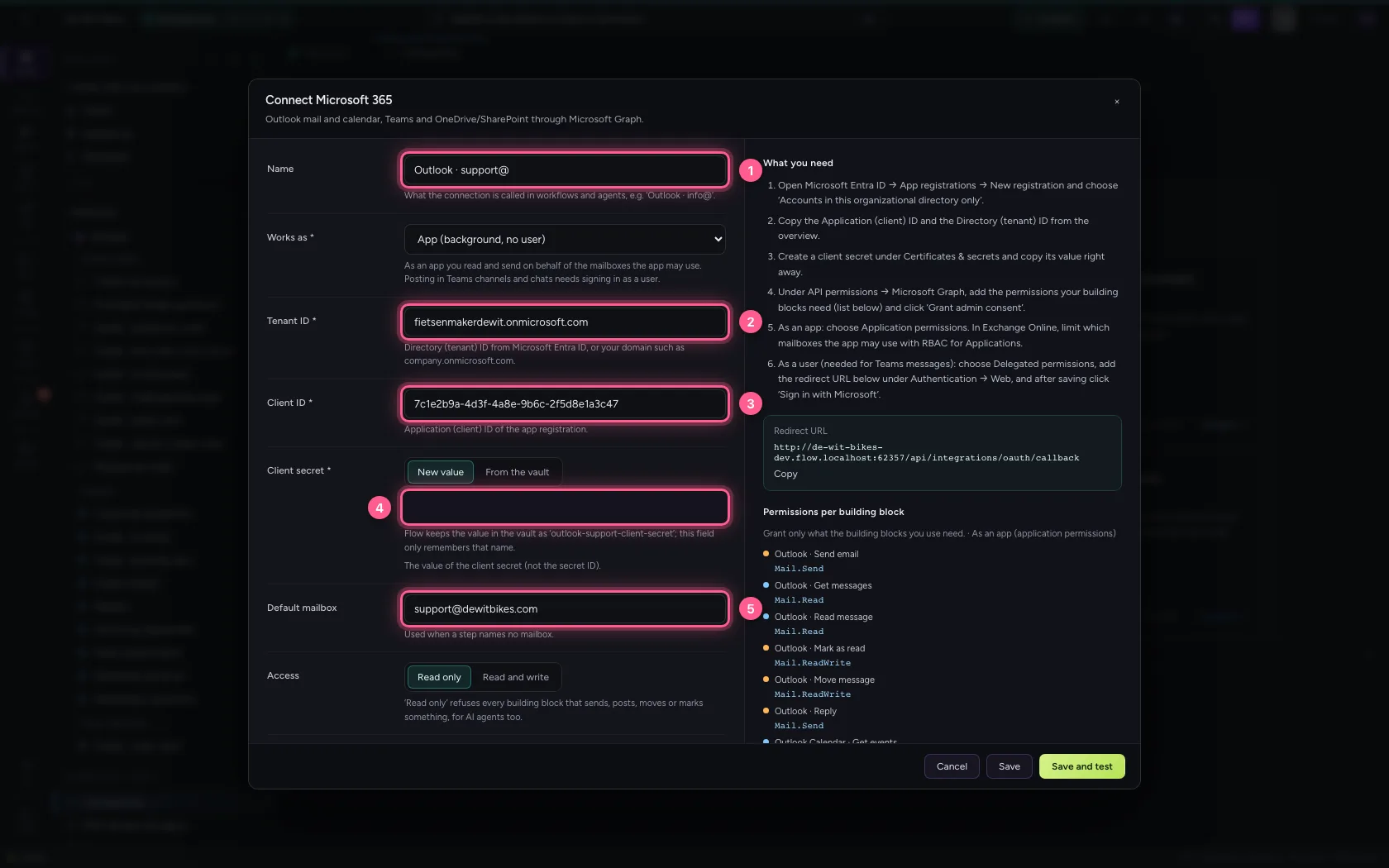
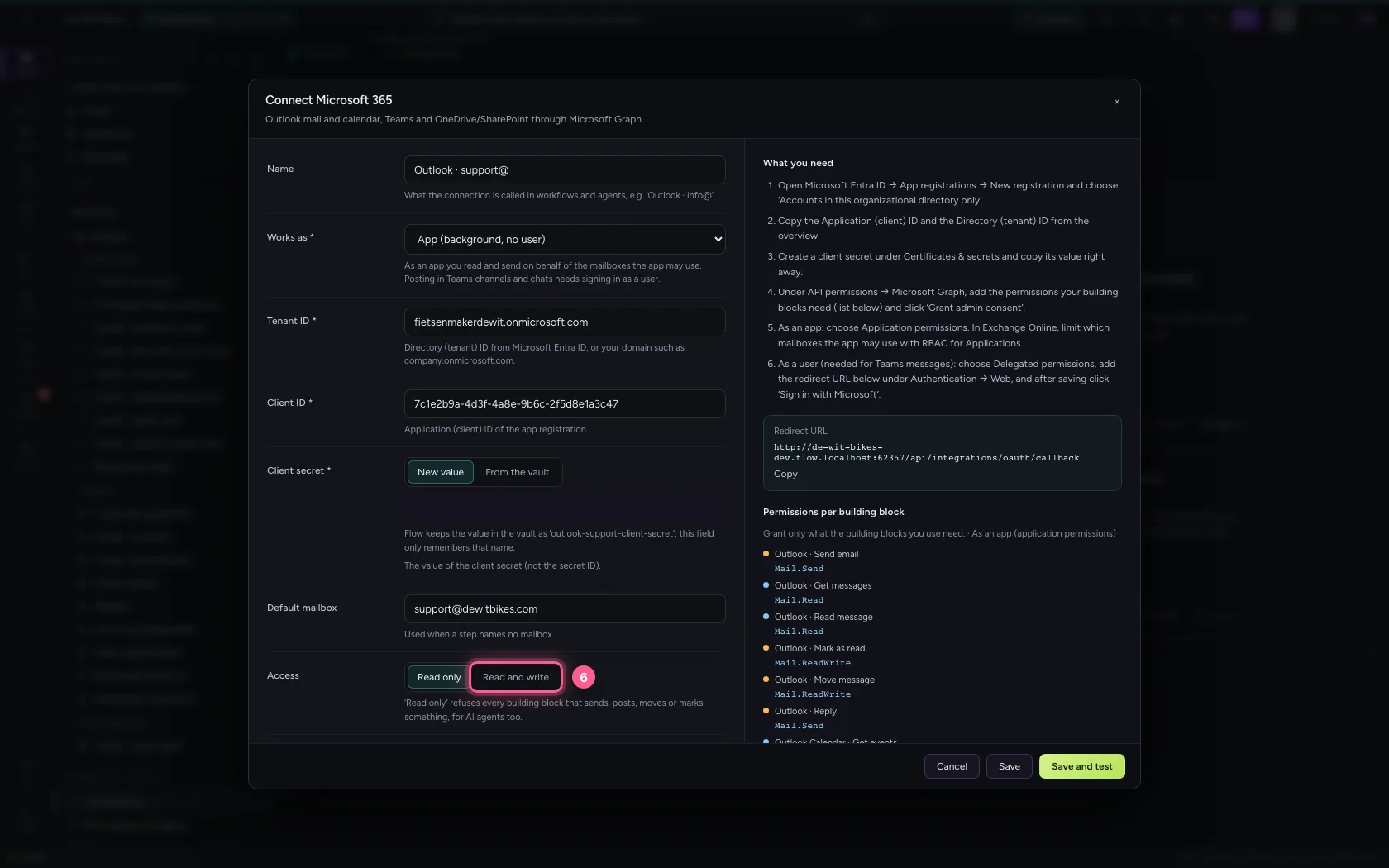
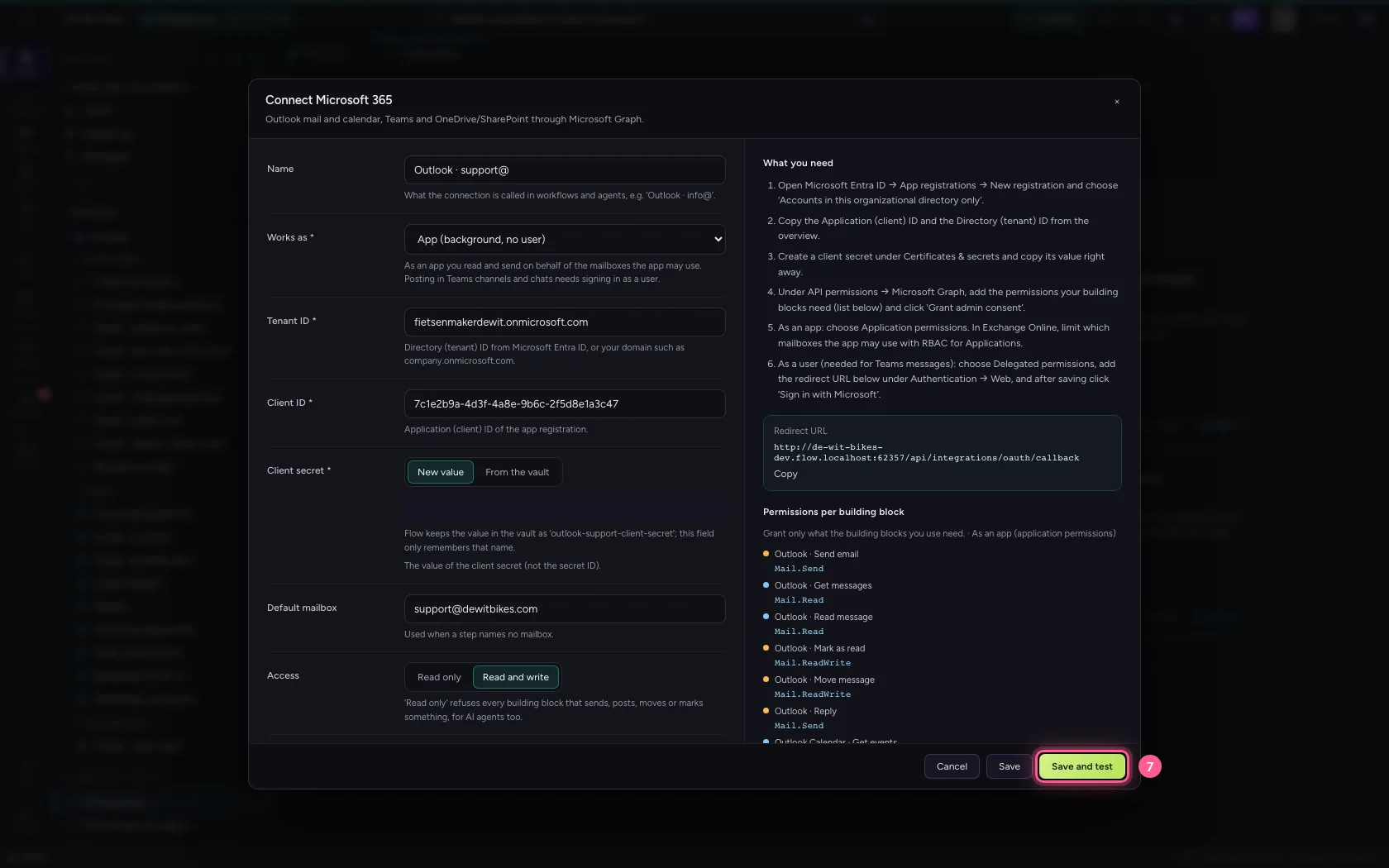
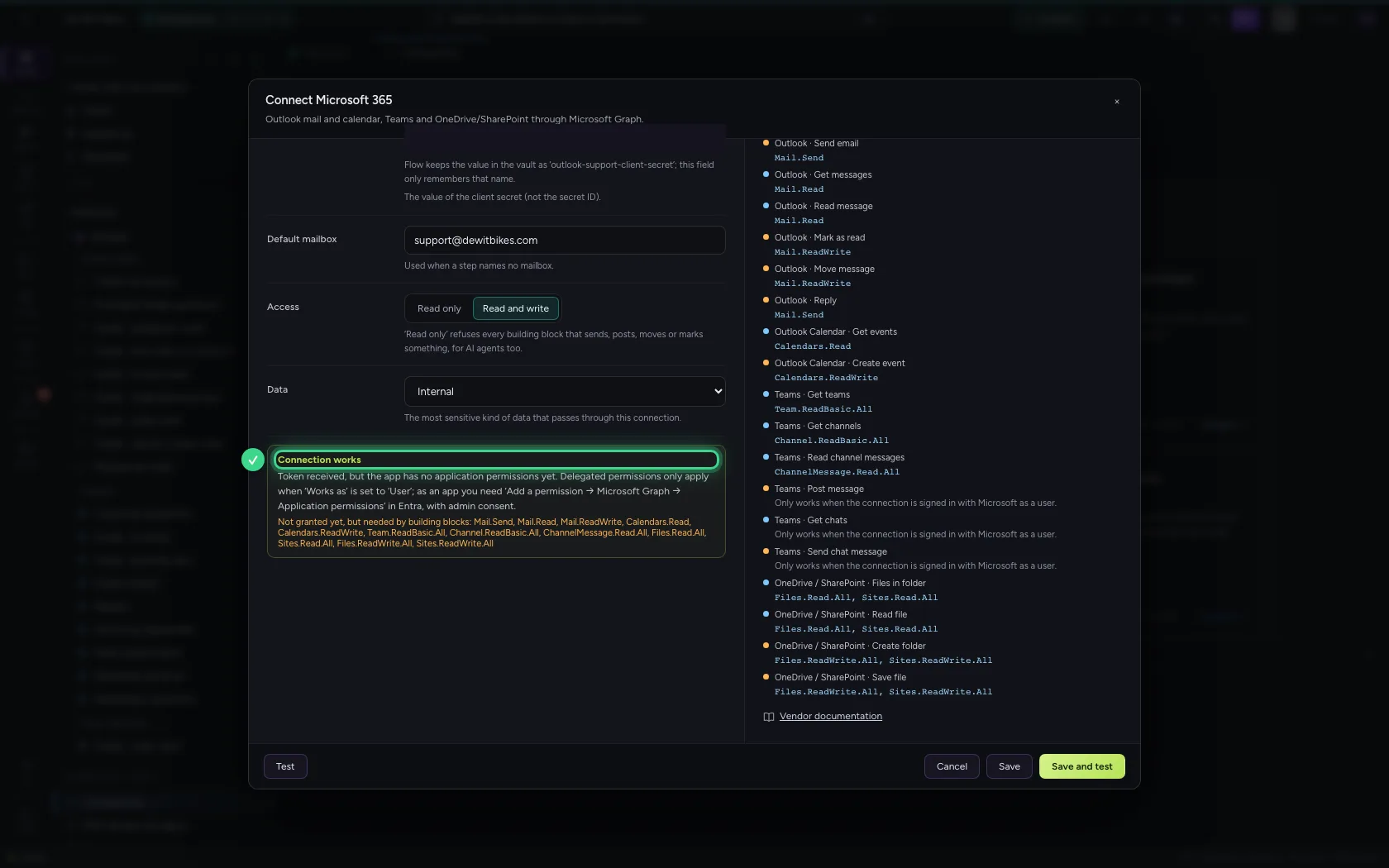
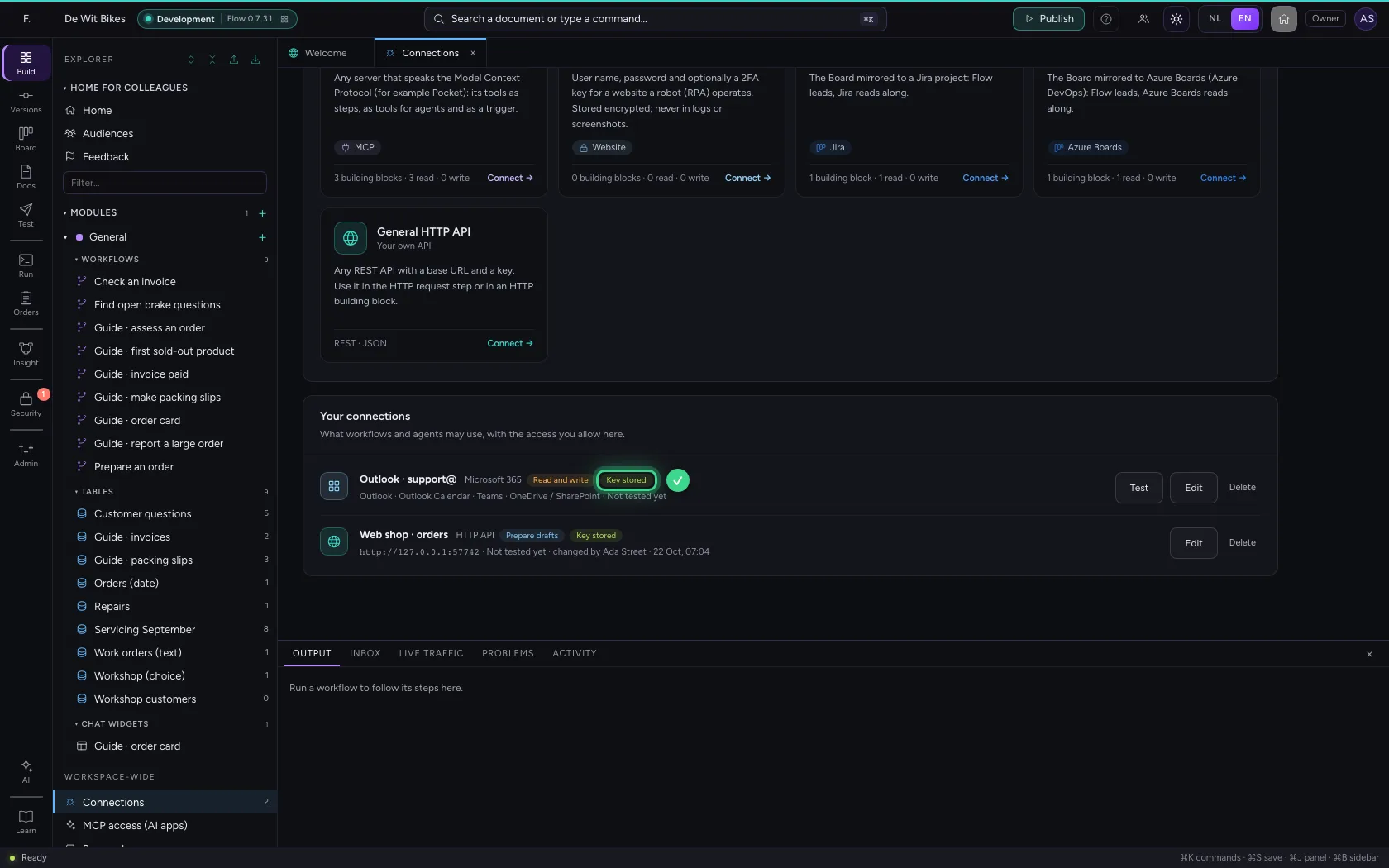
Works as App: Flow works in the background, without anyone signed in, on behalf of the default mailbox. The client secret is stored encrypted and can never be read back. Choose Read and write, because sending changes something. Save and test asks Microsoft for an access token straight away.
- In Name, type
Outlook · support@ - In **Tenant ID ***, type
fietsenmakerdewit.onmicrosoft.com - In **Client ID ***, type
7c1e2b9a-4d3f-4a8e-9b6c-2f5d8e1a3c47 - In **Client secret ***, type
•••••••• - In Default mailbox, type
support@dewitbikes.com
- Click Read and write
- Click Save and test
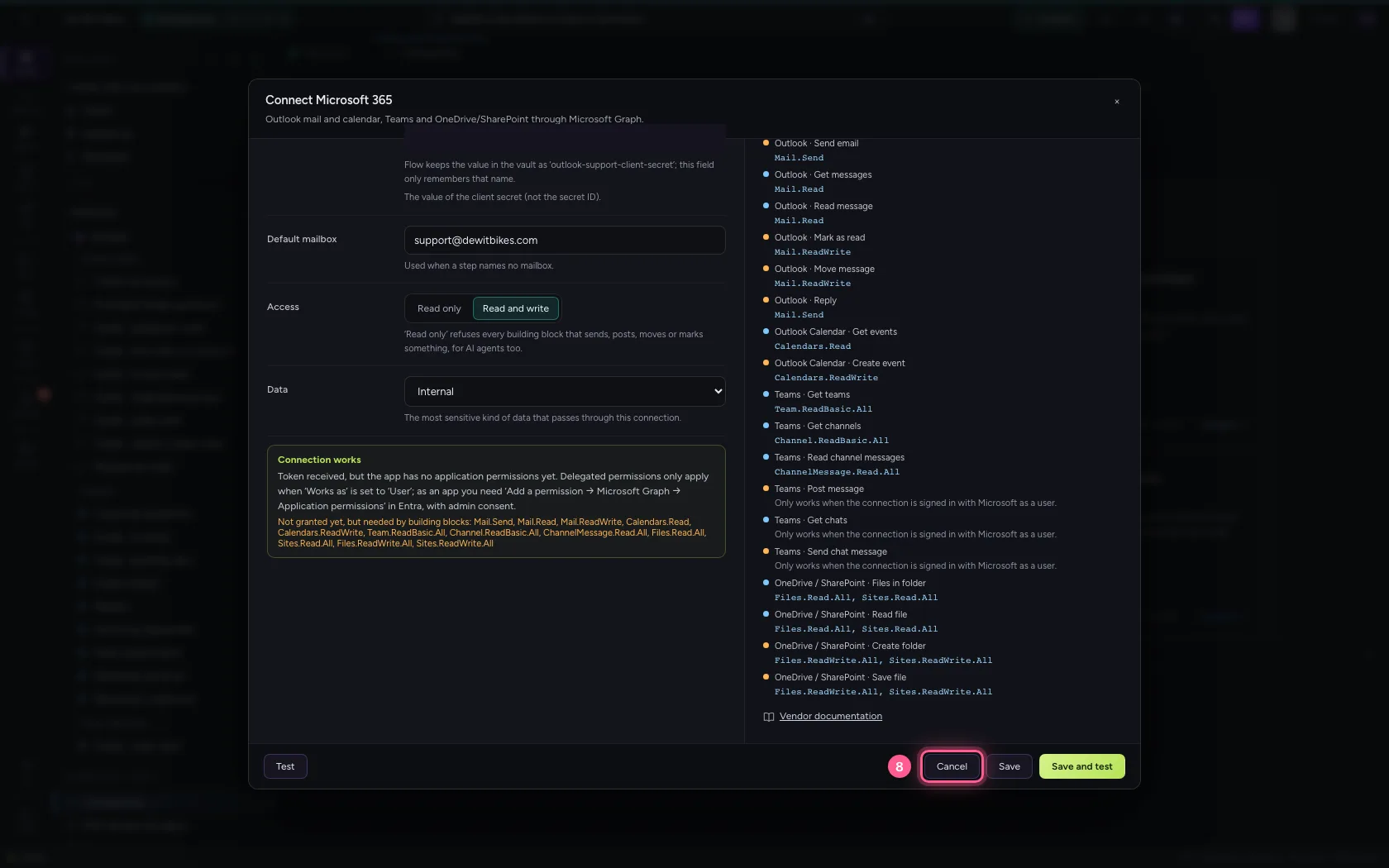
- Click Cancel
Use the building block Outlook · Send email
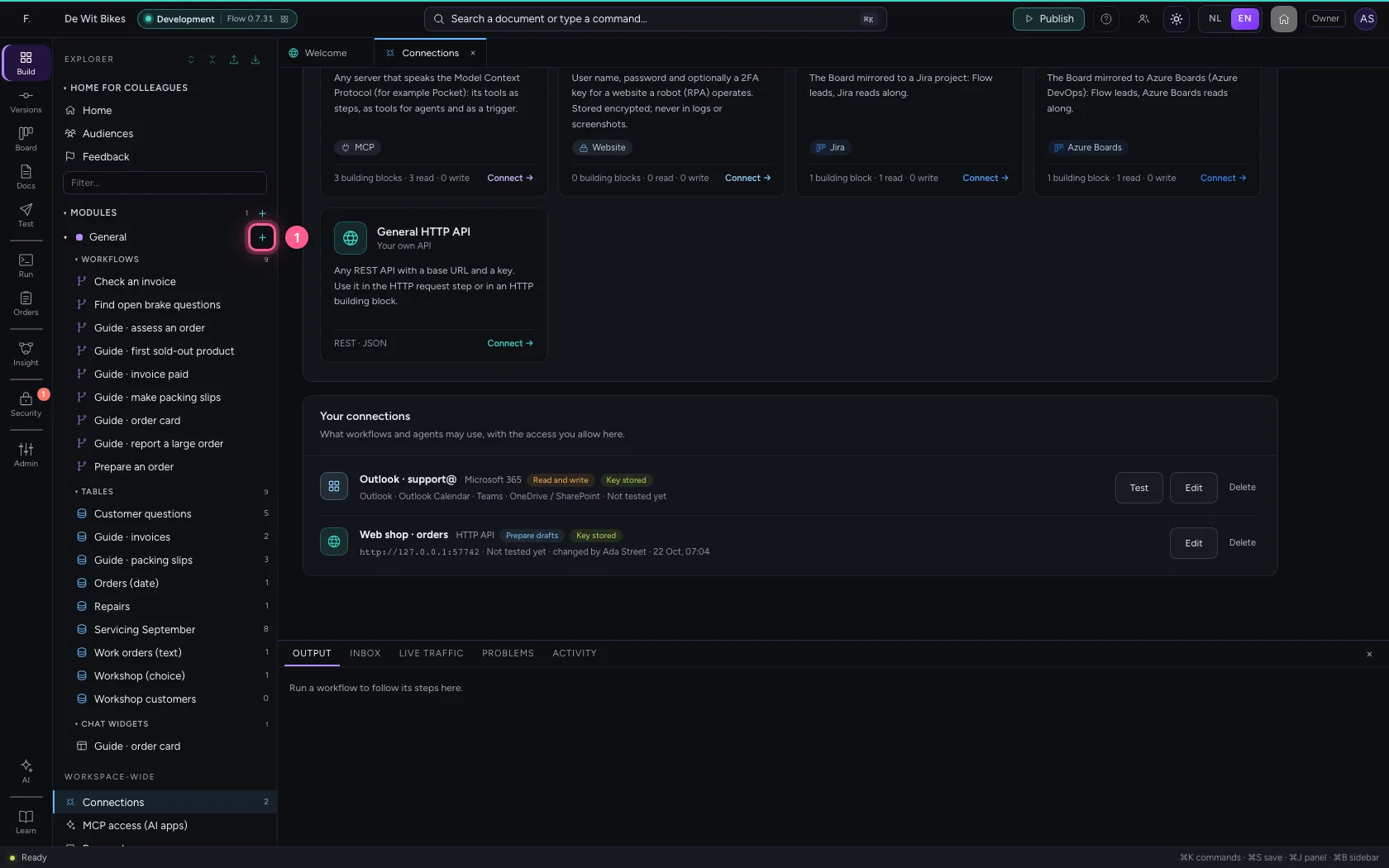
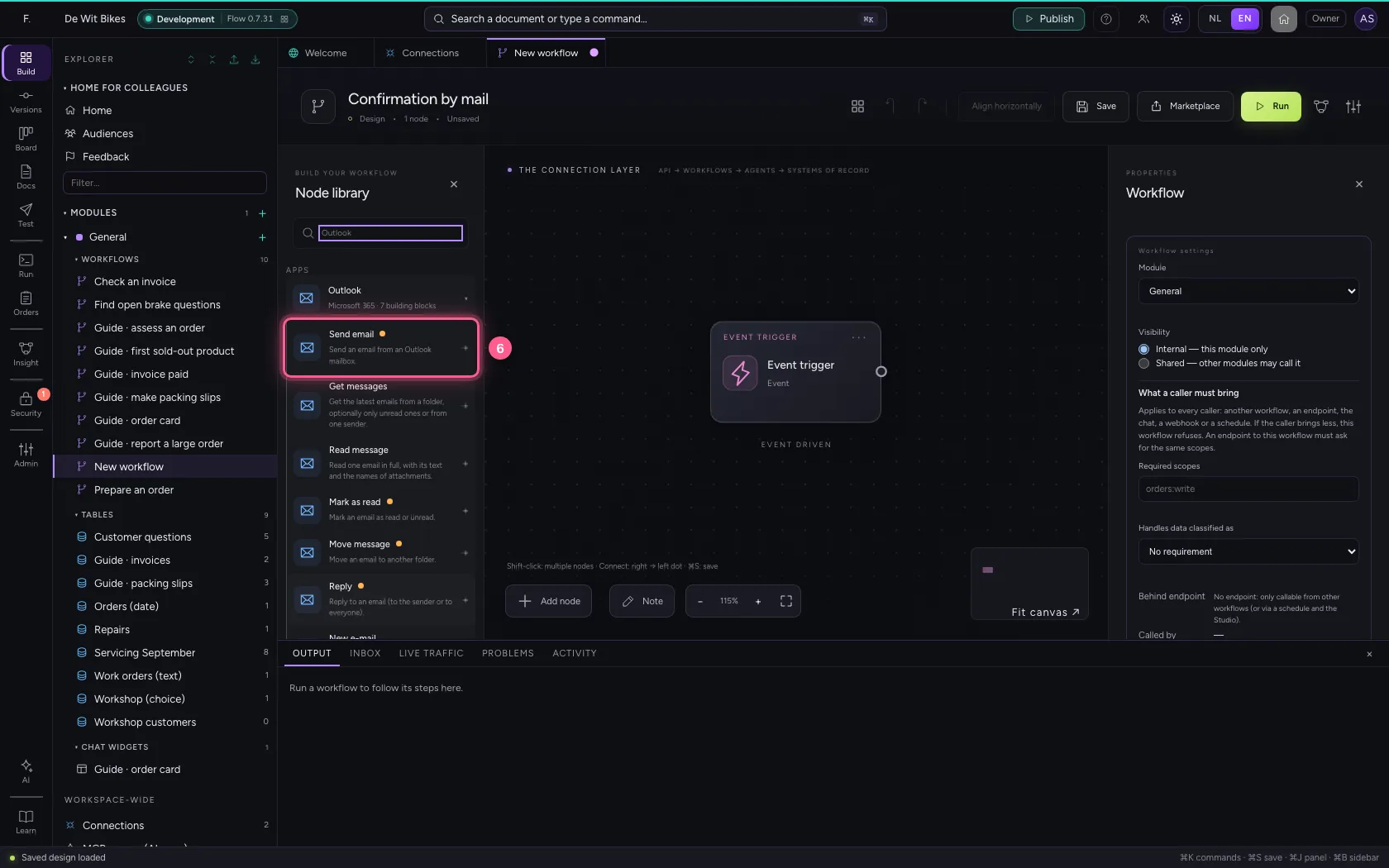
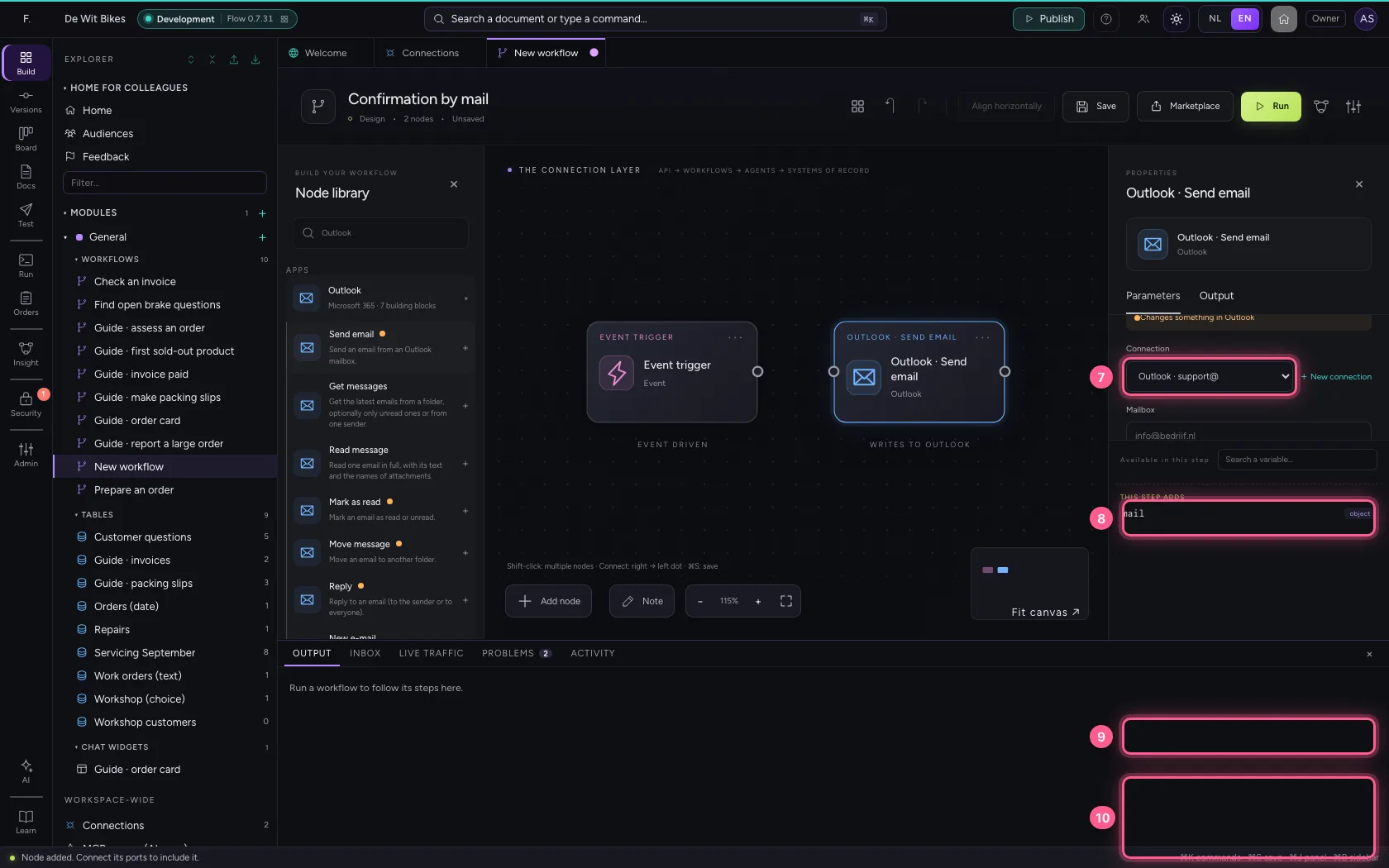
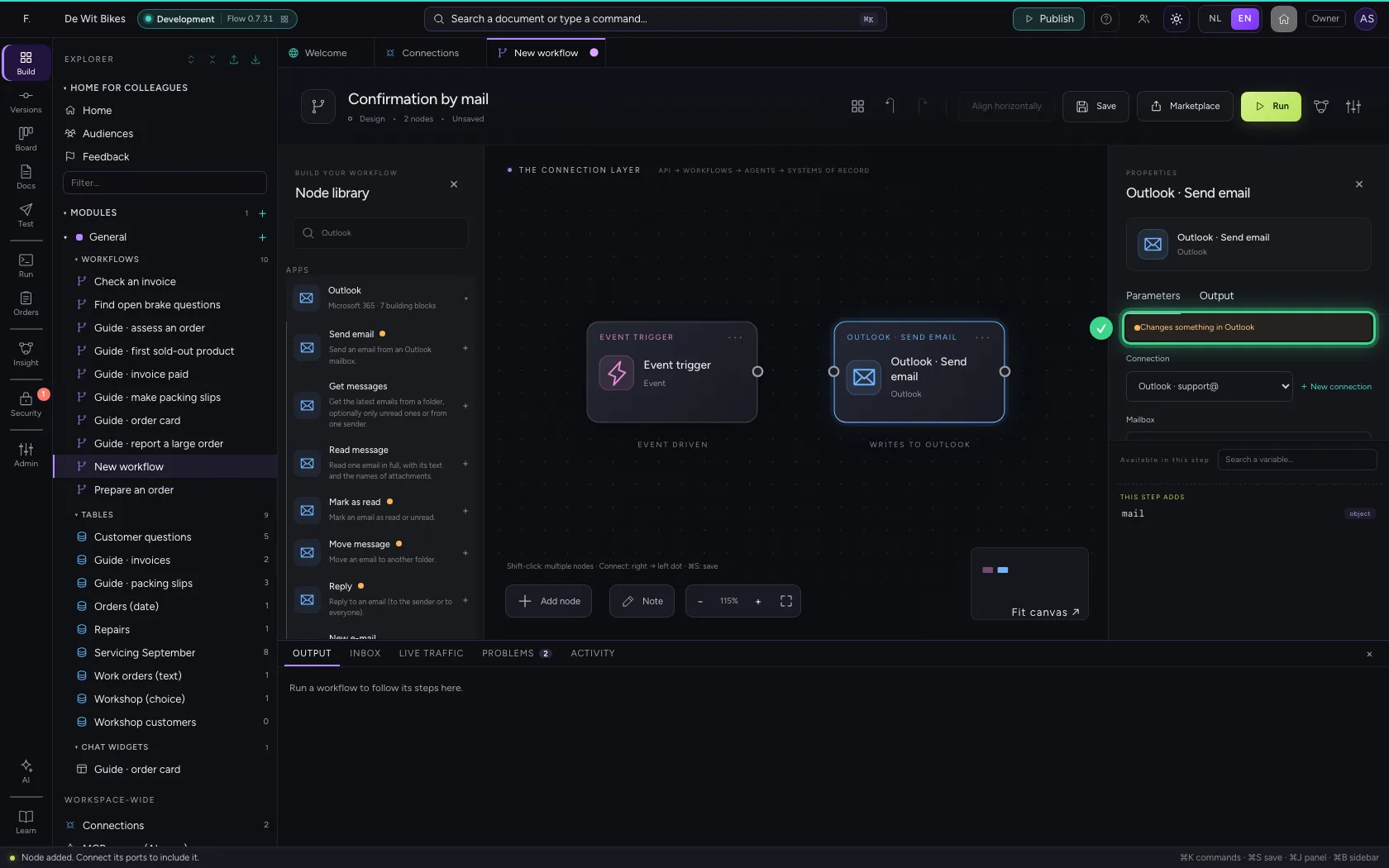
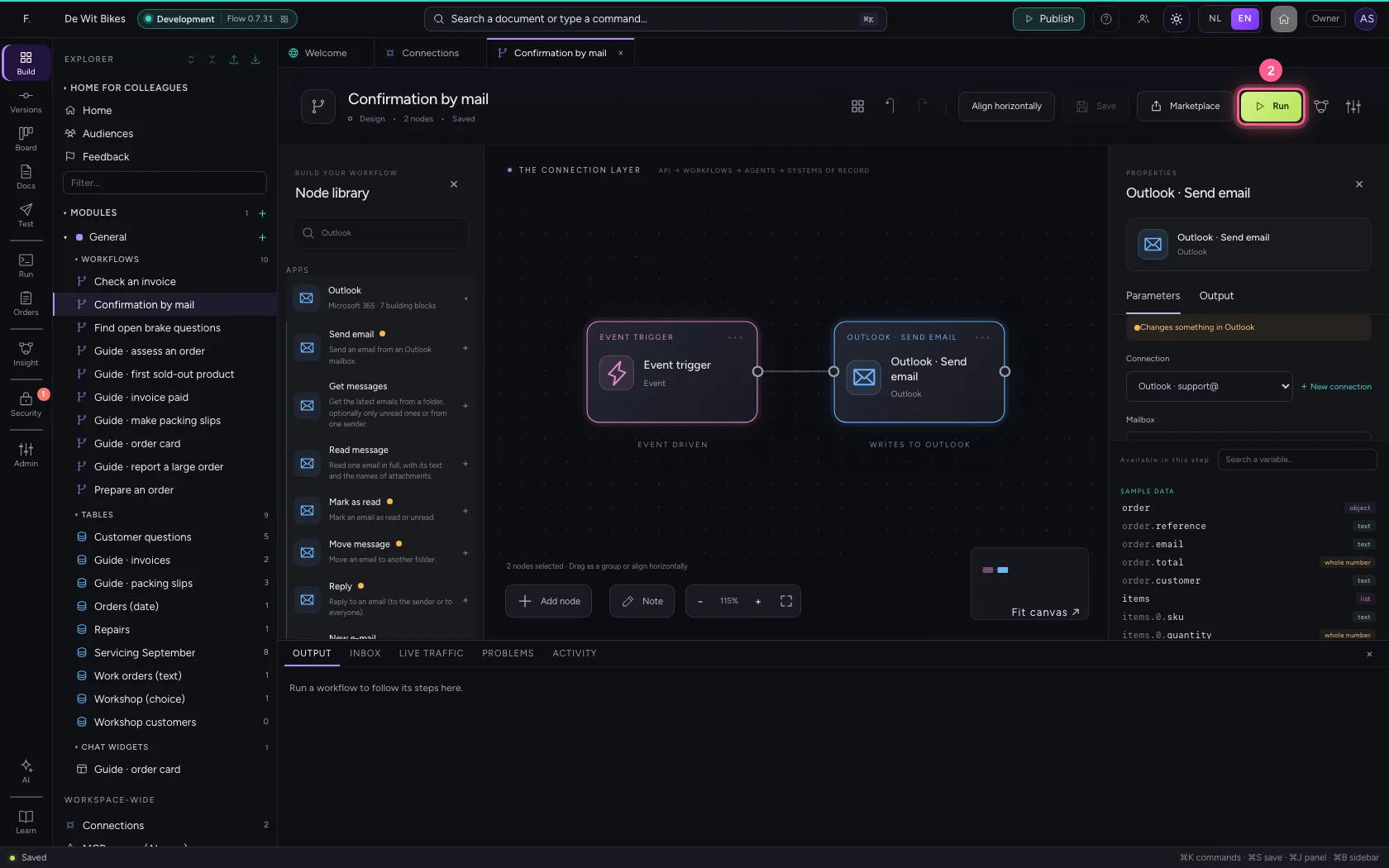
Create a workflow and add Outlook · Send email from the library. Choose your connection, fill in To, Subject and Message. Leave Mailbox empty: Flow then sends from the connection's default mailbox. Every field may contain {{variables}}, such as a customer's address from an earlier step.
- Click Add to General
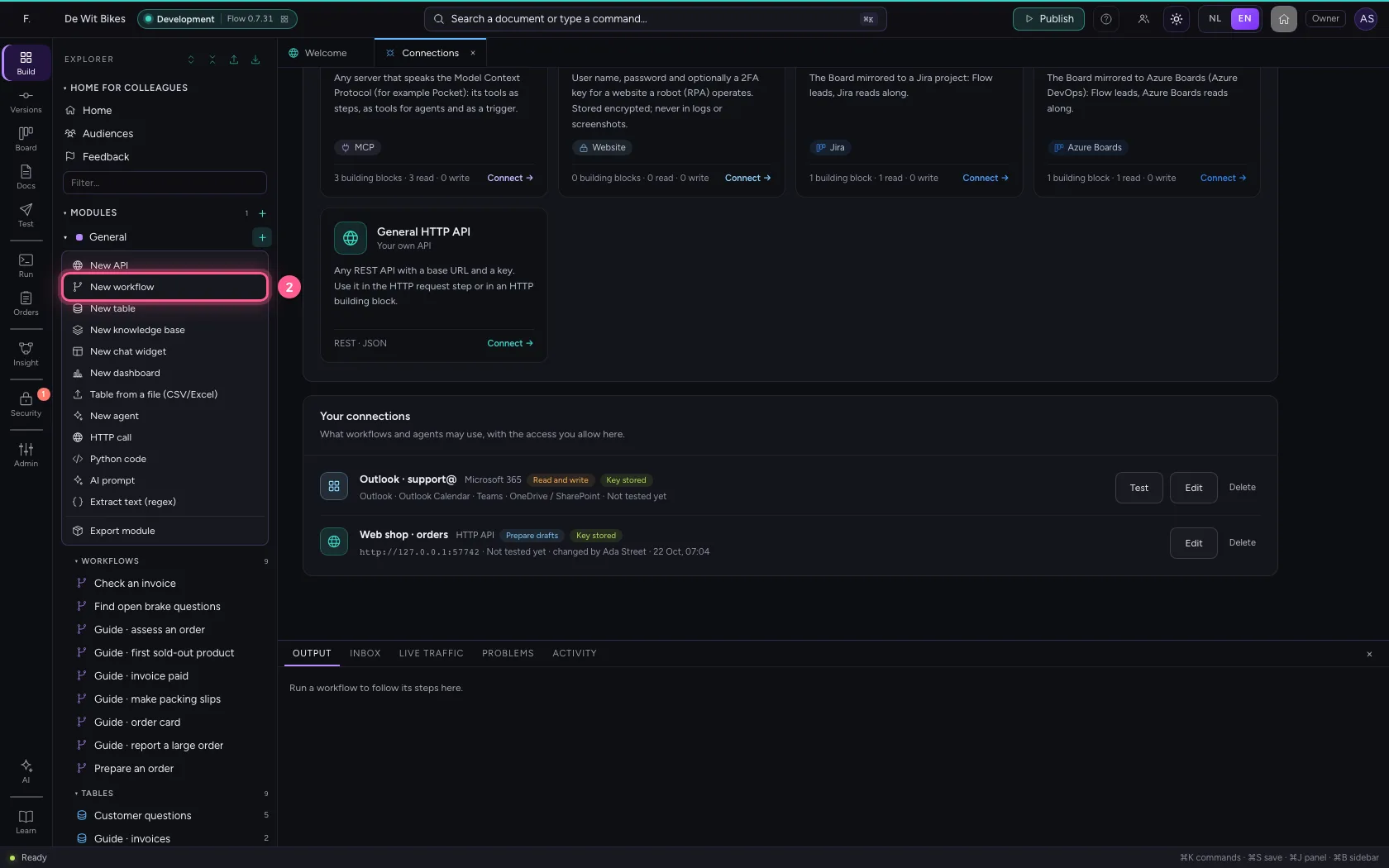
- Click New workflow
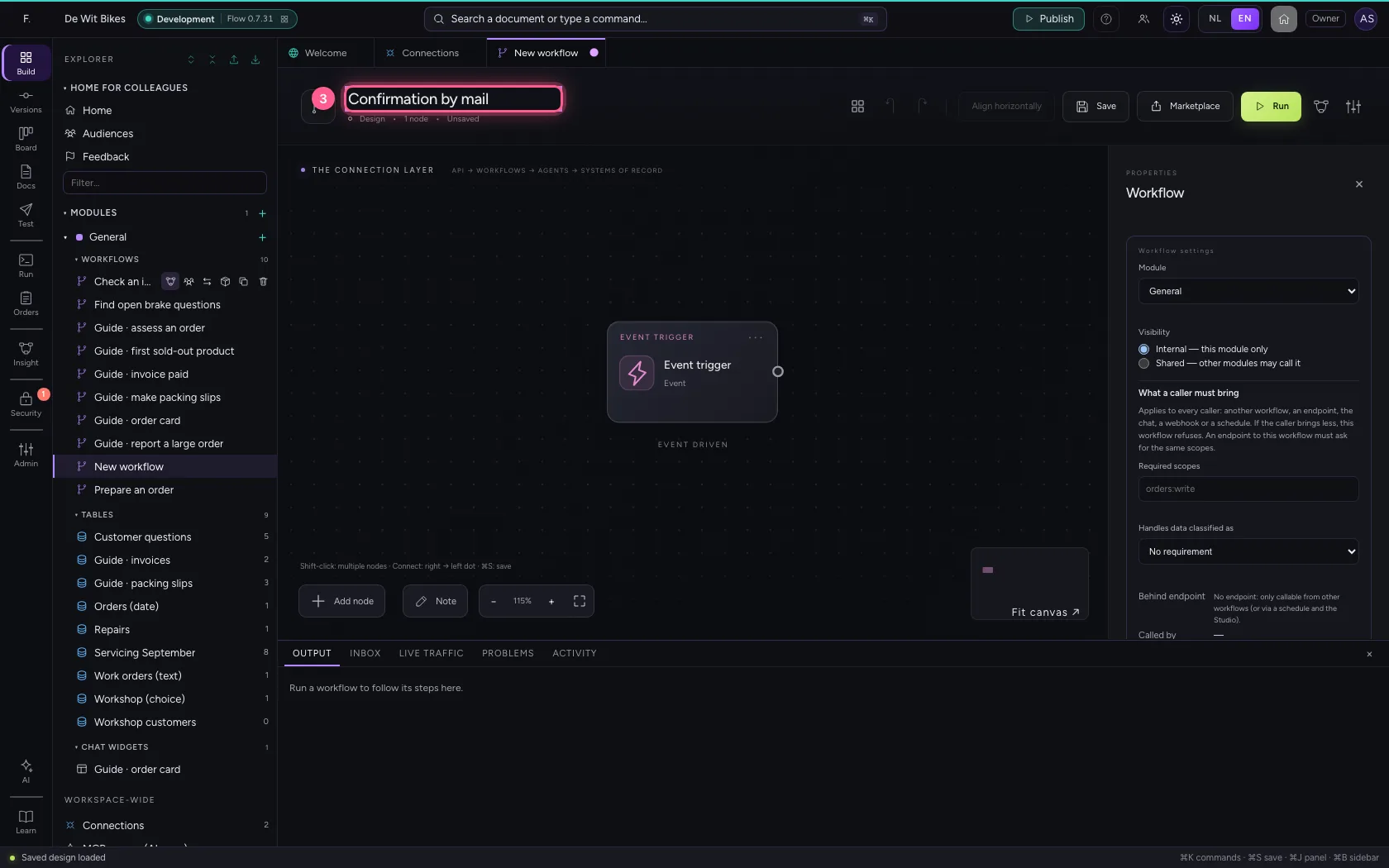
- In Workflow name, type
Confirmation by mail
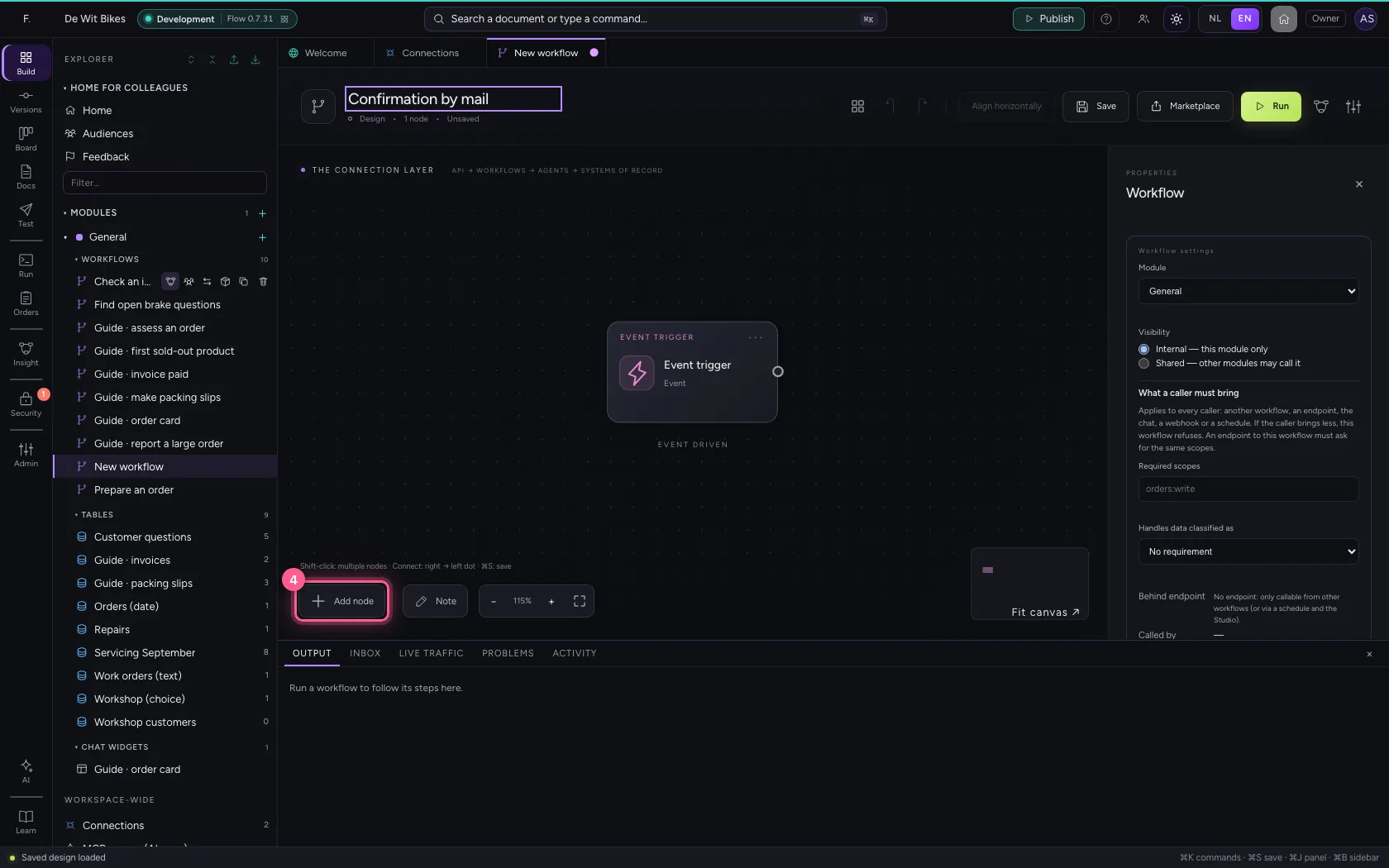
- Click Add node
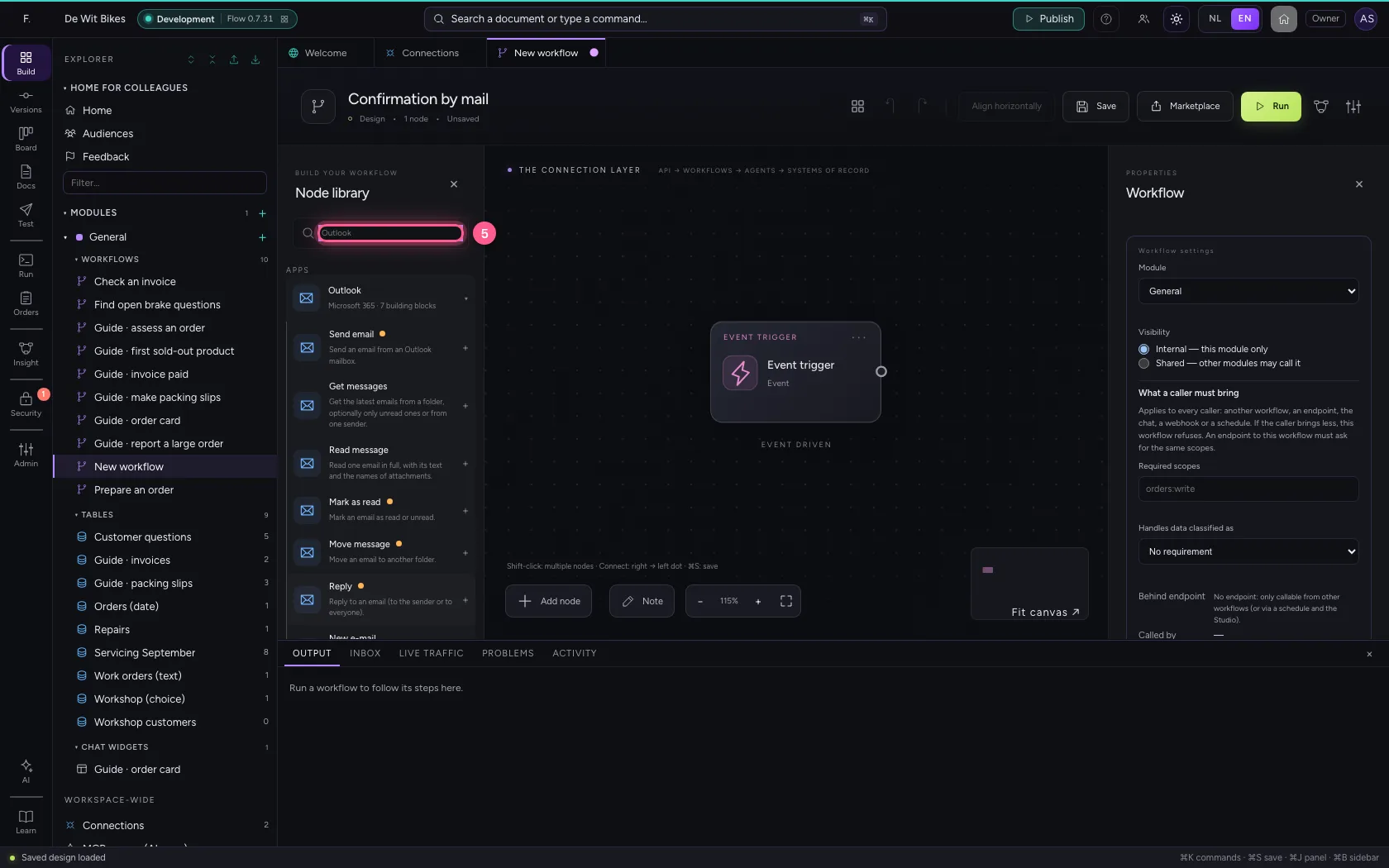
- In Search a node, type
Outlook
- Click Outlook · Send email
Your bike is done and waiting for you in the shop.
Kind regards, De Wit Bikes`
- In Connection, choose Outlook · support@
- In To, type
john.smith@example.com - In Subject, type
Your bike is ready · 1792645493 - In Message, type `Good afternoon,
- Click the dot of ‘Event trigger’
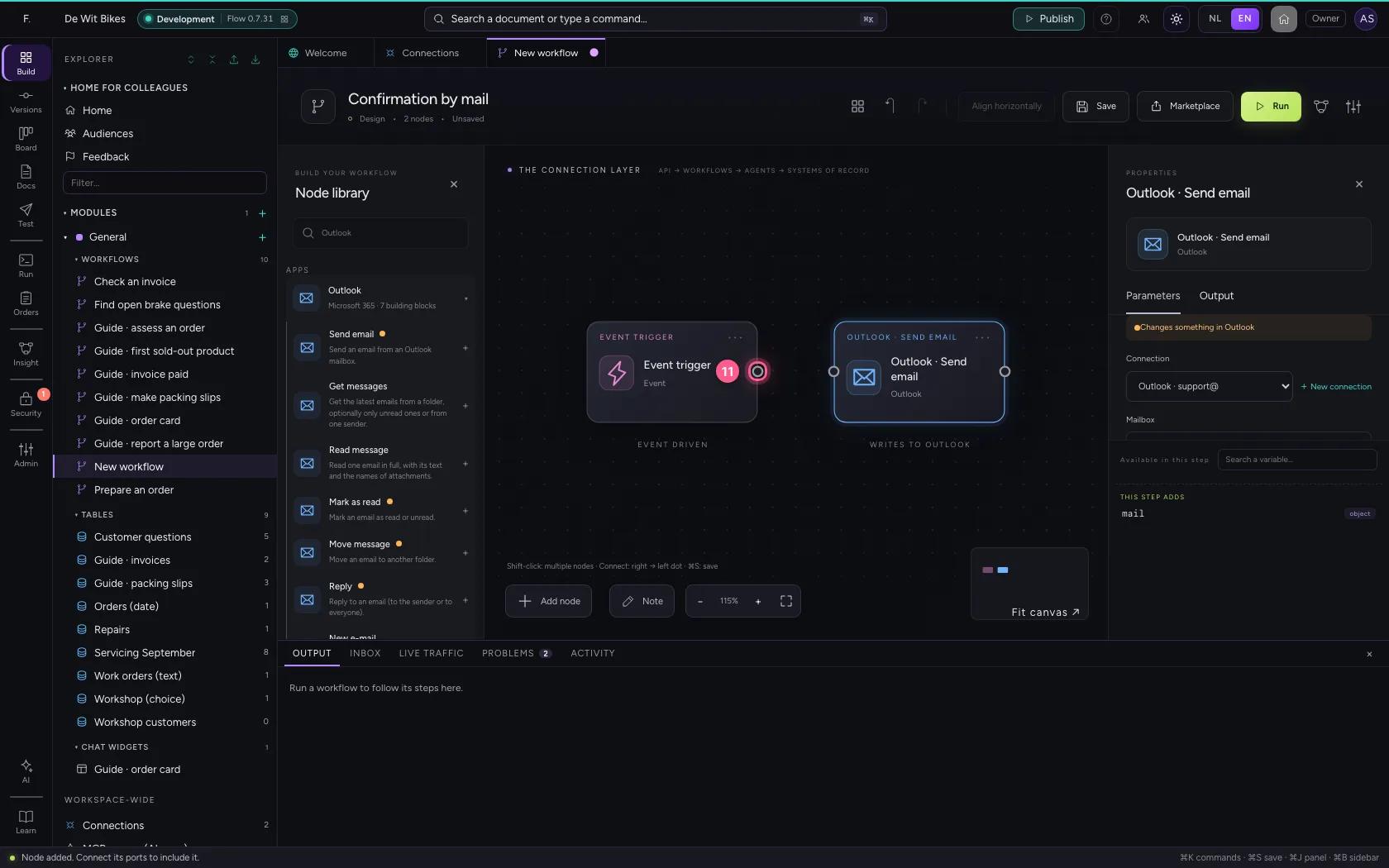
- Click the dot of ‘Outlook · Send email’
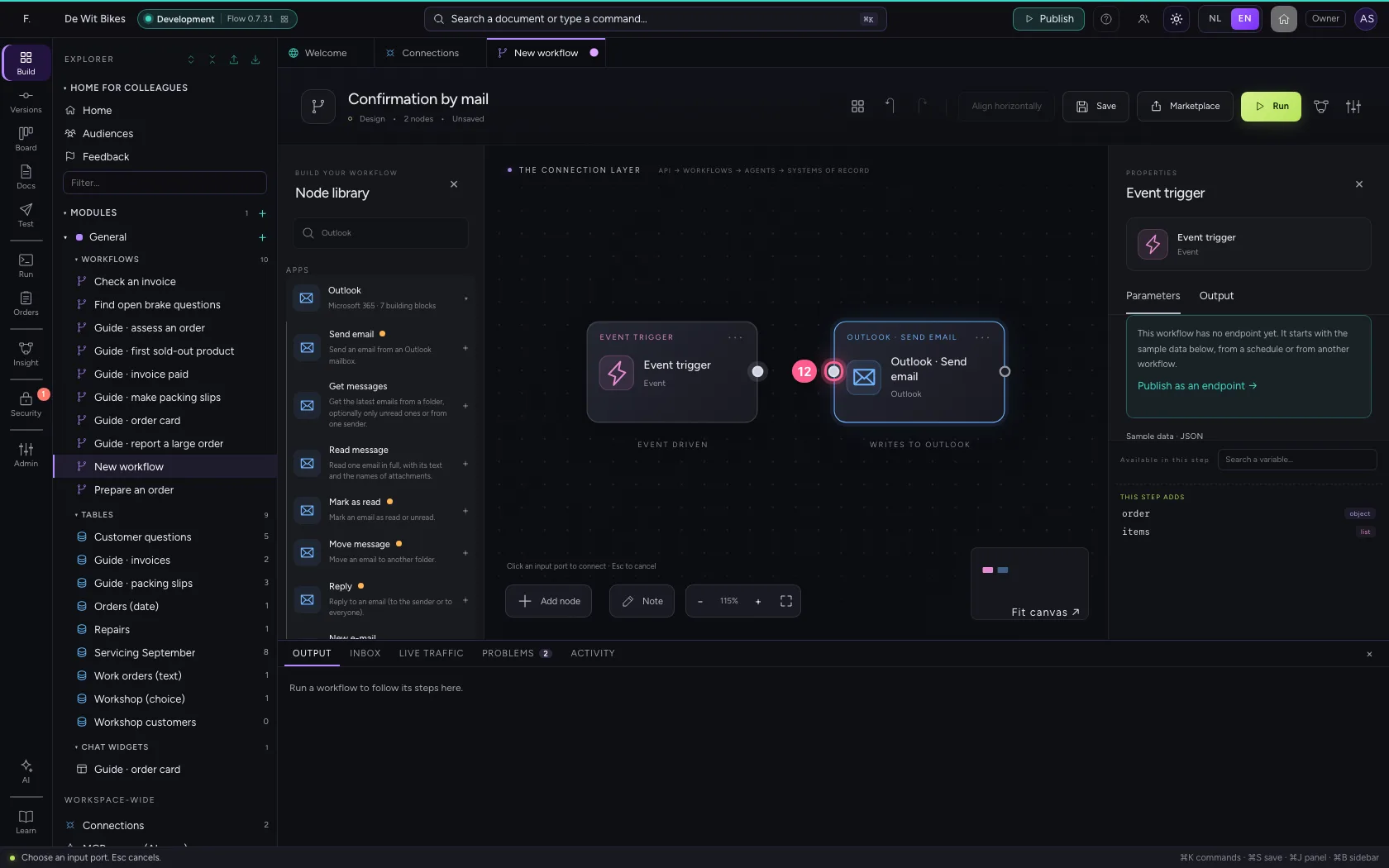
- Click the step ‘Event trigger’
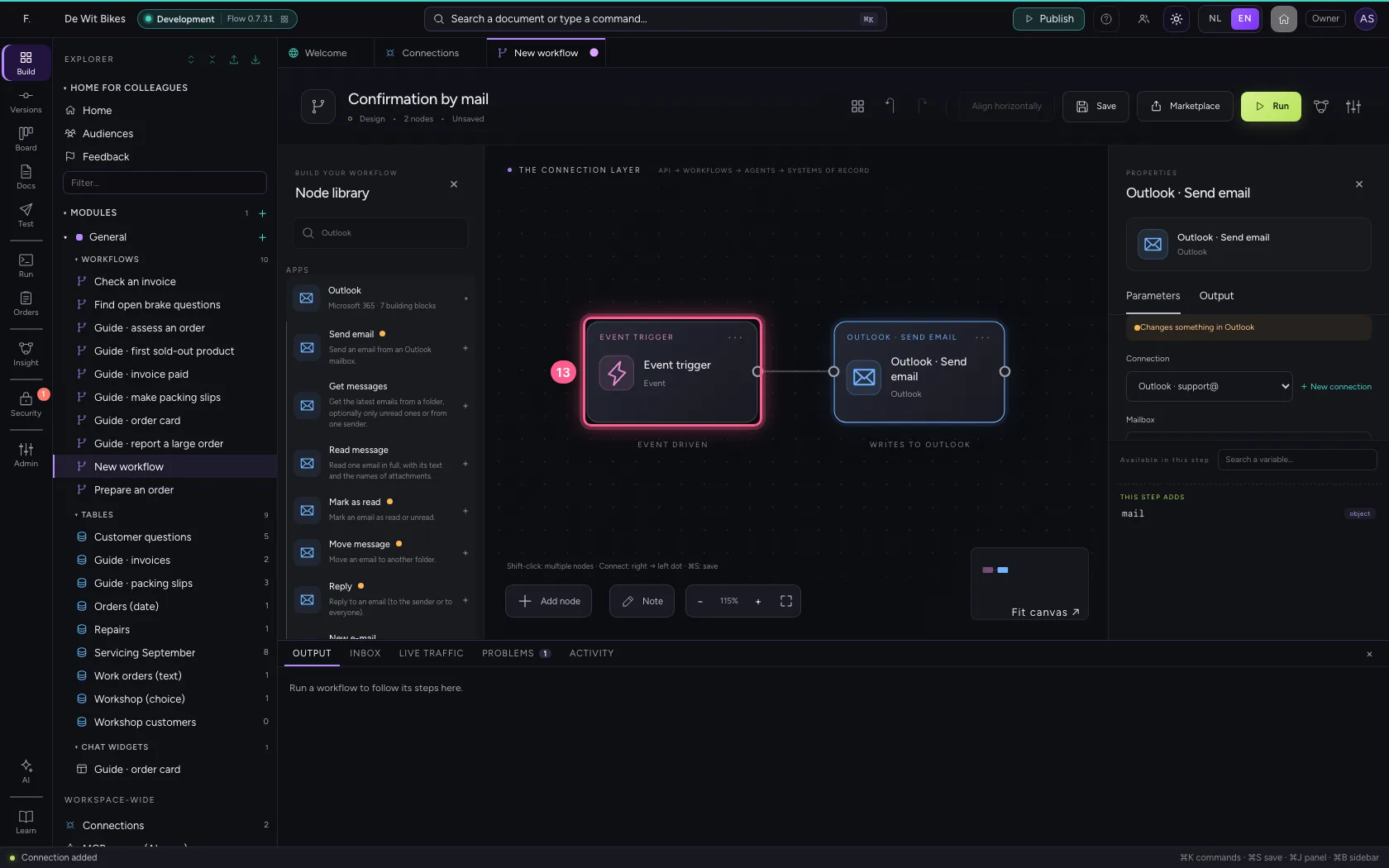
- Click Align horizontally
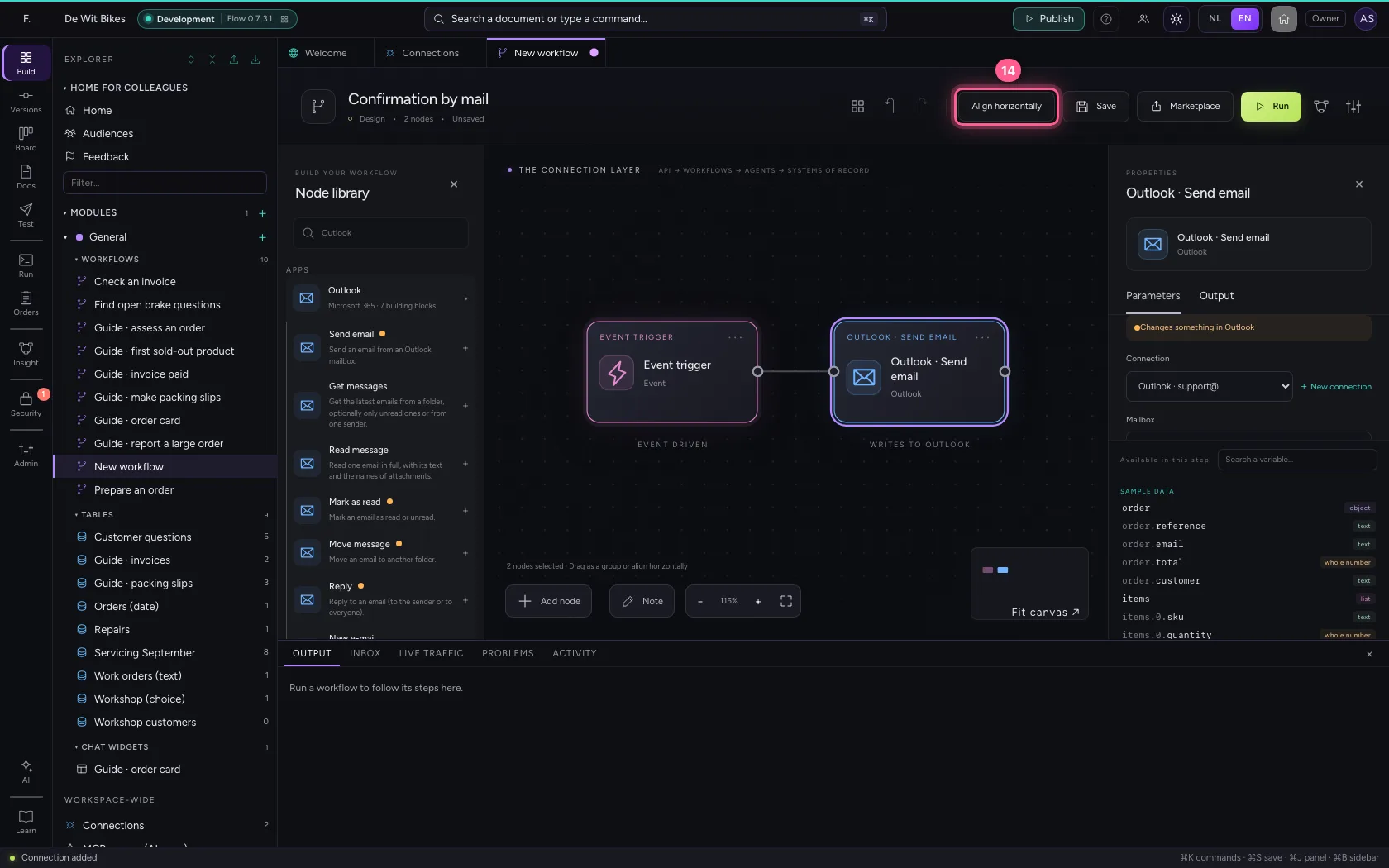
Save, run and check
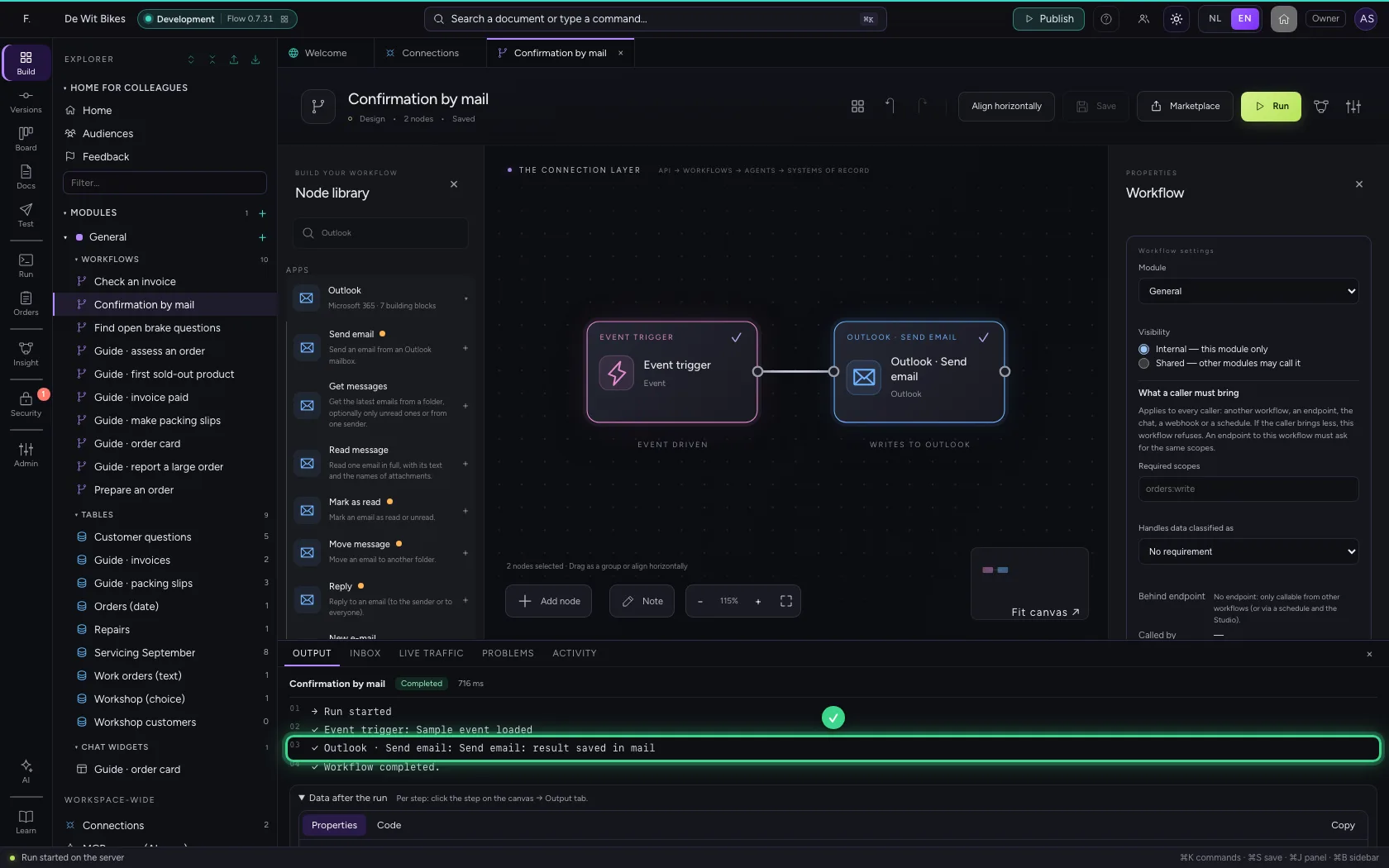
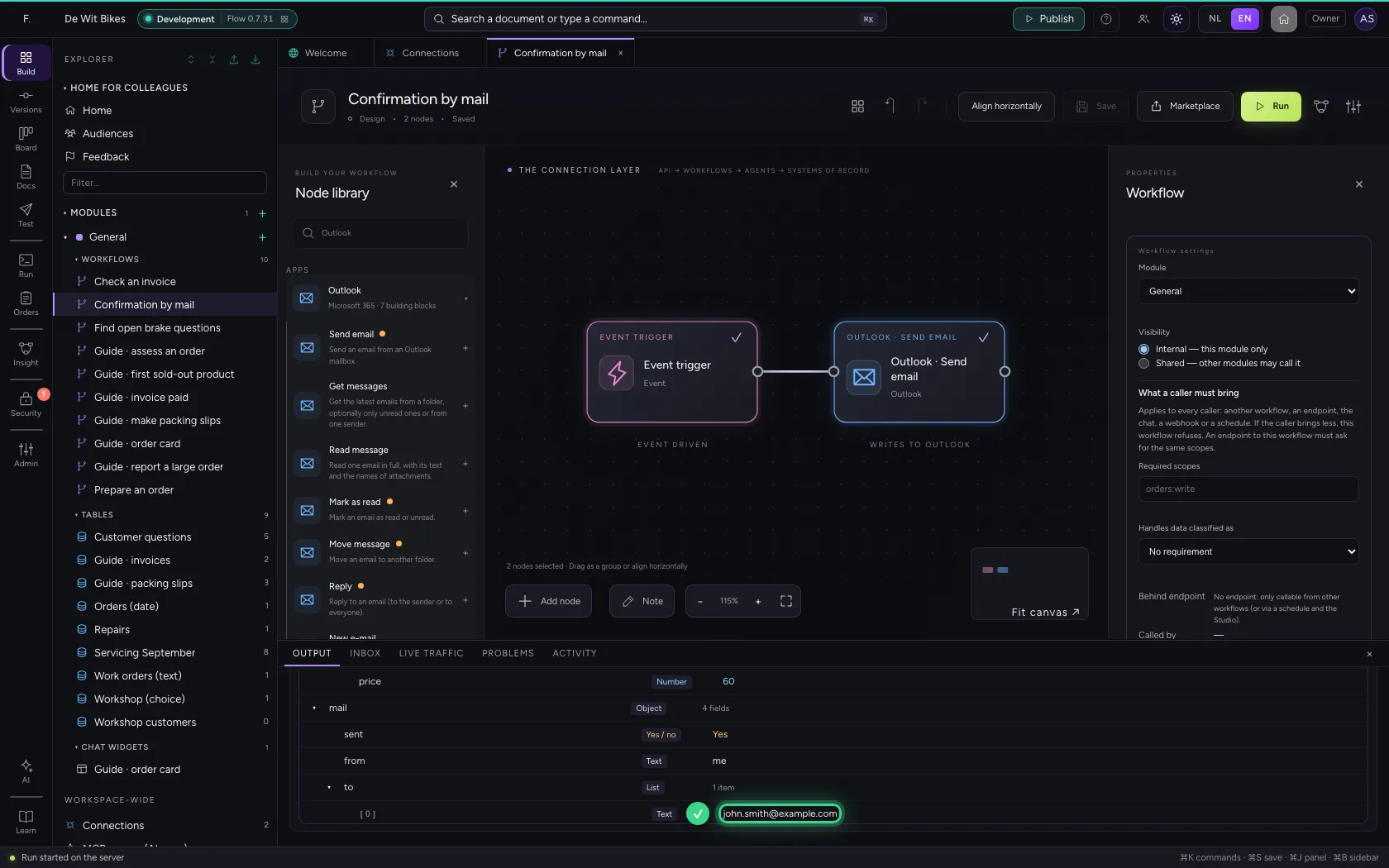
At the bottom you see that the step stored its result: sent, from which mailbox, to whom. In Outlook the mail is then in the mailbox's Sent Items.
- Click Save
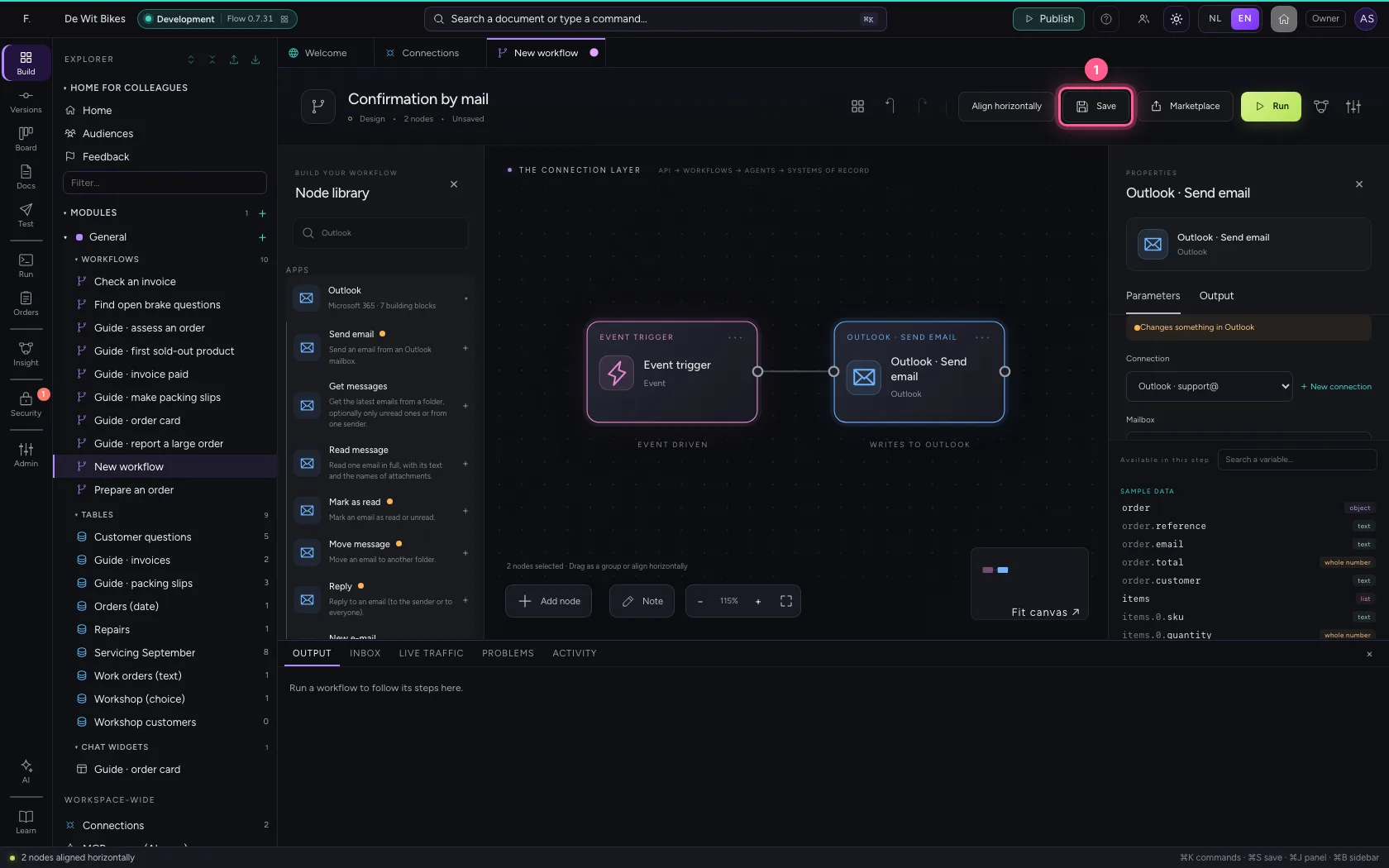
- Click Run
This guide was carried out step by step on 22 Oct 2026 by an automated test on Flow (version 3e563176).