Building information pages with blocks
- Step 1 · Make a page
- Step 2 · A hero with an image of your own
- Step 3 · Cards and steps
- Step 4 · A video from YouTube, Vimeo or Microsoft Stream
- Step 5 · Frequently asked questions, a tip and your contacts
- Step 6 · Put the page in the menu
- Step 7 · Save and publish
- Step 8 · This is how a colleague reads the page
- Step 9 · Opening a question
- Step 10 · Playing the video
Besides the start page, the home can have pages that explain: for new colleagues, a way of working or a project. You build them from blocks that are designed with care — a hero, cards, steps, a video, frequently asked questions, a callout and contact people — and fill them in Dutch and English. Then you put the page in the menu.
Make a page
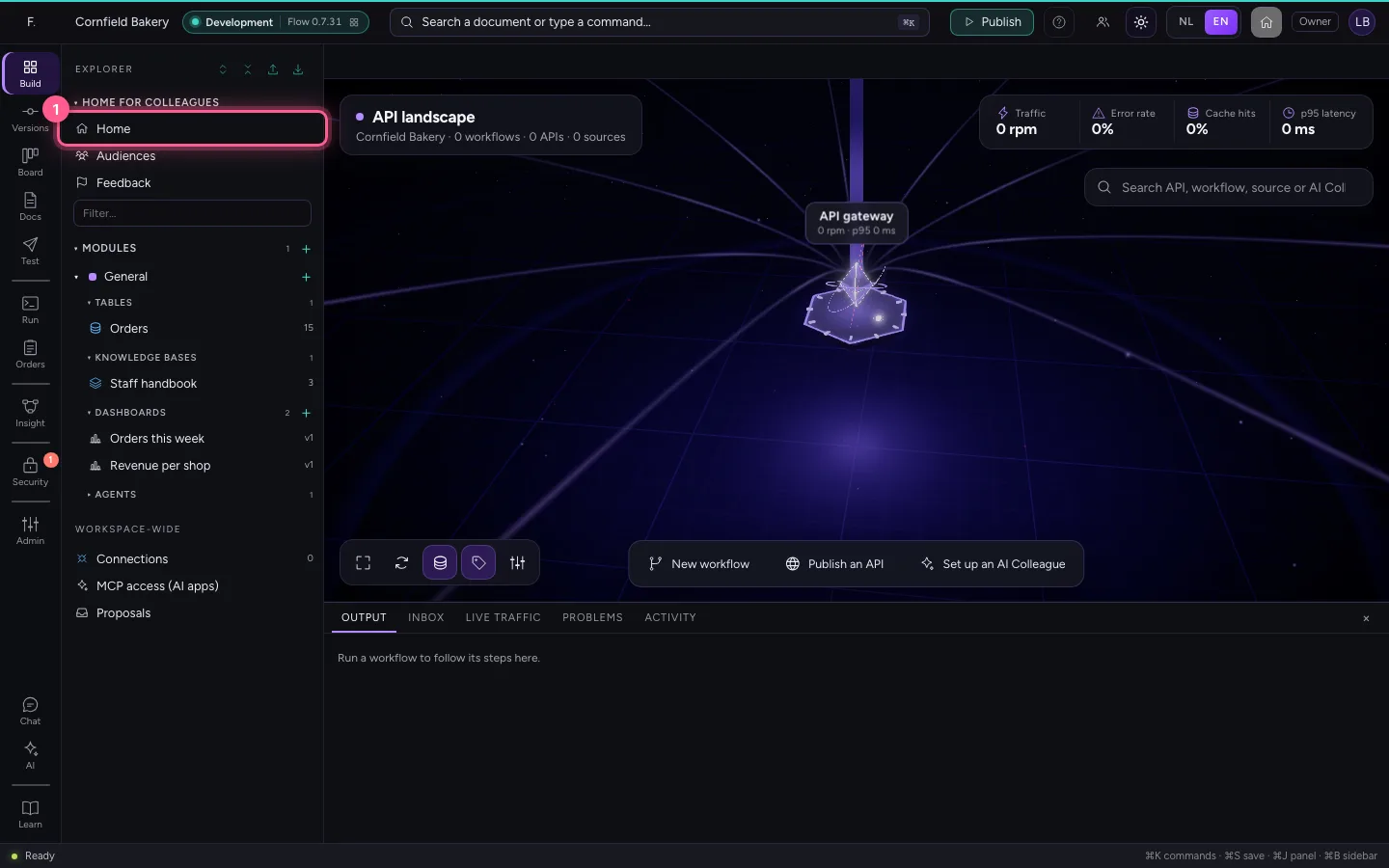
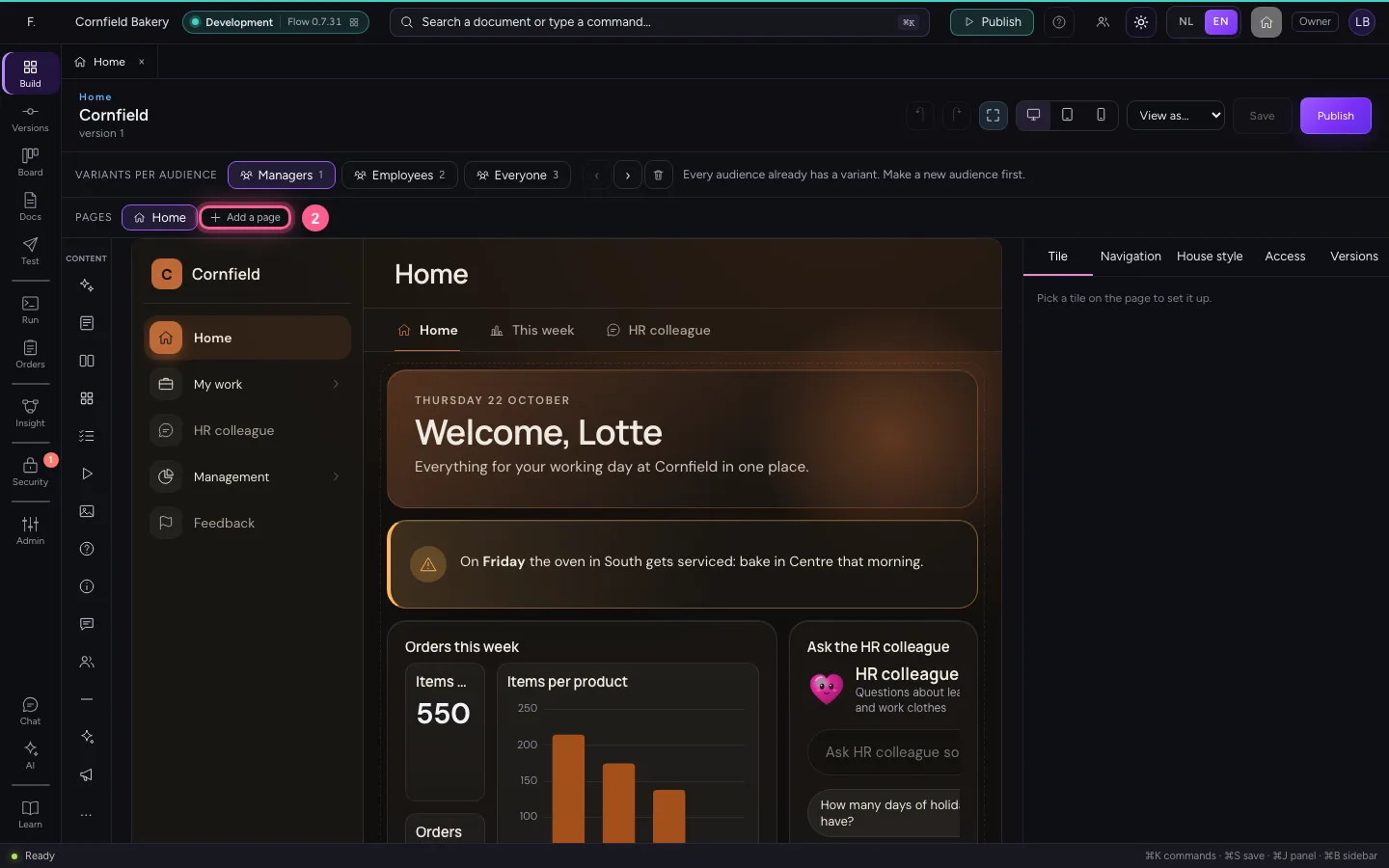
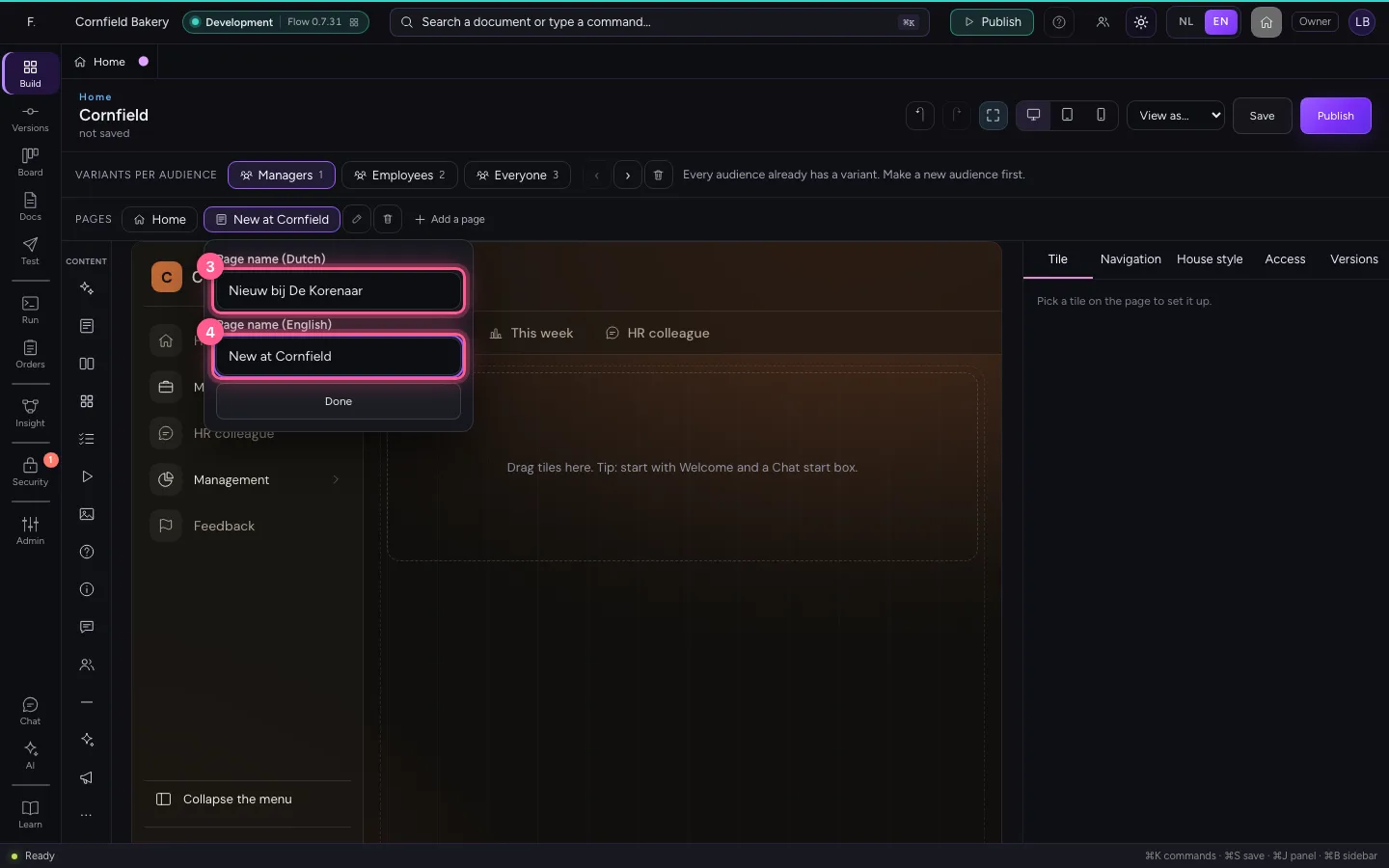
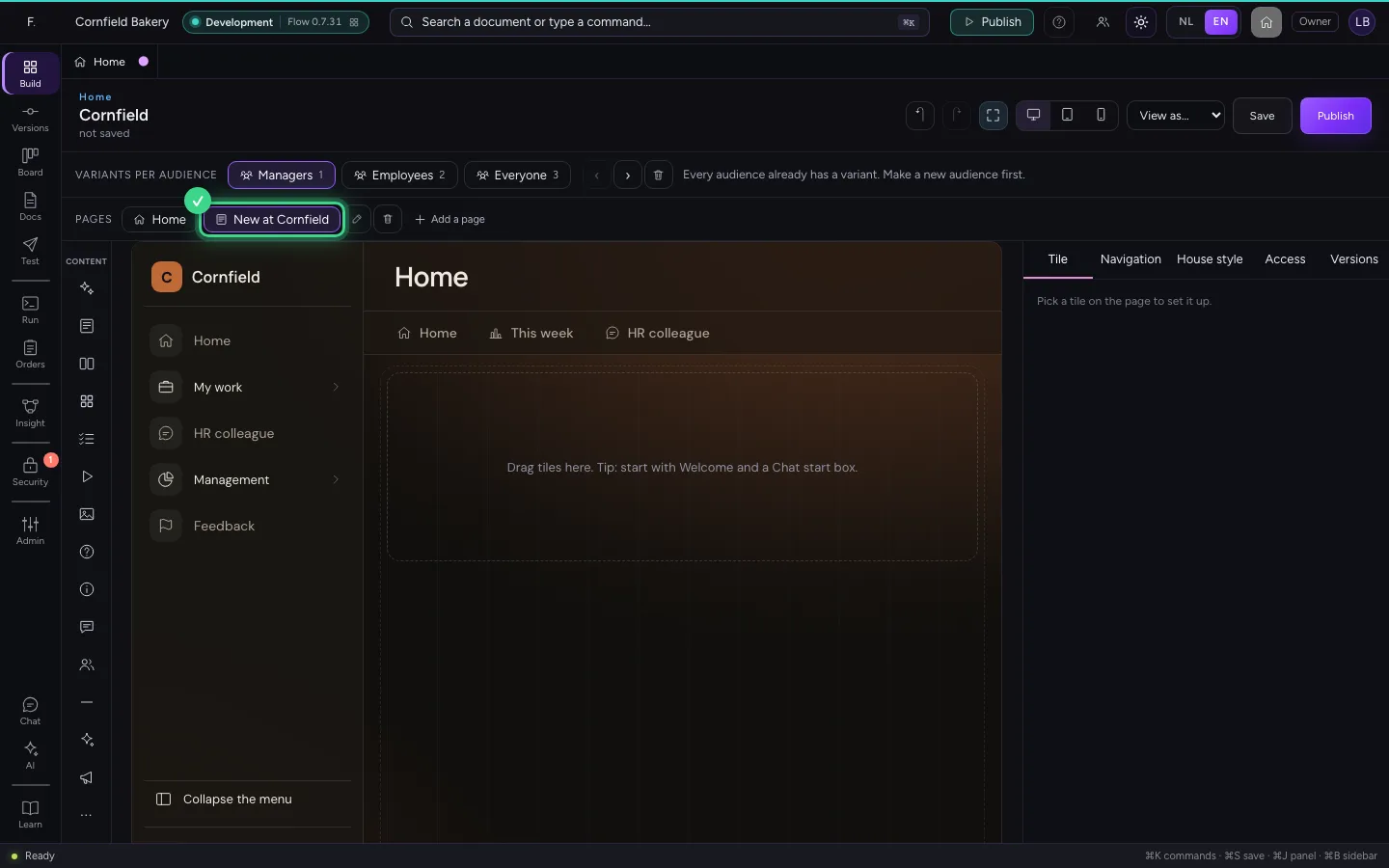
Open Home in the explorer. Under the variants are the pages: the start page, and the pages you make yourself. Choose Add a page and give it a name in Dutch and English.
- Click Home
- Click Add a page
- In Page name (Dutch), type
Nieuw bij De Korenaar - In Page name (English), type
New at Cornfield
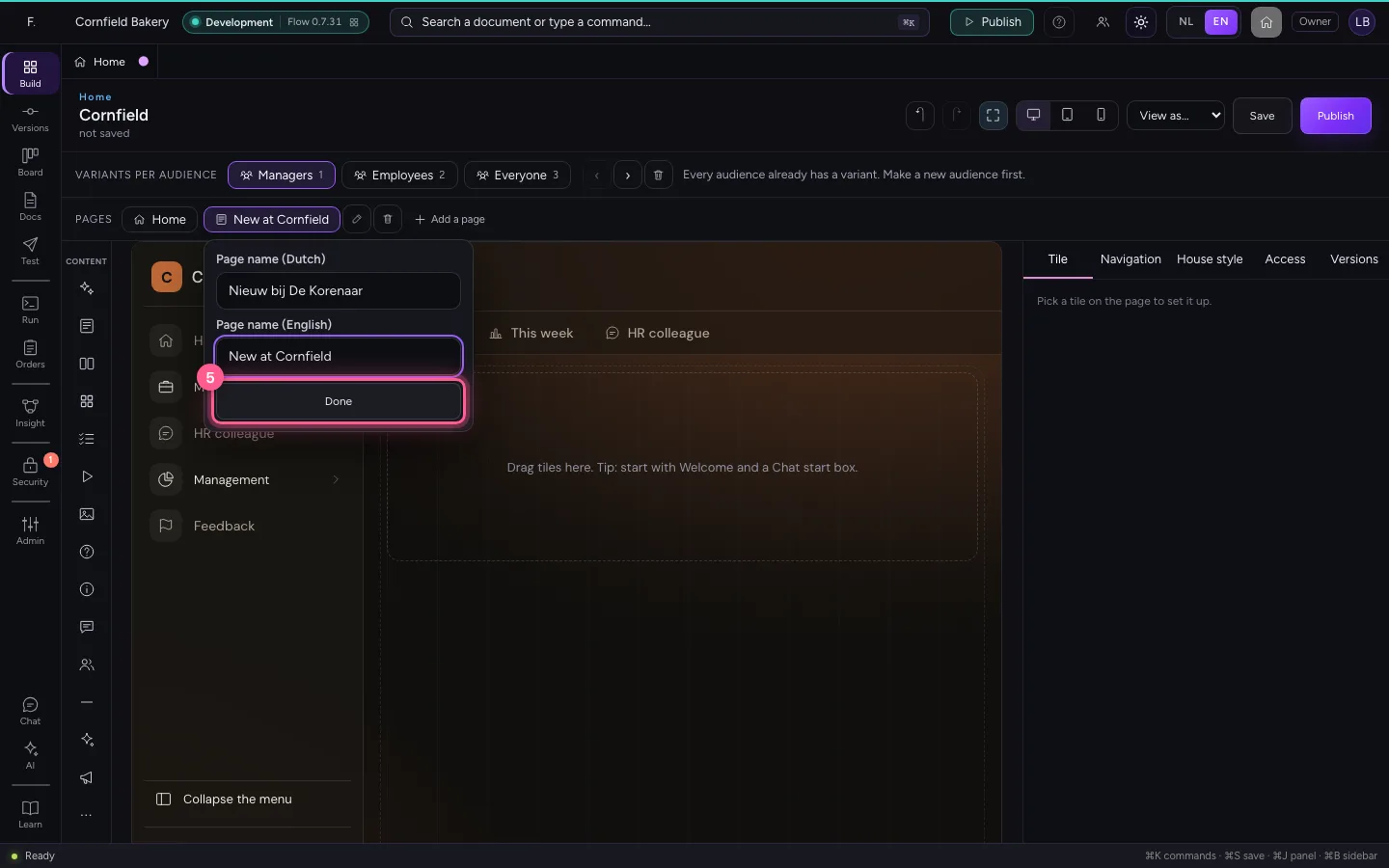
- Click Done
A hero with an image of your own
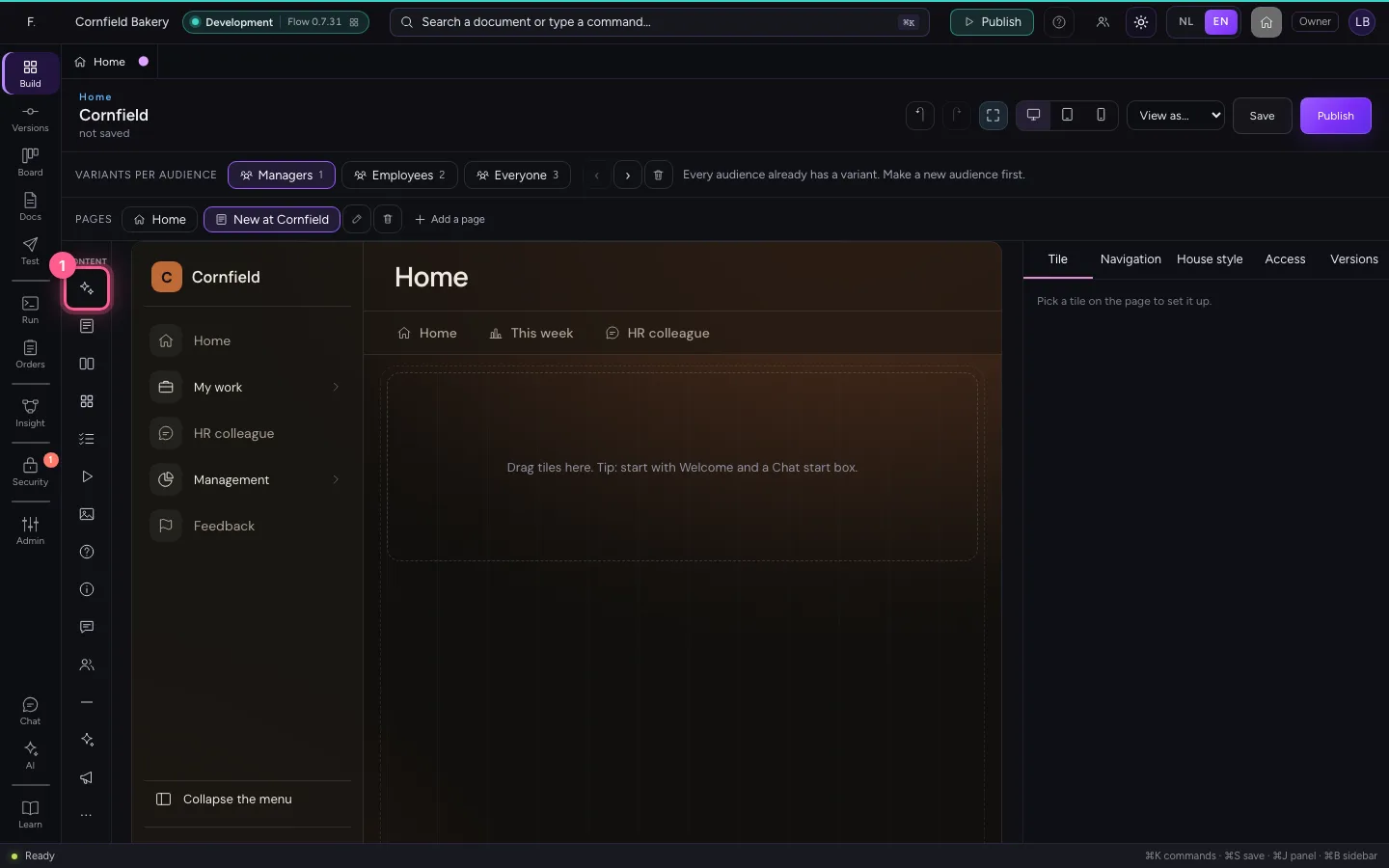
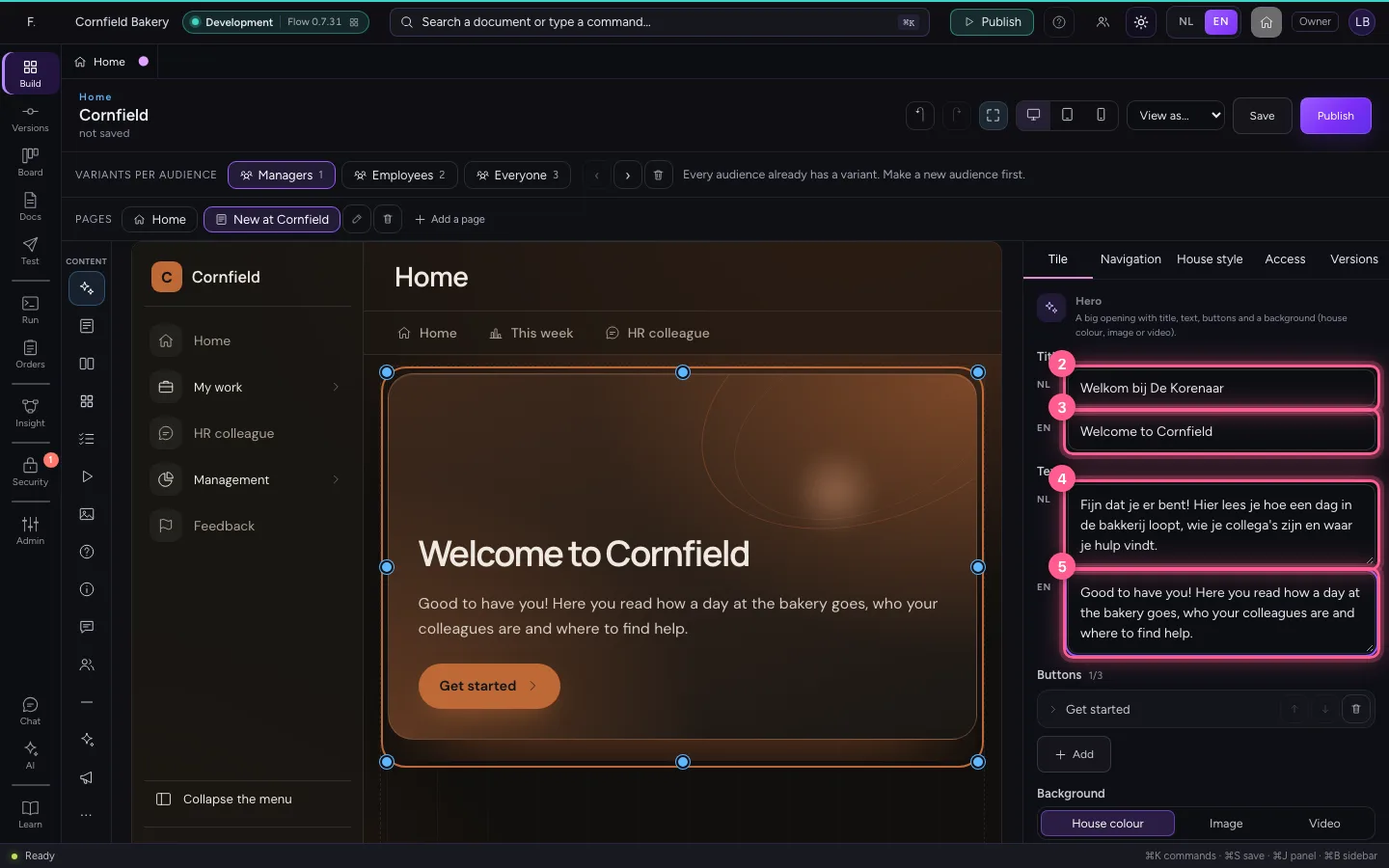
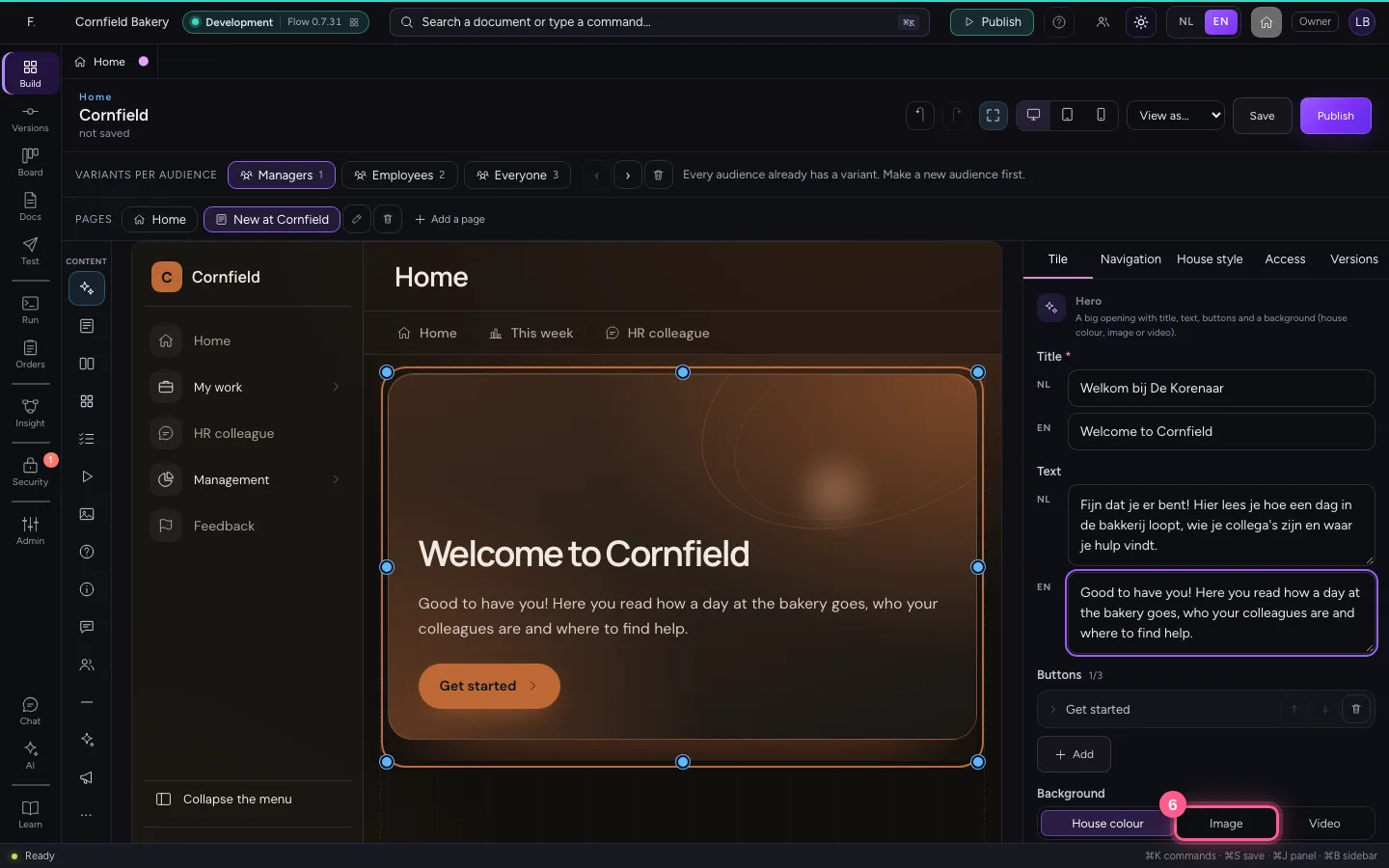
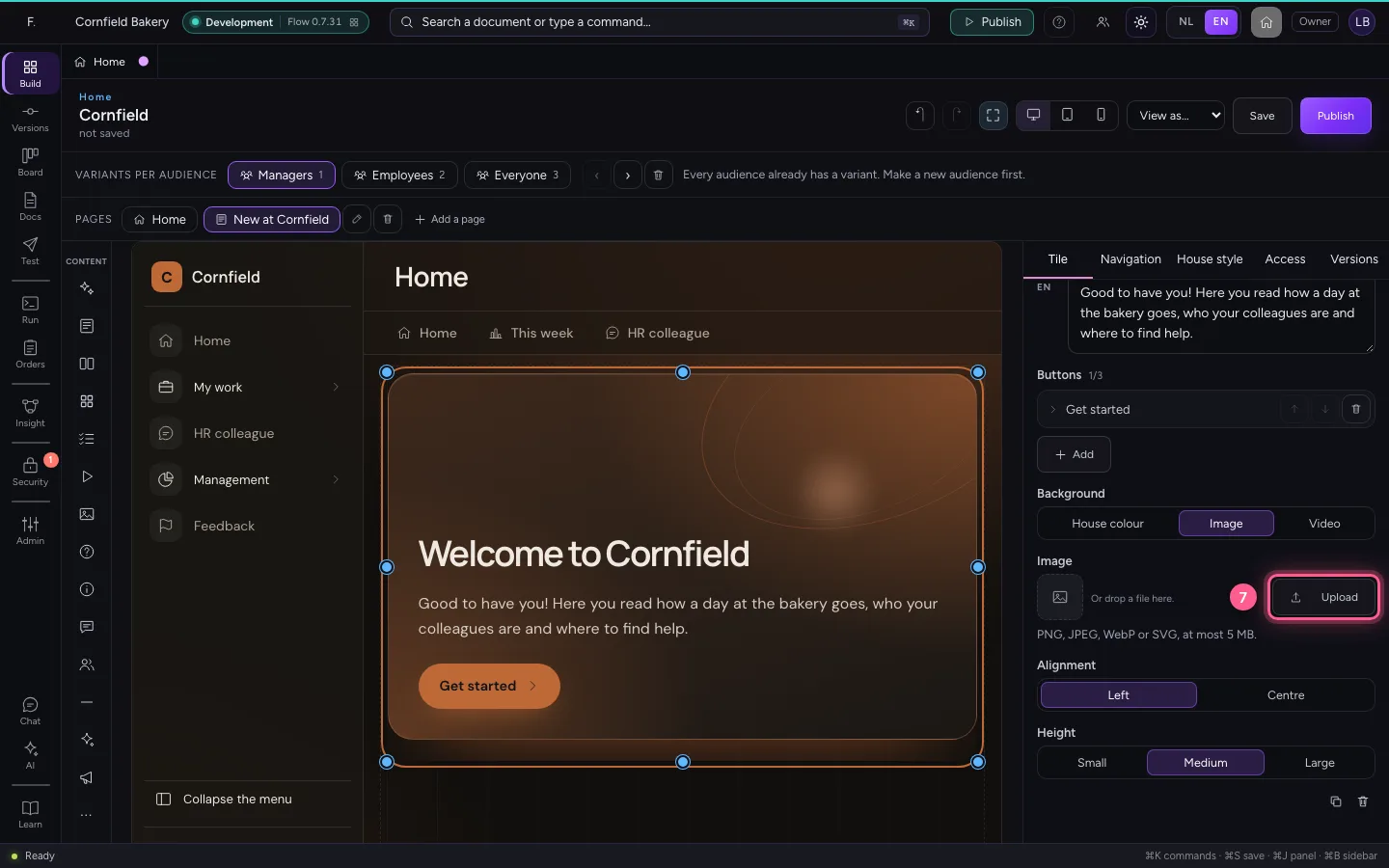
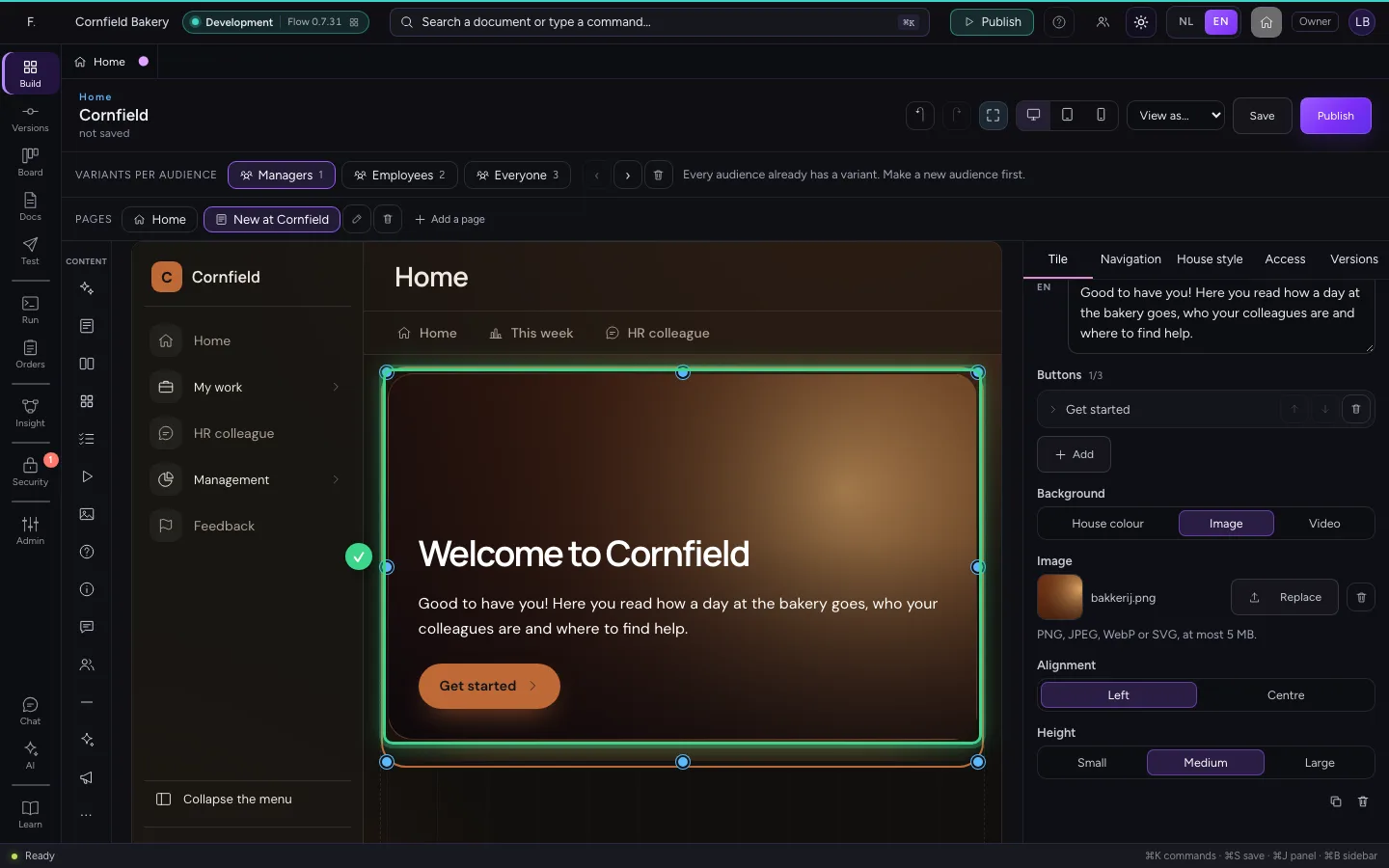
The tiles on the left are in groups: Content, Data and AI. Choose Hero: a big opening with title, text and buttons. Every block starts with sample text, so you see the design straight away. Fill in the title and text in both languages and choose an image as the background (PNG, JPEG, WebP or SVG).
- Click Hero
- In NL, type
Welkom bij De Korenaar - In EN, type
Welcome to Cornfield - In NL, type
Fijn dat je er bent! Hier lees je hoe een dag in de bakkerij loopt, wie je collega's zijn en waar je hulp vindt. - In EN, type
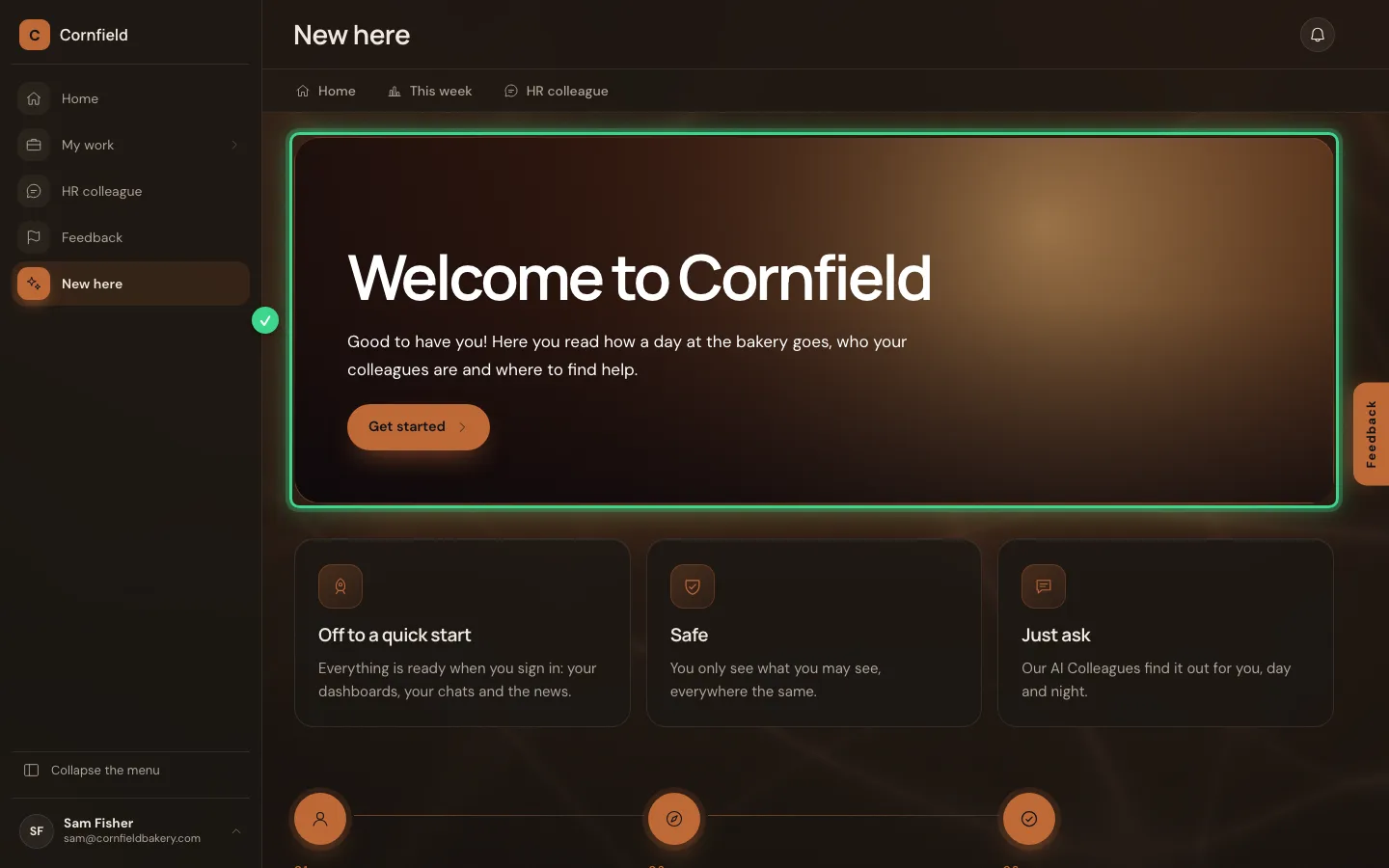
Good to have you! Here you read how a day at the bakery goes, who your colleagues are and where to find help.
- Click Image
- Click Upload
Cards and steps
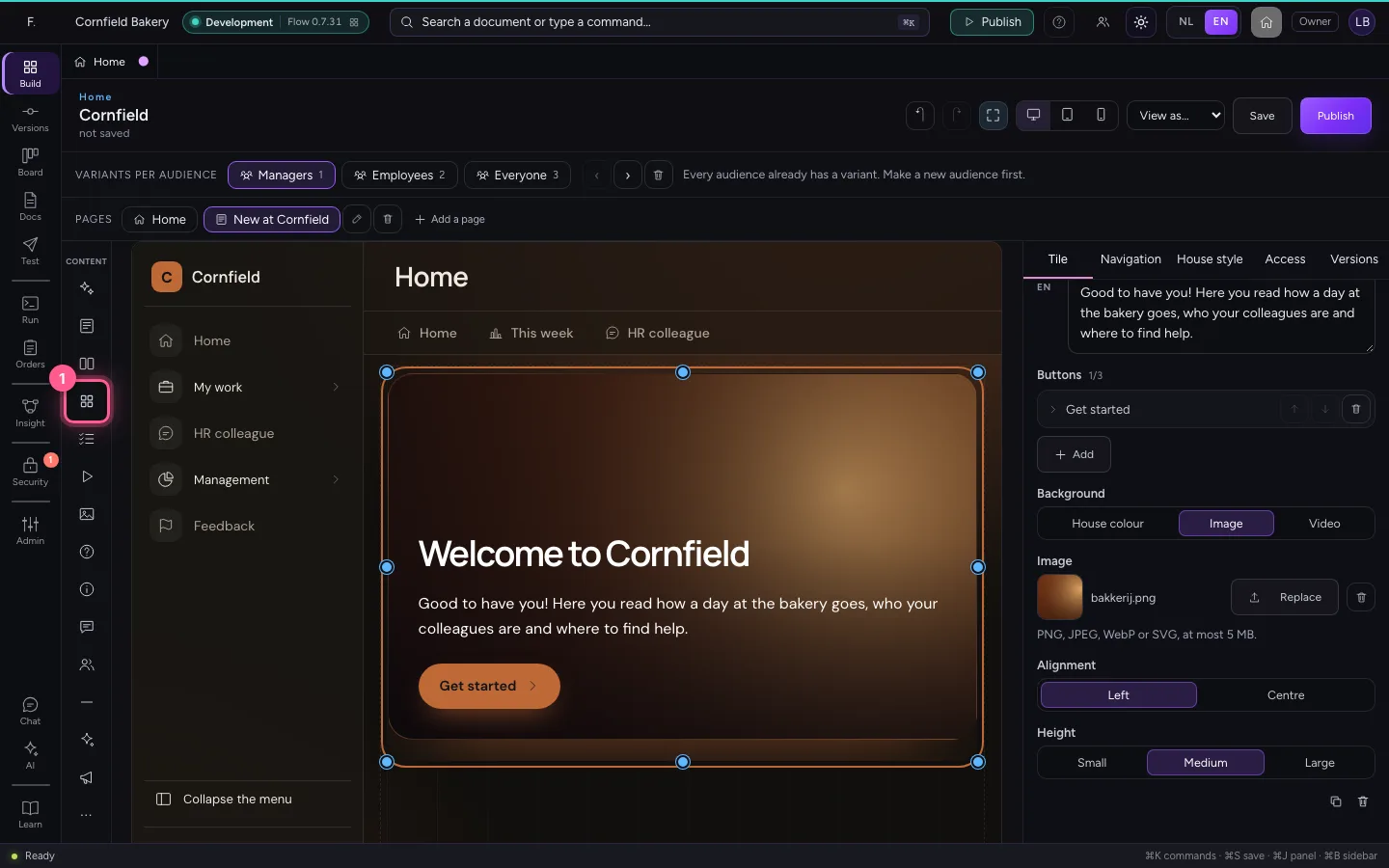
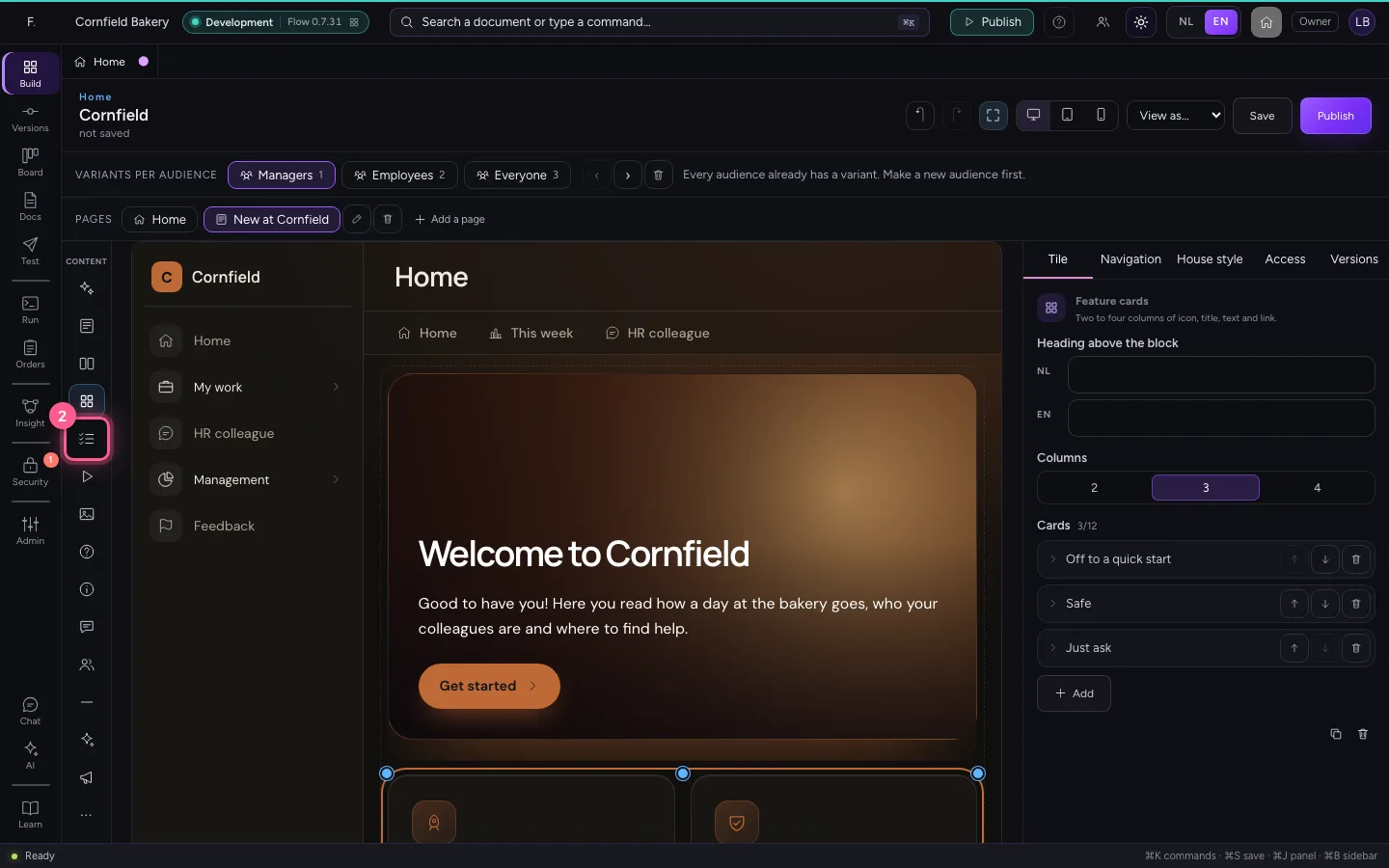
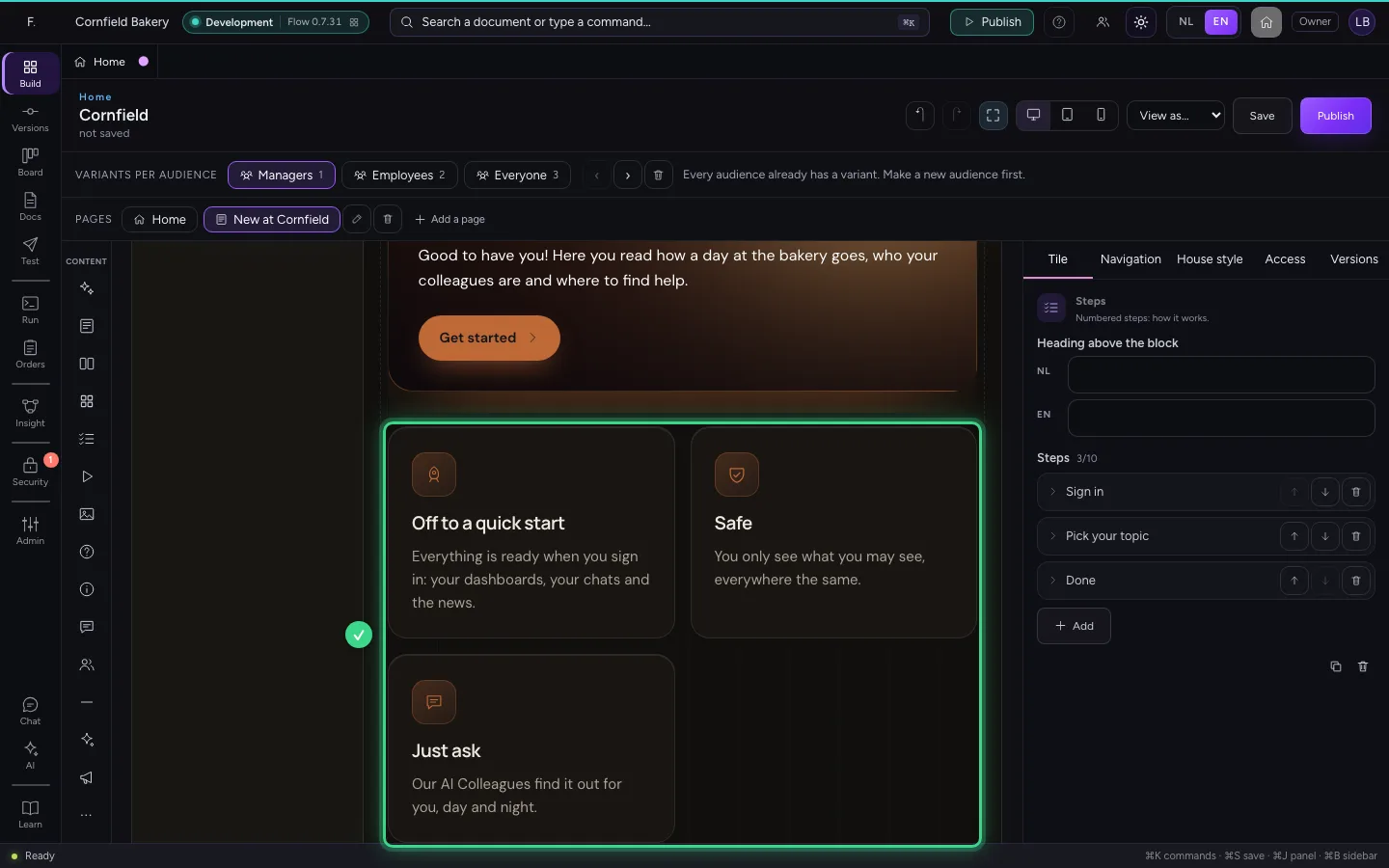
Feature cards puts two to four columns side by side, each with an icon, title, text and a link. Steps explains in numbered steps how something works. Change the texts in the properties; the arrows put cards and steps in another order.
- Click Feature cards
- Click Steps
A video from YouTube, Vimeo or Microsoft Stream
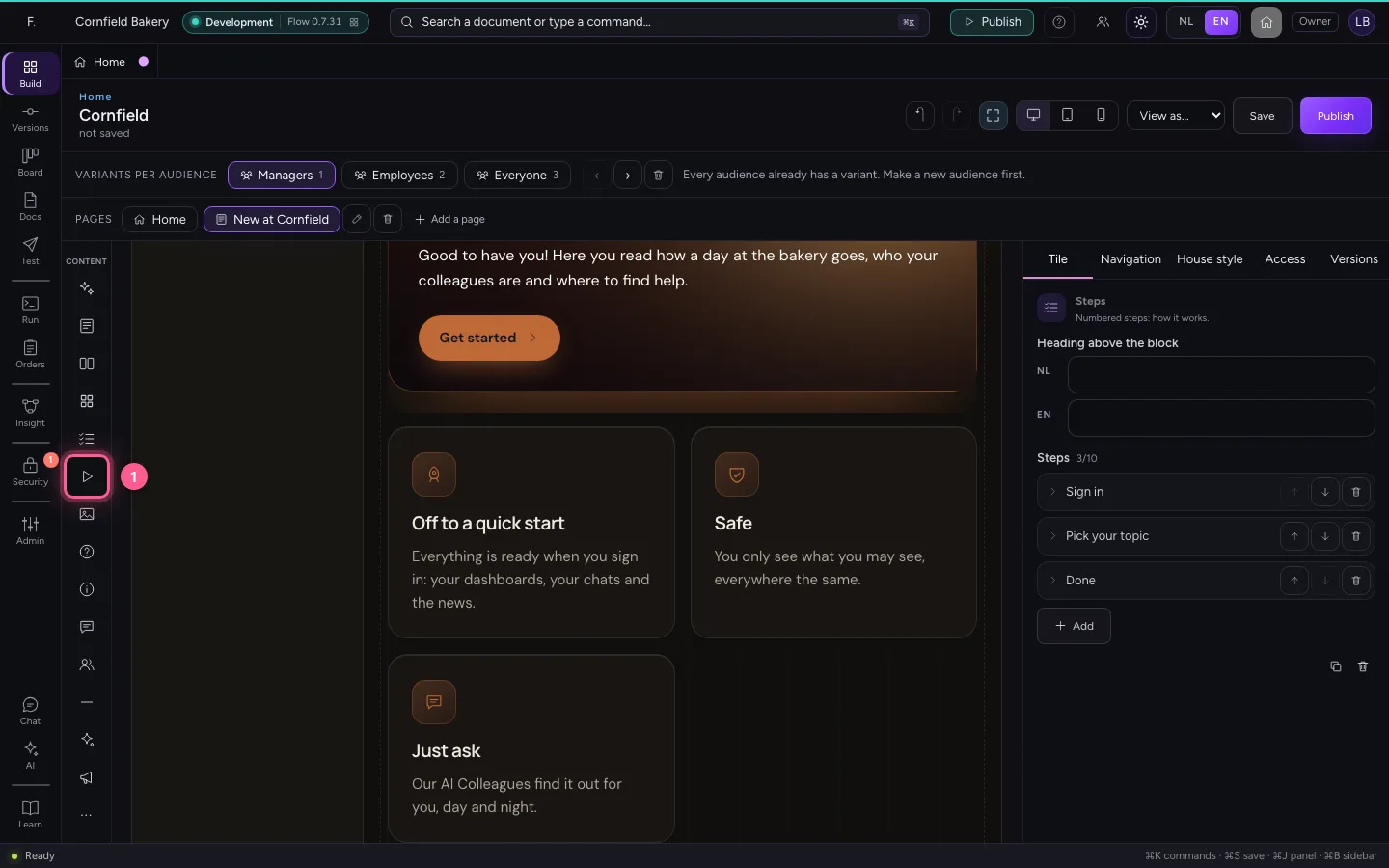
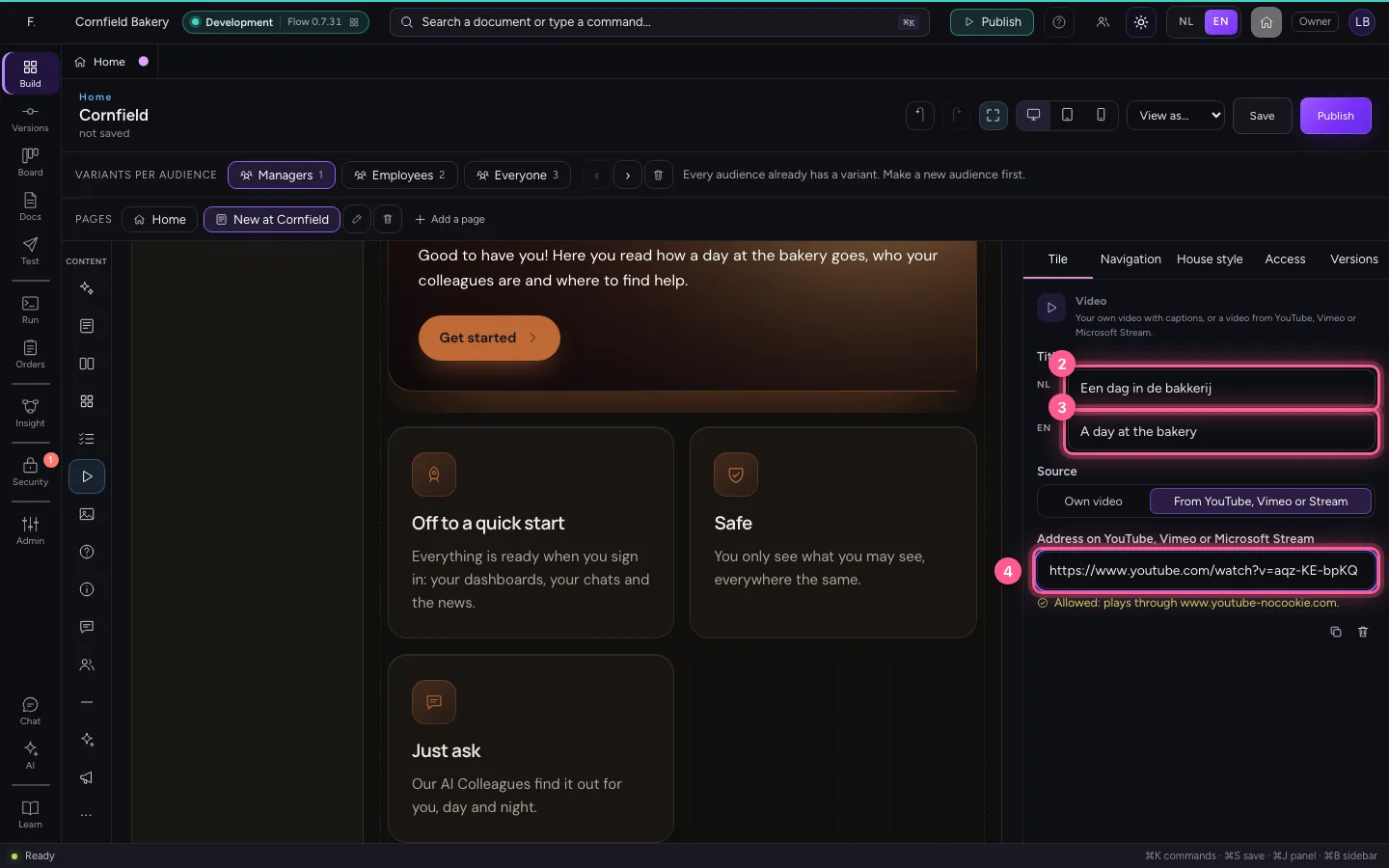
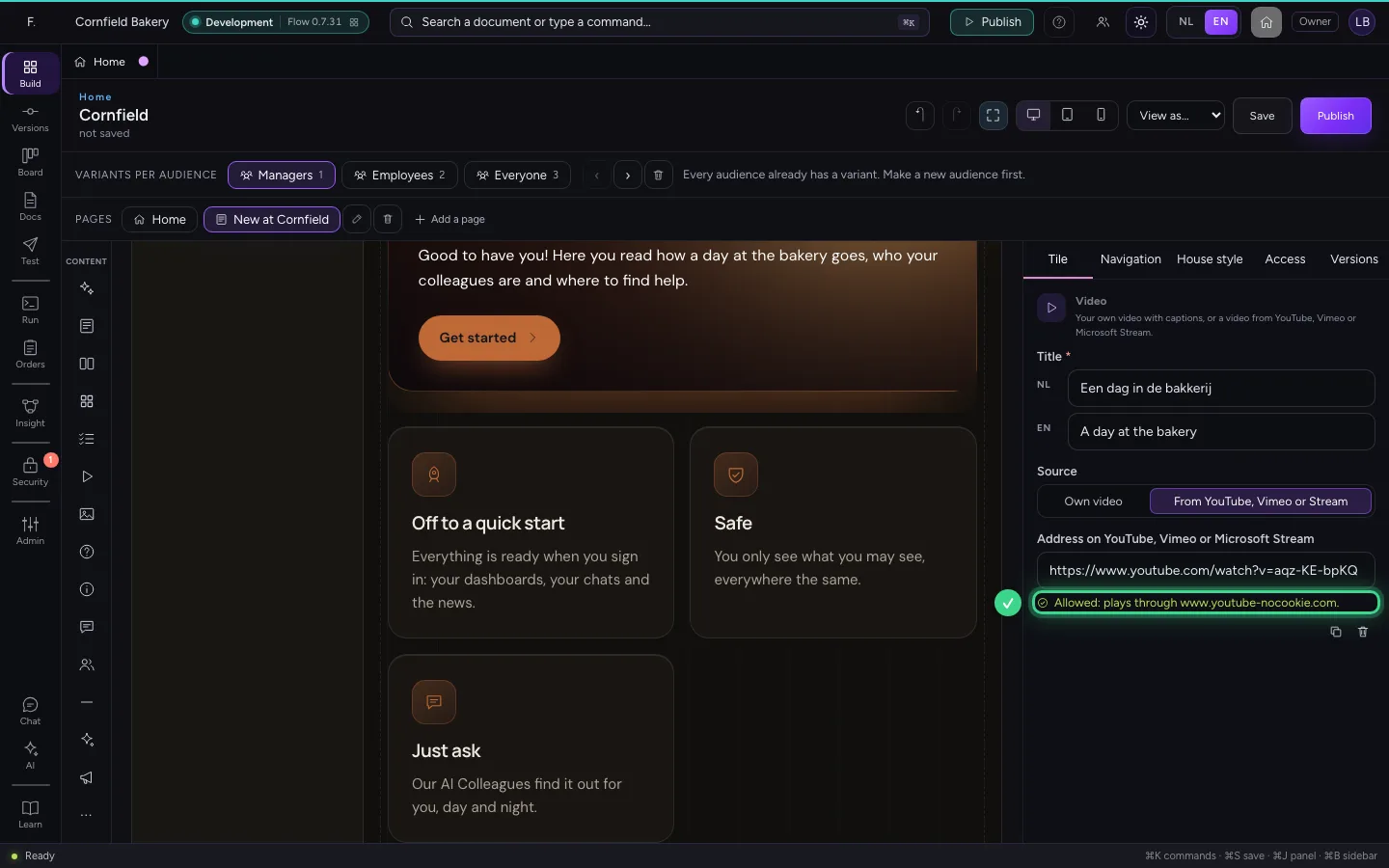
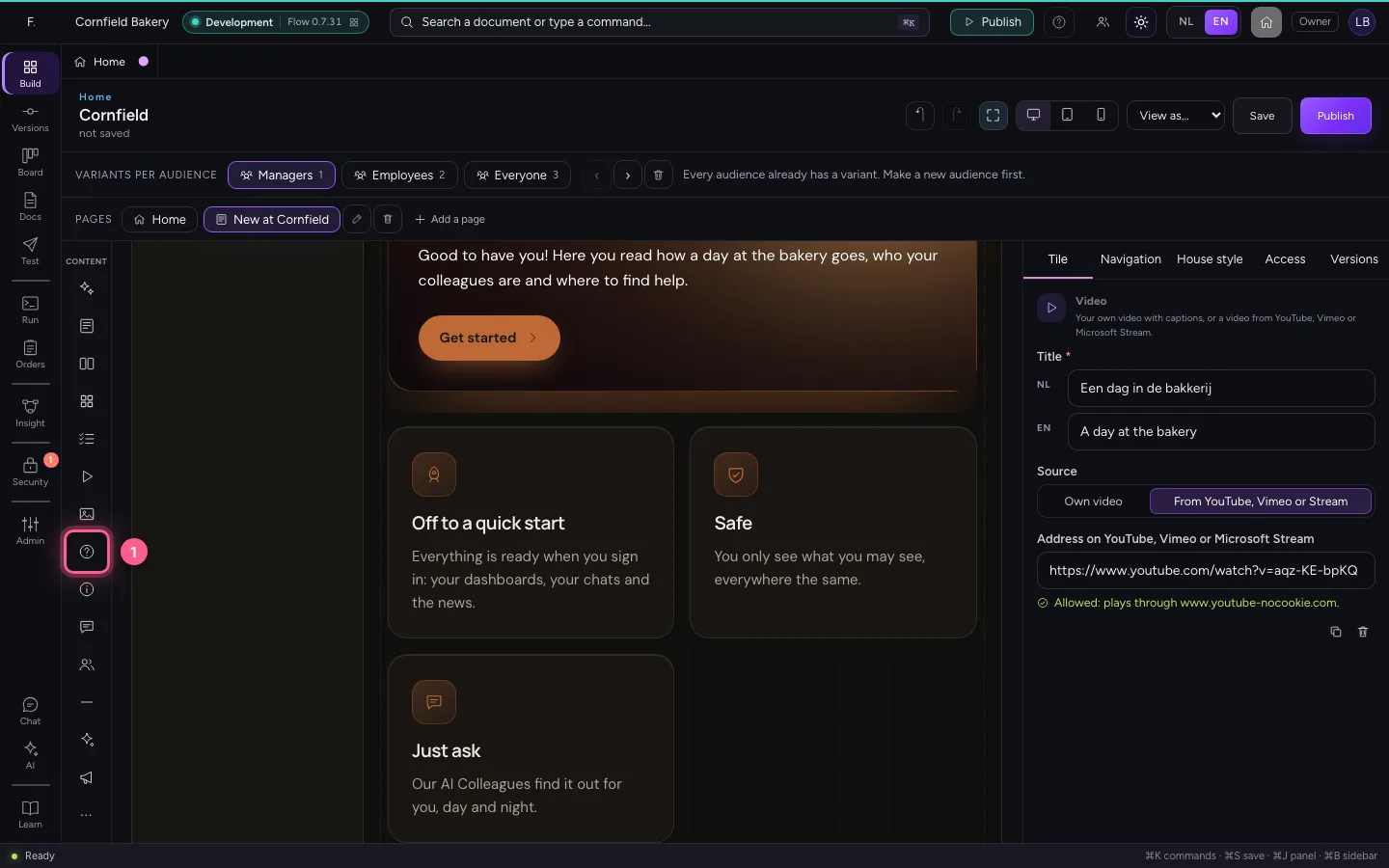
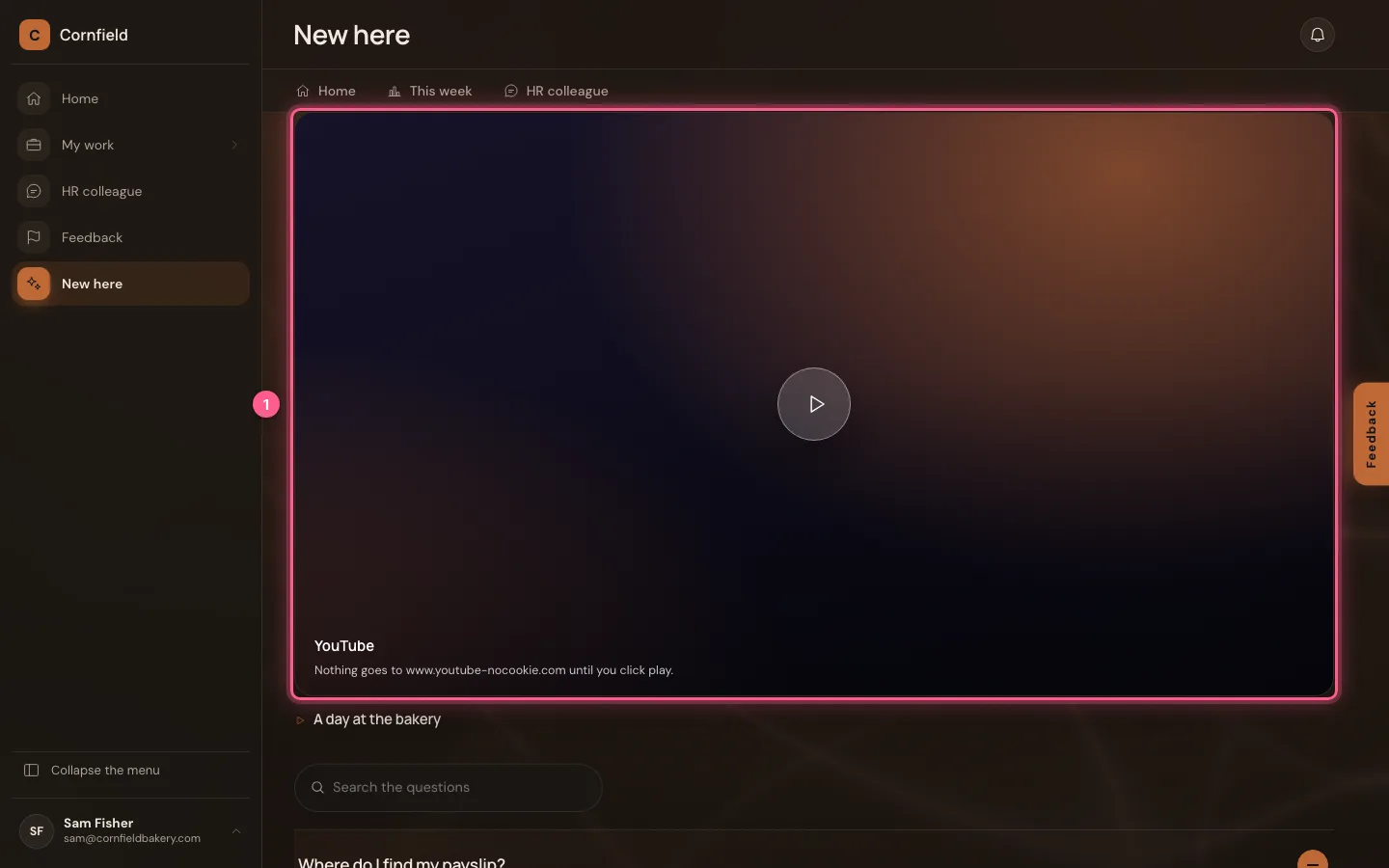
You upload a video yourself (MP4 or WebM, with a still image and captions), or you paste the address of a video on YouTube, Vimeo or Microsoft Stream. Flow refuses other addresses at once. YouTube plays without cookies, and nothing goes to YouTube until a colleague clicks play.
- Click Video
- In NL, type
Een dag in de bakkerij - In EN, type
A day at the bakery - In Address on YouTube, Vimeo or Microsoft Stream, type
https://www.youtube.com/watch?v=aqz-KE-bpKQ
Frequently asked questions, a tip and your contacts
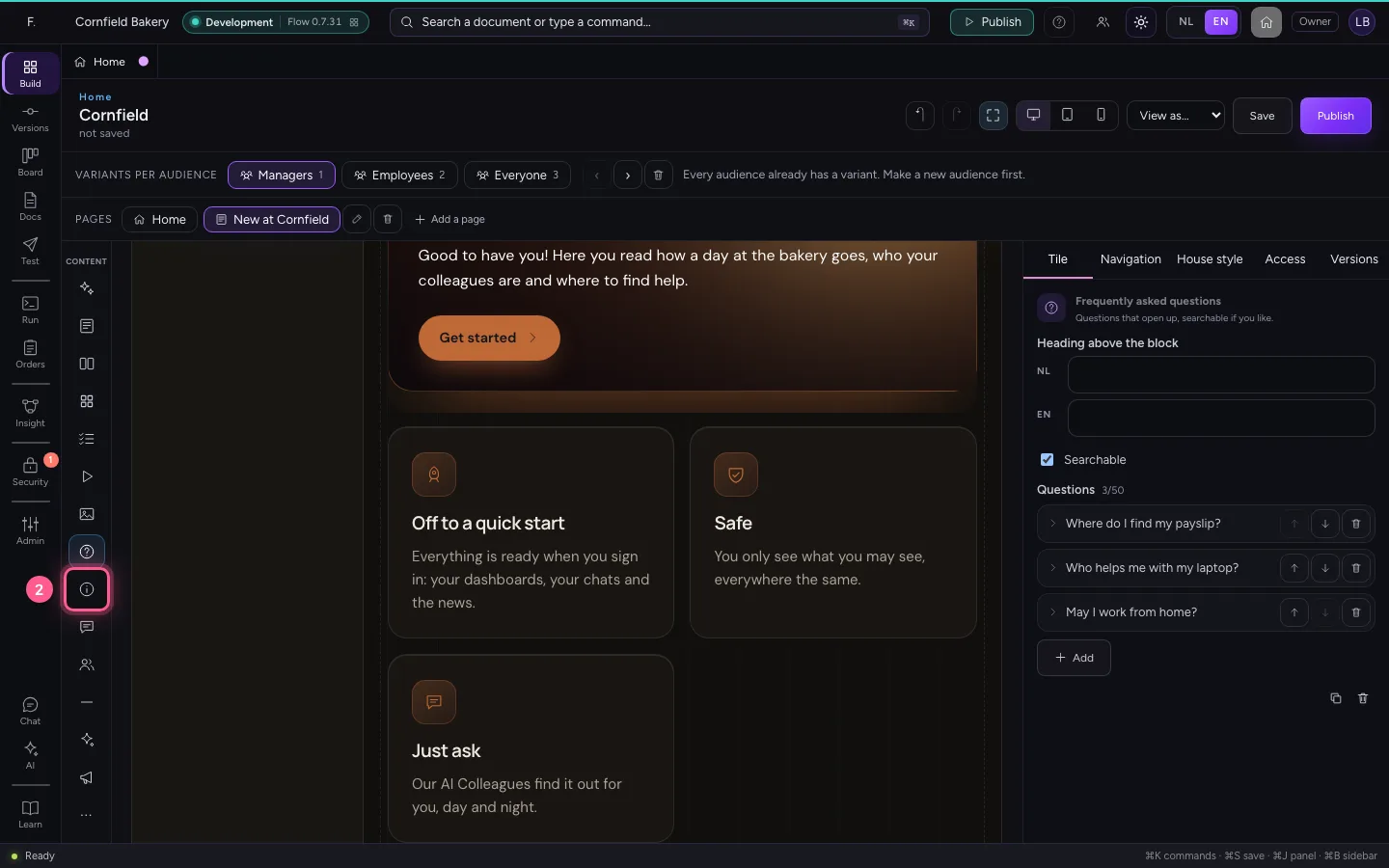
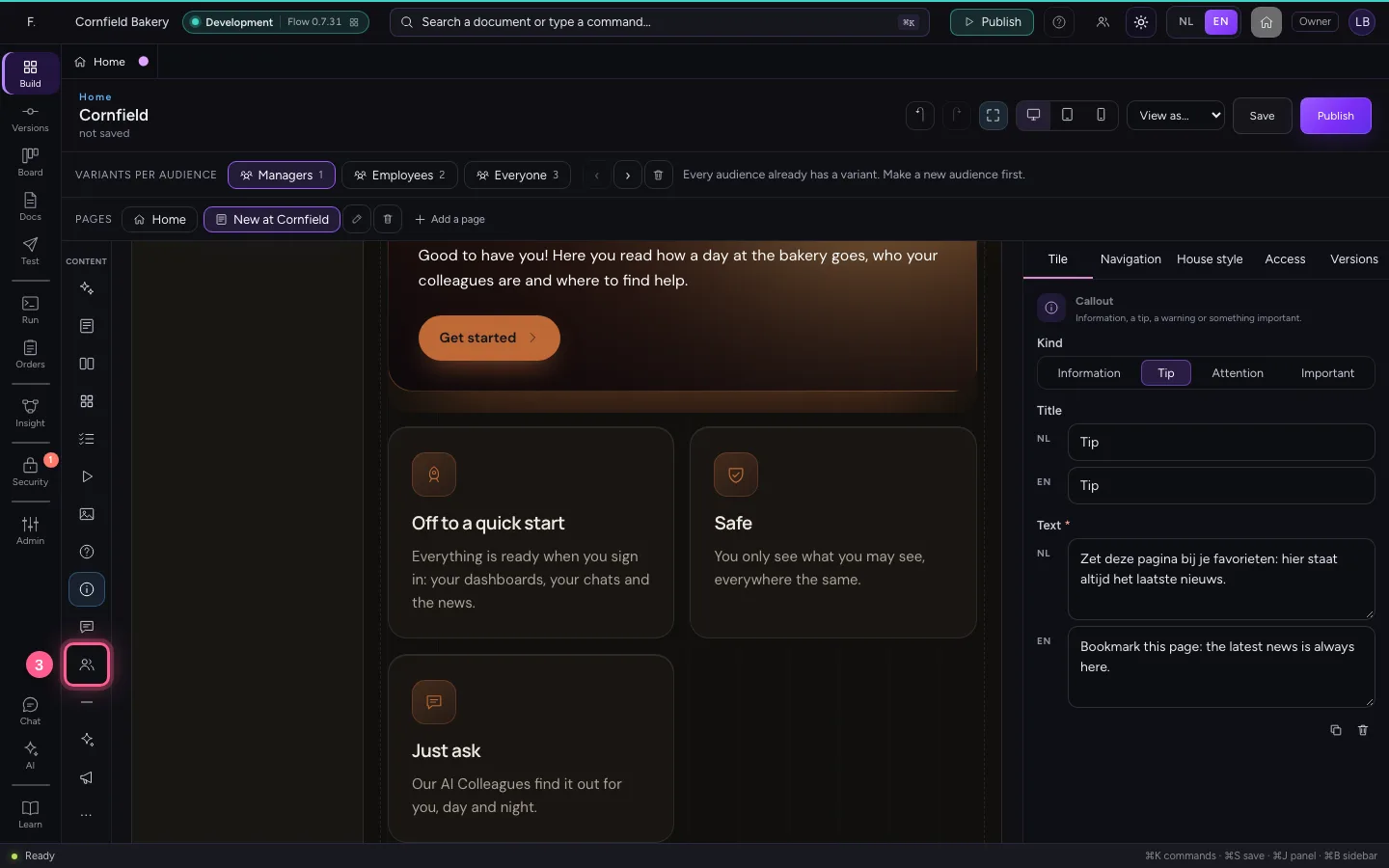
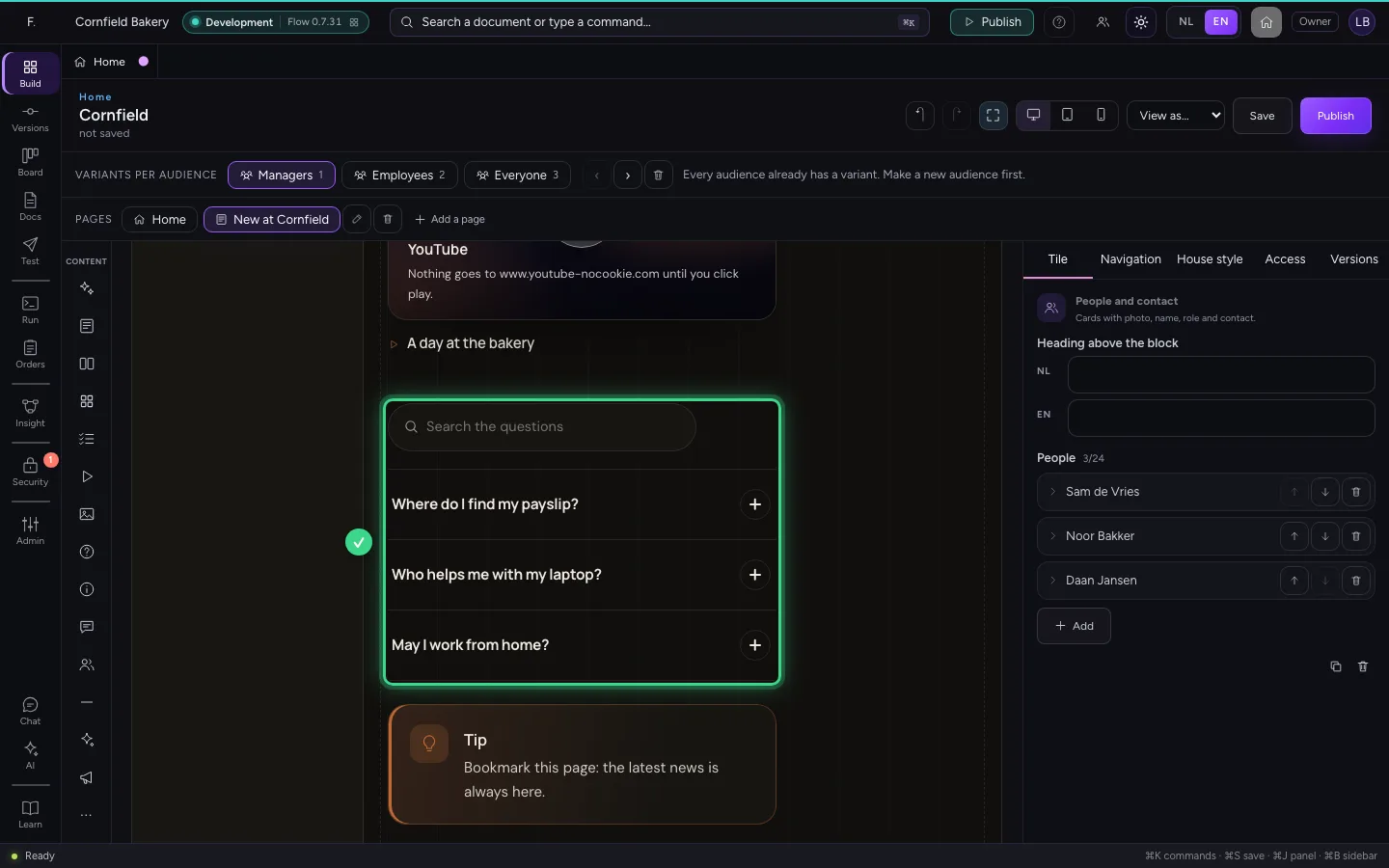
Frequently asked questions open when clicked and are searchable. A callout is information, a tip, a warning or something important. People and contact shows cards with photo, name, role and a mail or phone link.
- Click Frequently asked questions
- Click Callout
- Click People and contact
Put the page in the menu
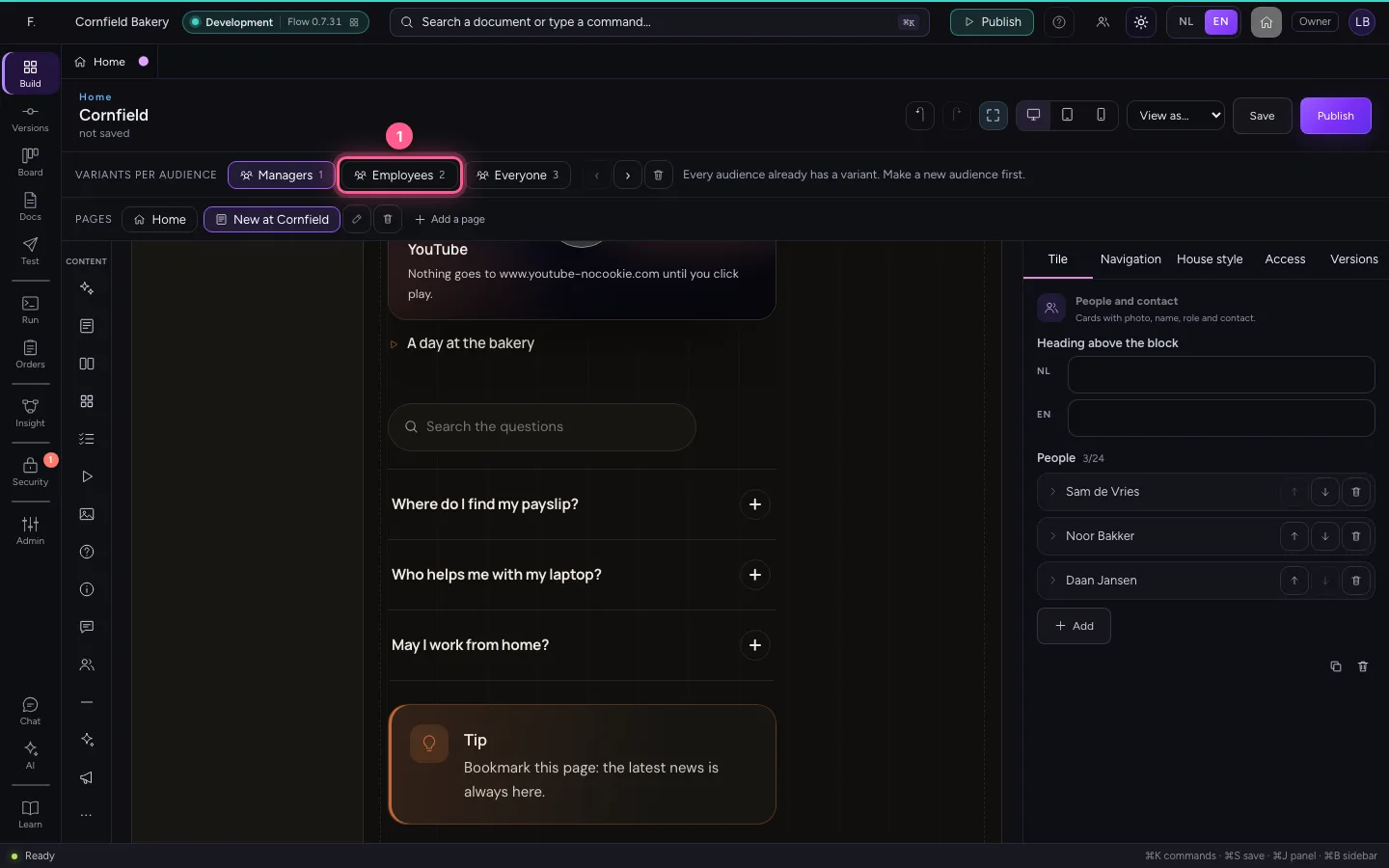
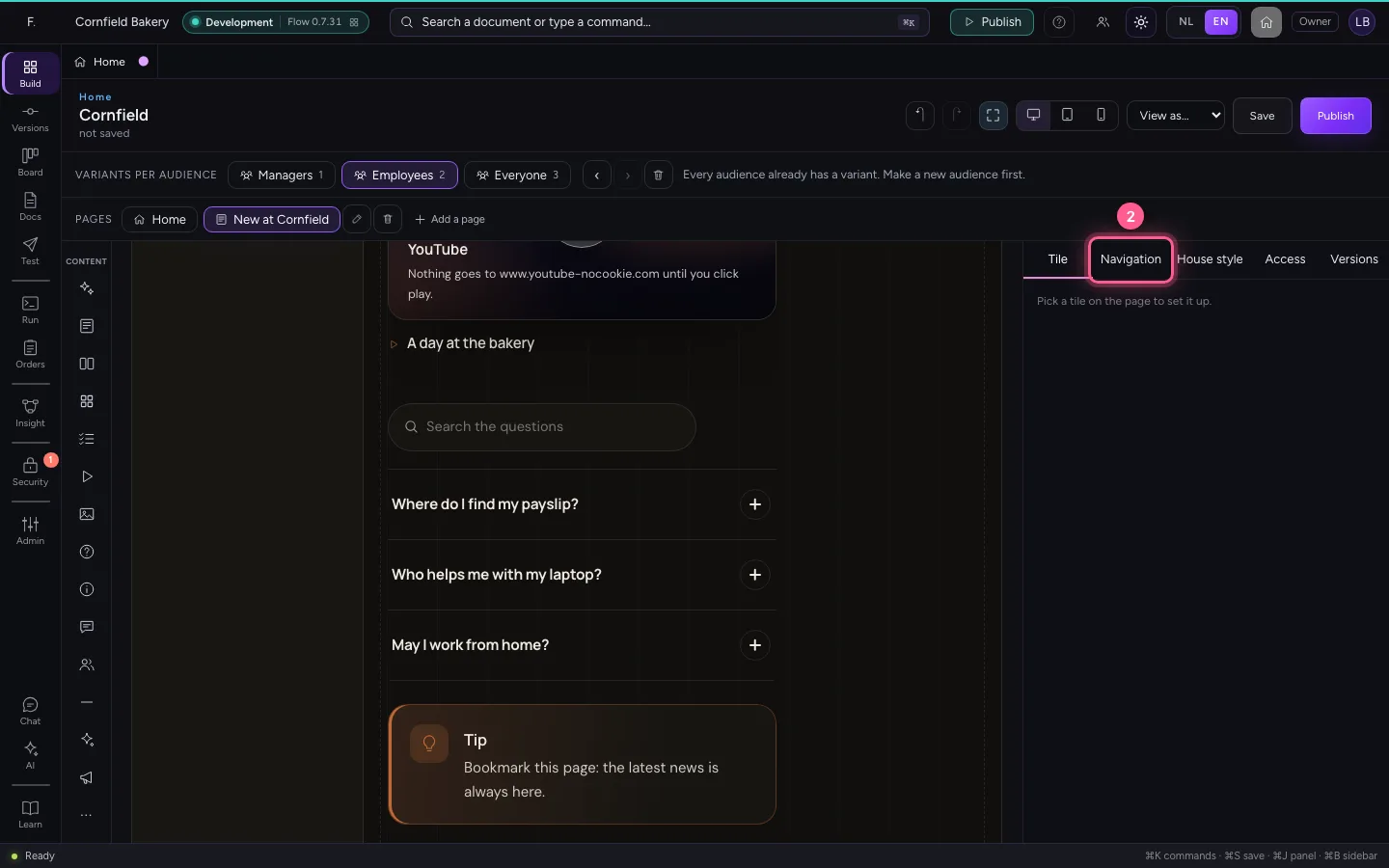
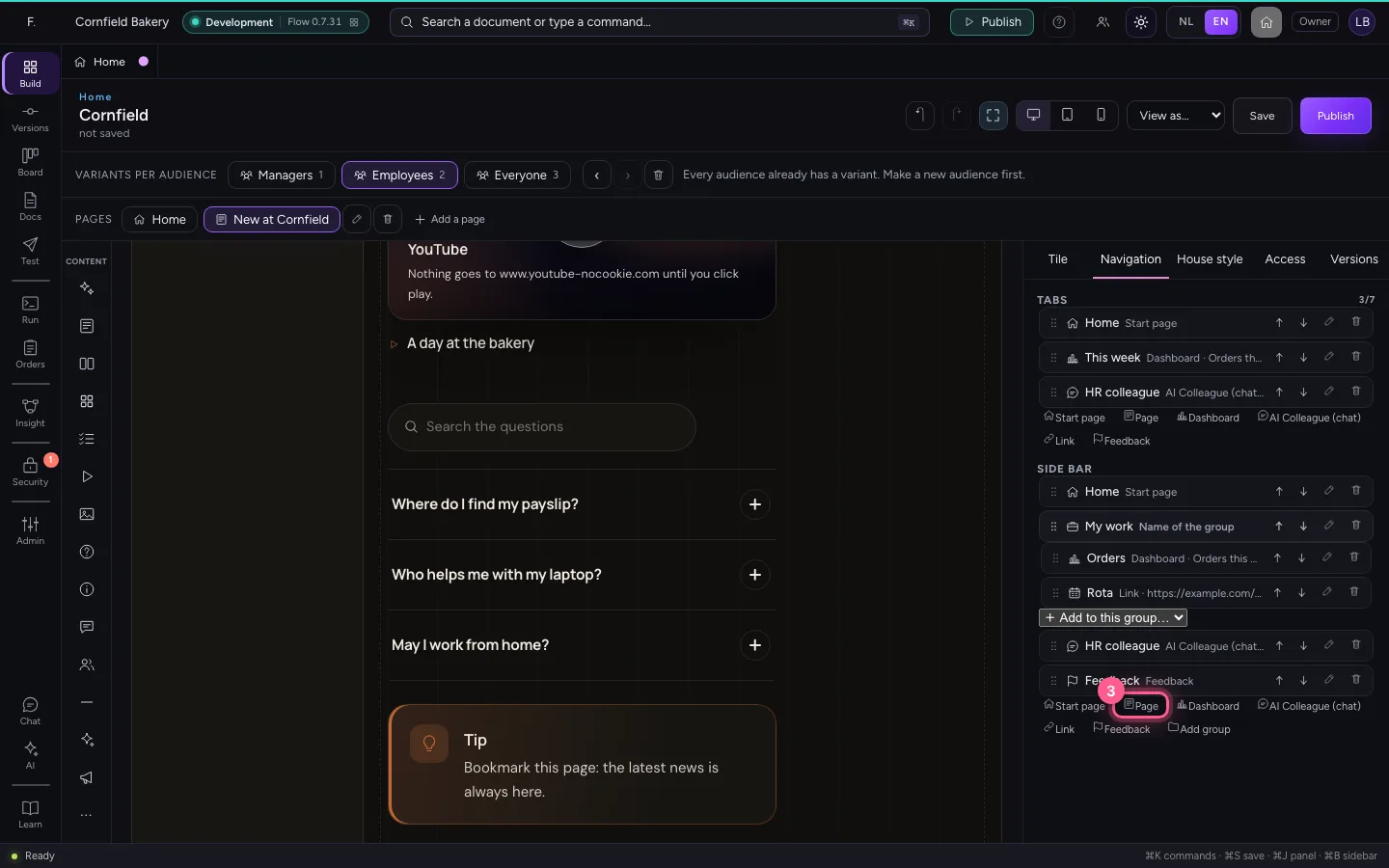
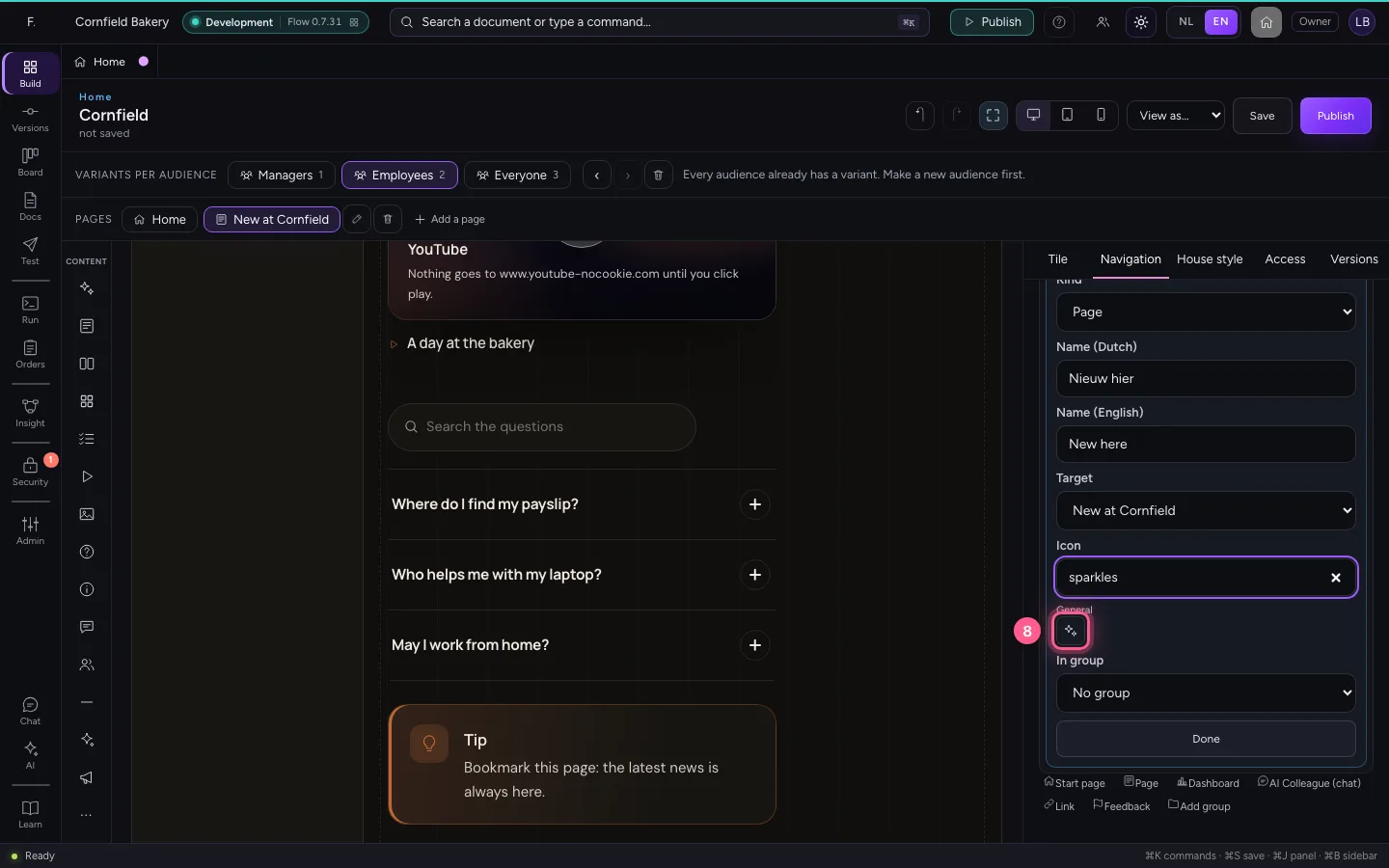
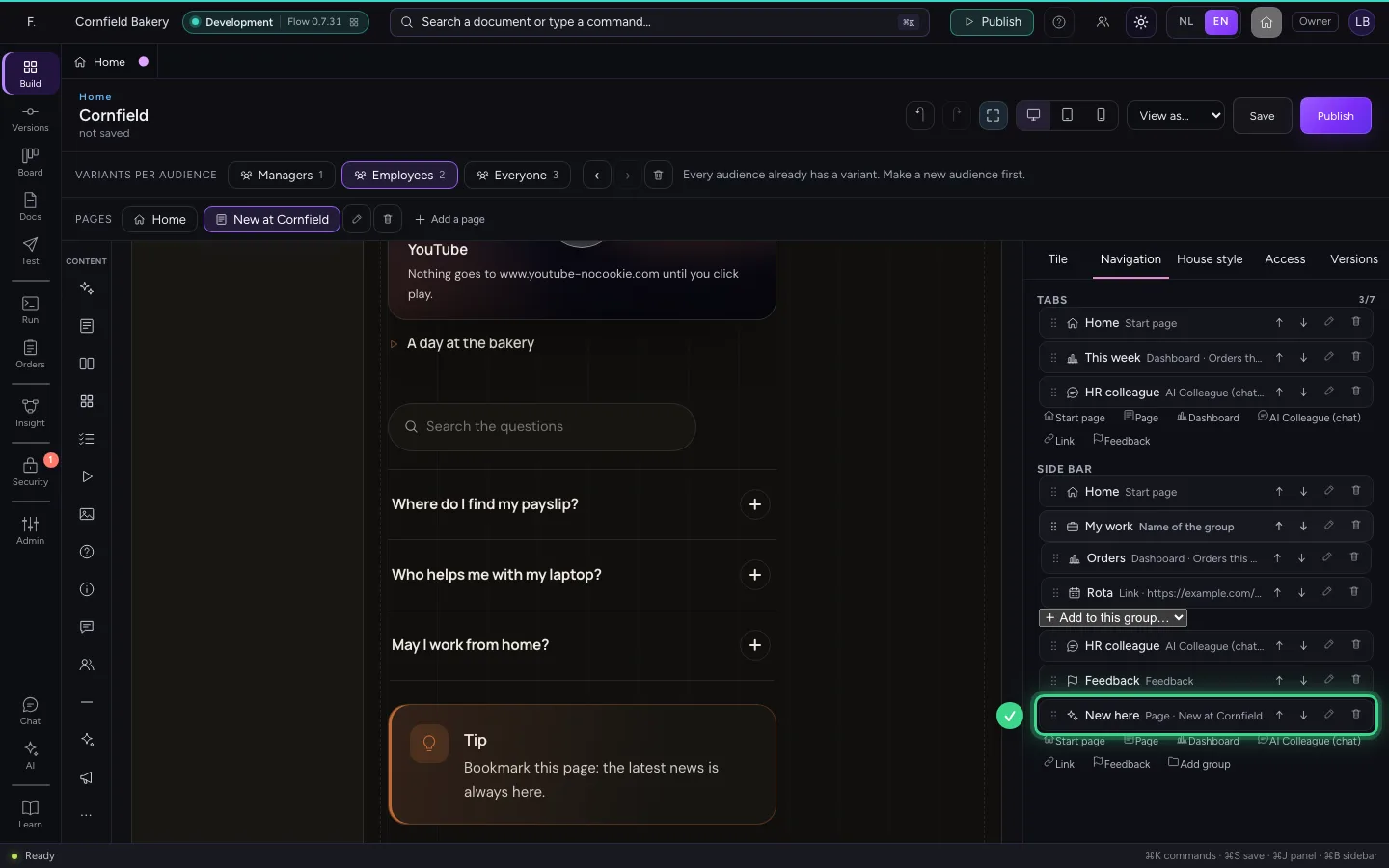
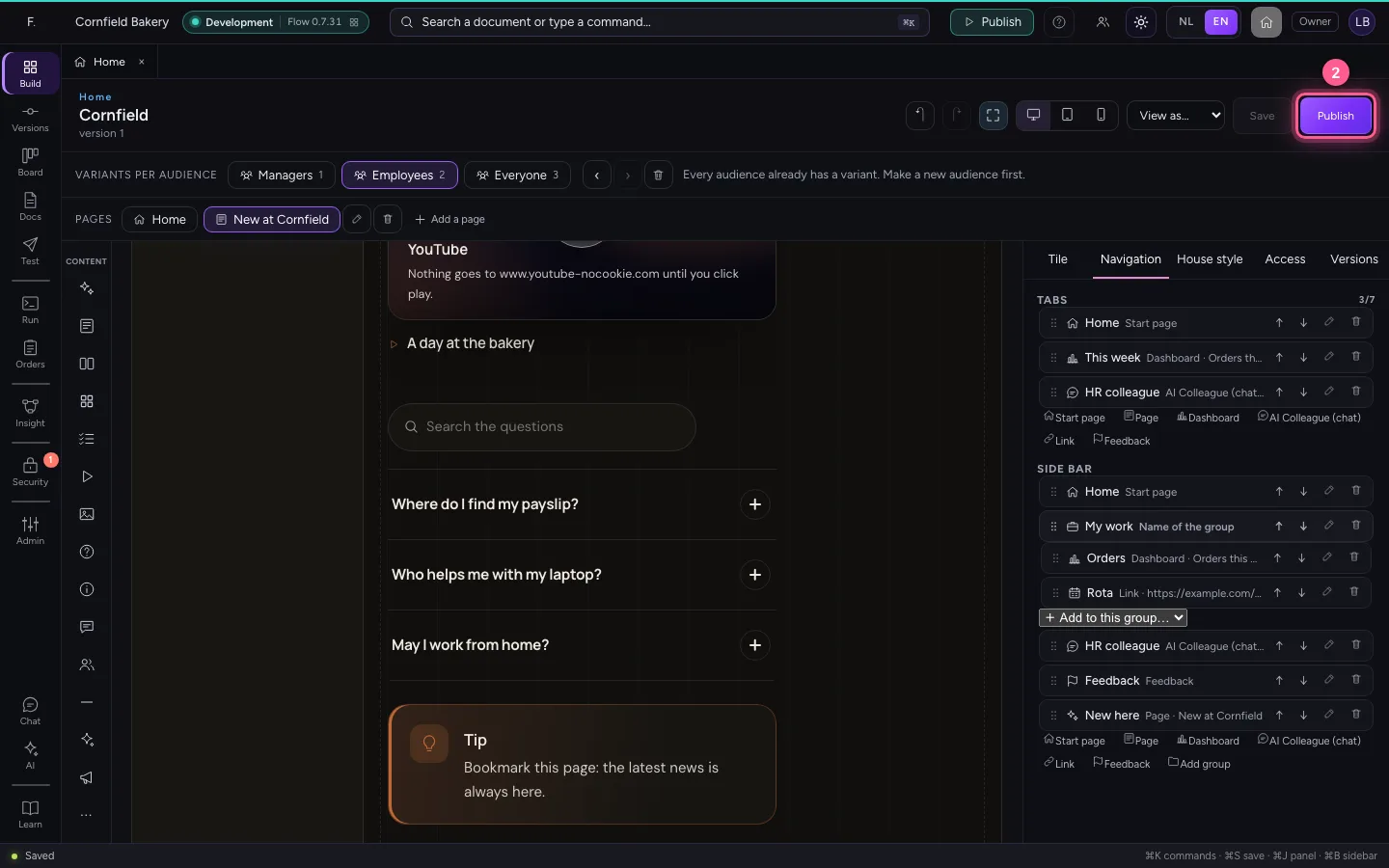
A page can only be found once it is in the menu. Choose the variant Employees, open Navigation on the right and add a Page to the side menu, with the new page as its target.
- Click Employees
- Click Navigation
- Click Page
- In Target, choose New at Cornfield
- In Name (Dutch), type
Nieuw hier - In Name (English), type
New here - In Search an icon, type
sparkles
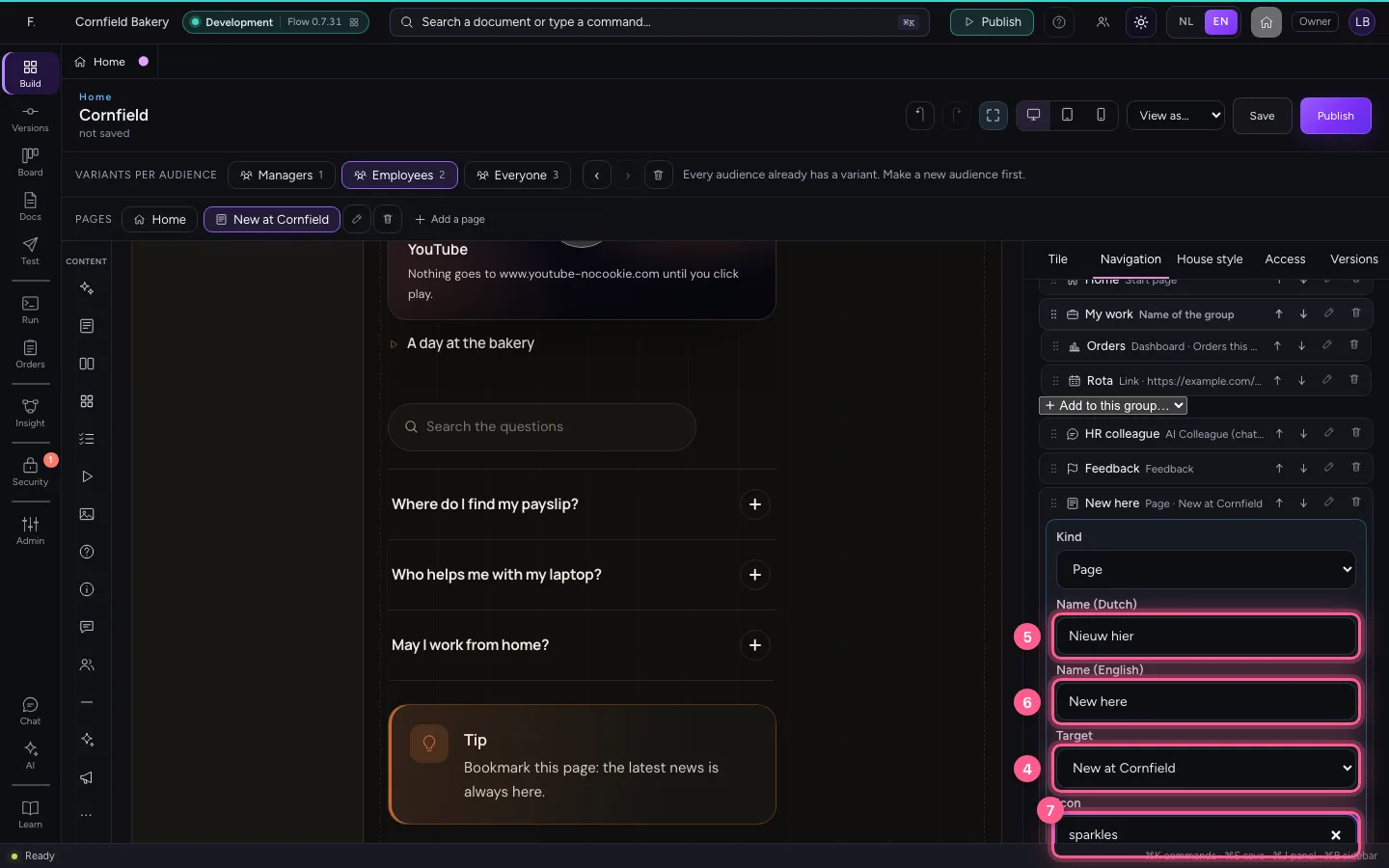
- Click the icon sparkles
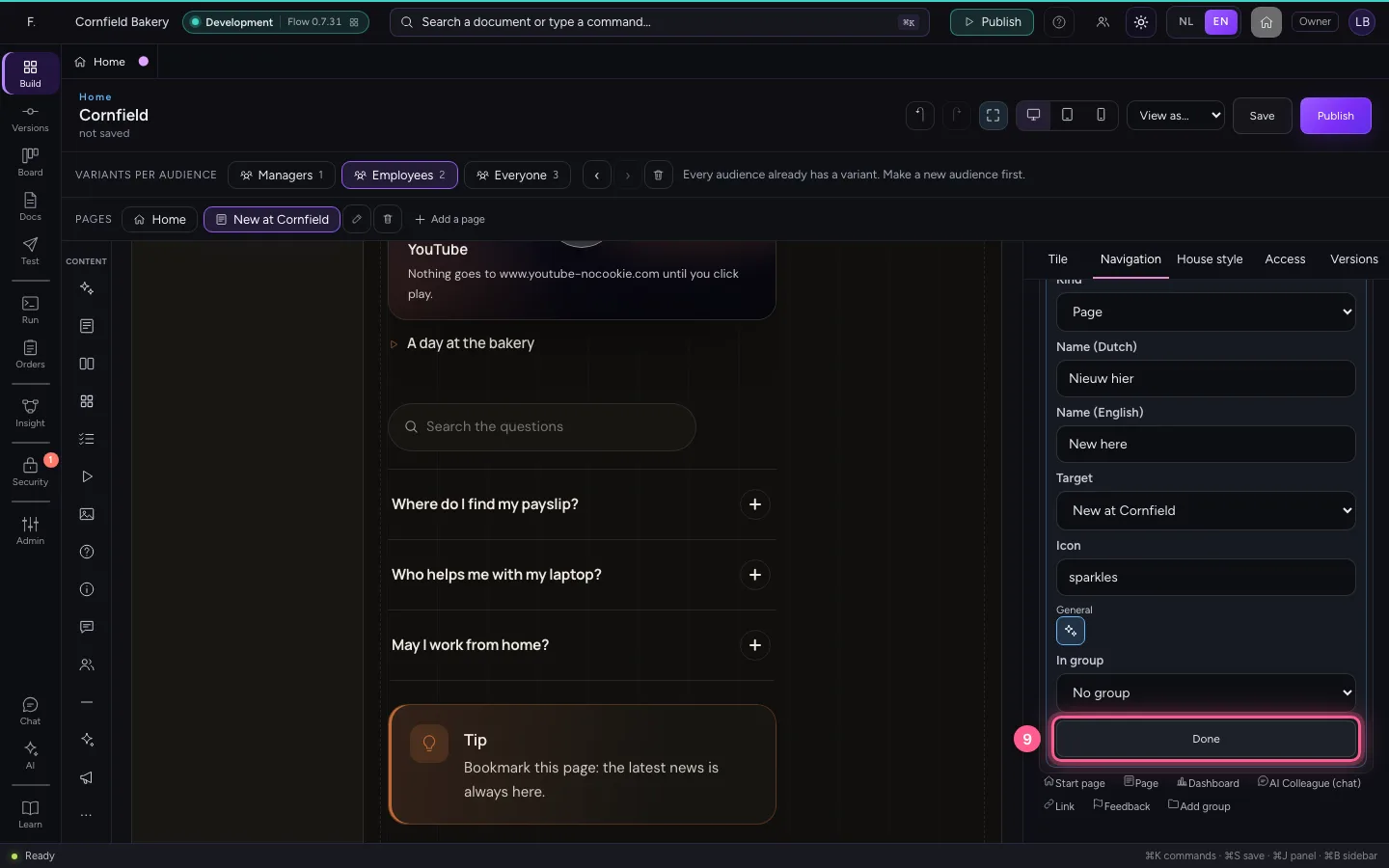
- Click Done
Save and publish
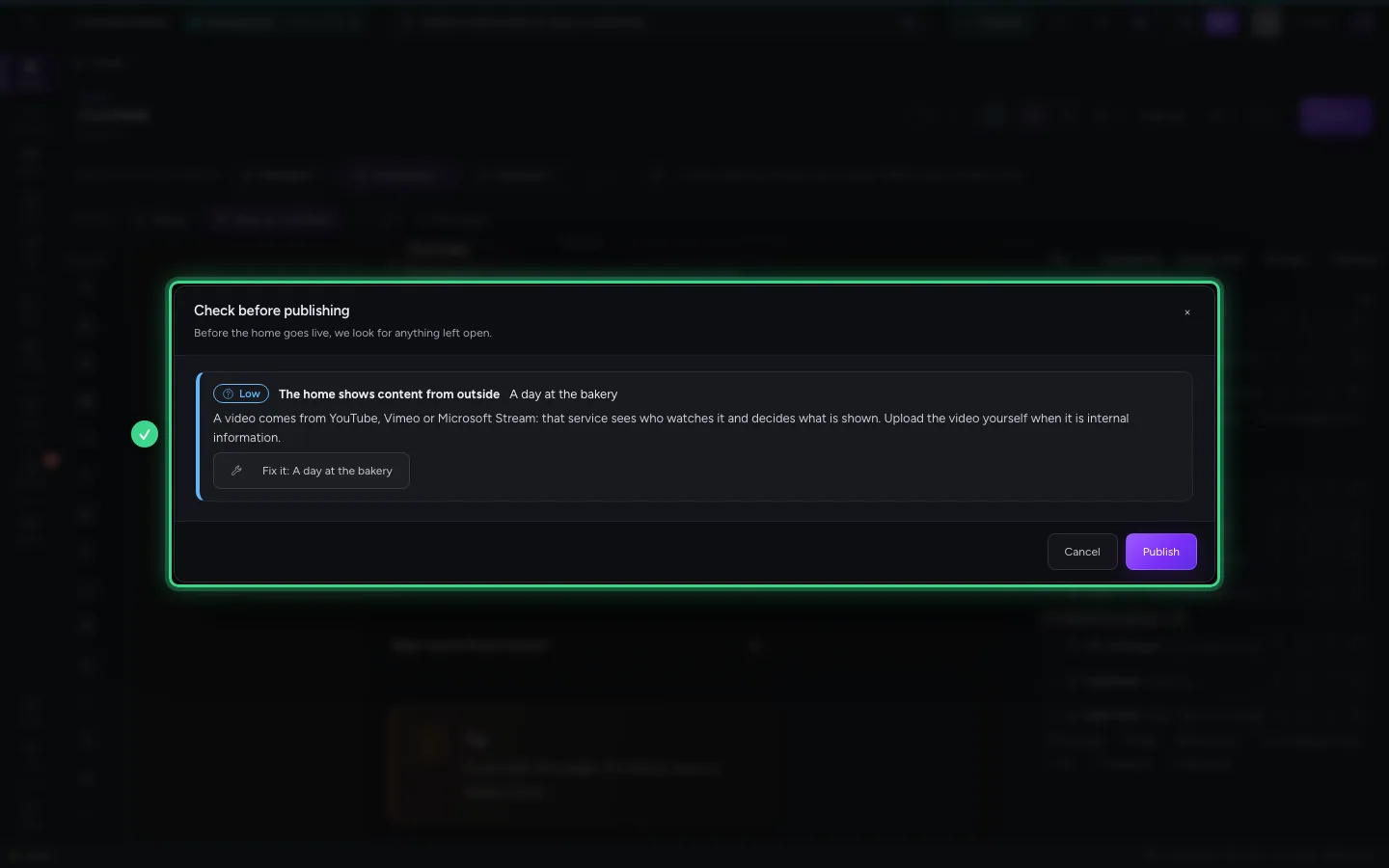
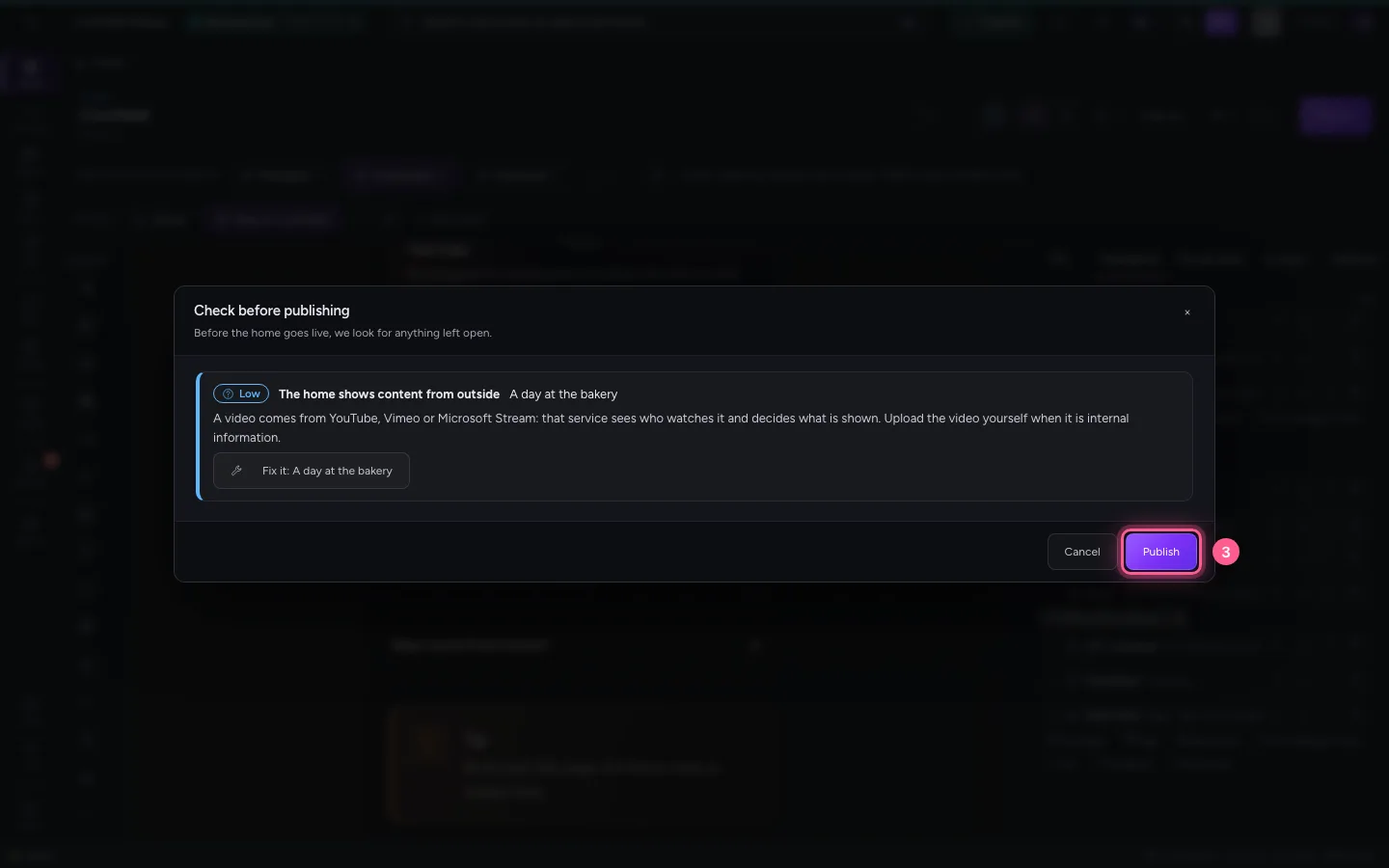
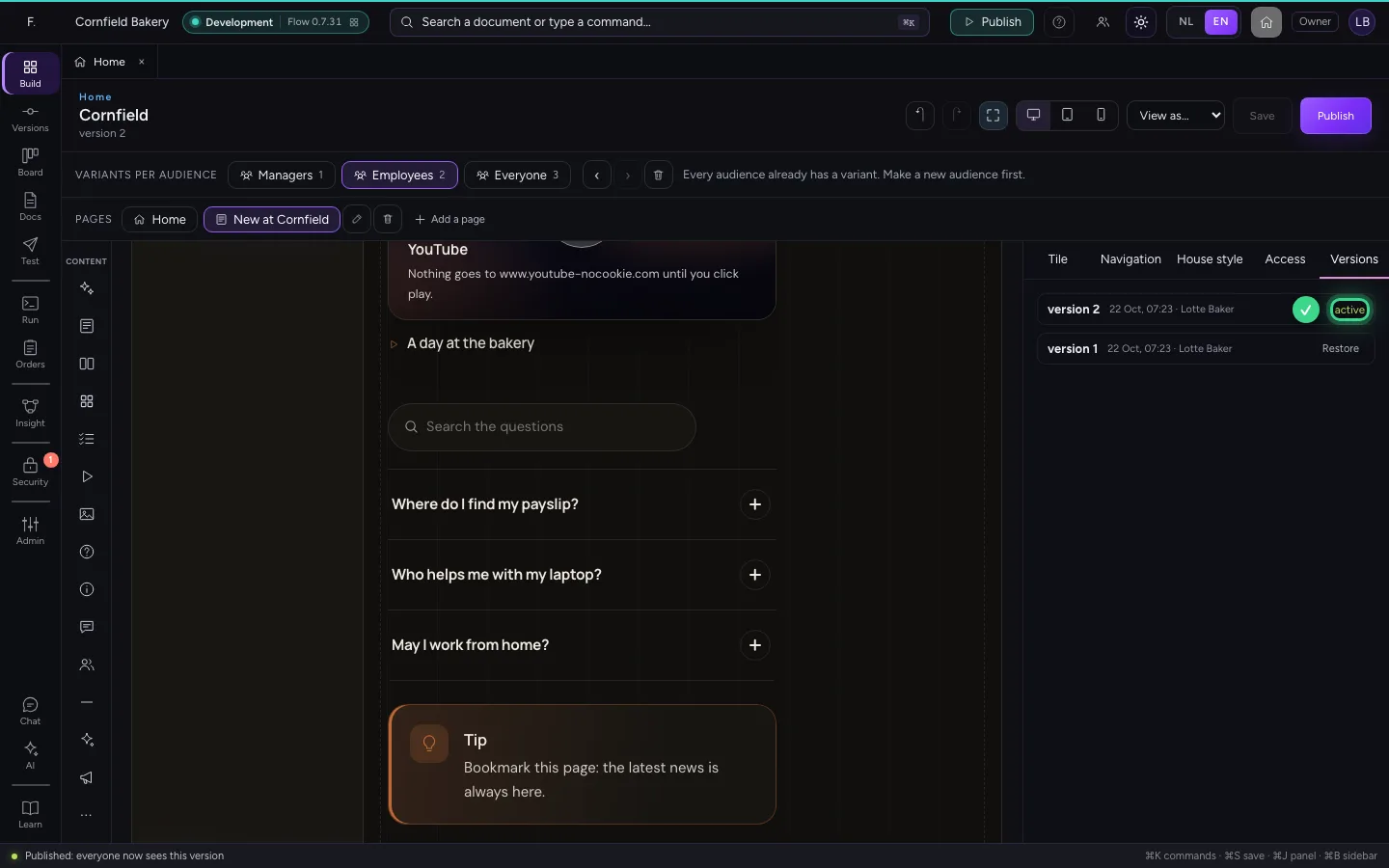
The security check names a video from elsewhere as content from outside: a point of attention, not a blocker. Publish, and the page is in your colleagues' menu.
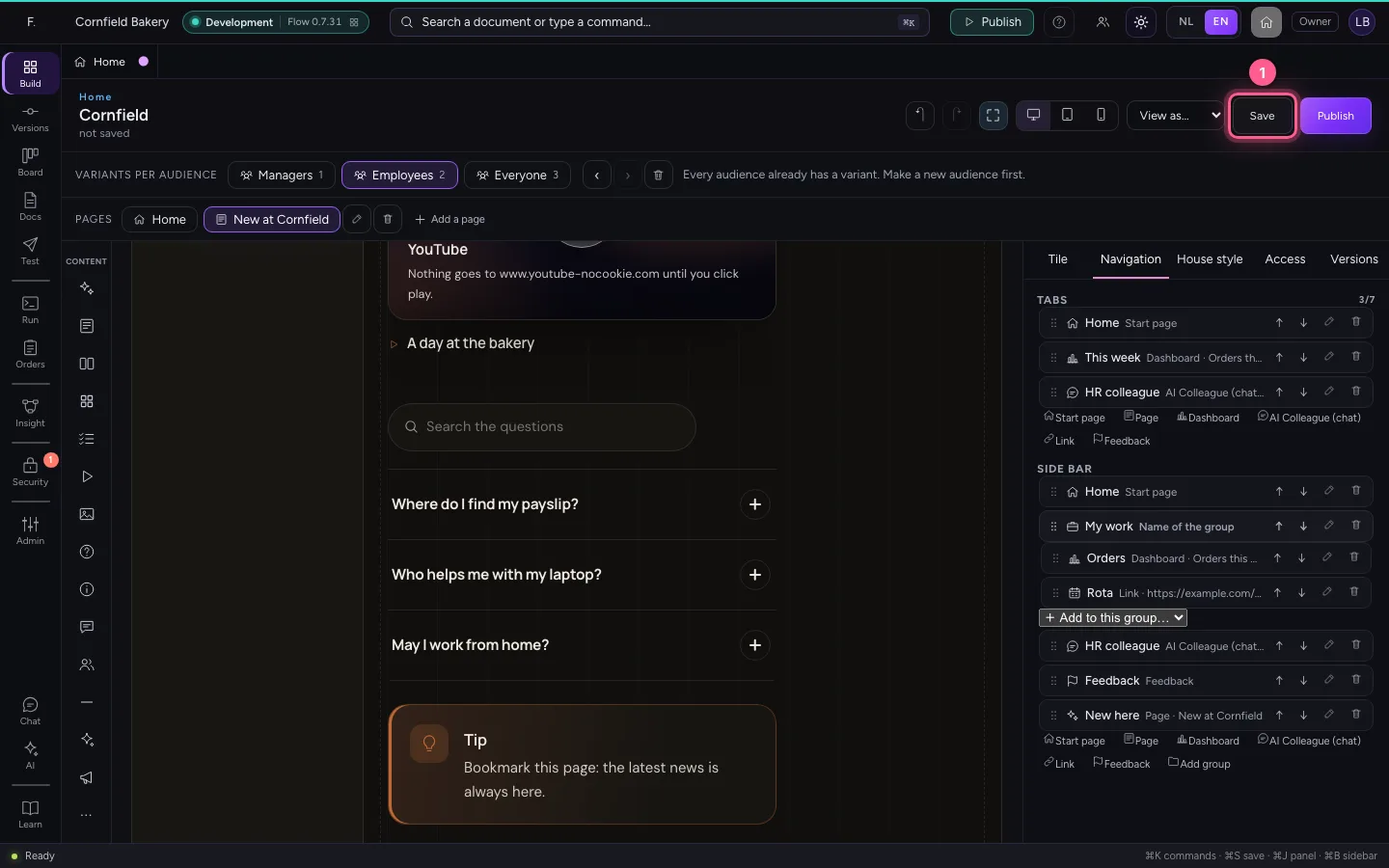
- Click Save
- Click Publish
- Click Publish
This is how a colleague reads the page
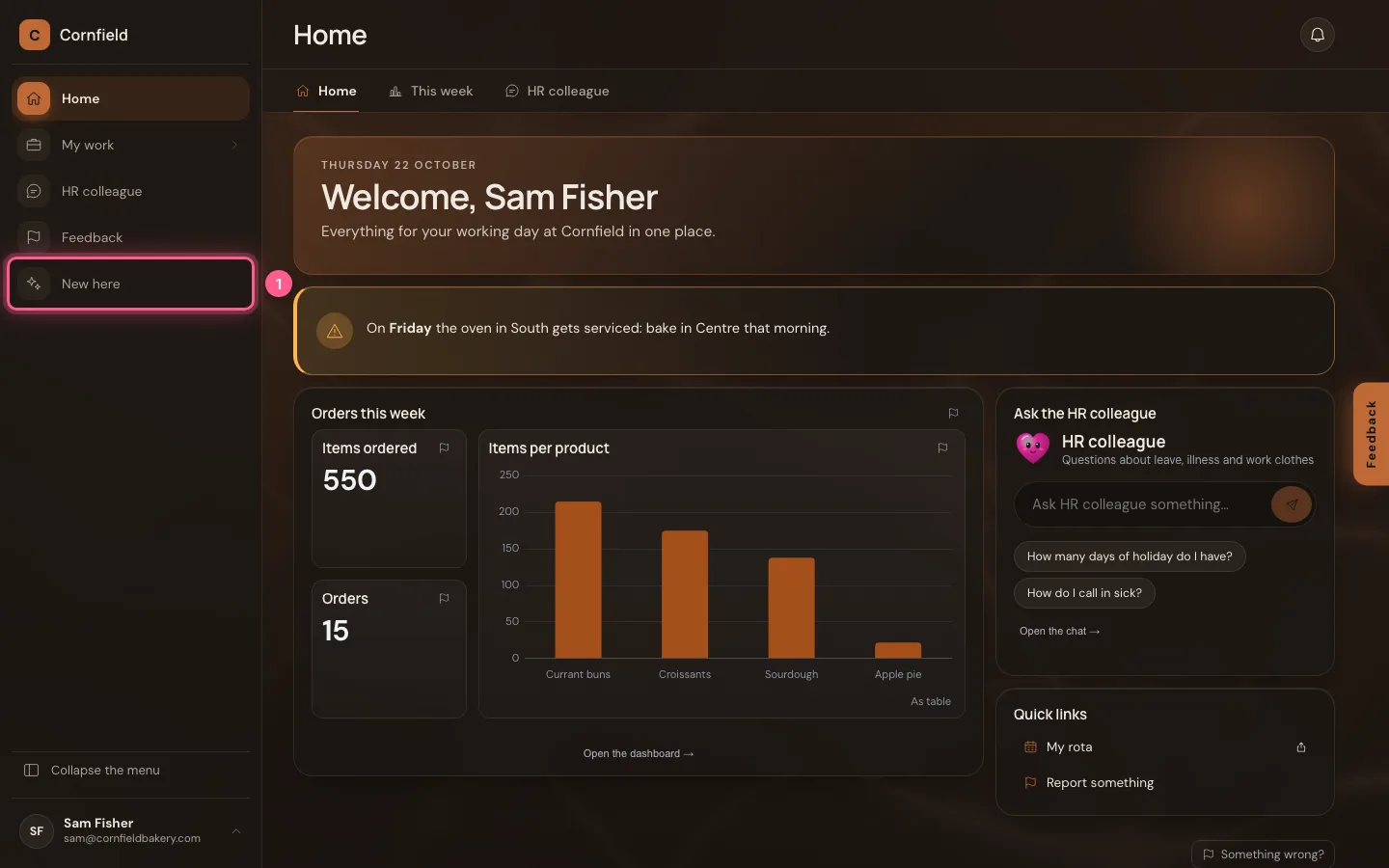
New here is in the side menu. A click opens the page: the hero, the cards and the steps, in the bakery's house style and in the reader's language.
- Click New here
Opening a question
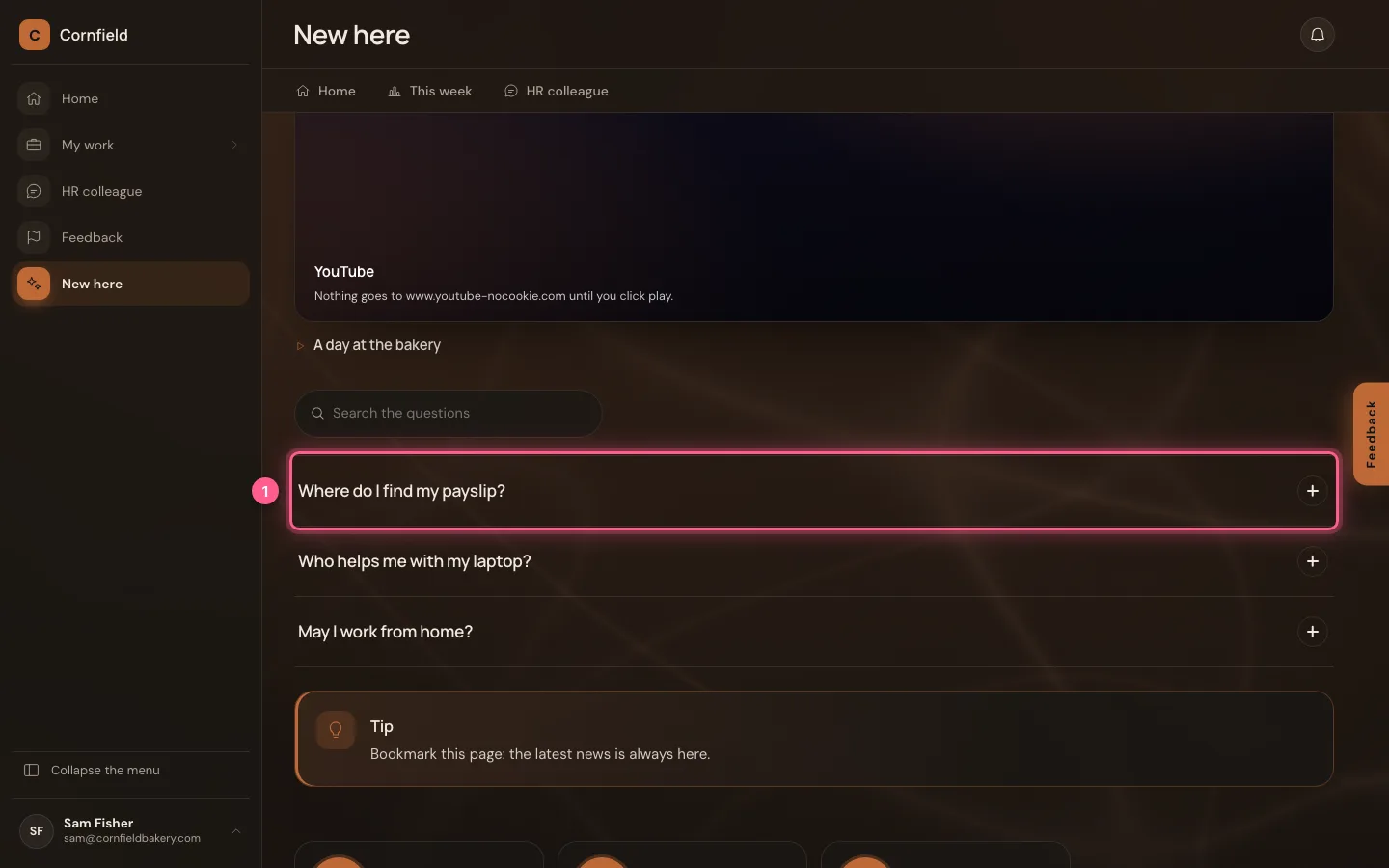
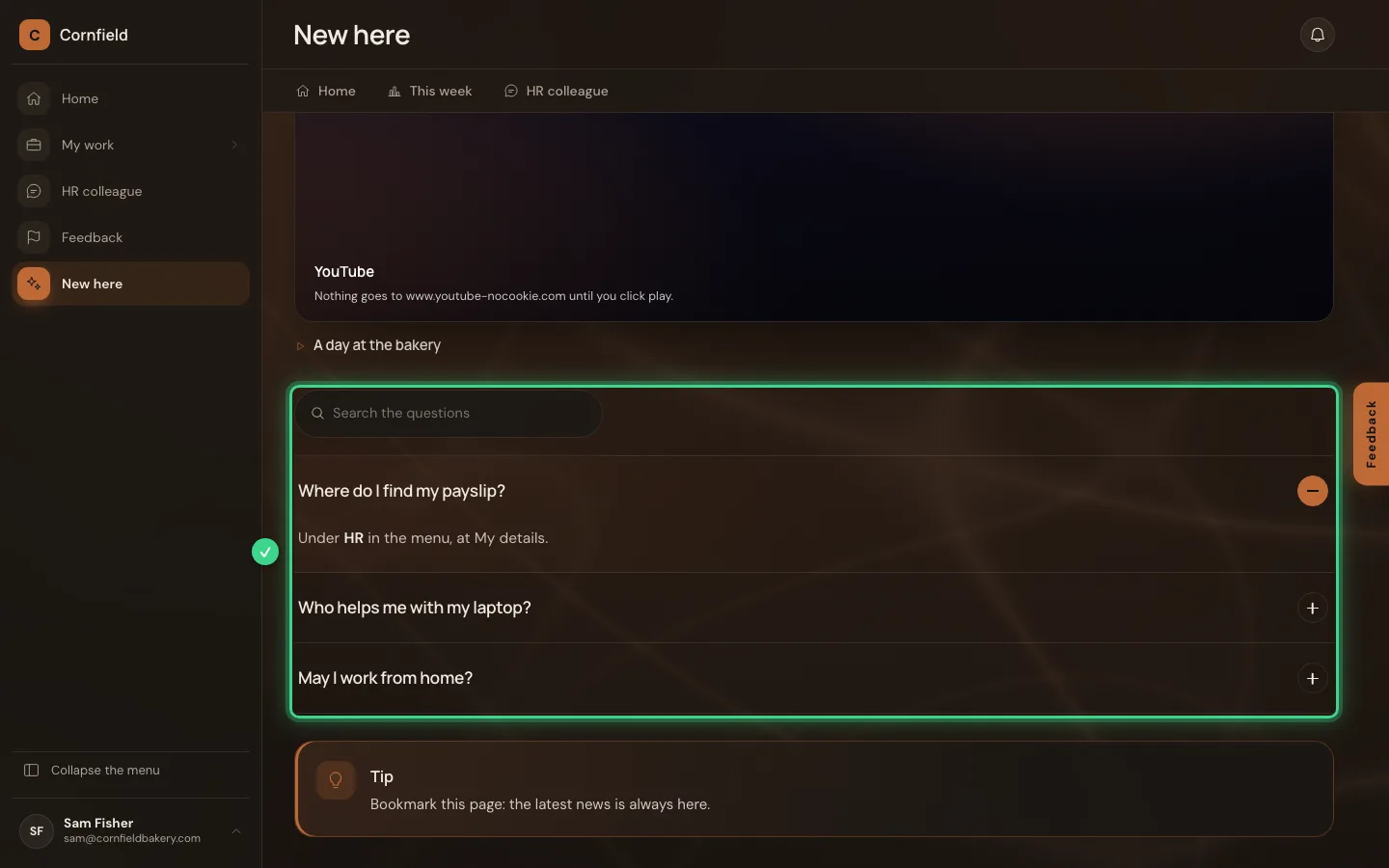
Click a question and the answer opens; the arrows take you to the next question, and the search box searches all questions.
- Click the first question
Playing the video
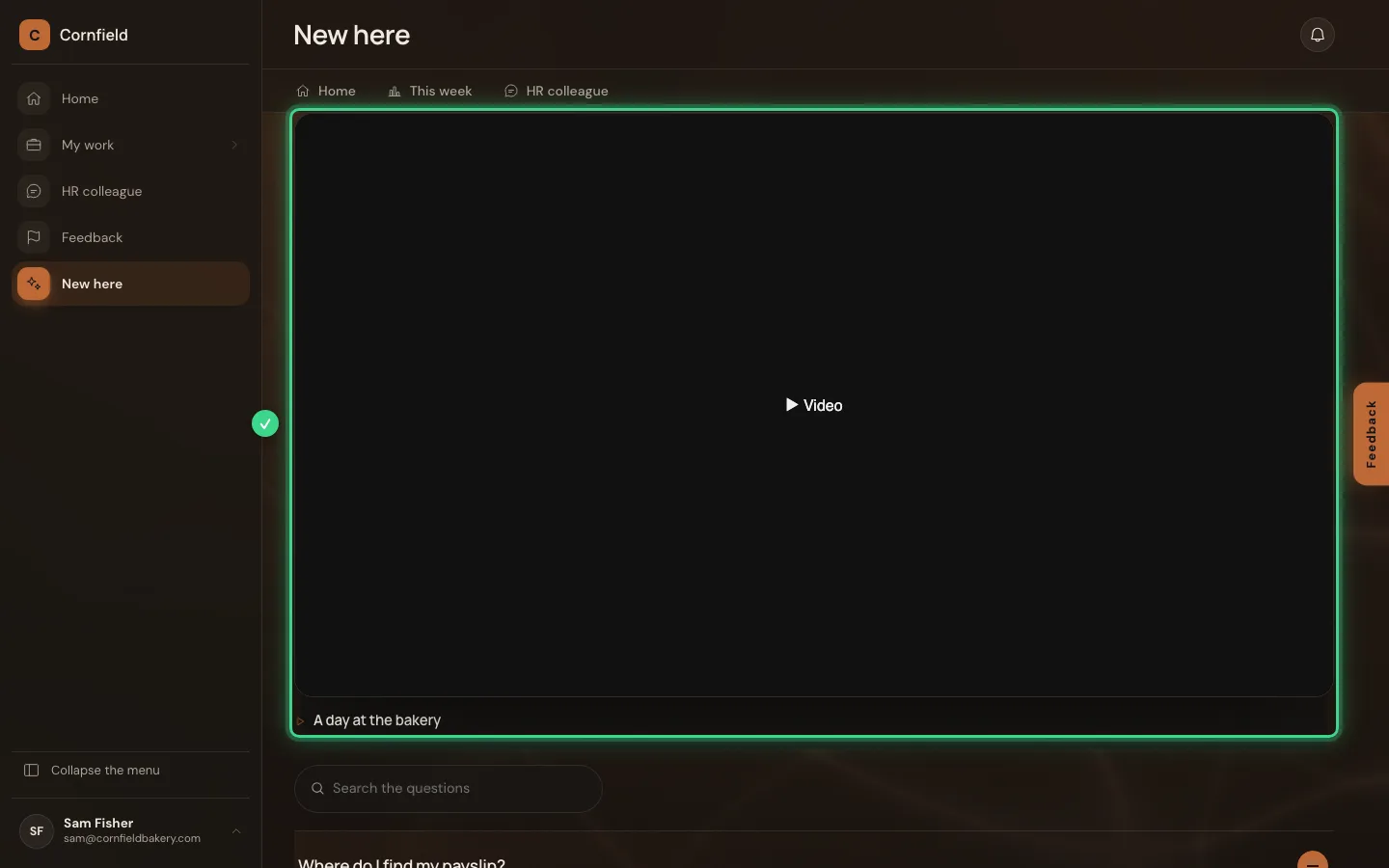
Until you click play, the page loads nothing from YouTube: you see what is going to happen. After the click the video plays on the page (a practice player here).
- Click Play A day at the bakery (YouTube)
This guide was carried out step by step on 22 Oct 2026 by an automated test on Flow (version 3e563176).