Step: Add document to knowledge base
You do not have to keep a knowledge base up to date by hand. The step Add document to knowledge base puts text or data from a workflow into a knowledge base as a document: in chunks, searchable and with metadata. That way every new note, e-mail or invoice ends up in the knowledge base by itself.
Open your development environment
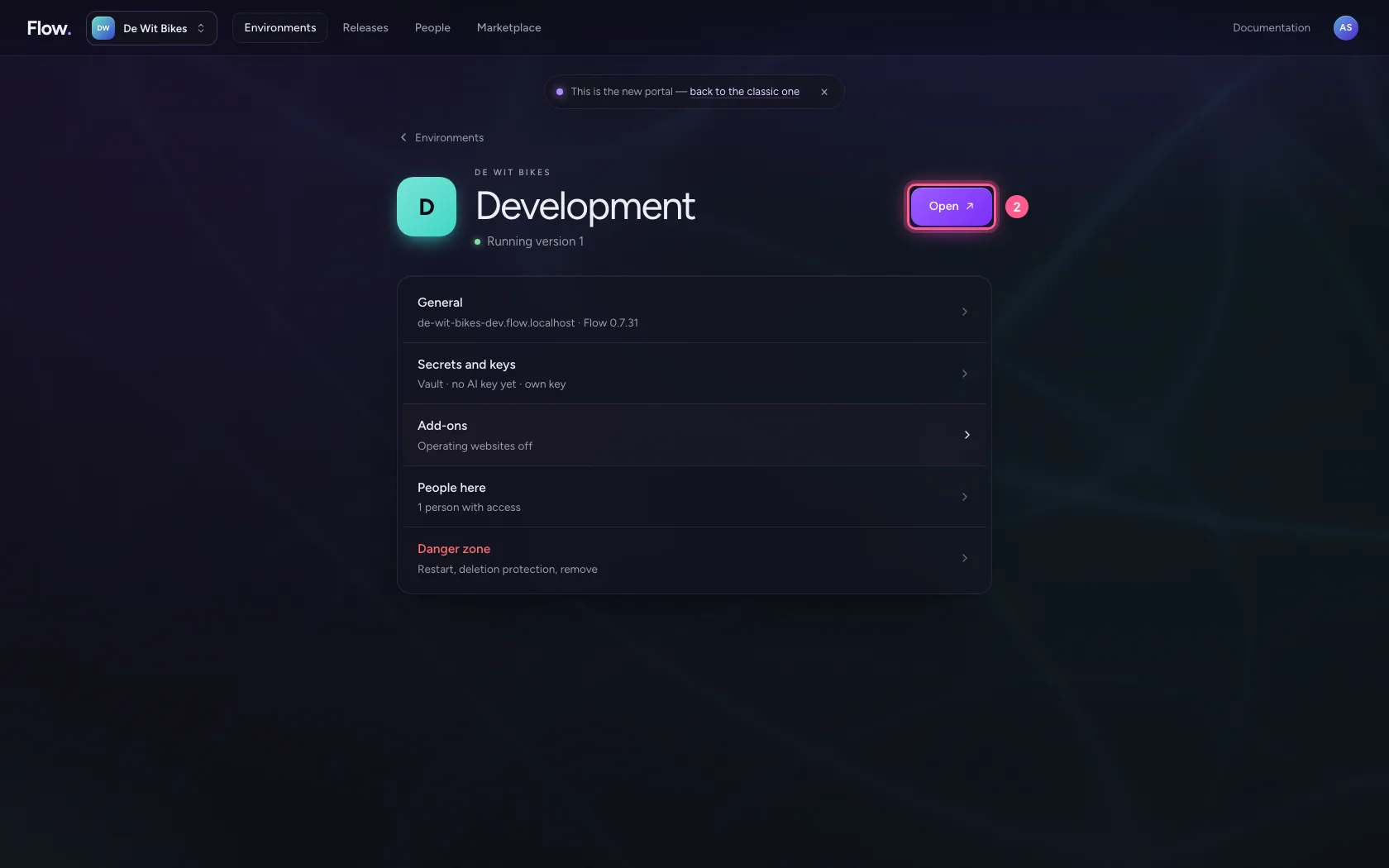
In the portal, under Environments, click Development, and there Open. Flow opens in a new tab and you are signed in straight away.
- Click Development

- Click Open ↗
Create a workflow with a note
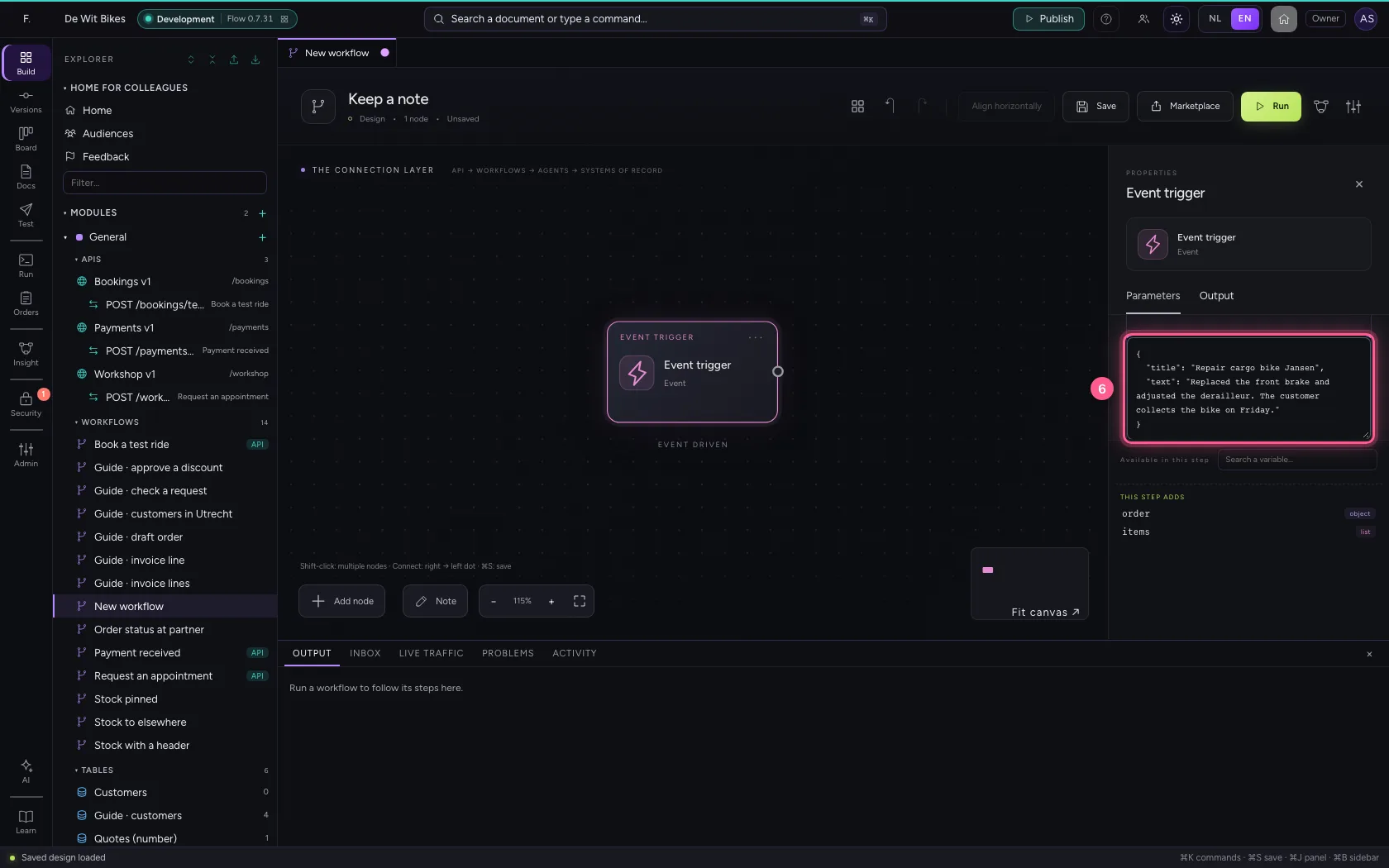
Create a new workflow and put a note in the trigger's sample data: a title and a text. In real life it comes, for example, from a form, an e-mail or an API.
- Click Add to General
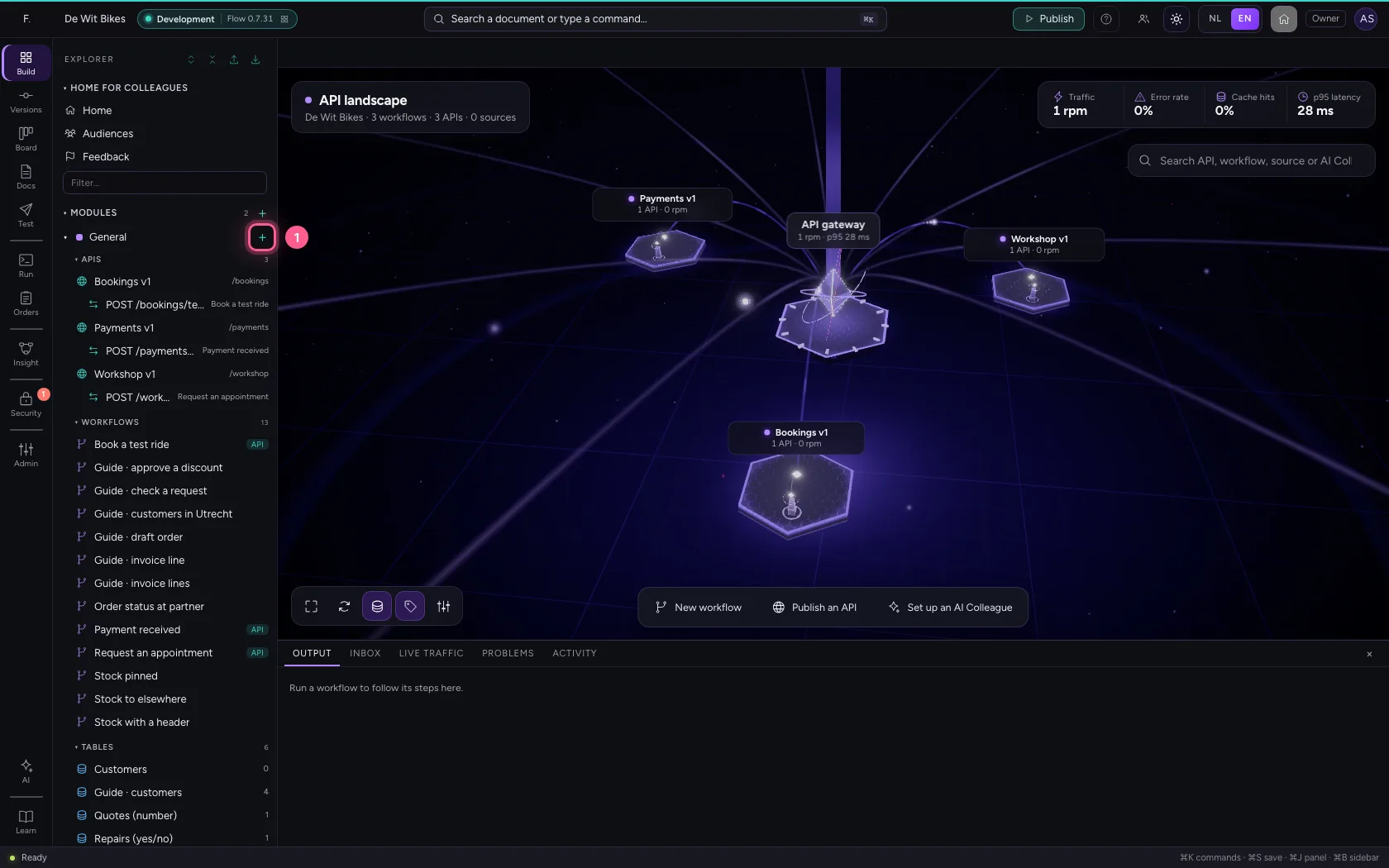
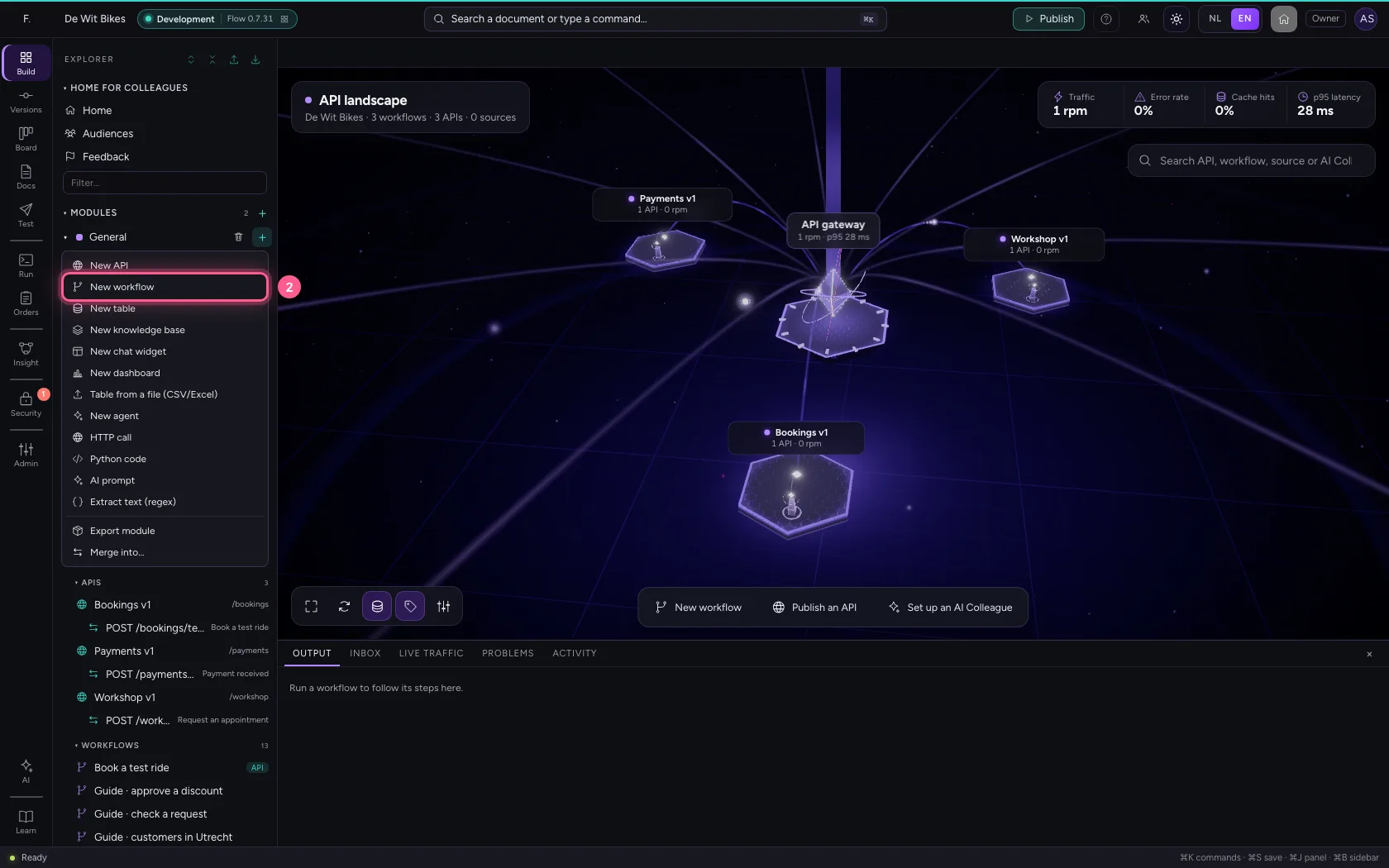
- Click New workflow
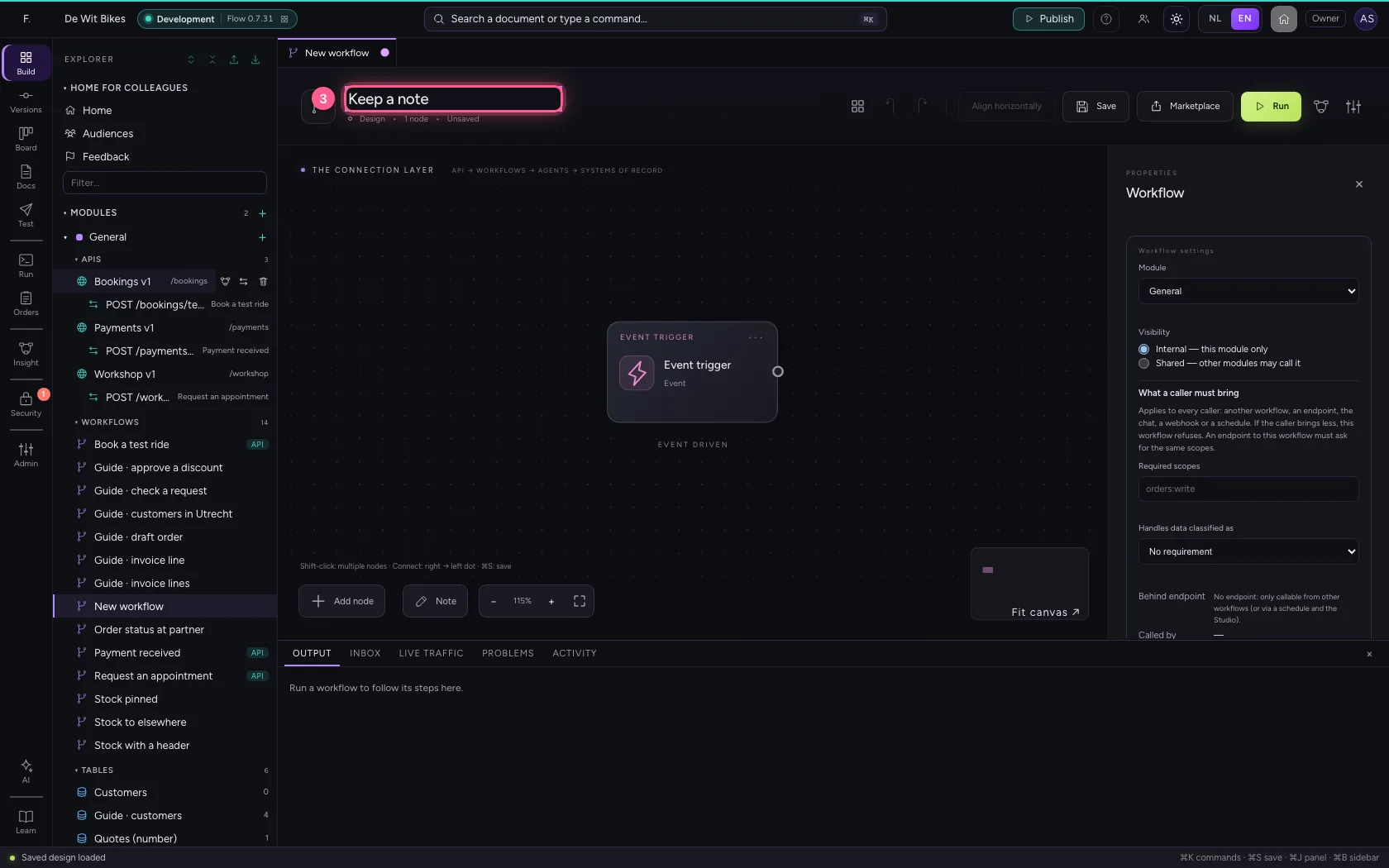
- In Workflow name, type
Keep a note
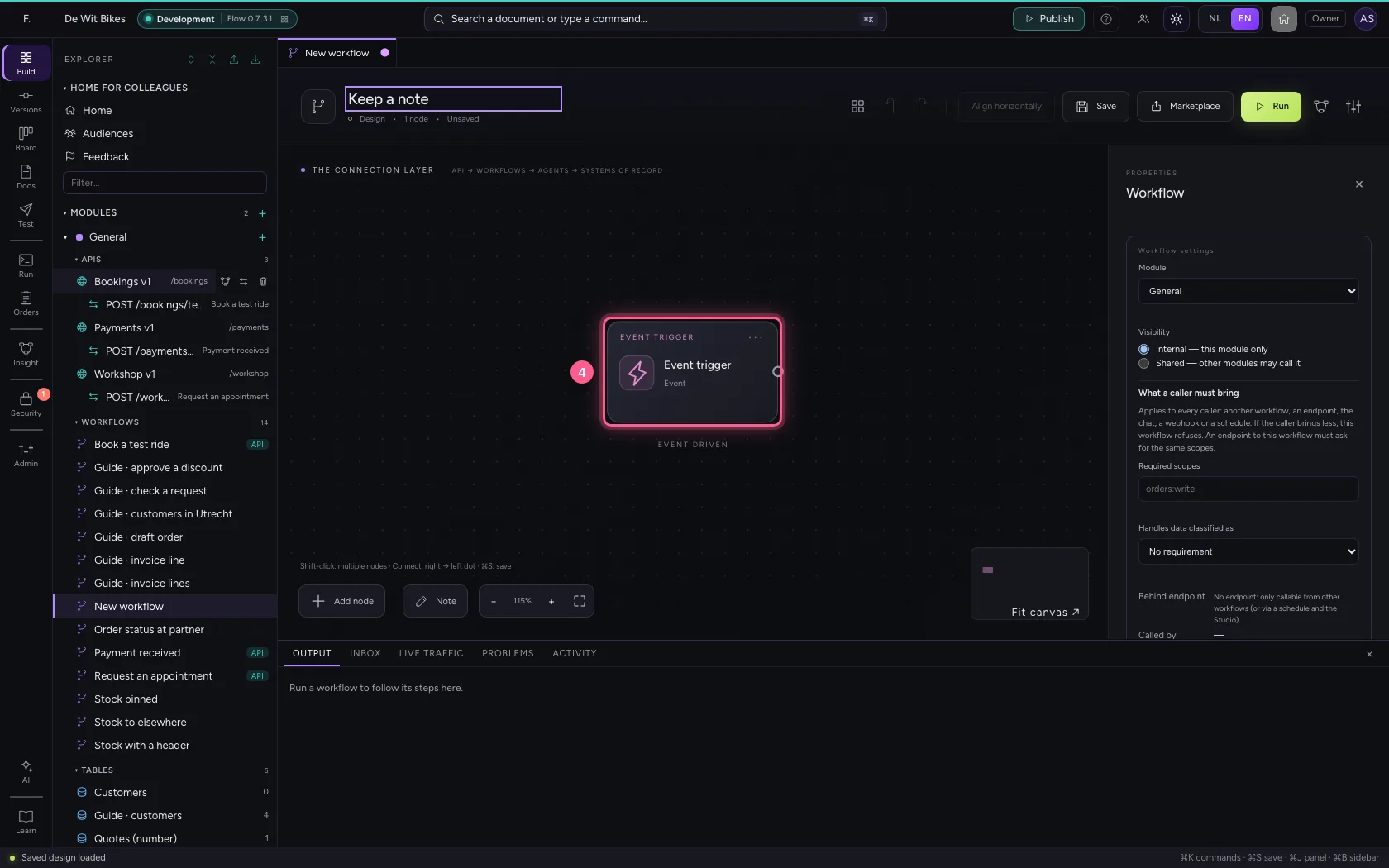
- Click the trigger
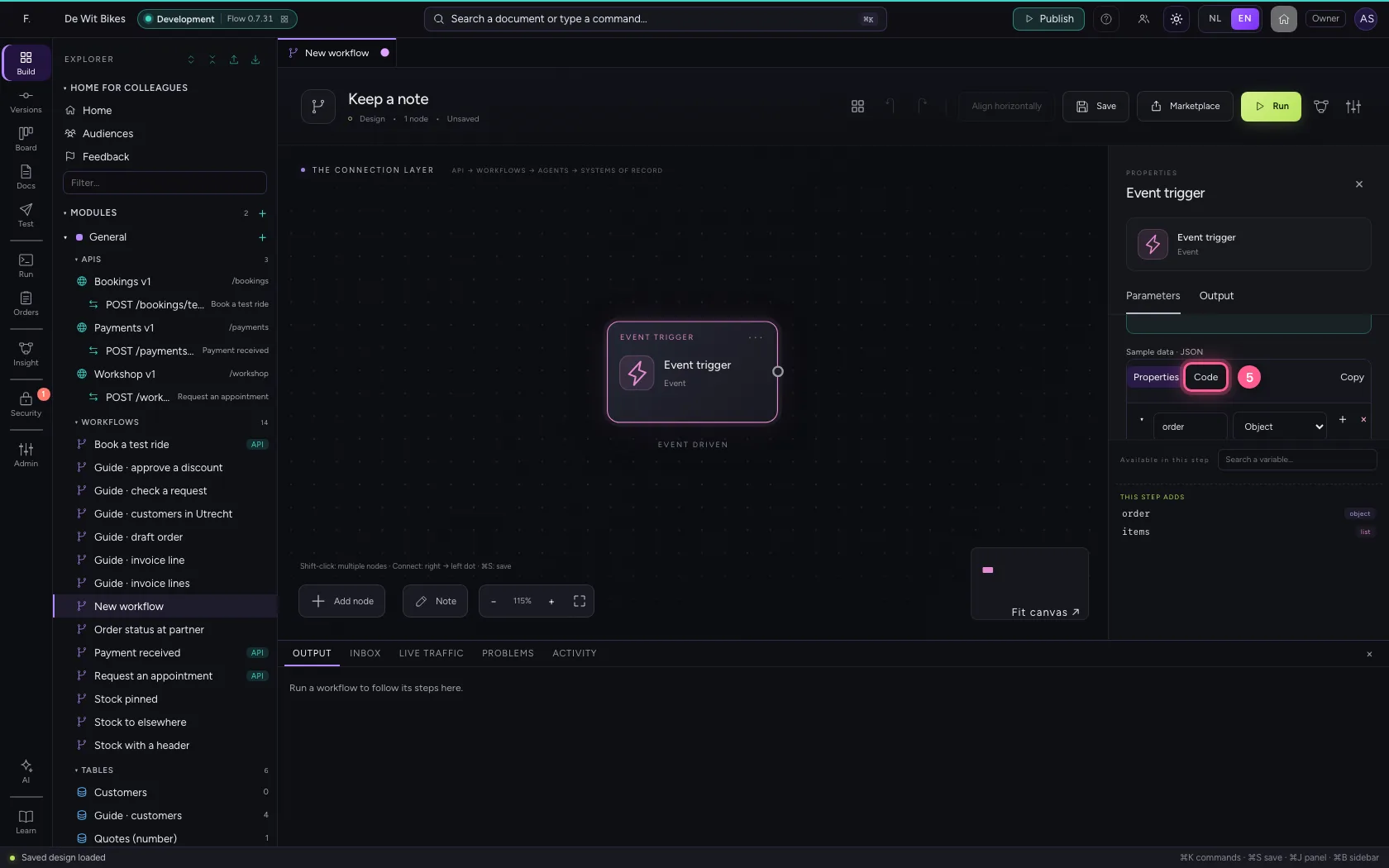
- Click Code
- In Sample data, type `{
- The customer collects the bike on Friday."
Add the step Add document to knowledge base
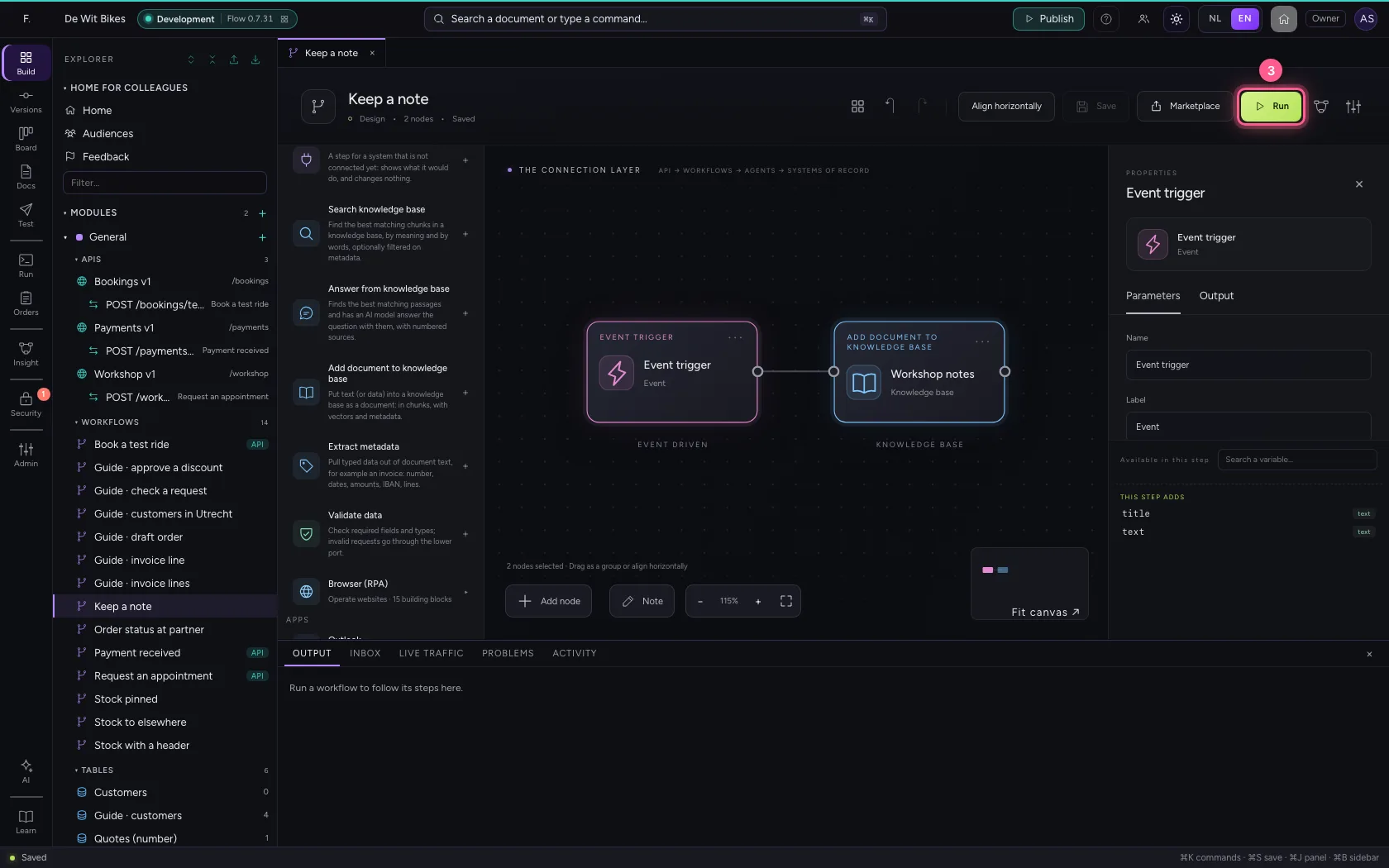
Choose the knowledge base and say where the document's name and text come from. If the knowledge base has metadata fields, you fill them here too, or let Flow extract them from the text.
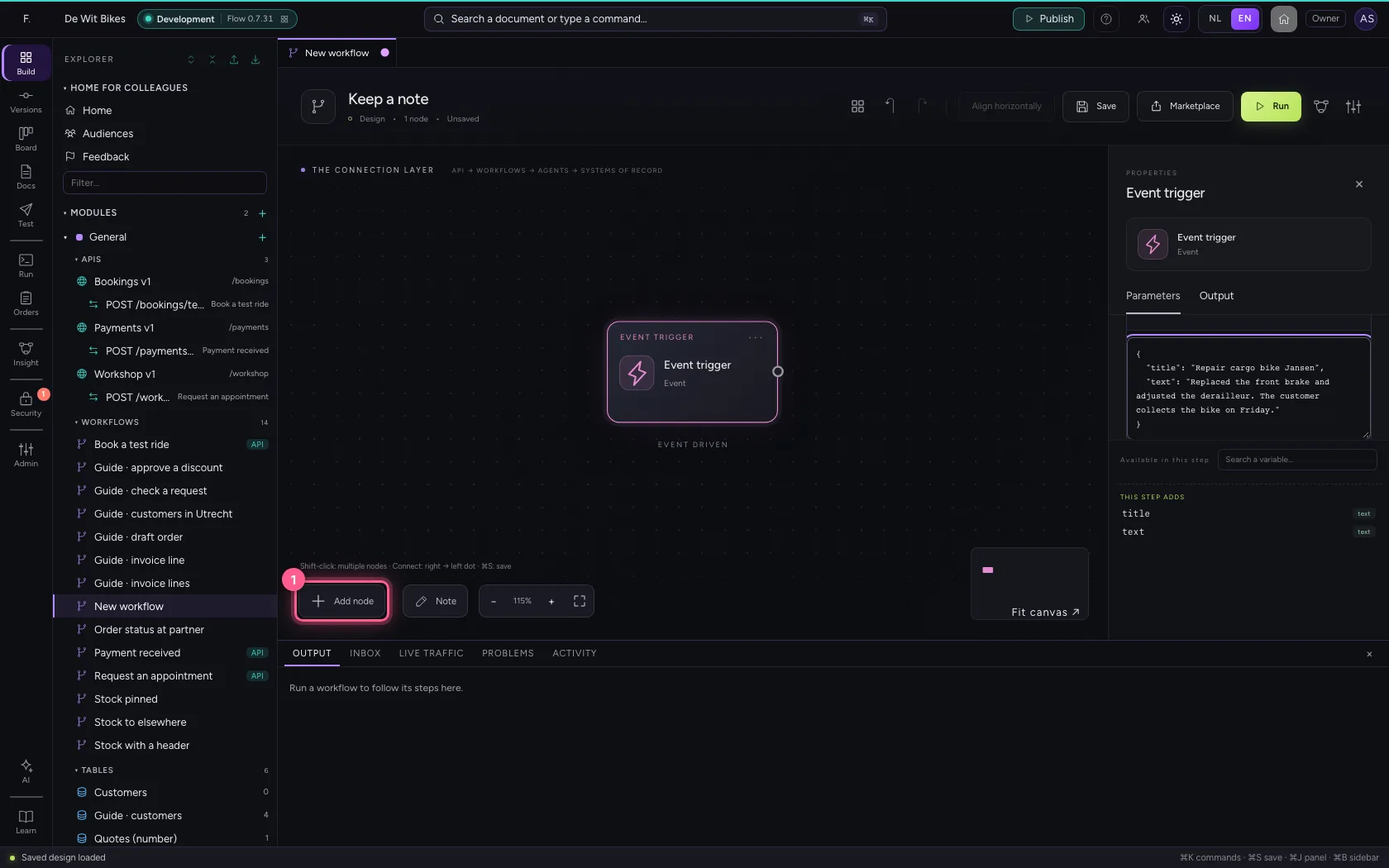
- Click Add node
- Click Add document to knowledge base
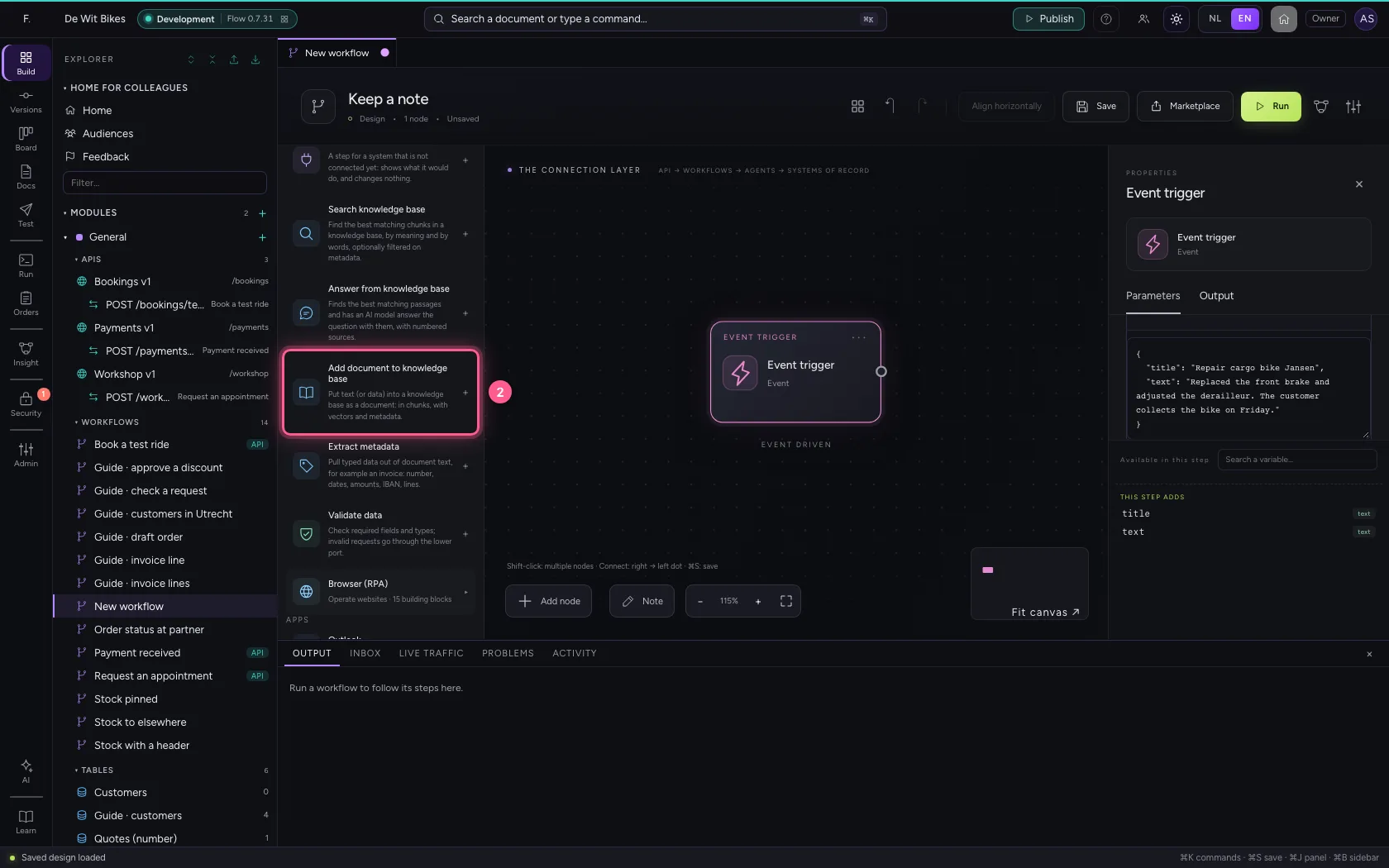
- In Knowledge base, choose Workshop notes · 0 documents
- In Document name, type
{{title}} - In Text or data, type
{{text}}
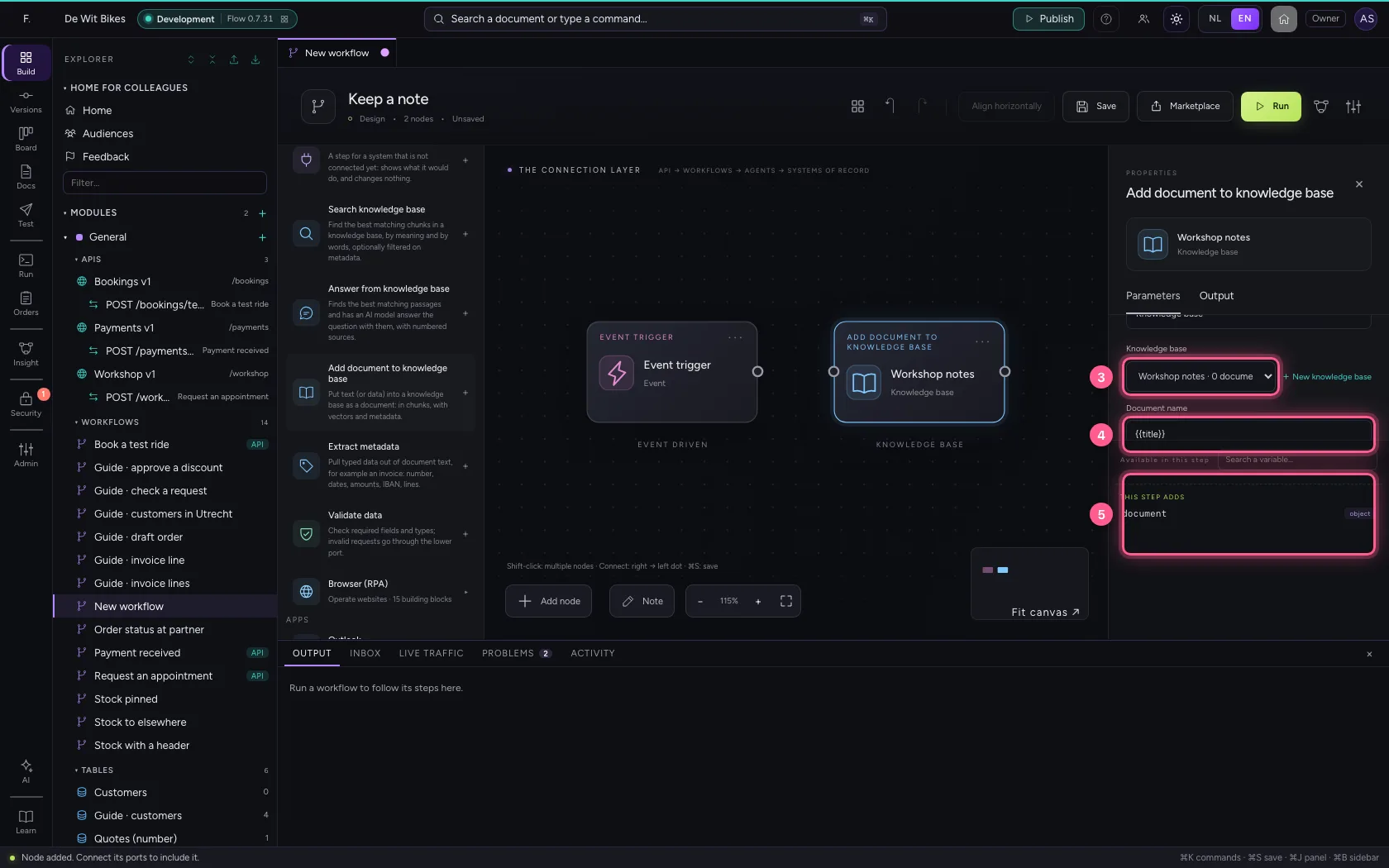
- Click the dot of ‘Event trigger’

- Click the dot of ‘Workshop notes’

Align, save and run
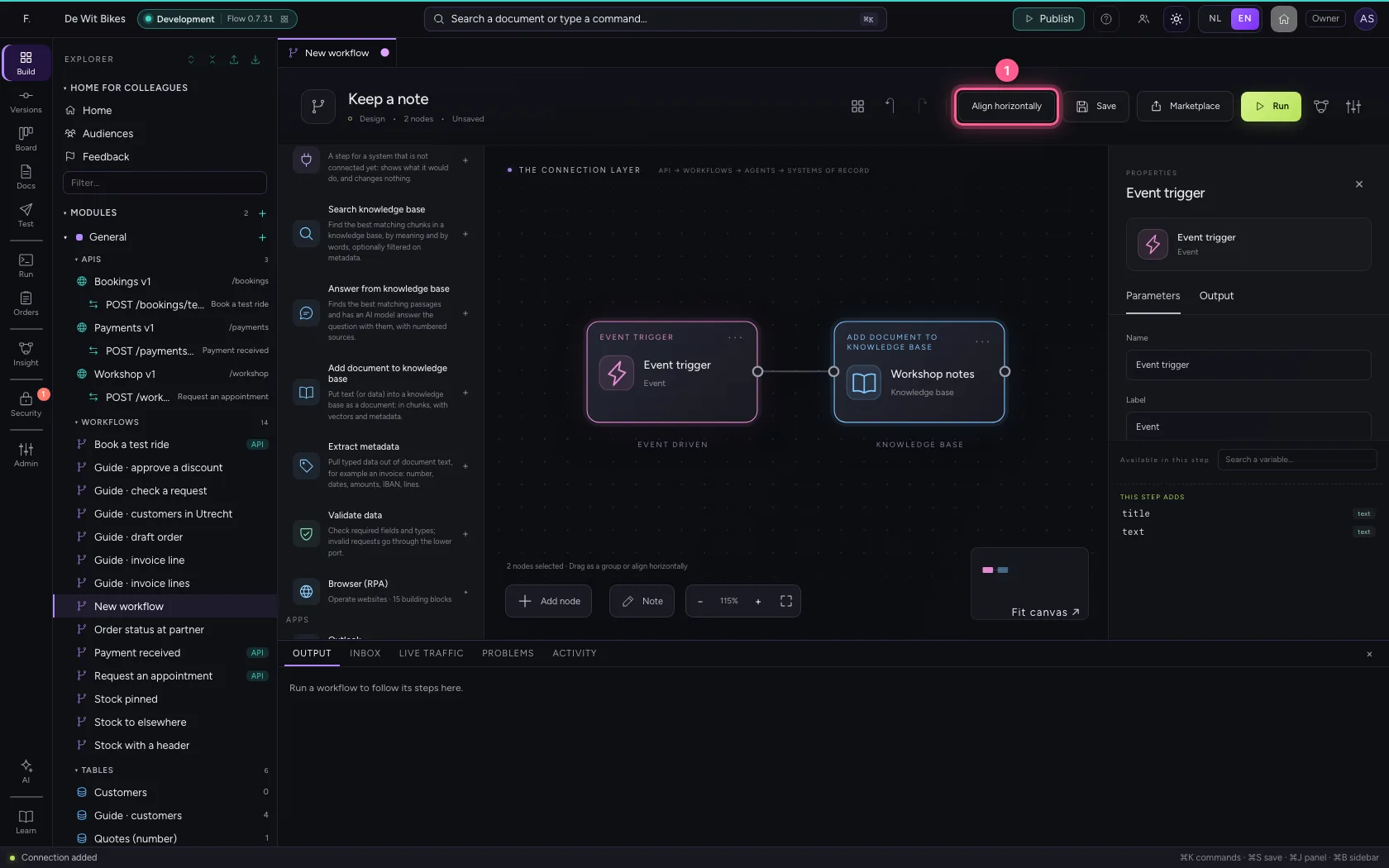
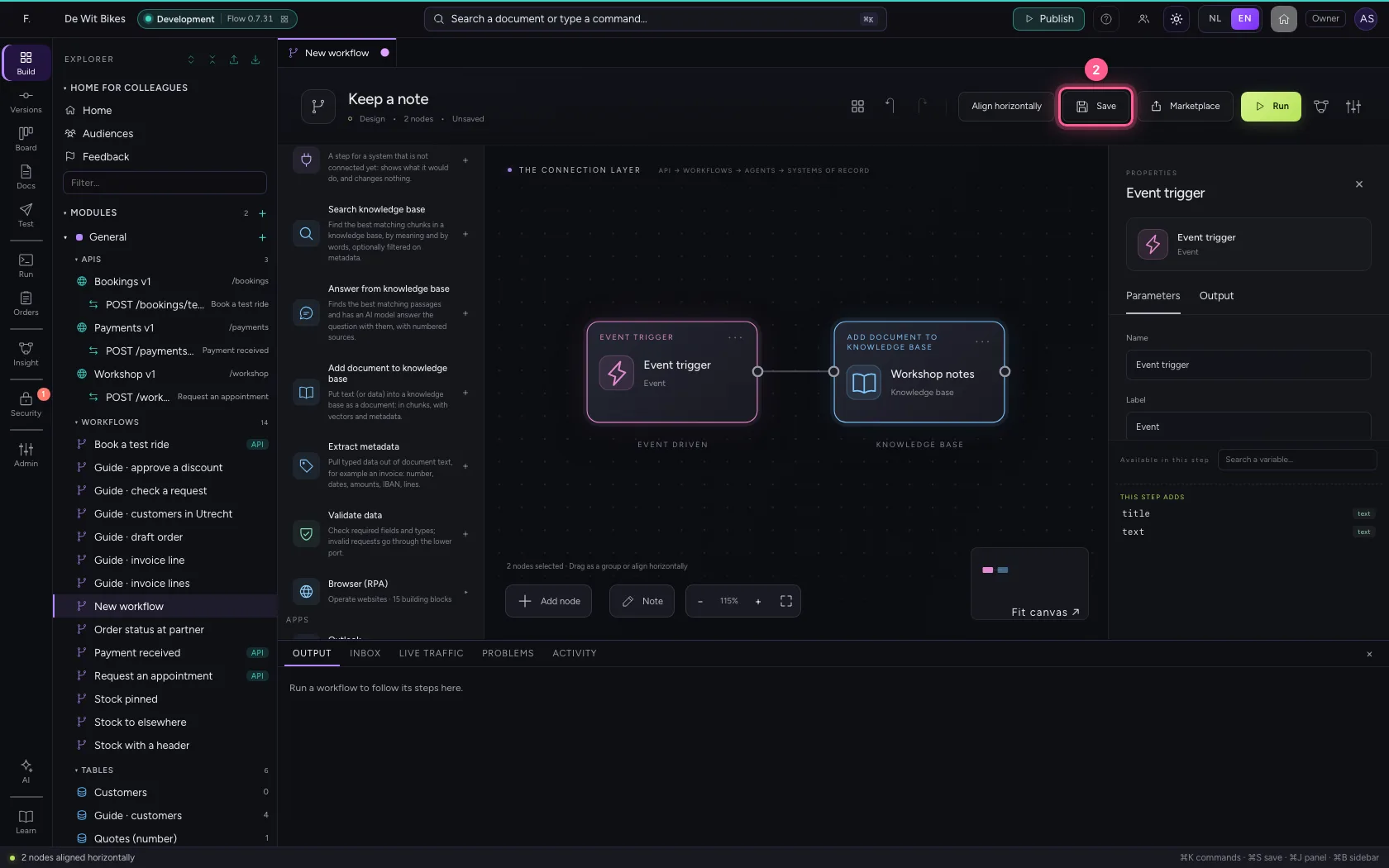
Align the steps, save and run. At the bottom you see that the document was added and into how many chunks Flow split it.
- Click Align horizontally
- Click Save
- Click Run

See it in the knowledge base
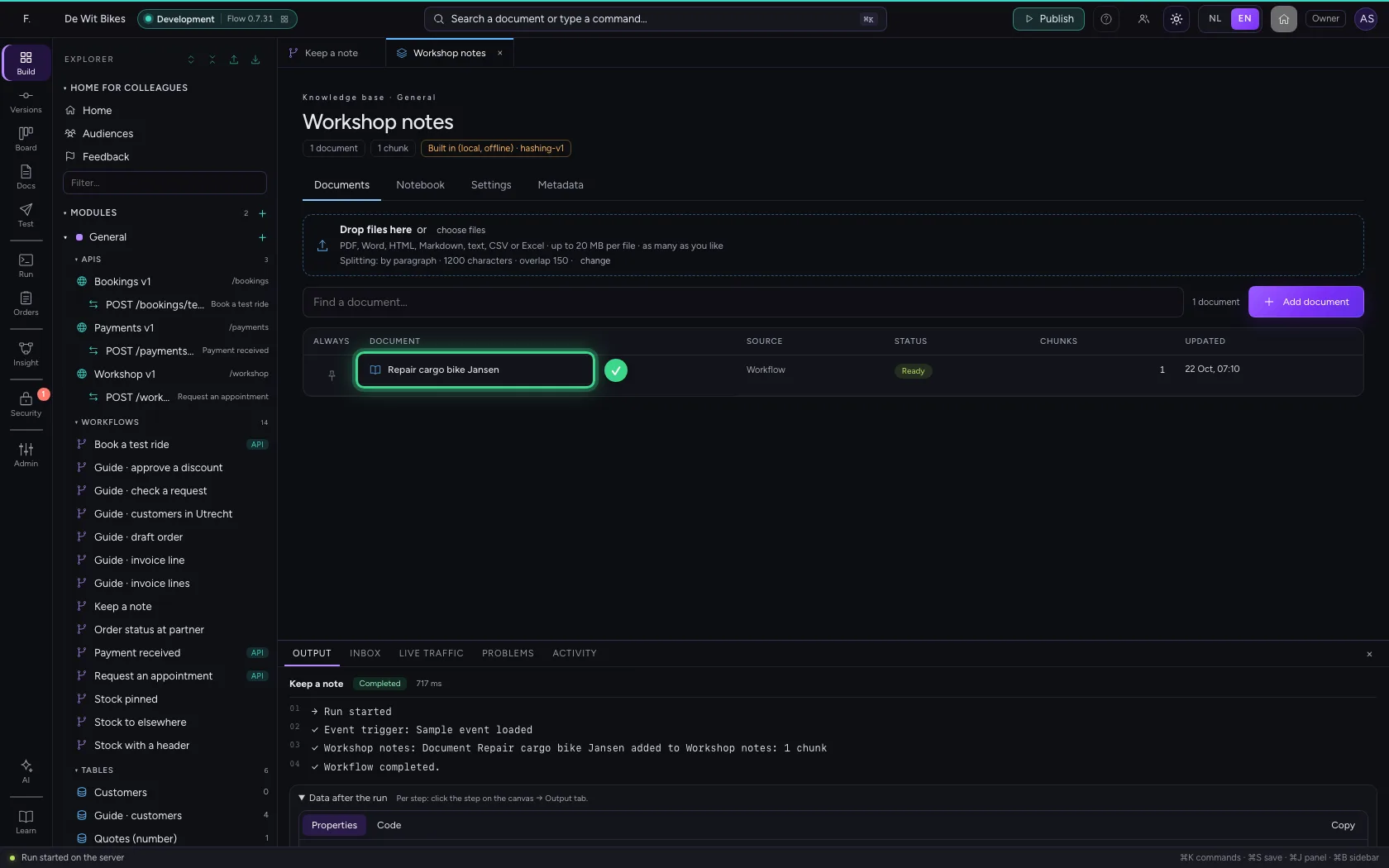
Click the step; Open knowledge base in its properties takes you to the knowledge base. Under Documents is the note, with the workflow as its source: searchable for agents and other workflows.
- Click the step ‘Workshop notes’

- Click Open knowledge base ↗

This guide was carried out step by step on 22 Oct 2026 by an automated test on Flow (version 3e563176).