Showing browser-step screenshots to the person who starts the workflow
A workflow with browser steps operates a website like a person. Whoever starts it with a button on a dashboard or through an AI Colleague in the chat wants to see what happened. Switch on ‘Show screenshots to the person who starts it’ in the browser session: the screenshots then appear in the editor per step, live under the button, on a tile and under the answer in the chat. Only the person who started the run sees them, never through an open link, and every time someone looks at one, it is in the audit log.
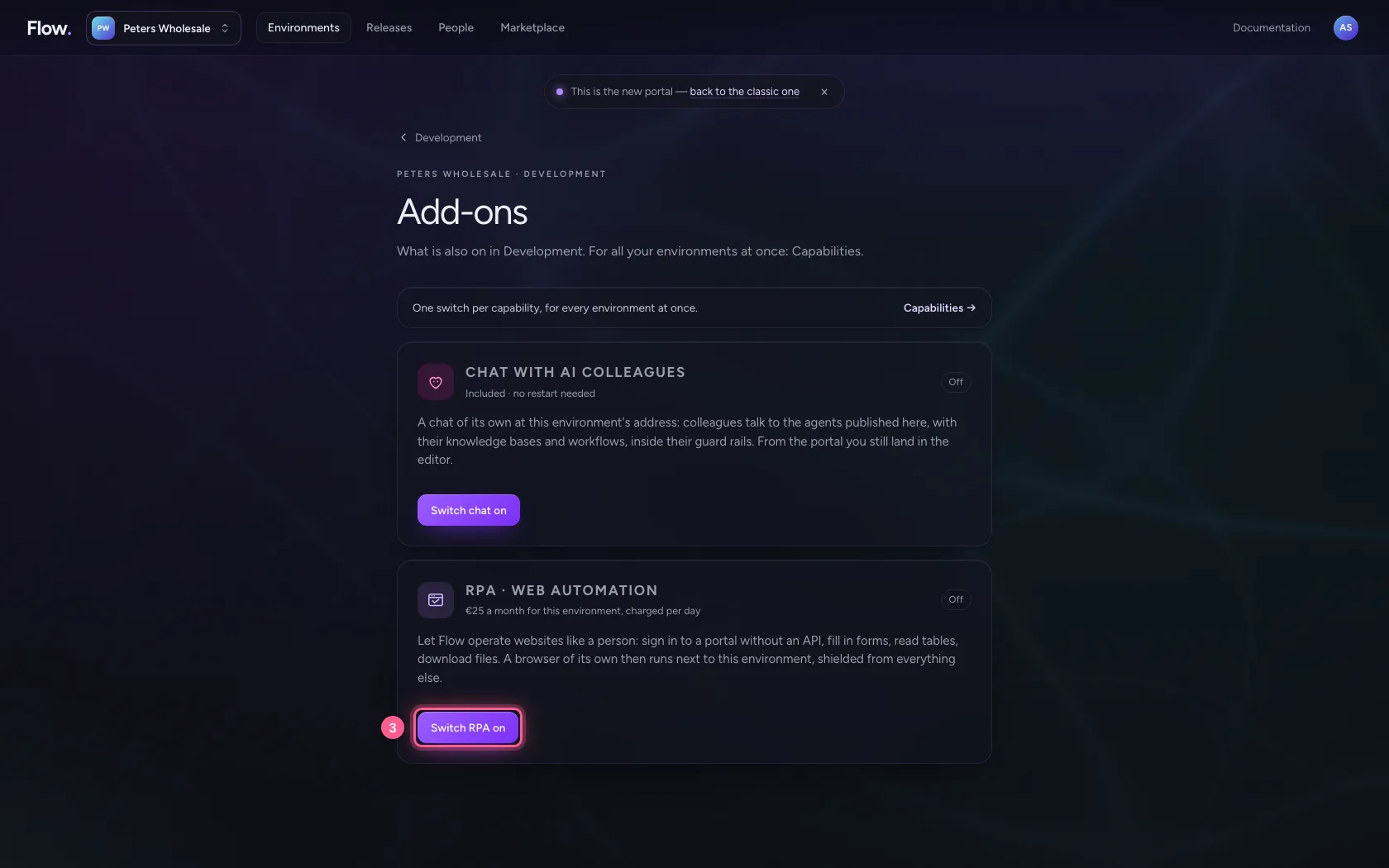
Switch RPA on and open Flow
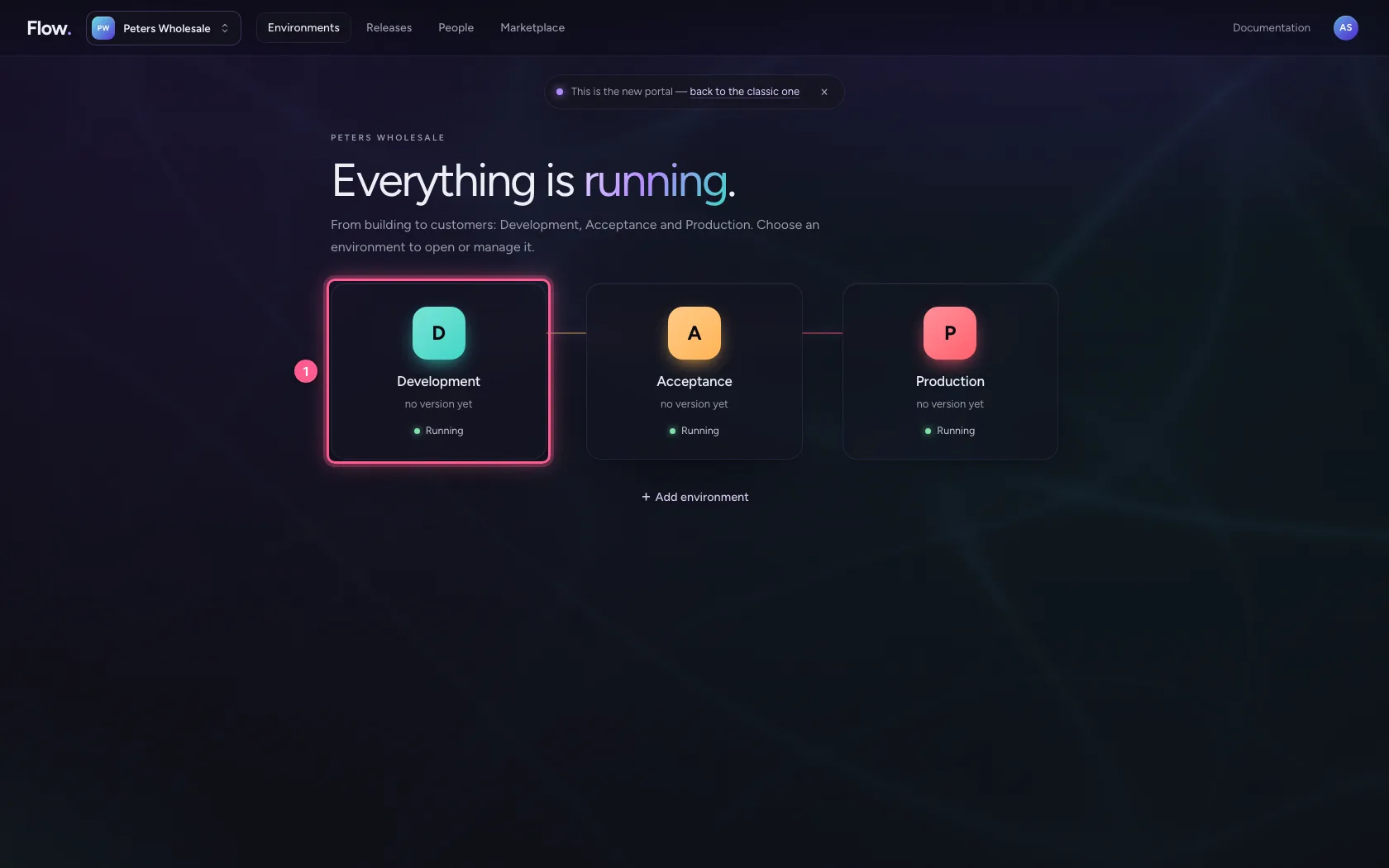
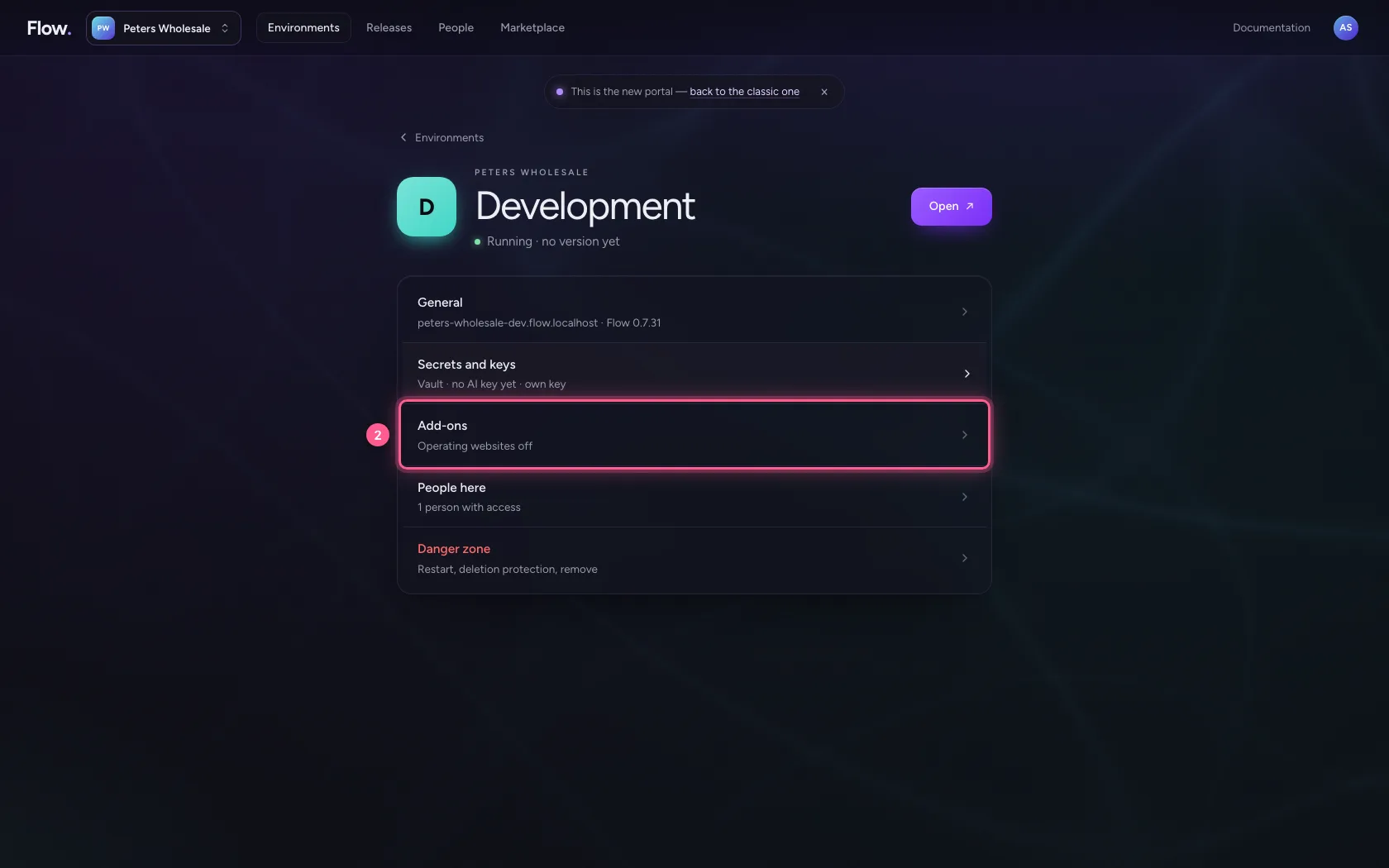
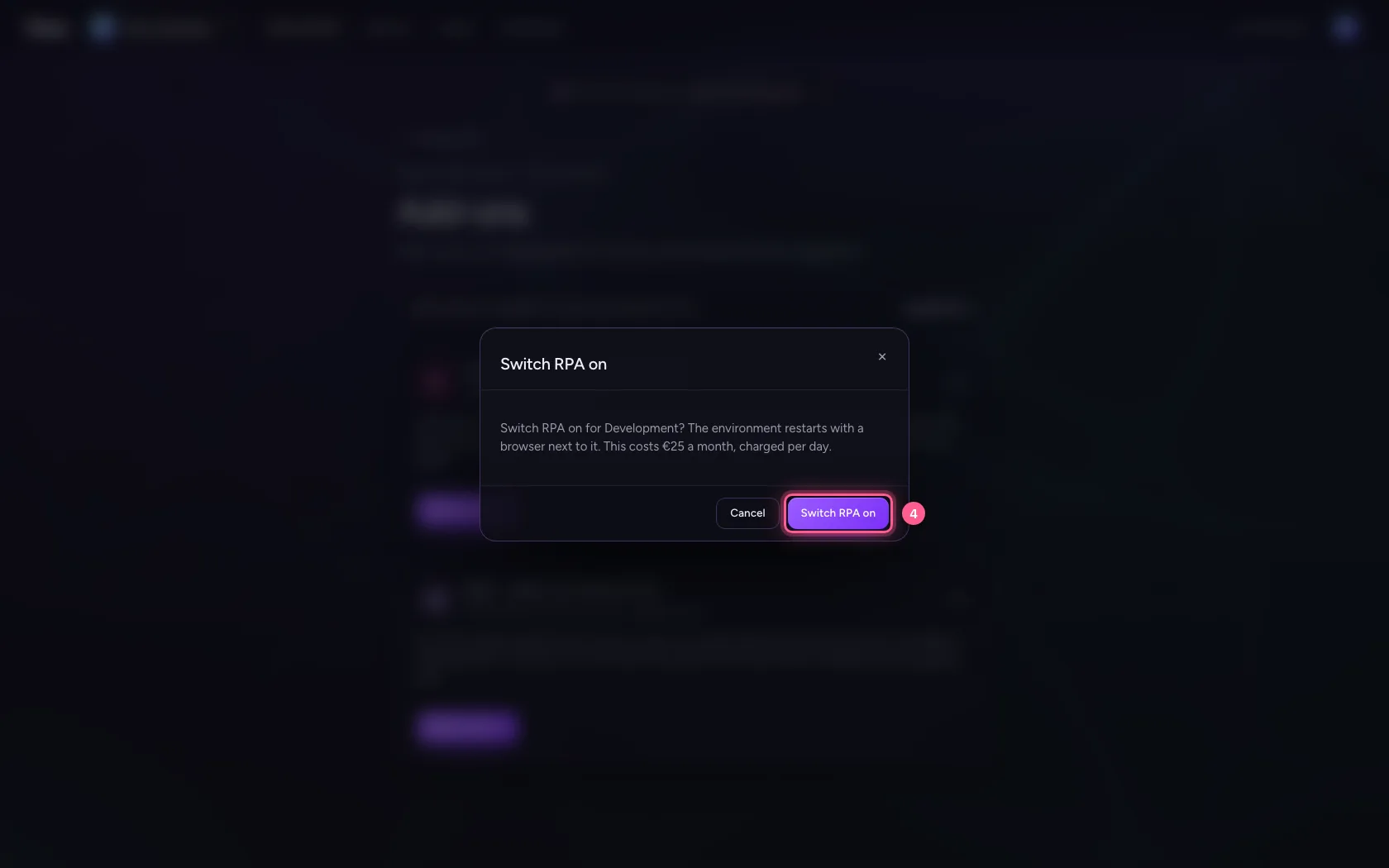
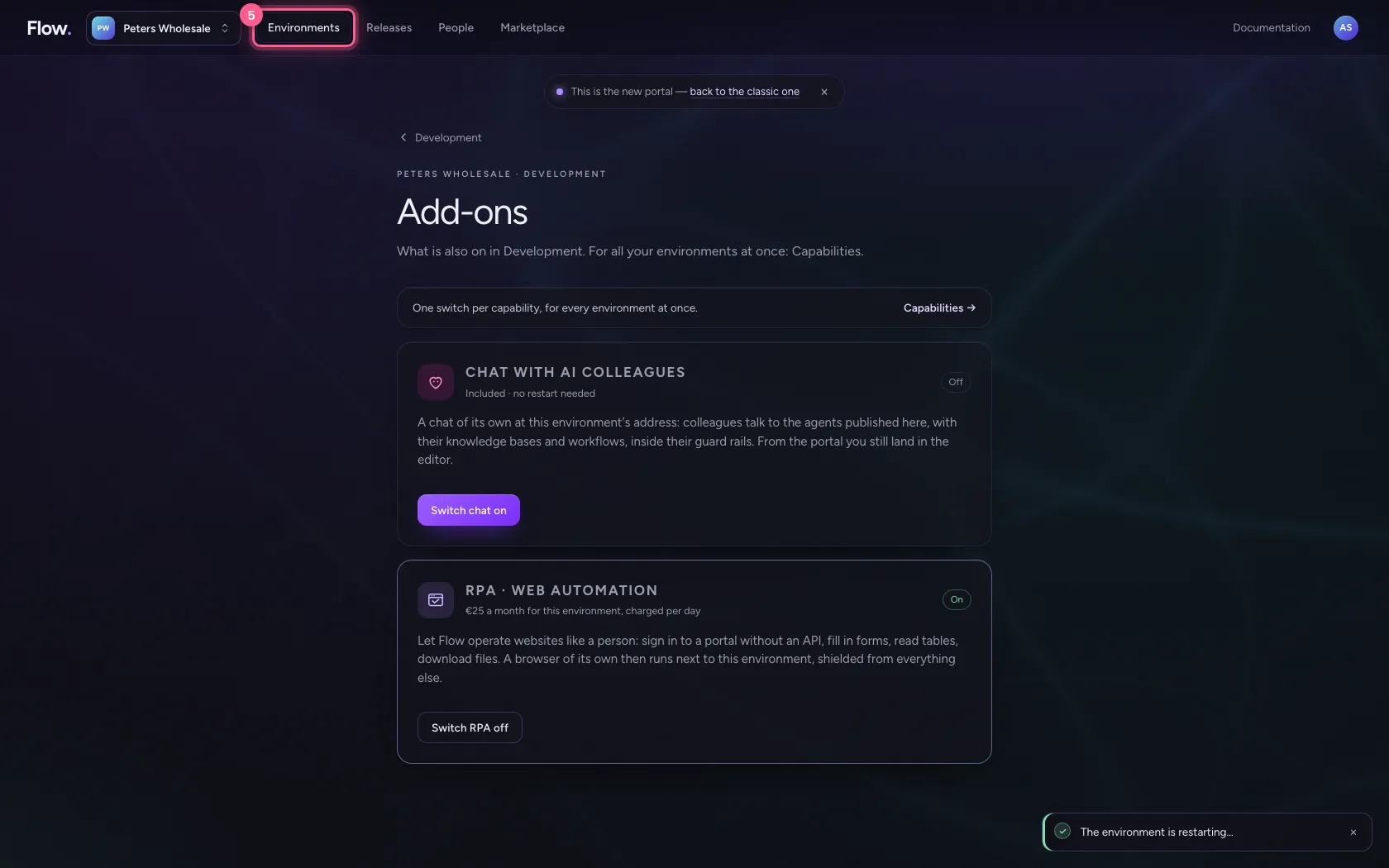
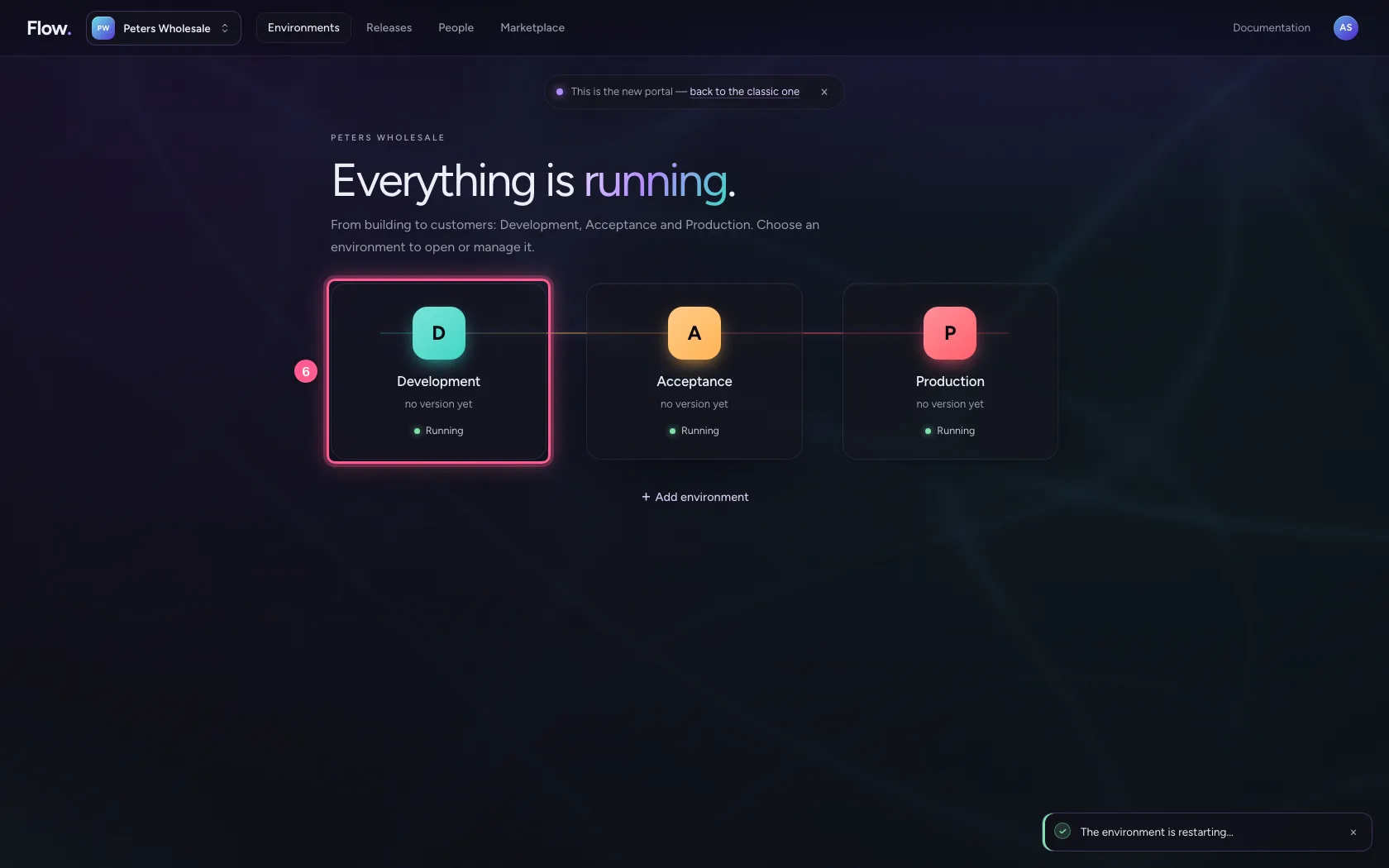
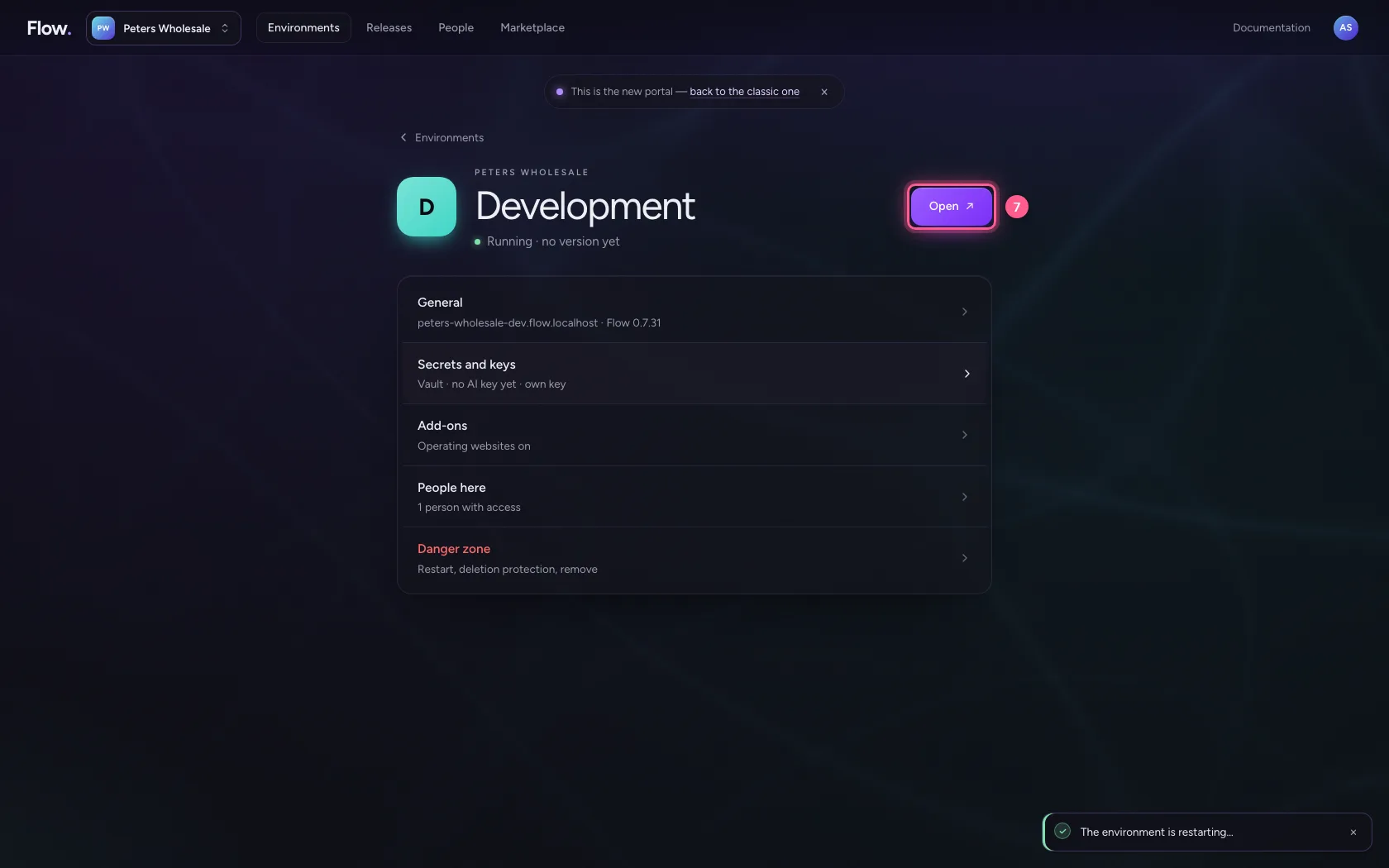
Browser steps need the RPA add-on: in the portal, under Environments, click Development and choose Add-ons. The environment then restarts; back under Environments, Development and Open take you into Flow. (Under Capabilities you switch it on for all your environments at once.)
- Click Development
- Click Add-ons Operating websites off
- Click Switch RPA on
- Click Switch RPA on
- Click Environments
- Click Development
- Click Open ↗
Switch the screenshots on for whoever starts it
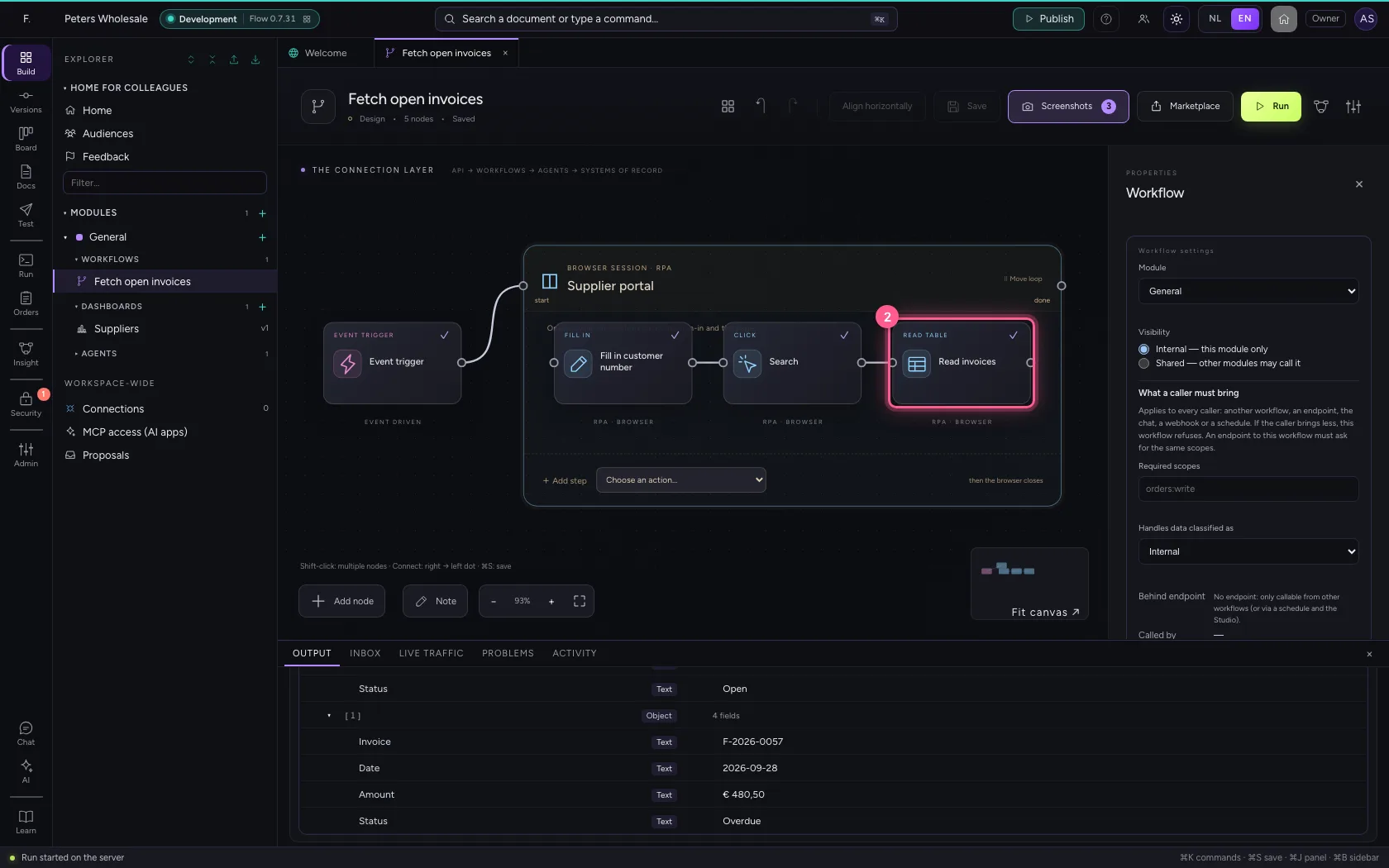
Open the workflow and click the browser session. ‘Show screenshots to the person who starts it’ is off by default: a screenshot shows everything the browser saw. Switch it on when that is fine for the people who start the workflow, and save.
- Click Fetch open invoices
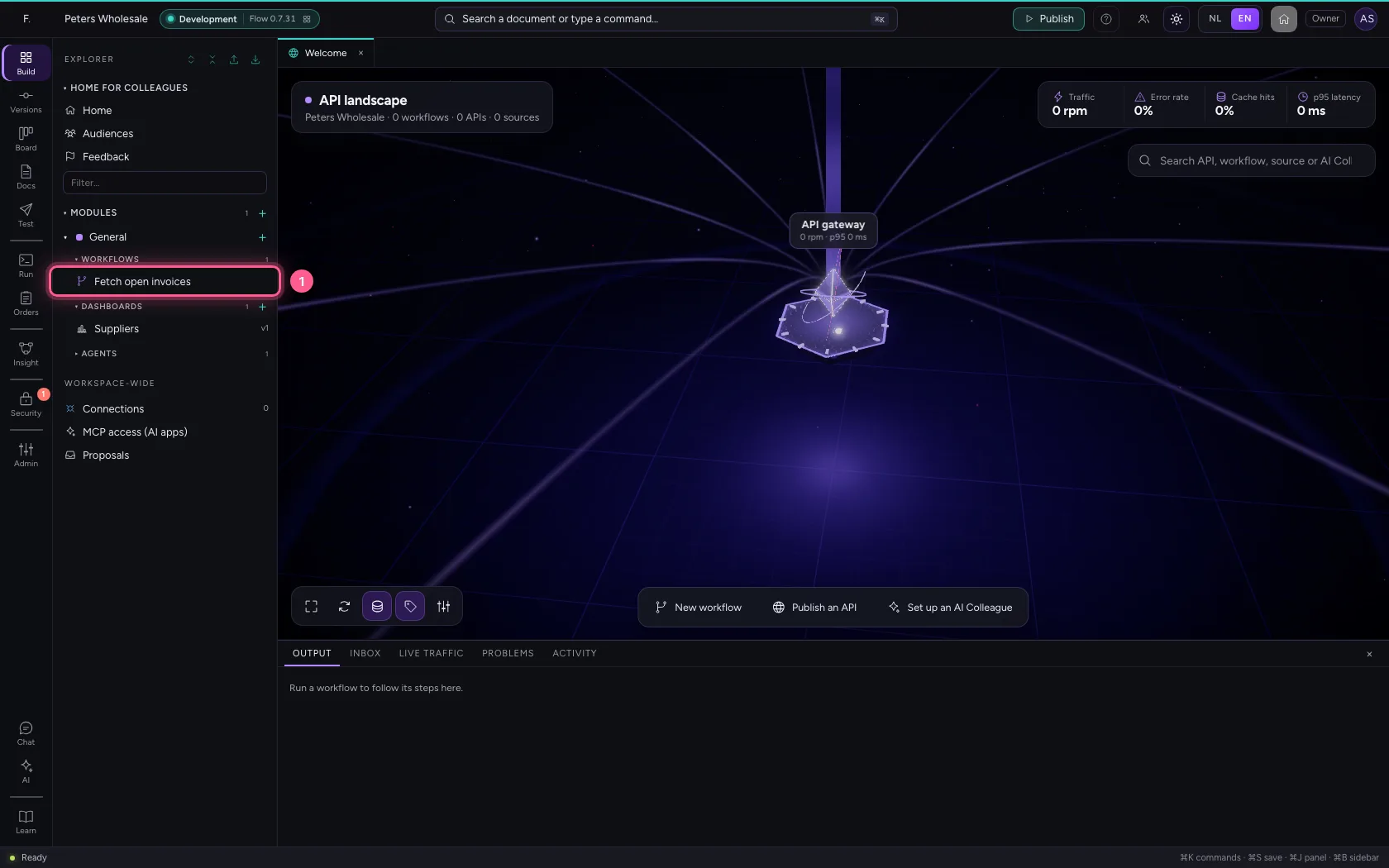
- Click the browser session
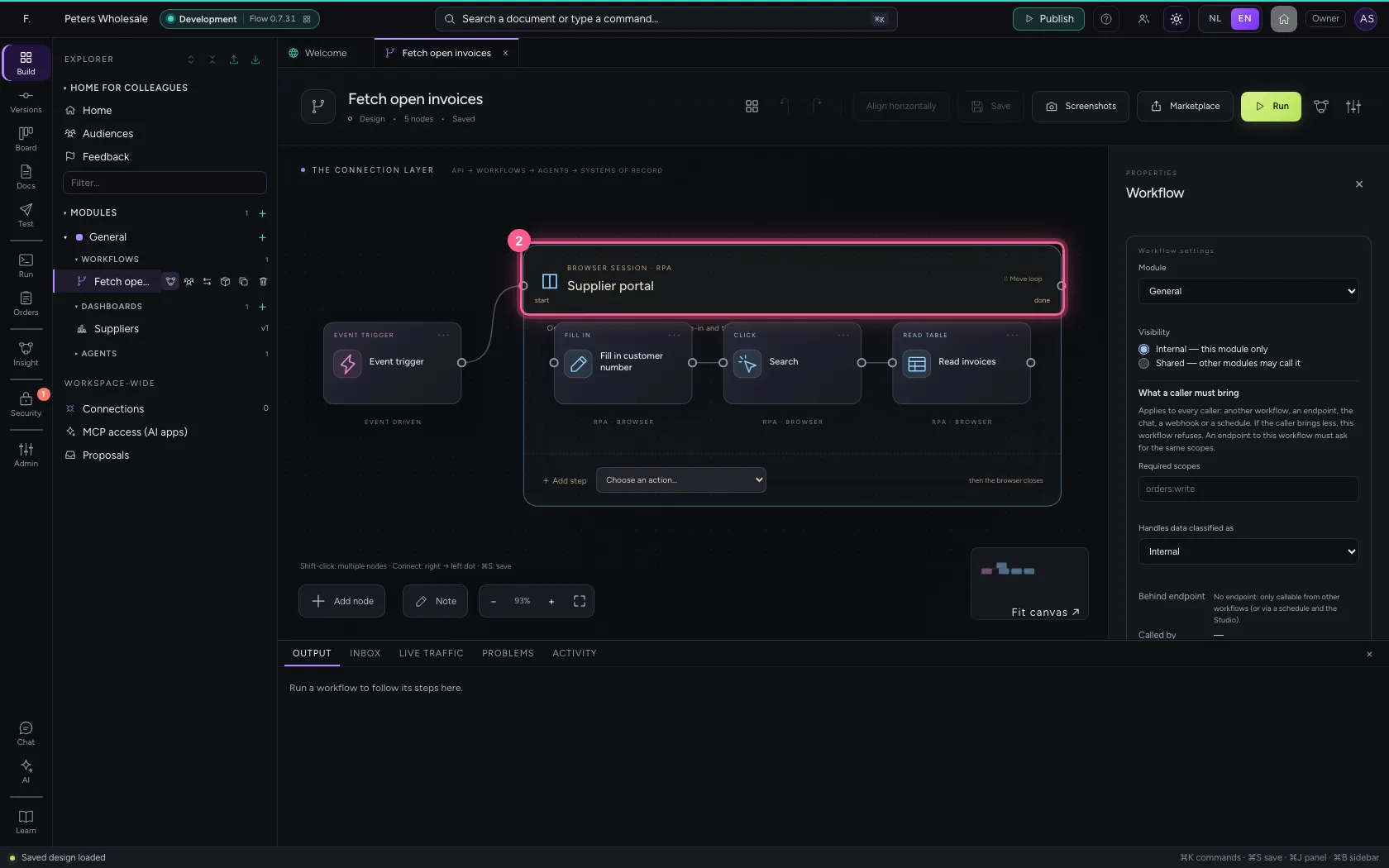
- Click Show screenshots to the person who starts it
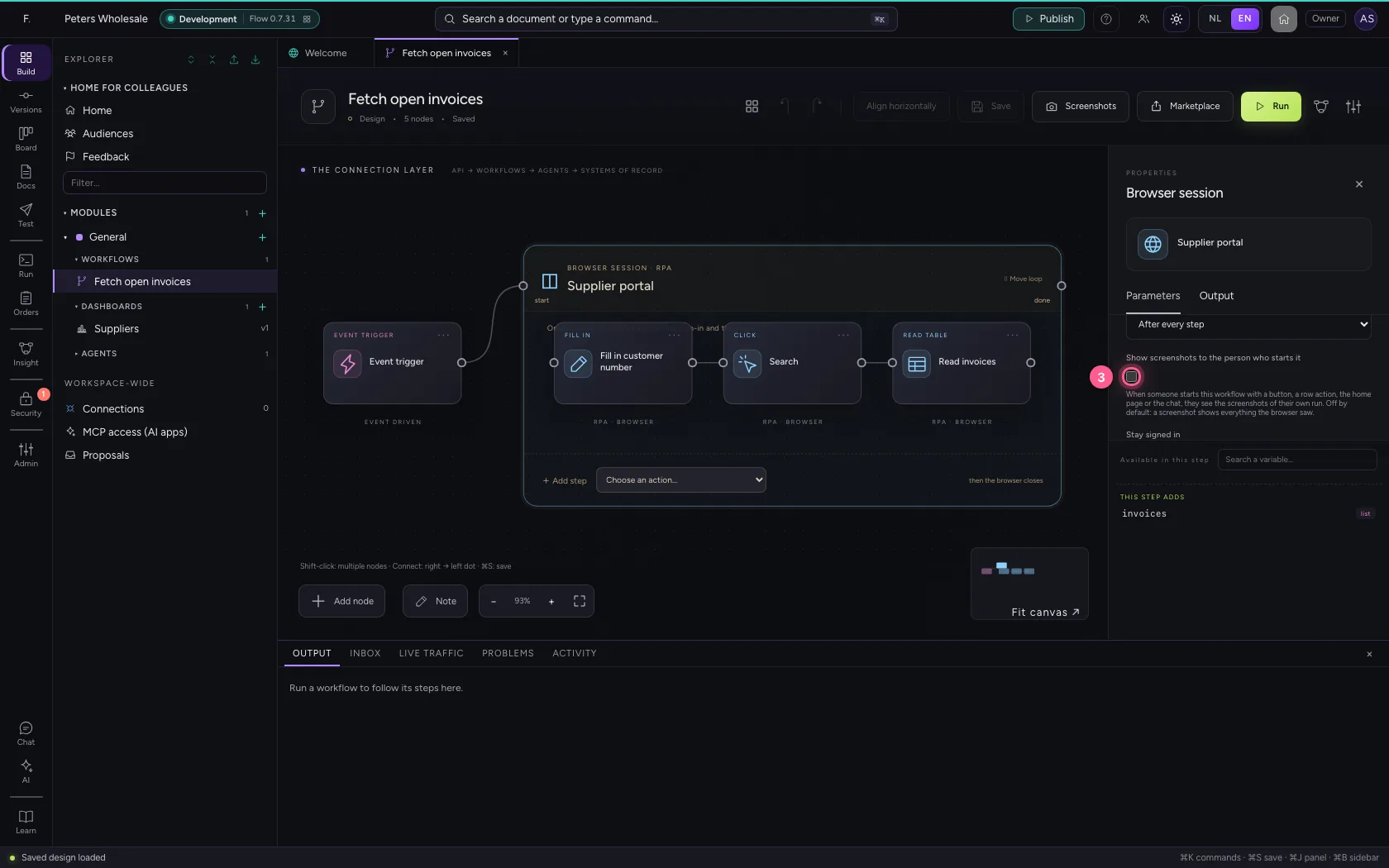
- Click Save
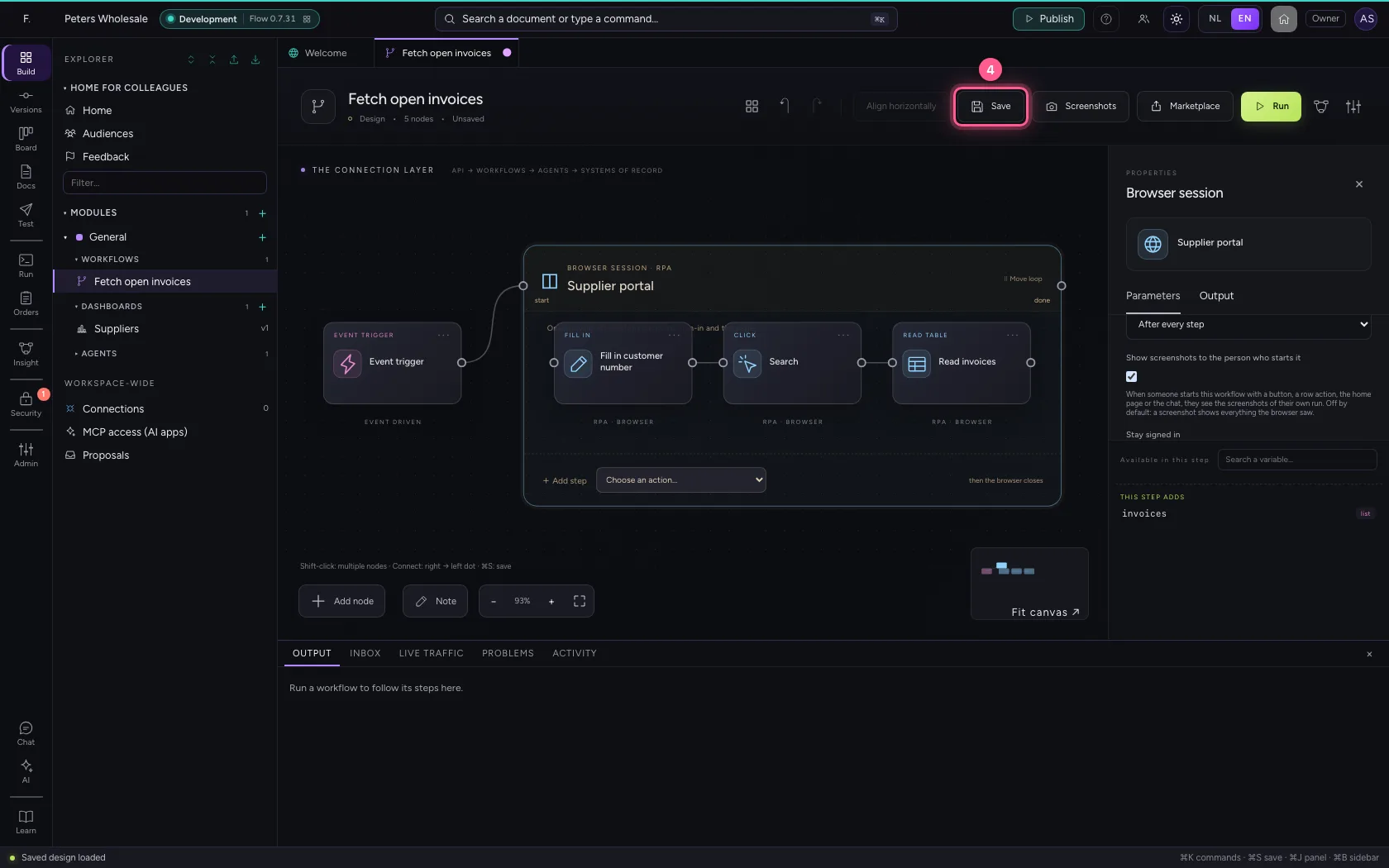
Run it and look at the filmstrip per step
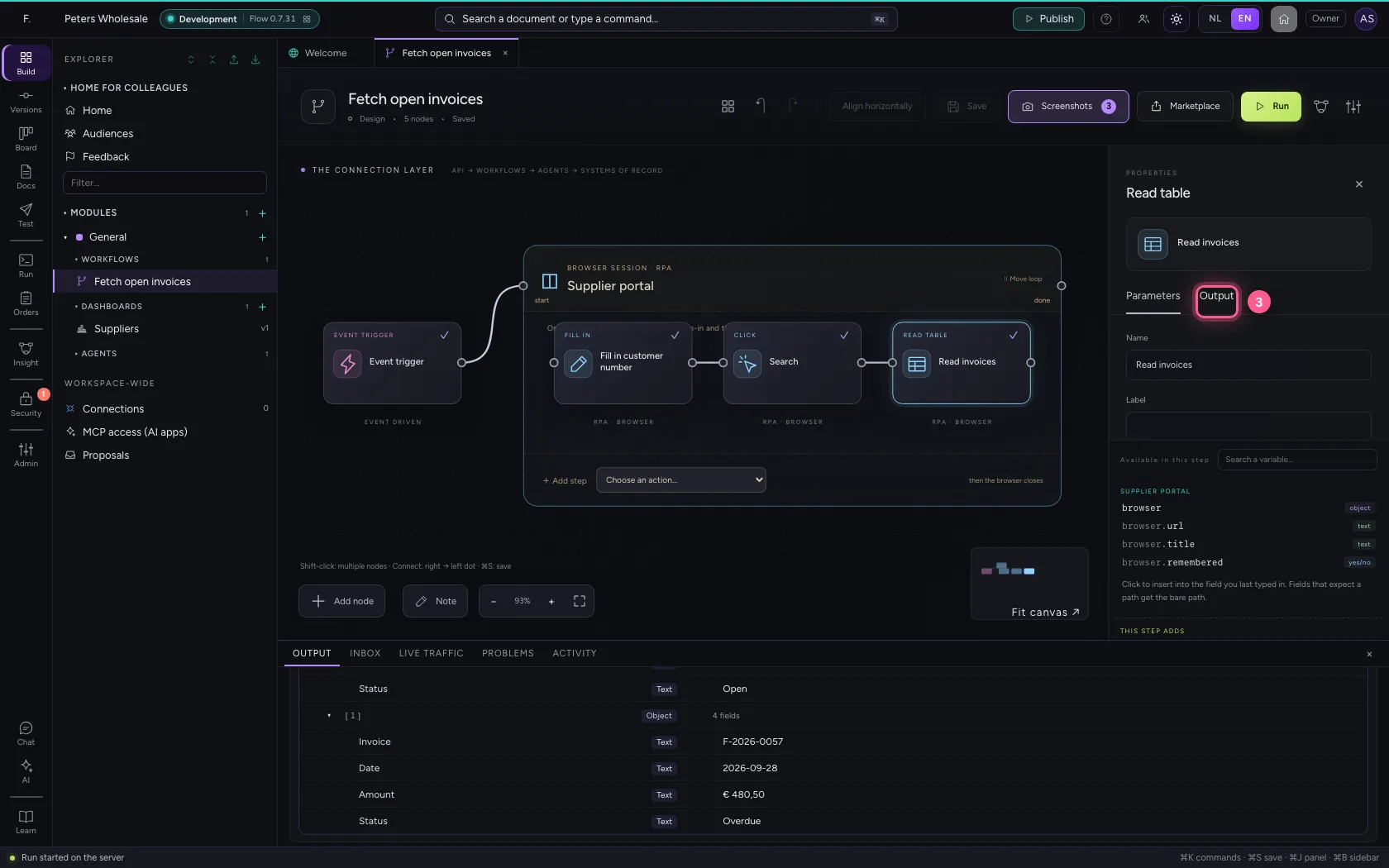
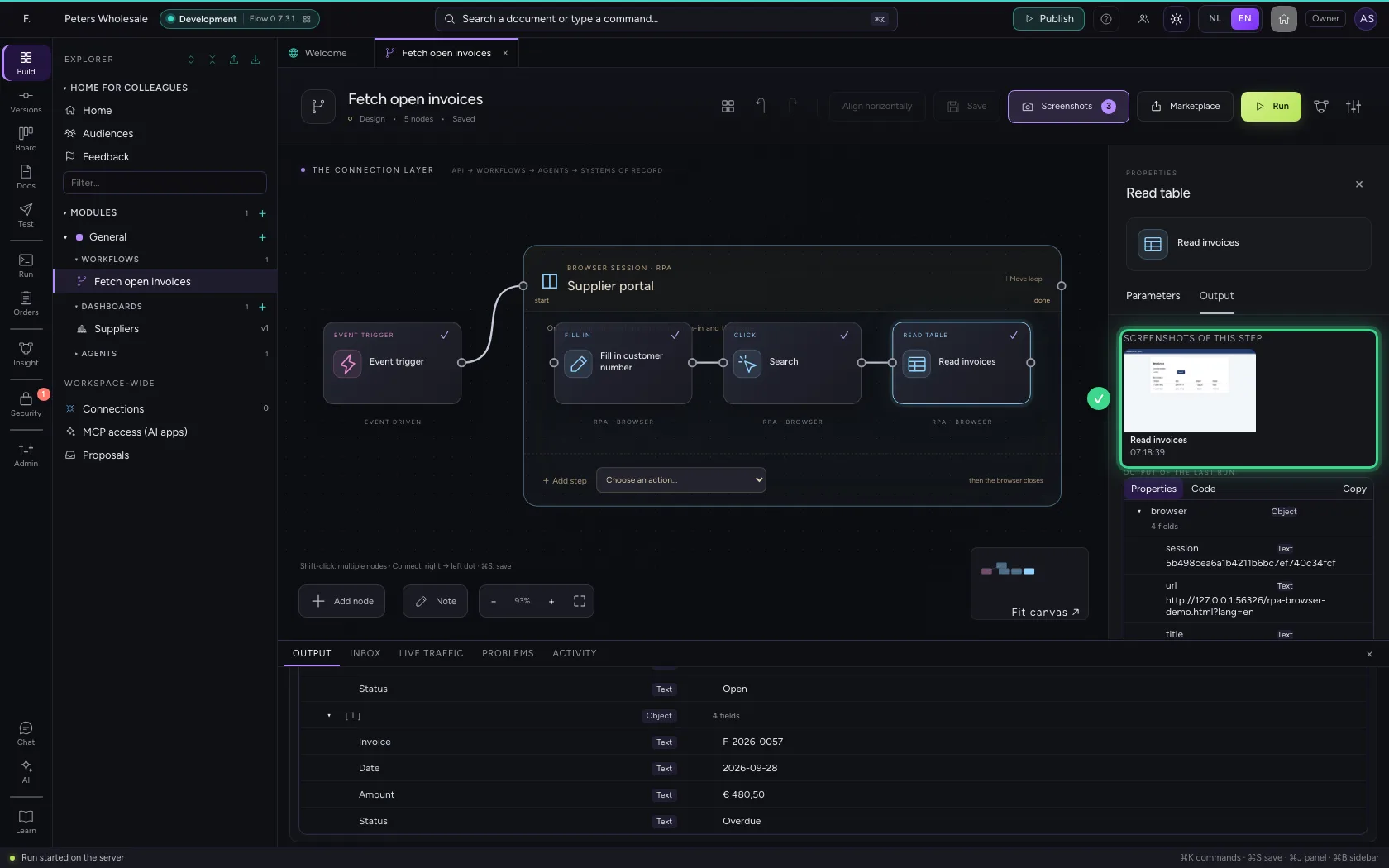
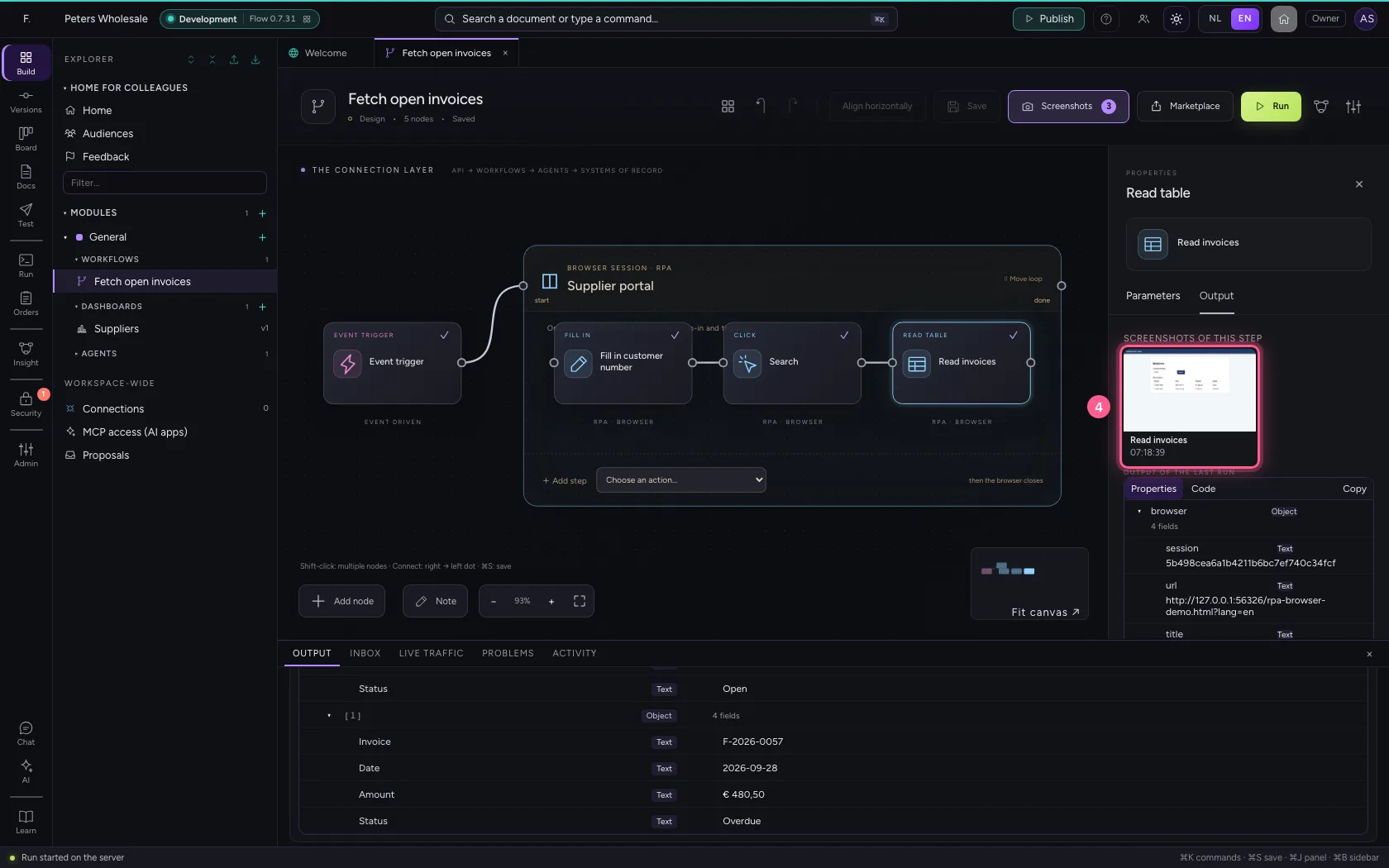
Run the workflow. At the bottom in Output every browser step shows its screenshot right away. Click a step and choose the Output tab: there are the screenshots of that step, with the time. Click one to see it large; ← → browses, zoom in shows it at actual size.
- Click Run
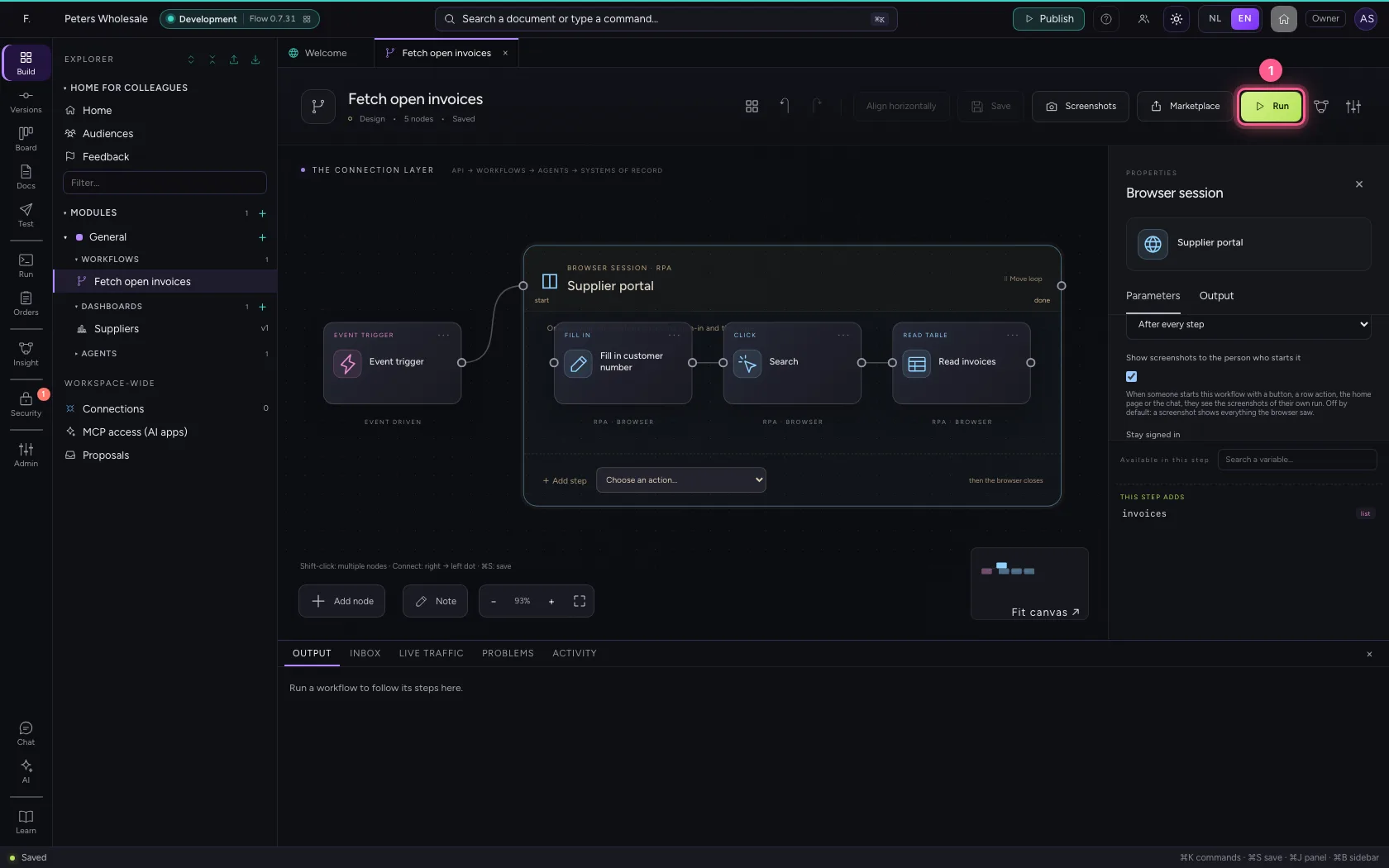
- Click Read invoices
- Click Output
- Click the screenshot
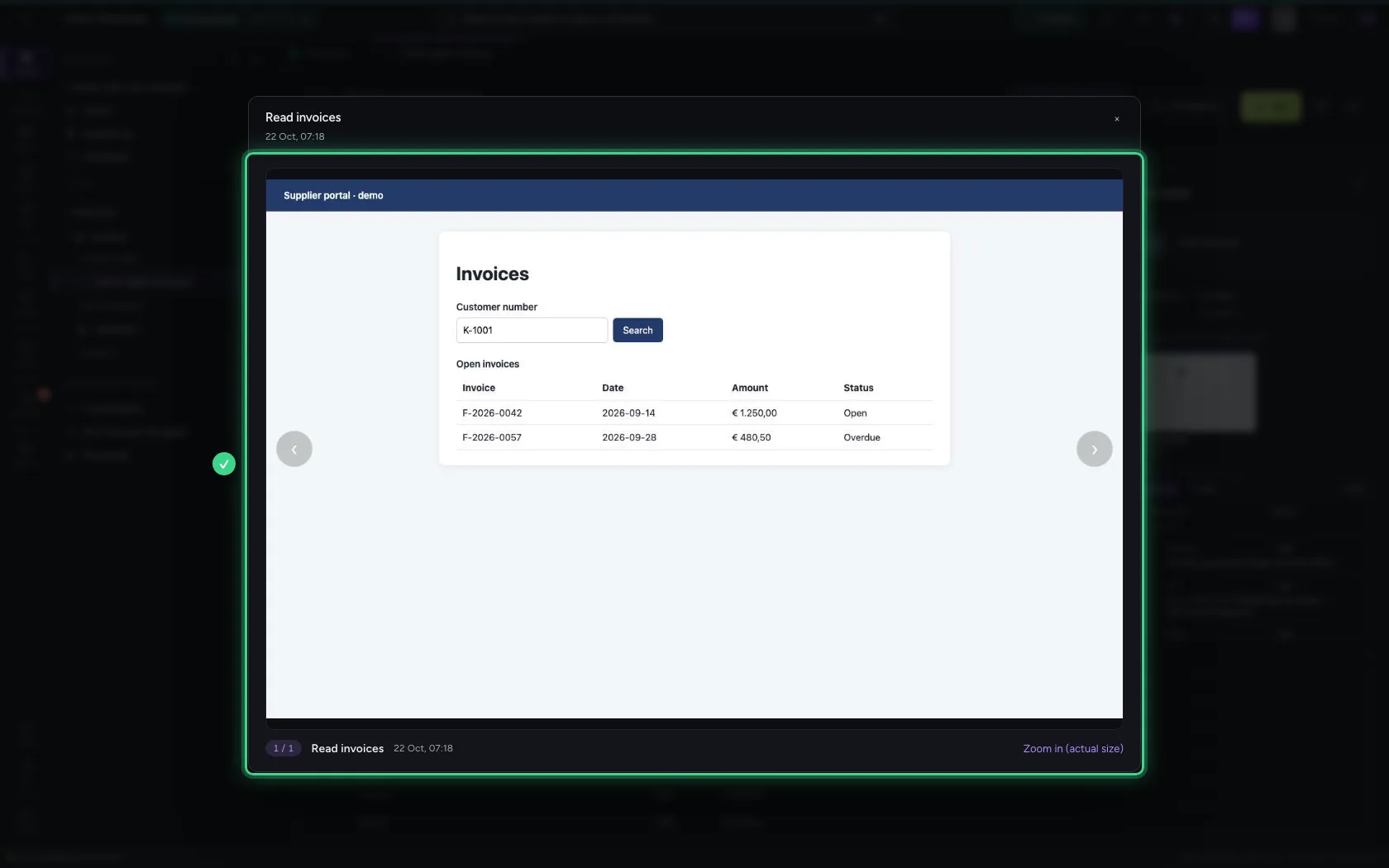
Press the button on the dashboard
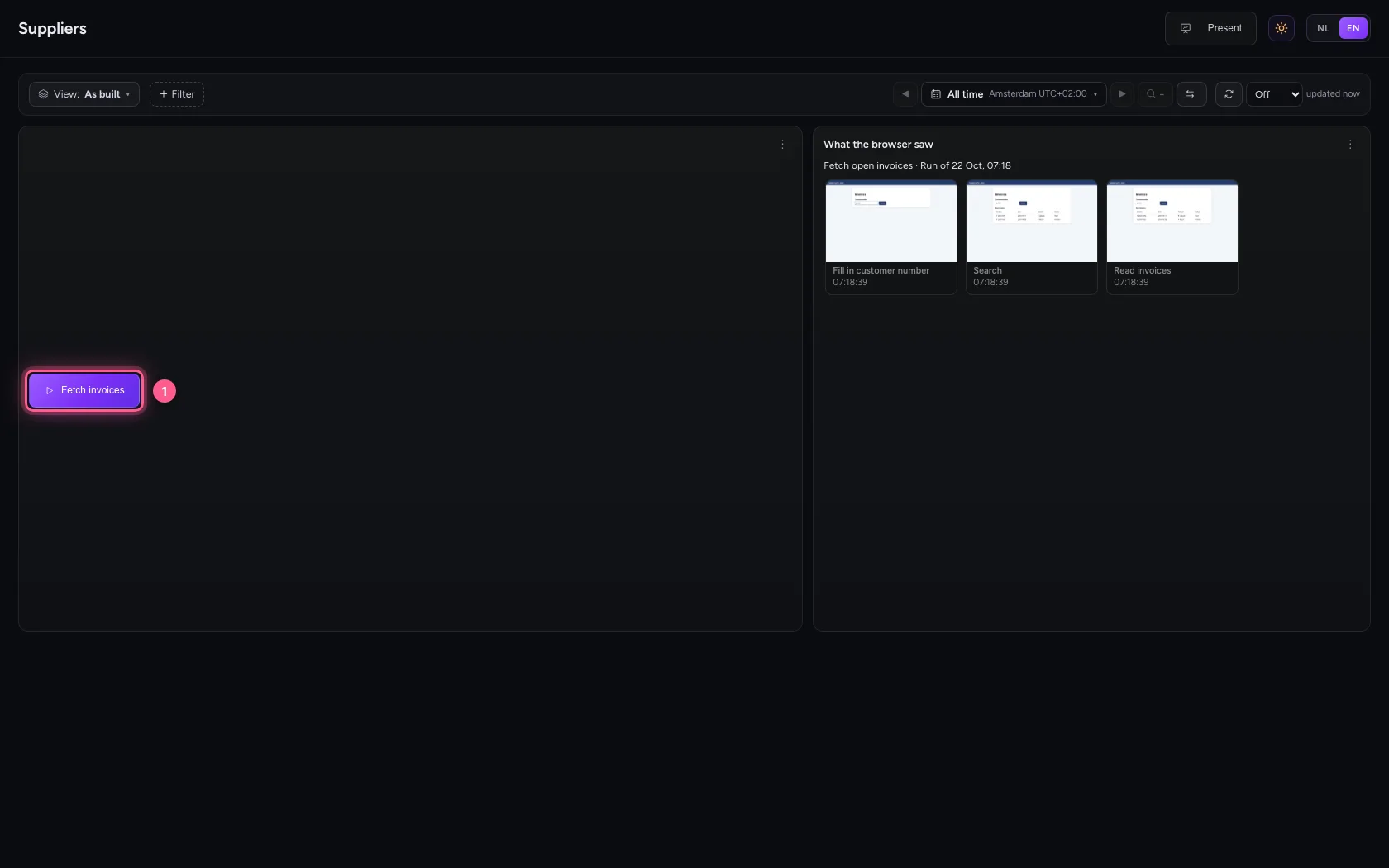
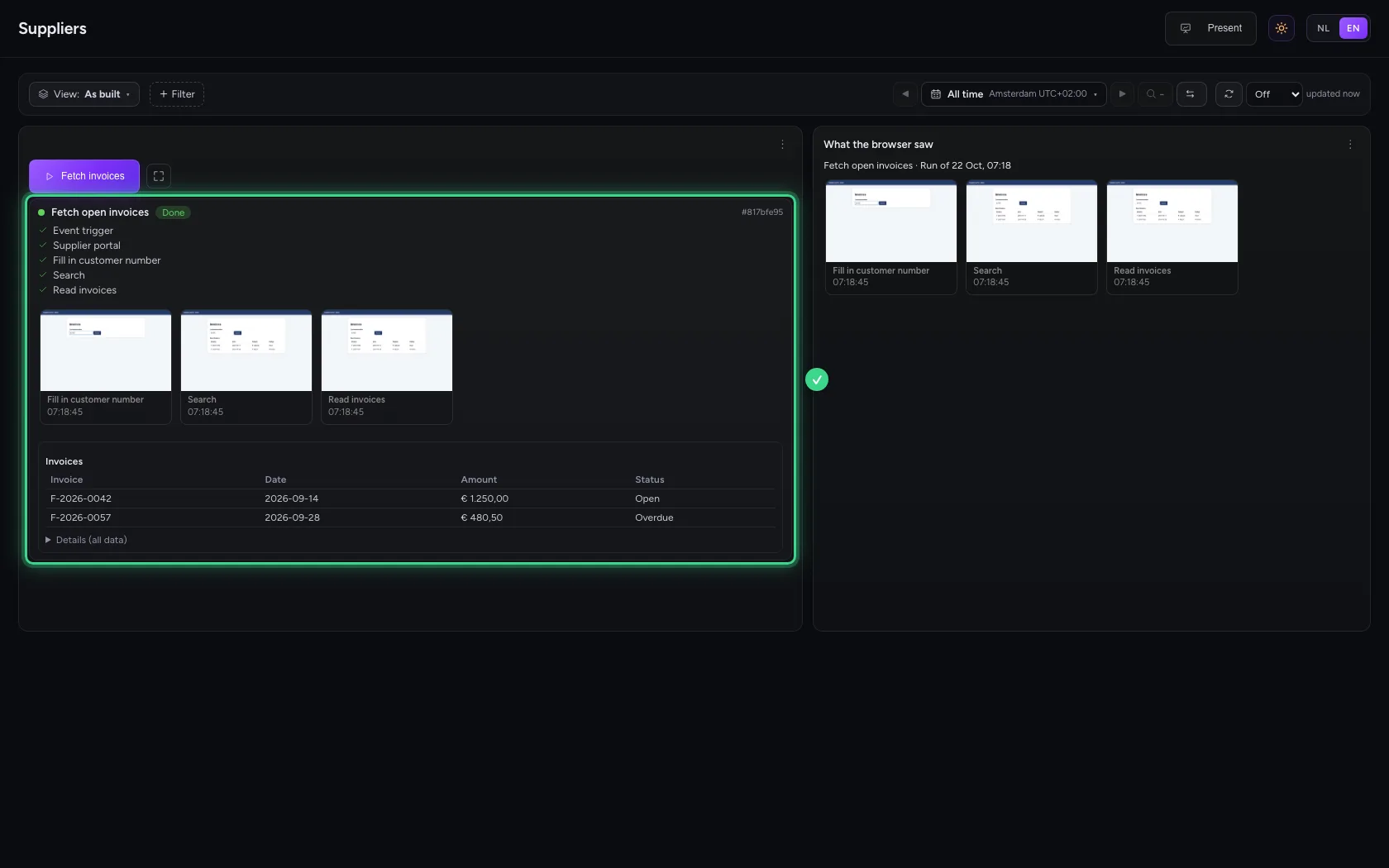
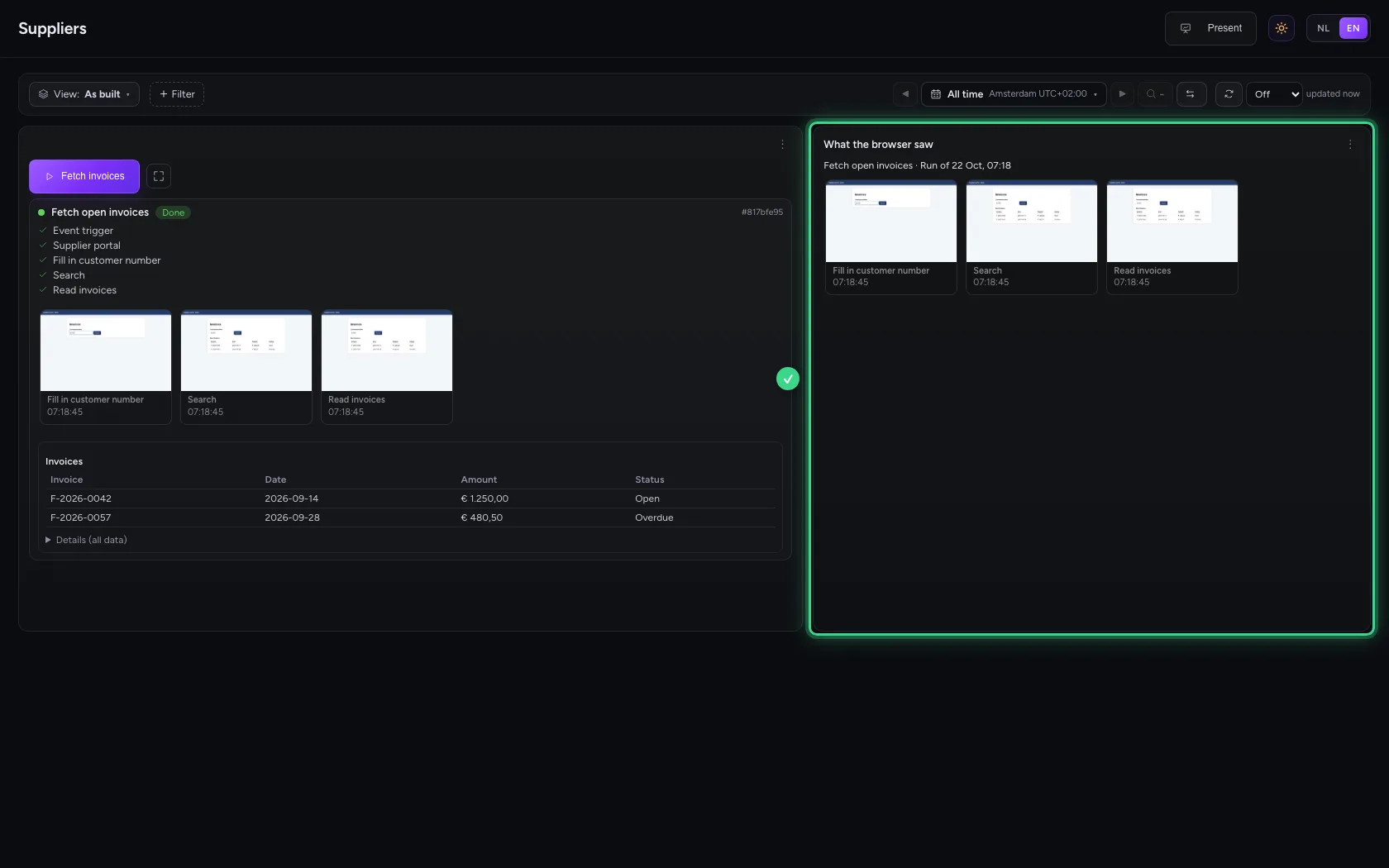
On the dashboard the button starts the same workflow, for you. Under the button you see the steps run and the screenshots arrive as soon as they are taken; then the answer as a table. The tile next to it shows the screenshots of your latest run.
- Click Fetch invoices
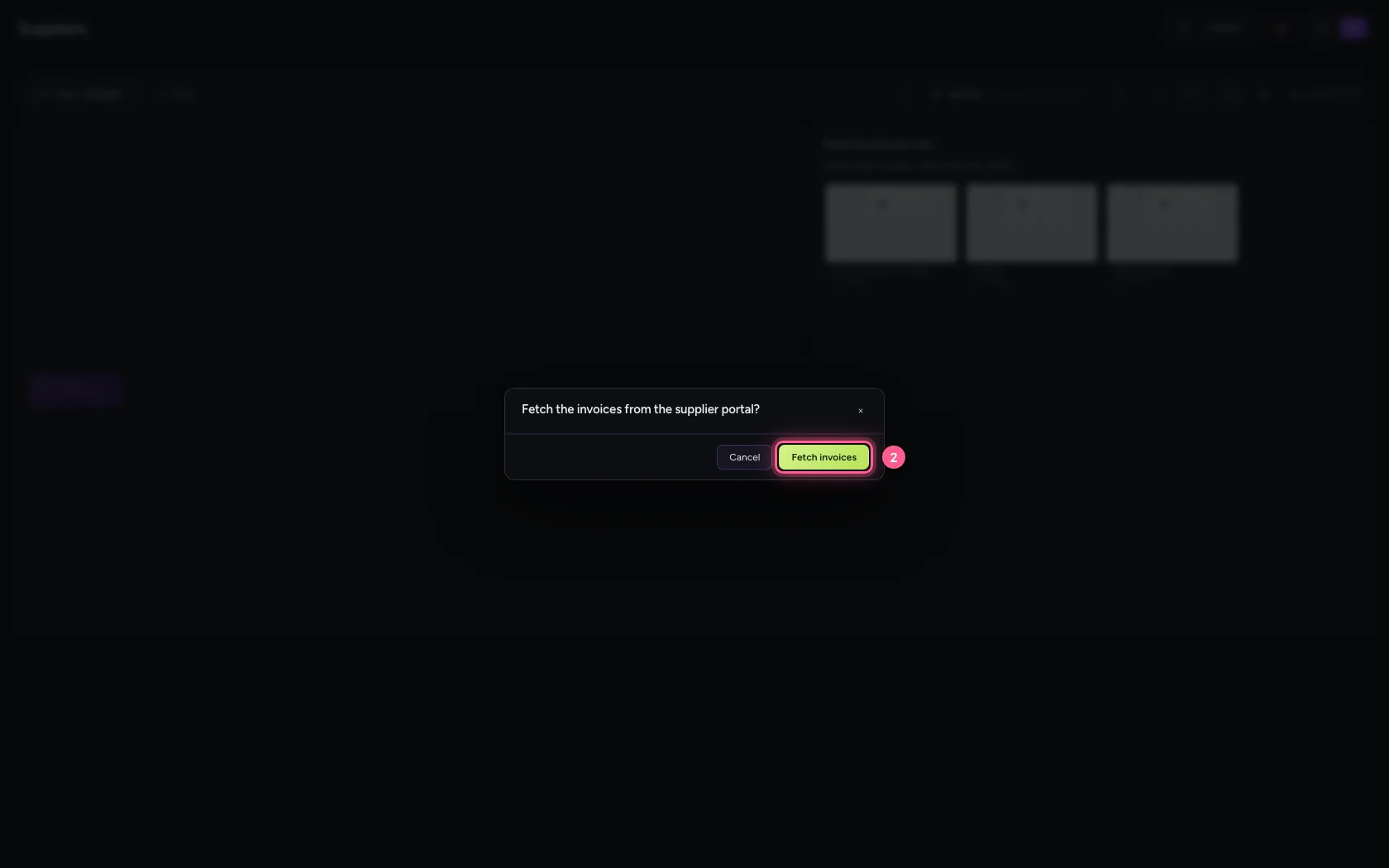
- Click the confirmation
Ask your AI Colleague in the chat
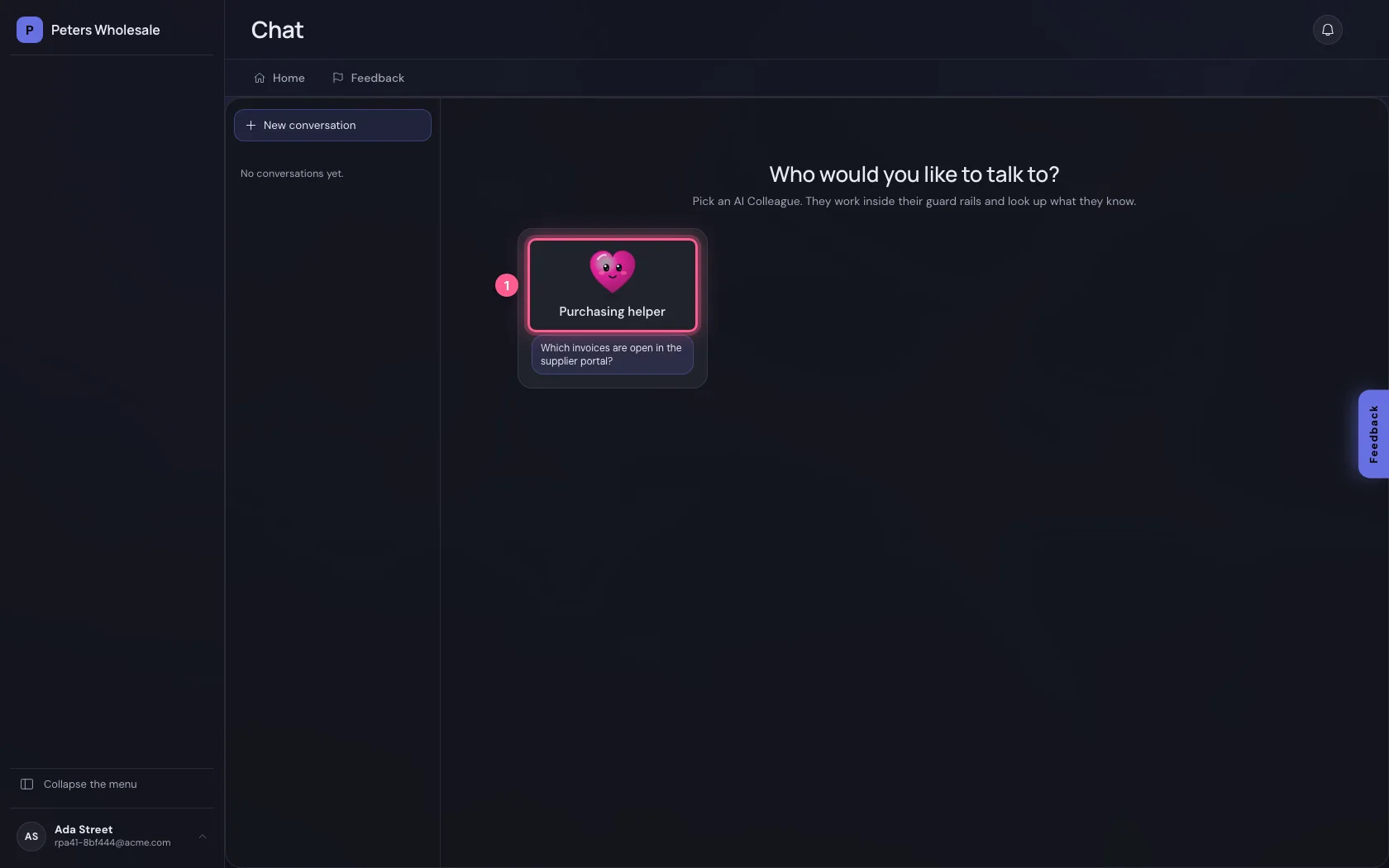
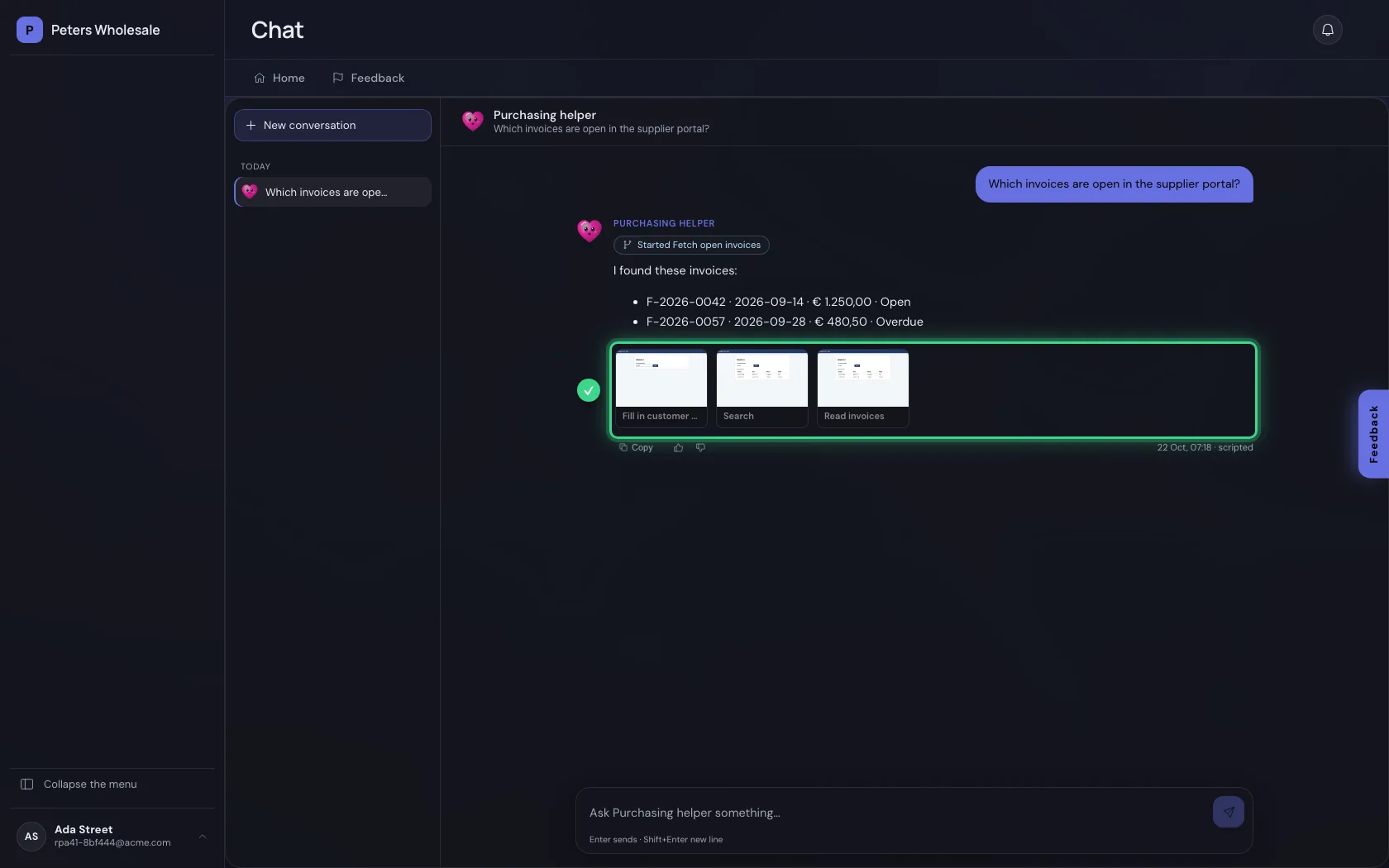
When an AI Colleague uses the workflow as a tool, the screenshots are under its answer: small, with the name of the step, and large with a click. They already arrive while it works.
- Click Purchasing helper
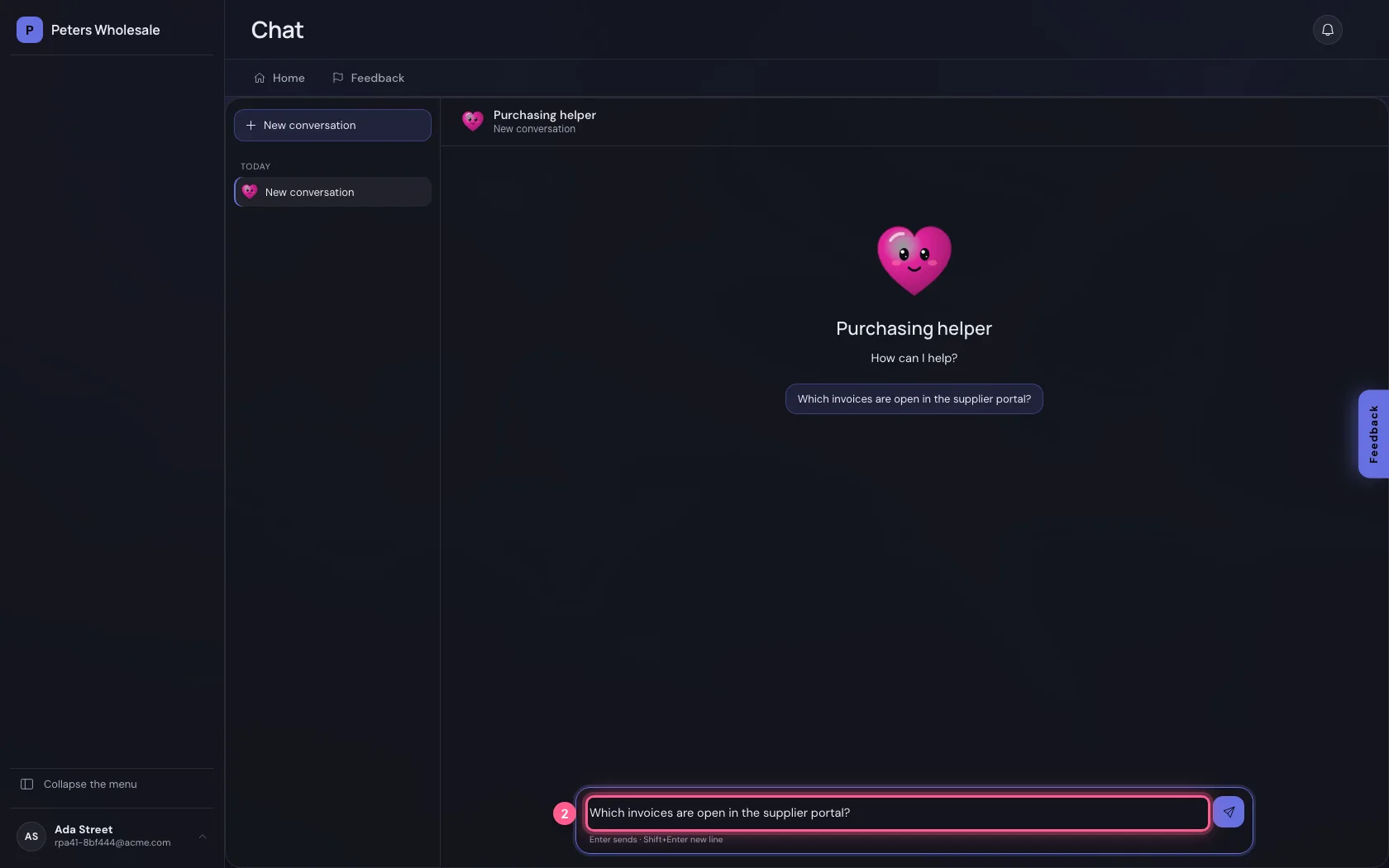
- In Ask Purchasing helper something…, type
Which invoices are open in the supplier portal?
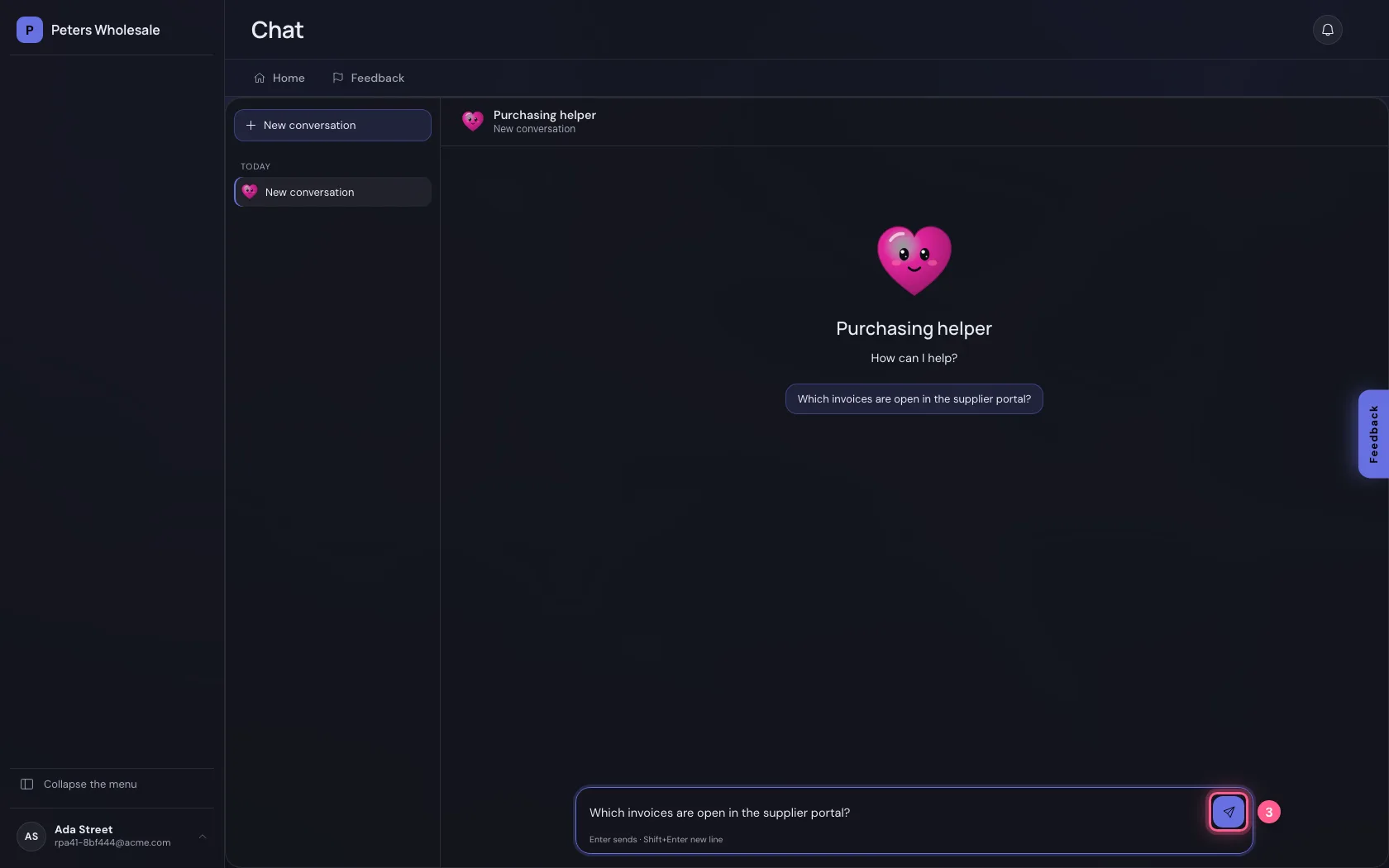
- Click Send
This guide was carried out step by step on 22 Oct 2026 by an automated test on Flow (version 3e563176).