The board
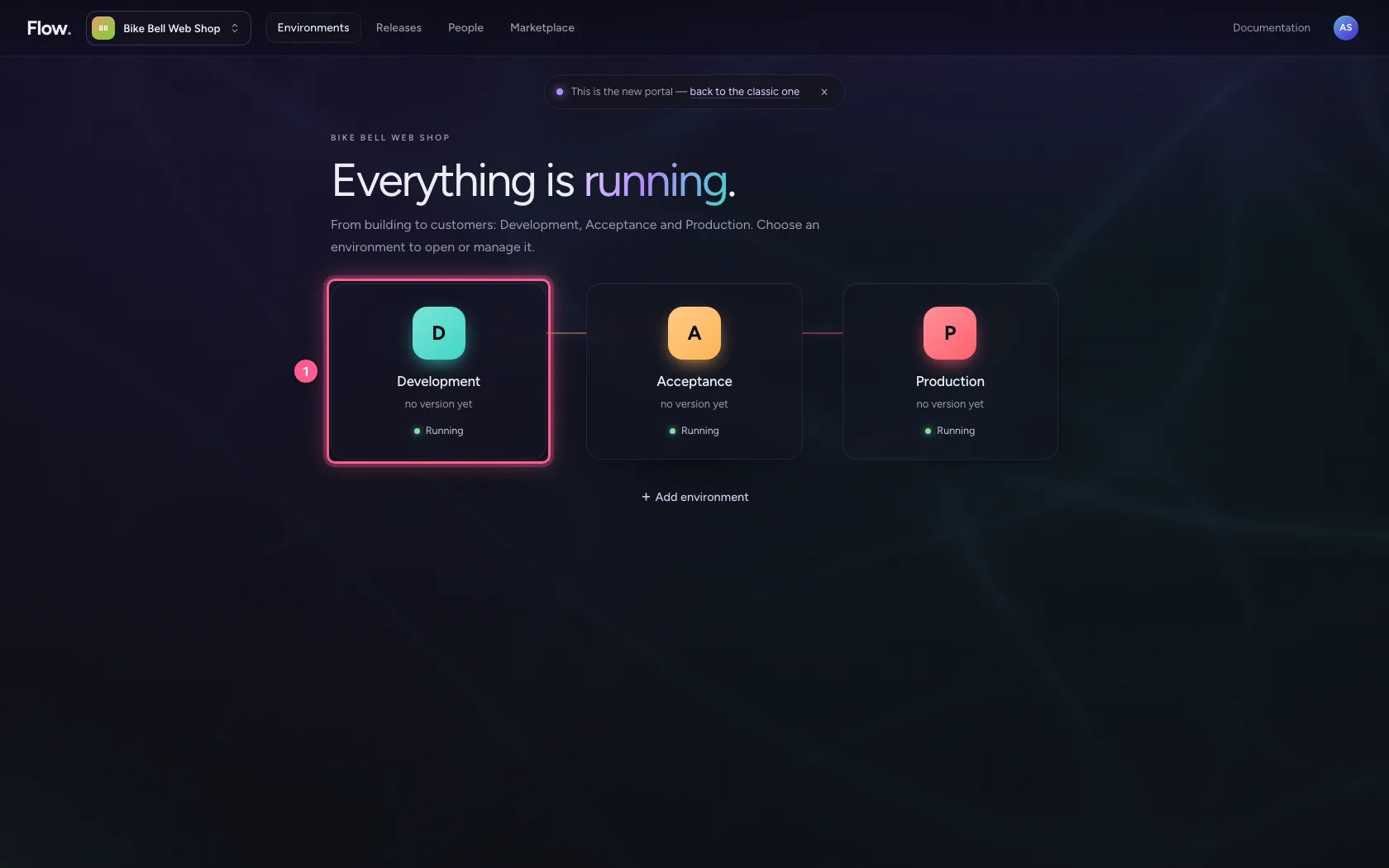
- Step 1 · Open your development environment
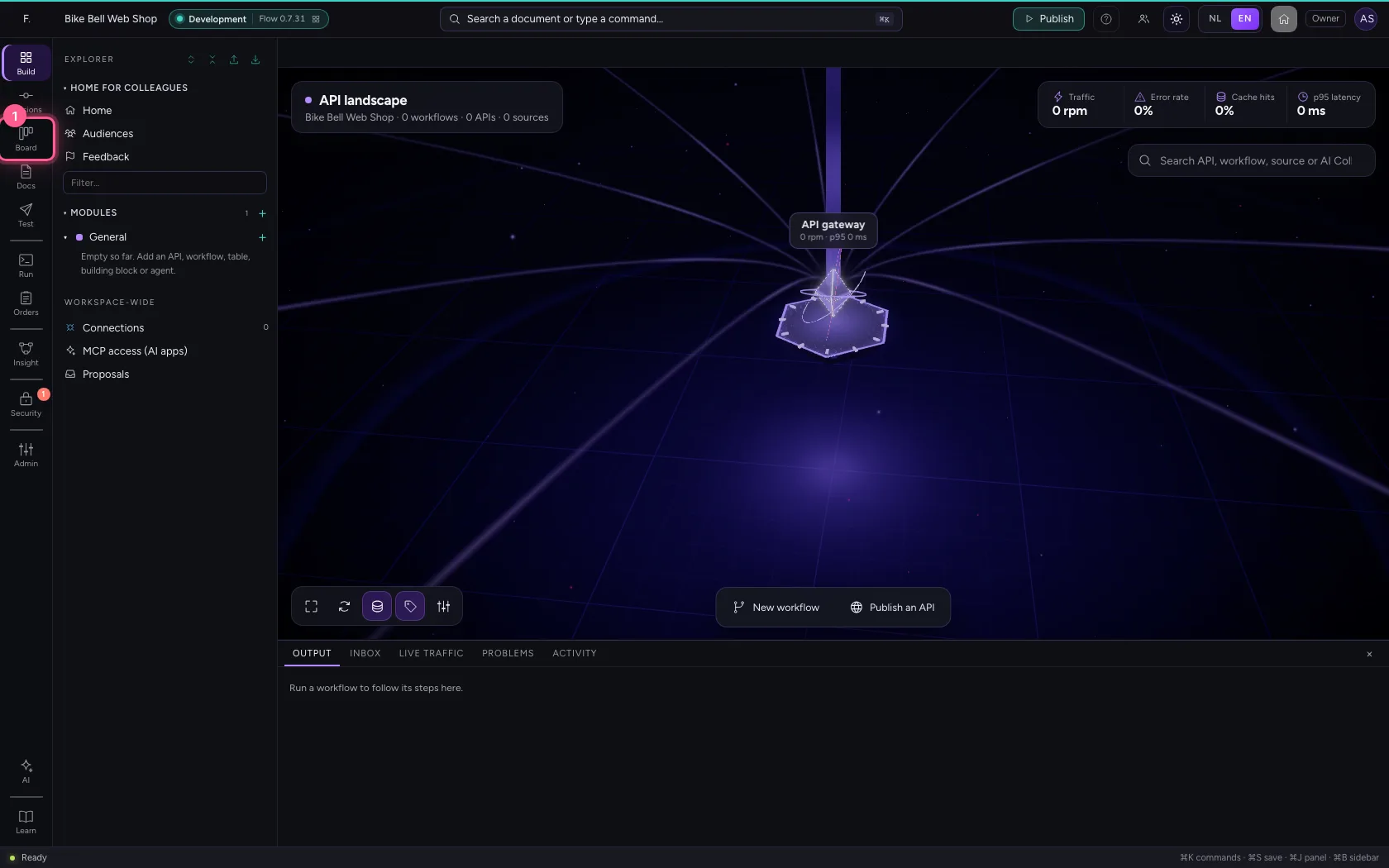
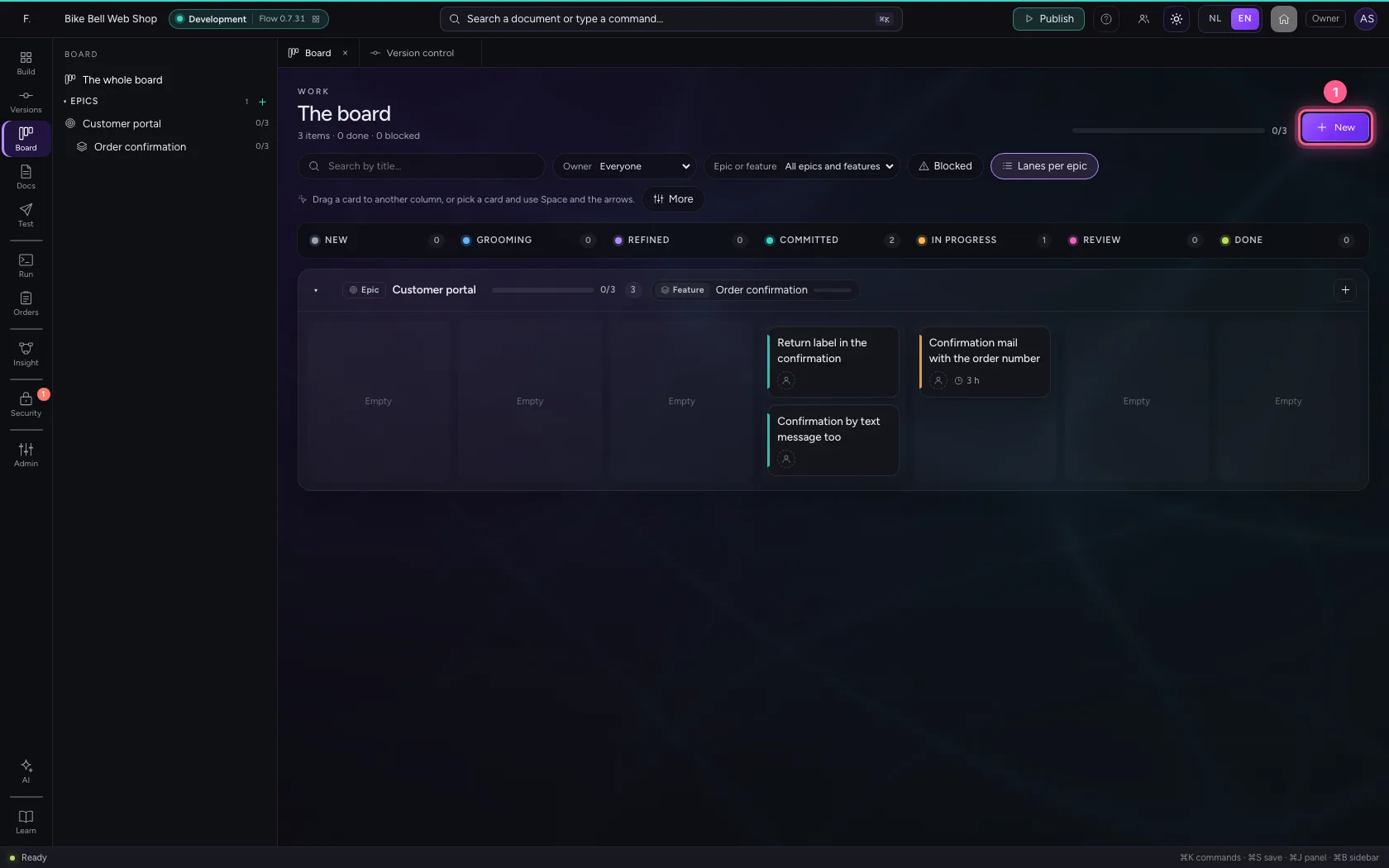
- Step 2 · Open the board
- Step 3 · Create an epic
- Step 4 · A feature under the epic
- Step 5 · Items: the work itself
- Step 6 · The item in tabs
- Step 7 · Open as page
- Step 8 · On one item at the same time
- Step 9 · Drag a card to the next column
- Step 10 · Or with the keyboard
- Step 11 · A step that is not allowed yet
- Step 12 · Fix it and commit it
- Step 13 · Which items does this version deliver?
- Step 14 · From the version to the item
- Step 15 · The items travel with the release
- Step 16 · The delivered items on the release
- Step 17 · Working from the board with an AI app
- Step 18 · An item from a template
- Step 19 · Expand: write with room
- Step 20 · Context
- Step 21 · Out of scope
- Step 22 · AI help: a proposal you accept
On the board you follow the work from idea to done. An epic is the big goal, a feature a recognisable part of it and an item the work itself: items move across the columns New, Grooming, Refined, Committed, In progress, Review and Done, and epics and features follow their items by themselves. You create them, move a card with the mouse and with the keyboard, see what Flow says when an item may not move on yet and fix it on the spot. You read an item calmly in the inspector's tabs, or large as a page. Then you choose which items a new version delivers, and see the same items again on the release in Acceptance. Finally an AI app works on the board over MCP. Finally you write an item well: a user story from a template, expanded in the large editor, with a proposal from the AI help that you accept.
Open your development environment
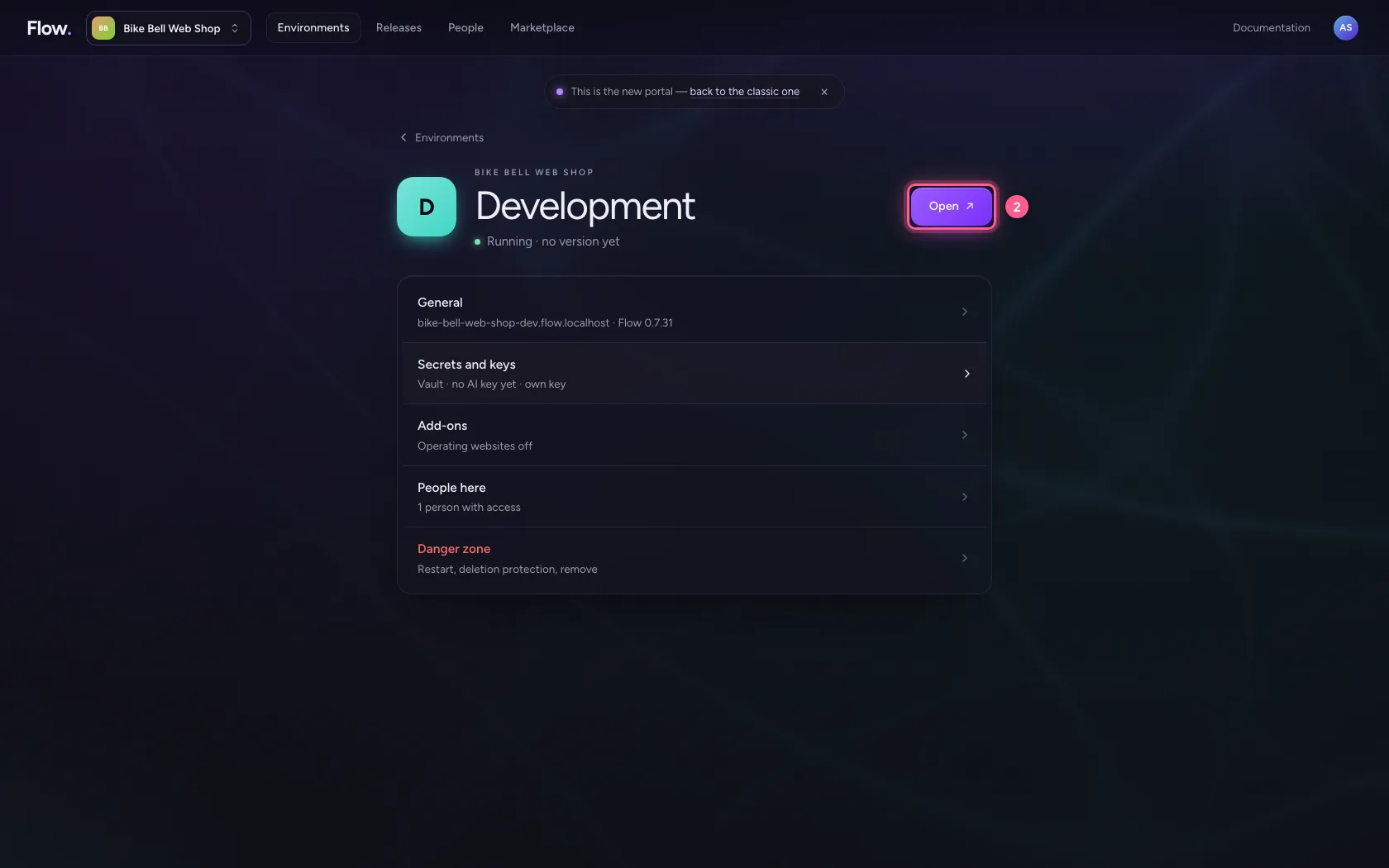
In the portal, under Environments, click Development, and there Open. Flow opens in a new tab and you are signed in straight away.
- Click Development
- Click Open ↗
Open the board
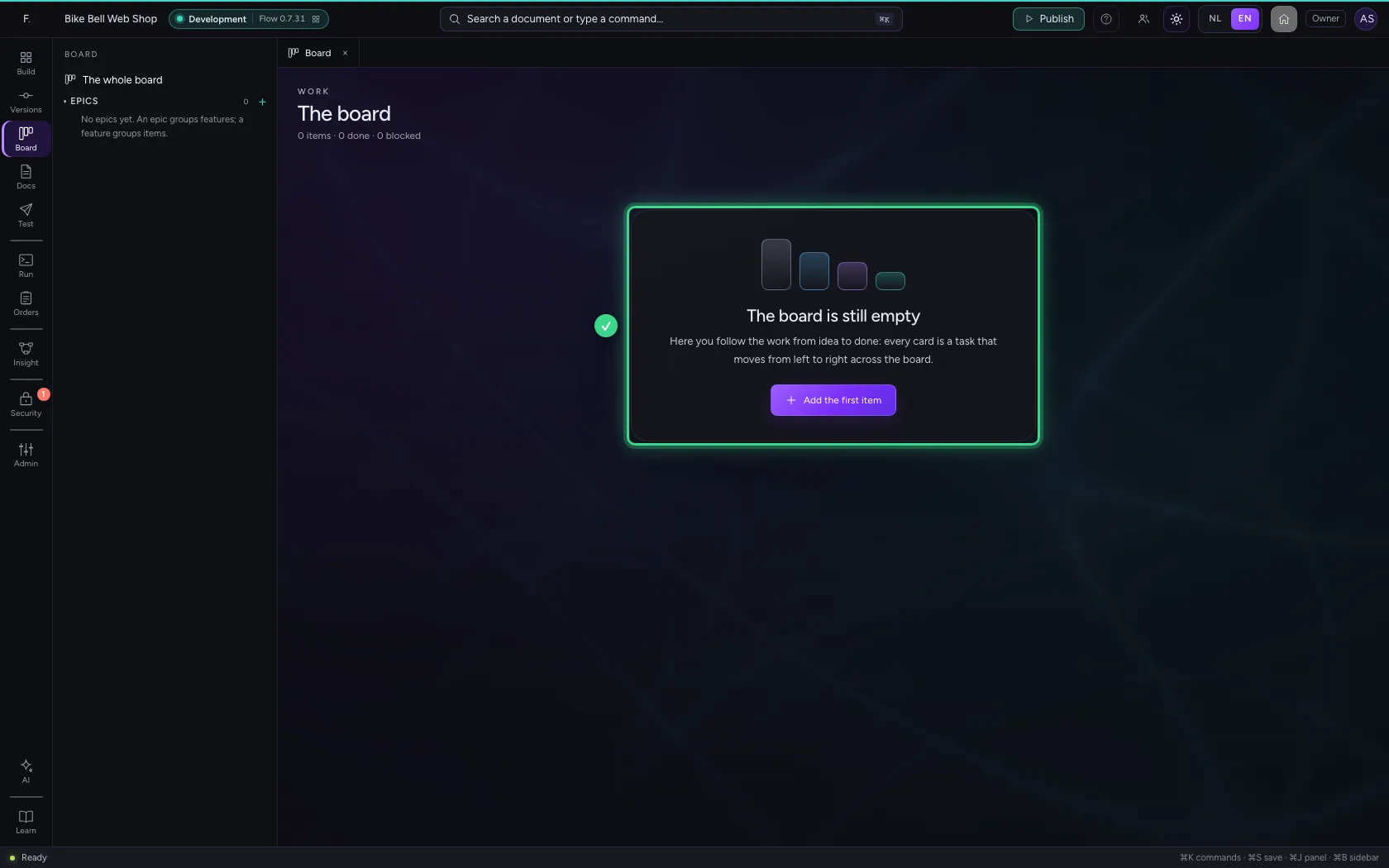
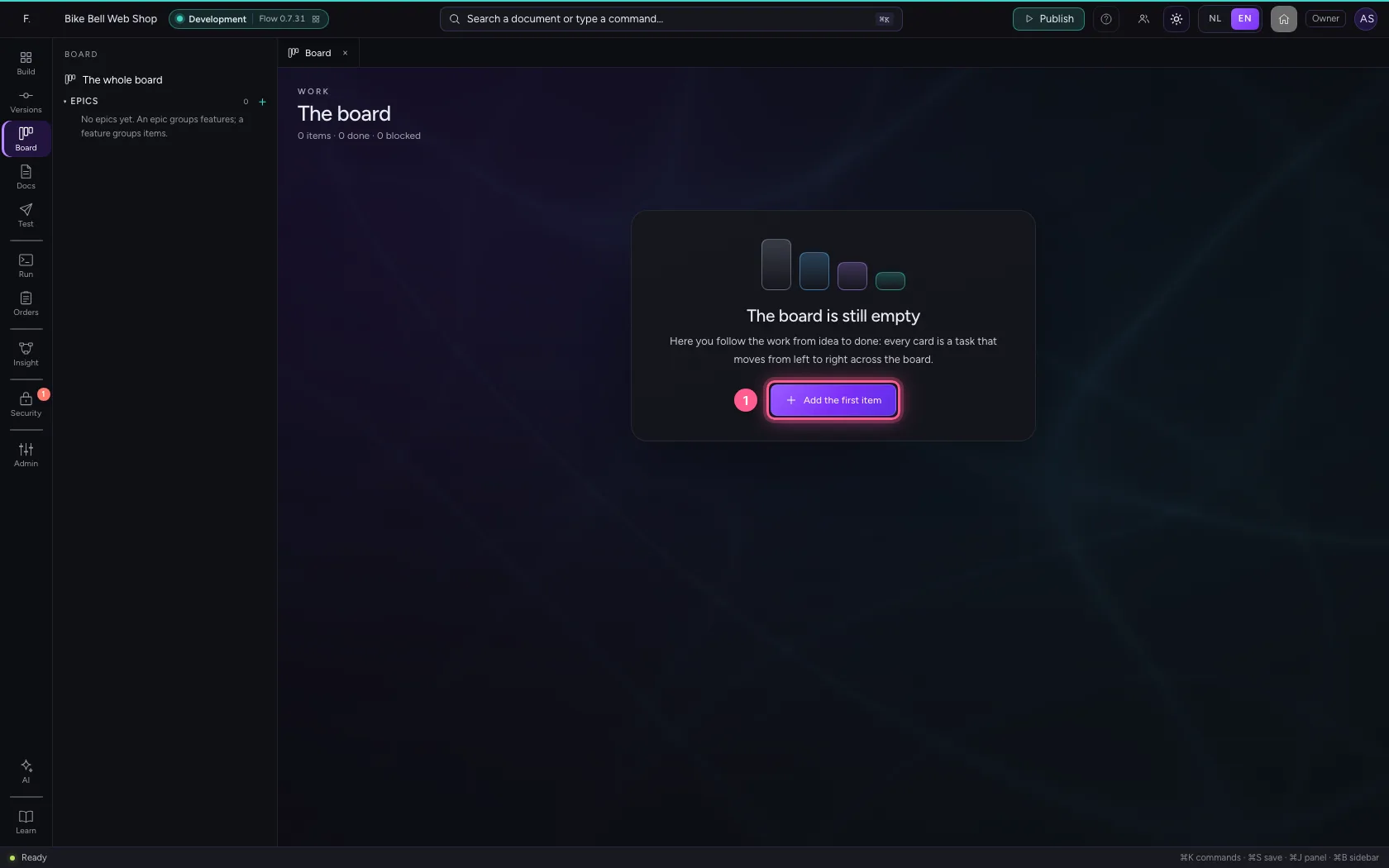
In the bar on the far left is Board. A new board is empty and says in one sentence what it is for, with one button to start.
- Click Board
Create an epic
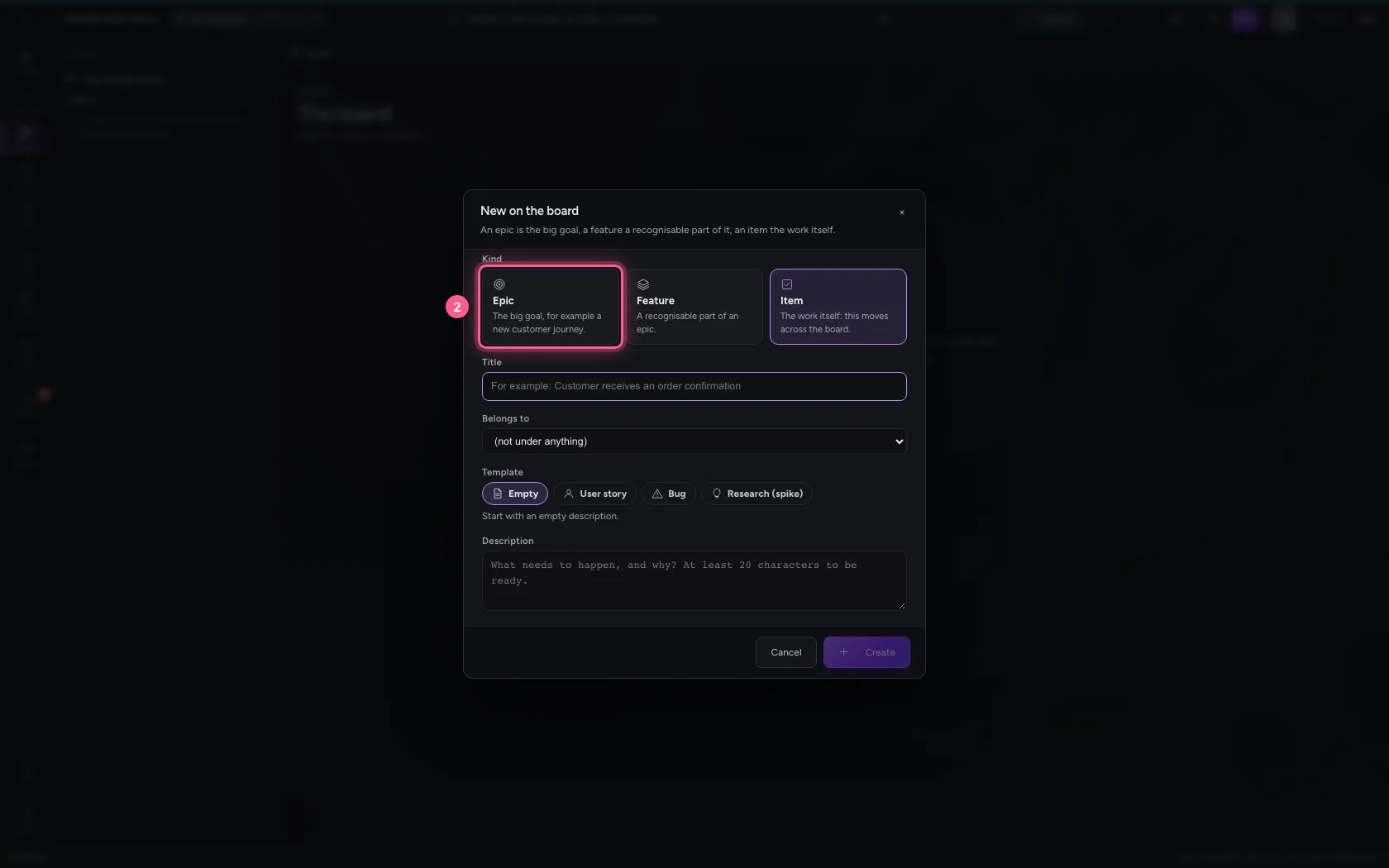
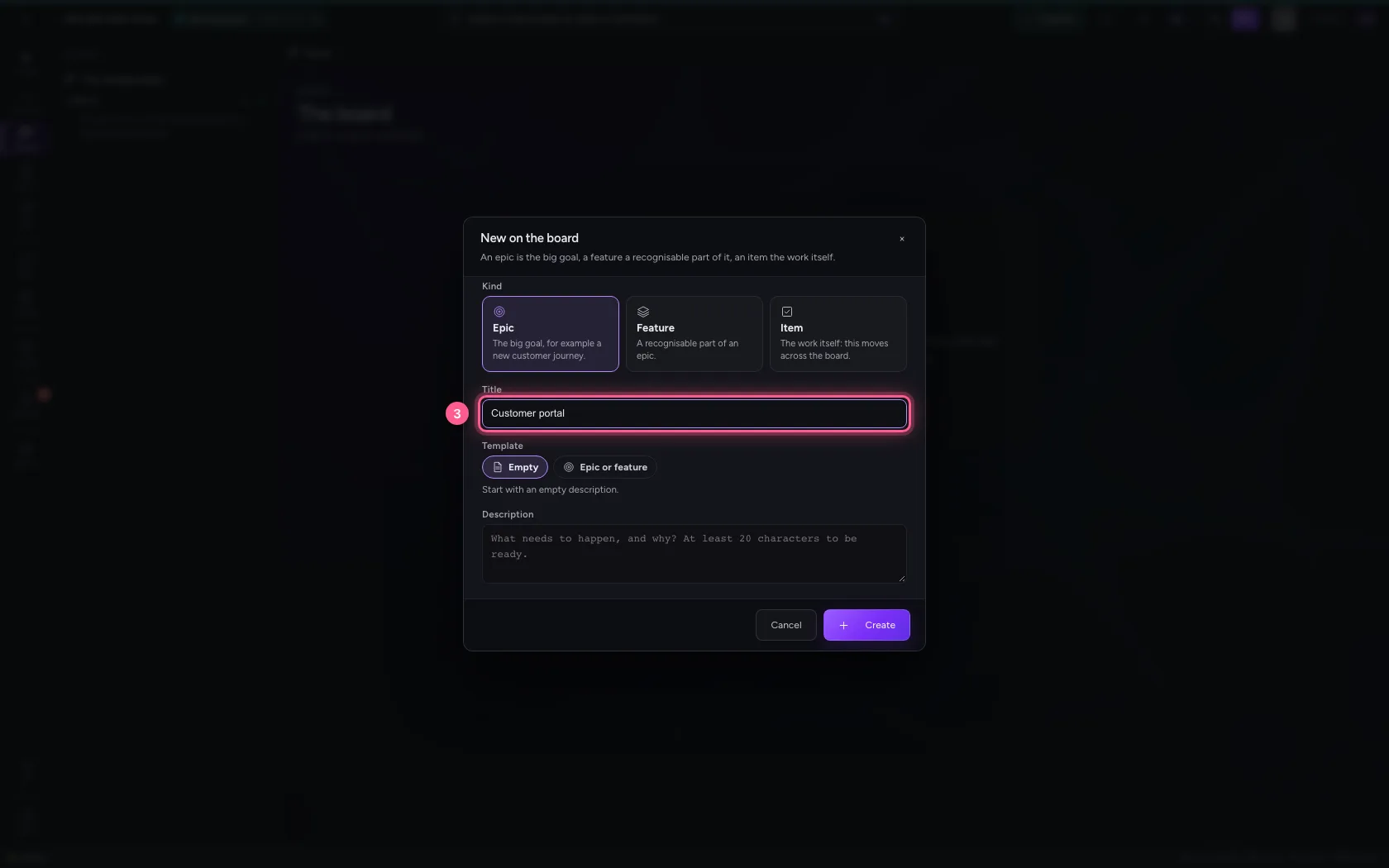
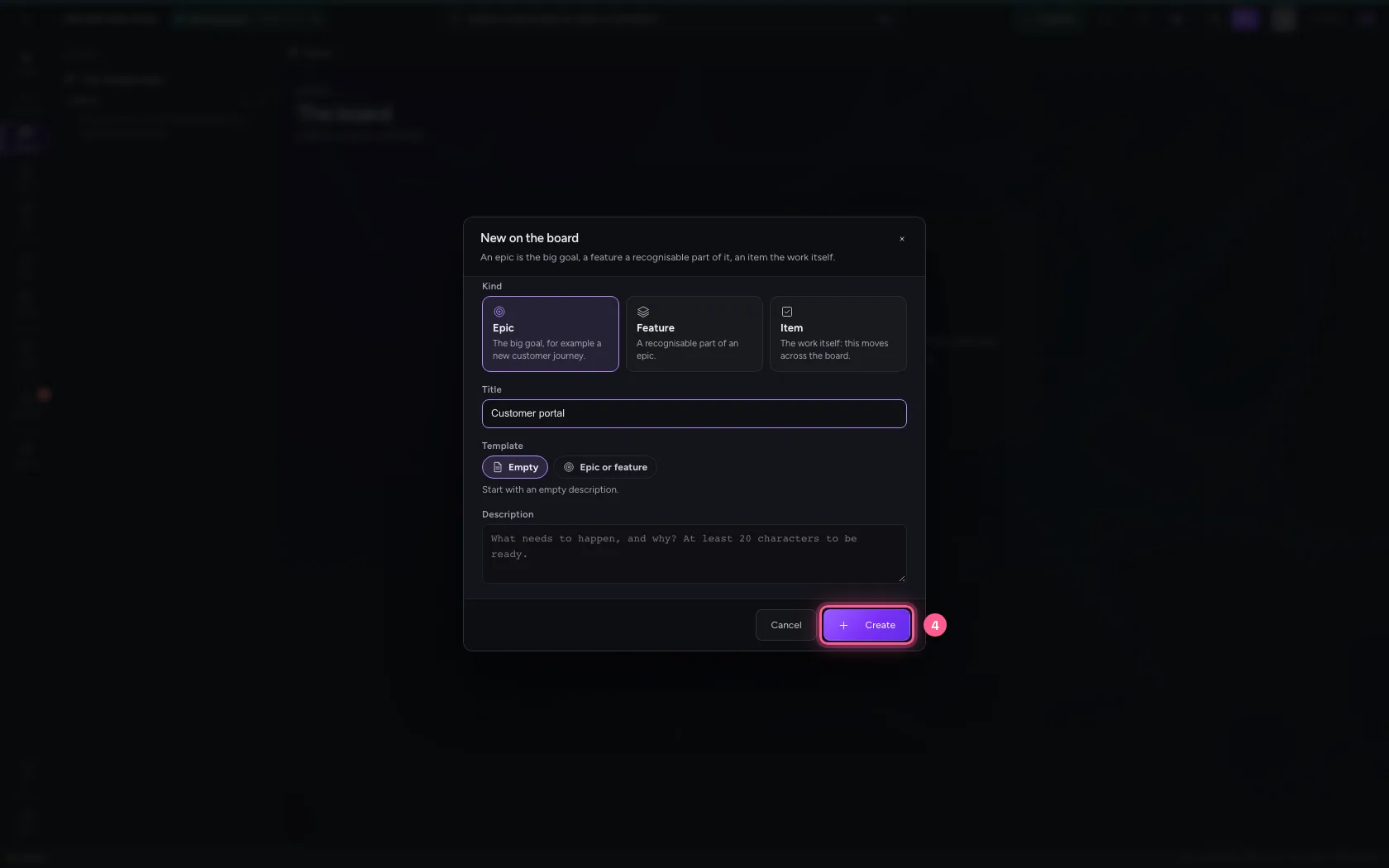
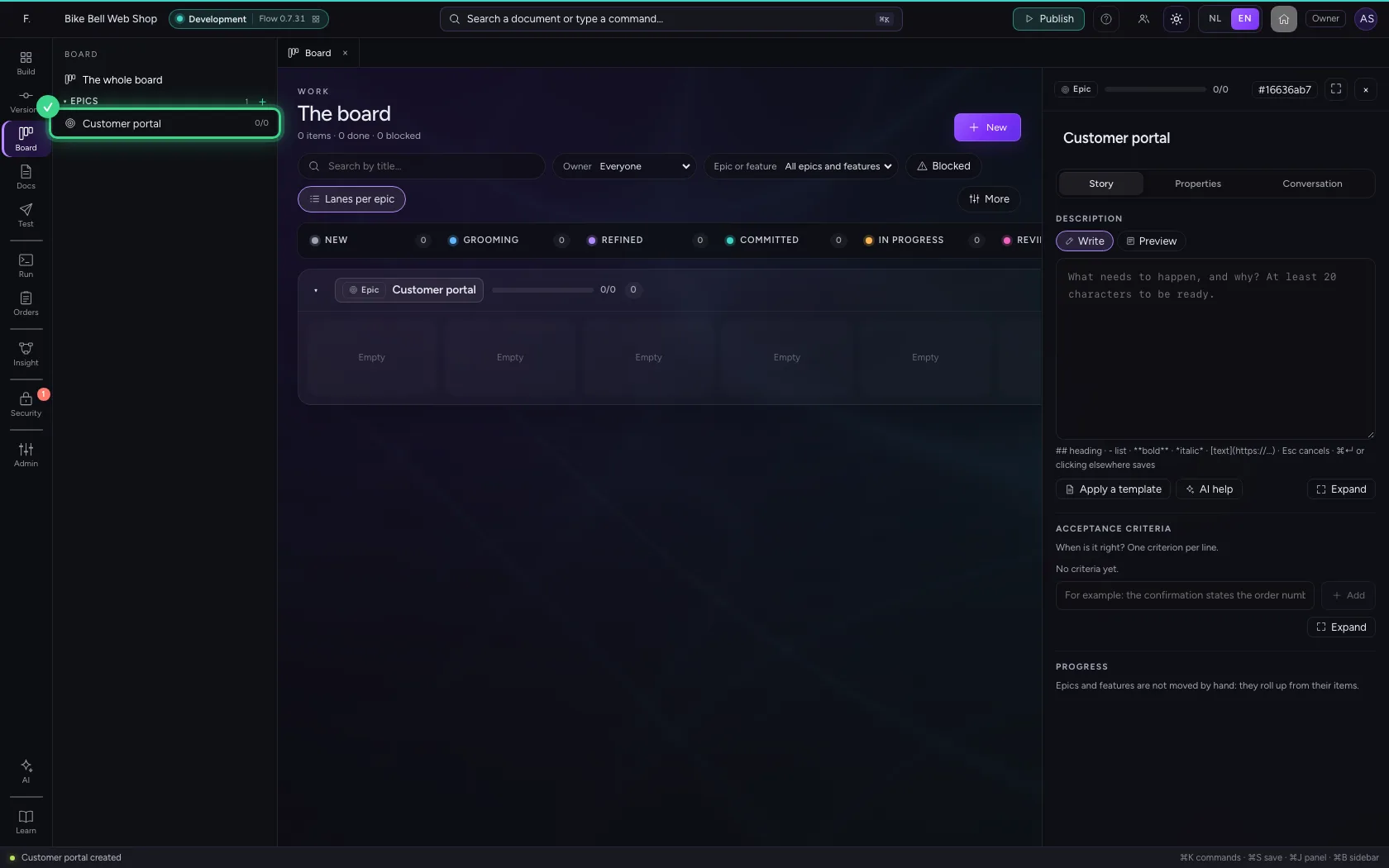
Click Add the first item (later: New, top right). Choose the kind Epic: the big goal, for example a new customer journey. Give it a title and click Create. The epic gets a lane of its own on the board, with its progress, and is in the side bar under Epics.
- Click Add the first item
- Click Epic
- In Title, type
Customer portal
- Click Create
A feature under the epic
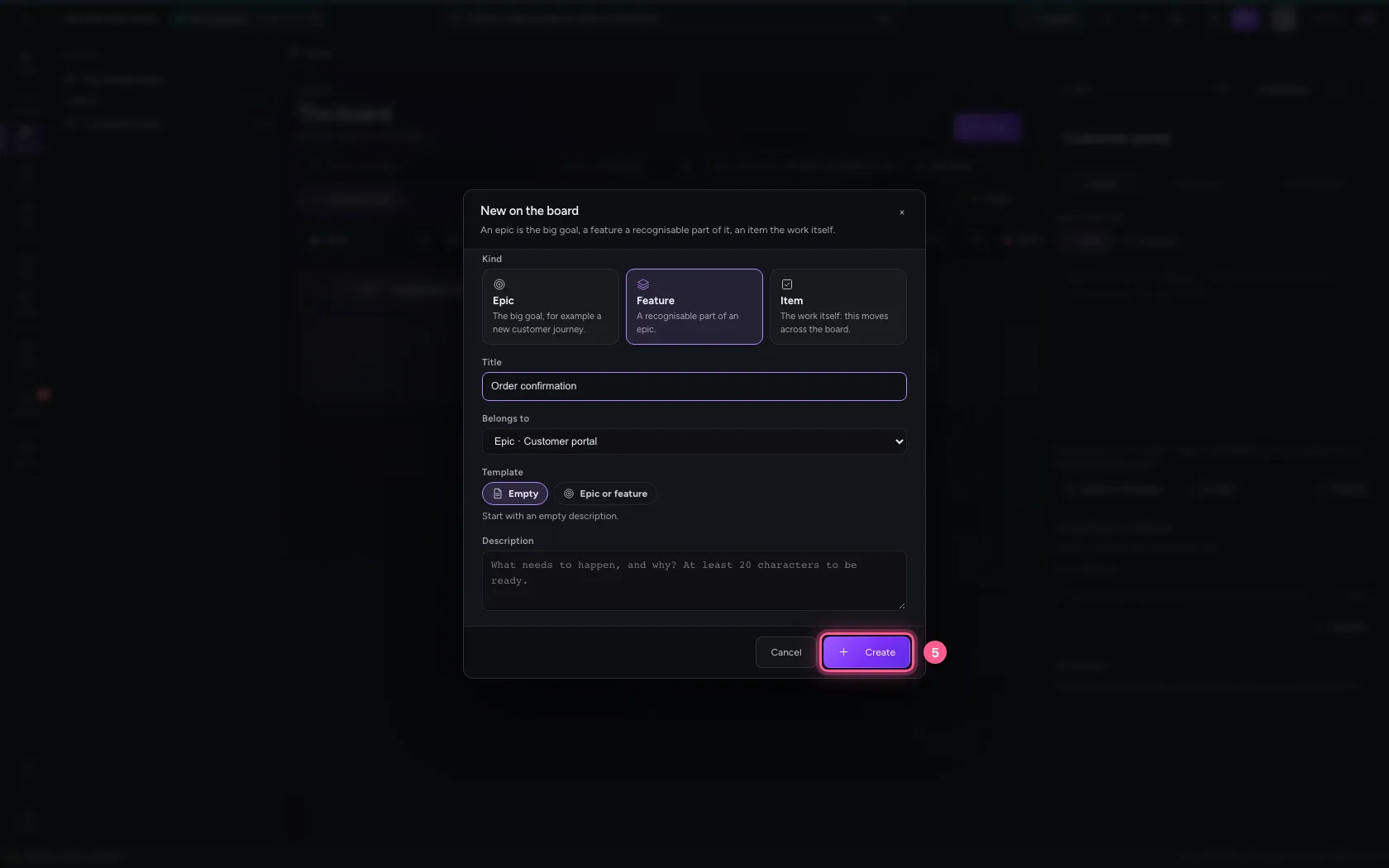
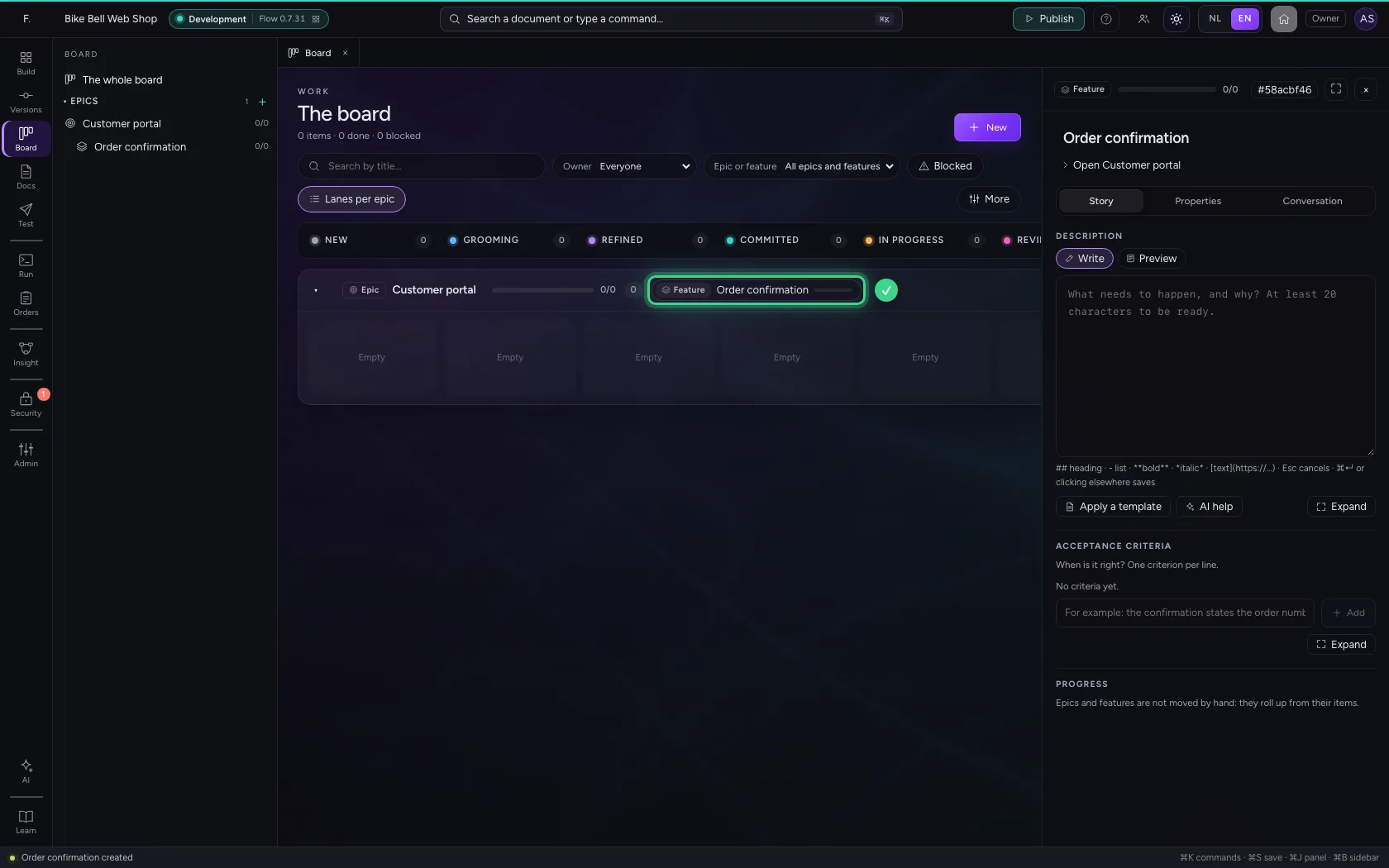
Click New and choose Feature: a recognisable part of the epic. Under Belongs to you choose the epic. You do not move a feature yourself: it sits as a label in its epic's lane and counts how many of its items are done.
- Click New
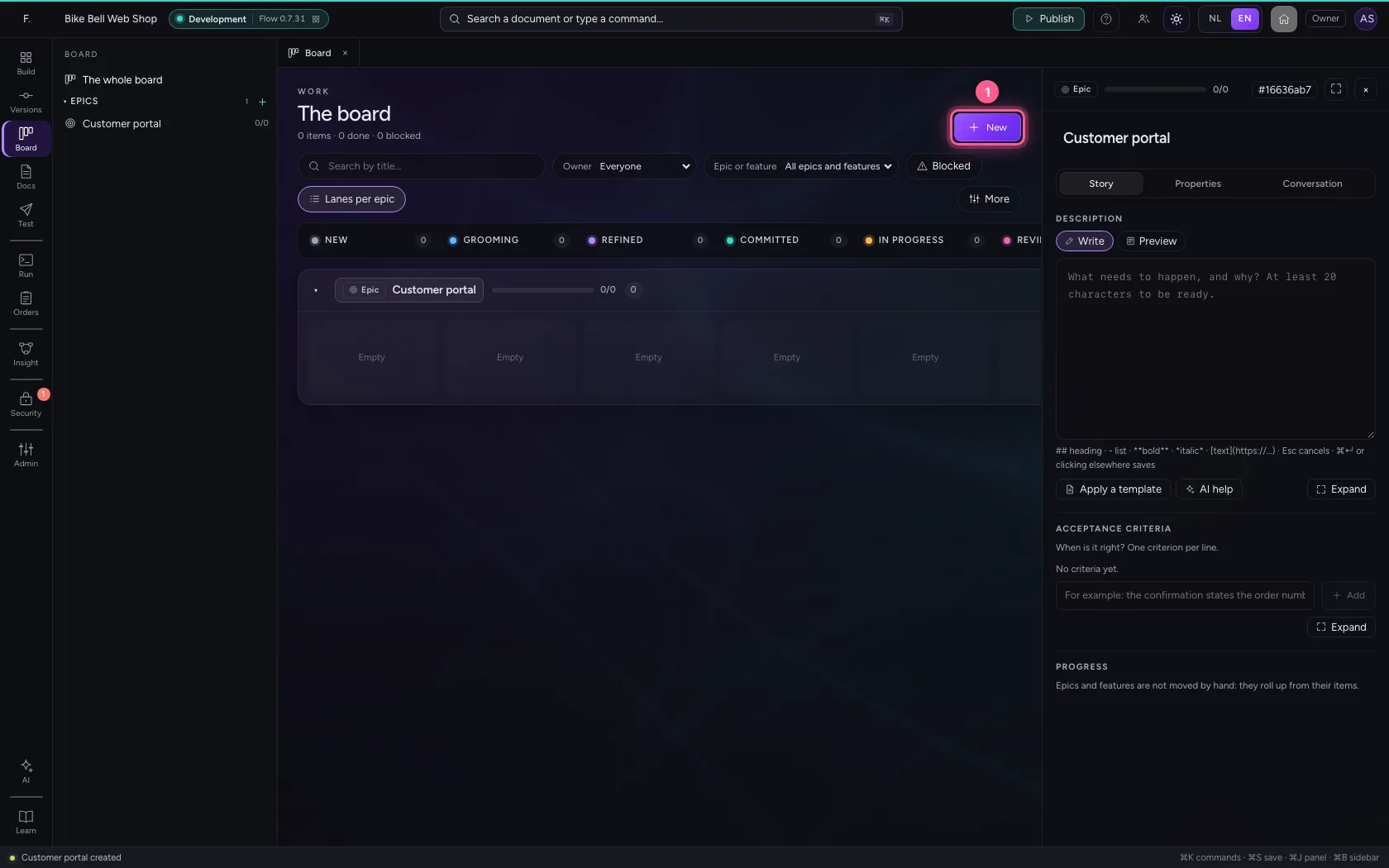
- Click Feature
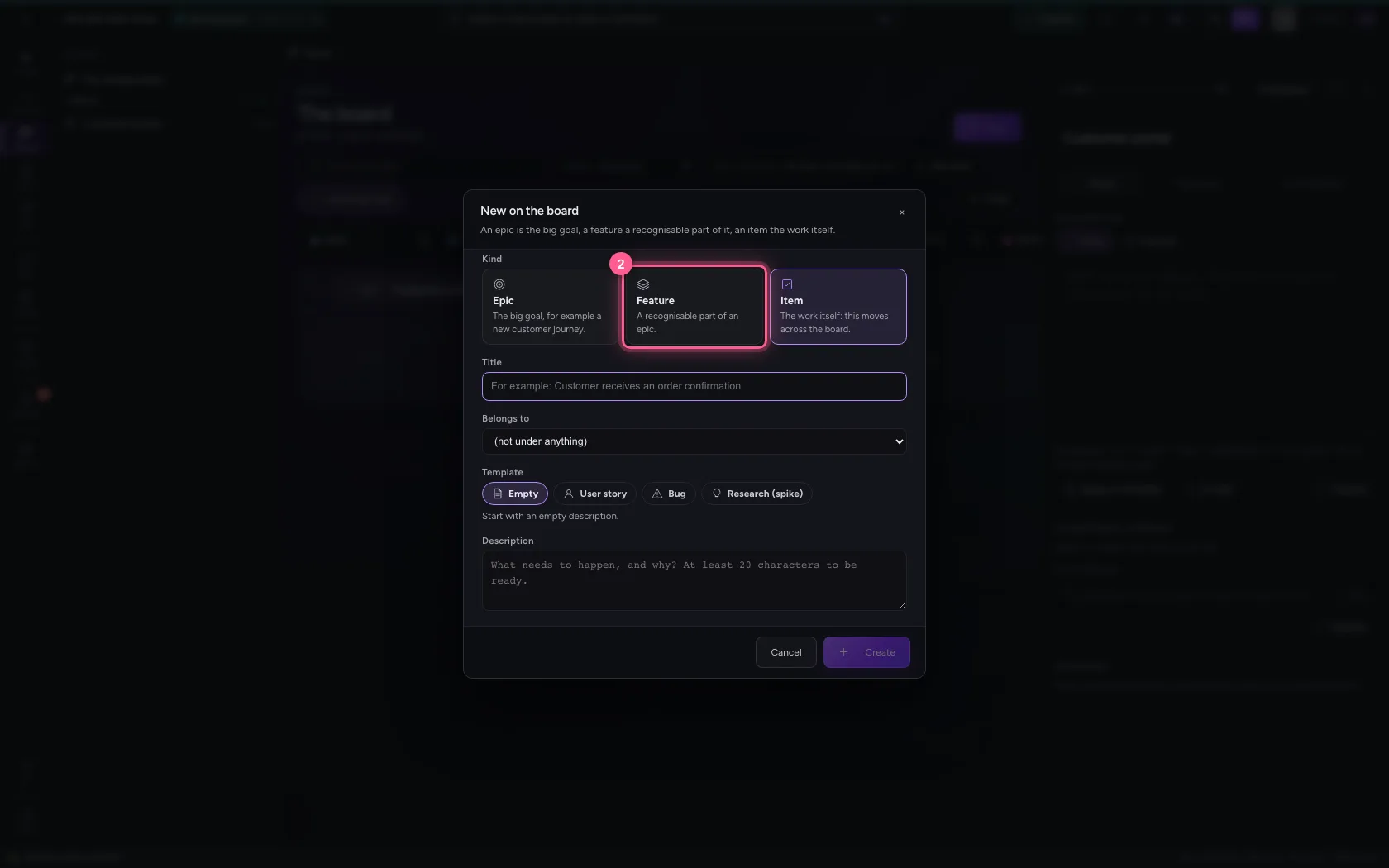
- In Title, type
Order confirmation - In Belongs to, choose Epic · Customer portal
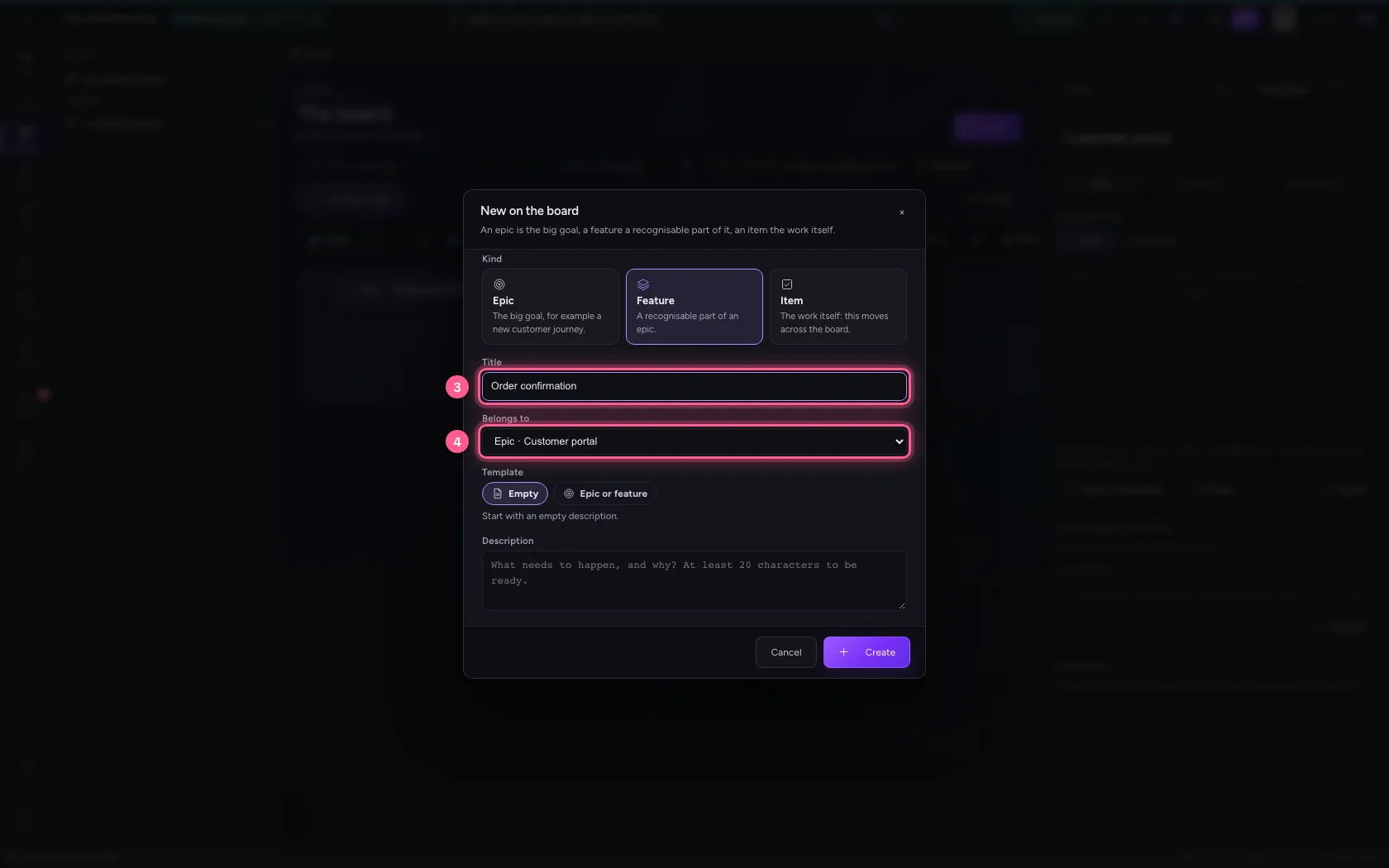
- Click Create
Items: the work itself
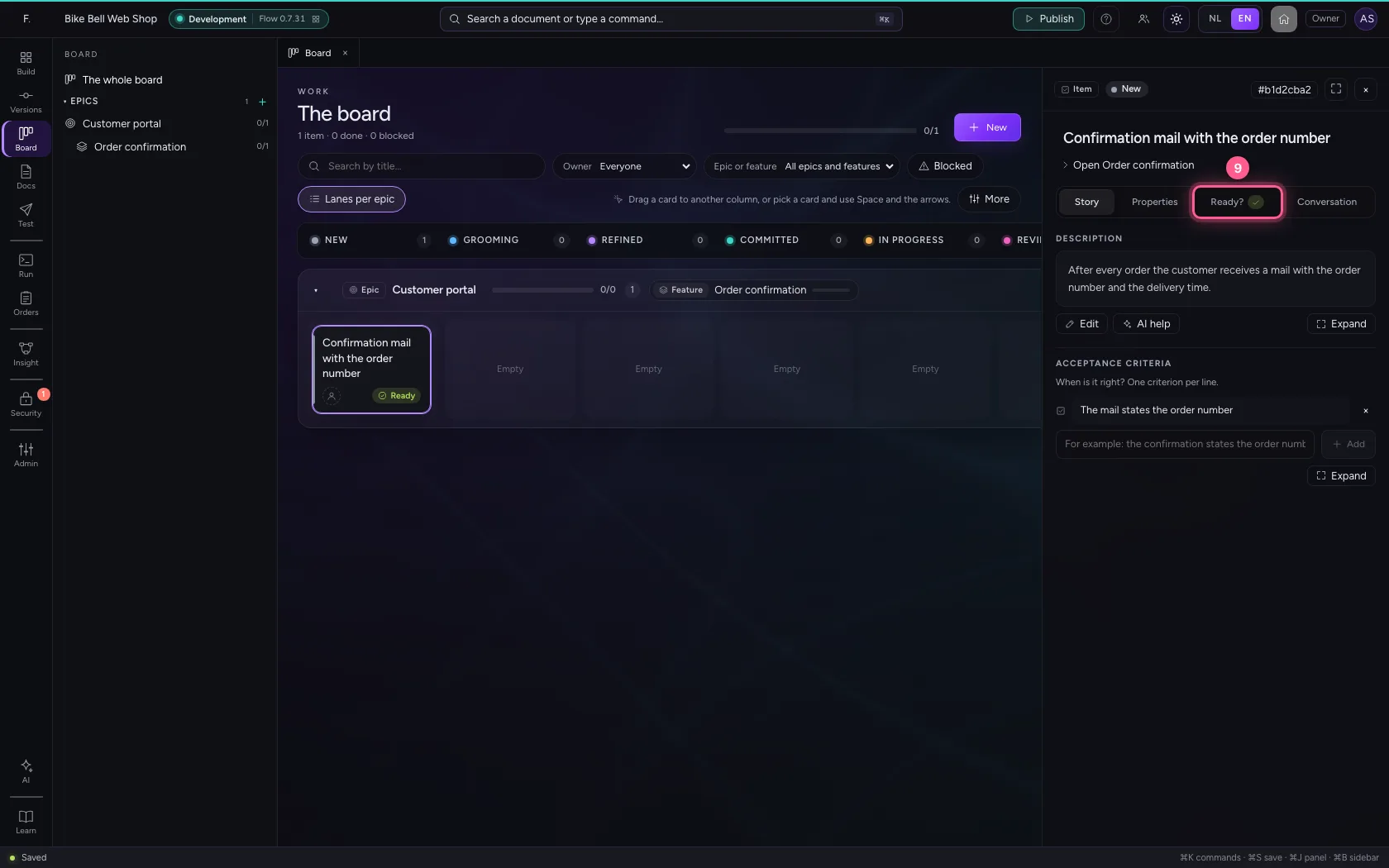
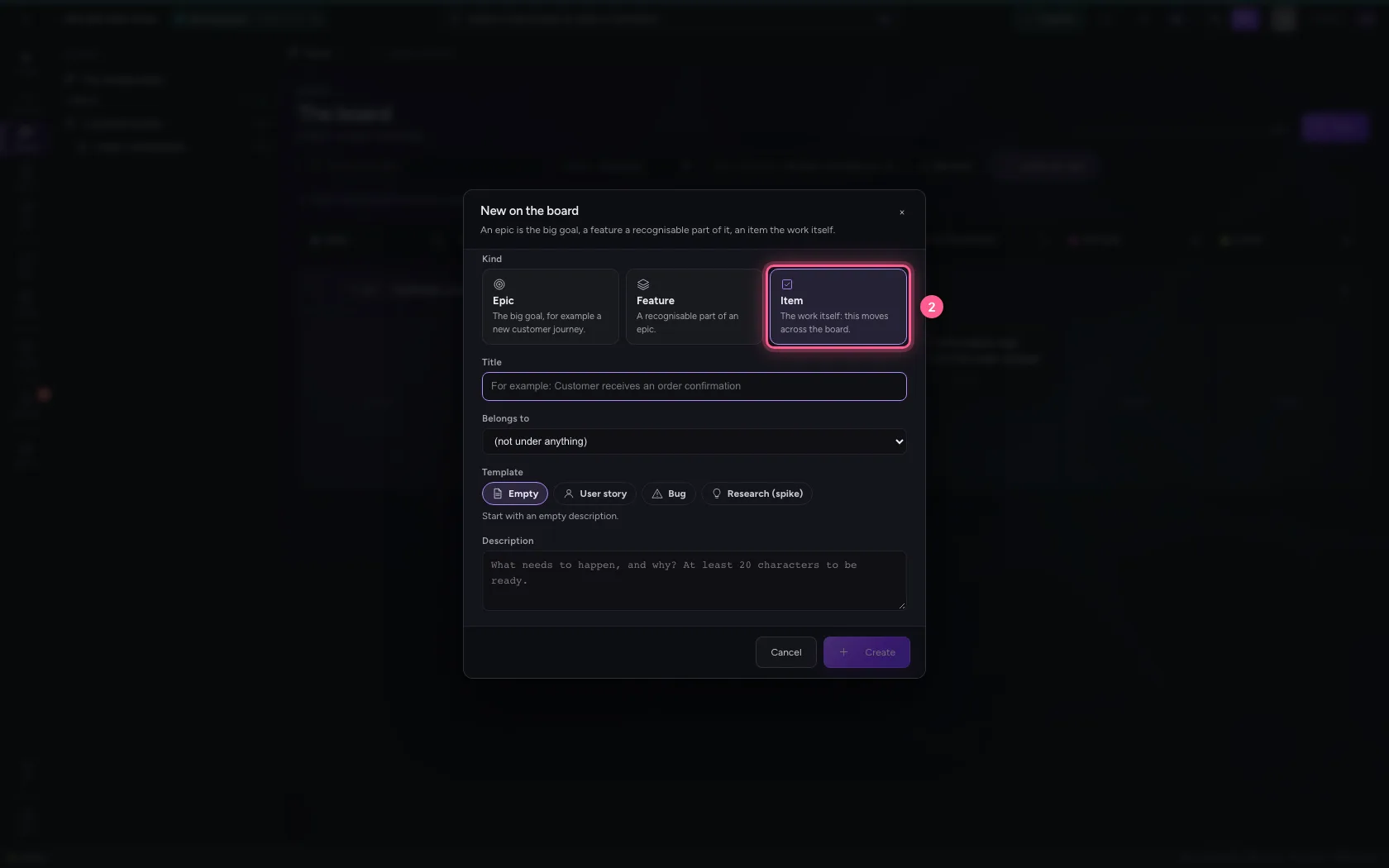
Click New and choose Item. Under Belongs to you choose the feature, and under Description you write what needs to happen and why (at least 20 characters). After Create the item opens on the right in the inspector. On the tab Story, add an acceptance criterion: when is it right? On the tab Ready? you see whether the item is ready to commit.
- Click New
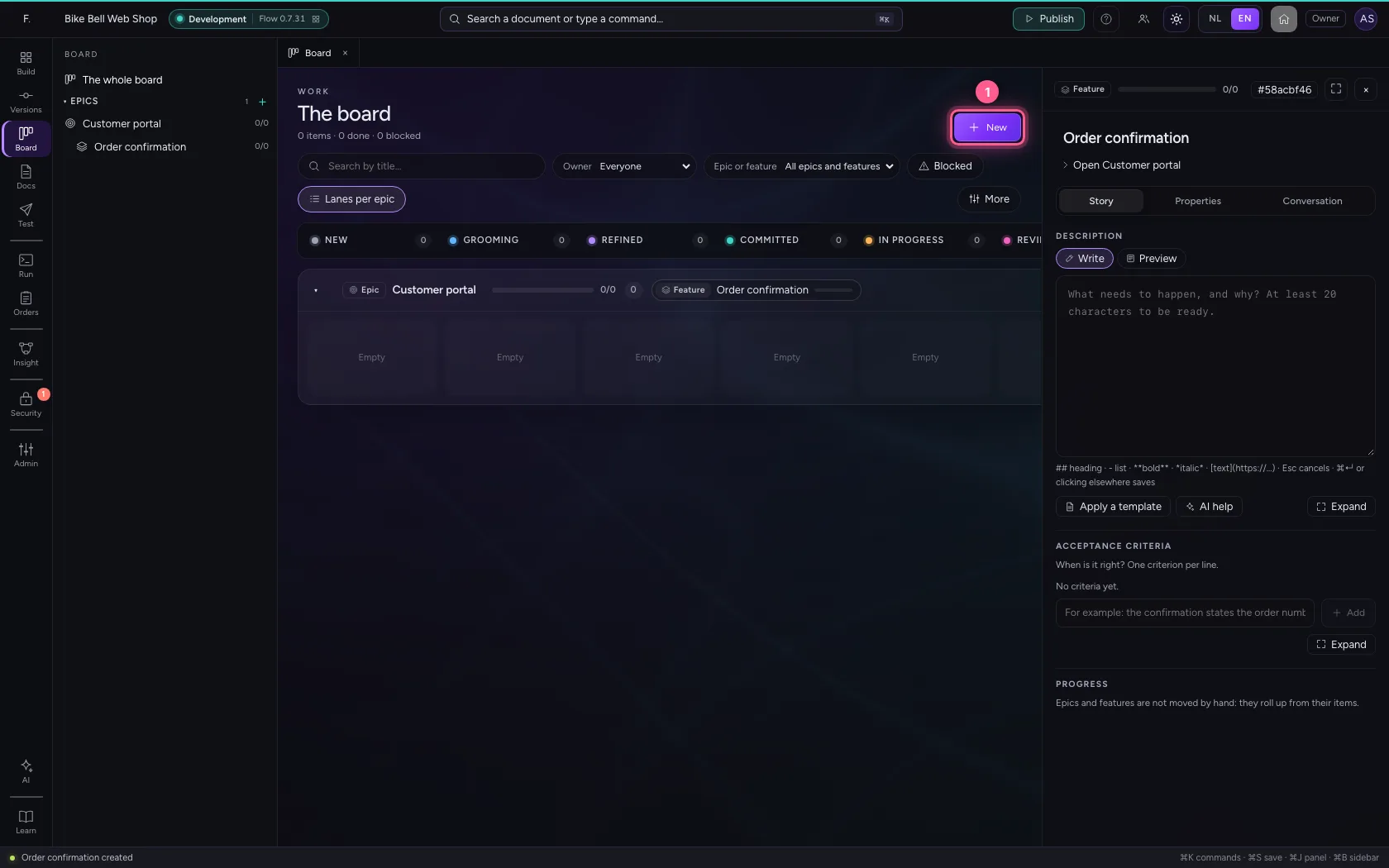
- Click Item
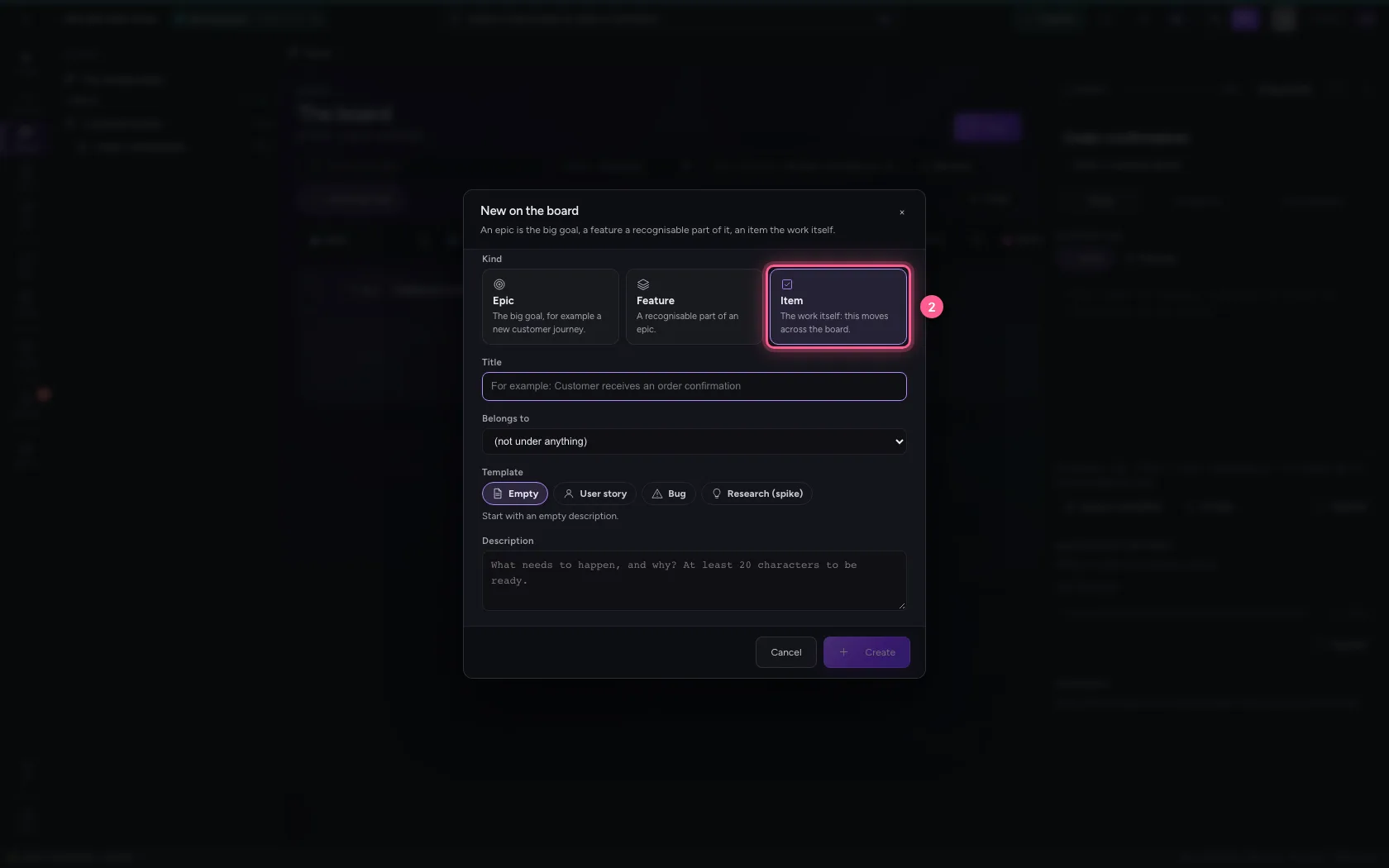
- In Title, type
Confirmation mail with the order number - In Belongs to, choose Feature · Order confirmation
- In Description, type
After every order the customer receives a mail with the order number and the delivery time.
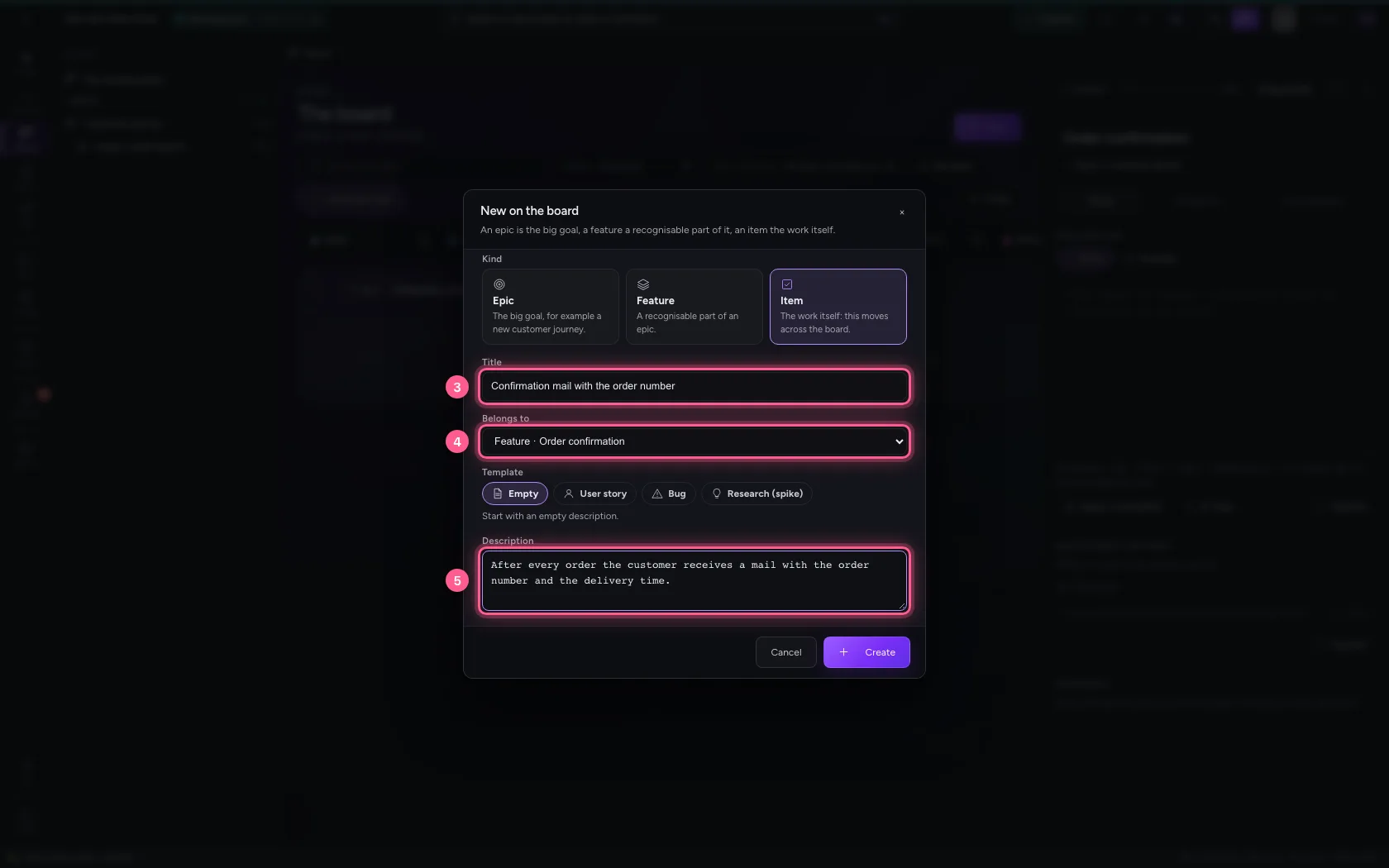
- Click Create
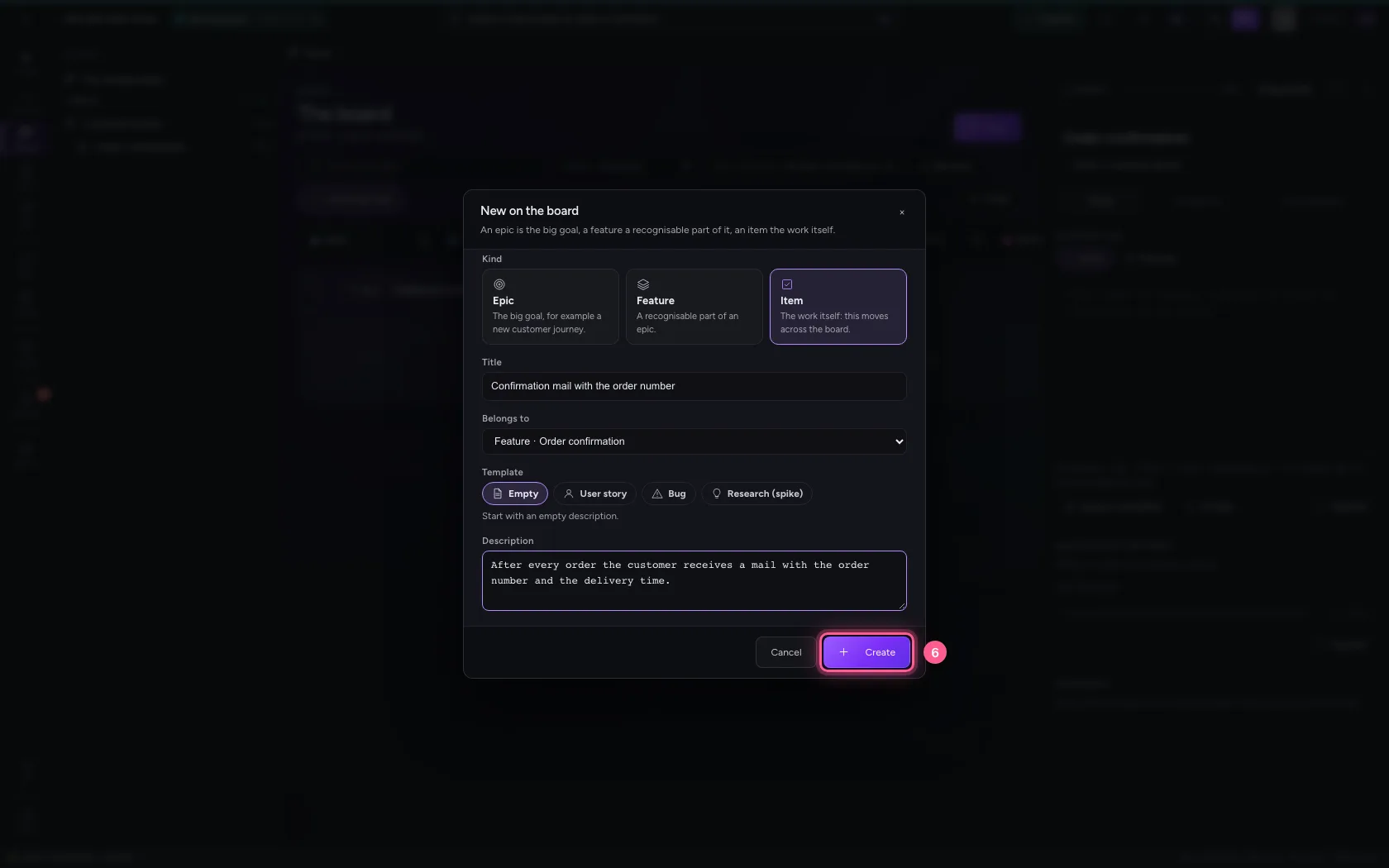
- In For example: the confirmation states the order number, type
The mail states the order number
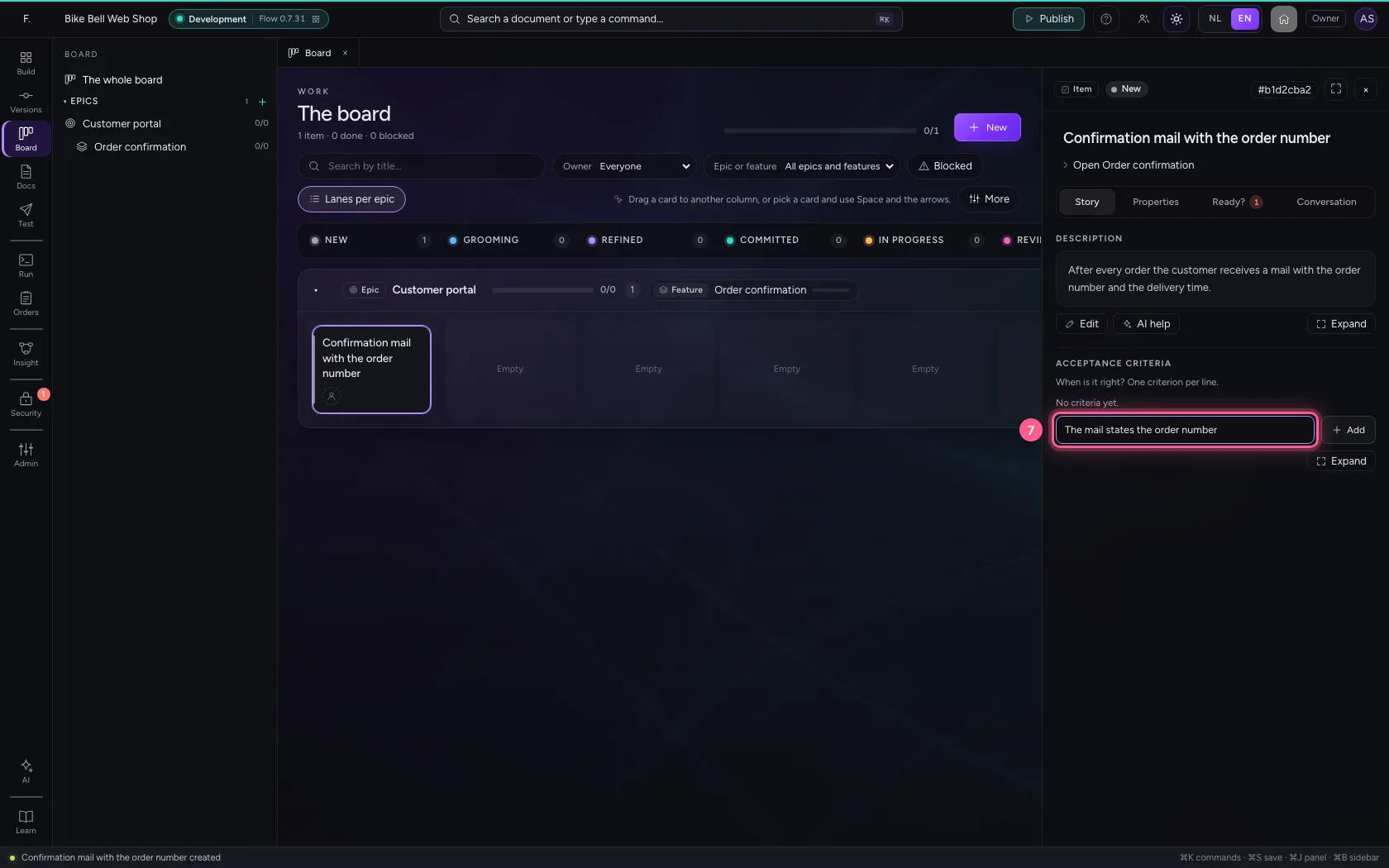
- Click Add
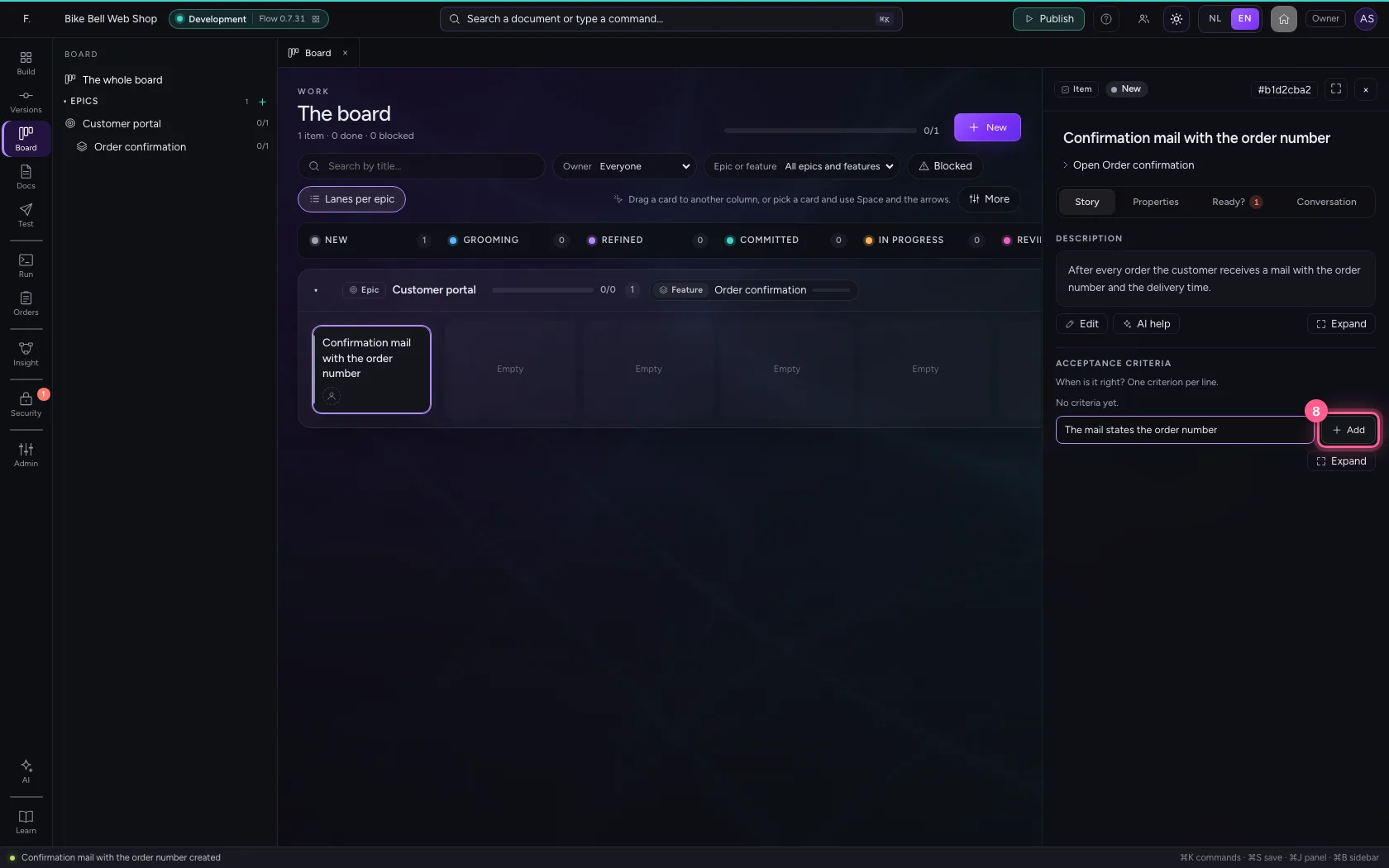
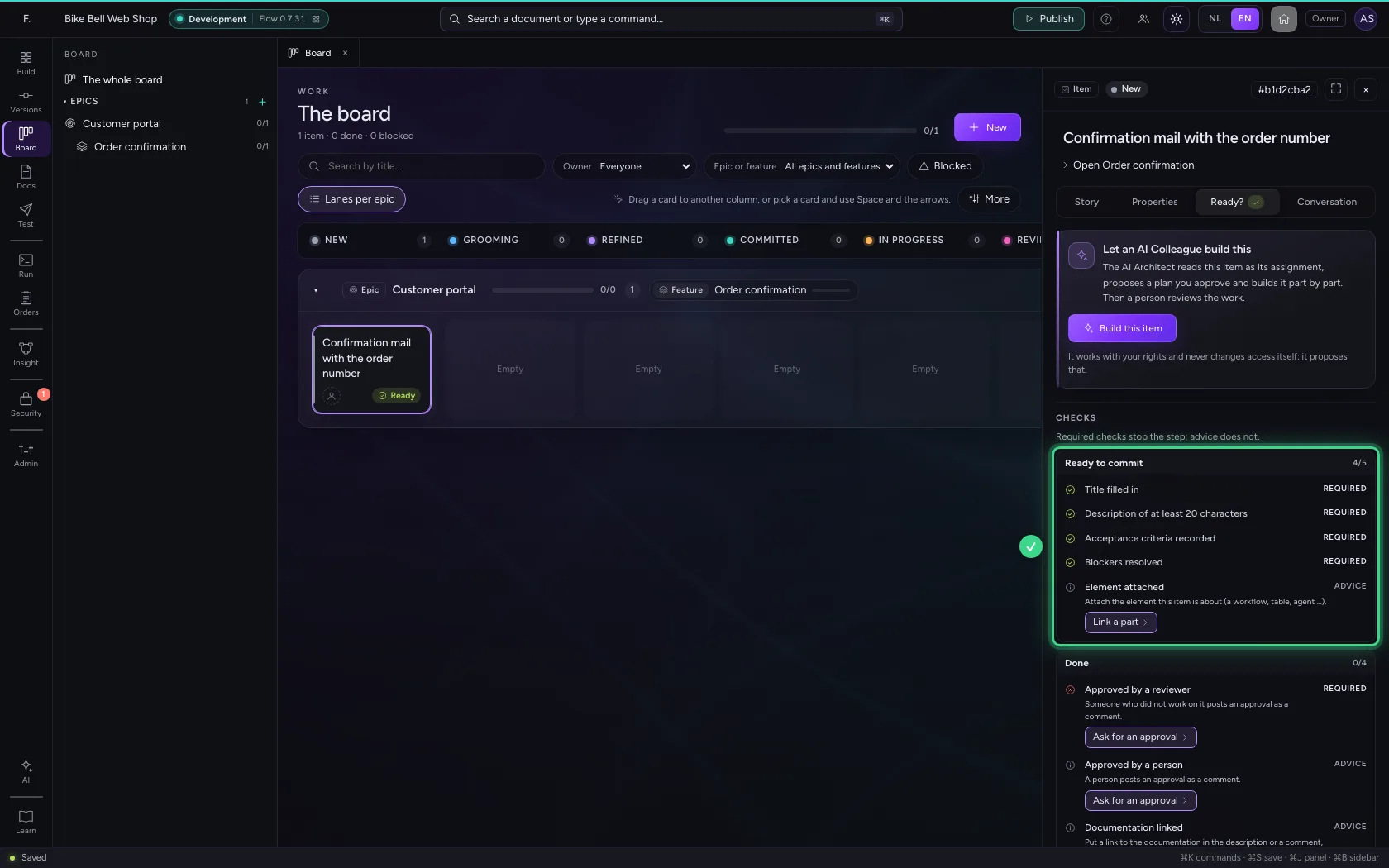
- Click Ready?
The item in tabs
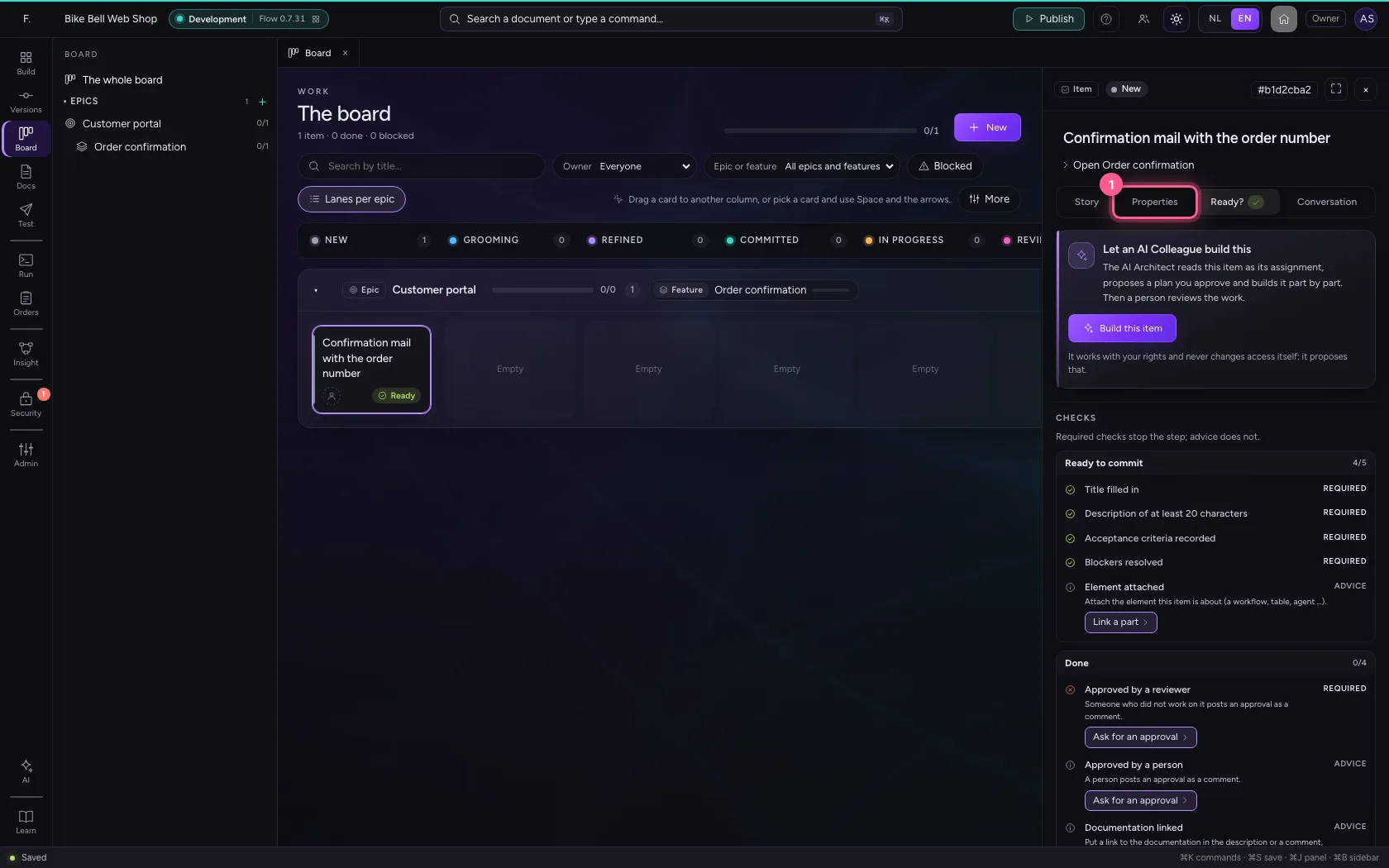
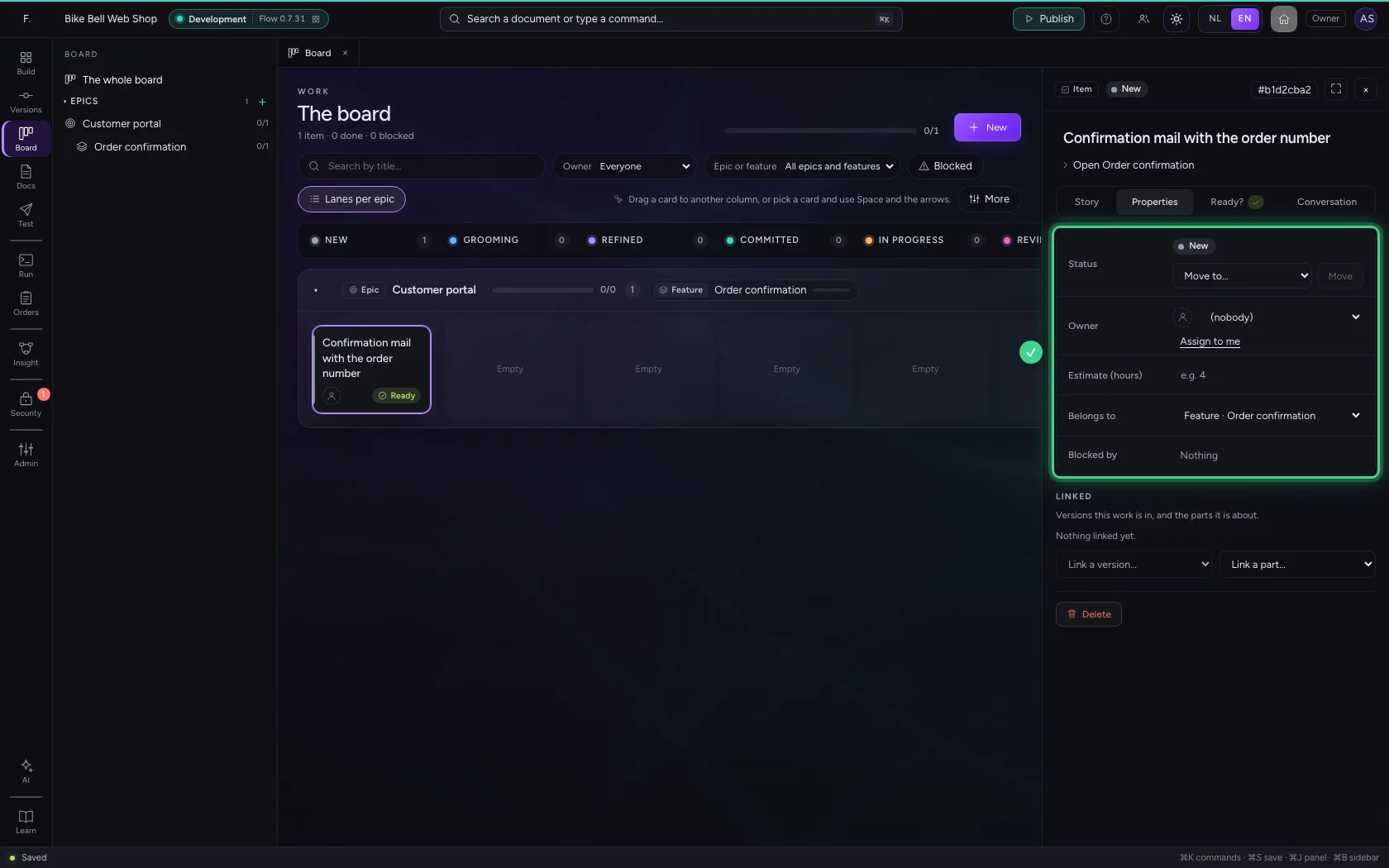
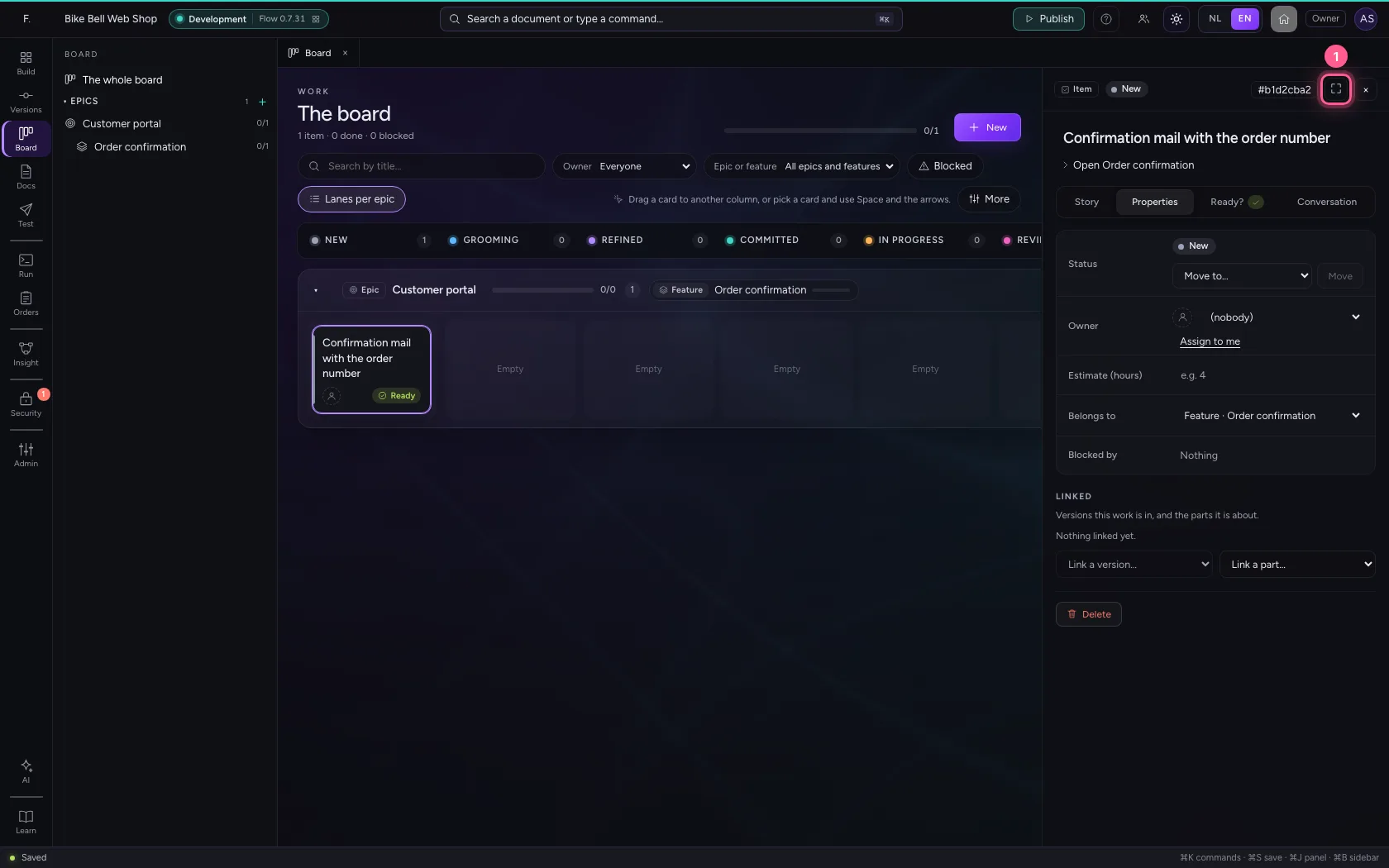
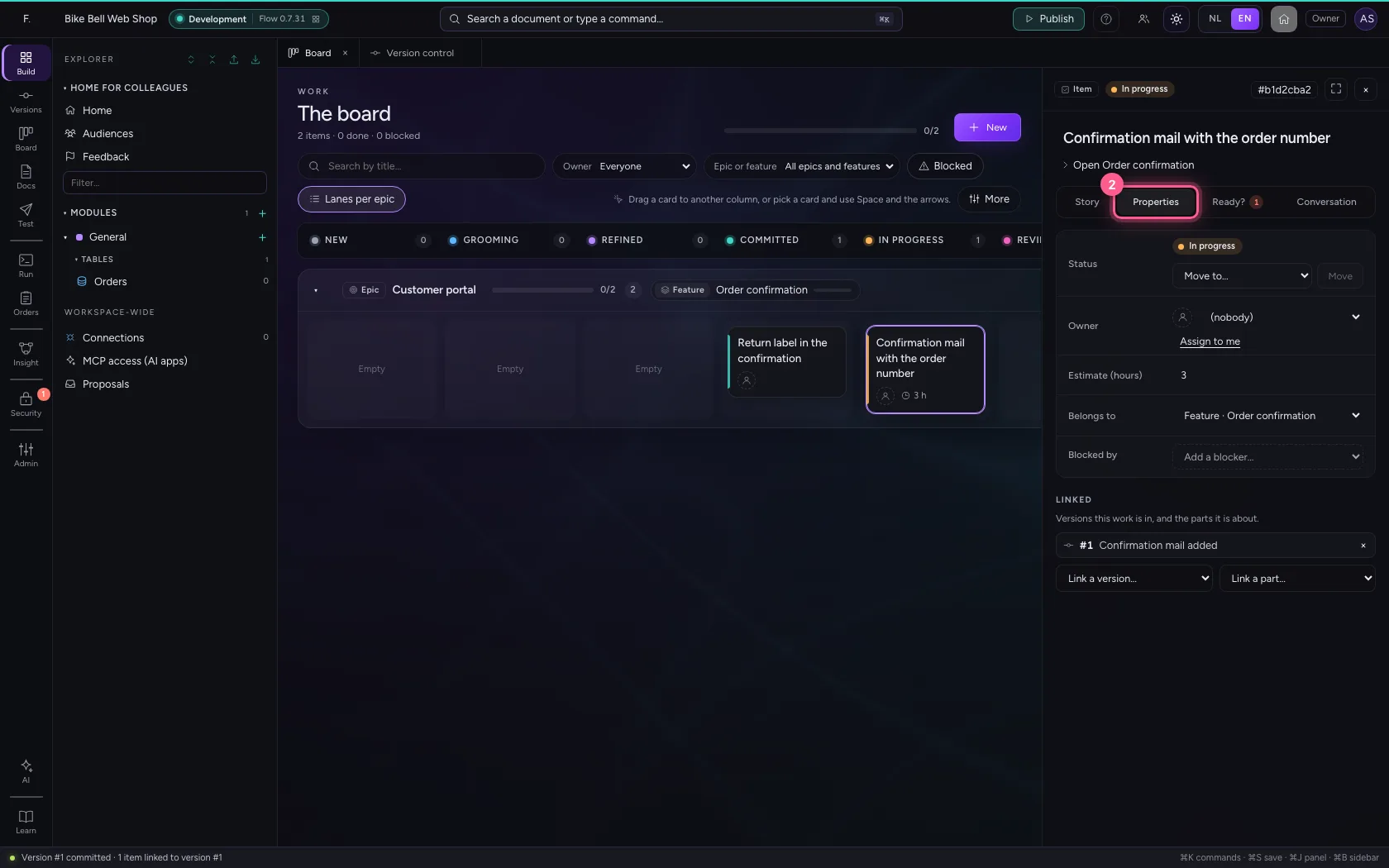
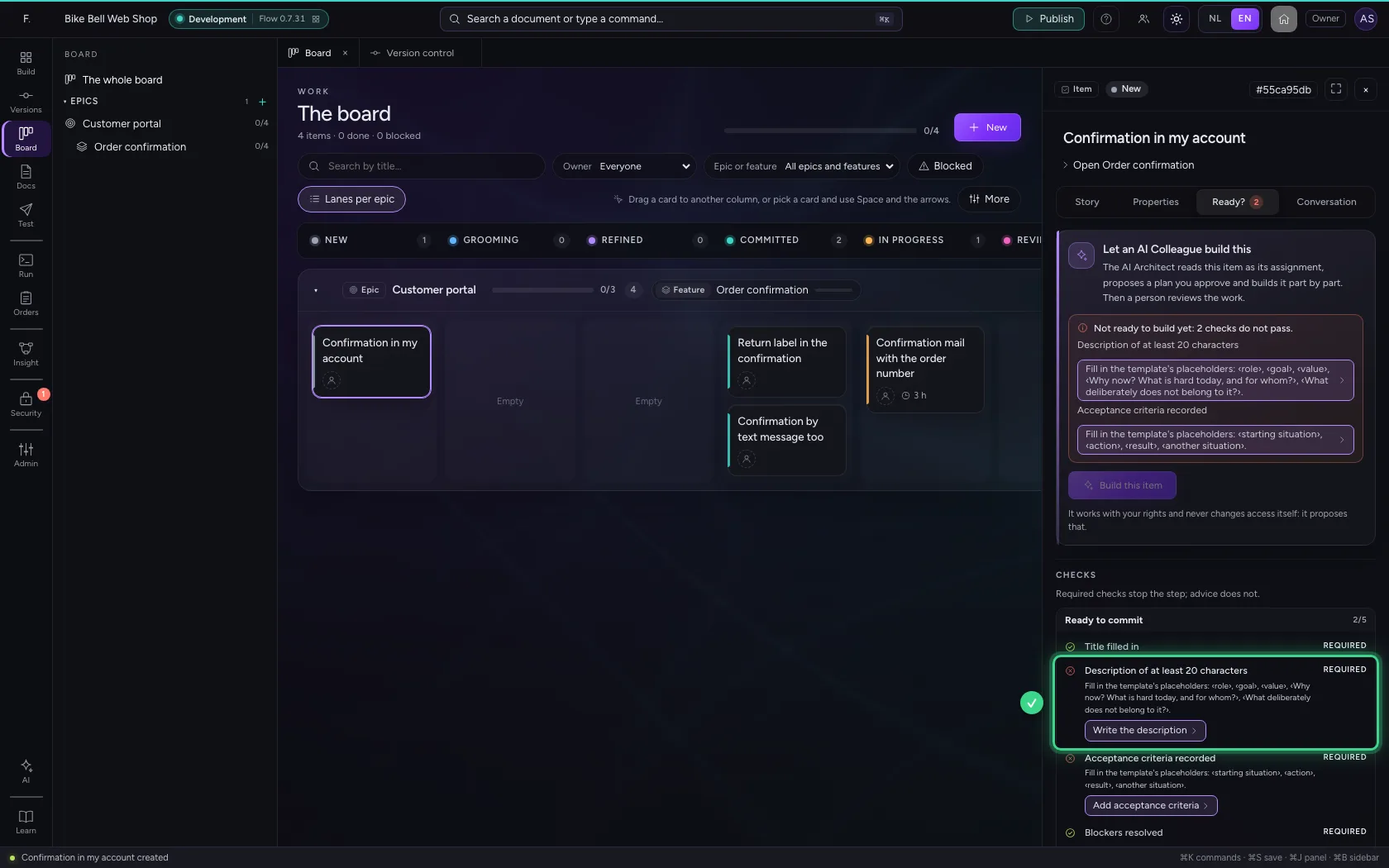
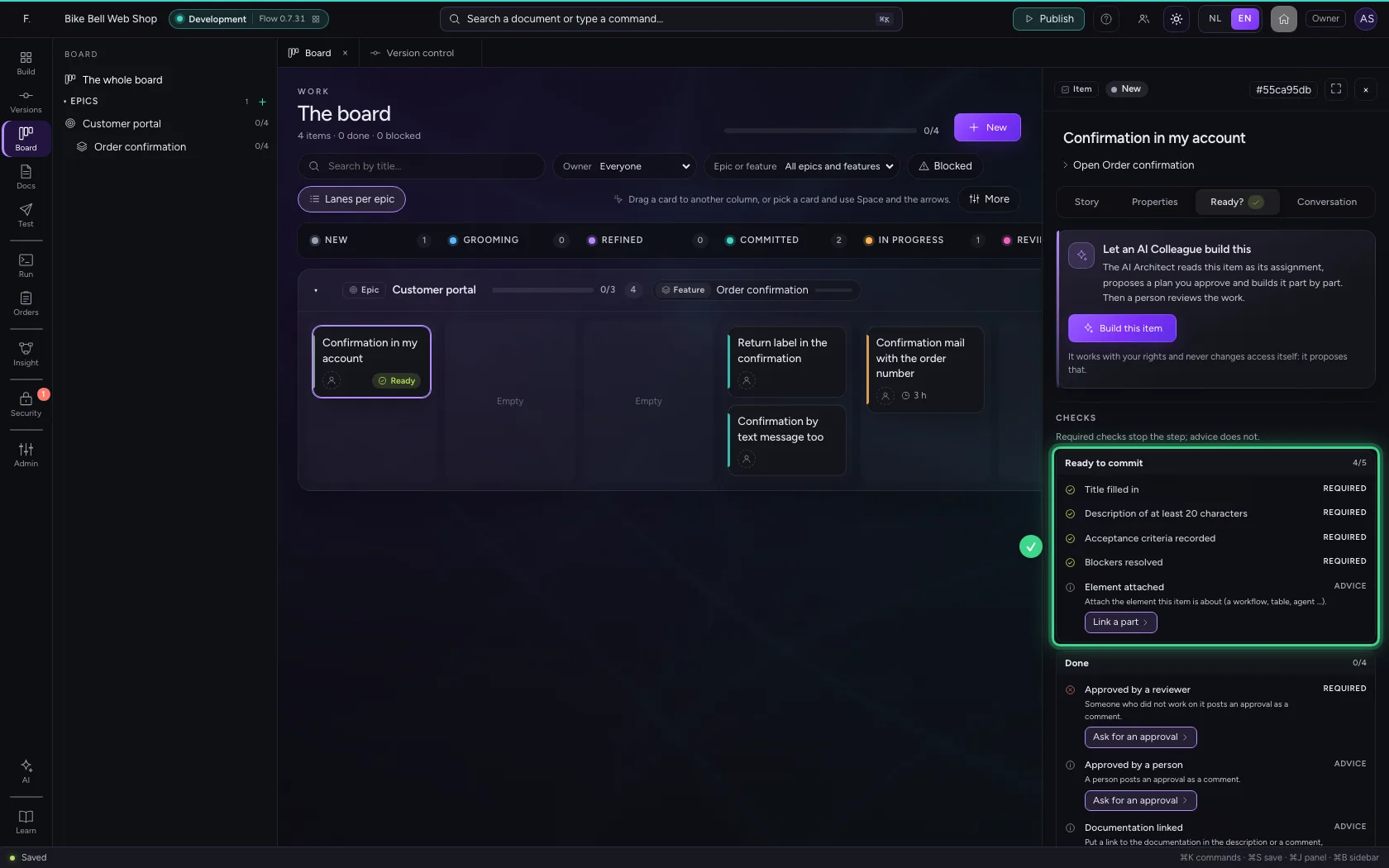
The inspector keeps an item clear in four tabs. Story: the description and the acceptance criteria (for an epic or feature also its parts). Properties: the status, the owner, the estimate, what it belongs to, what it waits for, the links and the mirrors. Ready?: the checks with what to do about them, and an AI Colleague that can build the item. Conversation: the comments and the history. A number on a tab says what is waiting, such as open checks or comments. Flow remembers which tab you chose last, and a button like Add acceptance criteria takes you to the right tab by itself. With the keyboard you choose a tab with the arrow keys.
- Click Properties
Open as page
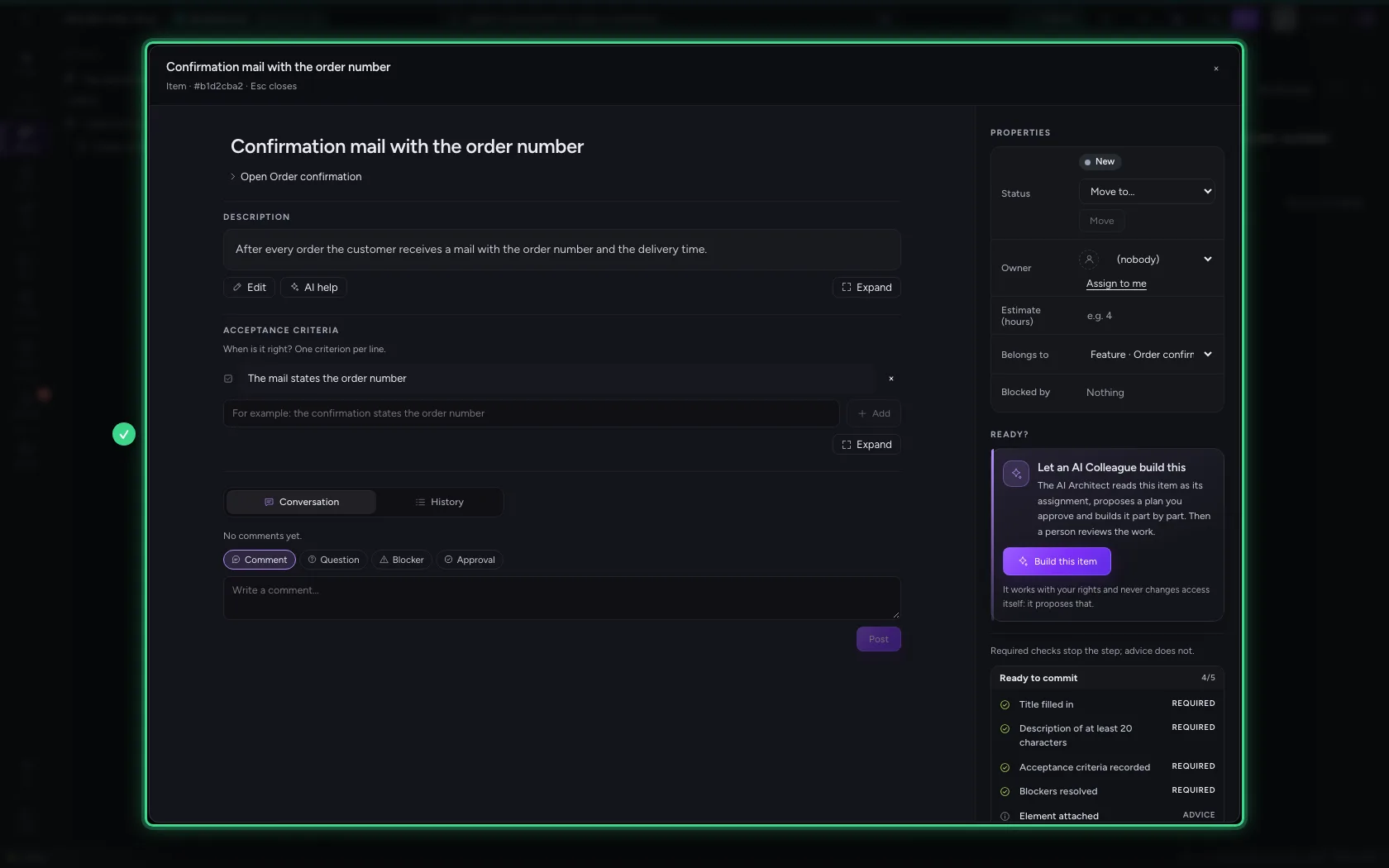
To read or write calmly, click Open as page at the top right of the inspector (the icon with the four corners). The whole item opens large: on the left the title, the description and the acceptance criteria, with the conversation and the history below; on the right the properties, Ready? with the checks, the links and the mirrors. You change everything there just as in the inspector, and it is saved the same way. Esc closes the page; on a narrow screen everything is stacked.
- Click Open as page
On one item at the same time
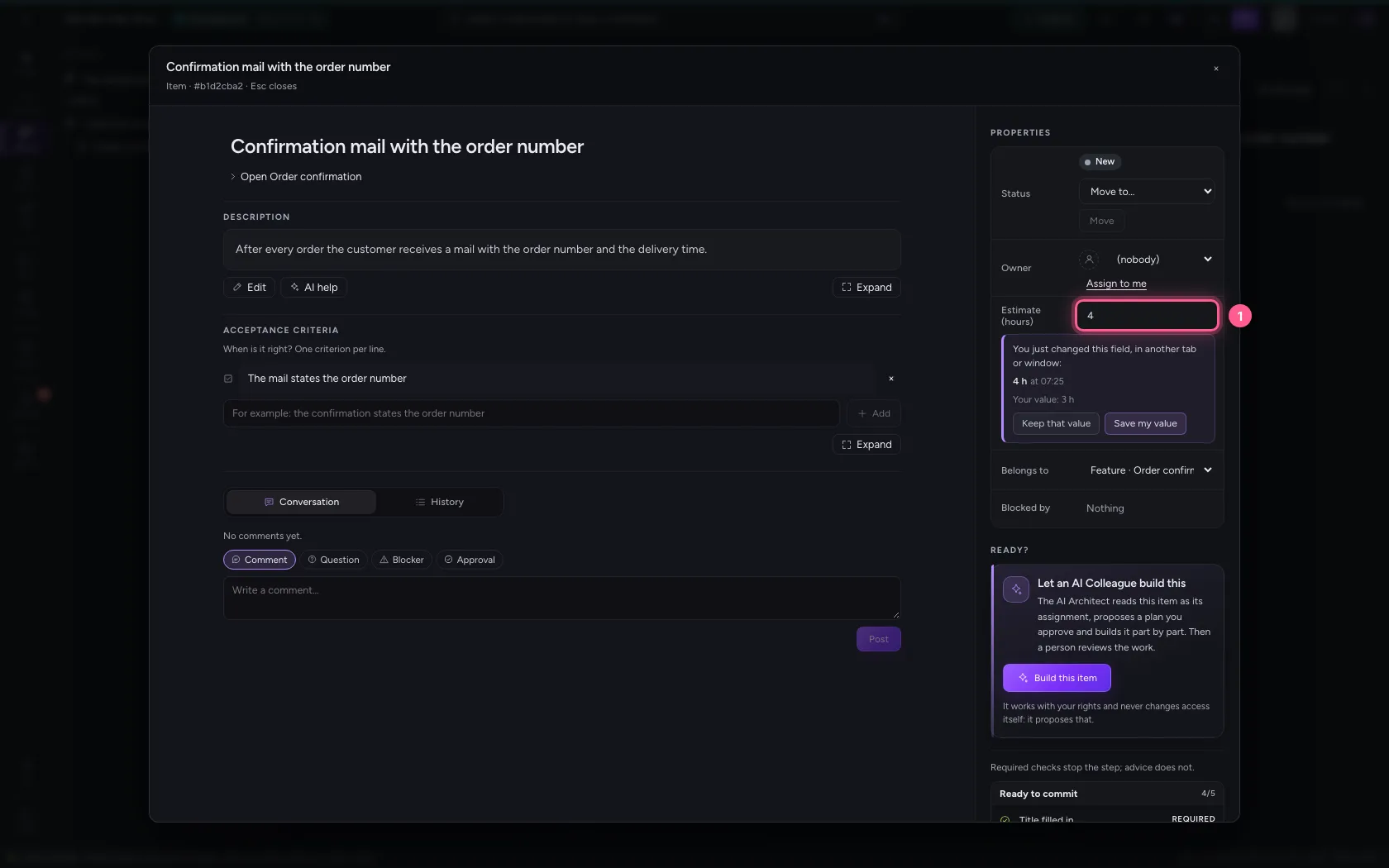
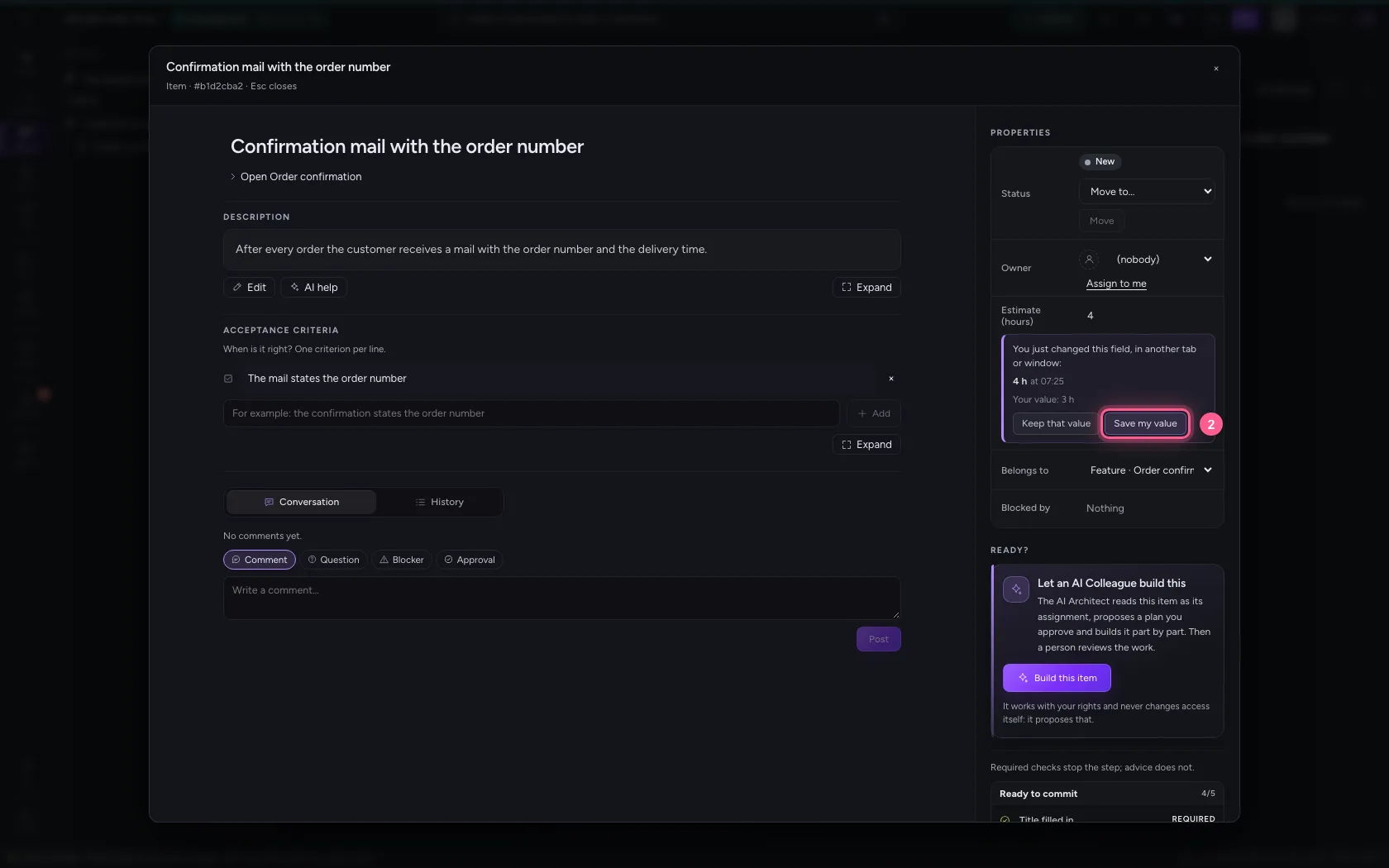
When two people work on the same item at the same time, Flow never silently overwrites the other's work. What someone else saves appears straight away, without losing what you are typing. When you each change a different field, everything is kept. When the other person just changed the same field, Flow keeps the rest and shows at that field who changed it and to what: you keep that value, or choose Save my value. The same goes for an AI app, and for yourself in another window, as here.
- In Estimate (hours), type
3
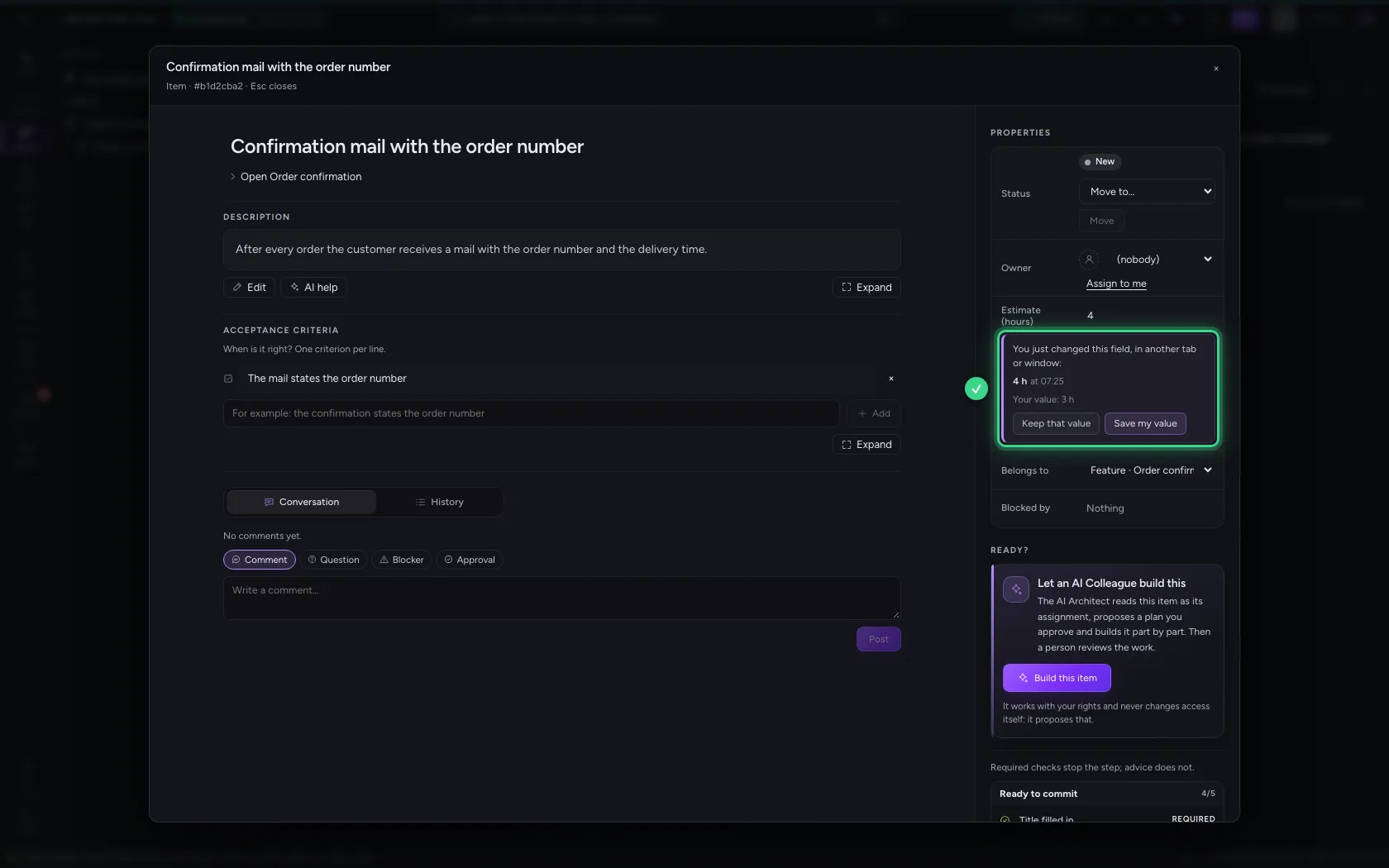
- Click Save my value
Drag a card to the next column
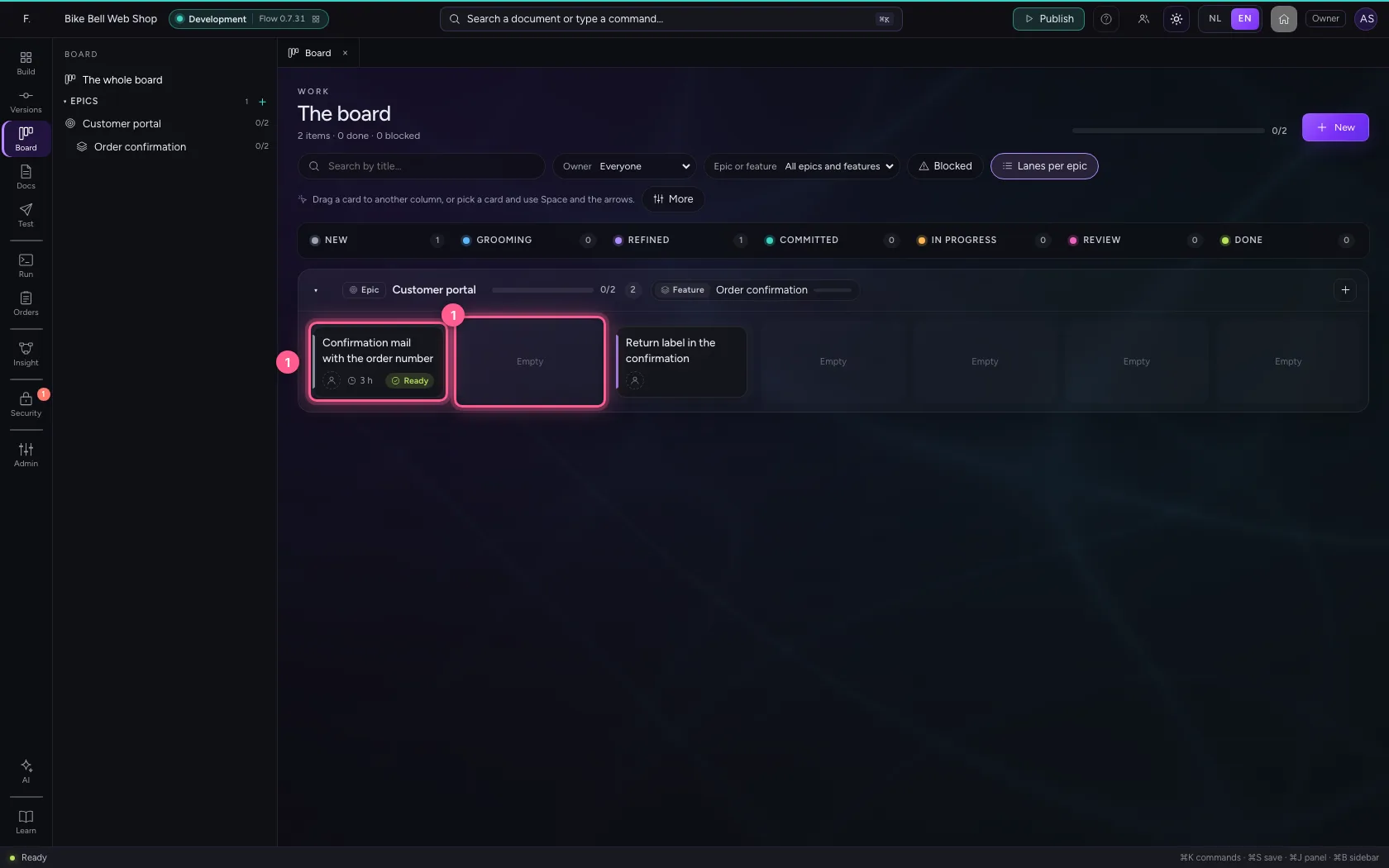
Take hold of the card and drag it to Grooming. The column under the card lights up when the step is allowed. No question beforehand; at the bottom Undo shows for a while, in case it was a mistake.
- Drag the card to Grooming
Or with the keyboard
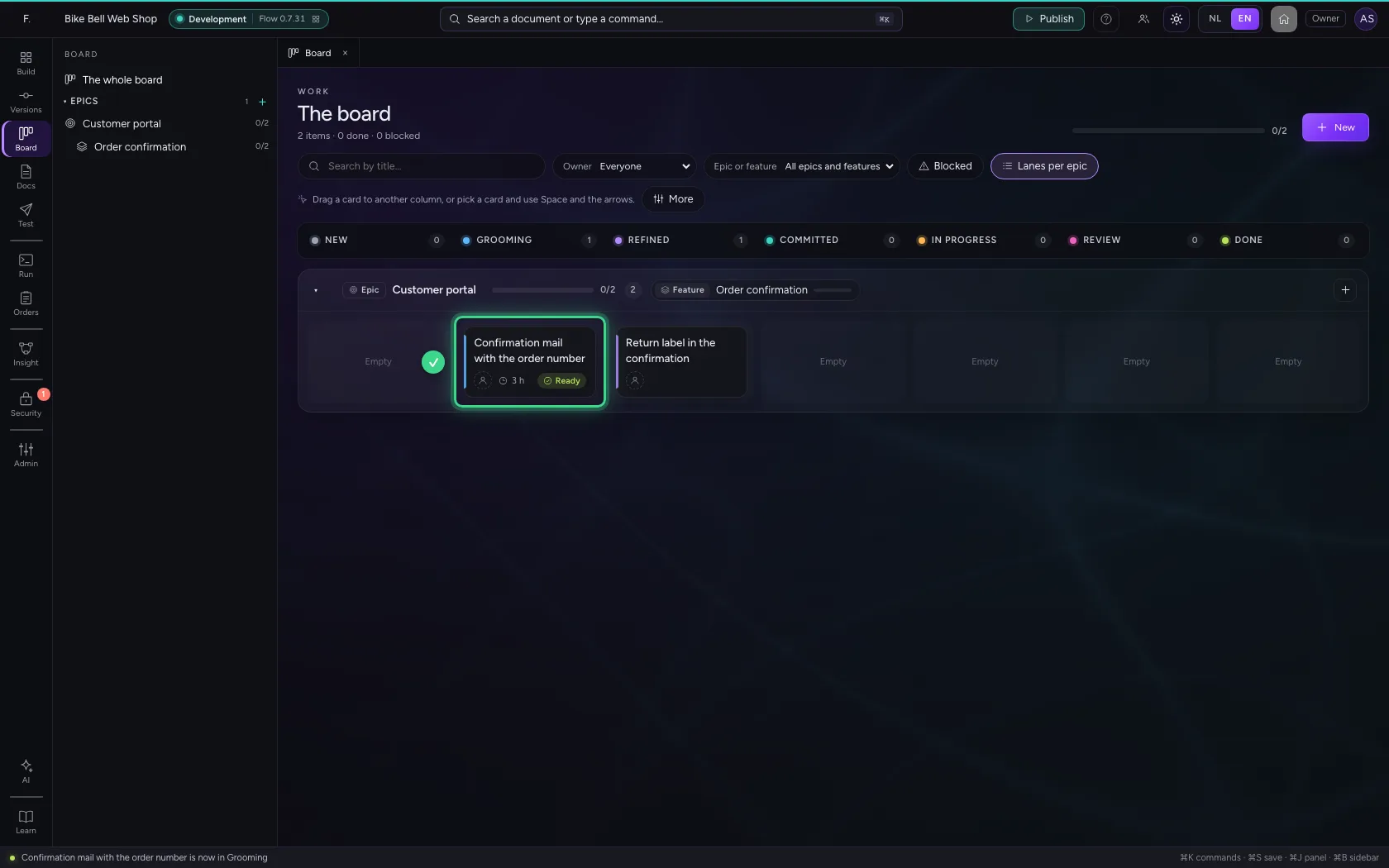
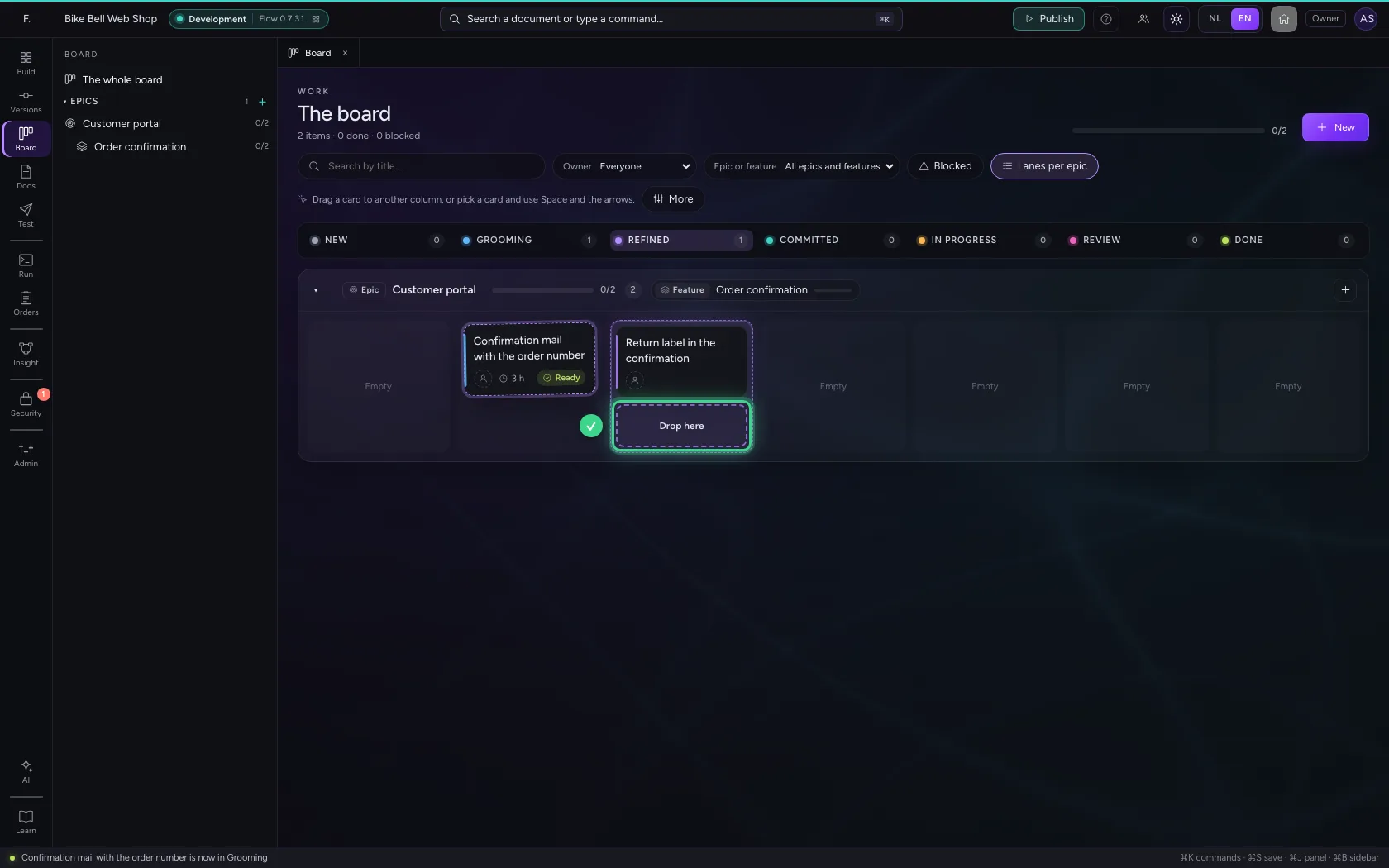
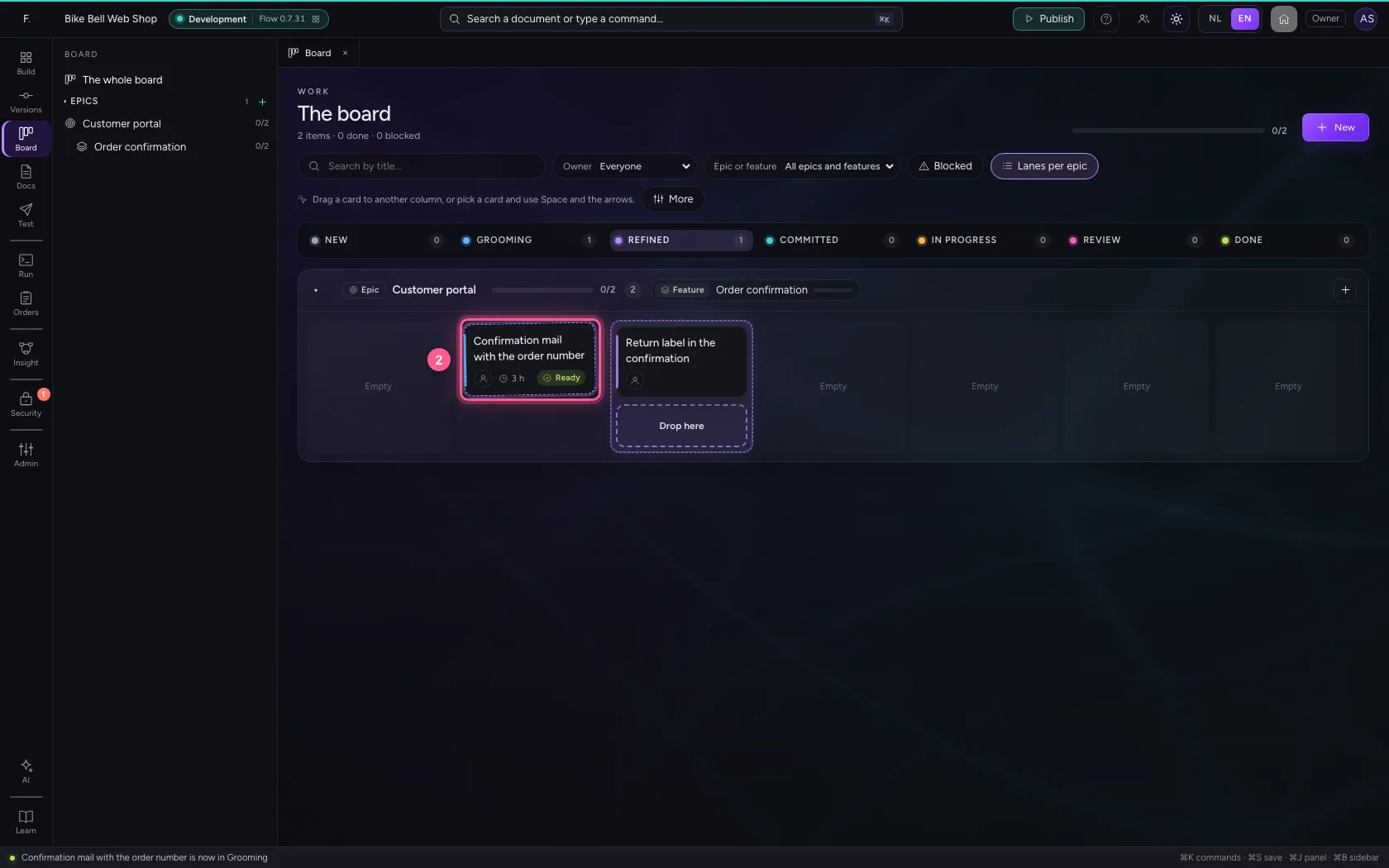
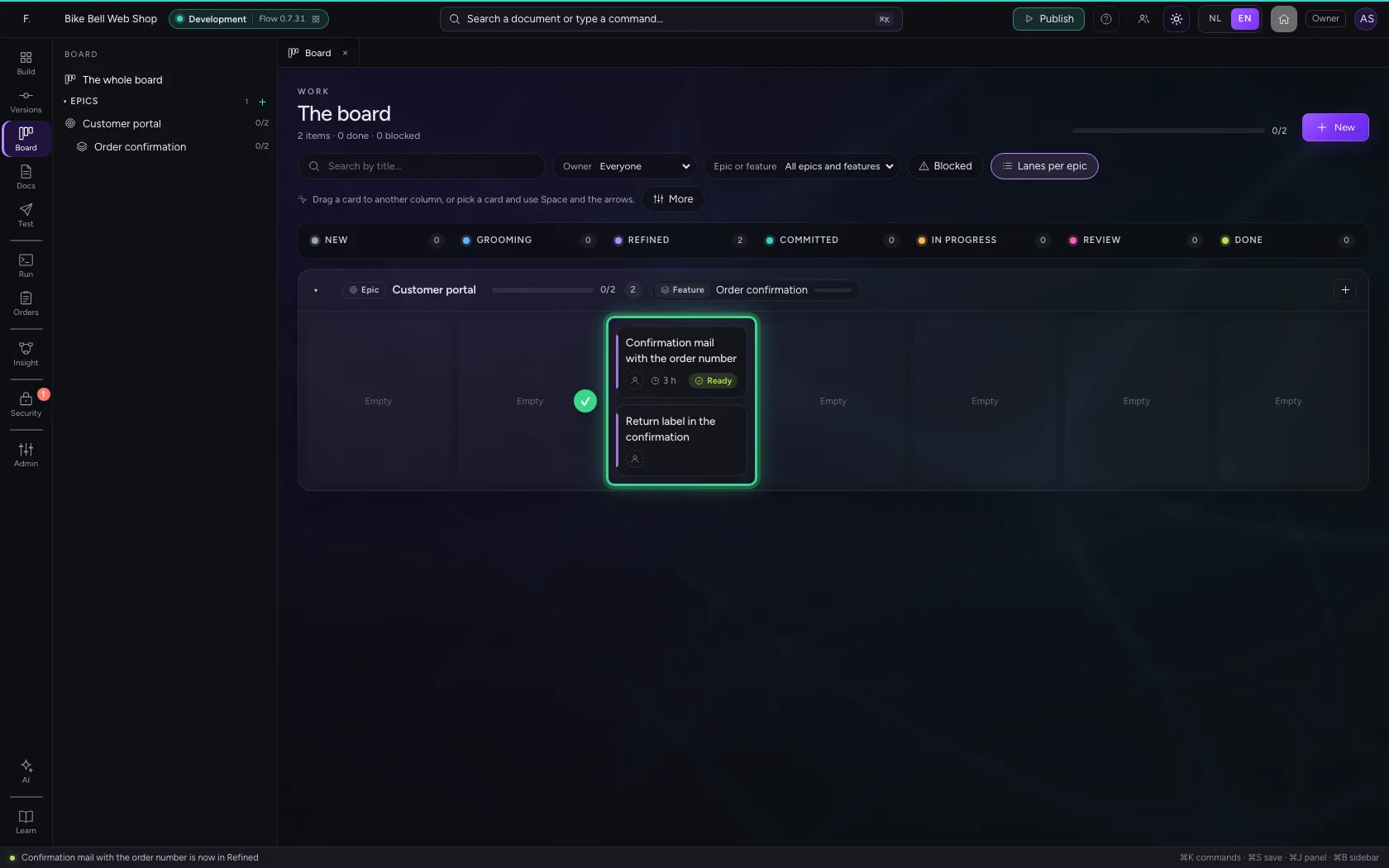
Tab to a card. Space picks it up, the right arrow chooses the next column (Drop here), Enter drops it and Escape cancels. A screen reader reads every step aloud.
- Press Space and the right arrow
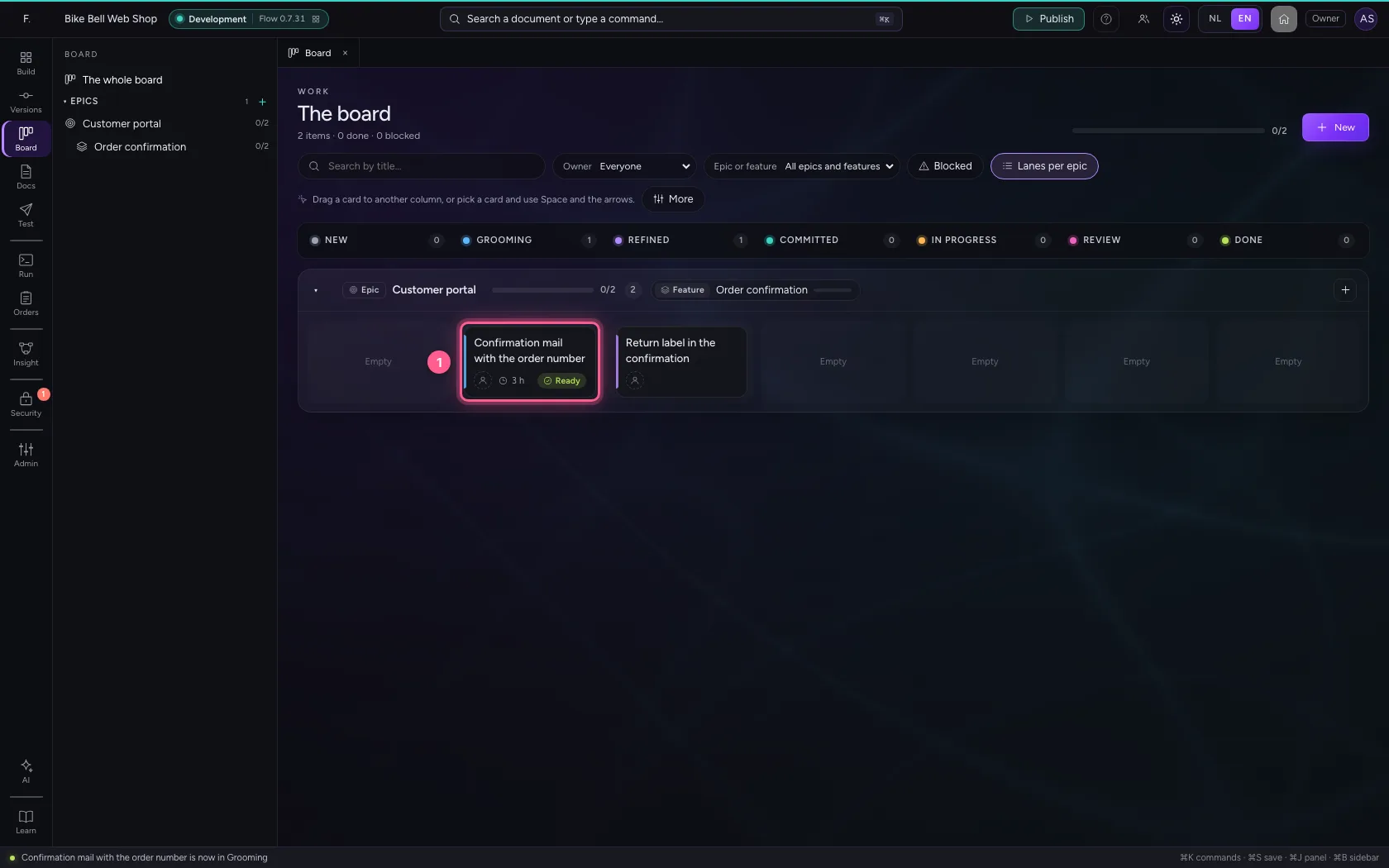
- Press Enter
A step that is not allowed yet
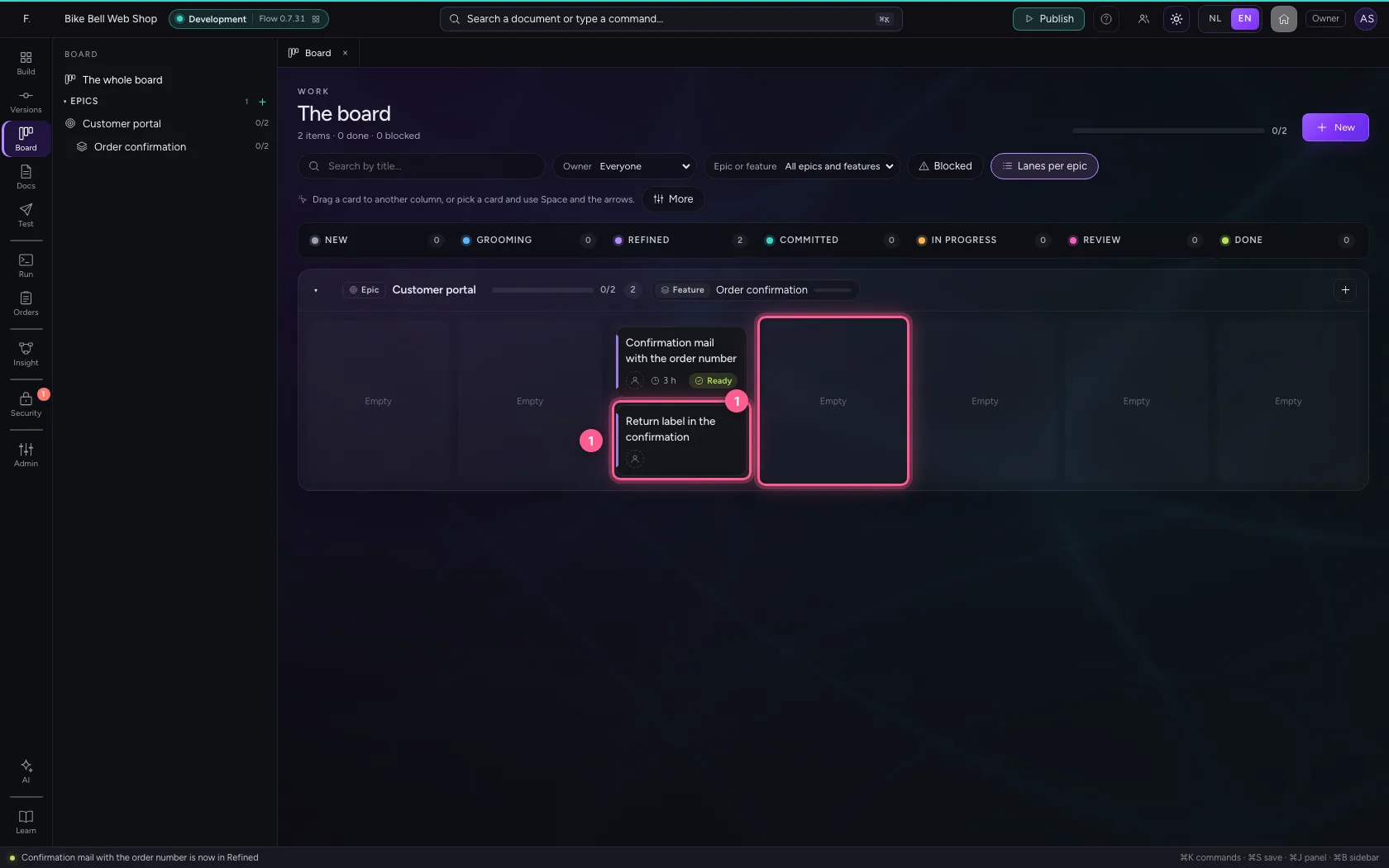
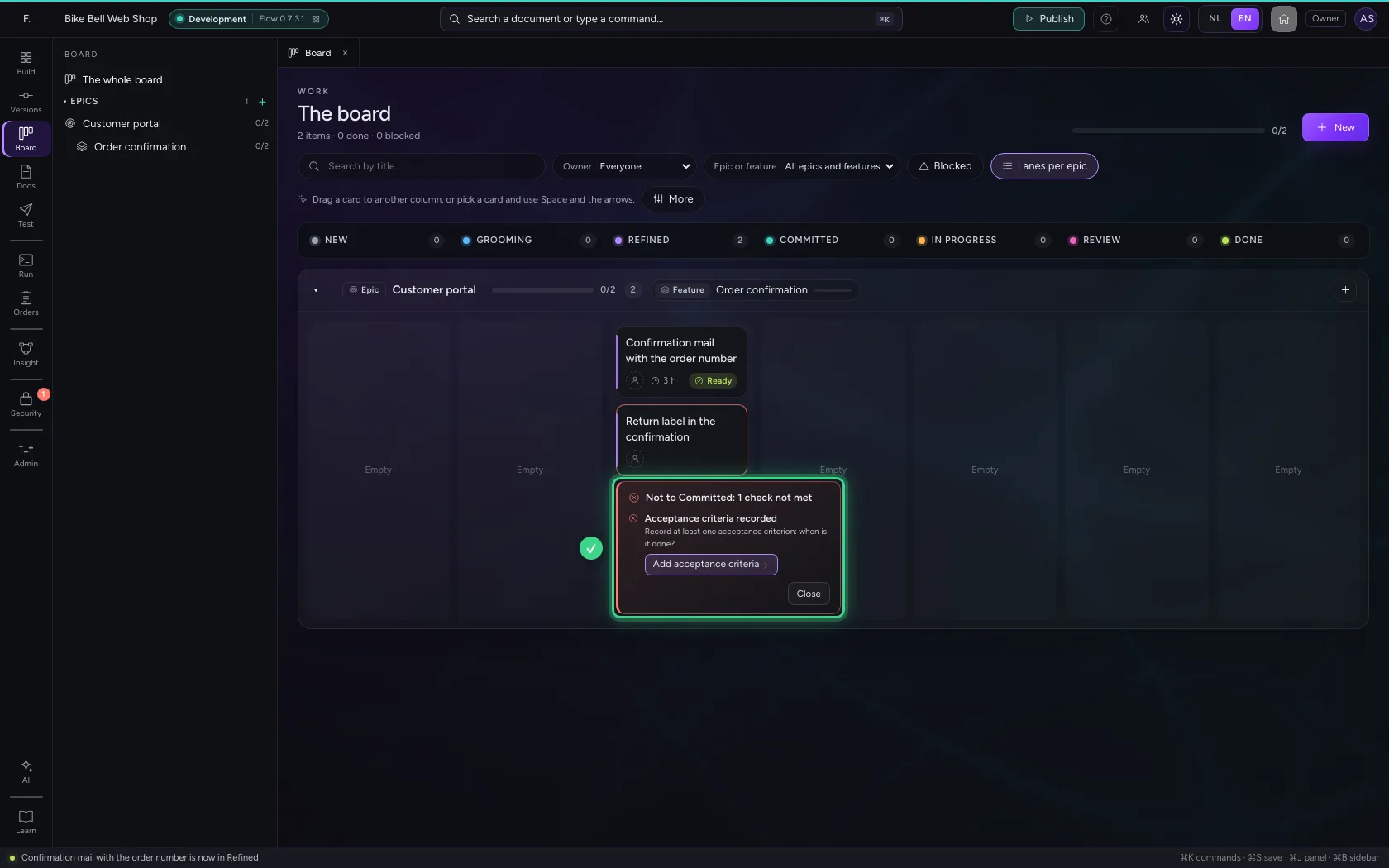
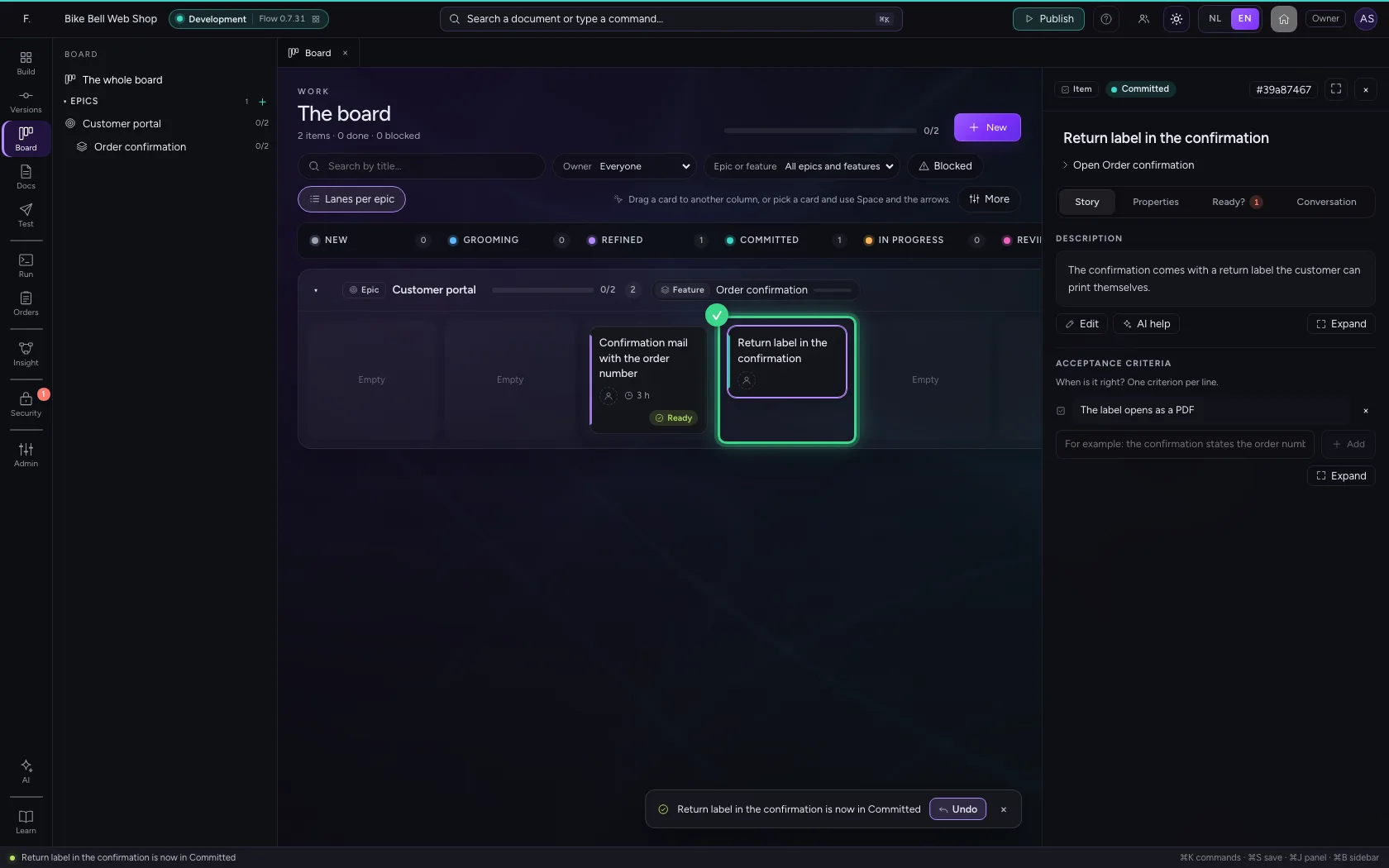
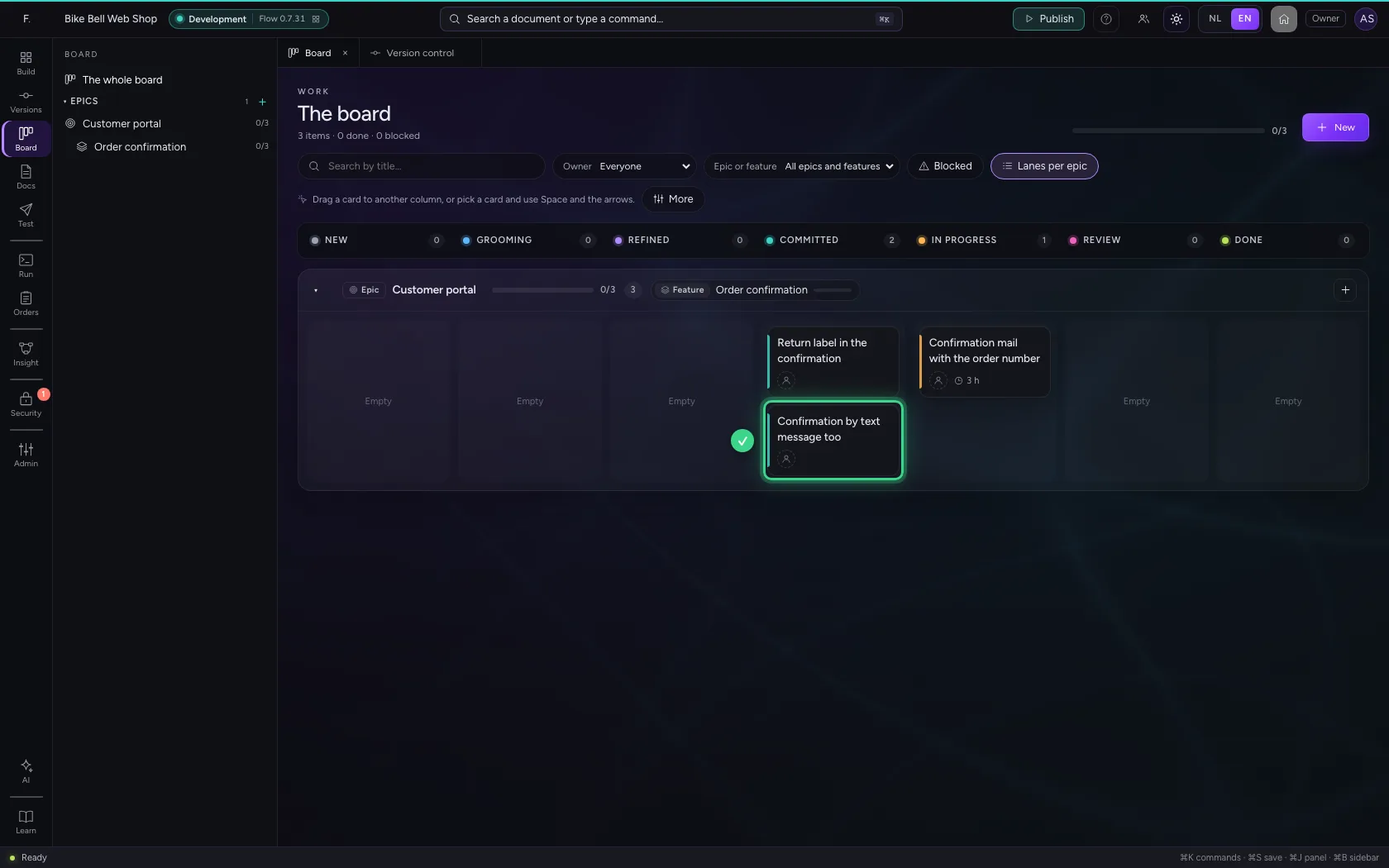
Drag the return label to Committed. Flow only commits an item when it is ready; this item has no acceptance criteria yet. The card stays where it is and says what is missing, with a button per check that takes you straight there.
- Drag the return label to Committed
Fix it and commit it
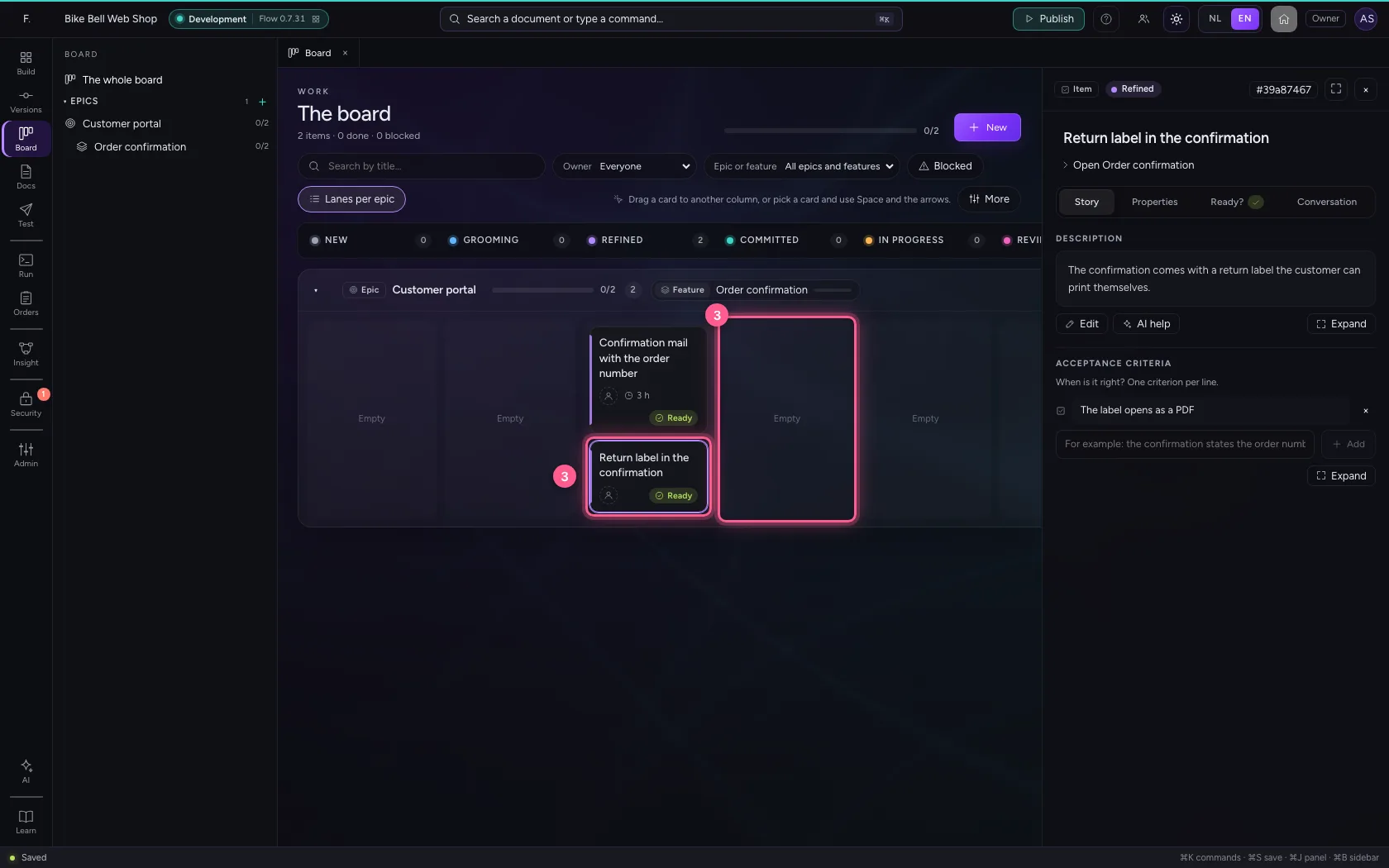
Click Add acceptance criteria: the item opens in the inspector on the tab Story, with the cursor where the criterion goes. Type it and press Enter. Now it is ready: drag the card to Committed again.
- Click Add acceptance criteria
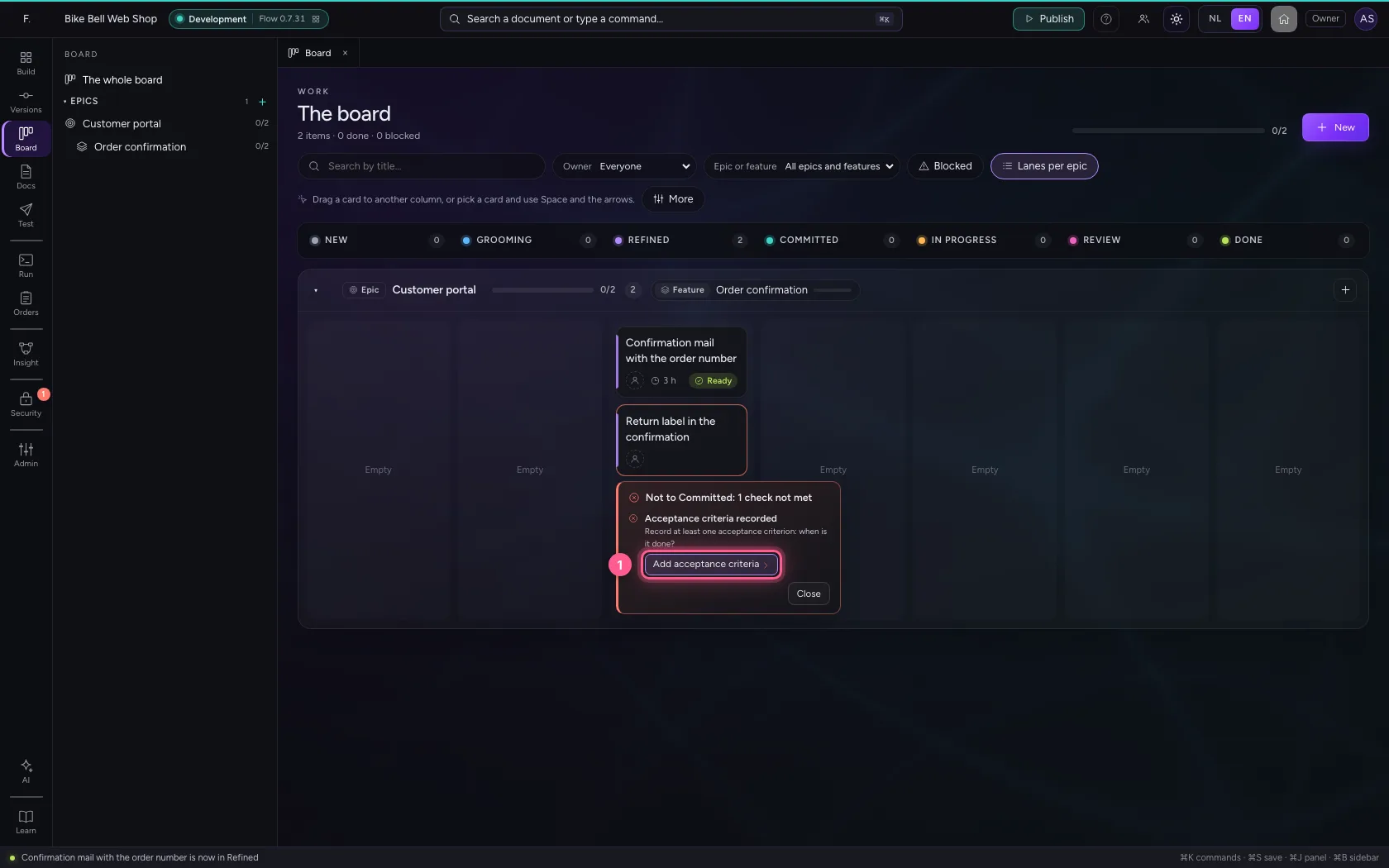
- In For example: the confirmation states the order number, type
The label opens as a PDF
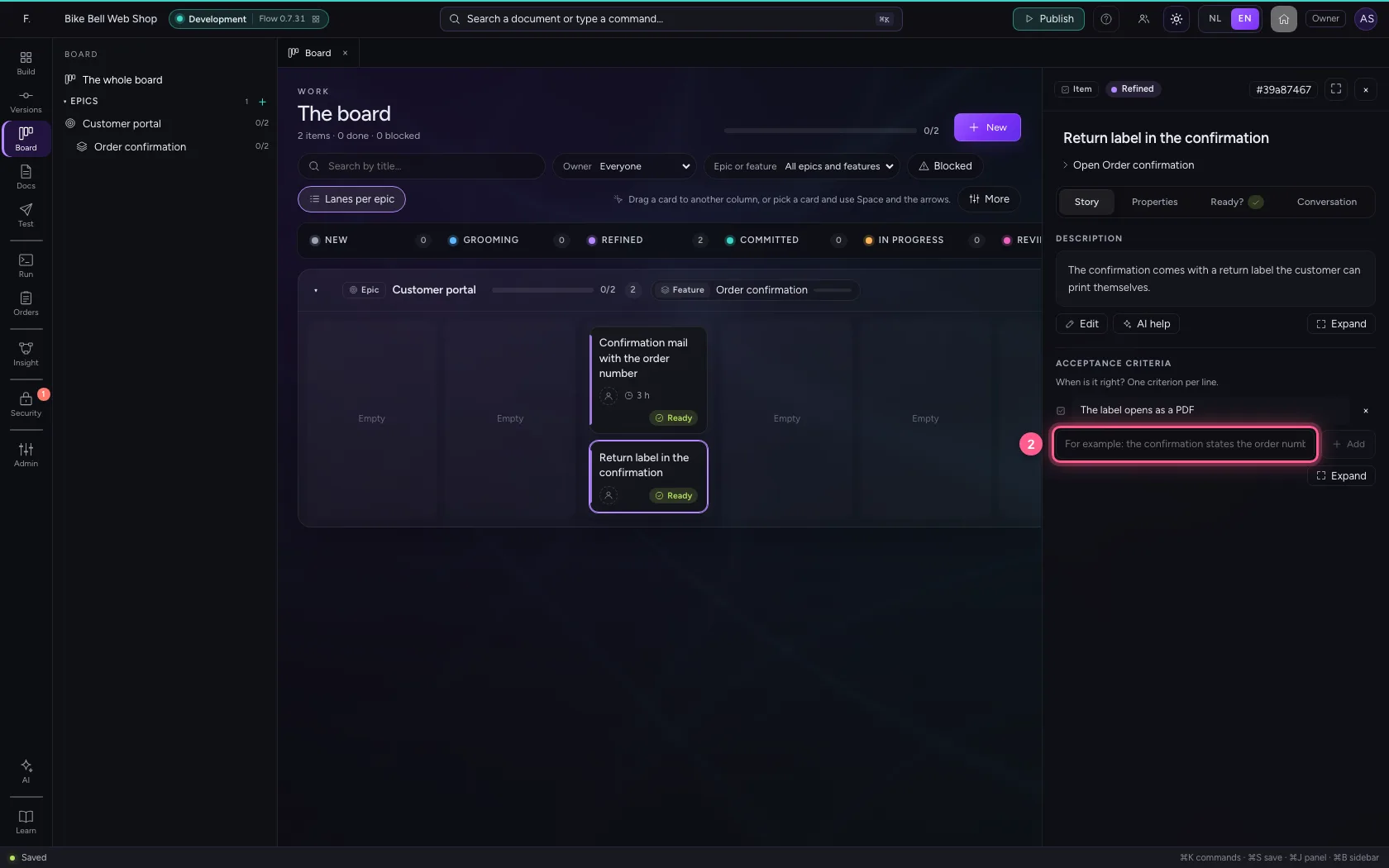
- Drag the return label to Committed
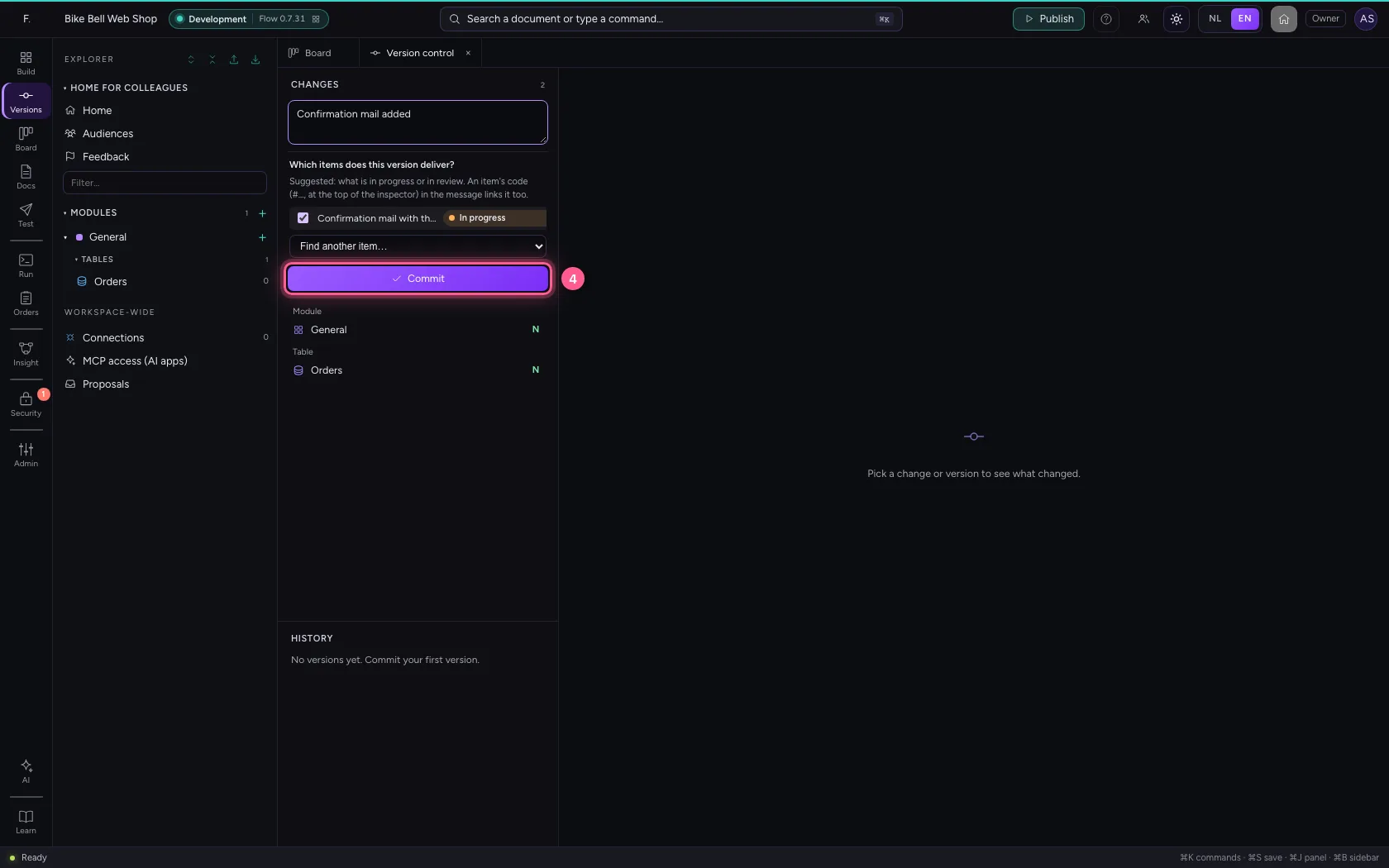
Which items does this version deliver?
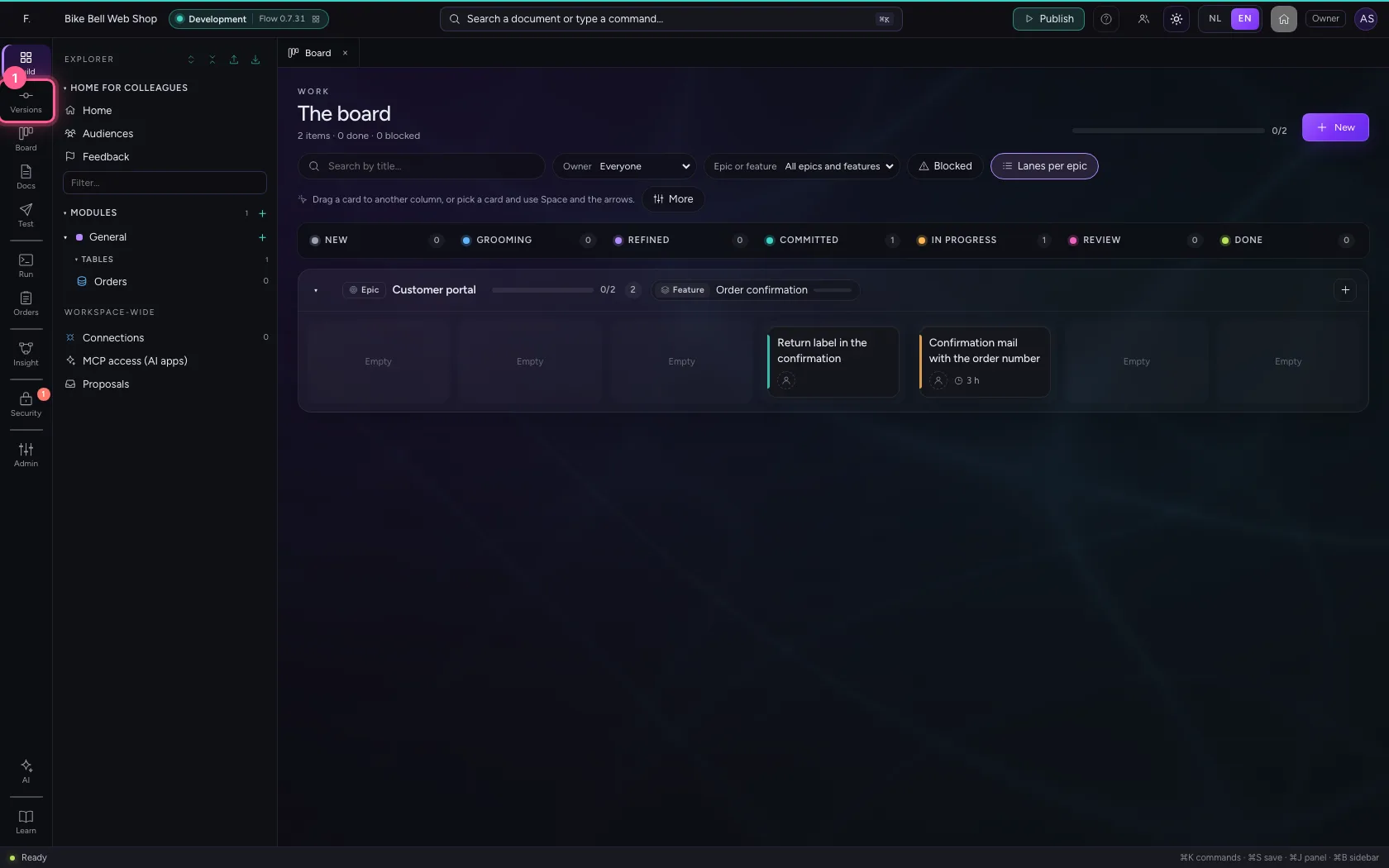
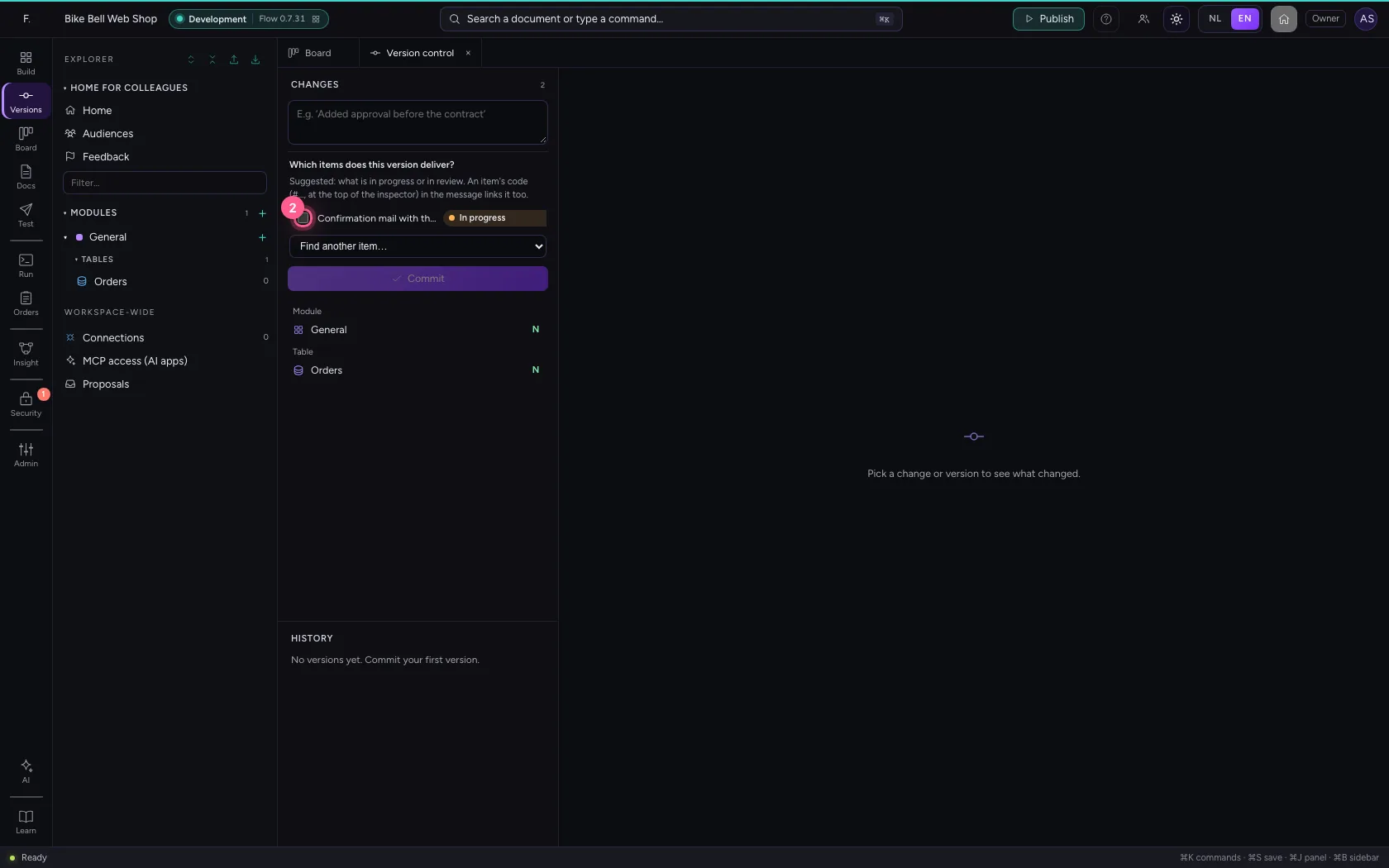
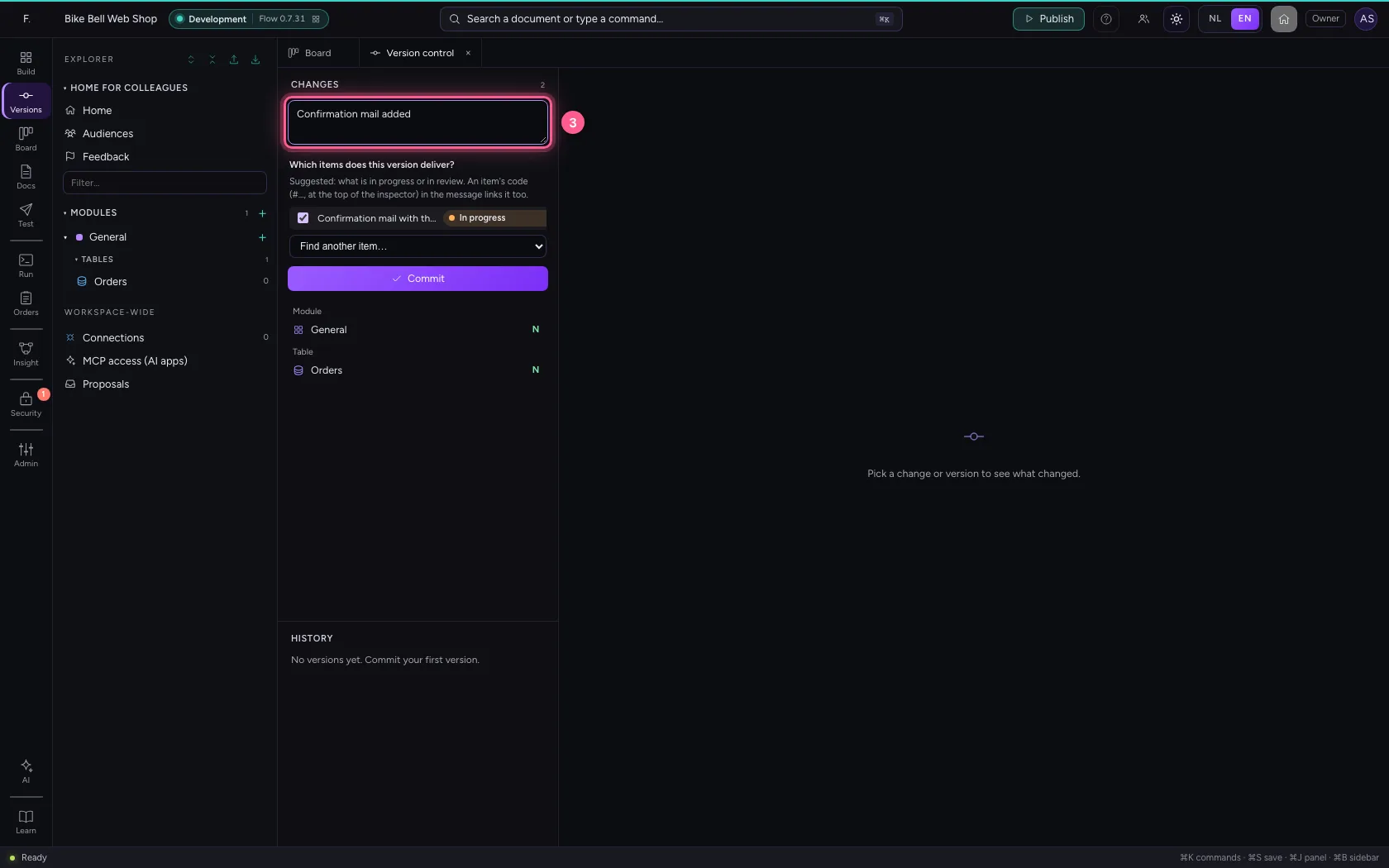
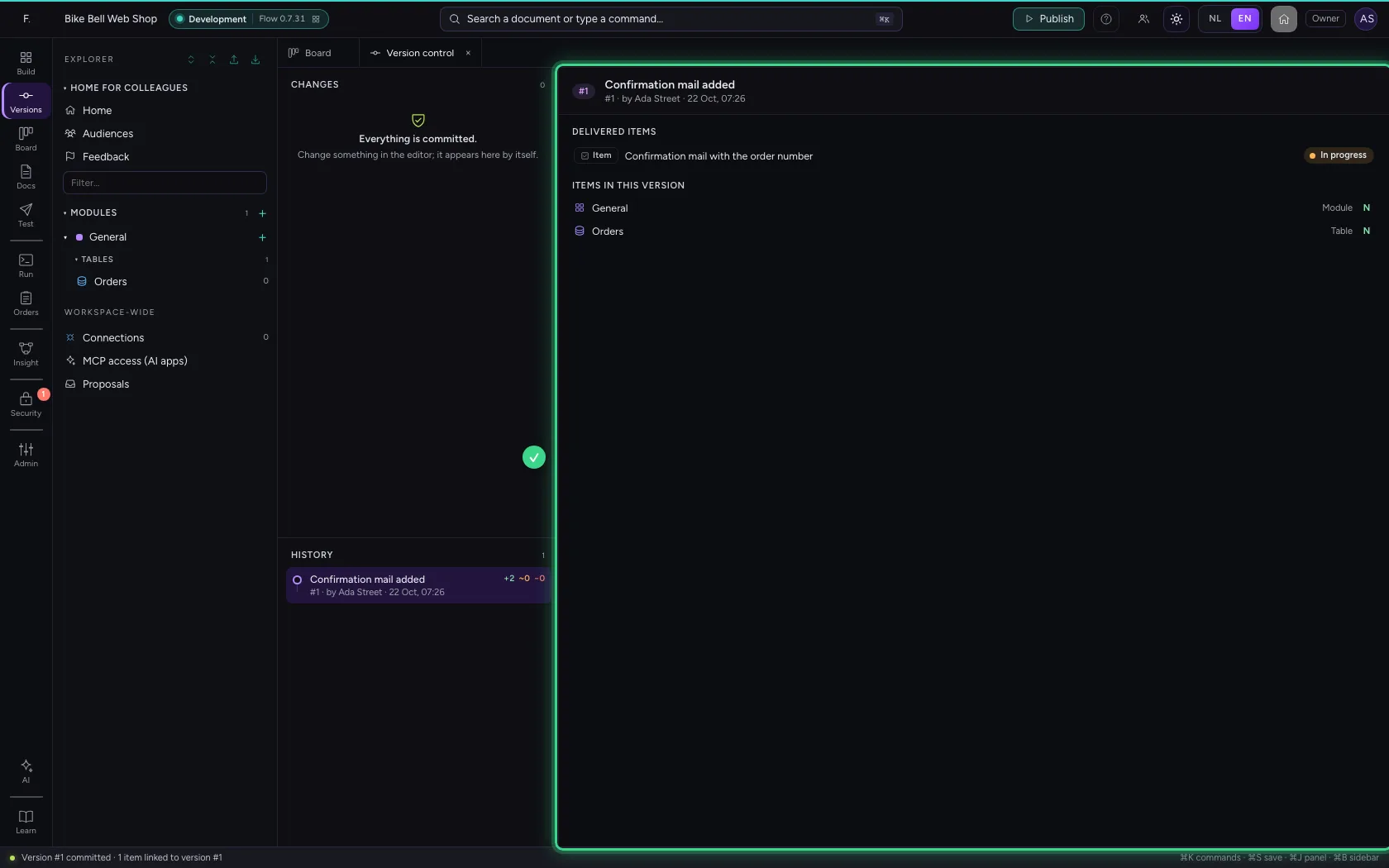
Open Version control. Below the message is Which items does this version deliver?, suggesting what is in progress or in review; you can find another item too. Tick the confirmation mail, write what you changed and click Commit. An item's code in the message links it as well (see the next step).
- Click Version control
- Click Confirmation mail with the order number
- In What did you change?, type
Confirmation mail added
- Click Commit
From the version to the item
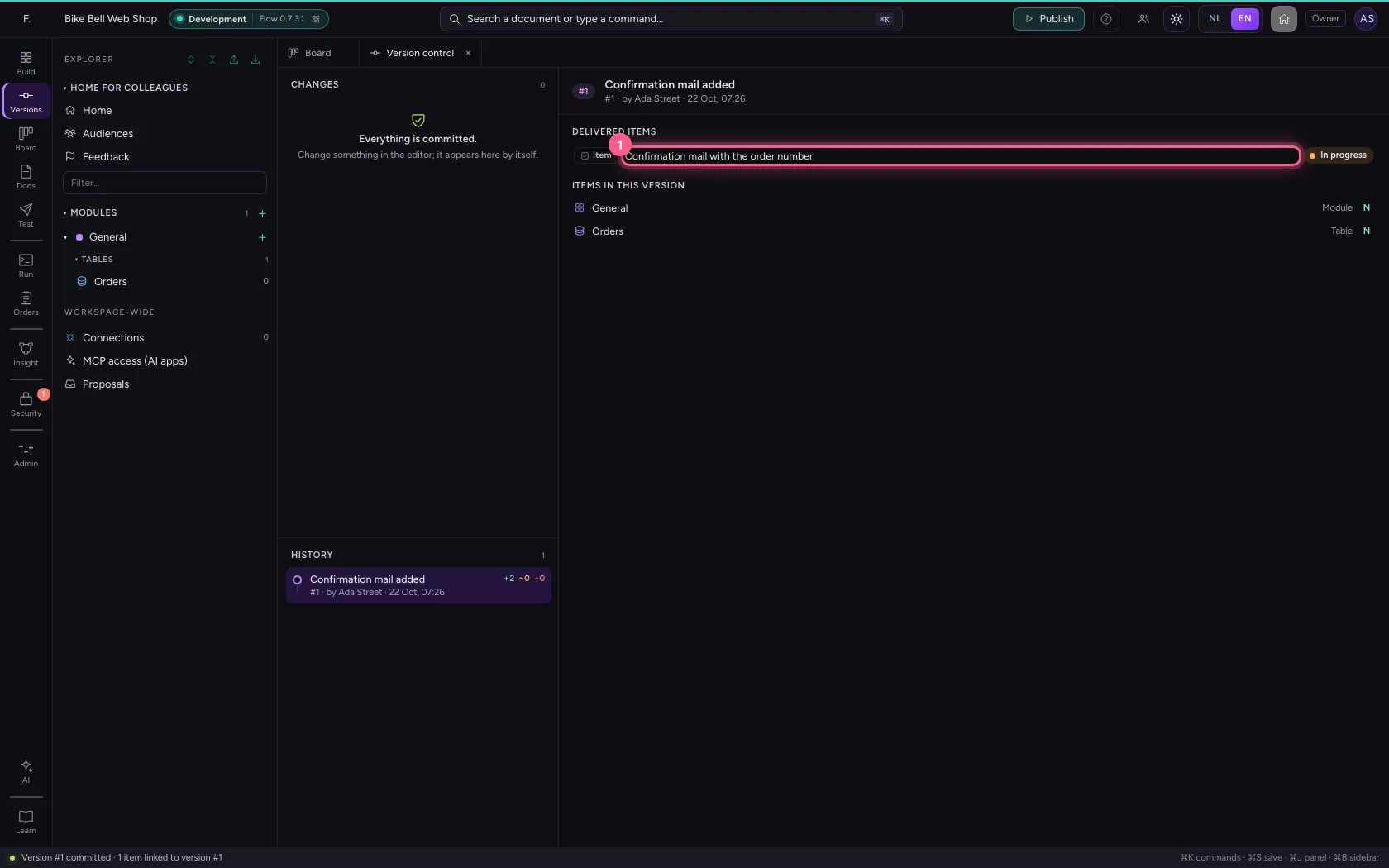
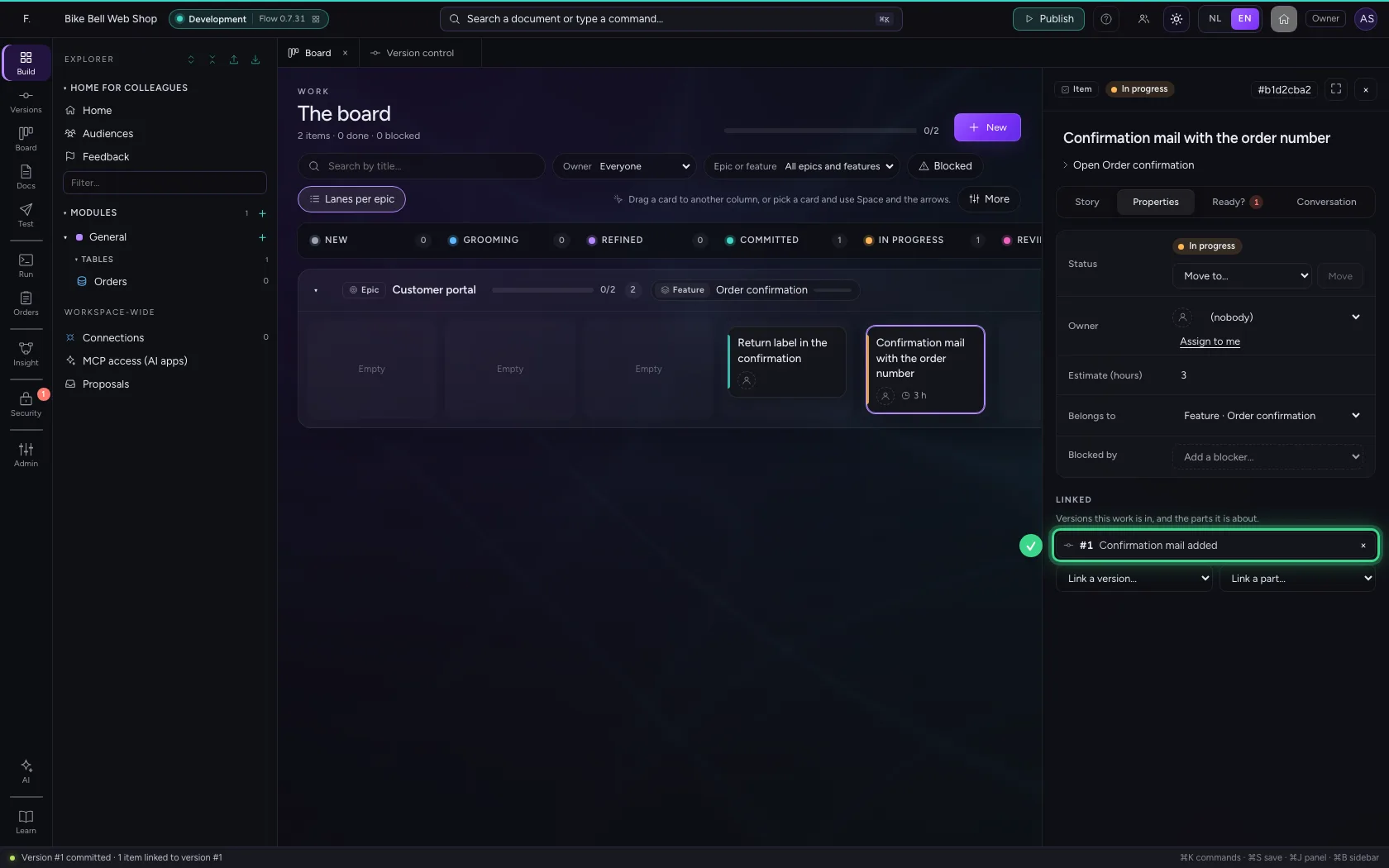
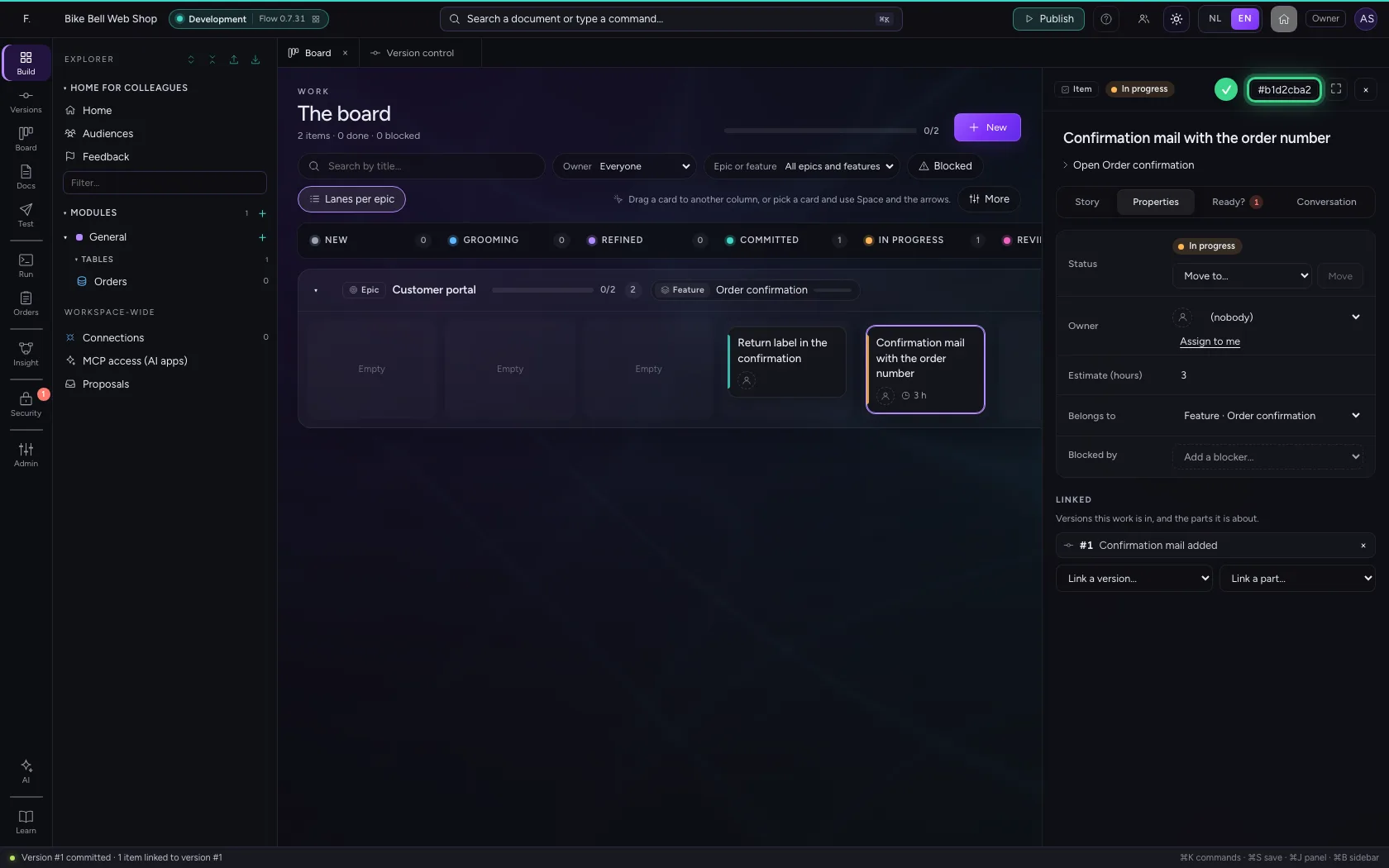
Click the delivered item: the board opens with the item in the inspector. On the tab Properties, under Linked is the version, with its number and message. That way you see for every piece of work which version it is in, and for every version which work is in it. Top right in the inspector is the item's code (#…): click it to copy it, and put it in the message of a version to link the item without ticking it.
- Click Confirmation mail with the order number
- Click Properties
The items travel with the release
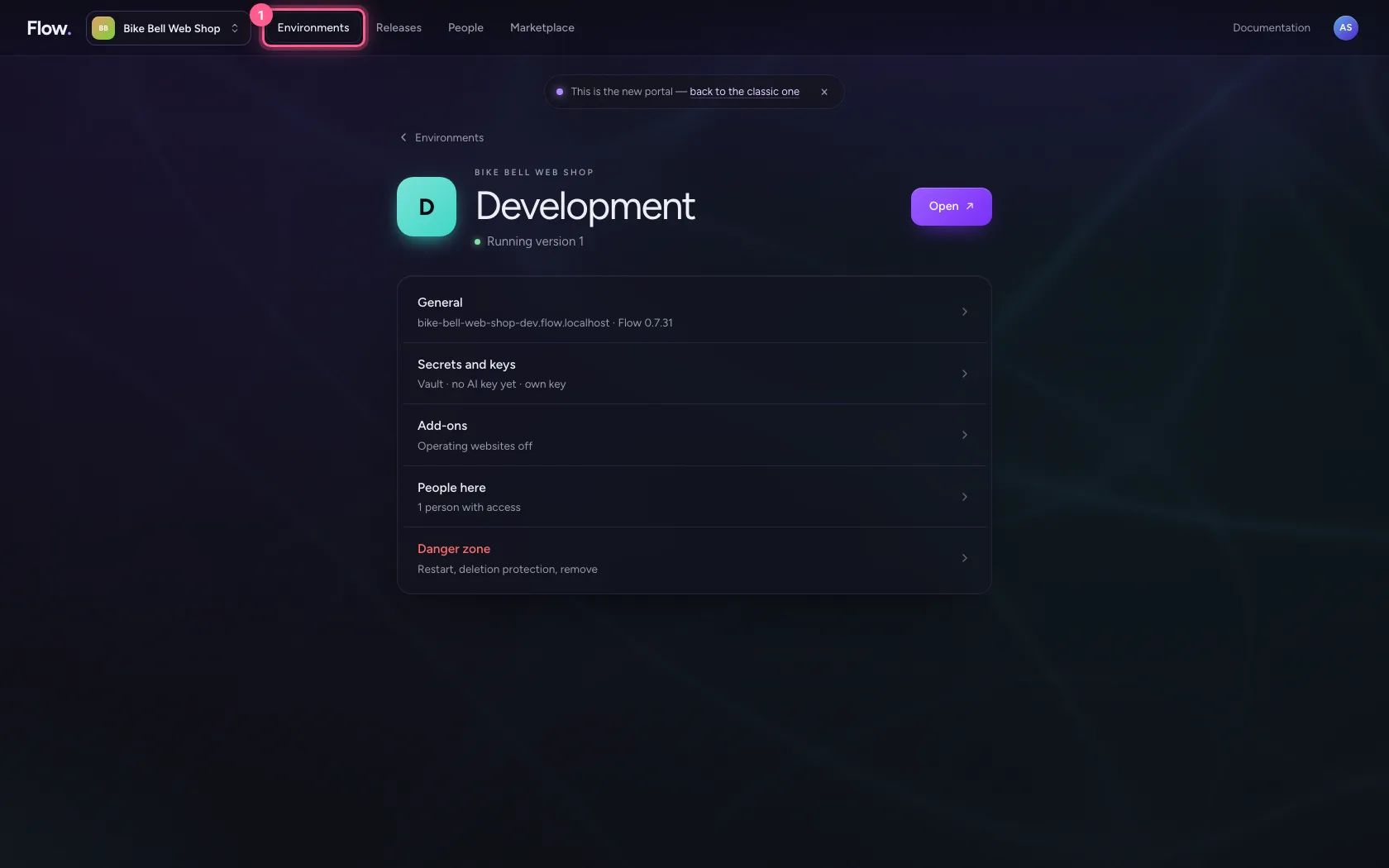
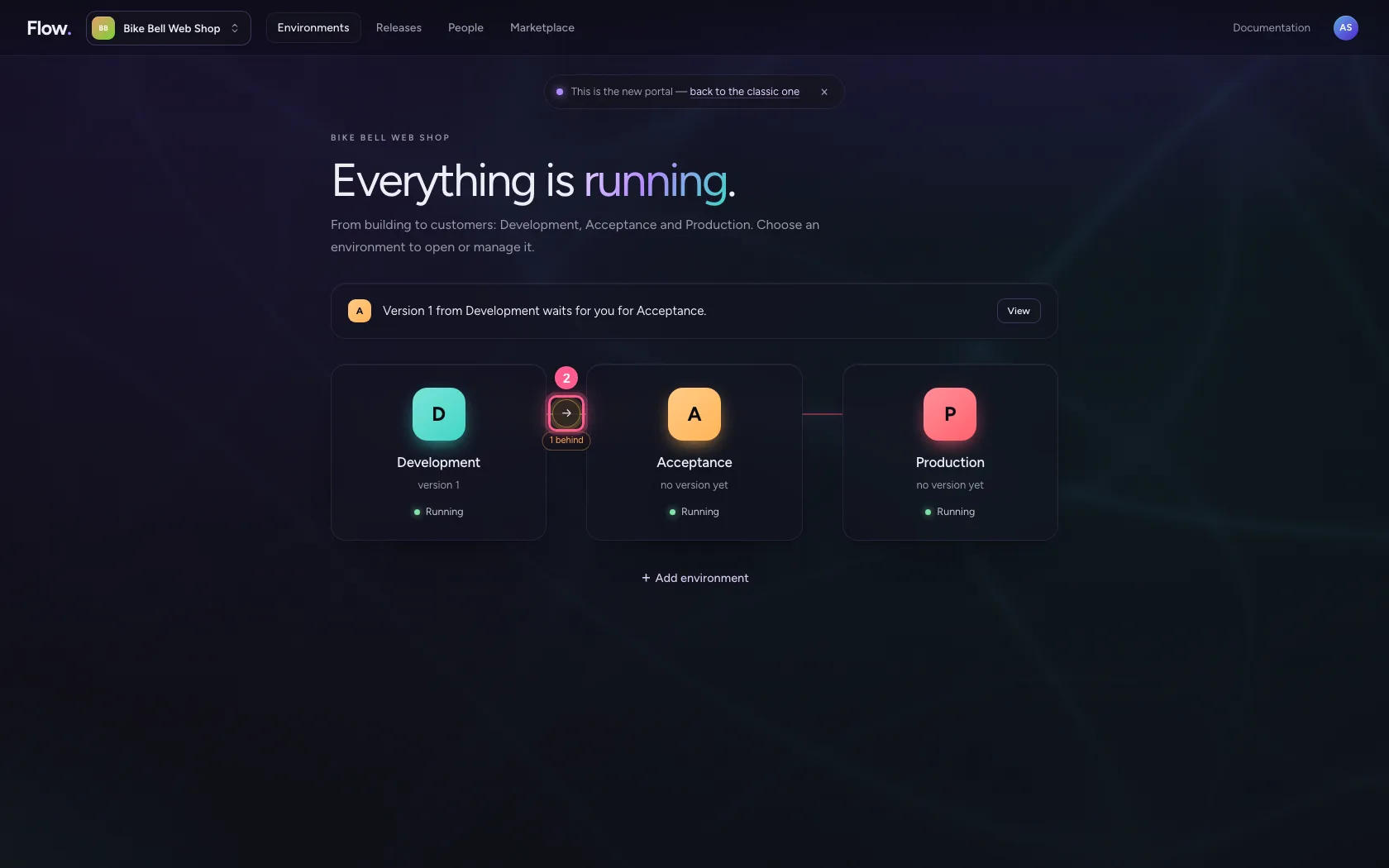
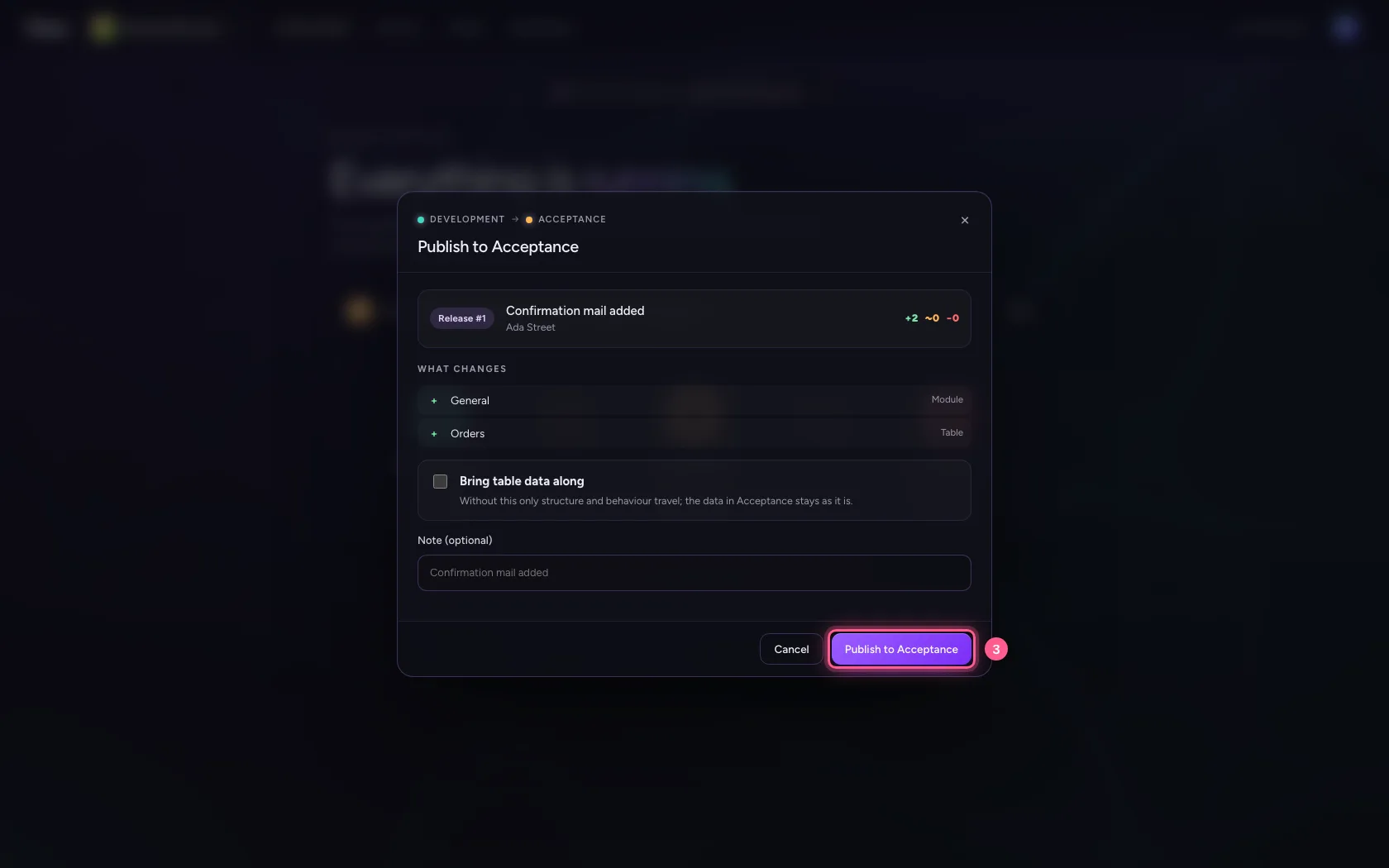
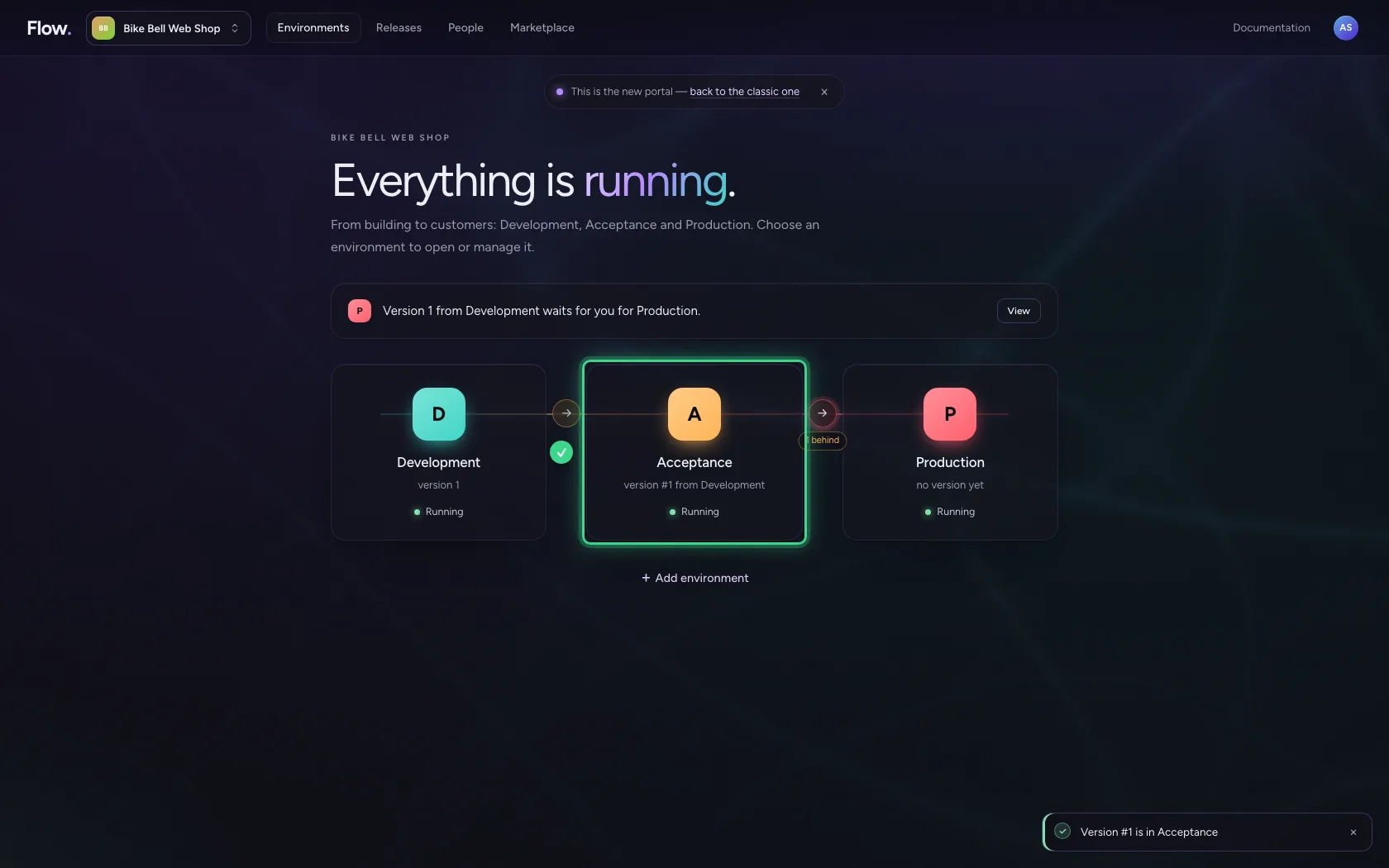
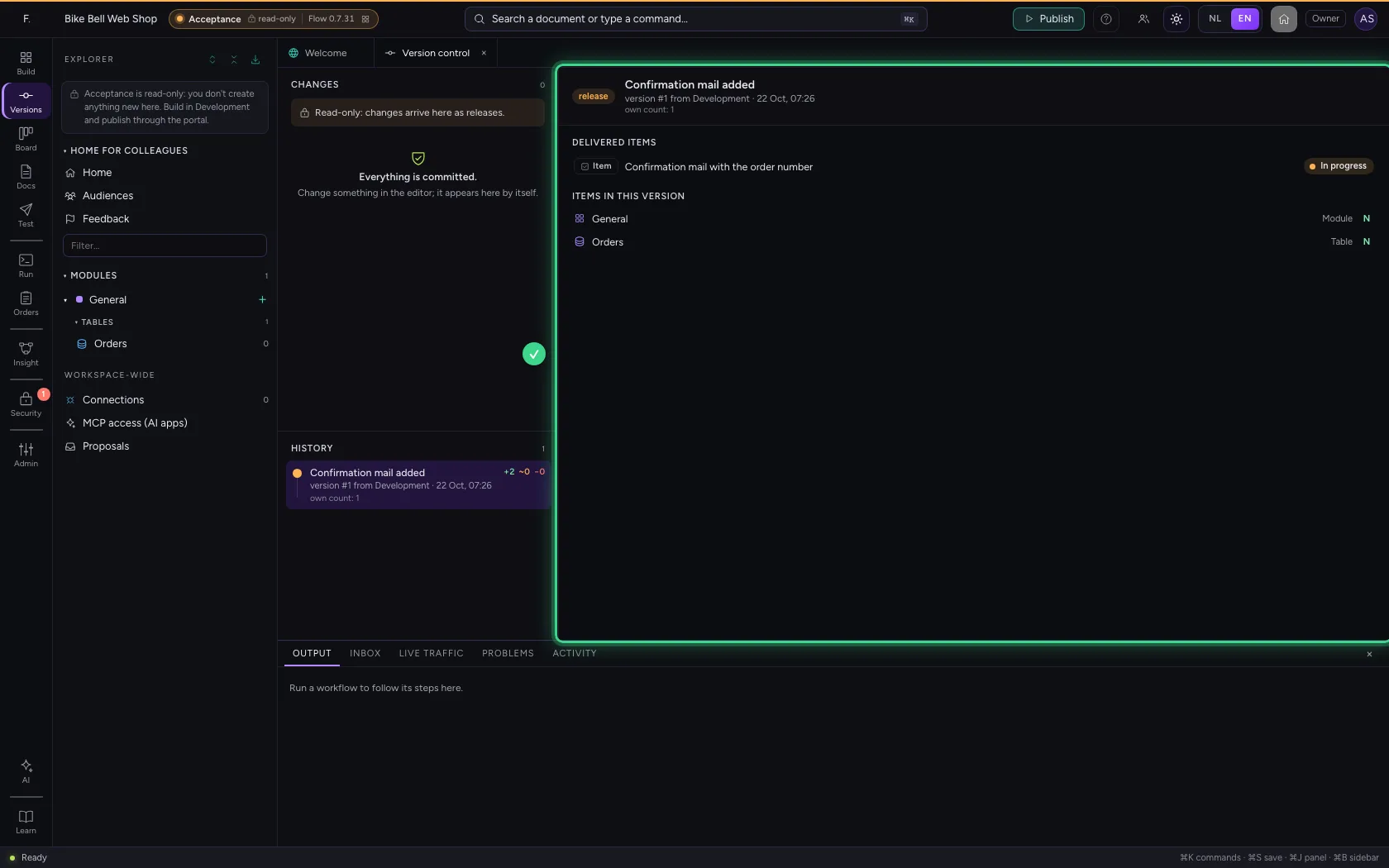
In the portal you promote the version to Acceptance: under Environments with the arrow between Development and Acceptance (or under Releases). The release takes along which items the version delivers: title and status, never the comments.
- Click Environments
- Click → to Acceptance
- Click Publish to Acceptance
The delivered items on the release
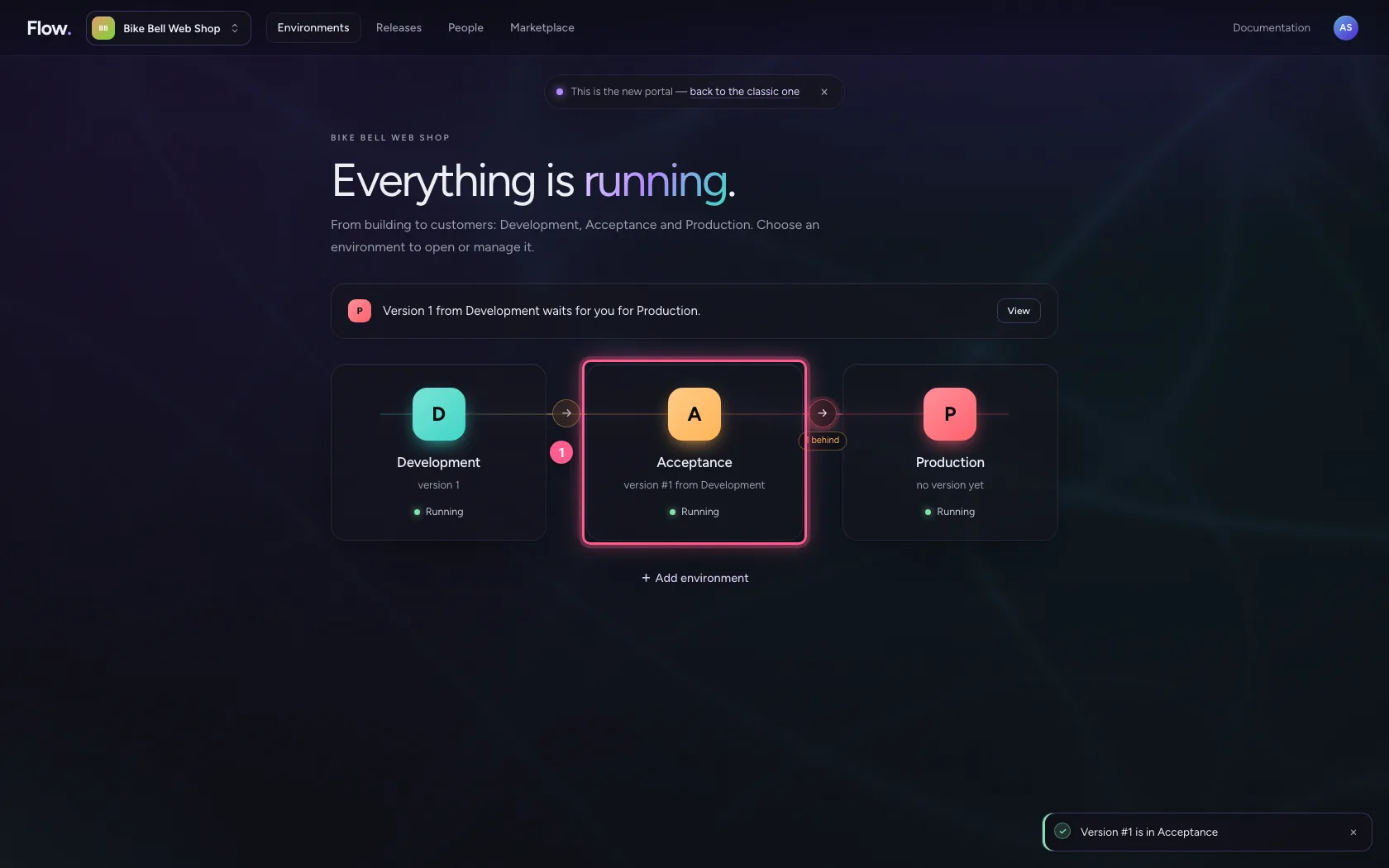
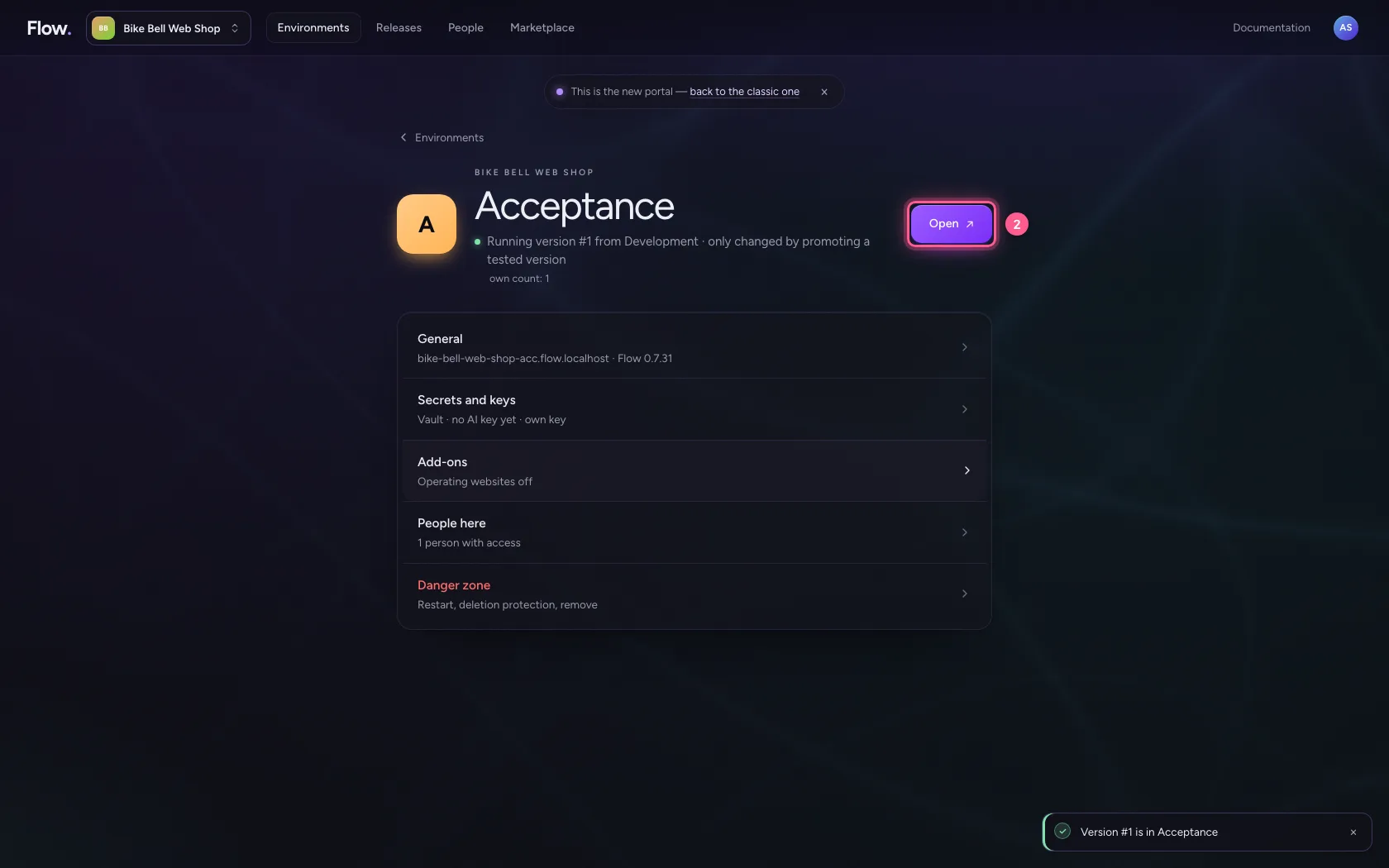
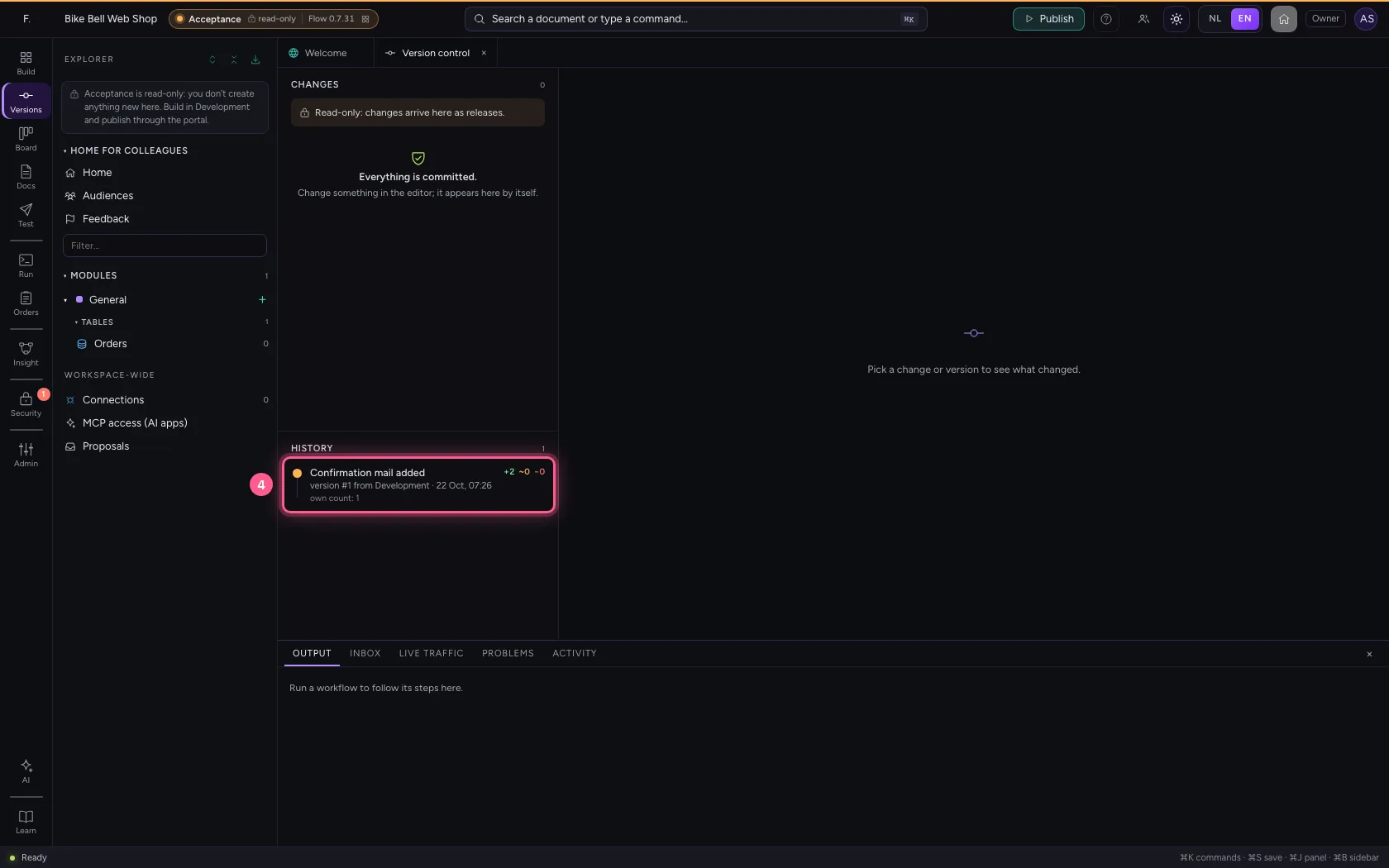
Click Acceptance and there Open, and in Flow open Version control. At the top of the history is the release from Development; click it. Under Delivered items is what this release delivers. The board itself stays in Development: that is where the work happens.
- Click Acceptance
- Click Open ↗
- Click Version control
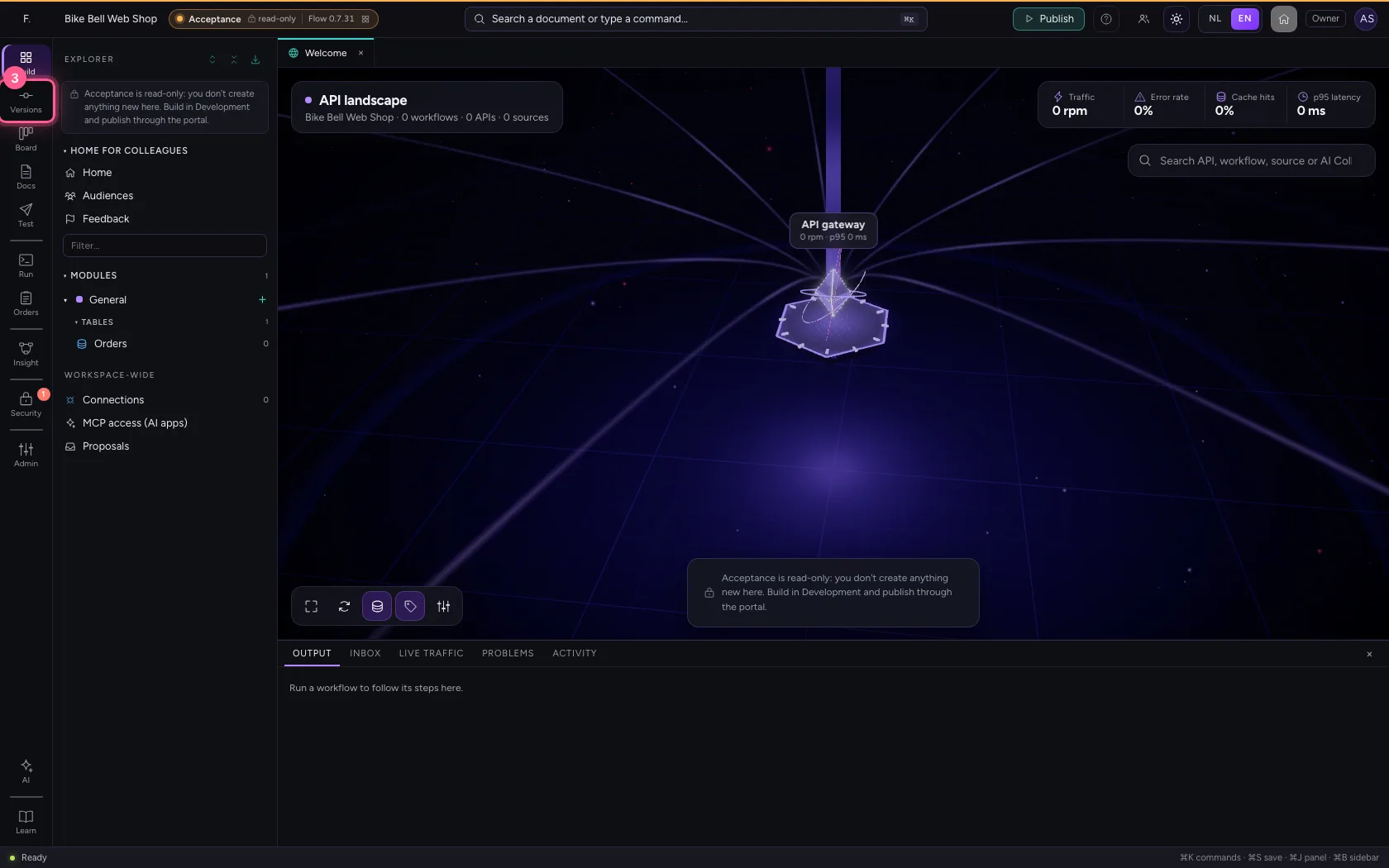
- Click the release
Working from the board with an AI app
With MCP access (Read and Build) an AI app such as Claude Code works on the board with your rights. The recipe Working from the board in the app's guide: read the board with list_work_items and get_work_item, create or update an item with save_work_item, move it with move_work_item and link the work with link_work_item. When Flow refuses a step, the app gets the checks that fail and what to do about them: here the app then added the acceptance criteria and committed the item.
An item from a template
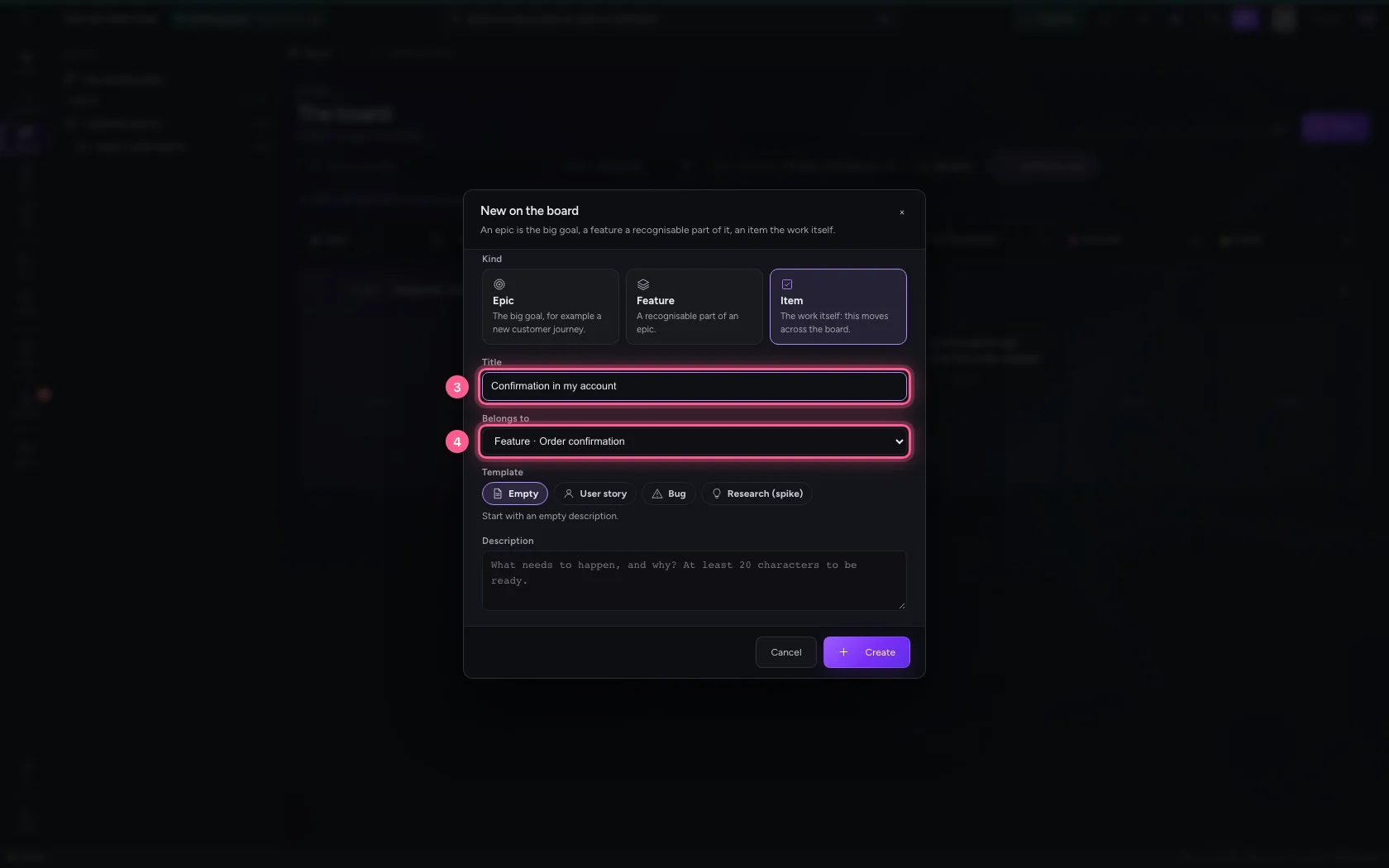
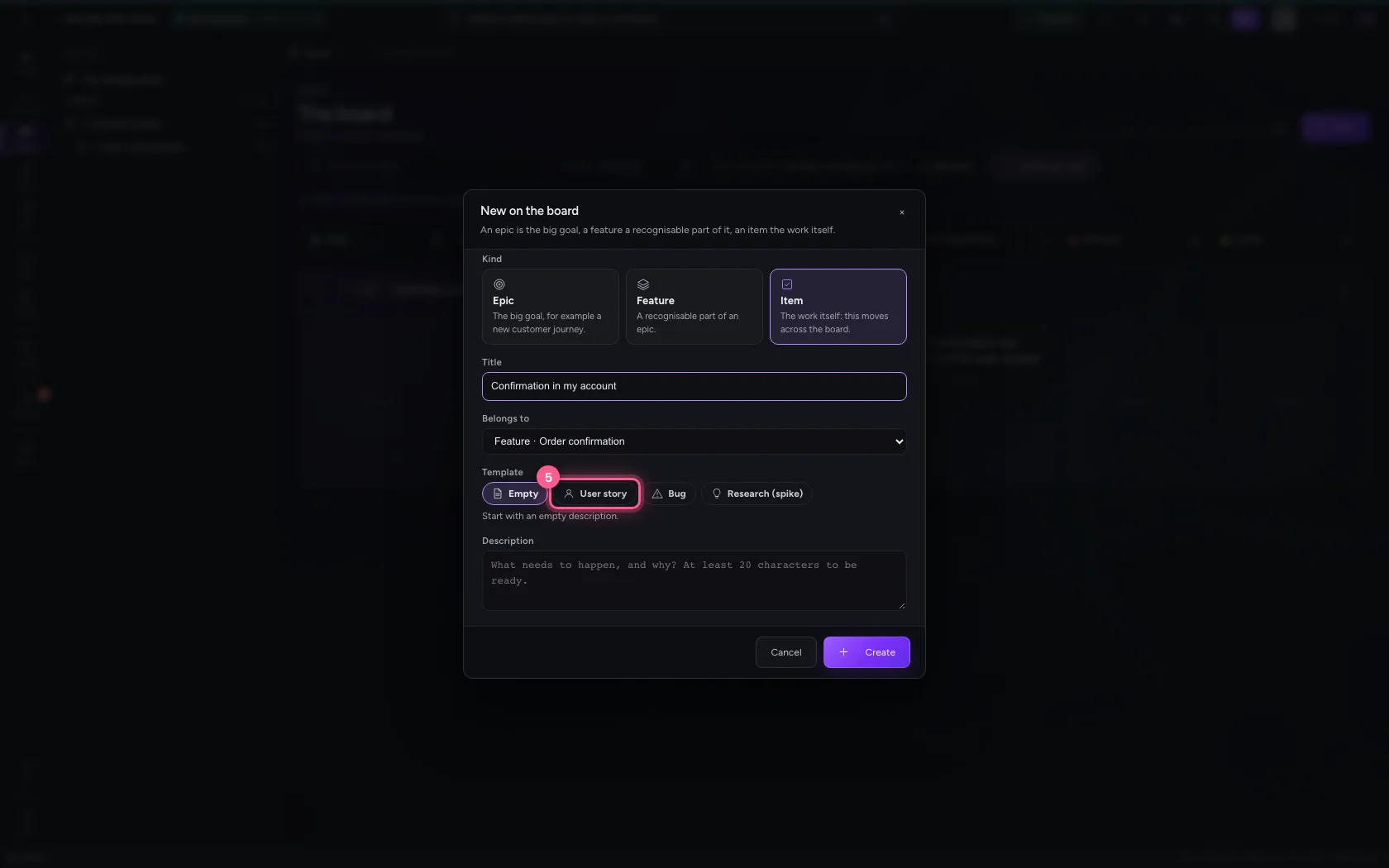
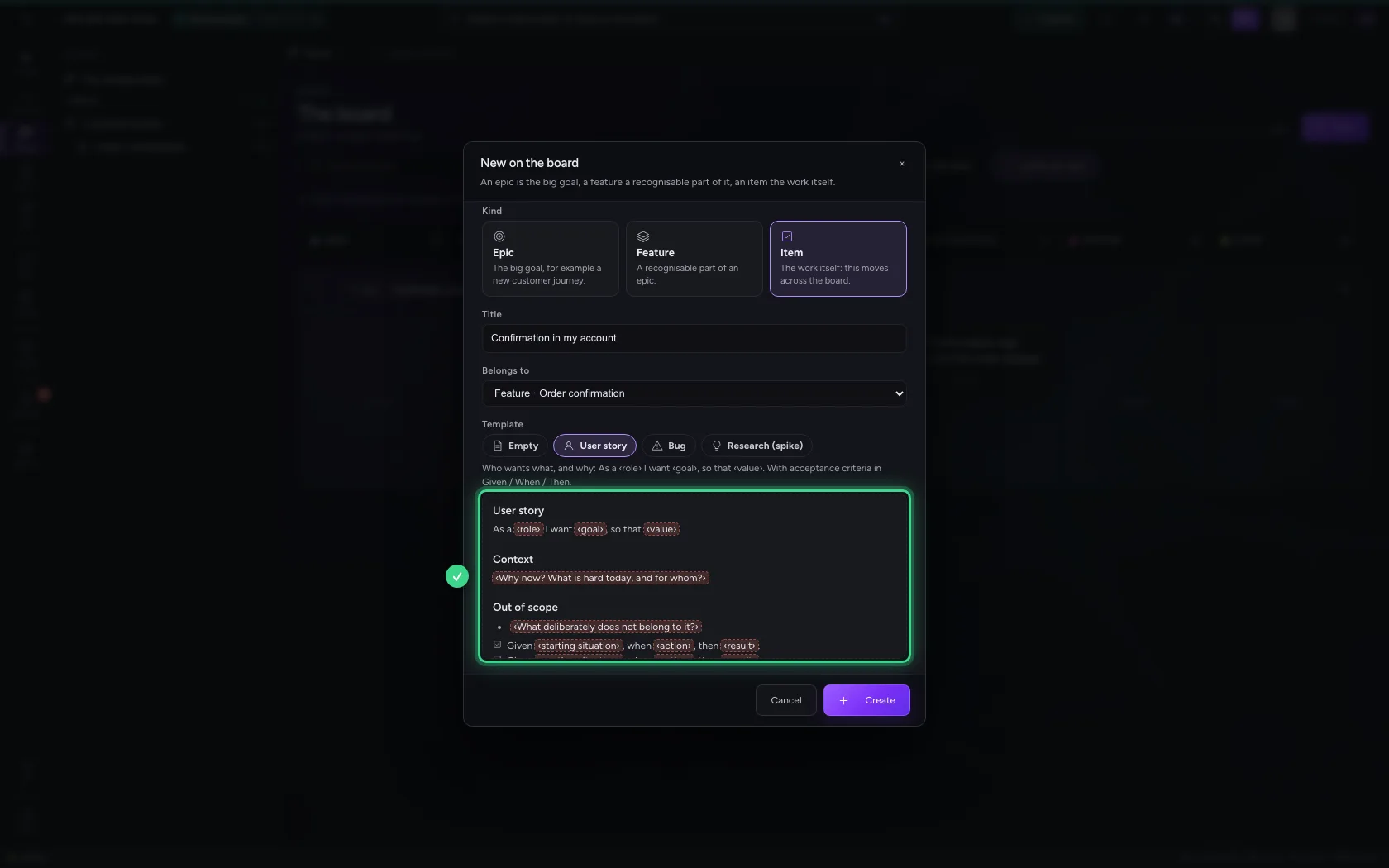
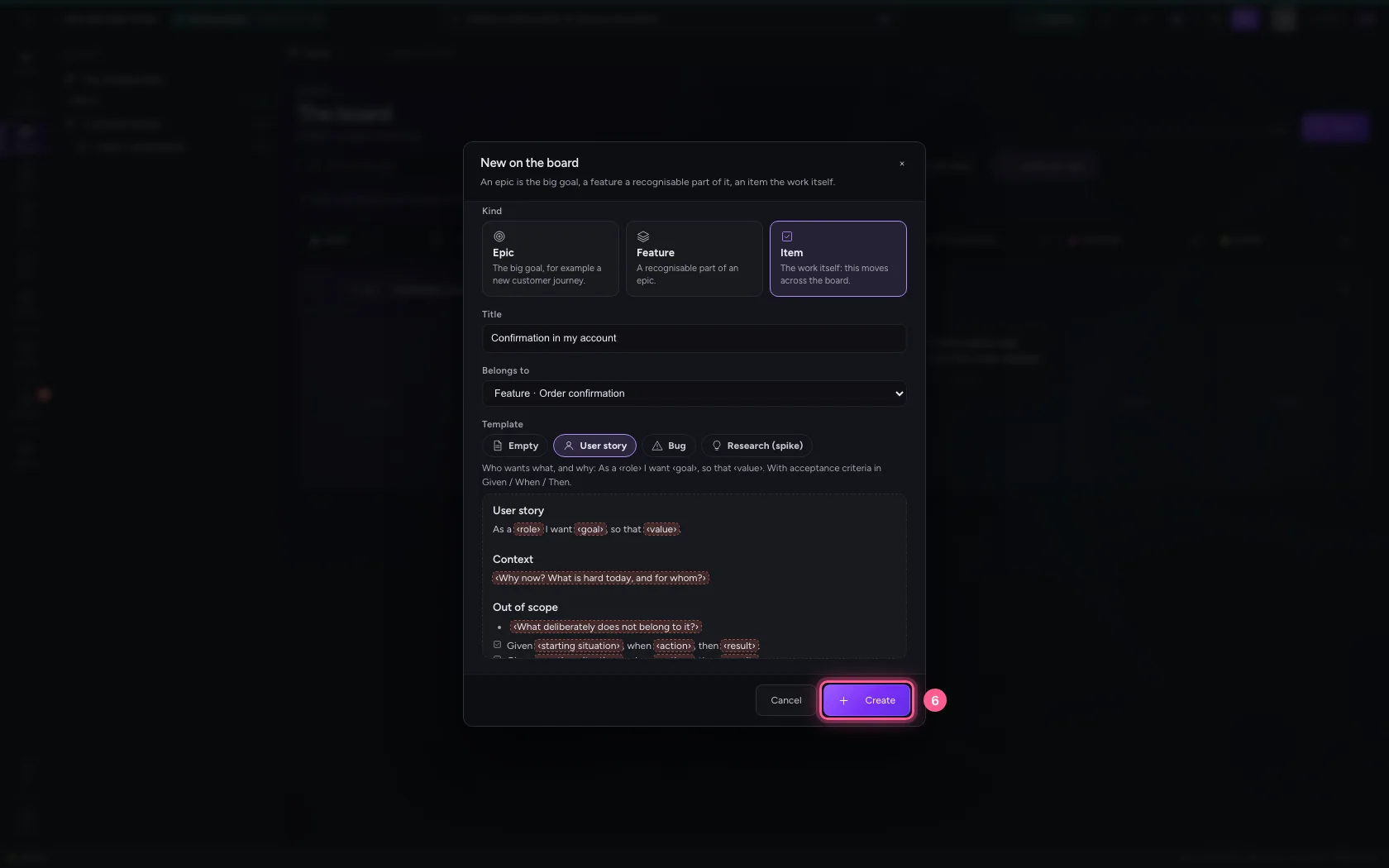
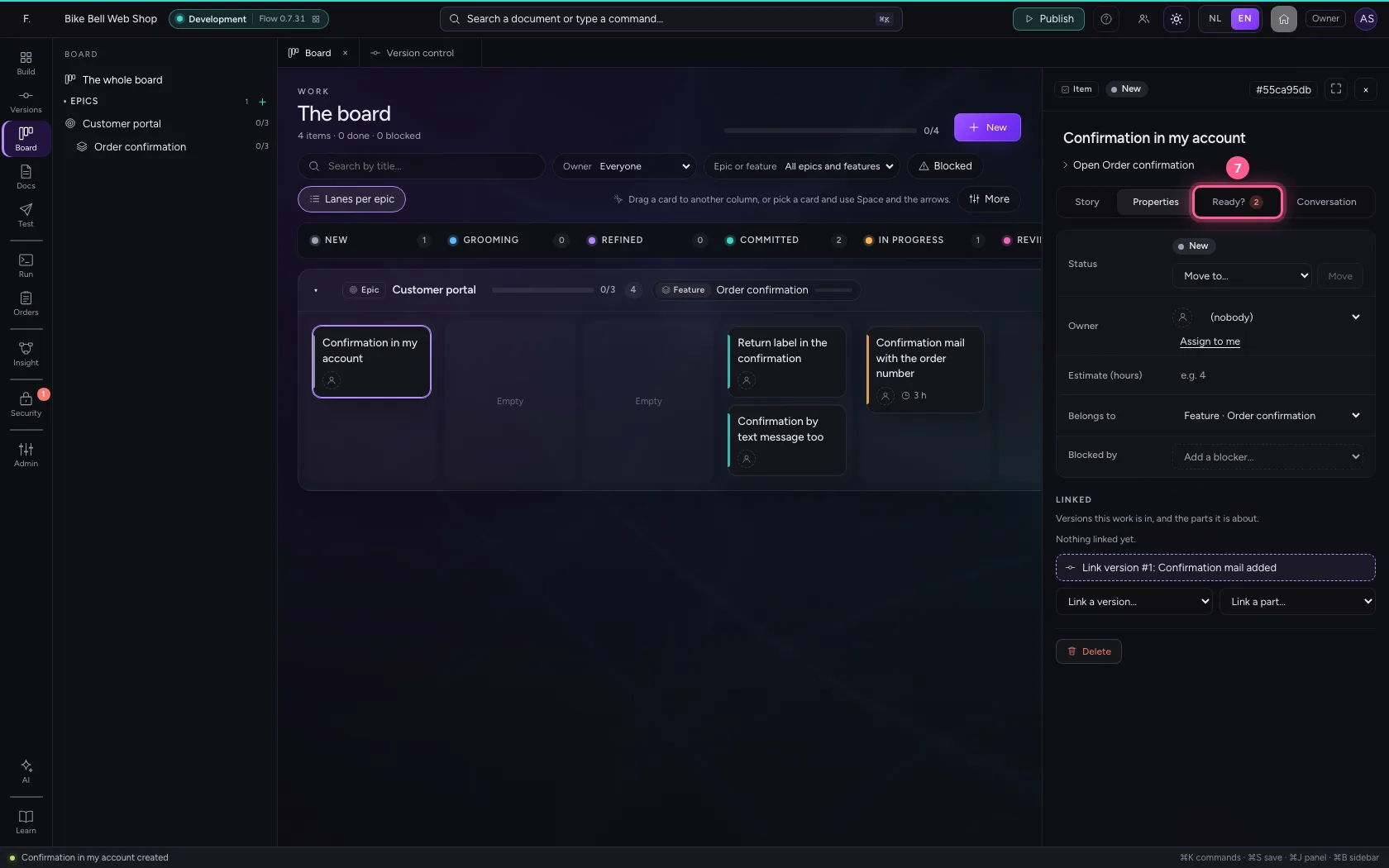
Click New, choose Item and under Template User story. The template fills the description and the acceptance criteria with placeholders like ‹role›, ‹goal› and ‹value›: ‘As a ‹role› I want ‹goal›, so that ‹value›’, with criteria in Given / When / Then. There are templates for a bug, a research item (spike) and an epic or feature too; owners and administrators keep templates of their own under More → Manage templates. As long as a placeholder is in it, the item is not ready: the check on the tab Ready? names what still has to go in.
- Click New
- Click Item
- In Title, type
Confirmation in my account - In Belongs to, choose Feature · Order confirmation
- Click User story
- Click Create
- Click Ready?
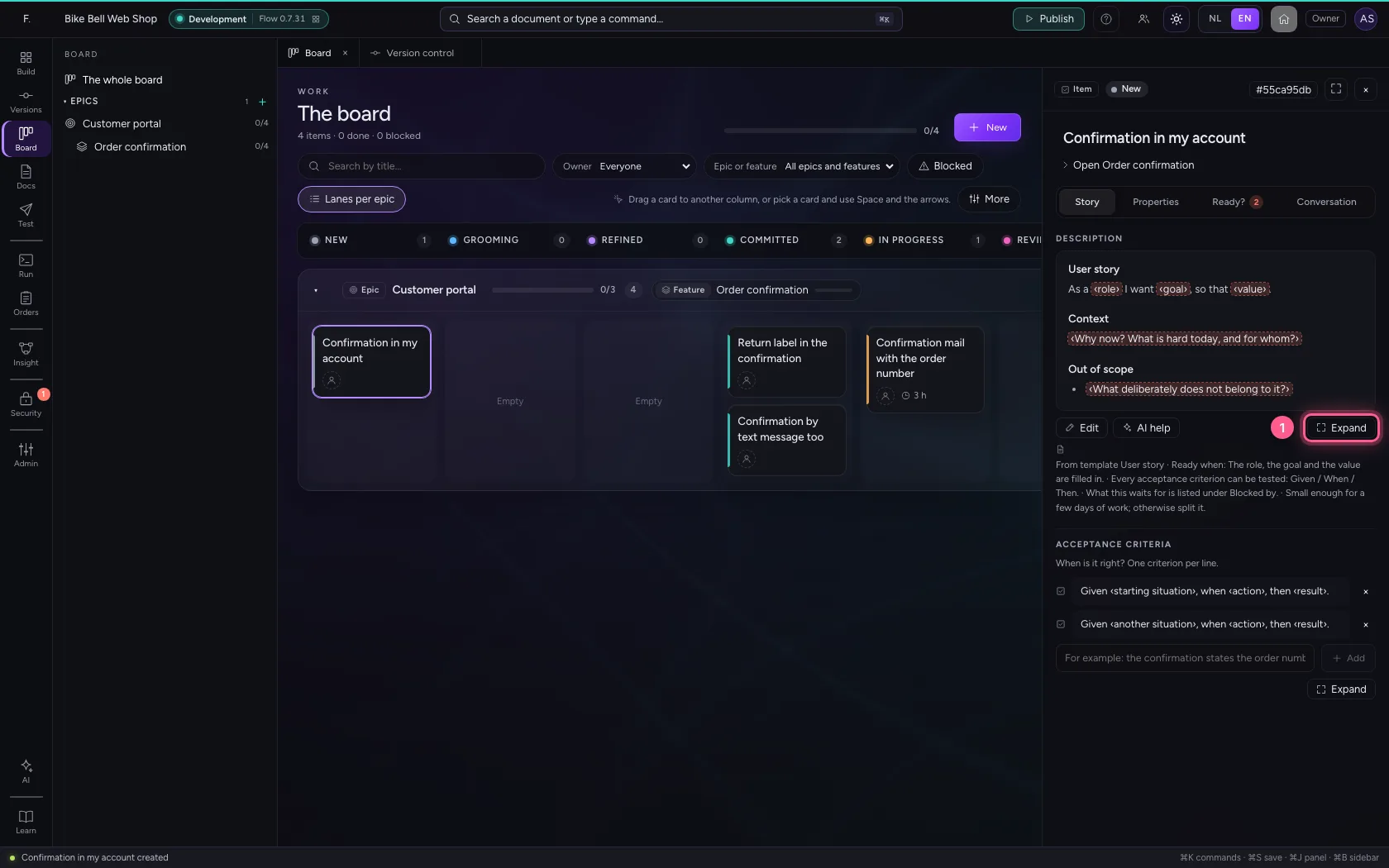
Expand: write with room
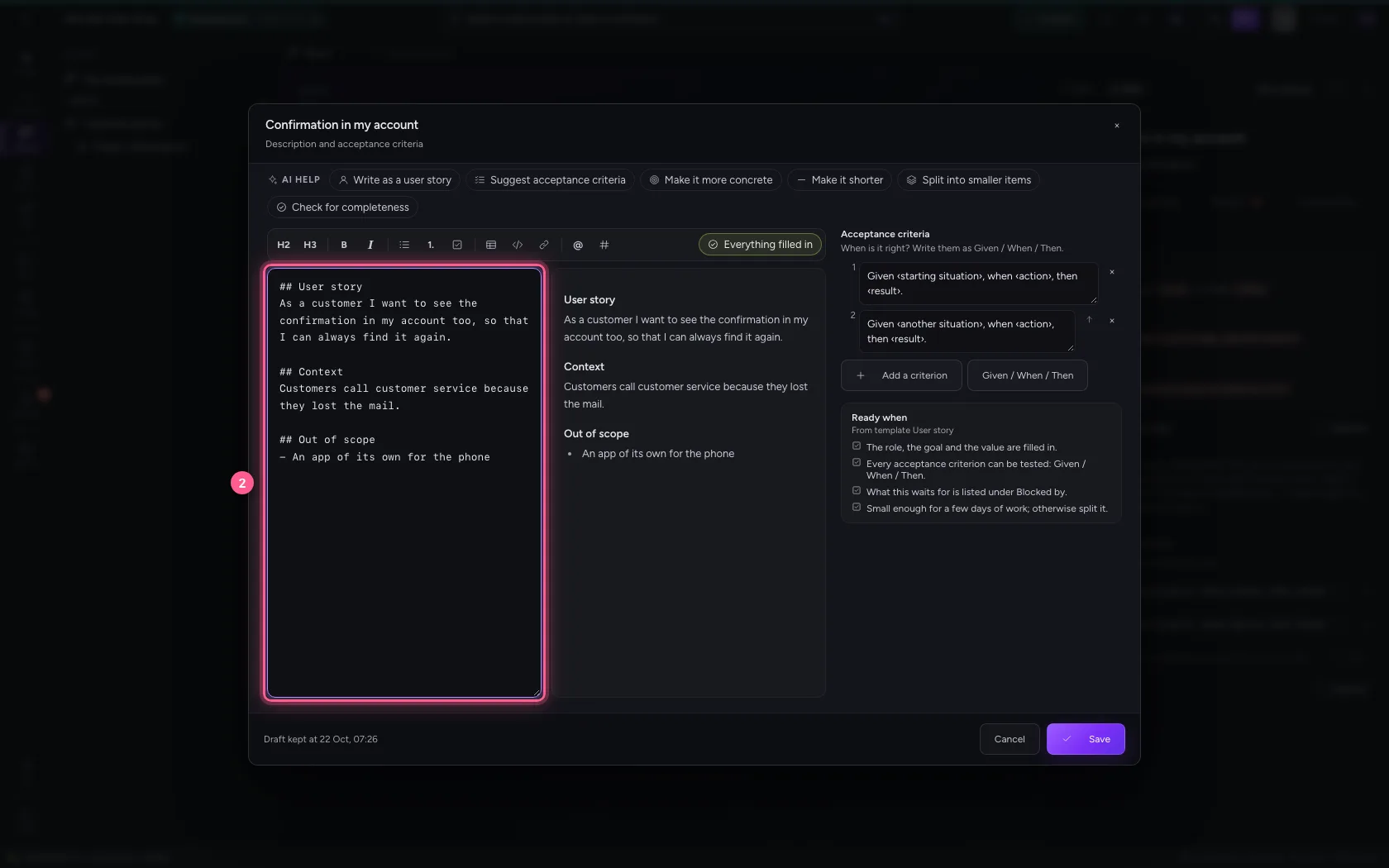
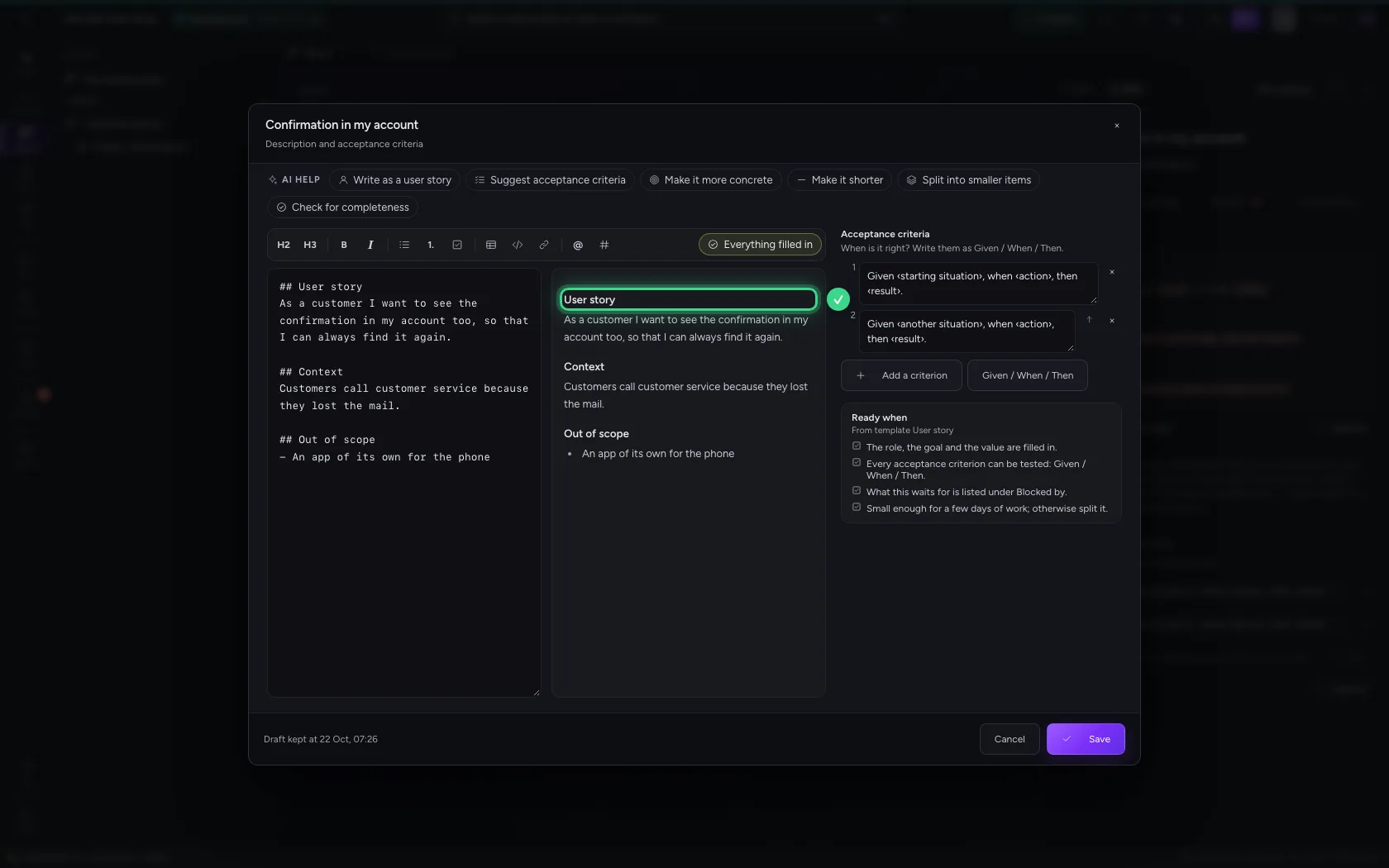
On the tab Story, next to the description, click Expand. On the left you write, on the right you see straight away how it looks; the buttons above make headings, lists, tasks, a table, code and links, and mention a colleague (@) or another work item (#). Next placeholder (⌘J) jumps to the next ‹…›. Flow keeps what you write as a draft in this browser on the way; Save (⌘↵) records it, Esc cancels.
- Click Expand
- In Description, type `## User story
Context
Customers call customer service because they lost the mail.
Out of scope
- An app of its own for the phone`
AI help: a proposal you accept
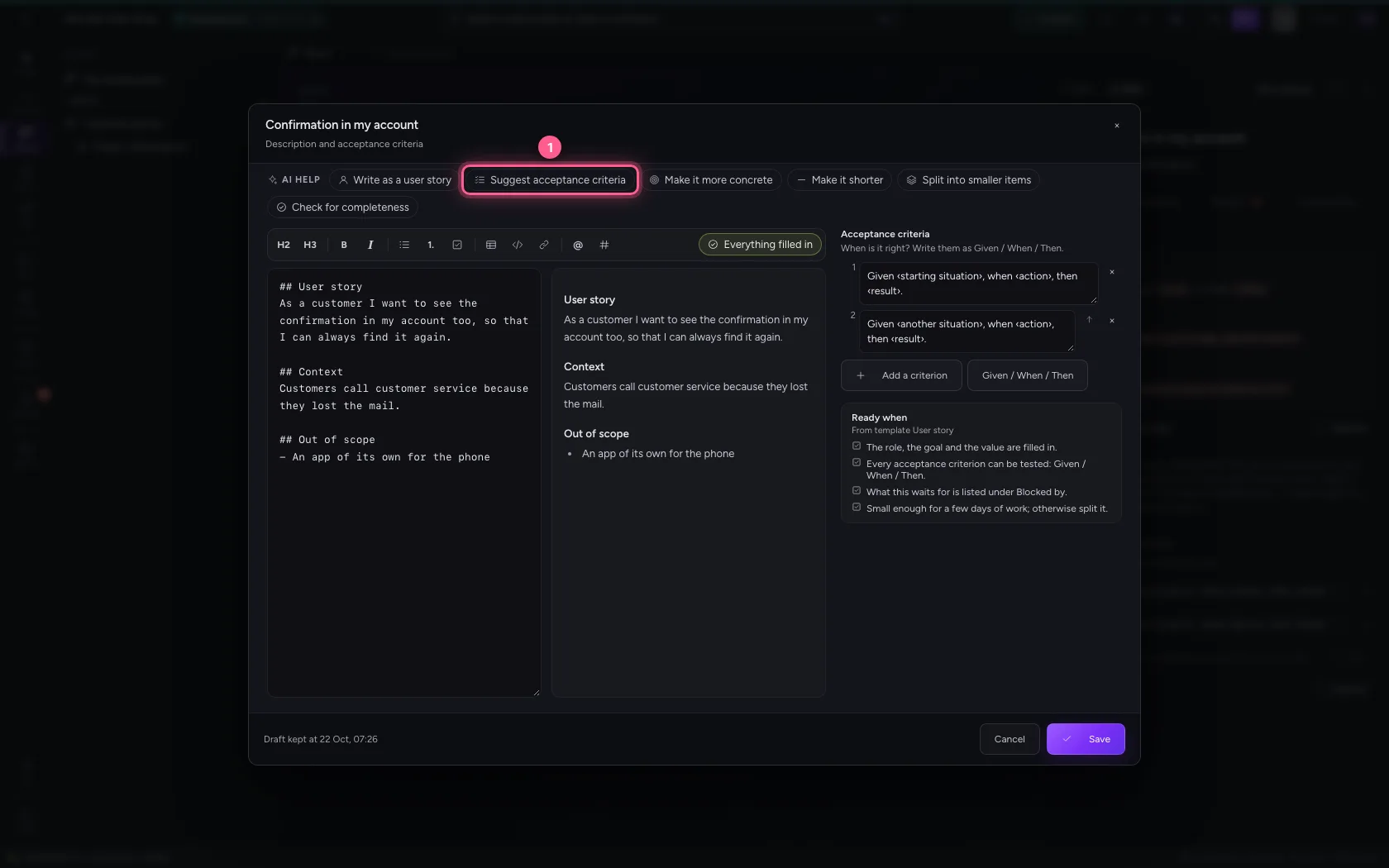
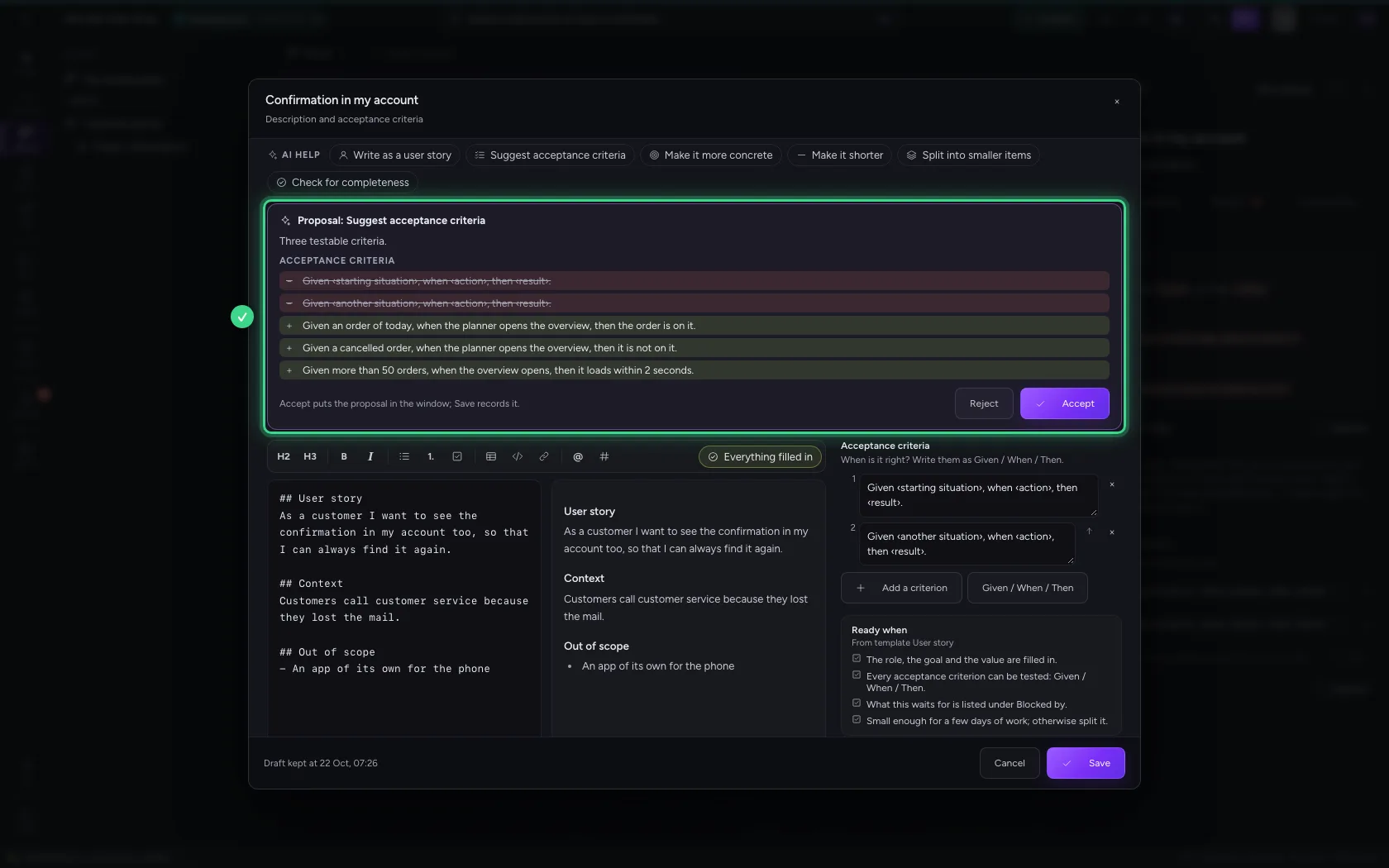
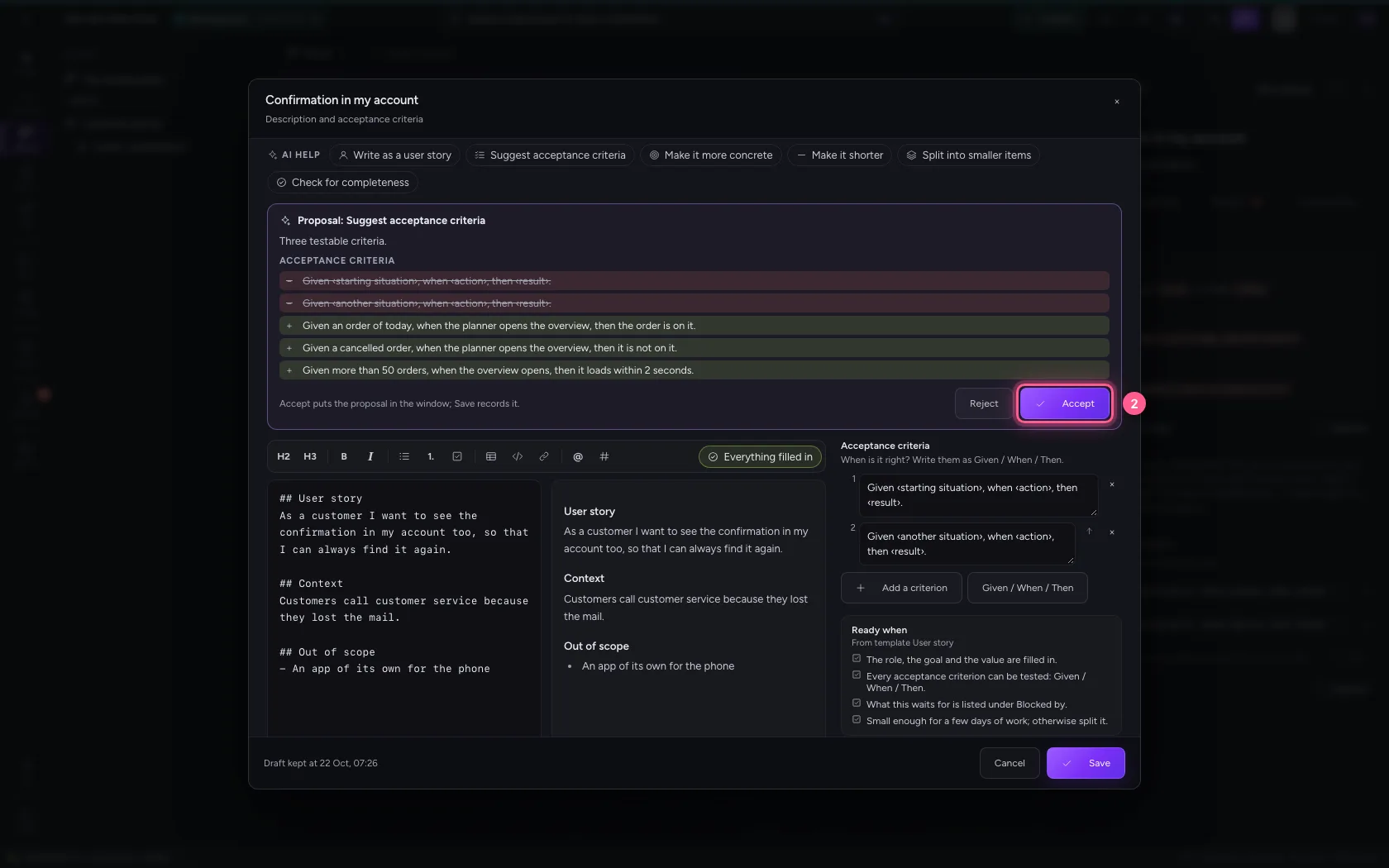
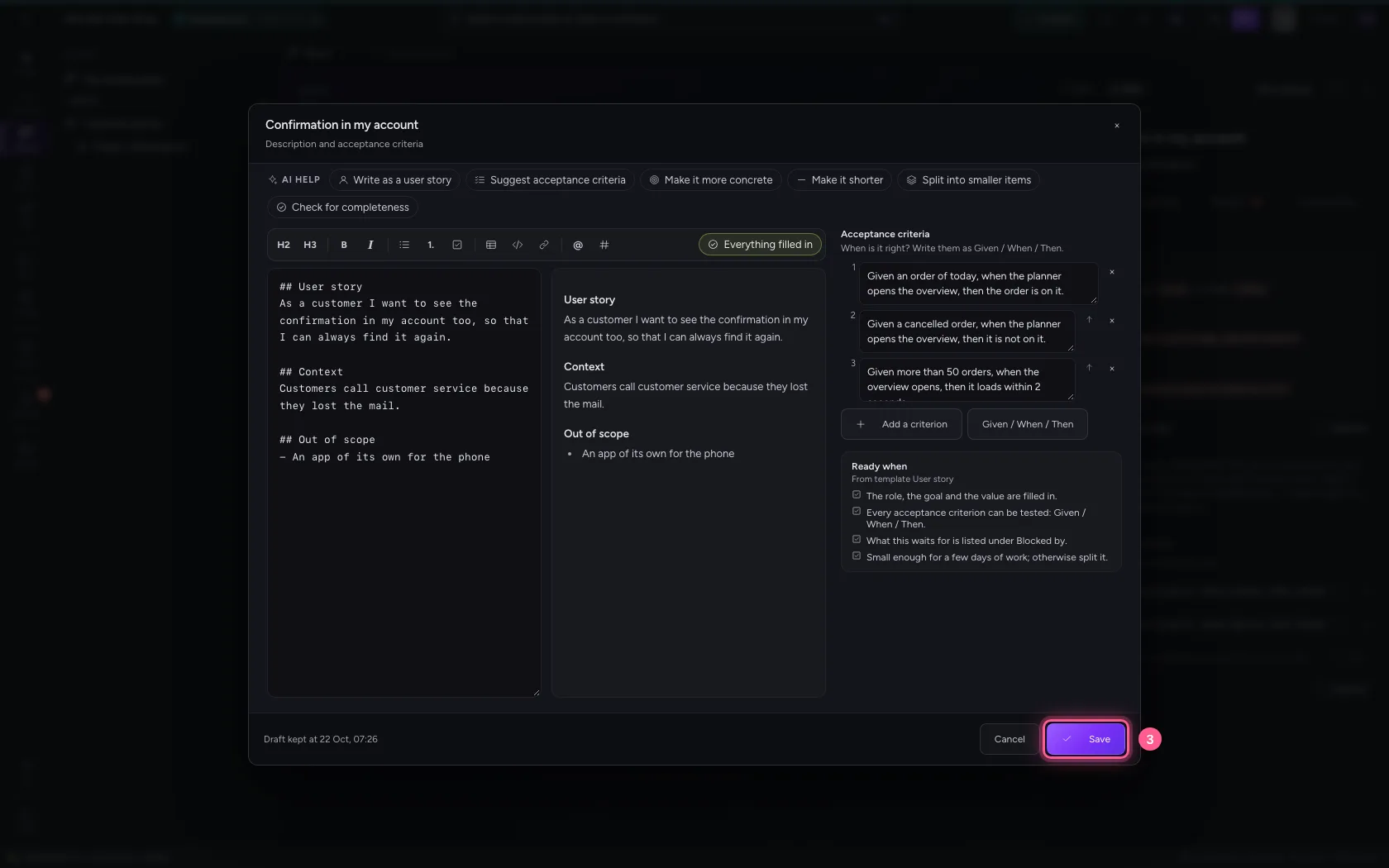
Above the editor is the AI help: Write as a user story, Suggest acceptance criteria, Make it more concrete, Make it shorter, Split into smaller items and Check for completeness. Choose Suggest acceptance criteria. This environment's AI Colleague makes a proposal and Flow shows the difference with what is there now. Nothing changes without you: Accept puts it in the window, Reject leaves everything as it was. Then click Save.
- Click Suggest acceptance criteria
- Click Accept
- Click Save
This guide was carried out step by step on 22 Oct 2026 by an automated test on Flow (version 3e563176).